Add attendees
Add attendees
Attendees are the people who will receive certificates. Add them one at a time, import a spreadsheet, or let them sign up themselves through a public sign-up form.
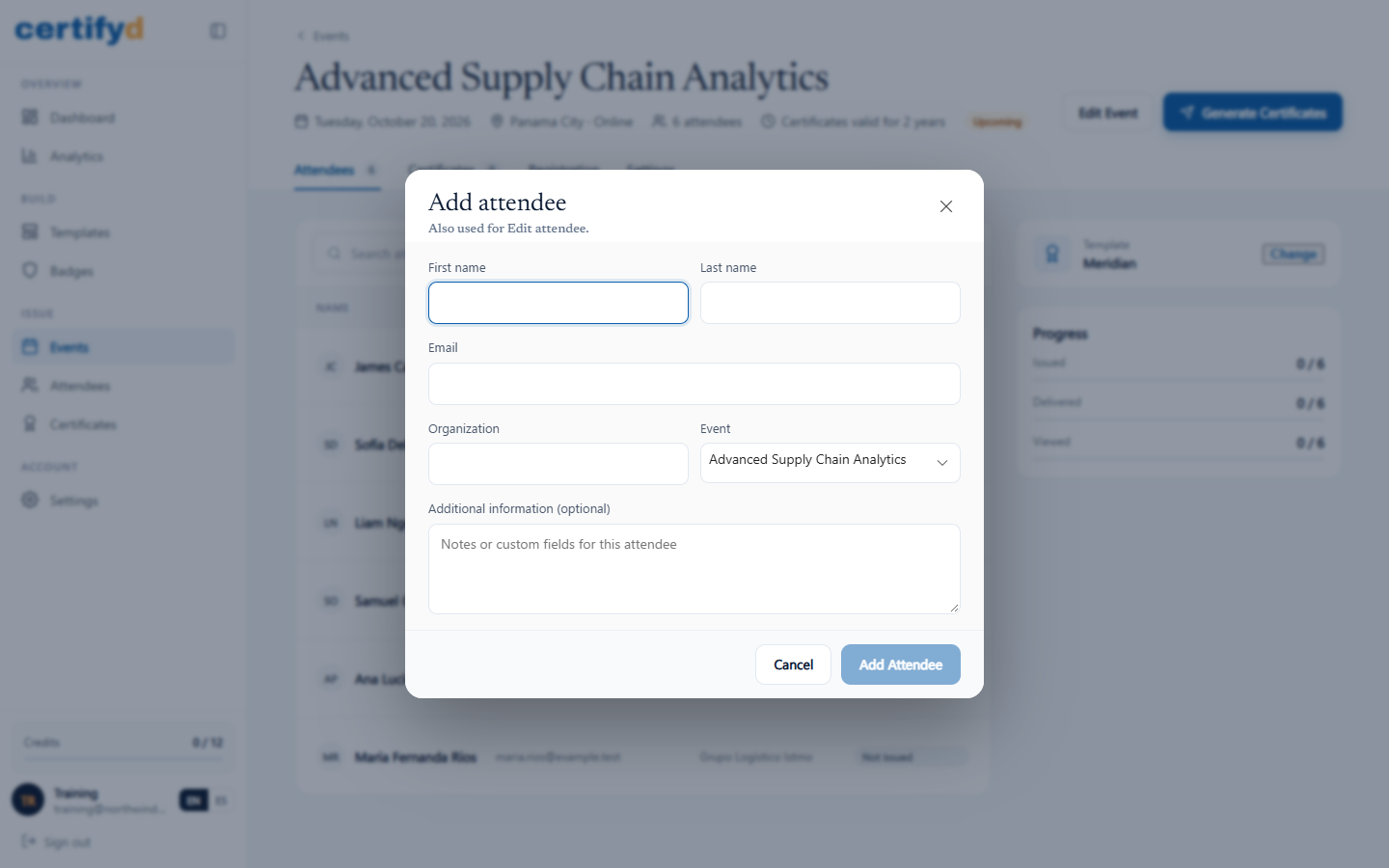
Add one attendee
- Open the event and go to the Attendees tab.
- Choose Add Attendee.
- Enter the First name, Last name and Email, and optionally the Organization and additional information.
- Choose Add Attendee.
Import attendees from a spreadsheet
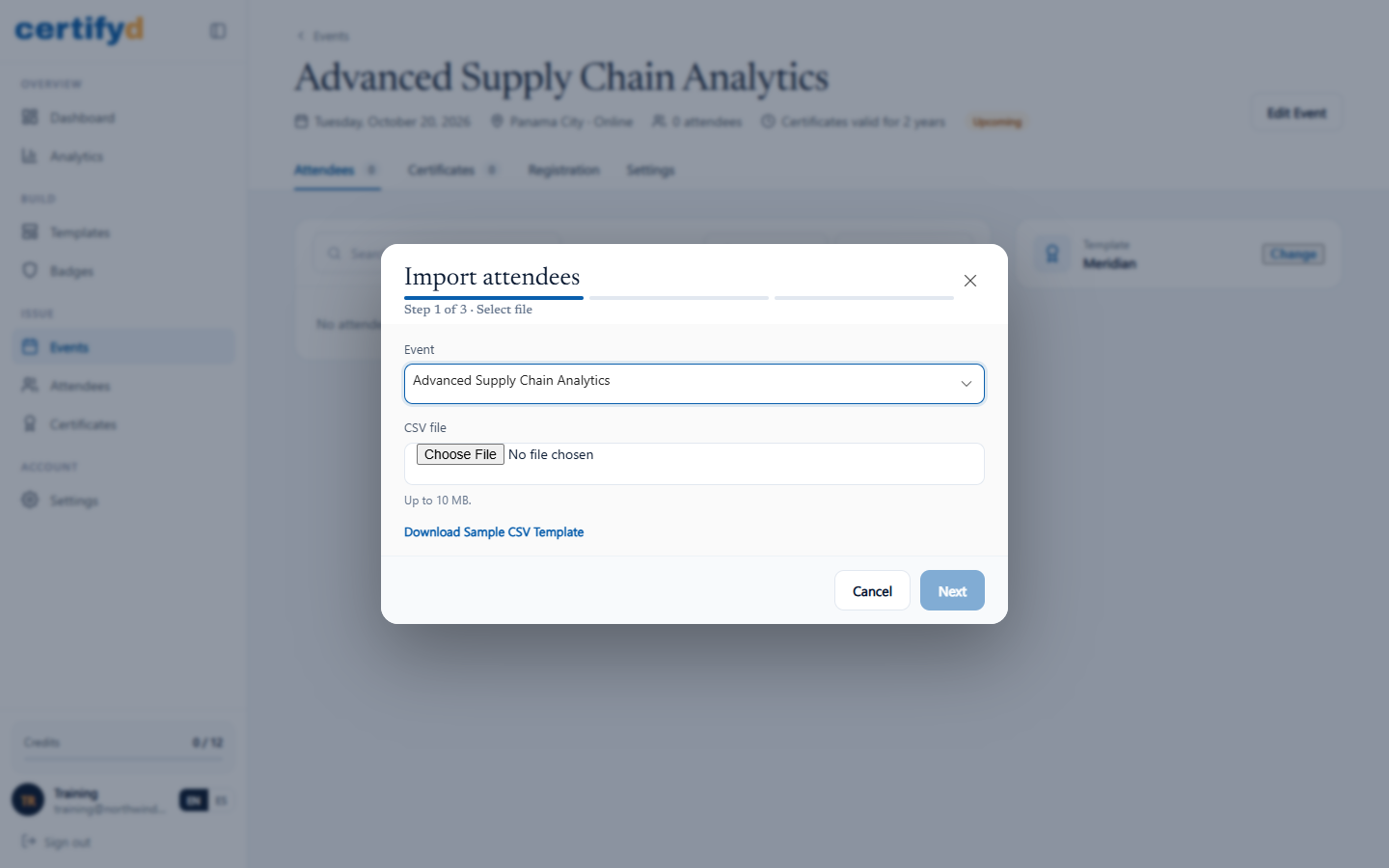
- On the event's Attendees tab, choose Import CSV.
- Select your CSV file (up to 10 MB) and choose Next. Use Download Sample CSV Template for a ready-made file.
- Check the details and choose Import Attendees. Tick Skip duplicate emails to skip people who are already in the event.
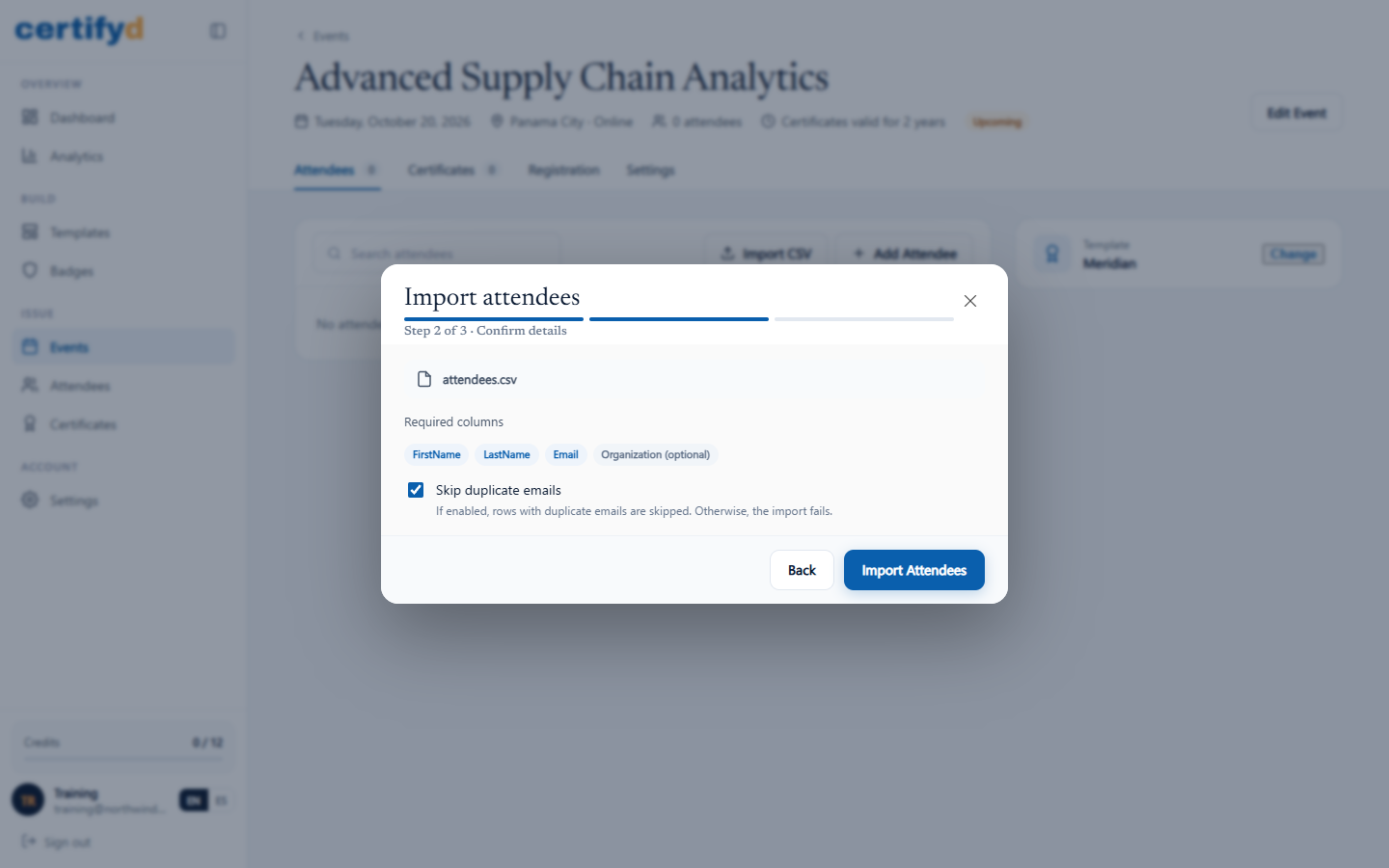
Your file needs these columns (the alternative header names also work):
| Column | Also accepted | Required |
|---|---|---|
| FirstName | First Name, Given Name | Yes |
| LastName | Last Name, Surname, Family Name | Yes |
| Email Address, E-mail | Yes | |
| Organization | Company, Org | No |
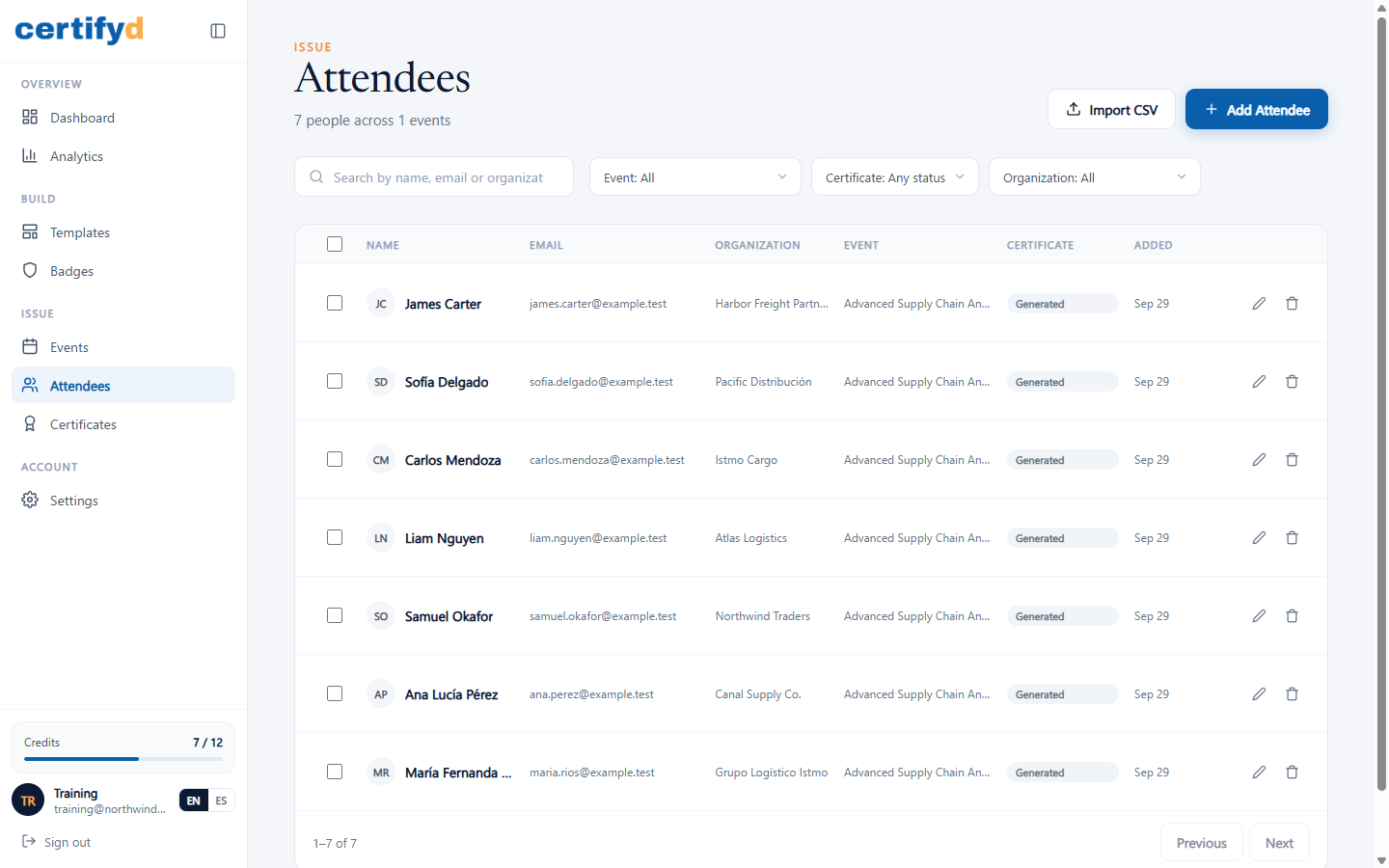
See all attendees
The Attendees page in the menu lists everyone across all your events. Filter by event, certificate status or organization.
Next step
Open a public sign-up form, or go straight to Generate certificates for an event.
Was this page helpful?