Create your account
Create your account
This page explains how to create a Certifyd account and sign in. It's for the person who will manage your organization's certificates.
Create an account
- Go to certifyd.cloud and choose Start Free.
- Enter your work email and a password. The password needs at least 8 characters, with an uppercase letter, a lowercase letter and a digit.
- Choose Create Account. You're signed in and taken to your dashboard.
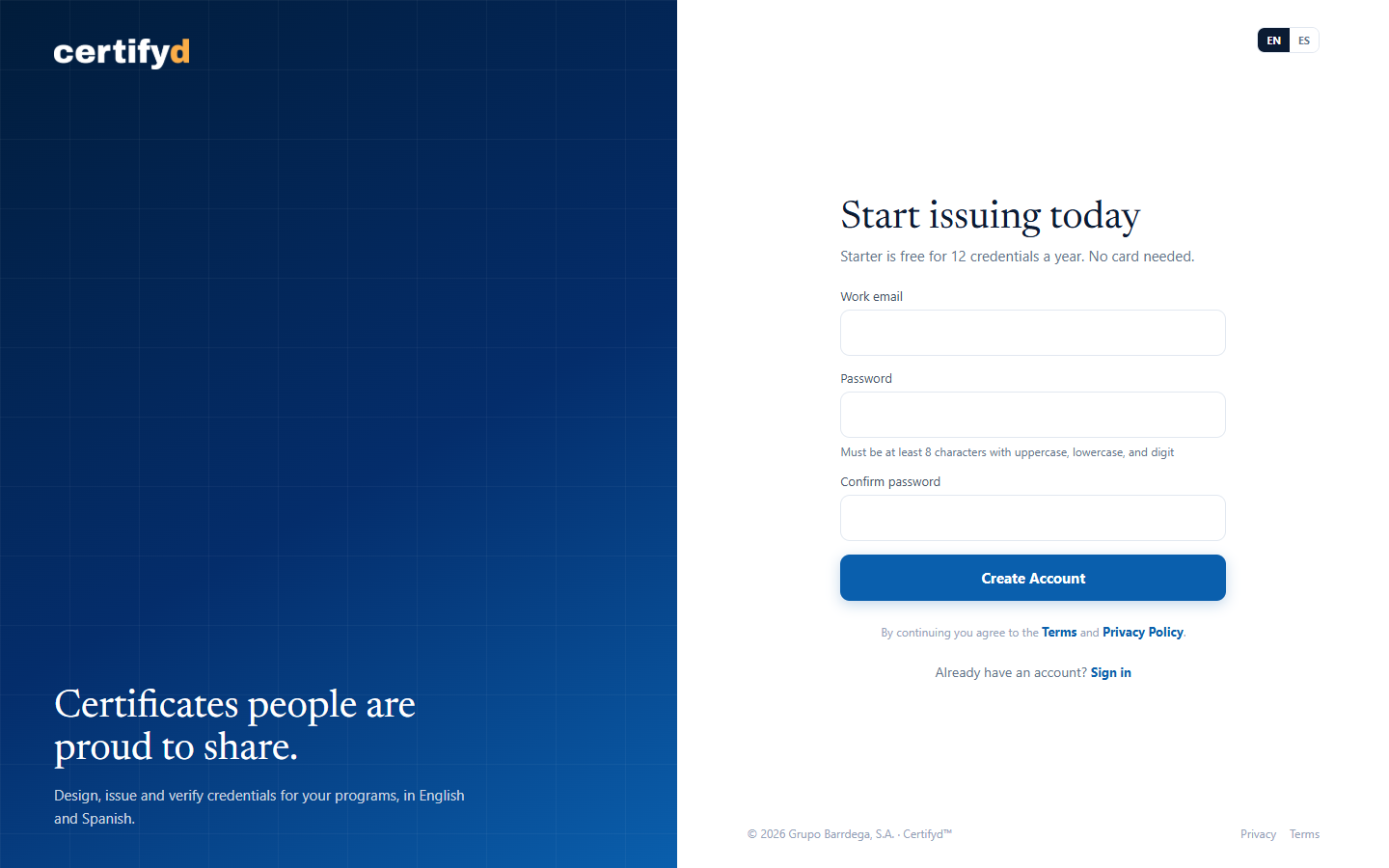
No card is needed to start. The Credits meter at the bottom of the menu shows how many credentials your plan still allows.
Sign in
Go to Sign In on certifyd.cloud, enter your email and password, and choose Sign In. If your organization uses Microsoft 365, choose Microsoft to sign in with your work or personal Microsoft account instead.
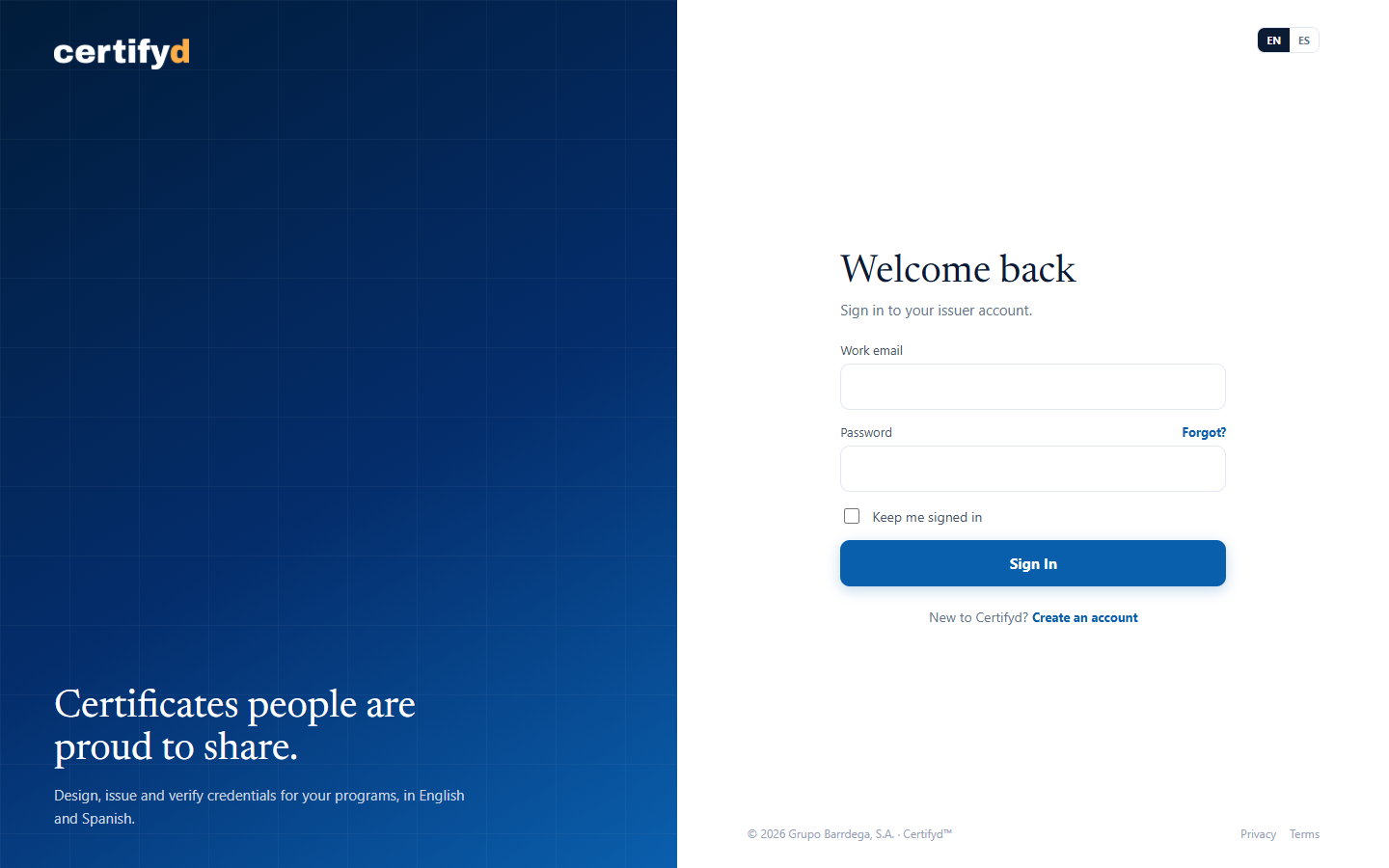
Forgot your password? Choose Forgot password? on the sign-in page and follow the link sent to your email.
Next step
Was this page helpful?