Tour of the dashboard
Tour of the dashboard
The dashboard is the first page you see after signing in. It summarizes your activity and gives you shortcuts to the most common tasks.
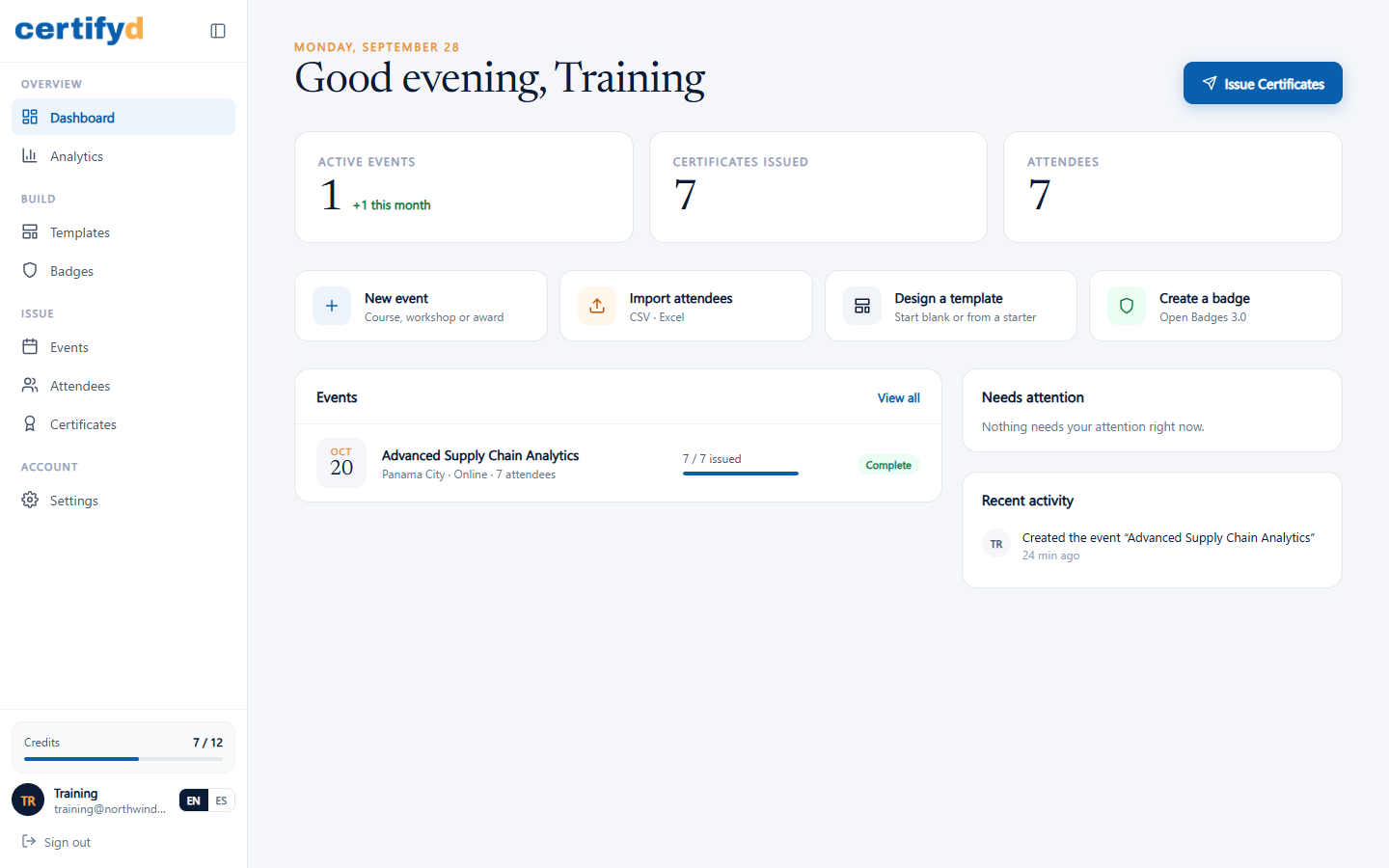
What's on the dashboard
- Totals: active events, certificates issued and attendees.
- Shortcuts: create a new event, import attendees, pick a template or create a badge.
- Events: your latest events with their issuing progress (for example "7 / 7 issued").
- Needs attention: anything waiting on you, such as events with attendees who have no certificate yet.
- Recent activity: what you and your team did lately.
- Issue Certificates (top right): a quick way to issue certificates for an event.
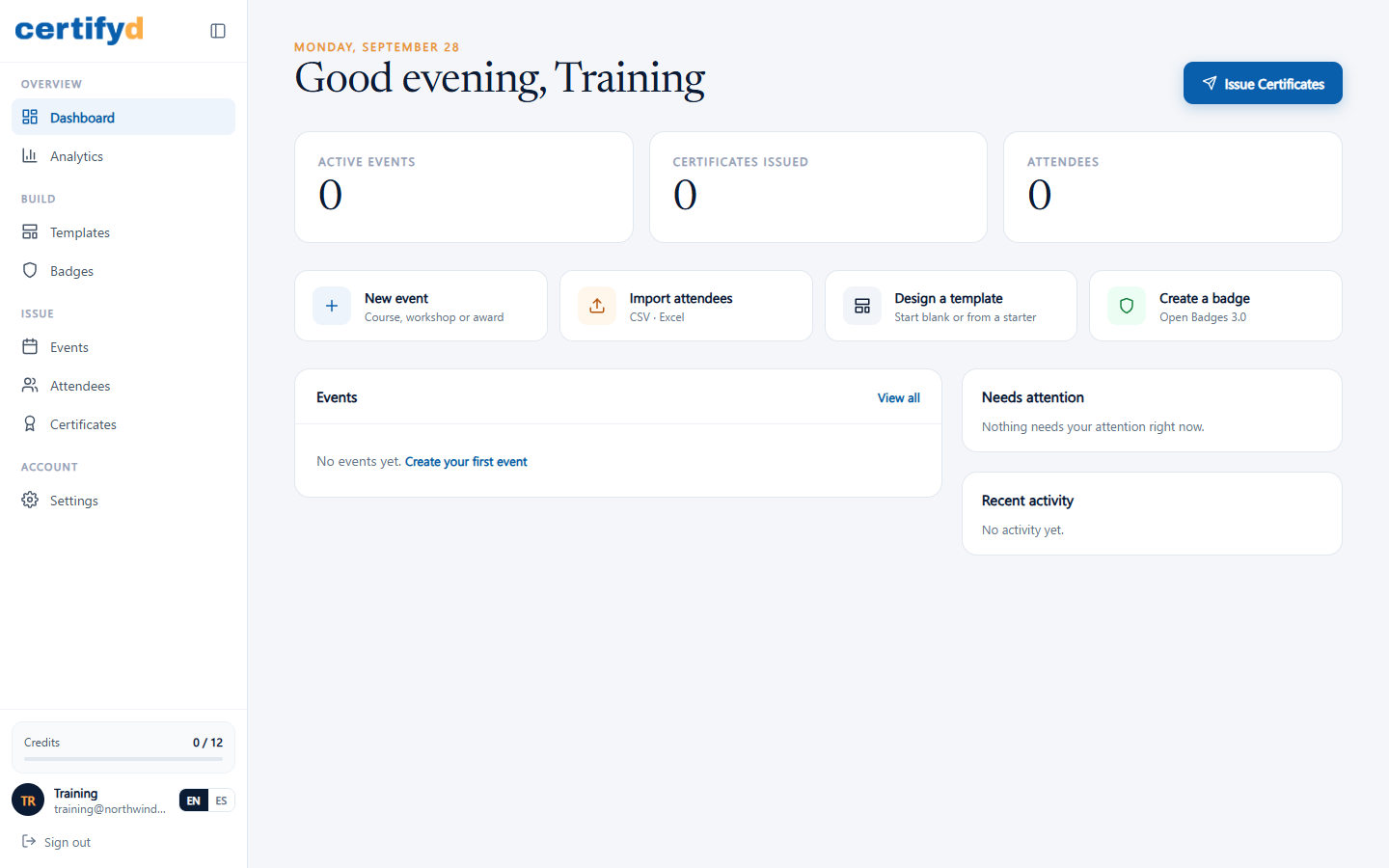
A brand-new account starts empty, with a prompt to create your first event:
The menu
| Section | Pages |
|---|---|
| Overview | Dashboard, Analytics |
| Build | Templates, Badges |
| Issue | Events, Attendees, Certificates |
| Account | Settings (Branding, API keys, Webhooks) |
The bottom of the menu shows your Credits, your account, the EN / ES language switch and Sign out.
Next step
Was this page helpful?