
P4 Software P4 Software / P4 Warehouse

Add these docs to Claude

Ask Claude questions about these docs. Claude reads the published pages and links you back to them. Copy this address:

https://docs.p4software.cloud/mcp

In claude.ai or Claude Desktop: open Settings, then Connectors, choose Add custom connector and paste the address.

In Claude Code, run:

claude mcp add --transport http docs https://docs.p4software.cloud/mcp

License Plates - LPN

License Plates - LPN

This configuration page features License Plate Prefix (default prefix: LPN), Allow Multiple Product (checked/unchecked toggle, default: checked), Allow Multiple Packsizes (checked/unchecked toggle, default: unchecked), Allow Multiple Lots (checked/unchecked toggle, default: unchecked) and Allow Multiple Expiries (checked/unchecked toggle, default: unchecked). After modifying any entry, select the “Save” button to the lower right.
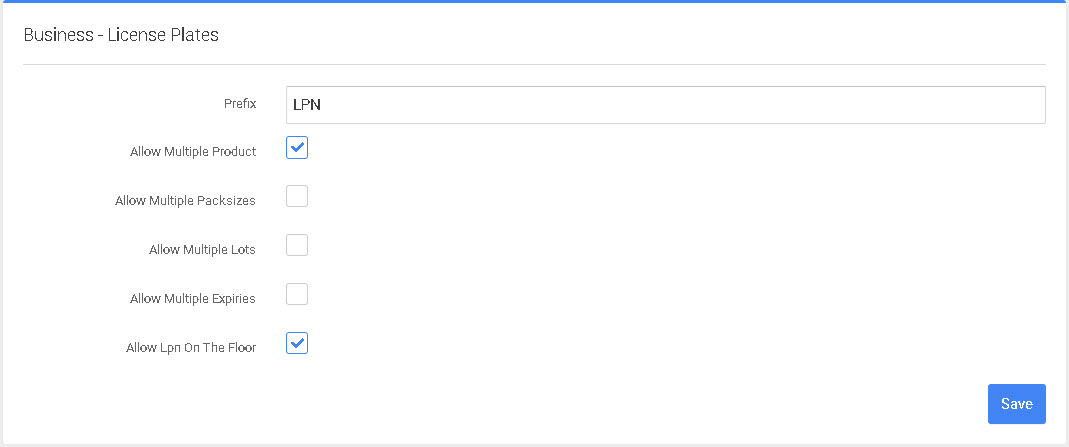
  1. Prefix: The prefix setting with be the data that shows before the LNP number, example LPN0001.
  2. Allow Multiple Product - This setting controls whether multiple SKUs are allowed on the same LPN.
  3. Allow Multiple Packsizes - This setting controls whether Multi Packsize are allowed on a single LPN.
  4. Allow Multiple Lots - This setting controls whether Multi Lot Numbers are allowed on a single LPN.
  5. Allow Multiple Expiries - This setting controls whether Multi Expiry dates are allowed on a single LPN.
  6. Allow LPN On The Floor - This setting control whether a bin location is required for an LPN or if the LPN can simple be on the floor.

Remember click save before leaving the screen to save your settings.

Was this page helpful?