Account settings
Account settings
Applies to: anota, all plans Roles required: any signed-in user (these are personal settings; your workspace role does not change them) Regulatory references: none
Overview
Account settings hold everything that belongs to you personally in anota: your profile, the email you log in with, your password, how you sign in (two-factor authentication, passkeys and, where available, Google), the apps you connected to anota, and your personal data. Every person on a team has their own account settings; nobody else can see or change them.
This page shows how to open Account settings and find your way around them. Mariana Ortega, the owner of the Café Aurora workspace, opens her account settings, moves to another section and logs out. Each section has its own guide, linked in What you can manage here.
Key concepts
- Personal account vs. Company: your account (email, password, sign-in methods, connected apps) is yours alone. Company settings, which also appear in this menu, apply to the whole workspace and are covered in Company and branding.
- Two-factor authentication (2FA): an extra check at log-in, using a code from an authenticator app such as Microsoft Authenticator or Google Authenticator.
- Passkey: a credential stored on your device that lets you log in without a password, using your fingerprint, face or device PIN.
- Recovery code: a single-use code that lets you log in if you lose access to your authenticator app. anota generates 10 at a time.
- Connected app: an app such as Claude or ChatGPT that you allowed to work in one of your anota workspaces.
Task 1 — Open your account settings
Step-by-step
In the top bar, click your avatar and email address in the top-right corner (its tooltip reads Account settings).
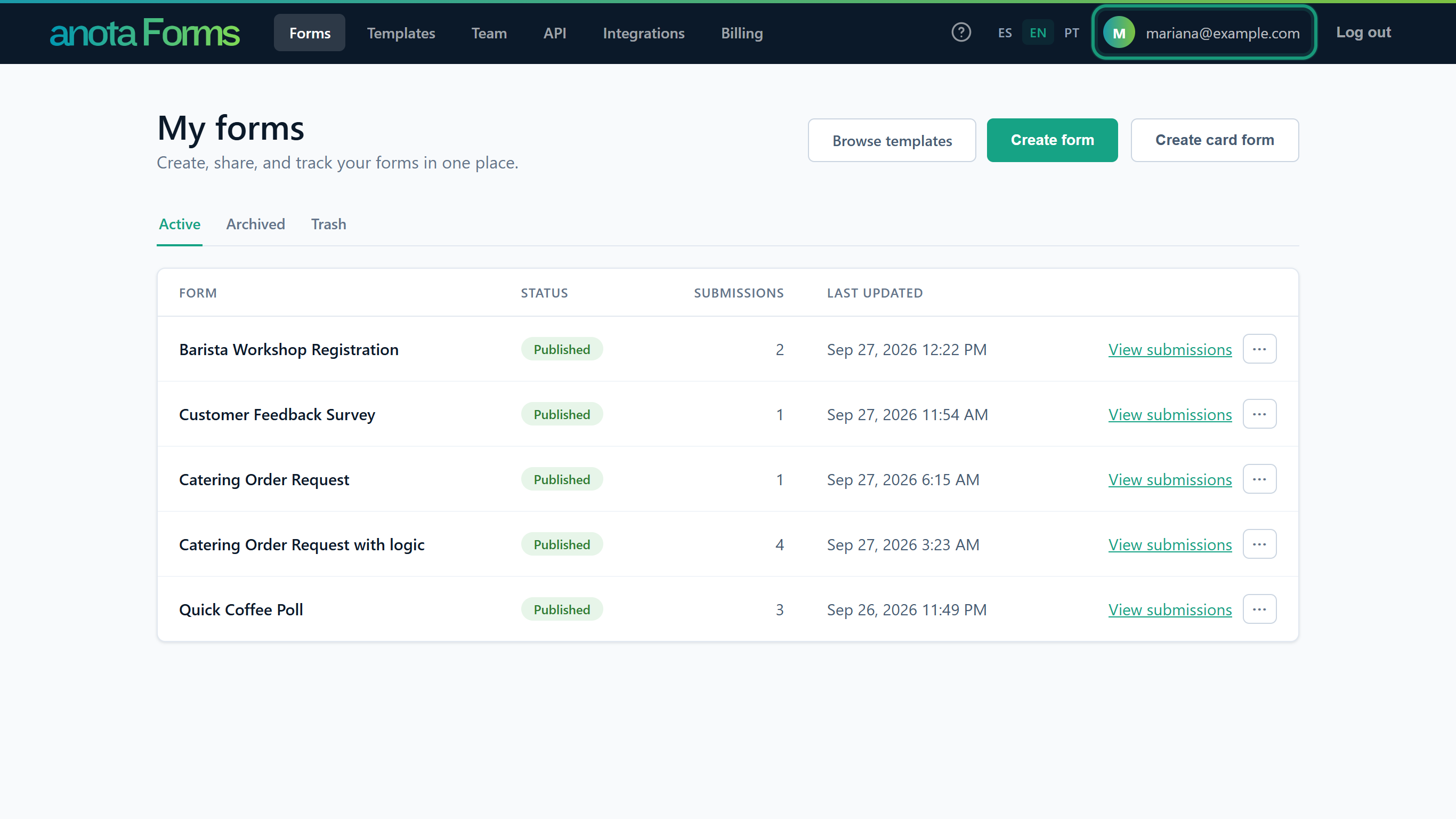 Your avatar shows the first letter of your email.
The Account settings page opens on Profile. The account menu on the left lists every section: Profile, Company, Email, Password, Two-factor authentication, Passkeys, Connected apps and Personal data.
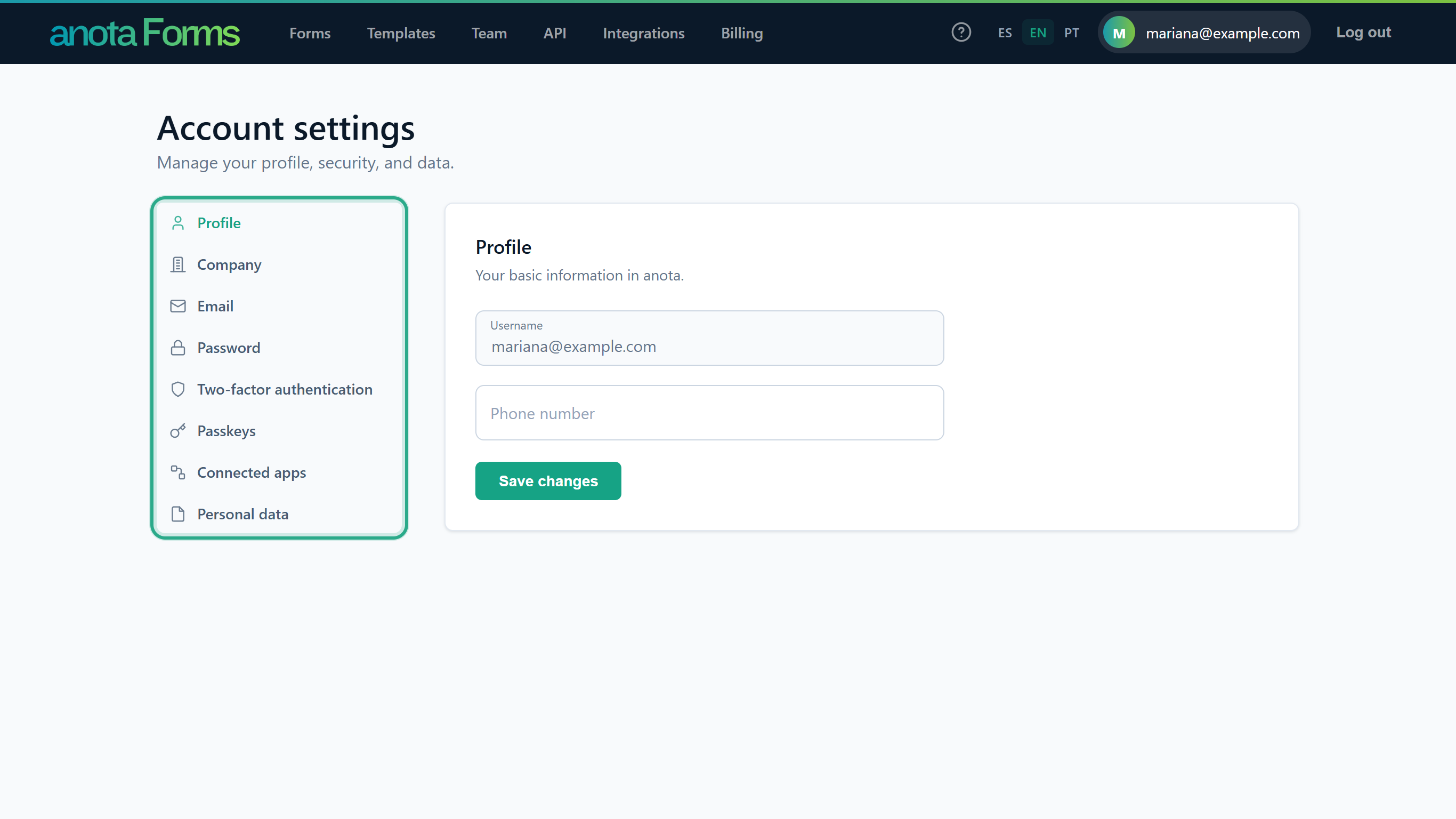 The section you are in is shown in green in the menu.
Result
You are in your account settings, on the Profile section.
Task 2 — Move between sections
Step-by-step
Click a section in the account menu, here Email. Its page opens on the right and the menu stays on the left, so you can go straight to another section.
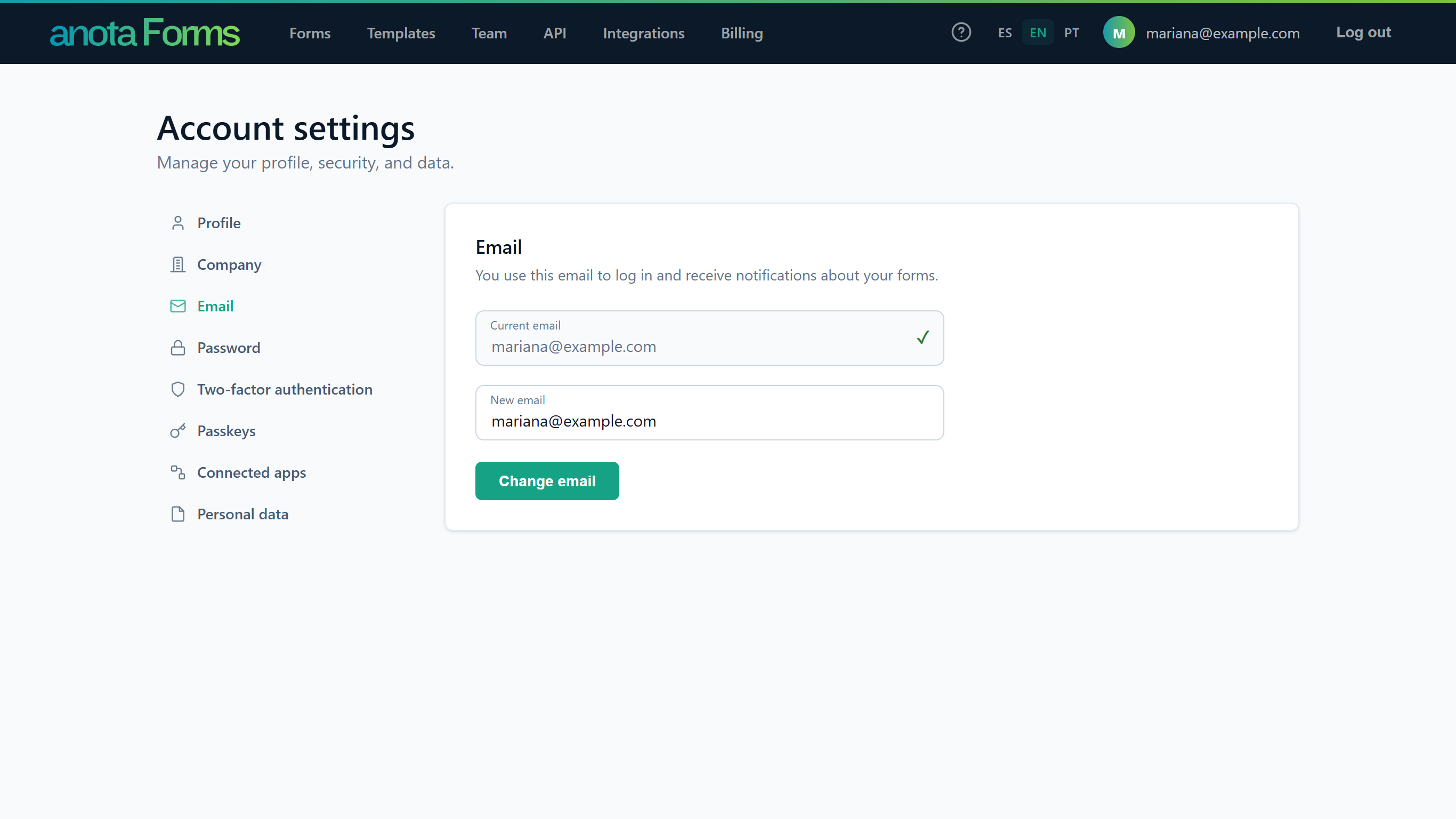 Each section is its own page, so you can bookmark it or use the browser's Back button.
Result
You can reach any section in one click. To go back to your forms, click Forms in the top bar.
Task 3 — Log out
Step-by-step
Click Log out in the top-right corner, next to your avatar.
 Log out ends your session in this browser only.
Result
You are logged out. The next time you open anota you log in again with your email and password, a passkey or, if you turned it on, your two-factor code.
What you can manage here
| Menu entry | What it does | Details |
|---|---|---|
| Profile | See your Username (read-only; it is your email) and add or change your Phone number. | Profile and security |
| Company | The workspace's Company name and logo. Not a personal setting. | Company and branding |
| See your current email and whether it is verified, resend the verification email, or change your email (the change applies only after you confirm it from the new address). | Profile and security | |
| Password | Change your password, or set one if your account doesn't have one yet. | Profile and security |
| External logins | See the services linked to your account (such as Google), link another one or remove one. Only listed when a service such as Google sign-in is available. | Profile and security |
| Two-factor authentication | Turn two-factor authentication on or off, set up or reset an authenticator app, manage recovery codes and forget a remembered browser. | Two-factor authentication and passkeys |
| Passkeys | Add, rename or delete passkeys. | Two-factor authentication and passkeys |
| Connected apps | See the apps (such as Claude or ChatGPT) you connected to a workspace, with the permissions you granted, and Disconnect any of them. Only listed when app connections are available. | Profile and security, Connect Claude and ChatGPT (MCP) |
| Personal data | Download a copy of your personal data, or permanently delete your account. | Profile and security |
Changing your email, password or sign-in methods doesn't change anything in your workspaces: your forms, submissions, Company name and logo, and your team's roles stay exactly as they were.
Privacy and connected apps
A connected app only gets the forms and submissions it asks for, limited to the workspace and the permissions you approved when you connected it. You can remove that access at any time from Connected apps by clicking Disconnect. What the app then does with the data is governed by its provider's own privacy policy. For the full details, see the section "Connected apps, API keys, and webhooks" in the anota privacy policy at https://anota.cloud/en/privacy.
Troubleshooting
| Symptom | Likely cause | Resolution |
|---|---|---|
| I changed my email but still log in with the old one. | The change only applies after you click the confirmation link sent to the new address. | Check the new mailbox (including spam) and click the link. See Profile and security. |
| The Two-factor authentication section says "Privacy and cookie policy have not been accepted." | The privacy and cookie policy has not been accepted in this browser. | Accept the privacy and cookie policy, then open the section again. |
| I lost access to my authenticator app. | You can't generate codes any more. | Log in with a recovery code. See Two-factor authentication and passkeys. |
| I don't see External logins or Connected apps in the menu. | That sign-in or connection option is not available on anota at the moment. | Nothing to fix on your side. |
Related features
Was this page helpful?