Publish and share
Publish and share
Applies to: anota, all plans Roles required: Editor or above to publish, update, share, close, disable, archive, trash, rename or clone forms; any member can see the form list Regulatory references: none
Overview
Publishing turns a draft into a public page that anyone with the link can open and fill in. You publish once to go live, and click Update whenever you want later changes to reach visitors. This page covers the first publish, sharing the link and QR code, embedding the form on your website, publishing changes, closing a form on a date or pausing it, and what visitors see when a form isn't open.
The examples use Café Aurora's forms. The Coffee Shop Customer Experience Survey is published for the first time, and the Barista Workshop Registration is shared, embedded, updated, closed and reopened.
Key concepts
- Draft: the version of the form you edit in the builder. Your edits are saved to the draft automatically and never reach visitors on their own.
- Published version: the snapshot visitors see. Each time you click Publish or Update, anota copies the draft into a new version. Every response is stored with the version it was submitted against, so earlier responses keep the questions they were answered with.
- Public link:
https://anota.cloud/f/<workspace>/<form>, for examplehttps://anota.cloud/f/tecolotl/barista-workshop-registration. The last part is made from the form title: until the first publish it follows the title when you rename the form. From the first publish on it never changes, even if you rename the form, because people may already have the link. You can't edit it by hand. - Closed: a published form that shows a closed message instead of its questions. A form is closed when you disable it, or when its Close on date has passed.
- Disabled: a published form you paused from the Forms list. It stays published and comes back with Enable.
- Archived / In the trash: the form leaves the Active list and its public link stops working. Its responses are kept.
Task 1 — Publish a form for the first time
Prerequisites
- A role of Editor or above in the workspace (see Roles and permissions).
- A draft form, built in the form editor. anota doesn't require a minimum number of fields.
Step-by-step
Go to Forms and click the form's title to open it in the builder. Check the title at the top left: until the first publish the public link follows the title, and from the first publish on it stays fixed, so give the form its final title now.
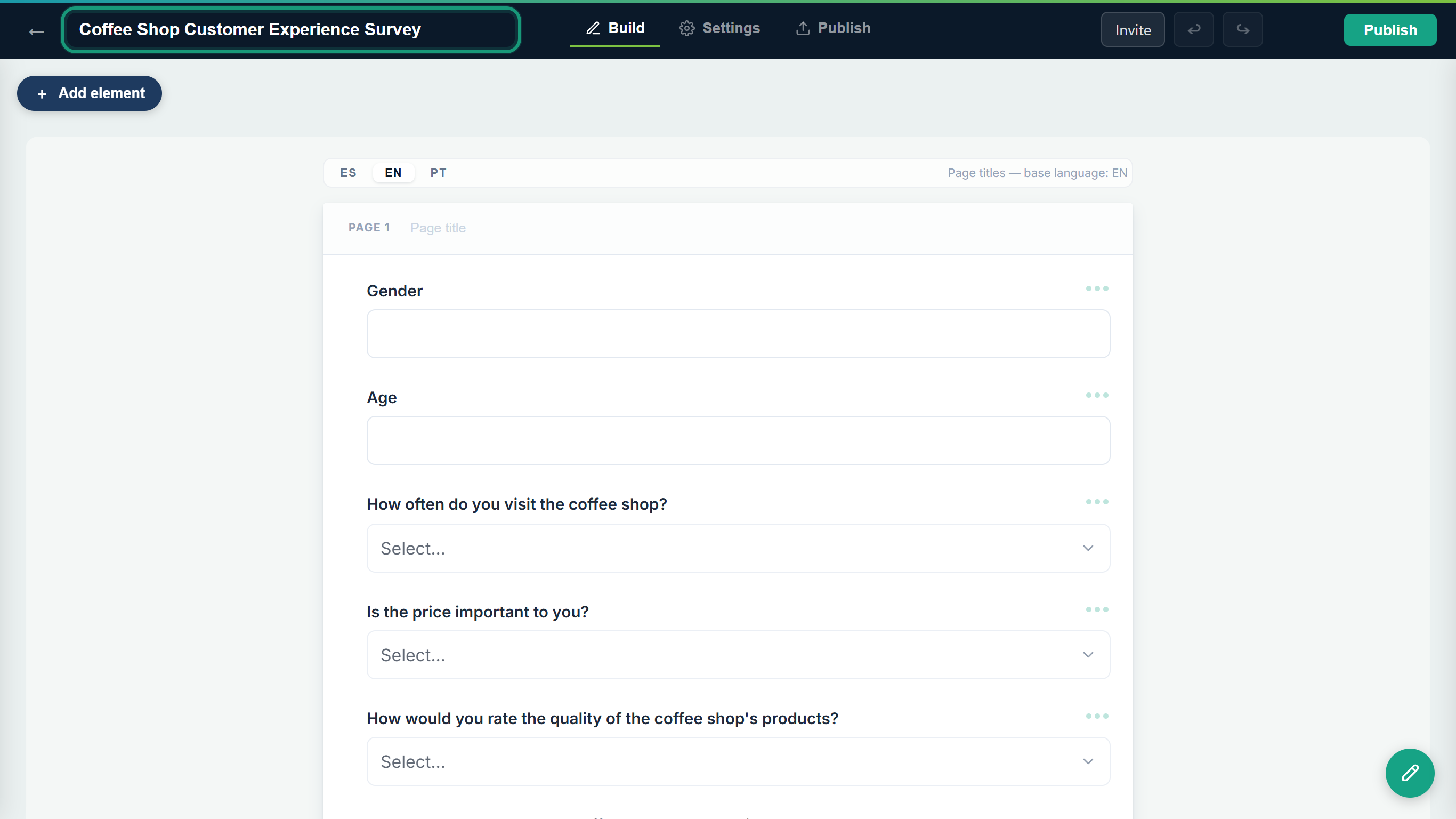 A draft's top-right button reads Publish. A form published under its default title keeps an address such as
 …/untitled-form-2.Click the Publish tab. On a draft it shows only Publish your form: "Once you publish, you'll get a public link, QR code, and embed code for your site."
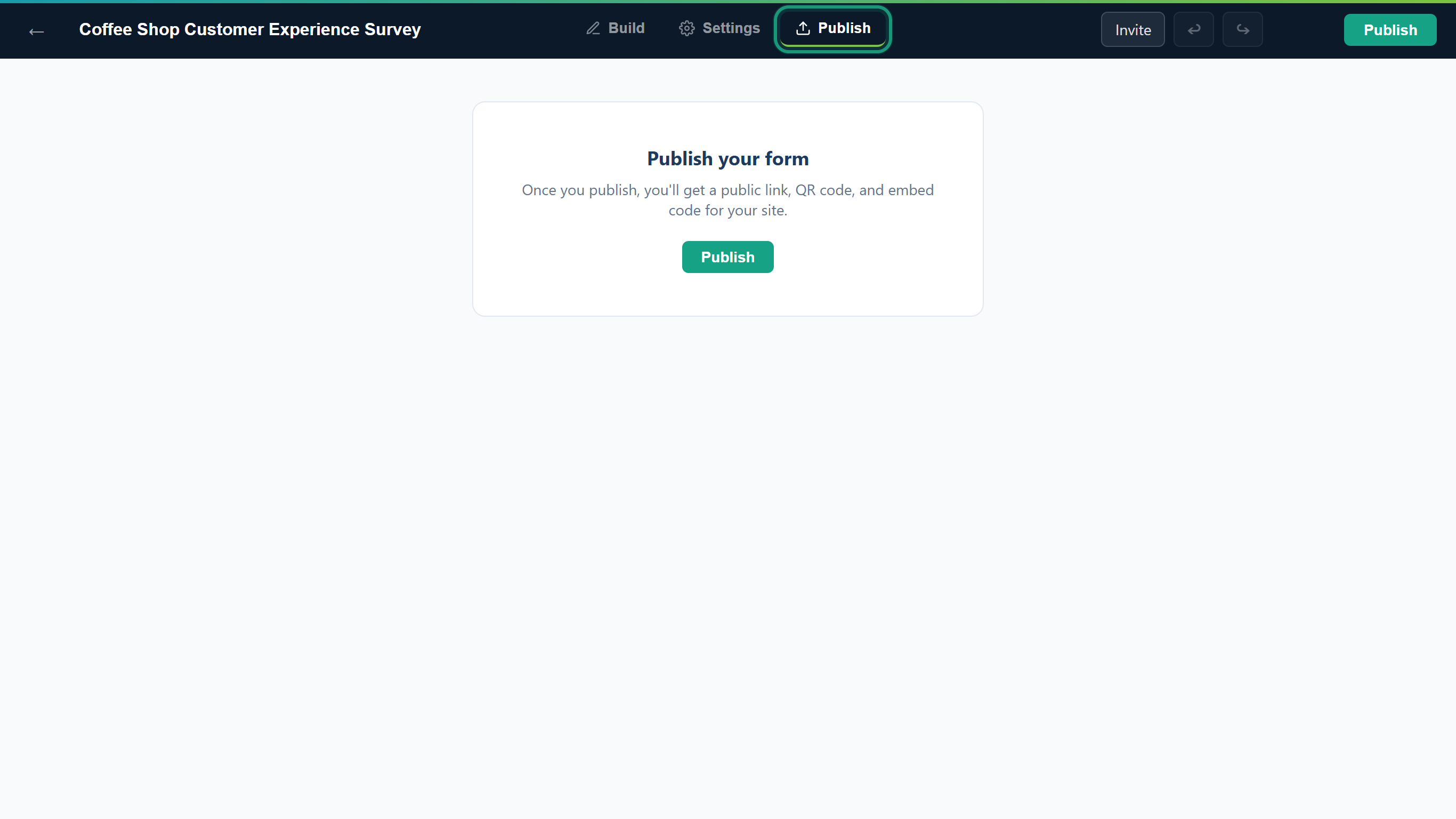 Before the first publish there is nothing to share yet.
Click Publish (the button on the card, or the Publish button at the top right). Publishing is immediate: there is no confirmation step, so review the form first.
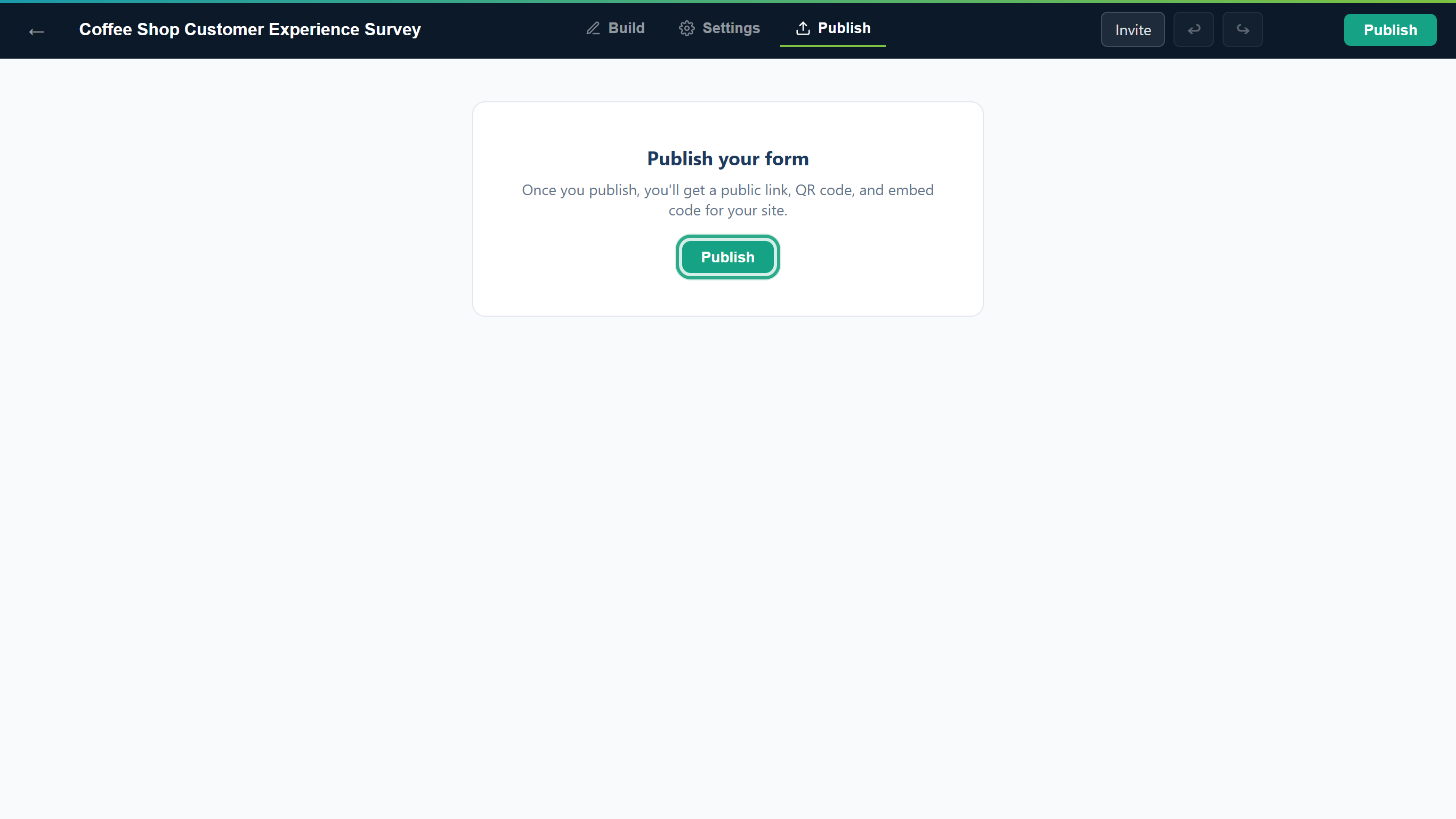 Both buttons do the same thing.
If your latest edits couldn't be saved, anota doesn't publish and shows "Not published: your latest changes could not be saved" next to the button, so it never publishes an older version than the one on screen.
The builder opens Share on the Publish tab with the form's Public link. Next to the top-right button you see Published, and the button now reads Update.
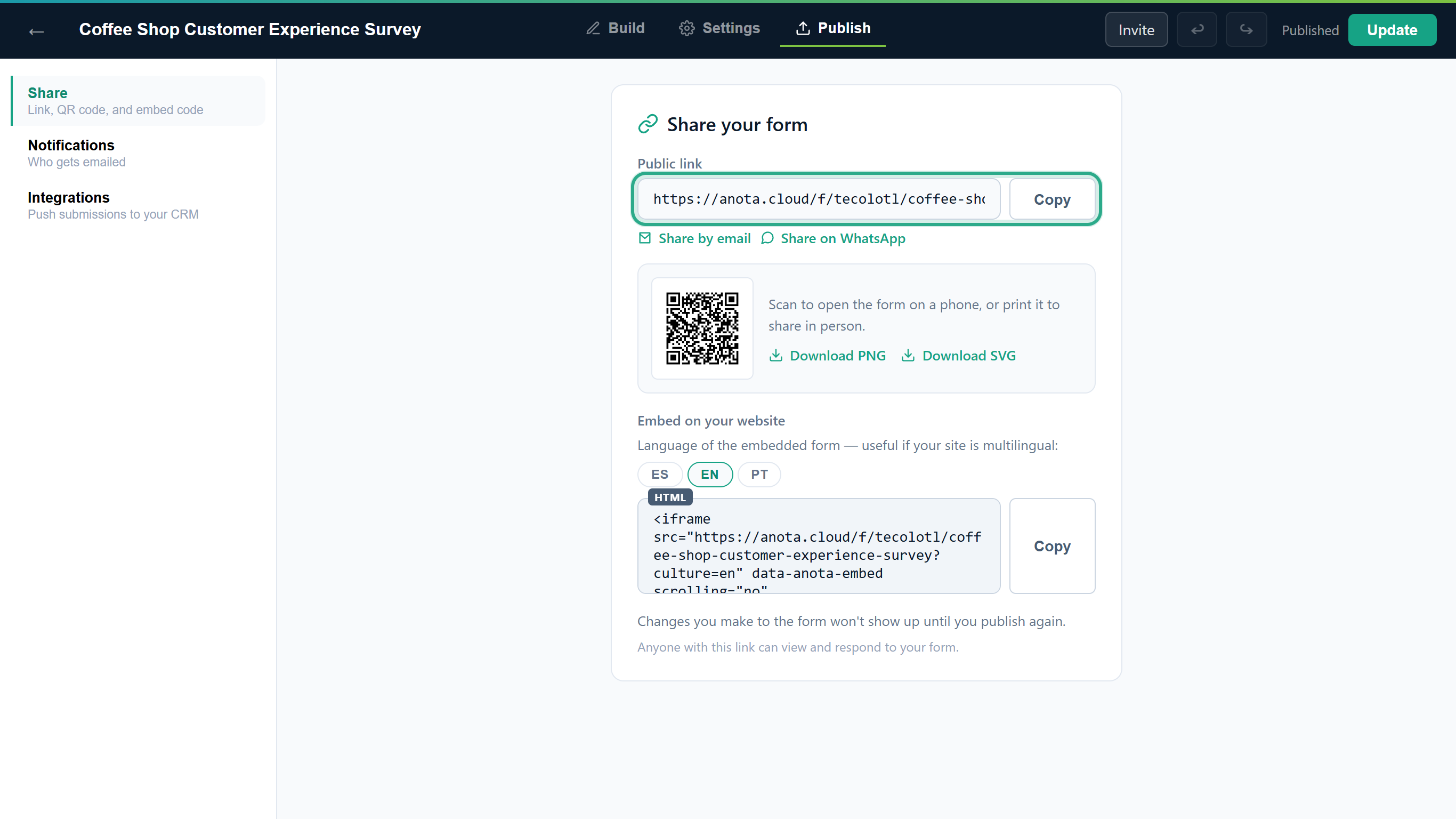 The form is live at its public link.
Result
The form is Published on the Forms list and accepts responses at its public link. Every response arrives in the form's submissions inbox.
Task 2 — Copy and share the public link
Prerequisites
- A published form. The Share panel is on the builder's Publish tab > Share (Link, QR code, and embed code).
Step-by-step
Under Public link, click Copy. The button reads Copied! for a moment, and the link is on your clipboard, ready to paste into a message, a post or a newsletter.
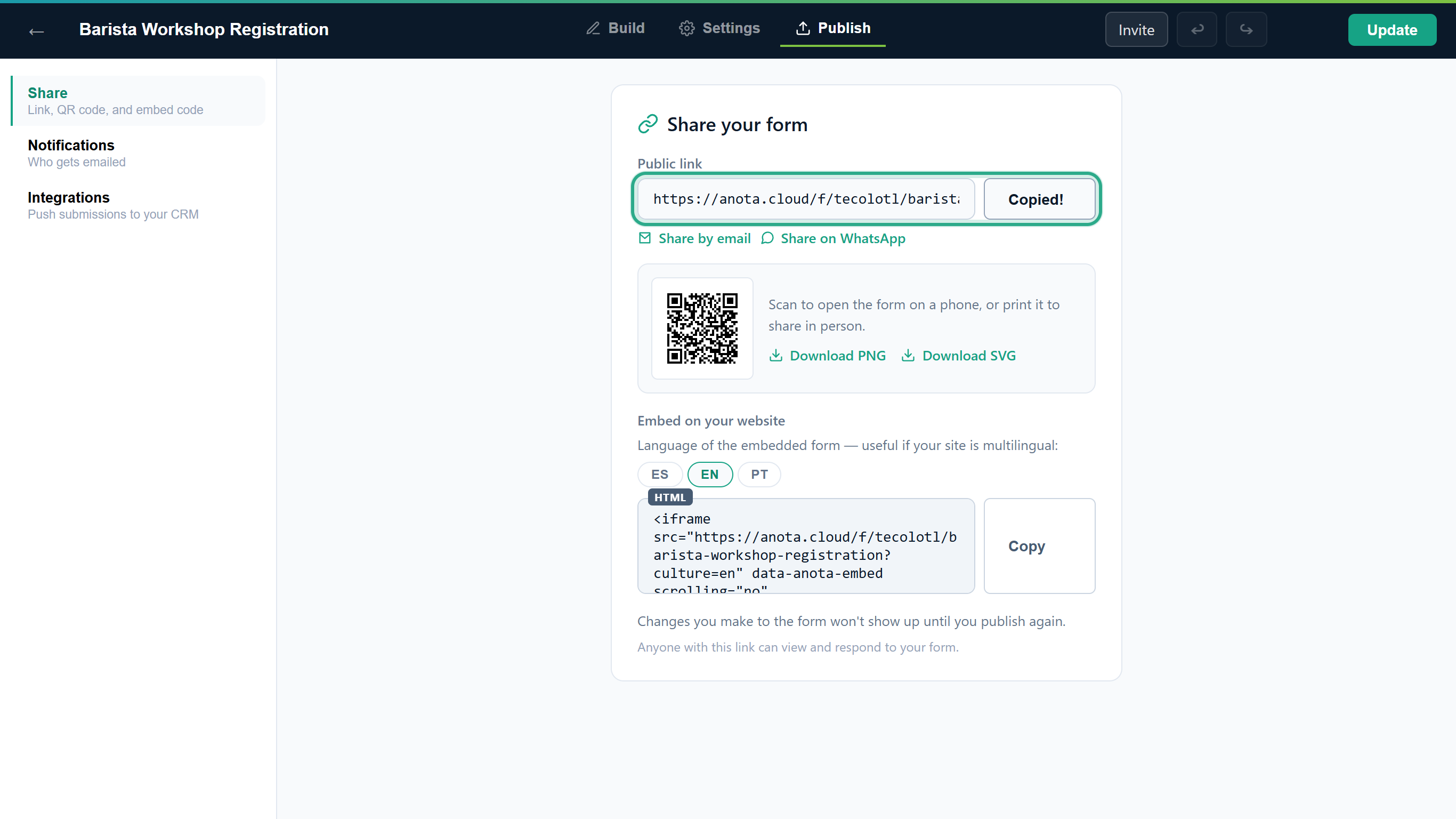 The Share your form panel of the Barista Workshop Registration.
Open the link in your browser to see the form as visitors do. You can also open it from Forms > the form's ⋯ menu > View form.
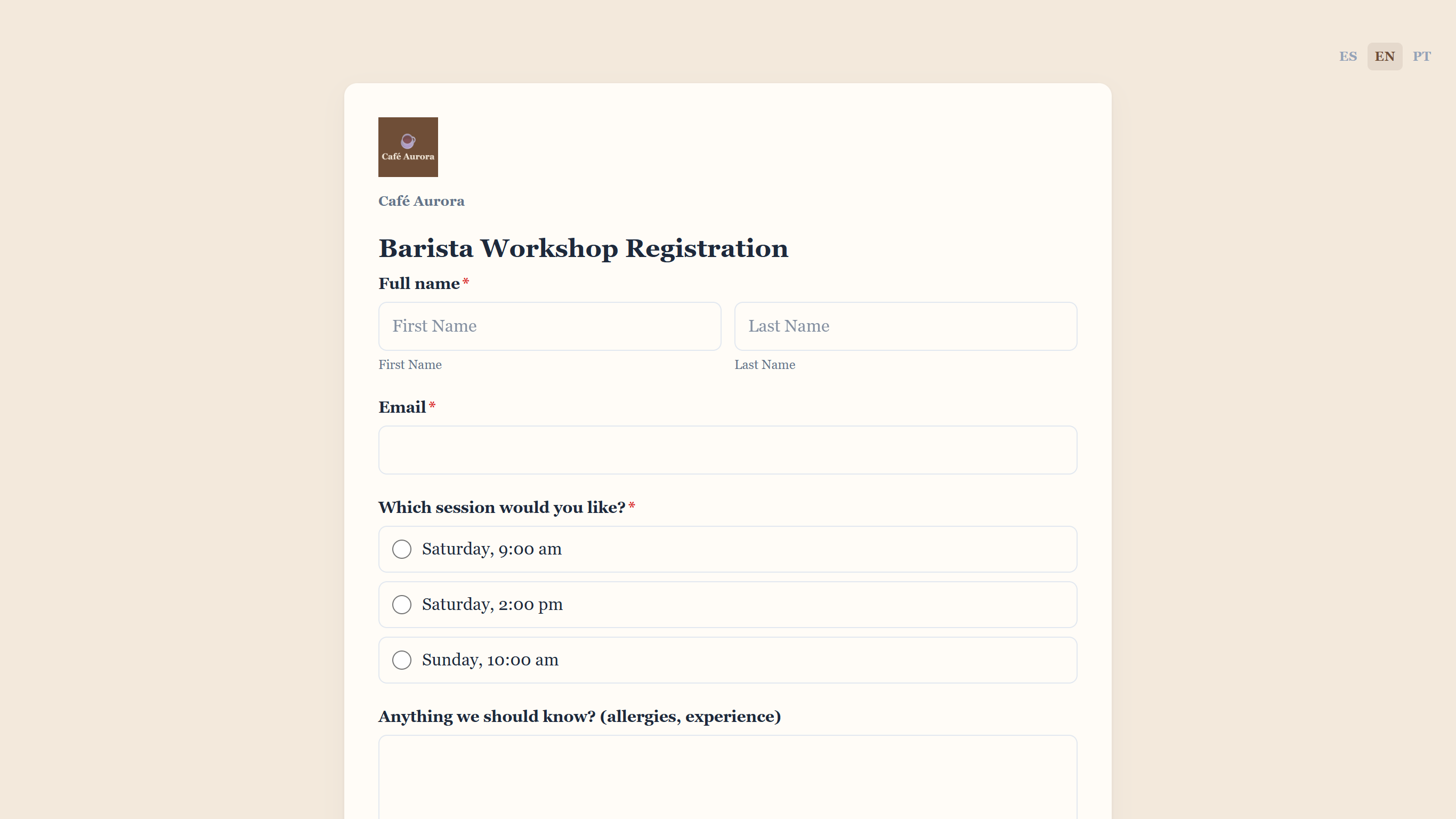 Visitors choose their language with the switcher at the top right. The link itself has no fixed language.
To send the link directly, click Share by email or Share on WhatsApp. Share by email opens your email app with the subject "Form:
Was this page helpful?