View and manage submissions
View and manage submissions
Applies to: anota, all plans Roles required: any member can view submissions and download their files and PDF; Editor or above to flag, mark as spam, mark read or delete Regulatory references: none
Overview
Once a response is in the submissions inbox, you open it to read the answers, download what the person uploaded, and decide what to do with it: flag it to deal with later, set it aside as spam, or delete it for good. This page is for anyone on the team who follows up on responses.
The examples use three registrations of Café Aurora's Barista Workshop Registration: Valeria Castro's (with two files and a signature), Andrés Molina's, and an advertising message from "Kevin Brandt" that isn't a real registration.
Key concepts
- Submission: one response, with the answers given in each field.
- Status: New (not yet opened by an Editor or above), Read, Flagged or Spam. A submission has one status at a time, so Flag and Spam replace Read, and Mark read takes a submission out of Flagged or Spam.
- Form version: the version of the form the response was submitted against. Answers are always shown with that version's questions, so later edits to the form don't change older responses.
Task 1 — Read a submission, its files and its details
Prerequisites
- Open the form's inbox: Forms > the form's row > View submissions.
Step-by-step
Click the submission in the list. The panel on the right shows when it was sent, its status, the action buttons and every answer under its question. An empty answer shows a dash (—).
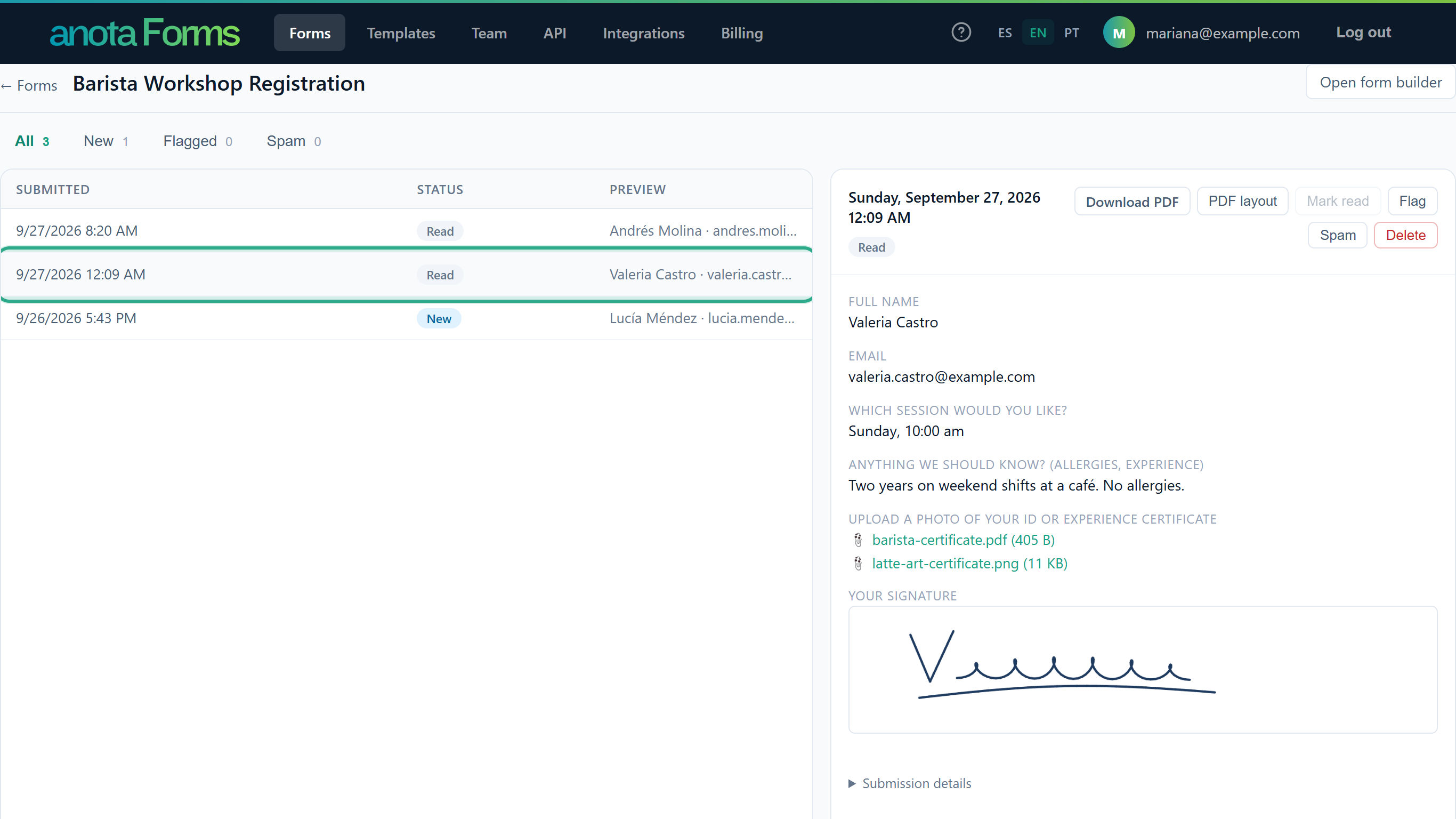 A button is greyed out when the submission already has that status: here Mark read.
To download a file the person uploaded, click its name under the question. Each file shows its size. Signatures appear as the signed image.
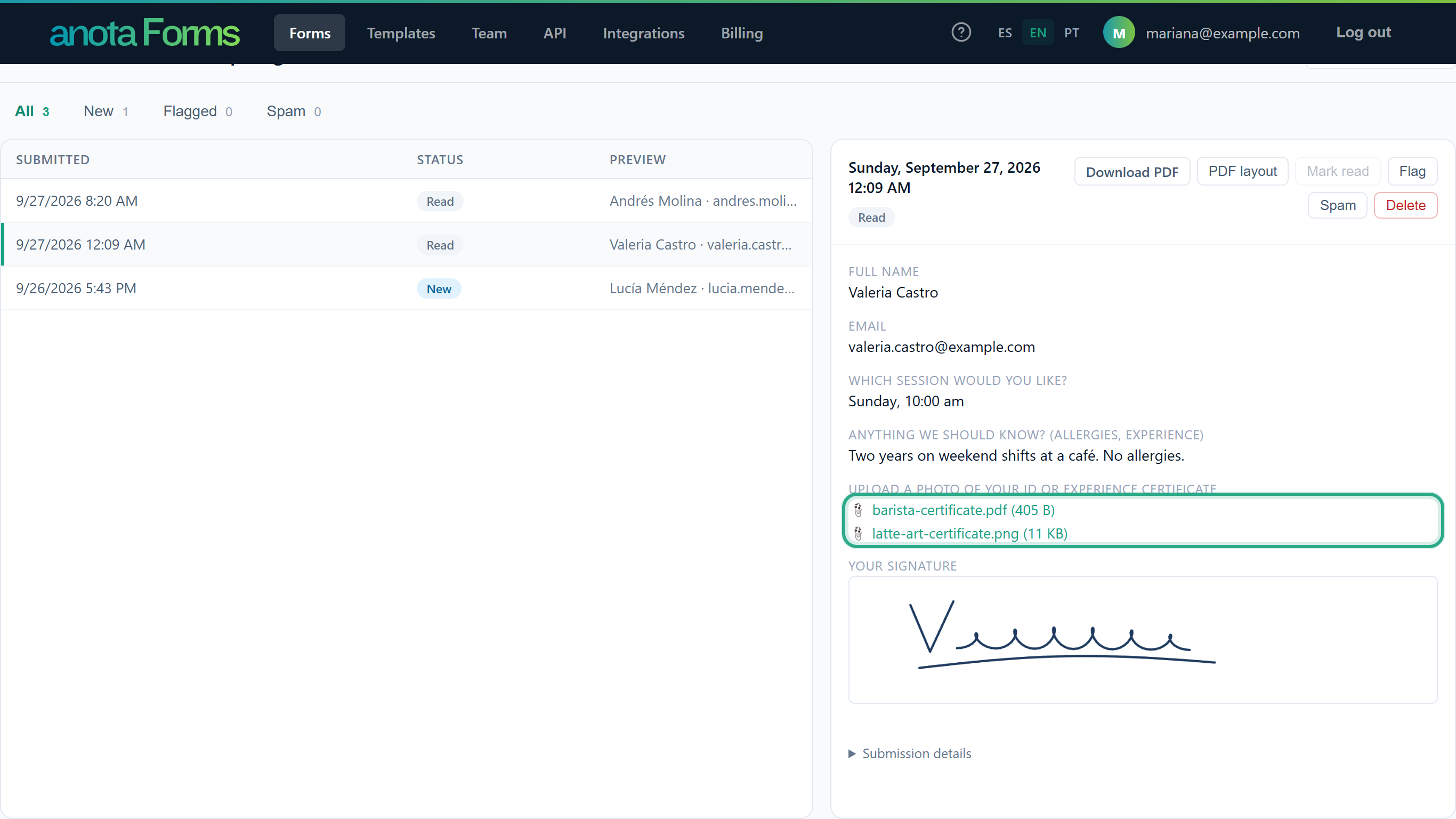 Files always download to your computer; the browser never opens them inside anota.
To see the technical details, click Submission details at the bottom of the panel. It shows the Submission ID and the Form version, and, for paid orders, the Payment intent from Stripe. Below them is what anota recorded about the visit: a scrambled (hashed) version of the visitor's IP address, the browser (
userAgent), the page the form was opened from (referrer) and the language the form was filled in (lang).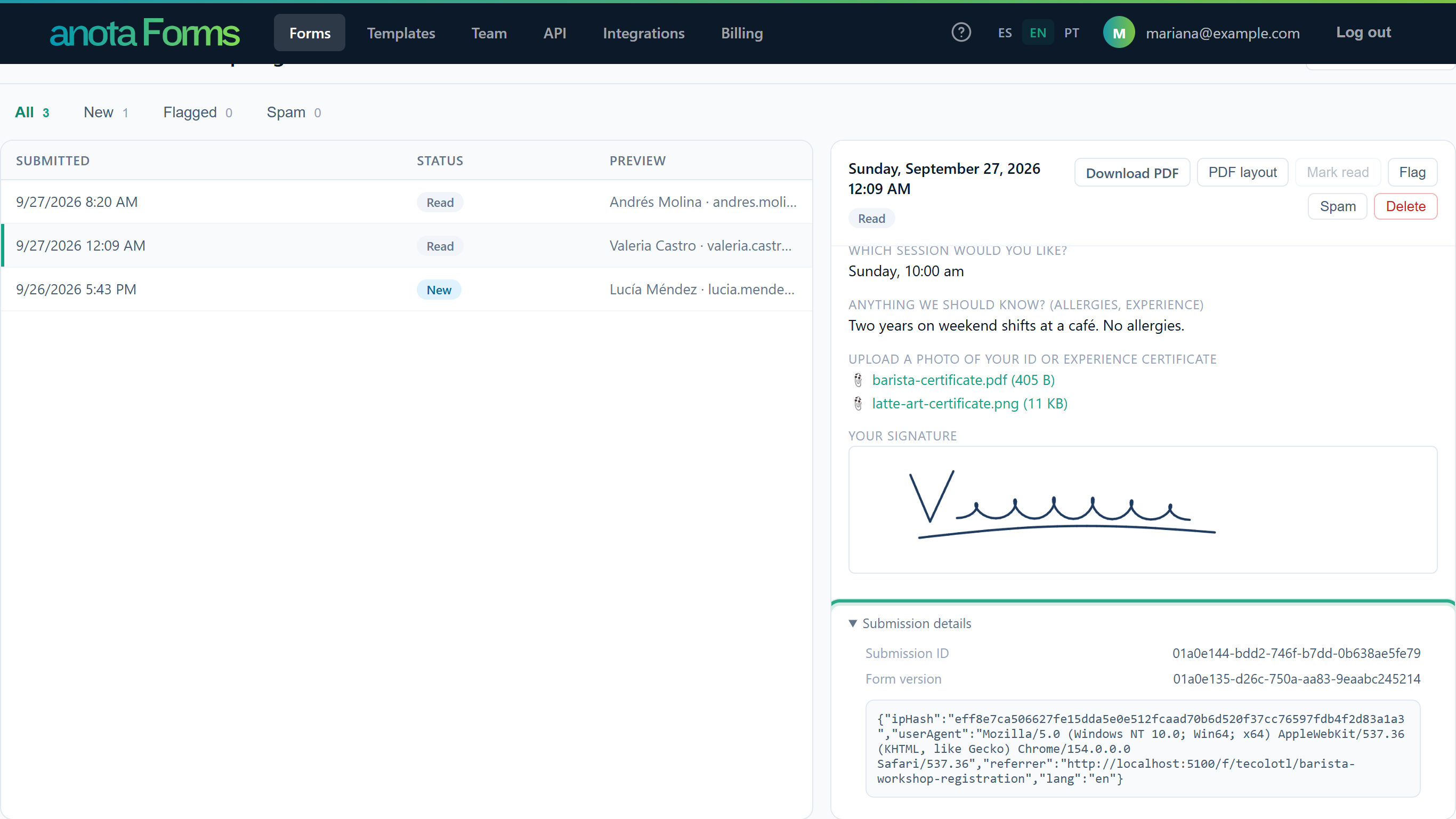 Quote the Submission ID when you contact support about a response.
Result
You have read the whole response and saved its files. Opening a New submission as an Editor or above marked it Read. The downloaded files keep the names the person gave them.
On a form with products and payments, the answer shows the products and quantities ordered, and a paid order also shows Amount paid, Paid on and, after a refund, Refunded.
Task 2 — Flag a submission to come back to it
Step-by-step
Open the submission and click Flag.
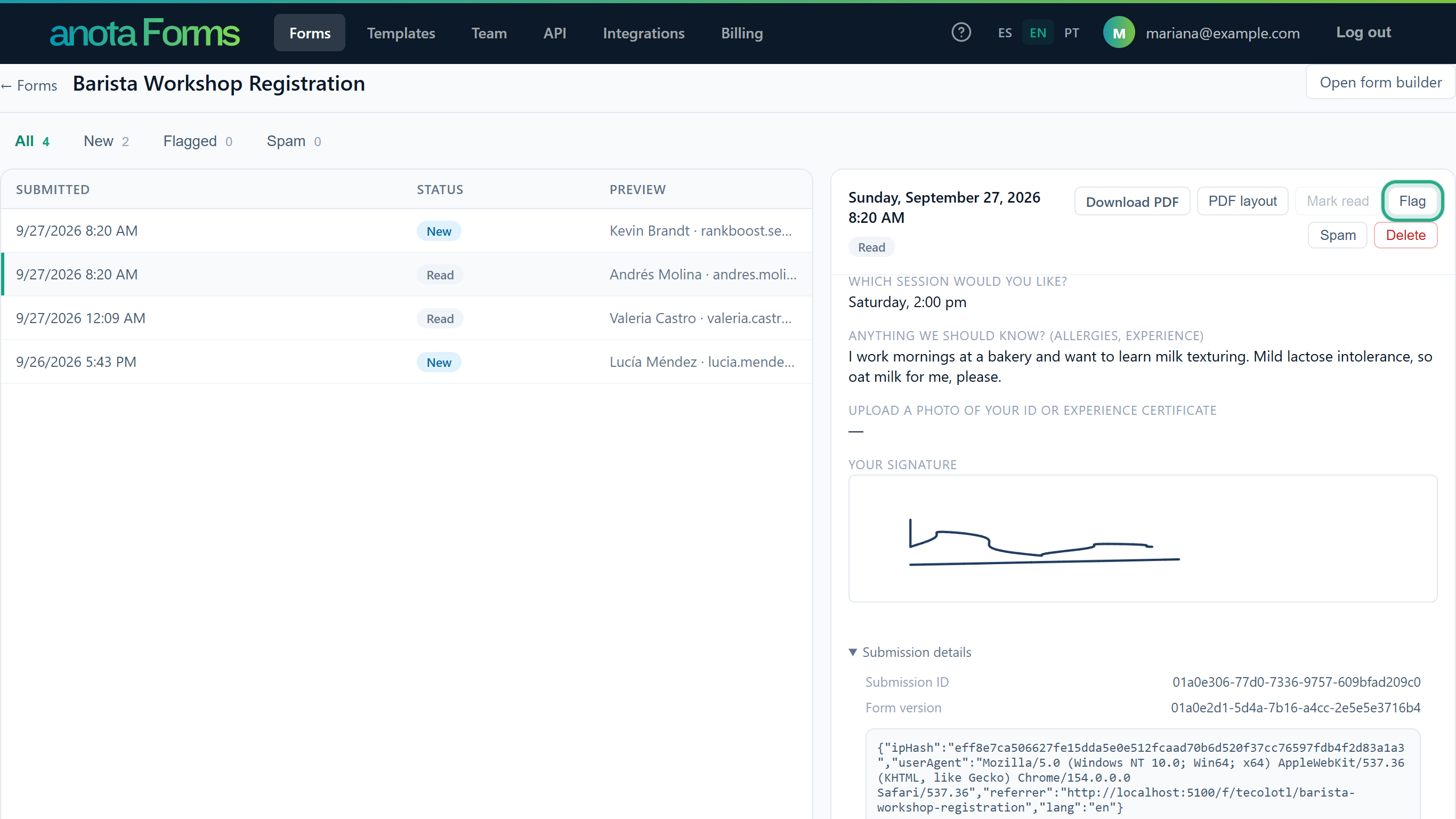 Here the workshop team flags Andrés to confirm his oat-milk request.
Click the Flagged tab: the submission is listed there, and the tab's count goes up.
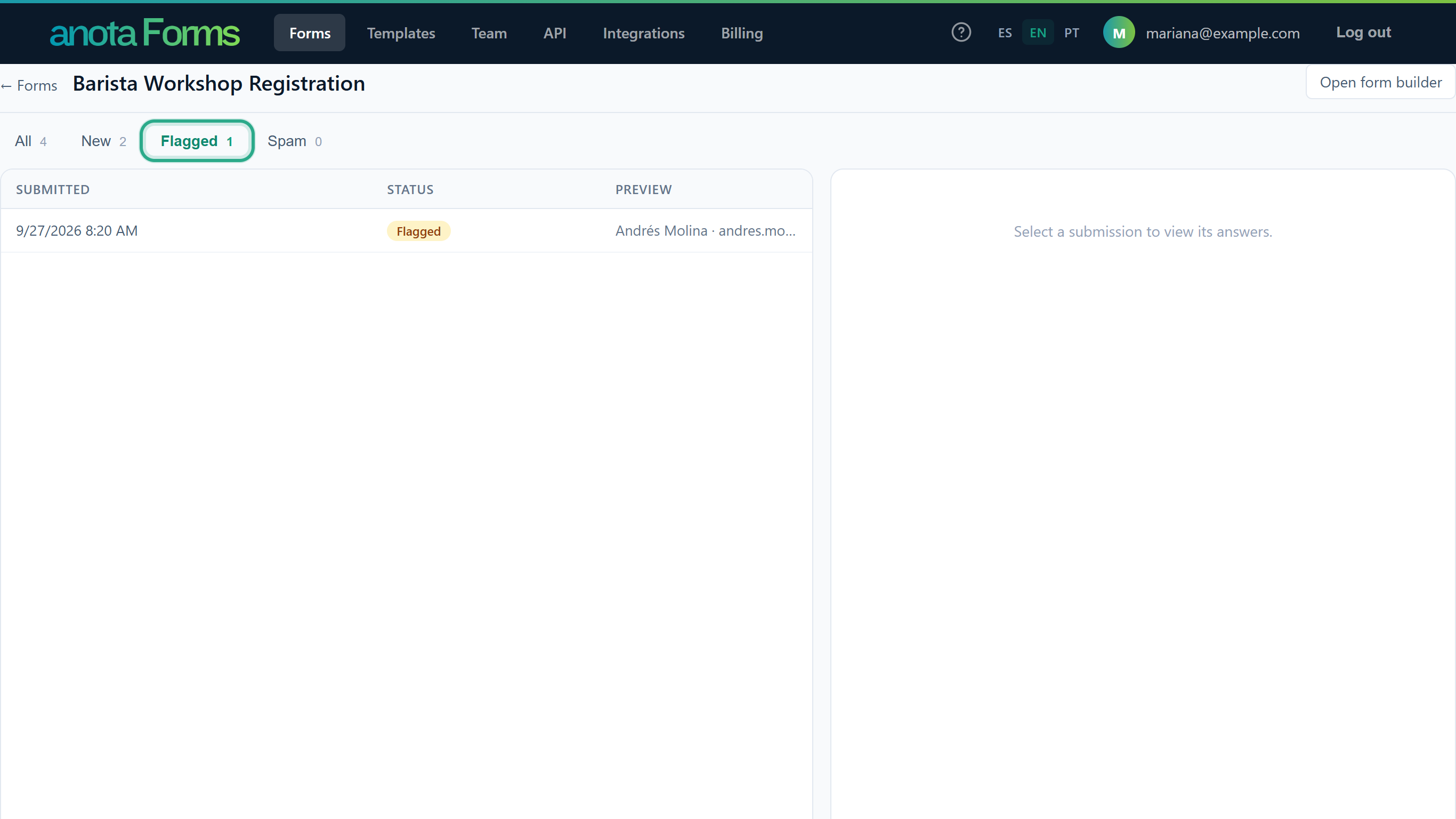 Flagged submissions also stay under All.
Result
The submission's status is Flagged. Everyone on the team sees the same status, so a flag works as a shared "to do".
Task 3 — Mark a submission as read again
Step-by-step
When you've dealt with it, open the submission and click Mark read.
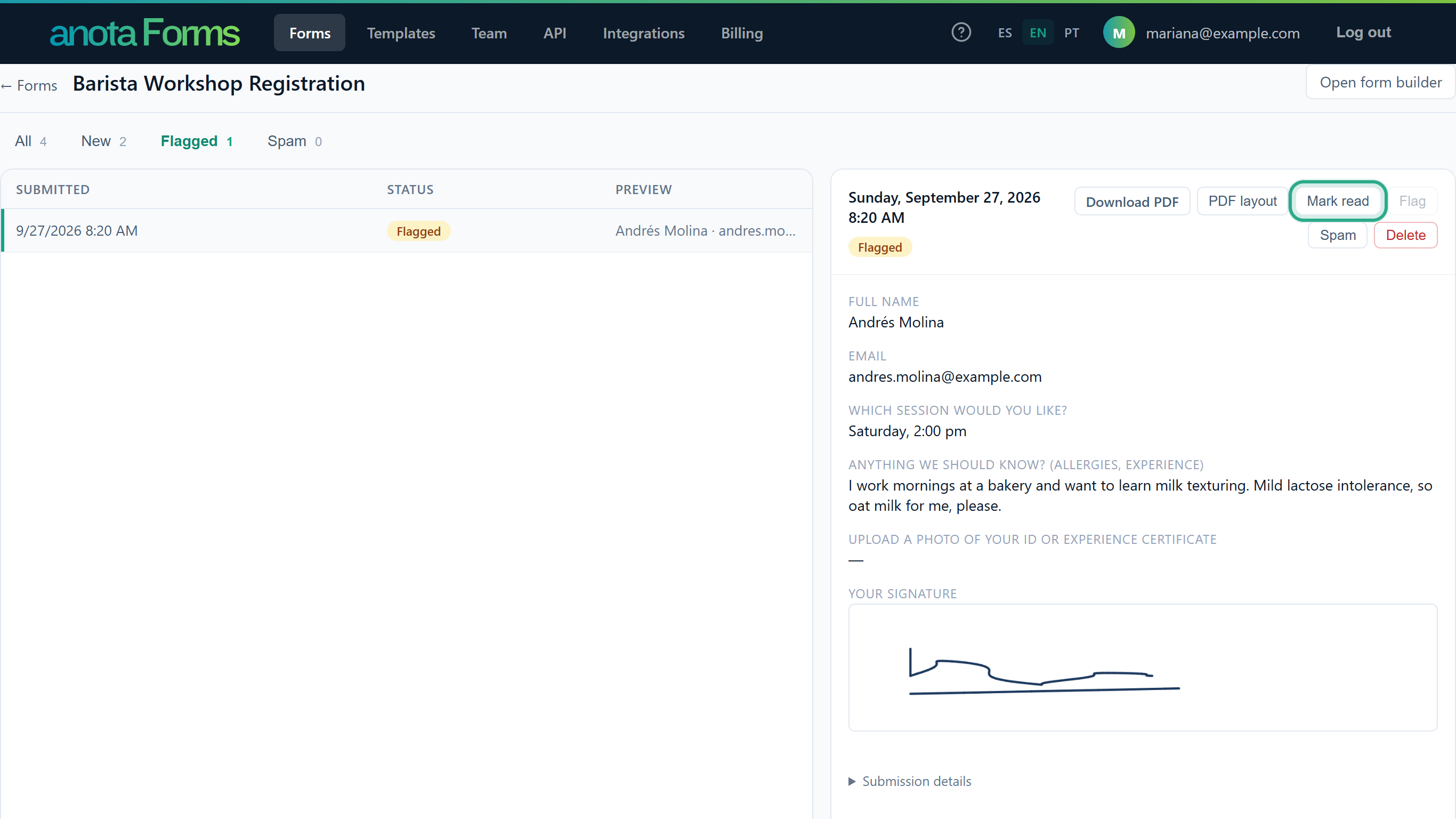 Mark read also takes a submission out of Spam.
Result
The status is back to Read and the submission leaves the Flagged tab, which now shows "No submissions in this view yet." anota has no "mark as unread": a submission is New only until an Editor or above first opens it.
Task 4 — Mark a submission as spam
Use Spam for messages that aren't real responses, such as advertising. anota already discards most automated junk before it reaches the inbox (see Publish and share); Spam is for what gets through.
Step-by-step
Open the submission and click Spam.
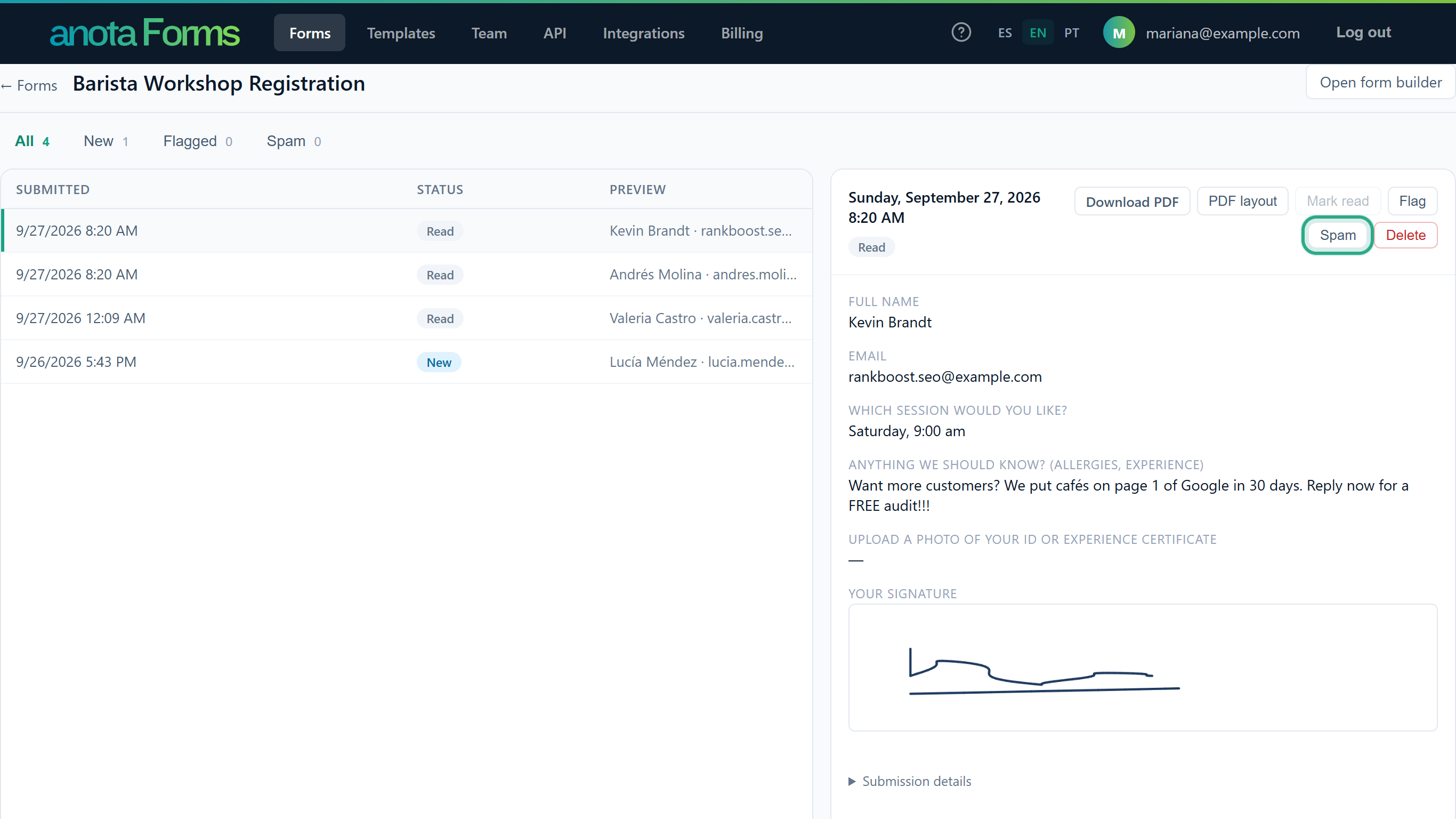 The message offers search-engine services instead of a registration.
Click the Spam tab to check it's there.
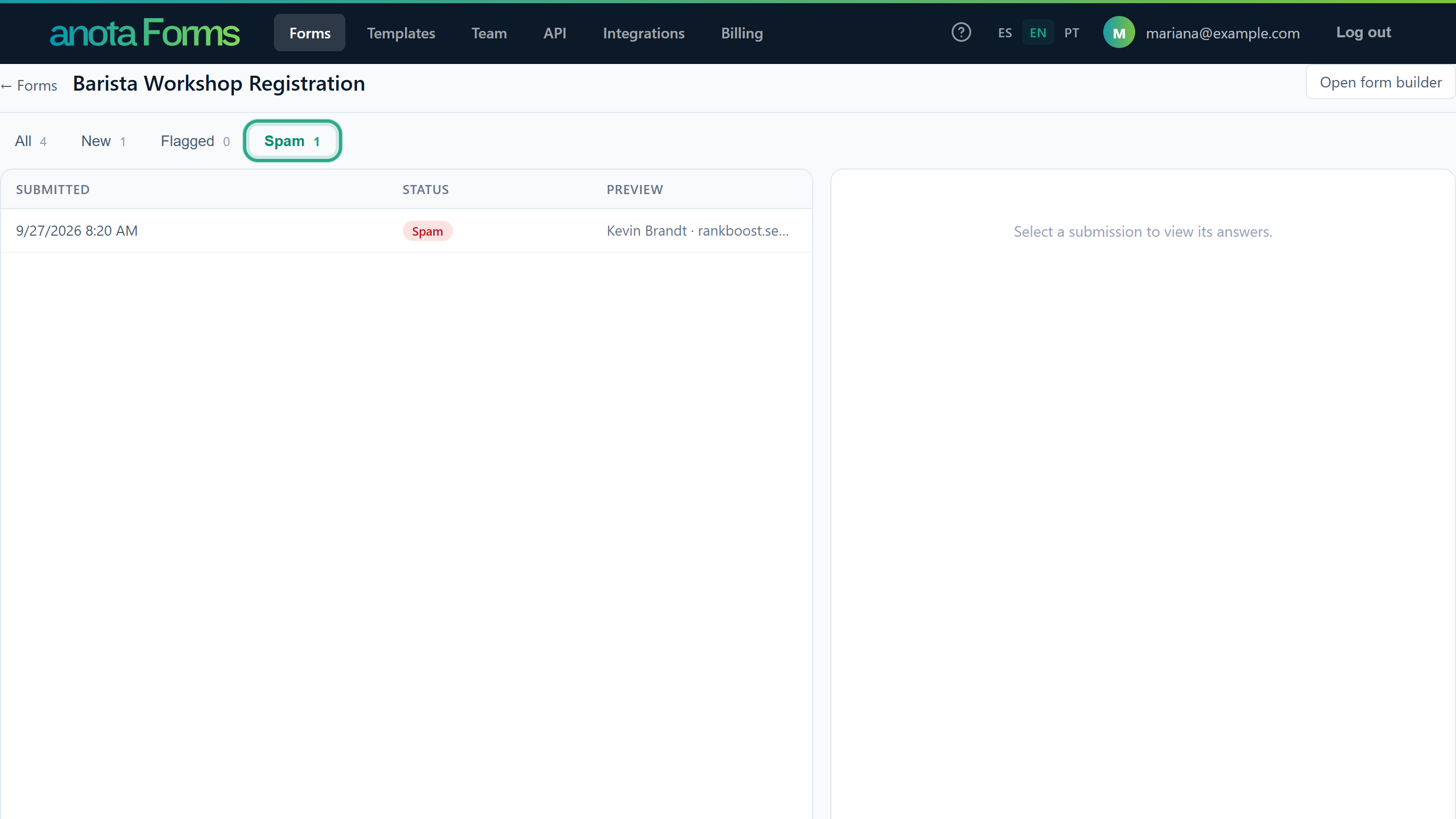 Spam stays available; nothing is deleted.
Result
The submission is kept with the status Spam, apart from your real responses in New and Flagged. Marking a submission as spam doesn't undo anything that already happened when it arrived: its email notifications and integrations were sent at that moment.
Task 5 — Delete a submission
Deleting is permanent. If you might need the record later, use Spam instead.
Step-by-step
Open the submission and click Delete.
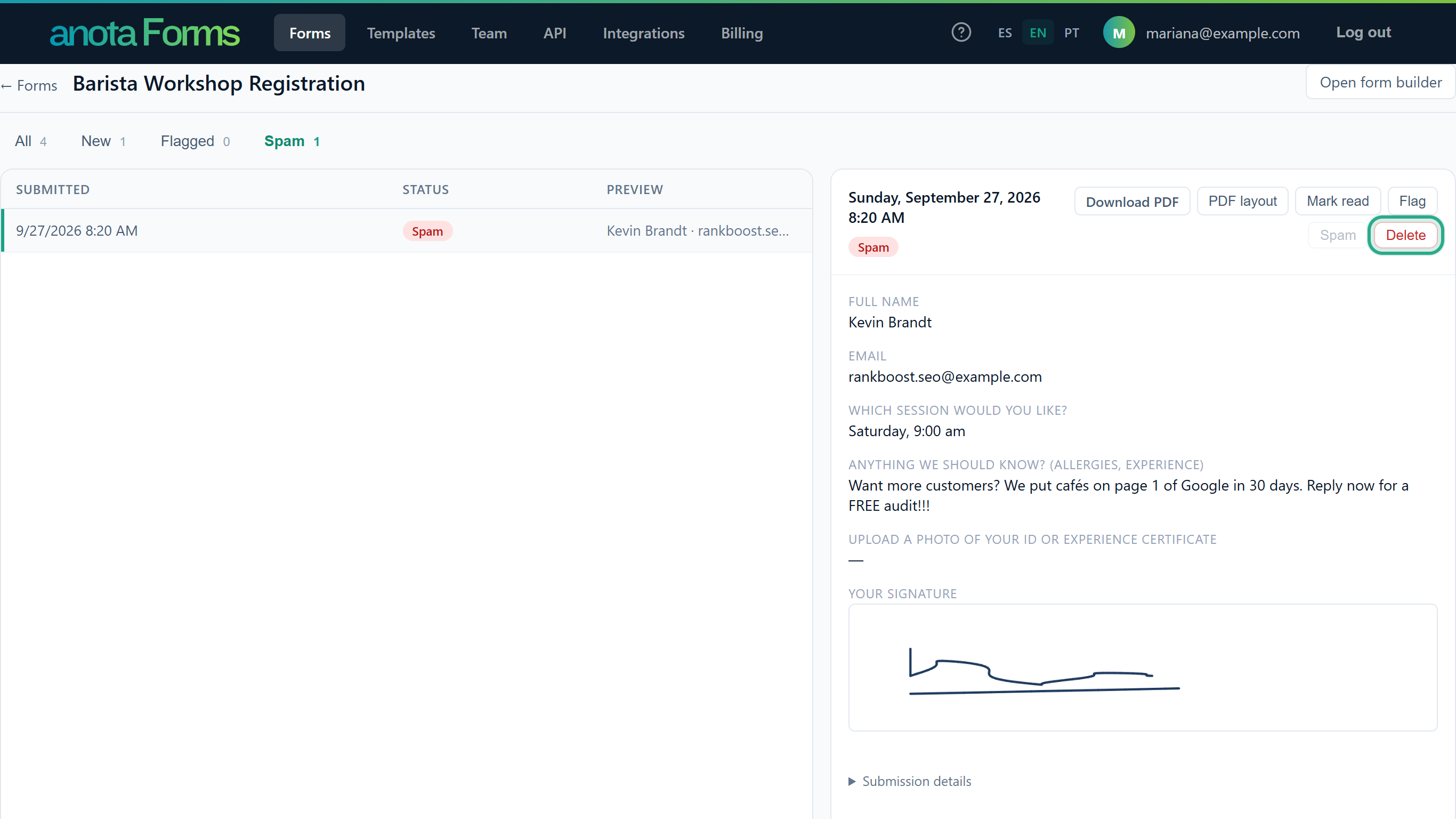 Delete is on every submission, whatever its status.
anota asks "Delete this submission permanently?". Click Delete to confirm, or Cancel to keep it.
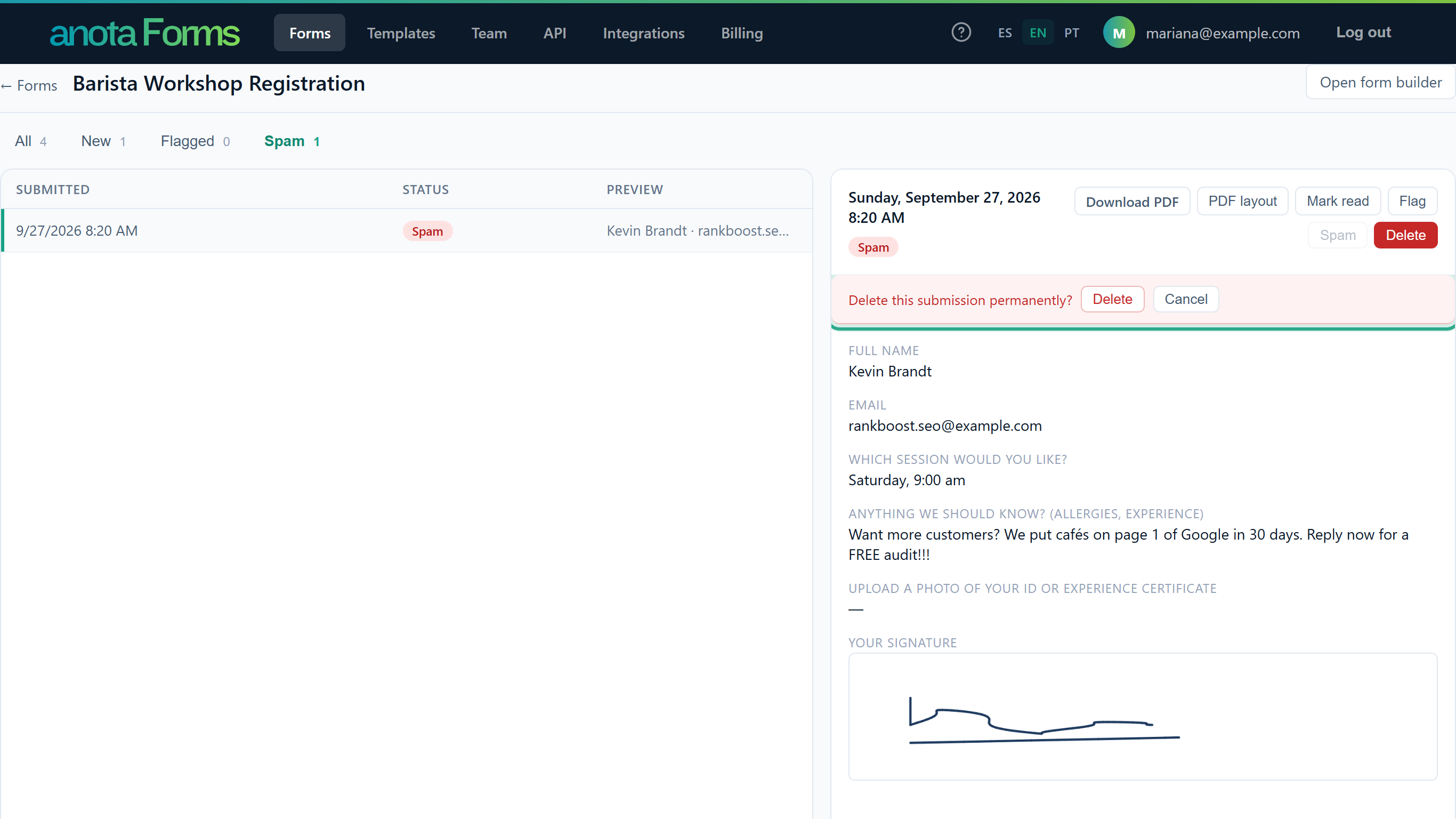 Nothing is deleted until you confirm.
The submission is gone from the list and from every tab count.
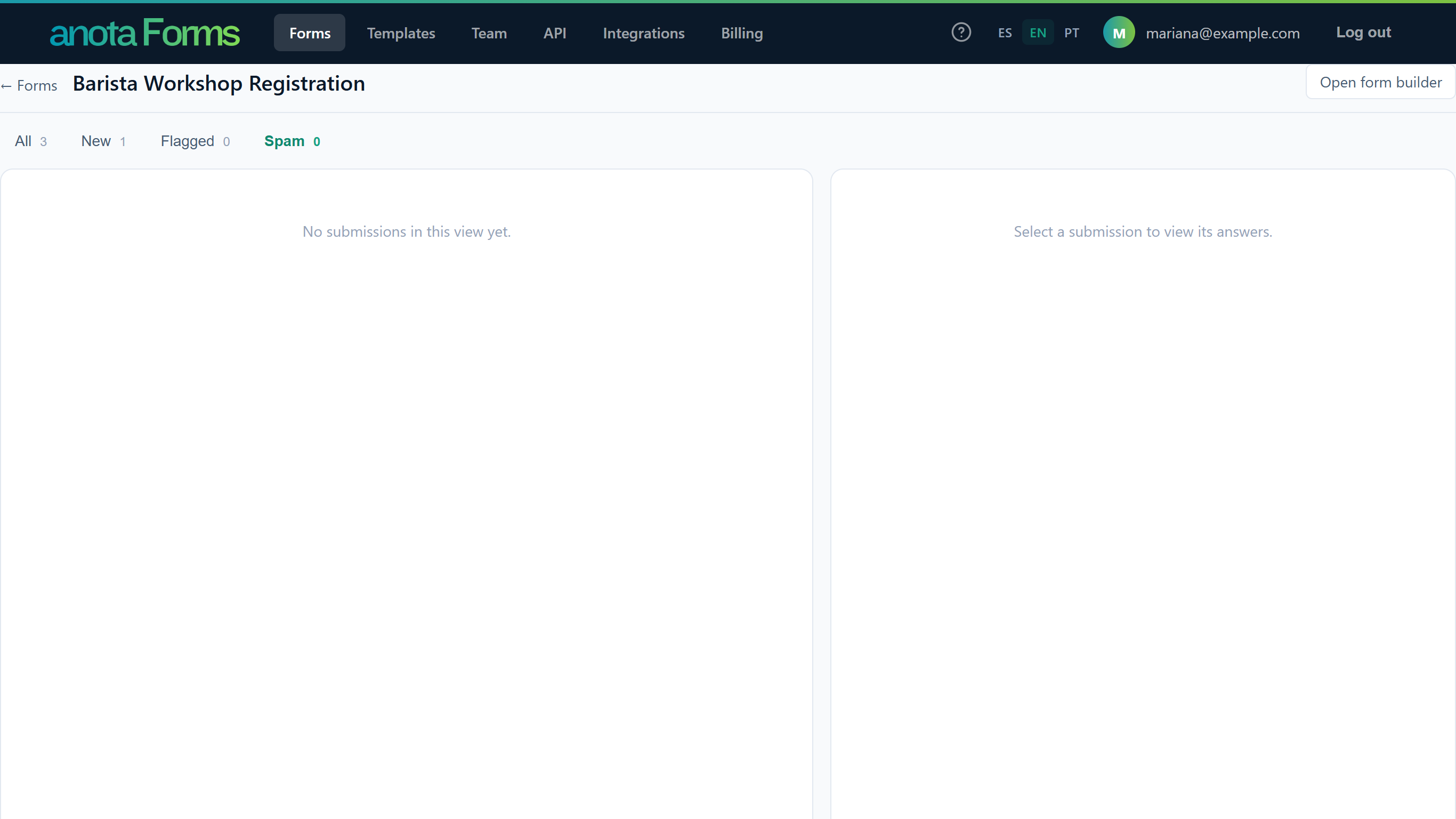 The form's submission count on Forms goes down too.
Result
The submission and its uploaded files are deleted and can't be recovered. Their space is given back to your workspace's file storage. The log of deliveries to integrations for that submission is removed too, but records already created in the other system (for example a CRM contact) are not touched, and emails already sent can't be recalled.
Downloads
- Files: one link per uploaded file, under its question (step 2).
- PDF of the submission: Download PDF at the top of the panel. See Export to PDF.
- anota has no export of the whole list to a spreadsheet (CSV or Excel). To pull many submissions into another tool, use the REST API, an integration, or Claude or ChatGPT.
Action reference
| Button | Who | What it does |
|---|---|---|
| Download PDF | Any member | Downloads the submission as a PDF with the form's layout. |
| PDF layout | Editor+ | Chooses the form's PDF layout, for all its submissions. |
| Mark read | Editor+ | Sets the status to Read. |
| Flag | Editor+ | Sets the status to Flagged. |
| Spam | Editor+ | Sets the status to Spam. |
| Delete | Editor+ | Deletes the submission and its files for good, after confirmation. |
Roles and permissions
| Role | View submissions, download files and PDF | Mark read, Flag, Spam | Delete |
|---|---|---|---|
| Viewer | Yes | No | No |
| Editor, Admin, Owner | Yes | Yes | Yes |
Viewers don't see the status buttons or Delete, and opening a New submission doesn't change its status for them. See Roles and permissions.
Troubleshooting
| Symptom | Likely cause | Resolution |
|---|---|---|
| I can't find a submission I know was sent | It was marked as spam, or it's an unpaid order | Open the Spam tab, or Abandoned / unpaid on payment forms. |
| A submission stays New after I open it | Your role is Viewer | Only Editors and above mark submissions read by opening them. |
| I flagged a submission and now it isn't Read | A submission has one status; Flag replaces Read | Expected. Click Mark read when you're done with it. |
| I deleted a submission by mistake | Deletes are permanent | It can't be restored. If the person received an autoresponder or your team a notification, the answers are in that email. |
| A file link downloads instead of opening | anota always serves uploaded files as downloads, for safety | Open the file from your downloads folder. |
| I can't find a downloaded PDF or file | It went to your browser's downloads folder | Check your downloads folder. |
Related features
Was this page helpful?