Roles and permissions
Roles and permissions
Applies to: anota, all plans Roles required: Owner or Admin to change a role or remove a member; any member can see everyone's role on the Team page Regulatory references: none
Overview
Every member of a workspace has one role, which decides what they can see and do there: build forms, work with submissions, manage the team, or handle billing and the company's branding. The same role also limits what an app they connect, such as Claude or ChatGPT, can do. Roles are shown and changed on the Team page, and there is no separate permissions screen.
This page follows Café Aurora. You see the roles in the Members table, then what Ana Torres sees as a Viewer. Then the owner, Mariana Ortega, changes Ana to Editor and finally removes her from the team.
Key concepts
- Role: a member's permission level in one workspace. Someone who belongs to two workspaces can have a different role in each.
- Role order: from most to least access, Owner, Admin, Editor, Viewer.
- Owner: the person who created the workspace. There is exactly one, and nobody can change the Owner's role or remove them, the Owner included. Ownership can't be handed over in the app.
The four roles
| Role | Who gives it | What it's for |
|---|---|---|
| Owner | Nobody: it belongs to whoever created the workspace | Everything, including setting up form payments (Stripe) on Billing. |
| Admin | Only the Owner | Everything the Owner does except form payments setup. An Admin manages Editors and Viewers only, can't grant Admin, and can't change or remove the Owner or other Admins. |
| Editor | The Owner or an Admin | Creates, edits and publishes forms and works with submissions. No team management, Billing, company settings, API keys or workspace integrations. |
| Viewer | The Owner or an Admin | Sees forms and submissions and downloads submission PDFs. Can't create or change anything. |
Permissions by action
| Action | Owner | Admin | Editor | Viewer |
|---|---|---|---|---|
| See the forms list and the Team page | Yes | Yes | Yes | Yes |
| See submissions and download a submission as PDF | Yes | Yes | Yes | Yes |
| Create, edit, publish, archive and delete forms; open the form builder; use a template | Yes | Yes | Yes | No |
| Mark submissions read, flag them, mark them spam, delete them; choose the PDF layout | Yes | Yes | Yes | No |
| A form's Email notifications and integrations (in the form builder) | Yes | Yes | Yes | No |
| Invite members, resend and revoke invitations | Yes | Yes (as Editor or Viewer) | No | No |
| Change a member's role, remove a member | Yes (anyone but the Owner) | Editors and Viewers only, to Editor or Viewer | No | No |
| Billing: see and change the plan | Yes | Yes | No | No |
| Billing: set up form payments (Stripe) | Yes | No | No | No |
| API keys, and every member's connected apps | Yes | Yes | No | No |
| Workspace Integrations page | Yes | Yes | No | No |
| Company name and logo (Company and branding) | Yes | Yes | No | No |
The top bar shows API, Integrations and Billing only to Owners and Admins. Every page and action also checks the role on the server, so opening a page by its address without the right role shows "You don't have permission to view this page."
Task 1 — See each member's role
Step-by-step
Click Team in the top bar. The Members table lists each person with their role. The Owner's role is always a fixed label. Rows you're allowed to change show a Role list with a Save button and a Remove button; the rest show a fixed label.
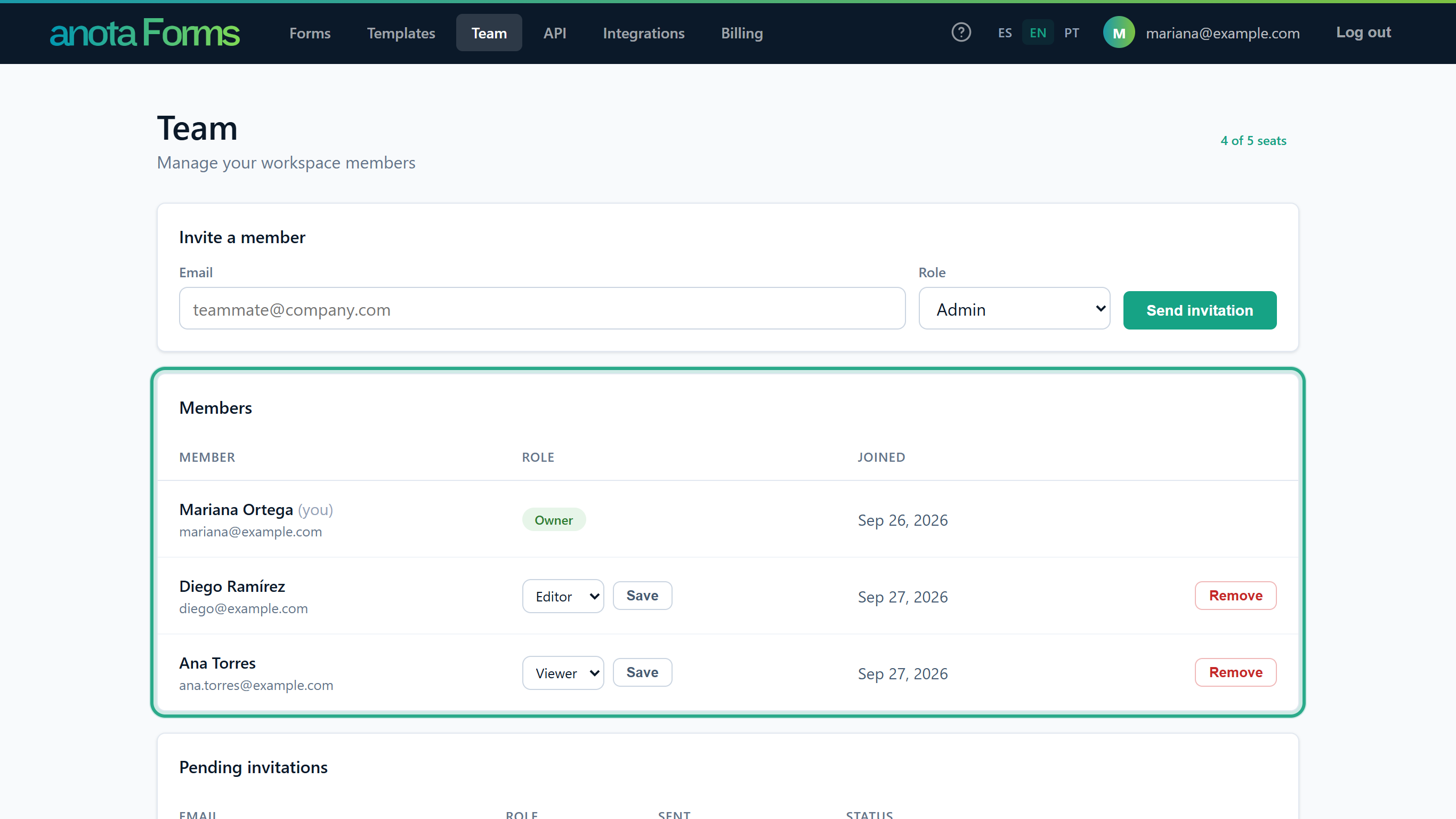 The Owner sees controls on every row except their own.
Result
You know who has which role. Editors and Viewers see every role as a fixed label.
Task 2 — See what a Viewer can do
Step-by-step
Log in as a Viewer (here Ana Torres). Forms lists the workspace's forms with View submissions on each row, but there are no Create form buttons, the form titles don't open the builder and there's no action menu. The top bar has no API, Integrations or Billing.
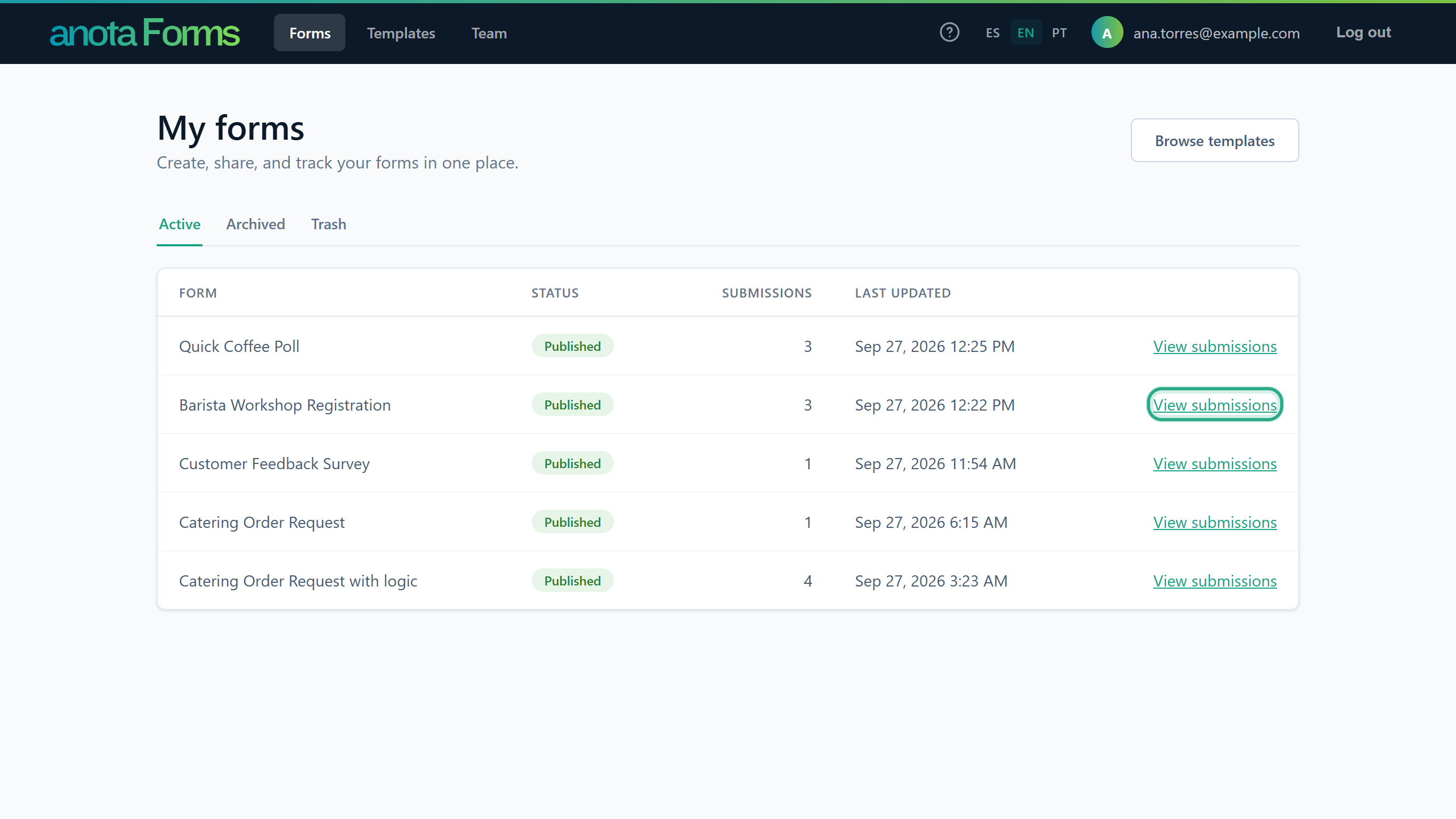 A Viewer reads; an Editor or above builds.
Open a submission. A Viewer sees every answer and can click Download PDF, but not PDF layout, Mark read, Flag, Spam or Delete. Opening a new submission as a Viewer doesn't mark it as read.
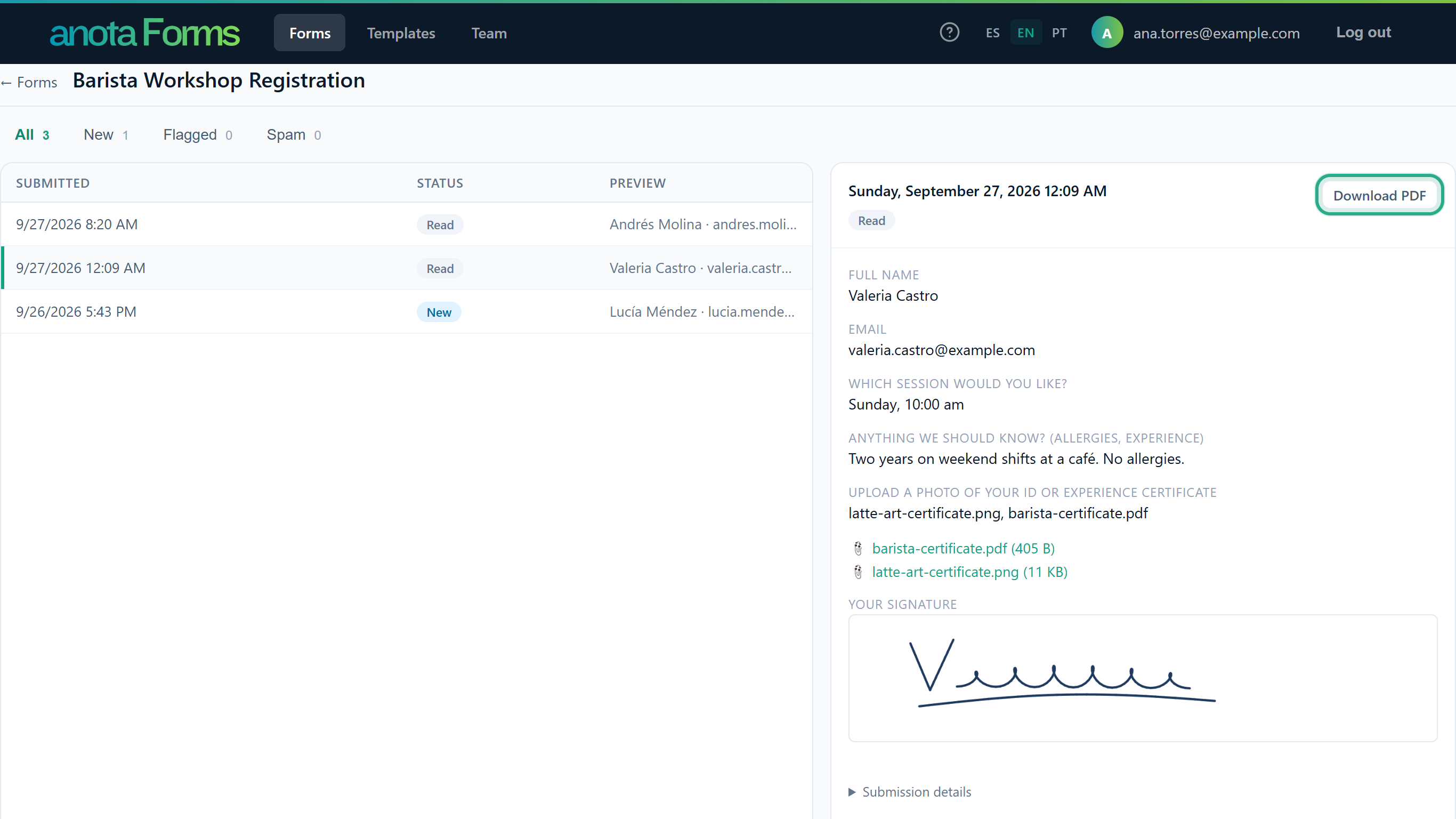 There's no Open form builder button either.
If a Viewer opens a form builder link directly, anota refuses it.
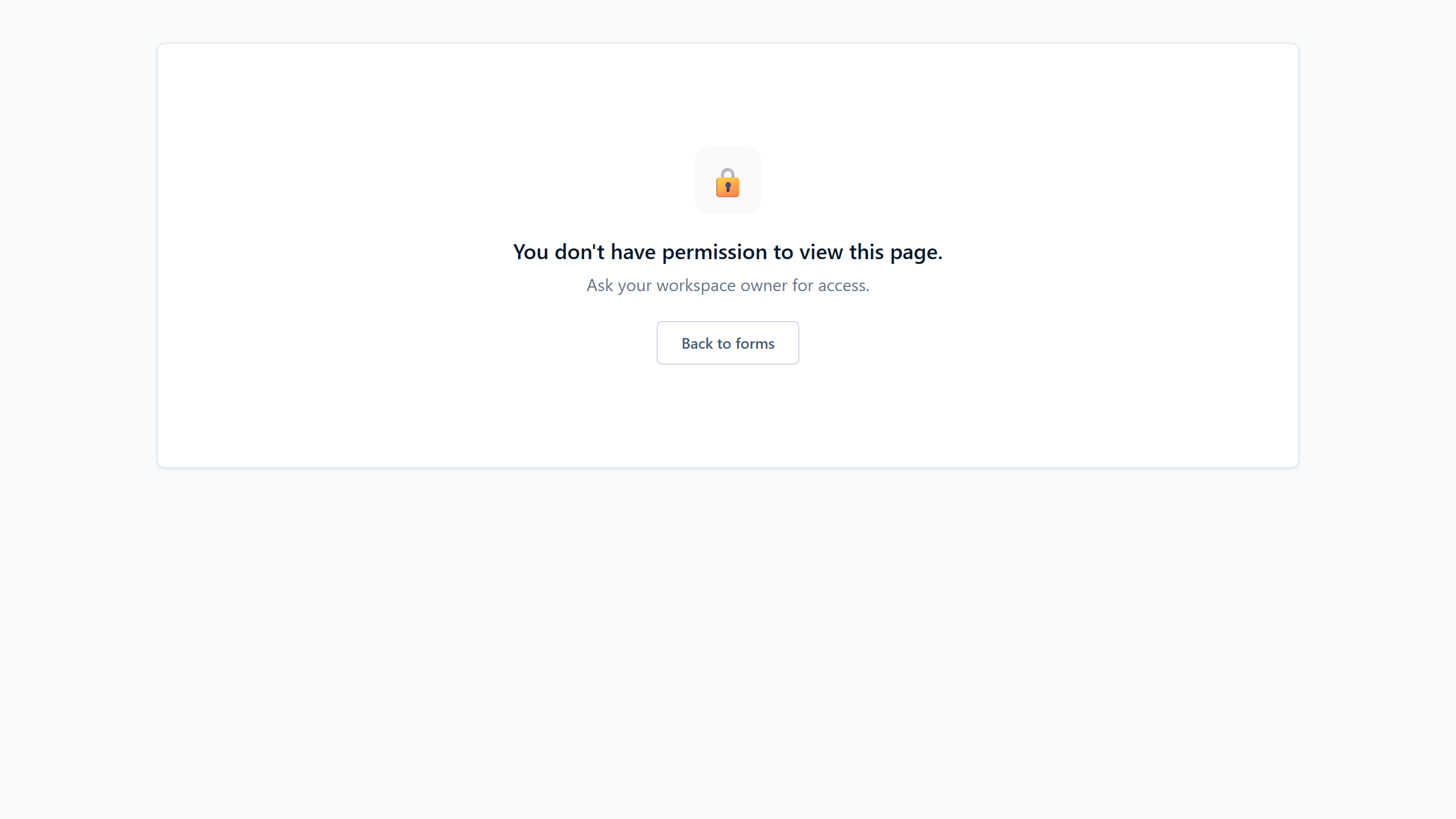 The same message appears for any page the role doesn't allow.
Result
A Viewer can follow the workspace's forms and submissions without being able to change them.
Task 3 — Change a member's role
Prerequisites
- You're the Owner, or an Admin changing an Editor or a Viewer.
Step-by-step
On the Team page, in the person's row, choose the new role in the Role list.
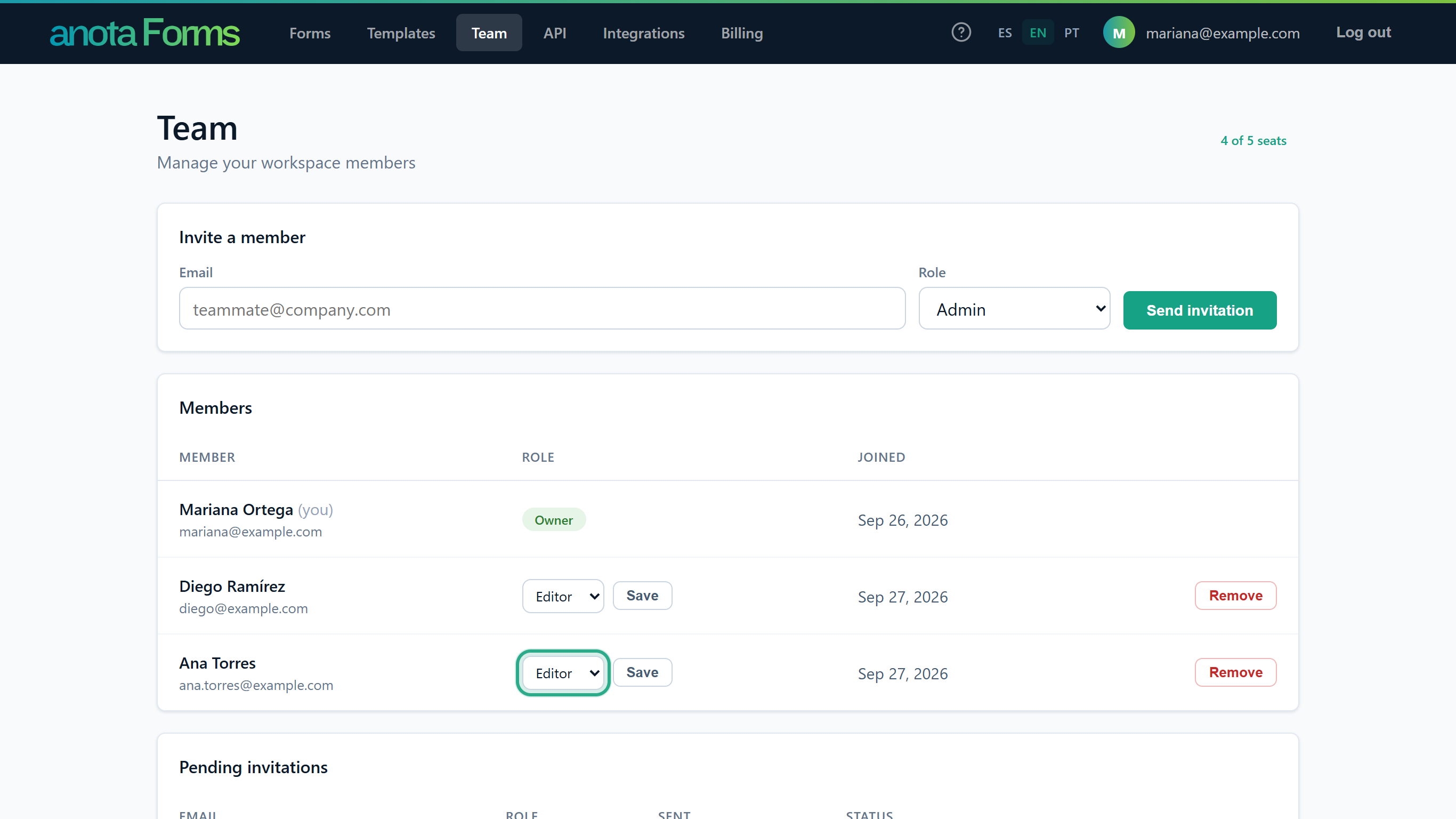 The Owner can choose Admin, Editor or Viewer; an Admin, Editor or Viewer.
Click Save in the same row.
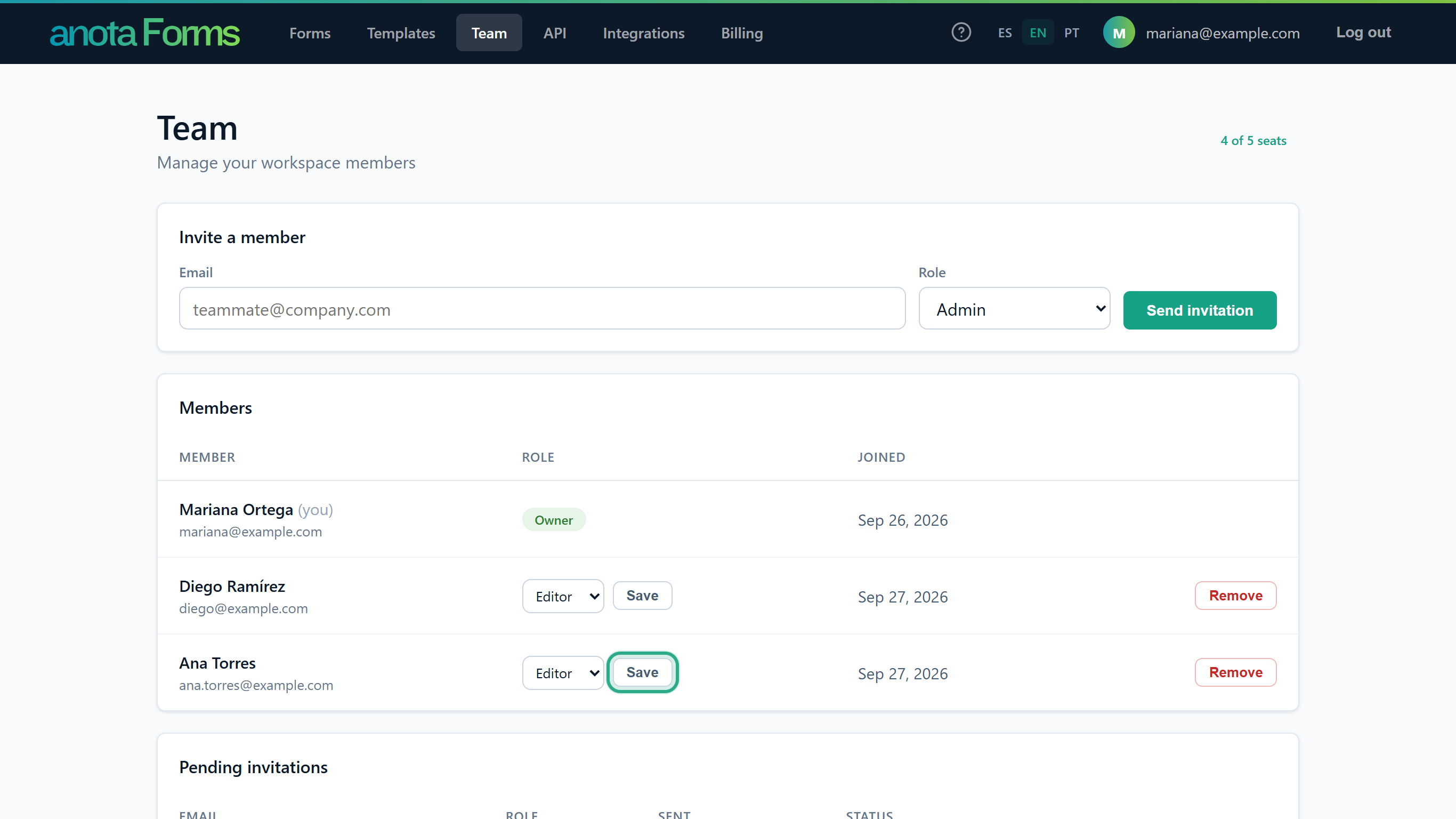 Each row has its own Save button.
The page shows "Role updated." and the row shows the new role.
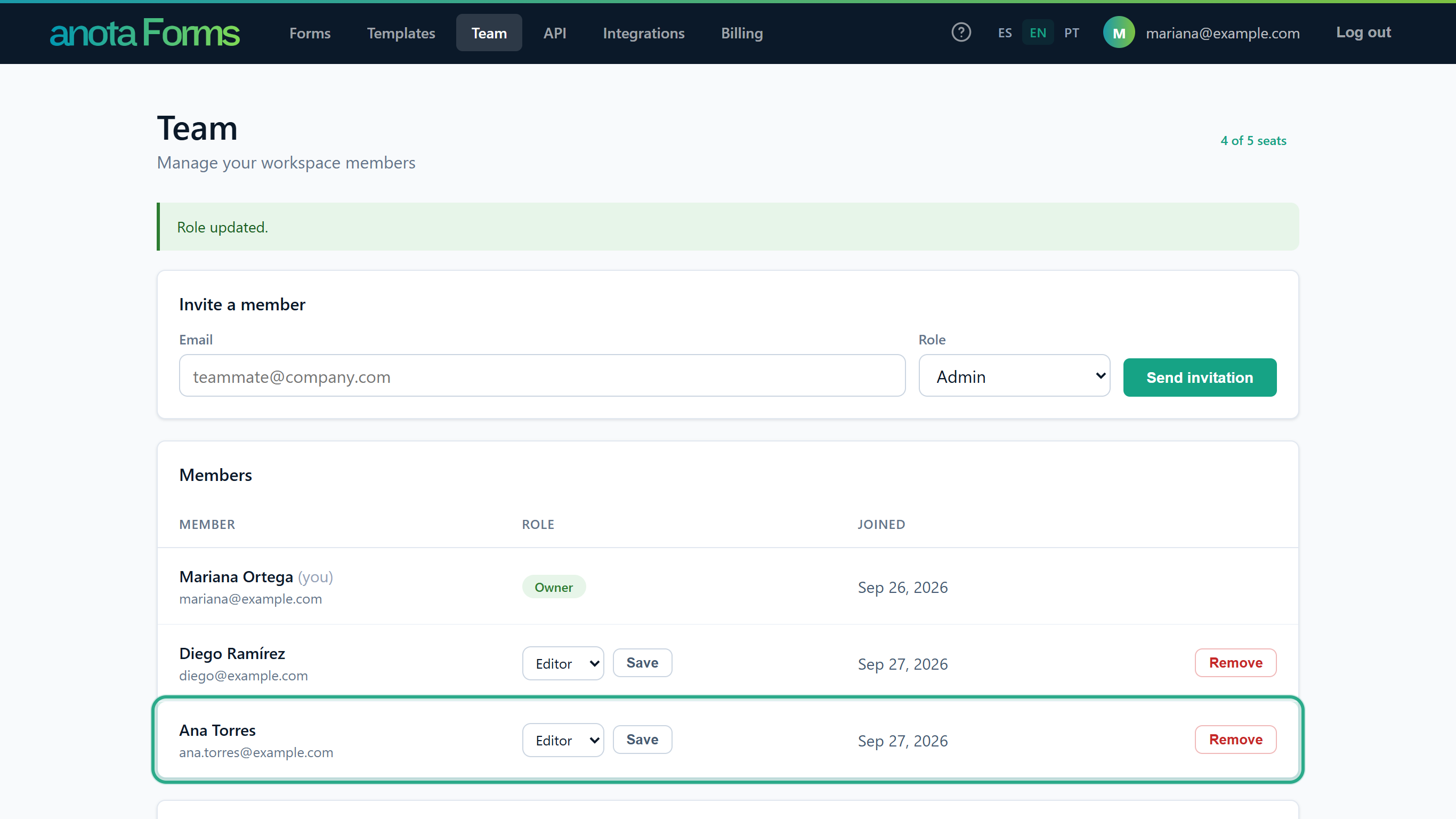 The change applies the next time Ana opens a page.
Result
The member has the new role. If they connected an app such as Claude or ChatGPT, a lower role also narrows what that app can do; a higher role never widens it.
Task 4 — Remove a member
Prerequisites
- You're the Owner, or an Admin removing an Editor or a Viewer.
Step-by-step
In the person's row, click Remove and confirm "Remove this member from the team?"
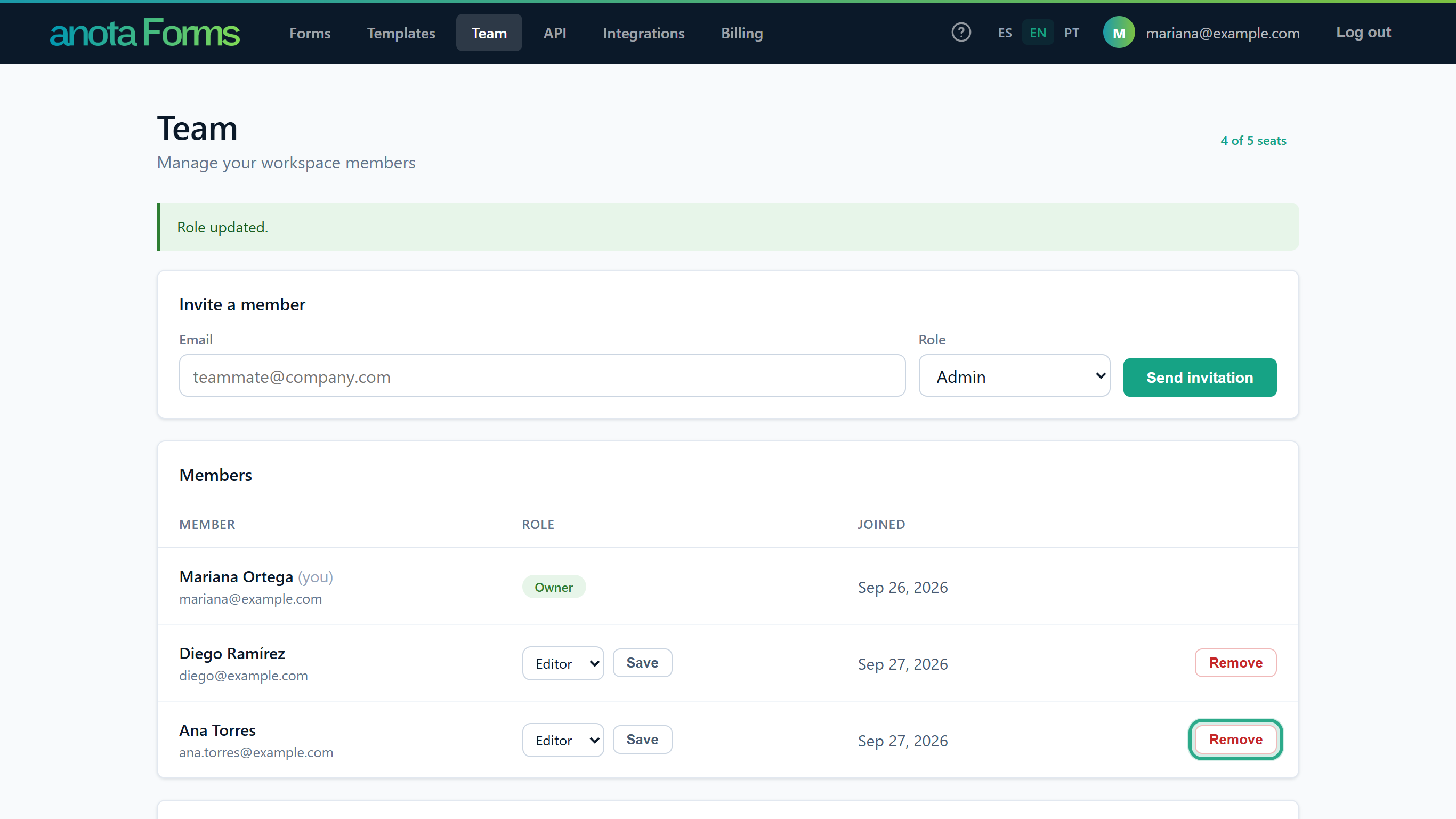 There's no undo: invite the person again if you change your mind.
The page shows "Member removed.", the person leaves the Members table and their seat is free again.
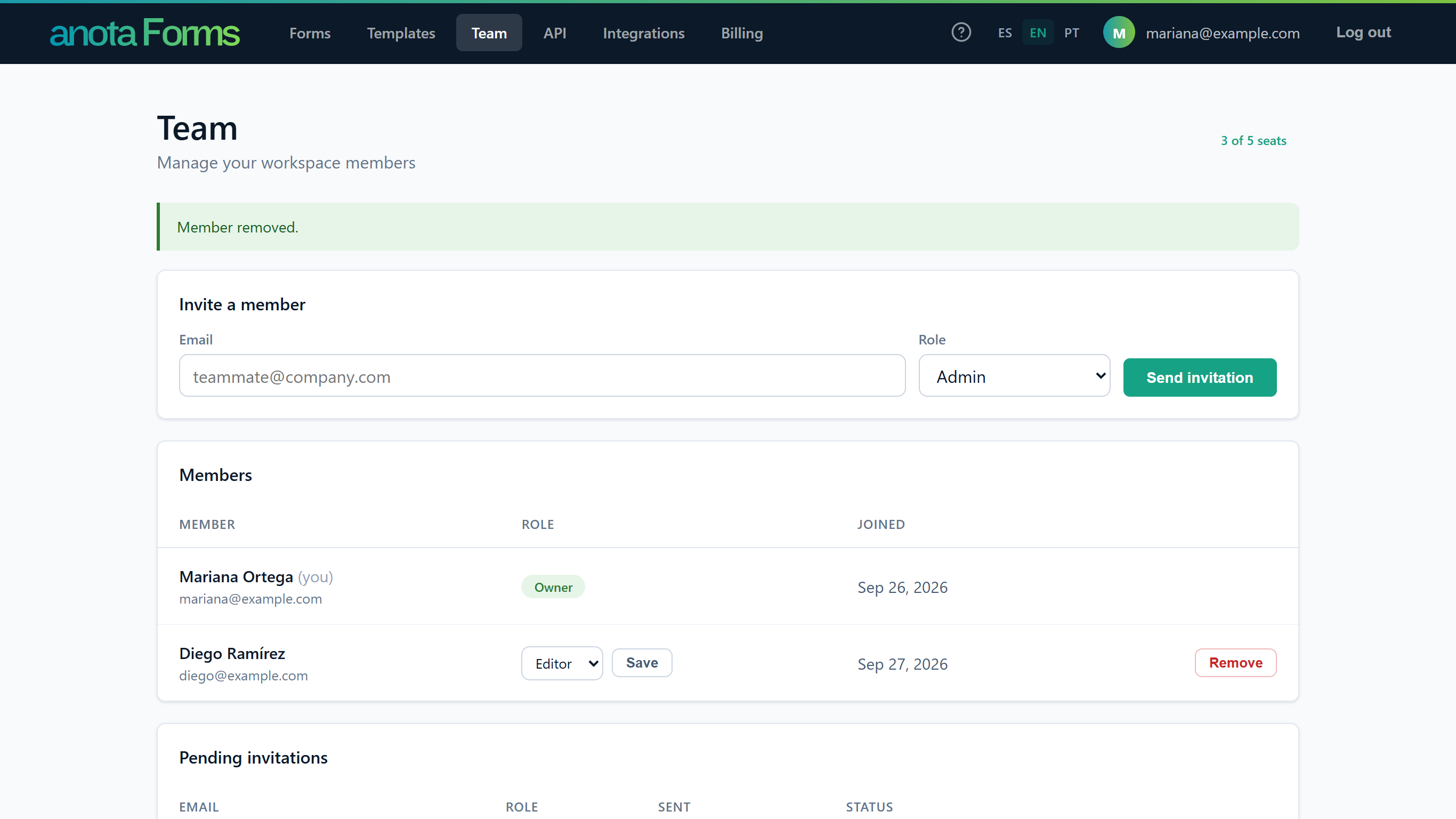 The seat count goes down by one.
Result
The person loses access to the workspace straight away, and any app they connected to it is disconnected from it. Their anota account and any other workspaces they belong to stay as they were.
If the change or removal fails, the Members card shows one of these messages:
| Message | Cause |
|---|---|
| "The owner can't be removed or have their role changed." | The row belongs to the Owner. |
| "We couldn't find that member." | Someone else already removed them. |
| "You can't assign that role." | The role isn't one you can grant. |
| "You don't have permission to do this." | Your role doesn't allow changing that member, or it has changed. |
Connected apps and your role
When you connect an app such as Claude or ChatGPT, the permissions you can give it never go beyond your role in the workspace you choose. The consent screen says: "Permissions are limited to your role in the chosen workspace: a Viewer only ever grants read access."
| Role | Permissions a connected app can have |
|---|---|
| Owner, Admin | Read forms and Templates, read submissions, create and change forms, create and change submissions and, only if you tick it, manage webhooks and Email notifications. |
| Editor | Read forms and Templates, read submissions, create and change forms, create and change submissions. |
| Viewer | Read forms and Templates, read submissions. |
These limits are checked again on every request, so a lower role narrows your connected apps straight away. You can disconnect an app any time from Account → Connected apps. See Connect Claude and ChatGPT (MCP).
Troubleshooting
| Symptom | Likely cause | Resolution |
|---|---|---|
| You can't change a member's role or remove them | You're an Editor or Viewer, or an Admin looking at the Owner or another Admin | Ask the Owner. |
| You don't see API, Integrations or Billing in the top bar | Those pages are for Owners and Admins | Ask the Owner or an Admin, or ask for a different role. |
| "You don't have permission to view this page." | Your role doesn't allow that page | Ask your workspace Owner for access. |
| A member's new role doesn't show yet on their screen | Roles are read again when a page loads | Ask them to reload the page. |
| A connected app can't create or edit forms | You're a Viewer, or you didn't give it that permission when connecting | Disconnect it in Account → Connected apps and connect again. A Viewer needs a higher role first. |
| You want to give the workspace to someone else | Ownership can't be transferred in the app | There's no way to do this from the Team page. |
Related features
Was this page helpful?