Submissions inbox
Submissions inbox
Applies to: anota, all plans Roles required: any member can open the inbox and read submissions; Editor or above to change a submission's status or delete it Regulatory references: none
Overview
Every form has its own submissions inbox: one list with every response the form has received, newest first, and a panel on the right that shows the answers of the one you select. Use it to see what came in since you last looked, find a response, and open it. Form owners and team members use it to follow up with the people who filled in the form.
This page covers the inbox itself: opening it, the tabs, the list and opening a submission. What you do with one submission (its files, flagging, spam, delete) is in View and manage submissions, and its PDF in Export to PDF.
The examples use Café Aurora's Barista Workshop Registration.
Key concepts
- Submission: one response to the form, with the answers the person gave in each field.
- Status: every submission has exactly one status: New, Read, Flagged or Spam.
- New: nobody with the Editor role or above has opened it yet. Opening it marks it Read.
- Flagged / Spam: statuses you set yourself, to find important responses quickly or set aside junk. See View and manage submissions.
- Preview: a short extract of the answers in the list, so you can recognise a submission without opening it.
Task 1 — Open a form's inbox
Step-by-step
Click Forms in the top menu. In the form's row, click View submissions. The Submissions column shows how many responses the form has.
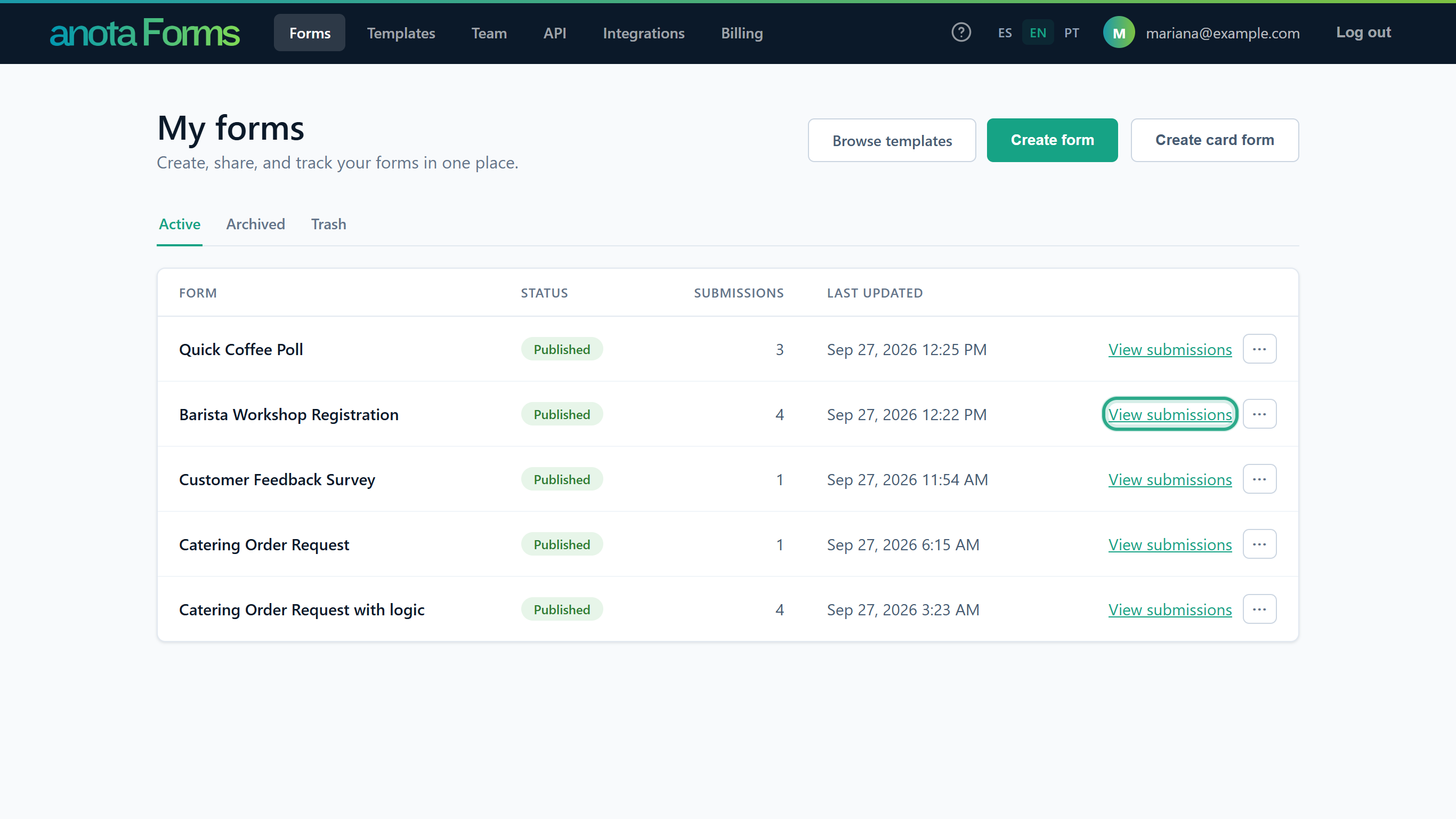 View submissions is on every form of the Active and Archived tabs, not on Trash.
The inbox opens with the form's title at the top, the tabs, and the list of submissions. The panel on the right reads "Select a submission to view its answers." until you pick one.
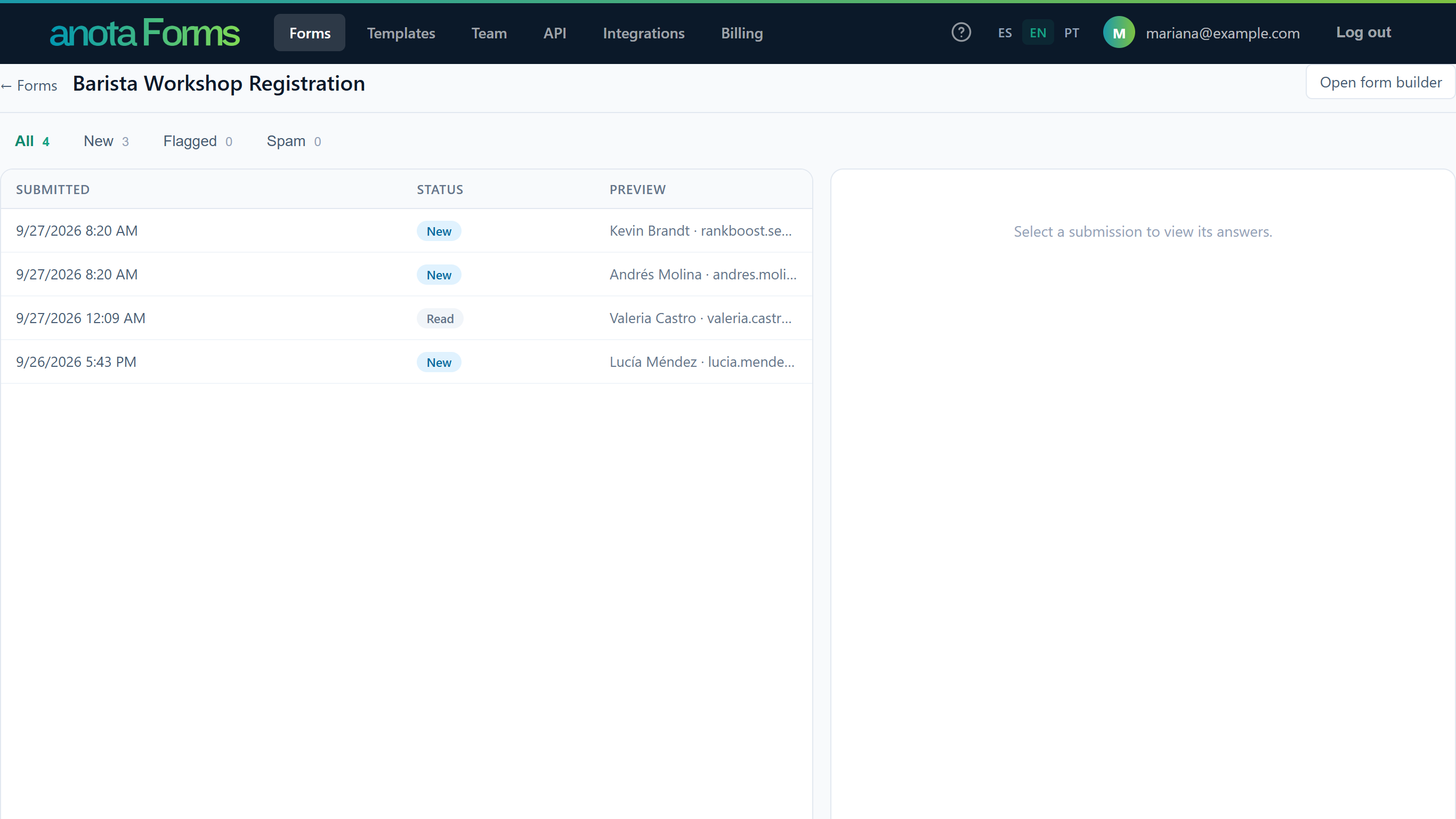 Each row shows Submitted, Status and Preview. The newest submission is at the top.
Result
You're in the form's inbox. ← Forms at the top left takes you back to the list. Editors and above also see Open form builder at the top right.
Task 2 — See only new, flagged or spam submissions
Step-by-step
Click a tab to filter the list: All, New, Flagged or Spam. The number next to each tab is how many submissions it holds. Here, New shows the three registrations nobody has opened yet.
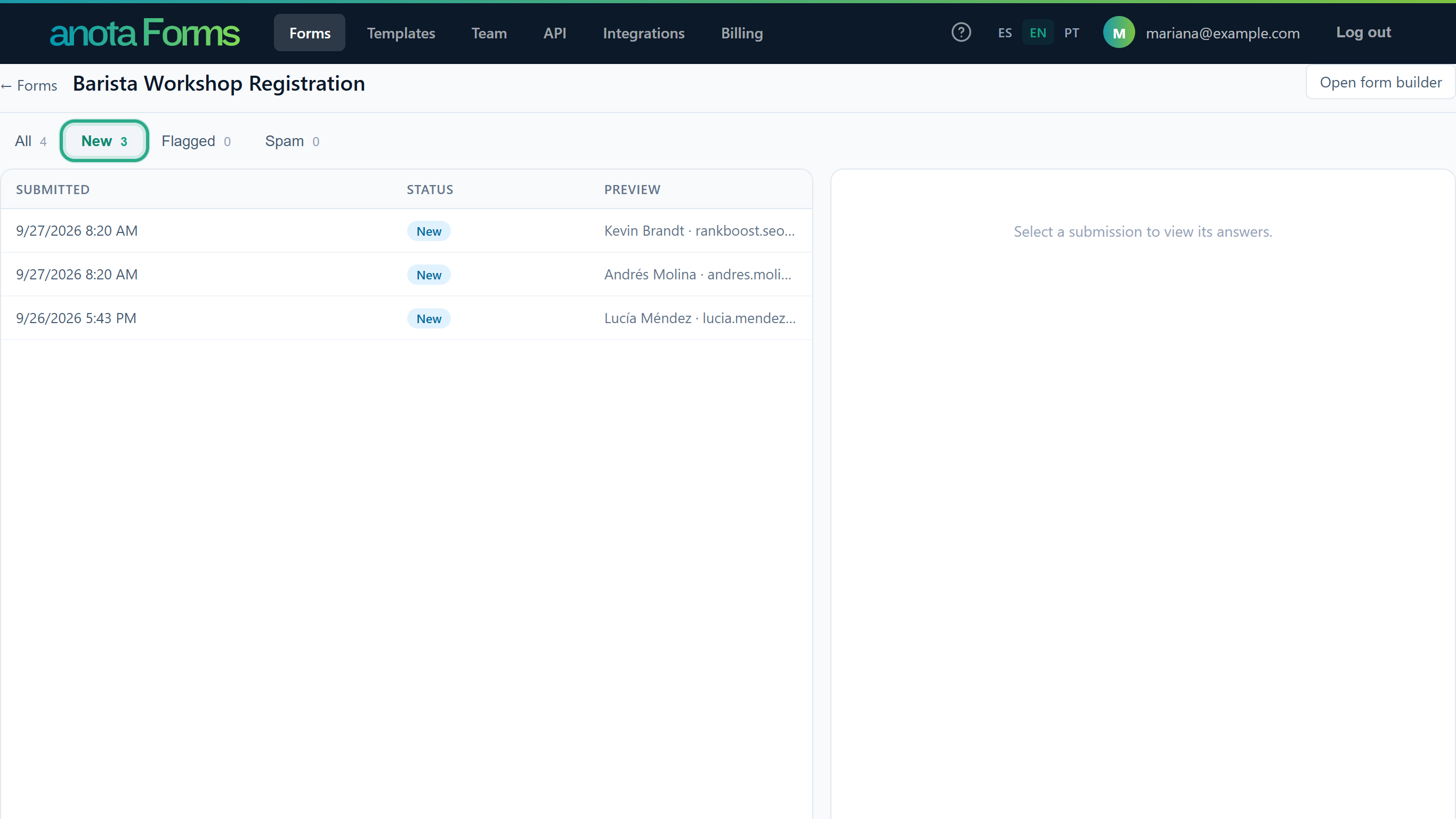 The tab you're on is shown in green.
A tab with nothing in it shows "No submissions in this view yet." A form that hasn't received anything shows "No submissions yet."
Result
The list shows only the submissions of that tab. All shows every submission except unpaid orders, whatever its status, including spam. Switching tabs closes the submission you had open.
Task 3 — Recognise a submission from the list
Step-by-step
Read the Preview column: it shows the first three answers that aren't empty, separated by dots, for example the name, the email address and the session chosen. Choice answers show the option's text, and file uploads the file names. Signatures are left out.
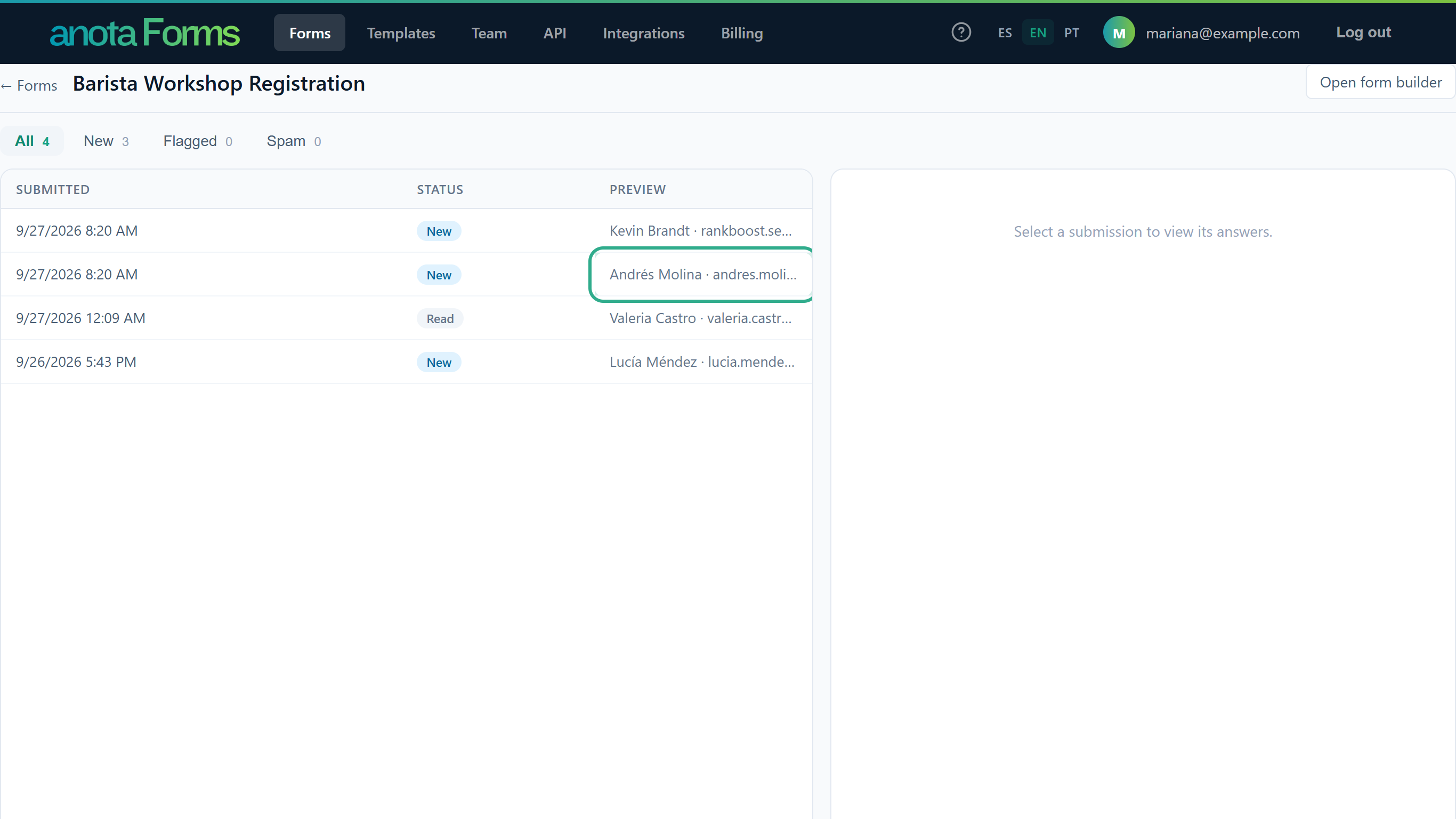 A long preview is cut off to fit the column; open the submission to read everything.
Result
You can tell submissions apart without opening them. The preview follows the form as it is now in the builder, so a field you deleted later no longer appears in it; the submission itself keeps it (see Task 4).
Task 4 — Open a submission
Step-by-step
Click a row. Its answers open in the panel on the right, with the date and time it was sent and its status. If it was New and your role is Editor or above, it's marked Read straight away, and the New count goes down by one.
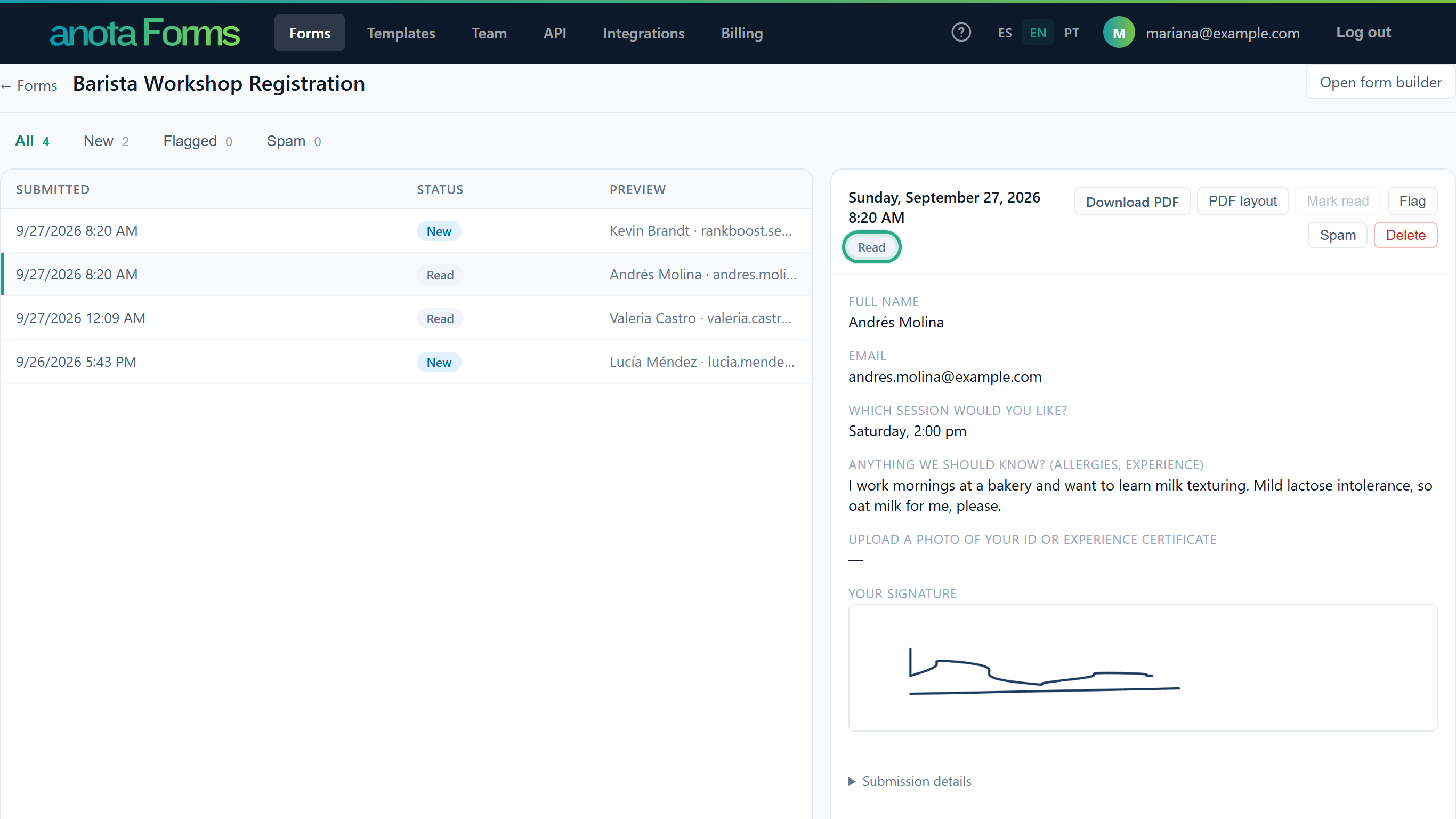 The open row is marked with a green bar on the left. The buttons at the top of the panel act on this submission.
Result
You see every answer of the submission, labelled with the questions as they were when the person answered, even if you've changed the form since. From here you can download the PDF or files, flag it, mark it as spam or delete it; see View and manage submissions.
Task 5 — Find the submissions you set aside
Step-by-step
Click Spam to see the submissions marked as spam (or Flagged for the ones you flagged). They stay in All as well.
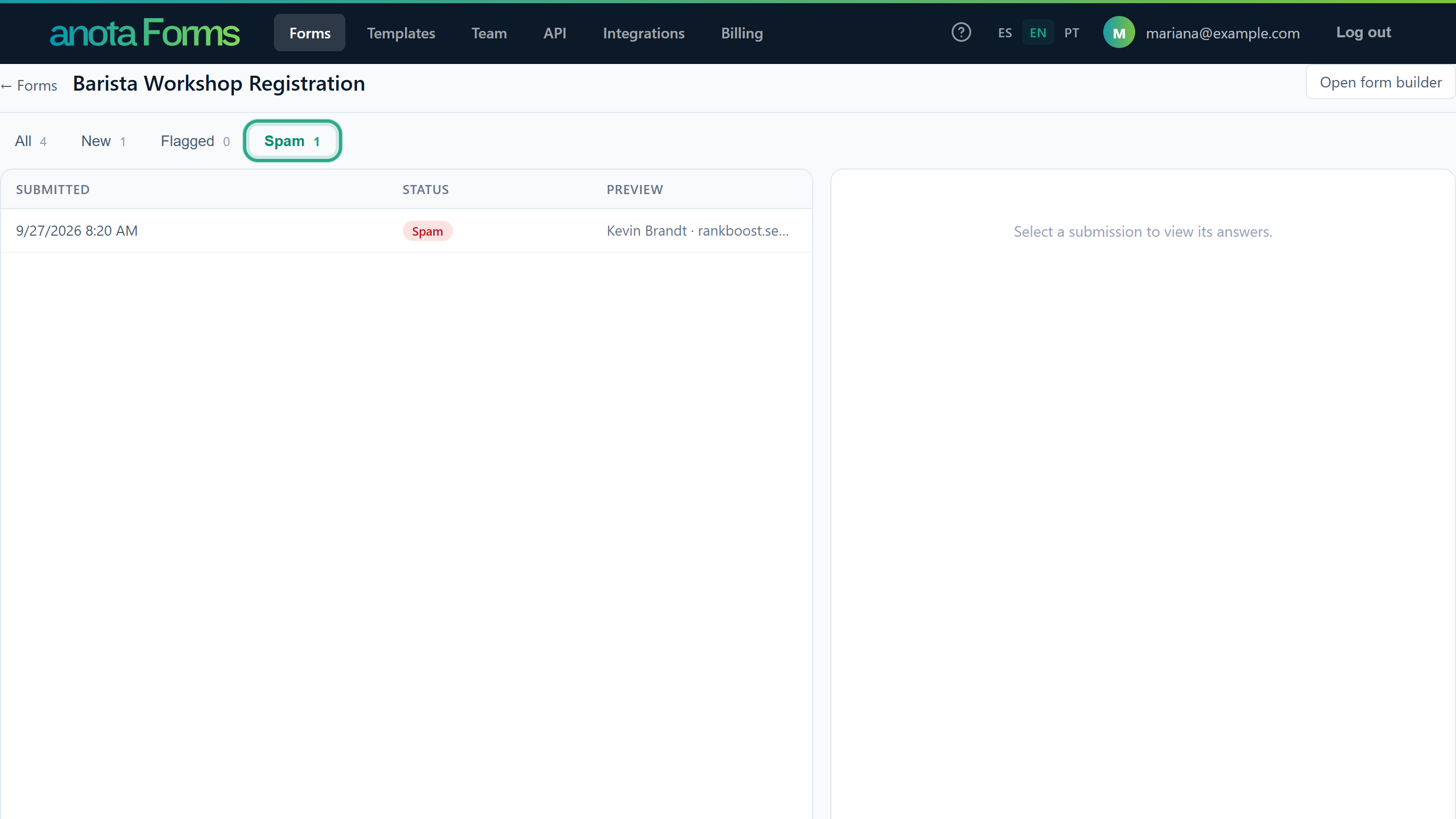 Spam is kept, not deleted, so you can check it later.
Result
Spam and flagged submissions are one click away. To take one out of Spam or Flagged, open it and click Mark read.
Longer lists
The inbox shows 25 submissions per page. When a tab holds more, ← Prev and Next → appear under the list with "Page 1 of 3 (60 total)". The inbox has no search box and no export to a spreadsheet: find a submission with the tabs, the dates and the preview, and download it with Download PDF (Export to PDF). Through the REST API or the Claude connector you can also list and read submissions from other tools.
Forms that take payments
On a form with a Products field that charges through Stripe, two more tabs appear once the form has had an order with payment, and each order carries a payment badge next to its status. (Café Aurora's demo forms have no paid orders, so they don't appear in the pictures above.)
| Tab | Shows |
|---|---|
| Paid | Orders whose payment was collected or is still processing, including refunded ones. |
| Abandoned / unpaid | Orders whose payment was never completed. Its tooltip reads "Orders whose payment was never completed. Deleted after 30 days." |
| Payment badge | Meaning |
|---|---|
| Payment pending | Saved and waiting for the person to pay in Stripe. Listed under Abandoned / unpaid. |
| Payment processing | The person finished Stripe Checkout and the payment is still settling. Listed under All and Paid. |
| Paid | The payment was collected. Notifications, the PDF and webhooks go out at this point. |
| Refunded / Partly refunded | The payment was refunded, fully or partly, from your Stripe dashboard. |
| Abandoned / unpaid | The payment never completed. |
Unpaid orders don't appear under All, New, Flagged or Spam, and aren't counted there. An open unpaid order says "This order was not paid: no notifications or webhooks were sent. It is deleted automatically 30 days after it was submitted." A paid order shows Amount paid, Paid on and, after a refund, Refunded.
Field reference
| Column | Description |
|---|---|
| Submitted | Date and time the response was sent. |
| Status | New, Read, Flagged or Spam, plus a payment badge on payment forms. |
| Preview | The first three non-empty answers. |
| Tab | Shows |
|---|---|
| All | Every submission except unpaid orders. |
| New | Status New. |
| Flagged | Status Flagged. |
| Spam | Status Spam. |
| Paid, Abandoned / unpaid | Payment forms only (see above). |
Roles and permissions
| Role | Open the inbox, read submissions, download PDF and files | Change status, delete, PDF layout |
|---|---|---|
| Viewer | Yes | No |
| Editor, Admin, Owner | Yes | Yes |
When a Viewer opens a New submission it stays New, so the rest of the team still sees it as unread. See Roles and permissions.
Troubleshooting
| Symptom | Likely cause | Resolution |
|---|---|---|
| I can't find a submission I know was sent | It was marked as spam, it's on another page, or it's an unpaid order | Check Spam, use Next →, and on payment forms check Abandoned / unpaid. |
| A visitor saw the thank-you page but nothing arrived | The form was completed in under 3 seconds or filled a hidden anti-bot field, so anota discarded it | Nothing to do; real visitors aren't affected. See Publish and share. |
| A submission I opened is still New | Your role is Viewer | Ask an Editor or above to open it, or to change your role. |
| The preview doesn't show an answer I expected | The preview shows only the first three non-empty answers, and follows the form's current fields | Open the submission to see all answers. |
| View submissions is missing | The form is in the trash | Restore it from the Trash tab (see Publish and share). |
| I'm not told when new submissions arrive | Email notifications go to the workspace owner by default | Set up your own; see Email notifications. |
Related features
Was this page helpful?