Templates
Templates
Applies to: anota, all plans Roles required: any member can browse templates; Editor or above to create a form from one Regulatory references: none
Overview
The template gallery lets you start a new form from a ready-made design instead of a blank page. Pick a customer survey, a job application, an event registration or any of the thousands of other templates, and anota copies it into your workspace as a new draft form. From then on it is your form: you can add, remove and change fields, change the look and edit every text before you publish it.
This page follows one example from start to finish, with the screen you should see at every step and the button or field to use outlined in green. Café Aurora looks for a customer survey for its coffee shop, previews it, finds that its Starter plan is full, frees a slot and creates the form. The last task shows the public gallery on the anota website, which anyone can browse without an account.
Key concepts
- Template: a sample form with its fields, pages, texts and colours already in place. Templates exist in Spanish, English and Portuguese, and new ones are added regularly.
- Template language: the gallery shows the templates in your interface language (the ES / EN / PT switch in the top bar). If there are none in that language, it shows the Spanish ones.
- Category: the grey label on each card (for example CUSTOMER SERVICE). It is informational only in the app and does not filter the list.
- Filters (Types, Industries, Professions): three filter groups in the Filters sidebar. They narrow the list and combine with each other and with the search box. Each group takes one value at a time; click the value again to turn it off. Only values with at least one template are listed, most common first.
- Draft: a form created from a template starts as a draft, exactly like a form created from scratch. Nobody can see it until you publish it.
- Form limit: the number of forms your plan allows. Forms that are archived or in the trash don't count toward it. See Plans and billing.
Task 1 — Open the template gallery
Step-by-step
Click Templates in the top bar. You can also click Browse templates on the Forms page, or Use a template on the Create your first form screen when the workspace has no forms yet.
 Templates sits between Forms and Team in the top bar.
The Form templates page opens. The Filters sidebar is on the left, the search box and the number of templates at the top, and the cards below. Each card shows the first fields of the template, its title, category, a short description and how many fields it has (and how many pages, if more than one).
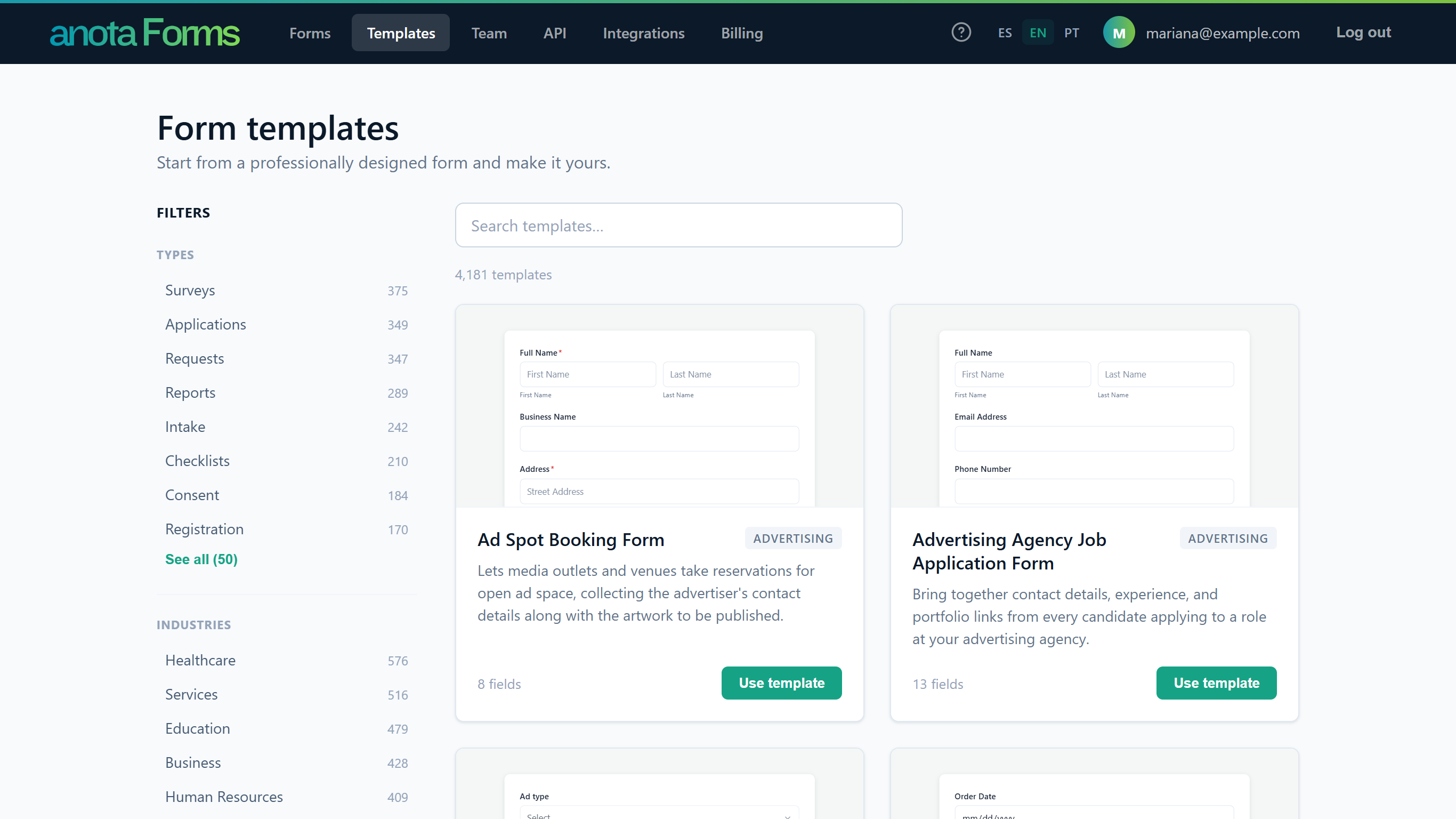 The in-app gallery shows the first 60 templates; Show more (N remaining) below the grid loads the next ones.
Result
You see every template available in your interface language.
Task 2 — Search and filter
Step-by-step
Type a word in Search templates… (here "coffee"). The list narrows as you type. The search looks at titles and descriptions, ignores capitals and accents, and looks for exactly what you typed, so "coffee shop" finds only templates that contain those two words together.
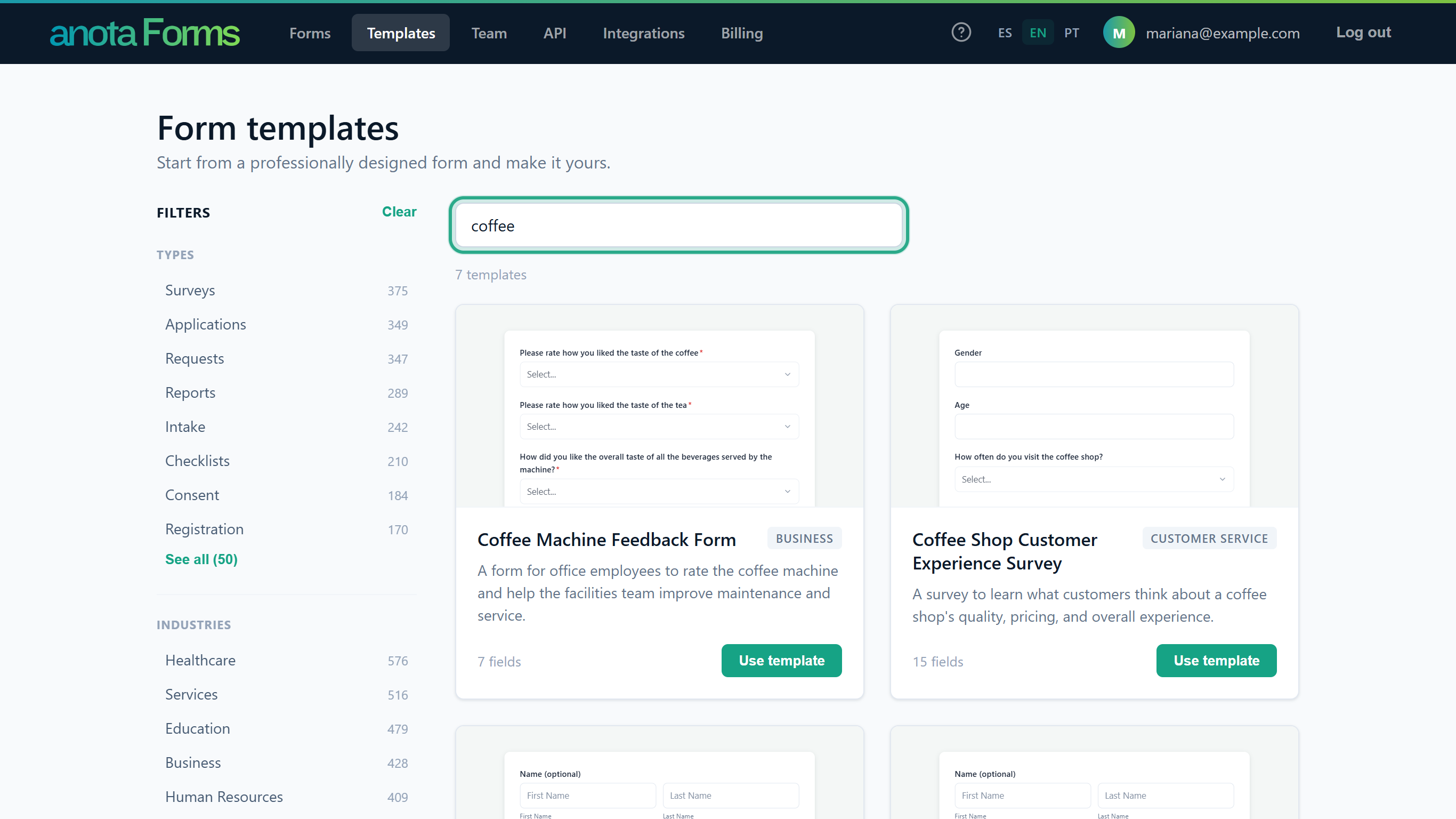 The line under the box shows how many templates match.
To narrow further, click a value in Types, Industries or Professions (here Surveys under Types). The filter combines with the search: two coffee templates are surveys. Click See all (N) under a group to see all its values, and Show less to fold it again. Click the active value a second time to turn it off.
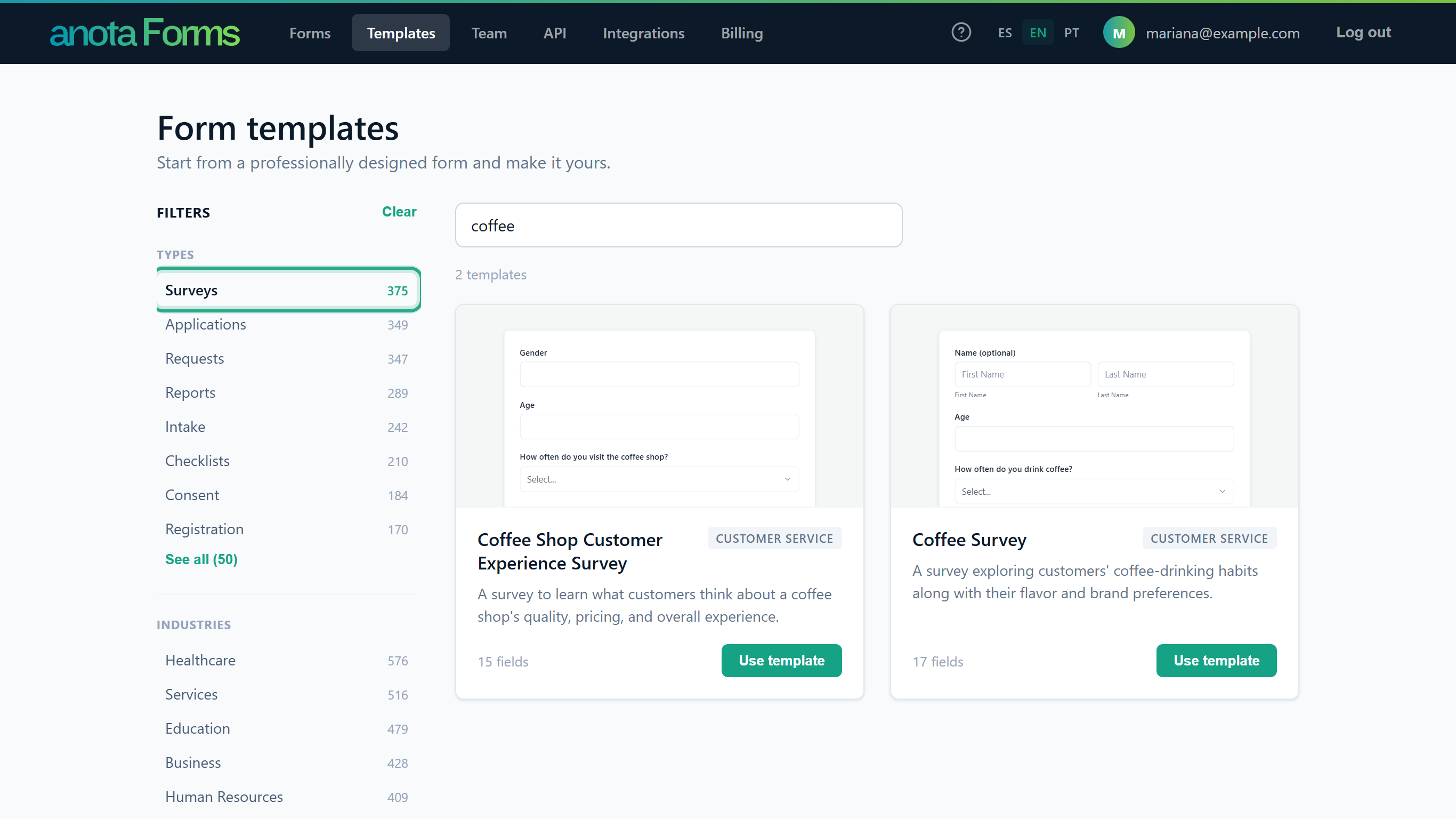 The number next to each value is how many templates it has in the whole gallery.
To start again, click Clear at the top of the sidebar. It removes the search text and every filter at once. It only appears while a search or a filter is active.
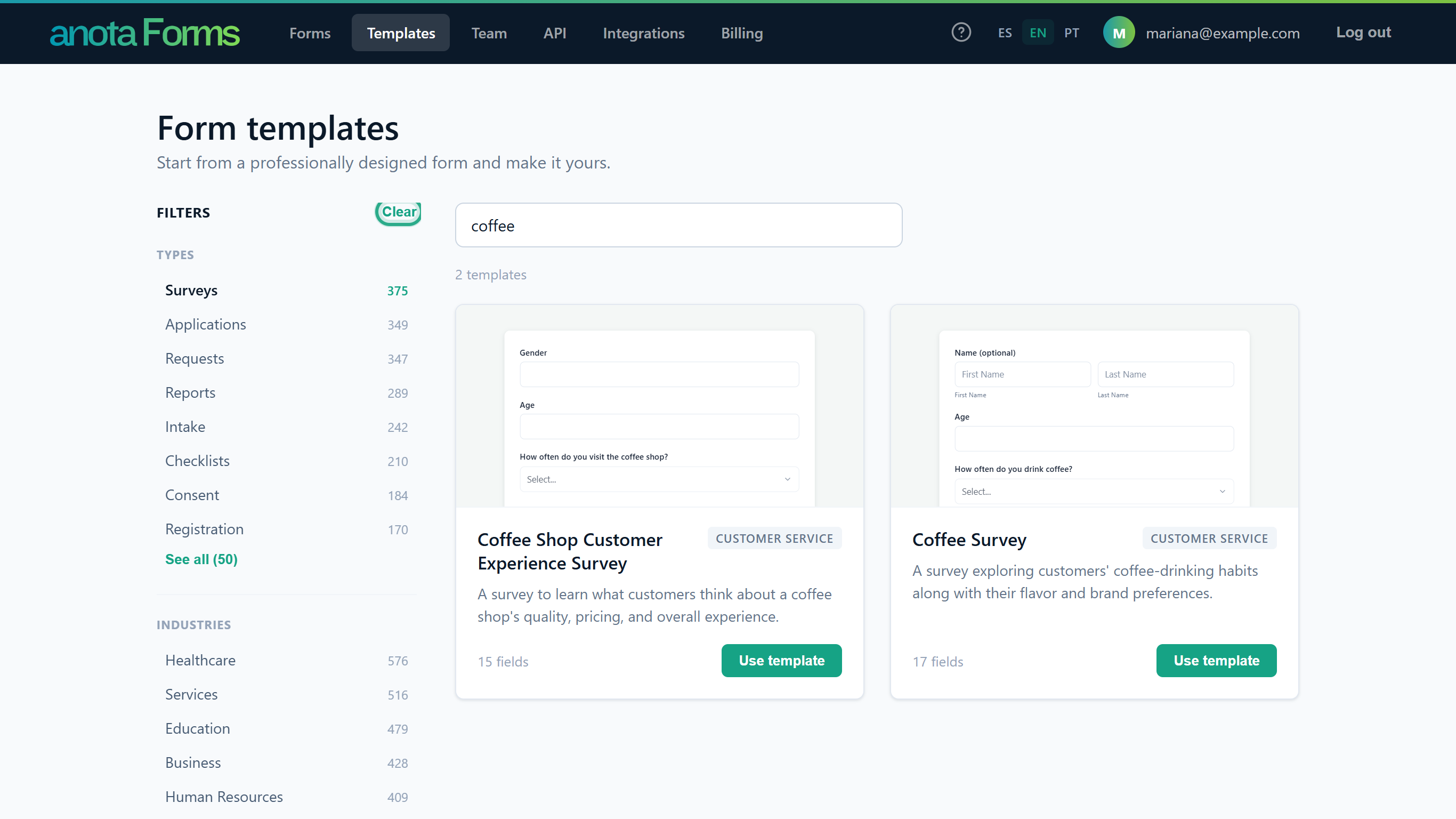 Clear resets the search box and all three filter groups.
If nothing matches, the page says No templates found. Click Clear filters to reset the search and the filters, or try other words.
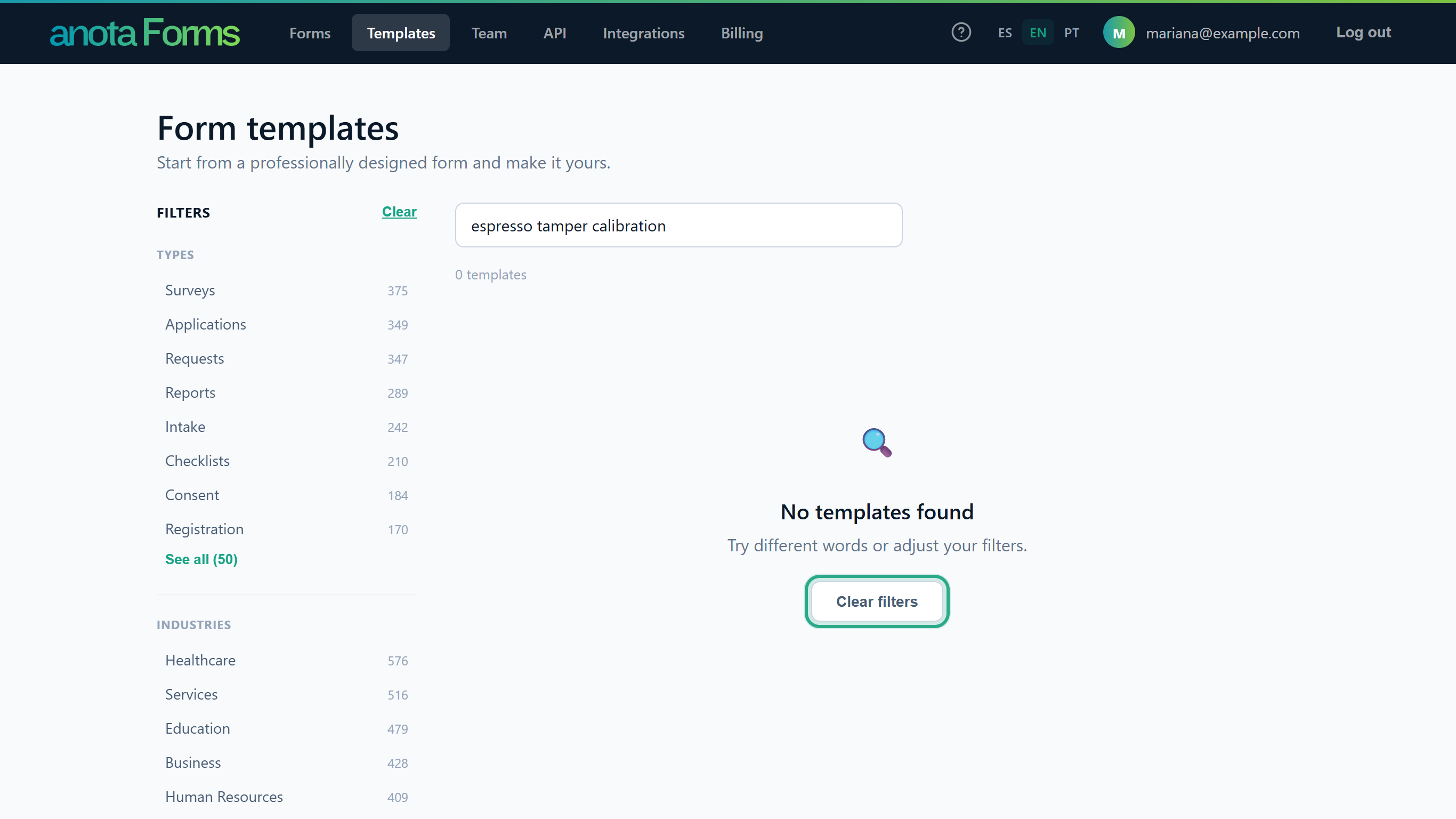 Fewer or more general words usually find something.
Result
The gallery shows only the templates that match your search and filters.
Task 3 — Preview a template
Step-by-step
Point at a card's picture. It shows Preview. Click it.
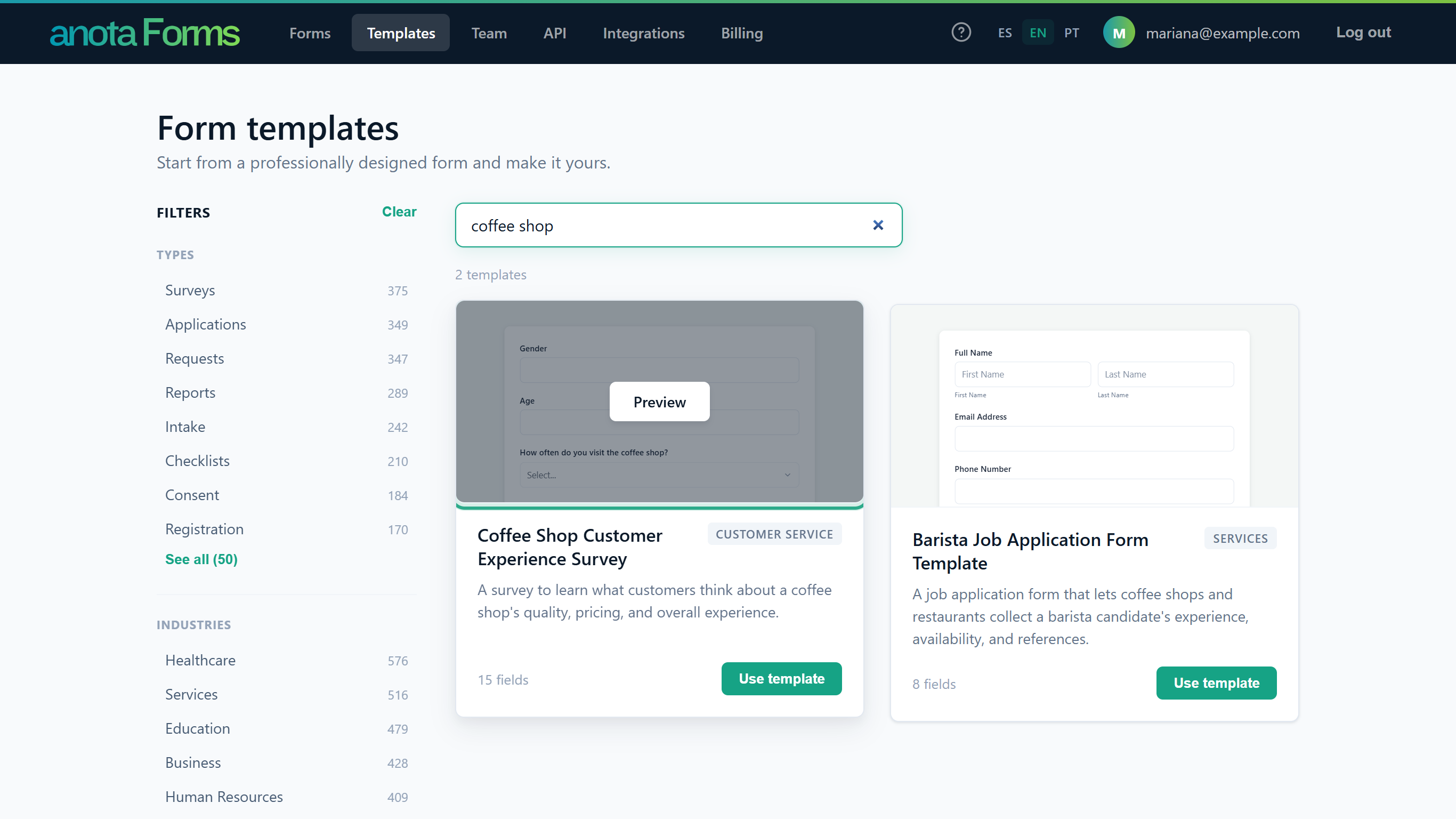 The card picture is a live miniature of the template's first fields.
The preview window shows the template's whole first page with its colours, and a line with the category and the number of fields. For a template with several pages the line adds, for example, "4 pages (showing page 1)". Click Use this template to create your copy, or ✕ (or anywhere outside the window) to close it.
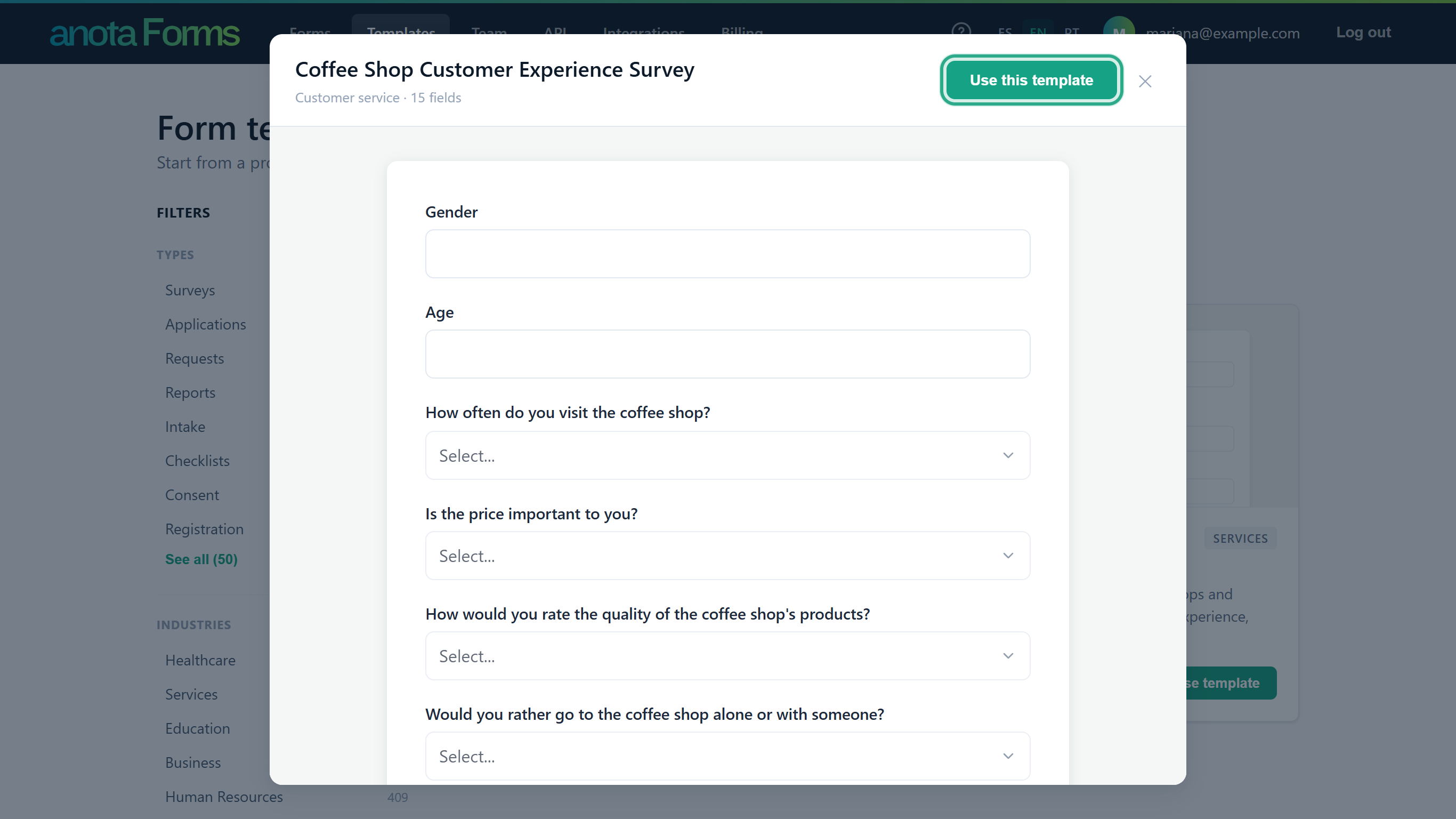 The preview can't be filled in; it only shows what the template contains.
Result
You know what the template contains before you create anything.
Task 4 — Create a form from a template
Prerequisites
- A role of Editor or above (Viewers don't see Use template).
- Your workspace is below its plan's form limit. If it's not, see Task 5.
Step-by-step
Click Use template on the card (or Use this template in the preview window). While the form is being created the button shows Creating….
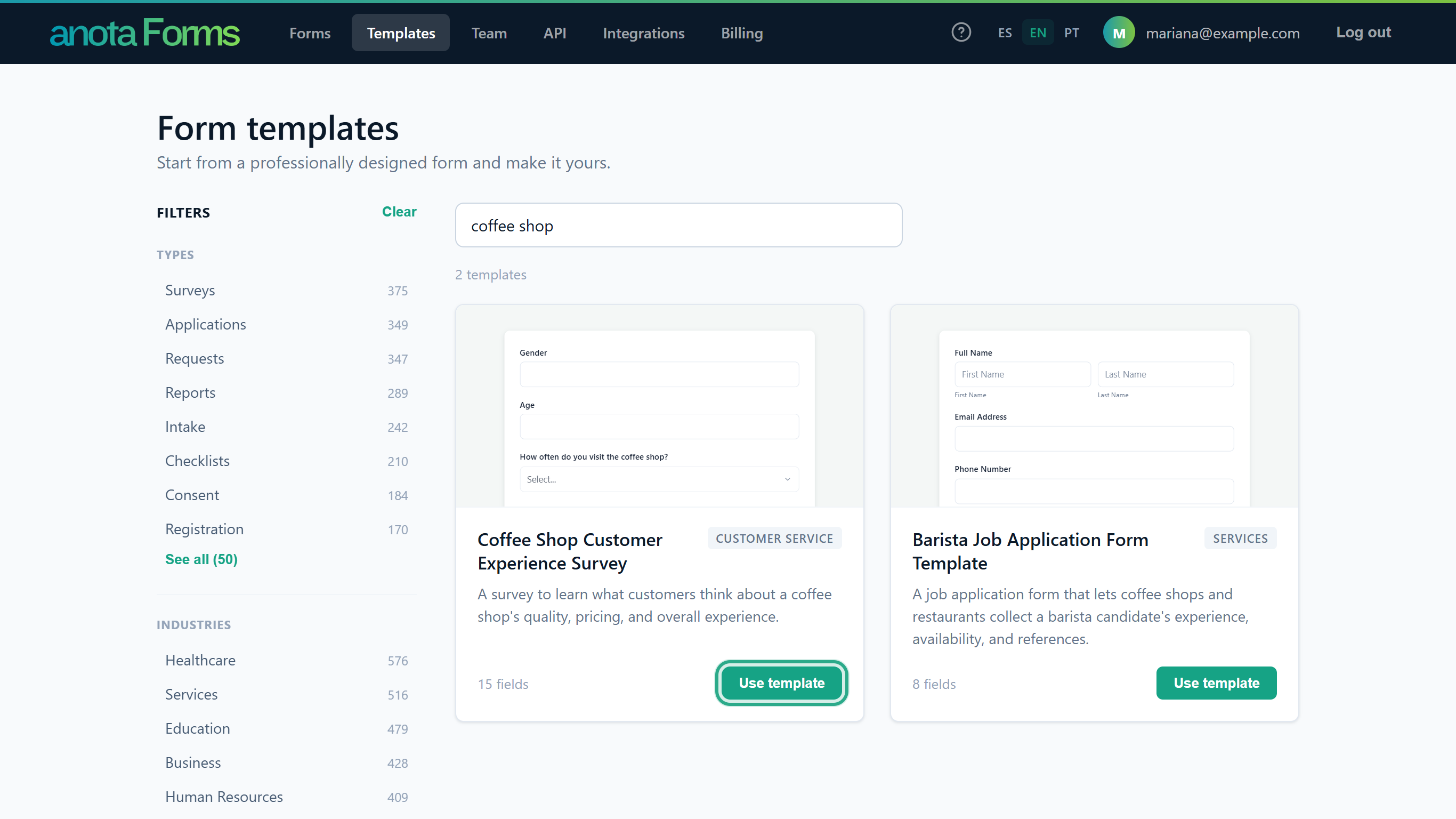 There is no extra confirmation: the copy is made straight away.
The new form opens in the form editor. Its title is the template's title, and it has all the template's pages, fields, rules and colours. Its base language is the language of the template (here EN, "base language: EN"), so you can add translations as usual (see Multilingual forms). Rename it by clicking the title.
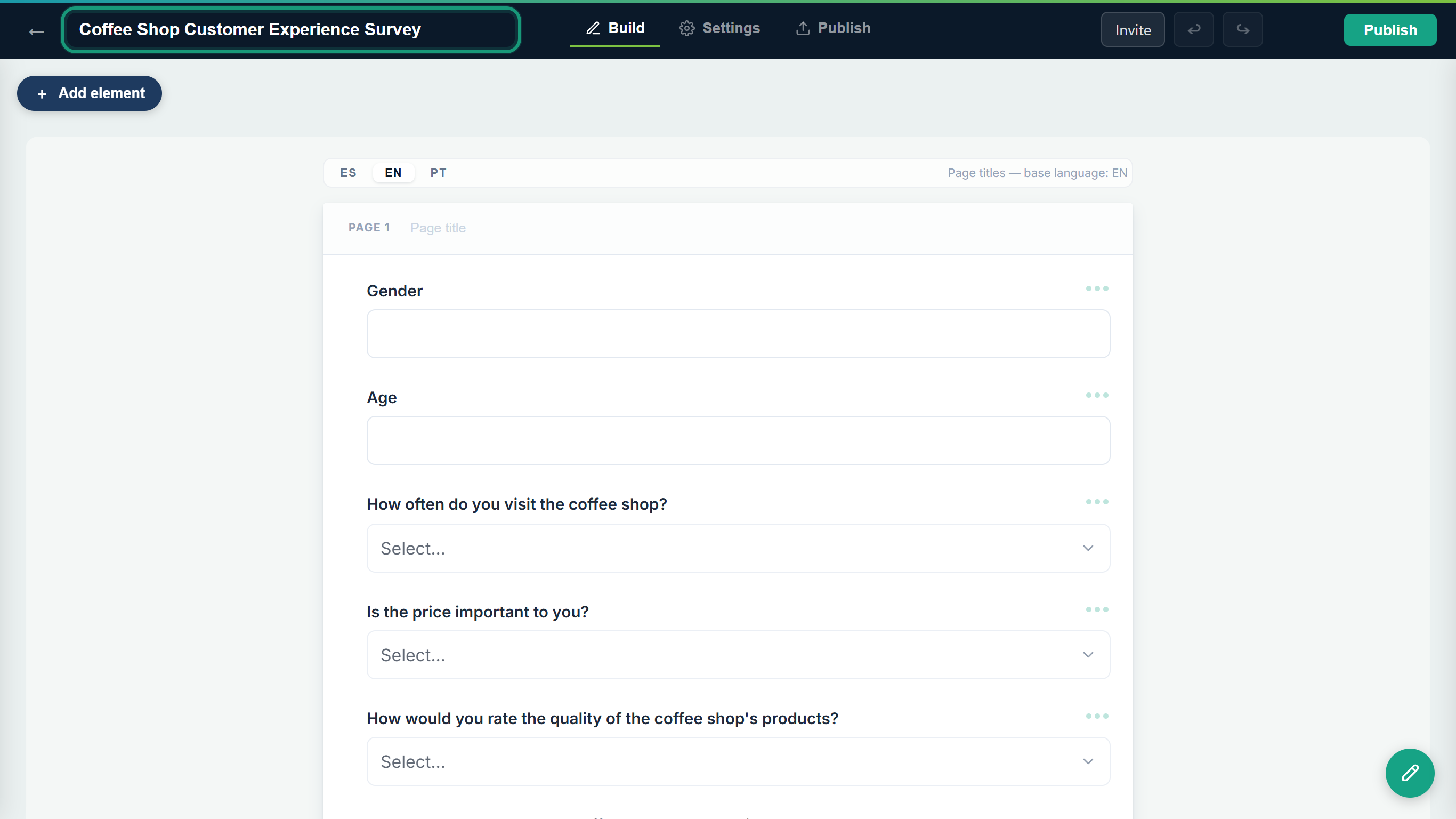 Everything you see here is your own copy; changing it never changes the template.
The form is also listed on My forms with the status Draft. It stays a draft until you publish it.
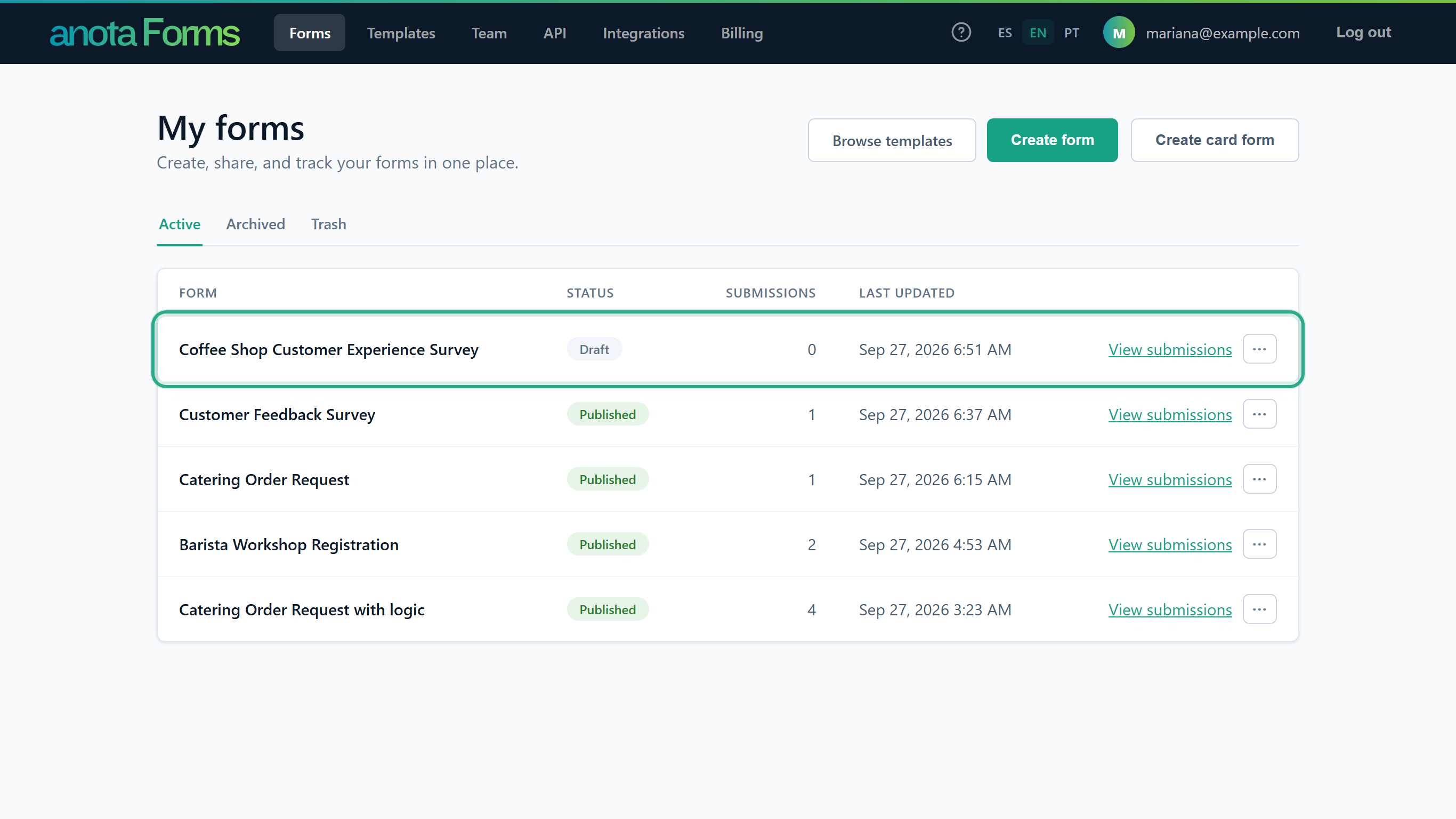 A draft made from a template counts toward the form limit like any other active form.
Result
You have a new draft form based on the template. Edit anything you like (fields, texts, pages, conditional logic, theme) and publish when you're ready.
If you'd rather start from scratch, use Create form or Create card form on the Forms page. See Classic and Card layouts.
Task 5 — When your plan is at its form limit
A Starter workspace can have 5 active forms. When the workspace already has as many active forms as the plan allows, Use template doesn't create anything.
Step-by-step
After you click Use template, a message at the top of the page says Your plan allows up to 5 forms. Archive or delete a form to create another. (with your plan's number), followed by an Upgrade my plan → link to the Billing page. Only an Admin or the Owner can change the plan there.
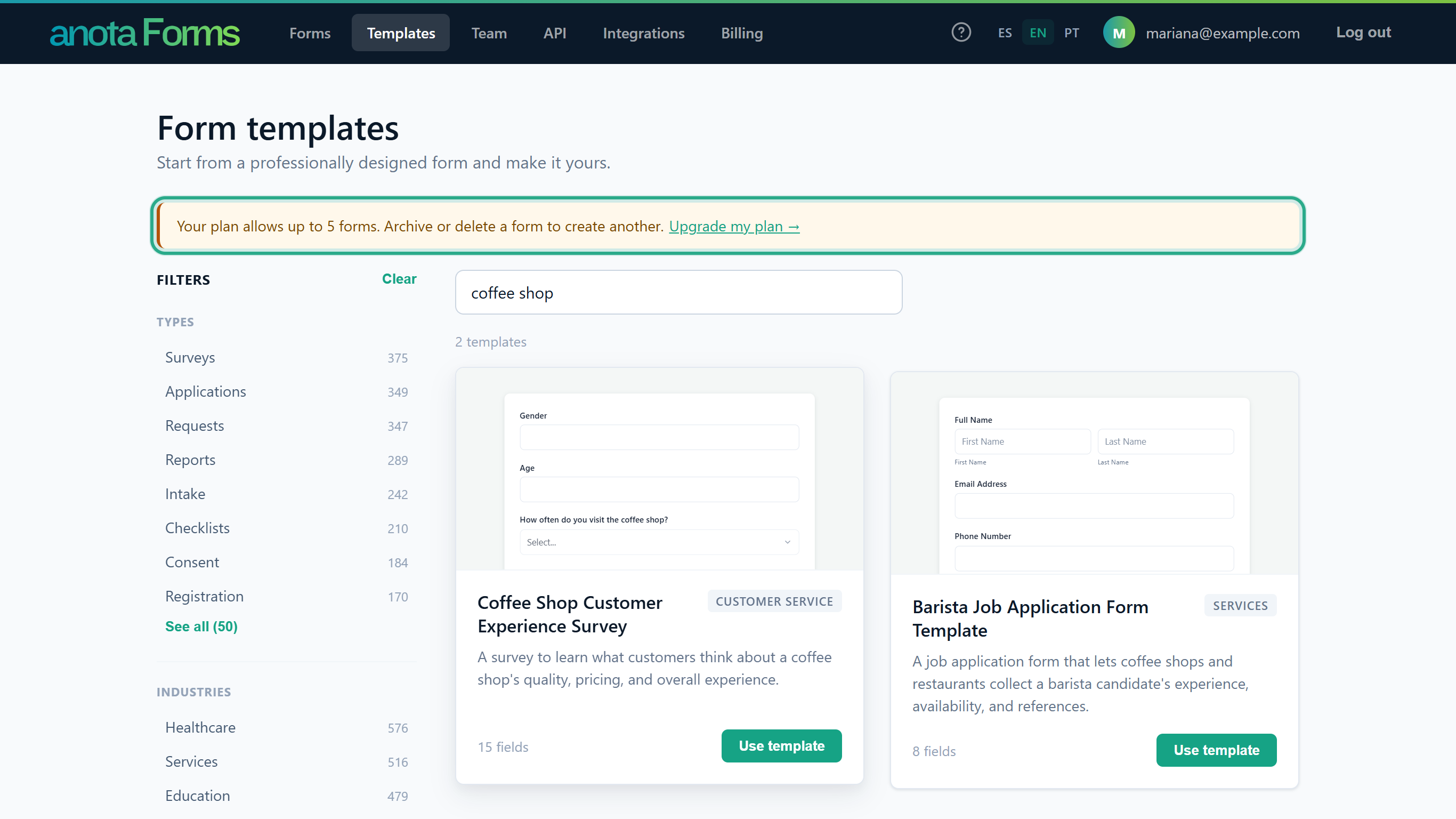 The message replaces the preview window if it was open.
To free a slot, go to Forms, click ⋯ on a form you no longer need and choose Move to trash (or Archive). Then go back to Templates and click Use template again; the form opens as in step 10. If you'd rather keep every form, use Upgrade my plan → instead (step 12).
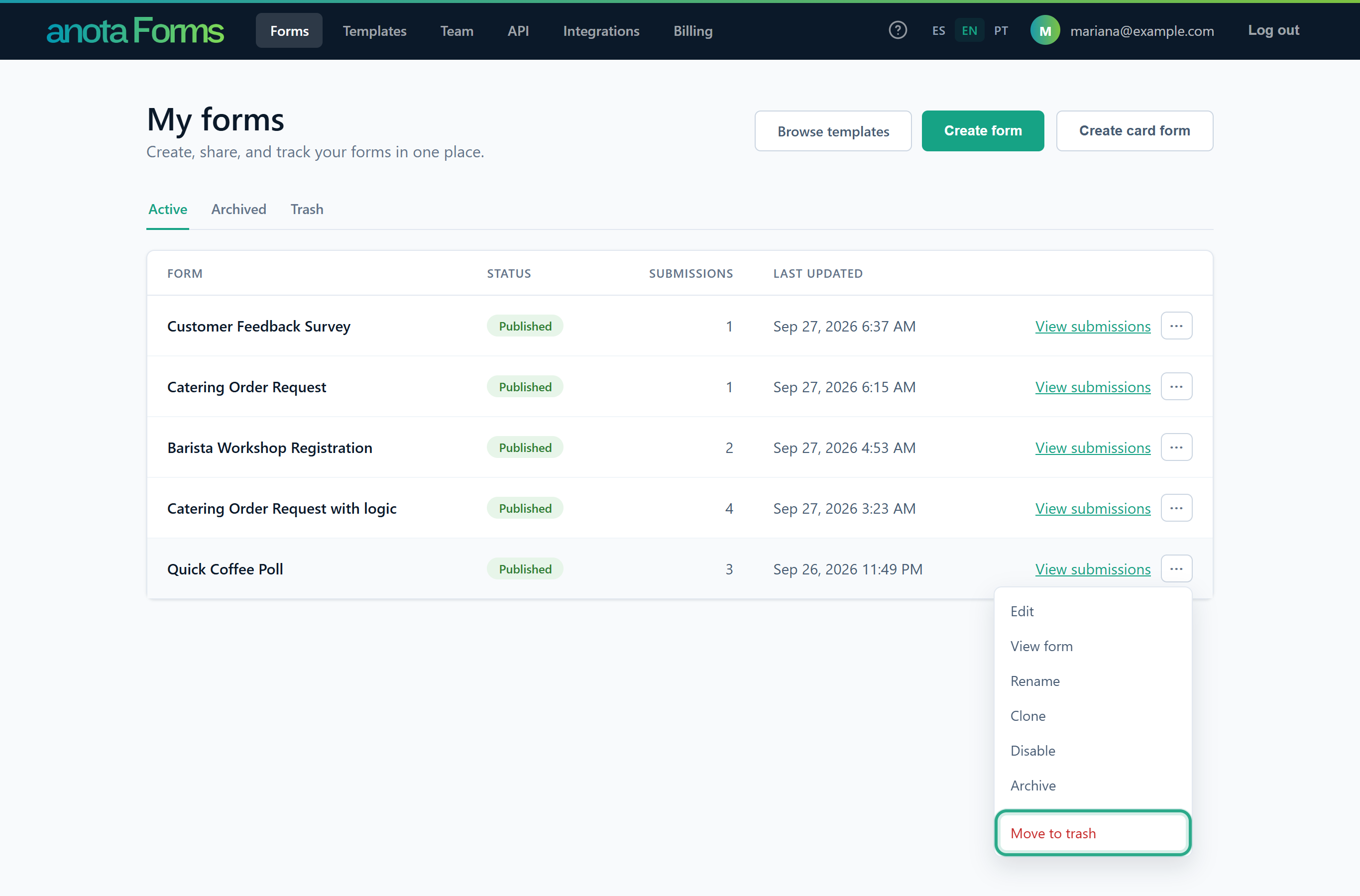 Forms in the trash or in Archived don't count toward the limit.
To bring a trashed form back later, open the Trash tab, click ⋯ on the form and choose Restore. The form comes back exactly as it was, published or not. Restoring also needs a free slot, so you may have to archive or trash another form first.
 Restore is the only action on a form in the trash.
Note: Restoring works differently in the two tabs. A form restored from Trash keeps its status: a published form is still published. A form restored from Archived comes back as a Draft; publish it again with Update in the editor (see Publish and share).
Result
The workspace has room for the new form. Moving a form to the trash keeps its submissions; it just stops counting toward the limit until you restore it.
Task 6 — Browse the public gallery without an account
The anota website has a public gallery that anyone can open without signing in: anota.cloud/en/templates in English, anota.cloud/plantillas in Spanish and anota.cloud/pt/modelos in Portuguese. It shows the same templates as the app, in the language of the address.
Step-by-step
Open the gallery. The heading shows roughly how many templates there are (for example "4,100+ ready-to-use form templates"). Type in the search box and click Search.
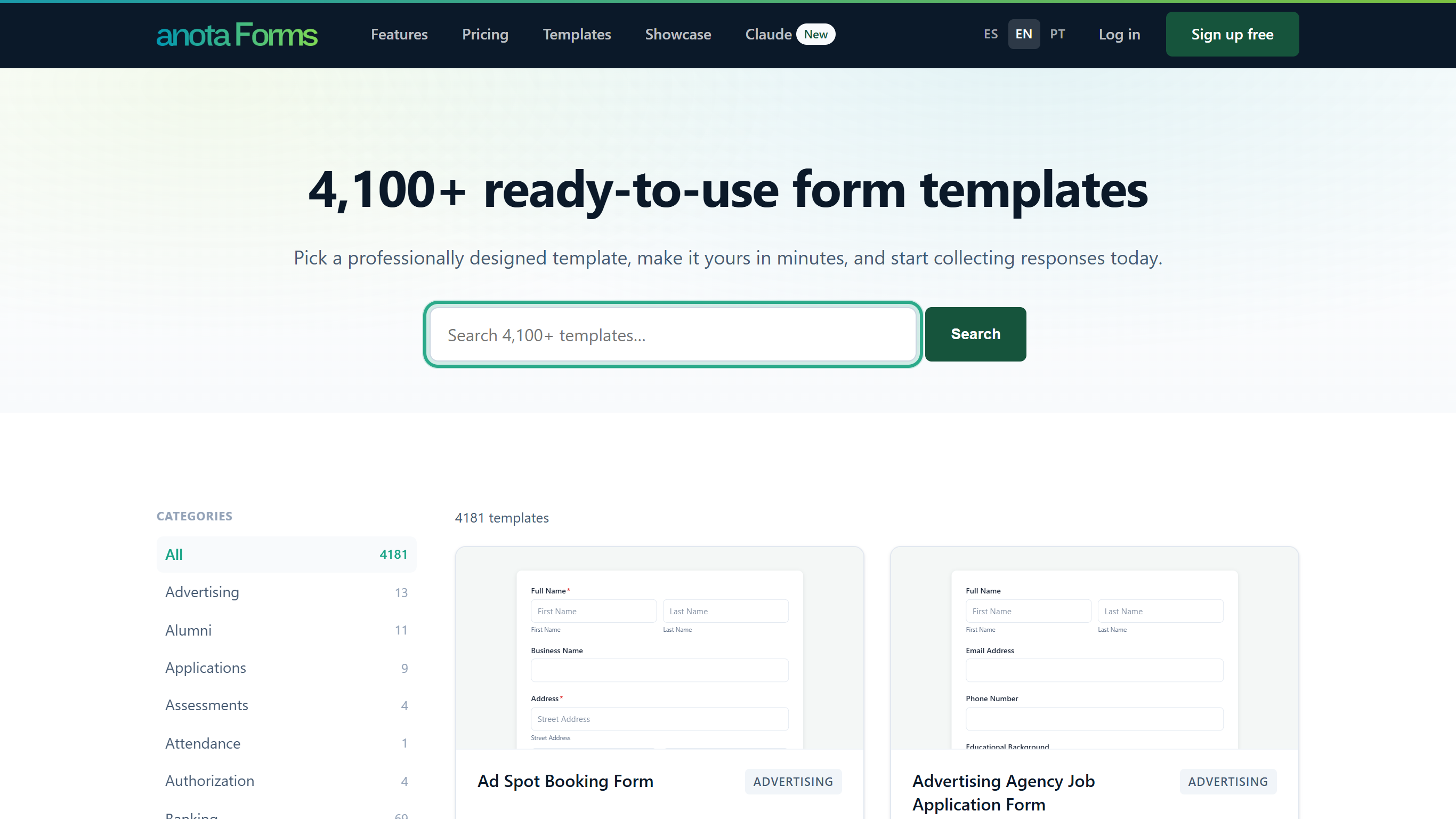 The search box's placeholder reads "Search N+ templates…".
The line above the cards says how many templates match "for" your search, for example 2 templates for "coffee shop". Here every word you type must appear somewhere in the title, description or category, in any order. Clear search removes the search. Each search has its own address, so you can share it. The Categories list on the left filters by category (All shows everything), and By industry and By type below it open pages that group templates for one industry or form type. Long results are split into pages with ← Previous and Next →.
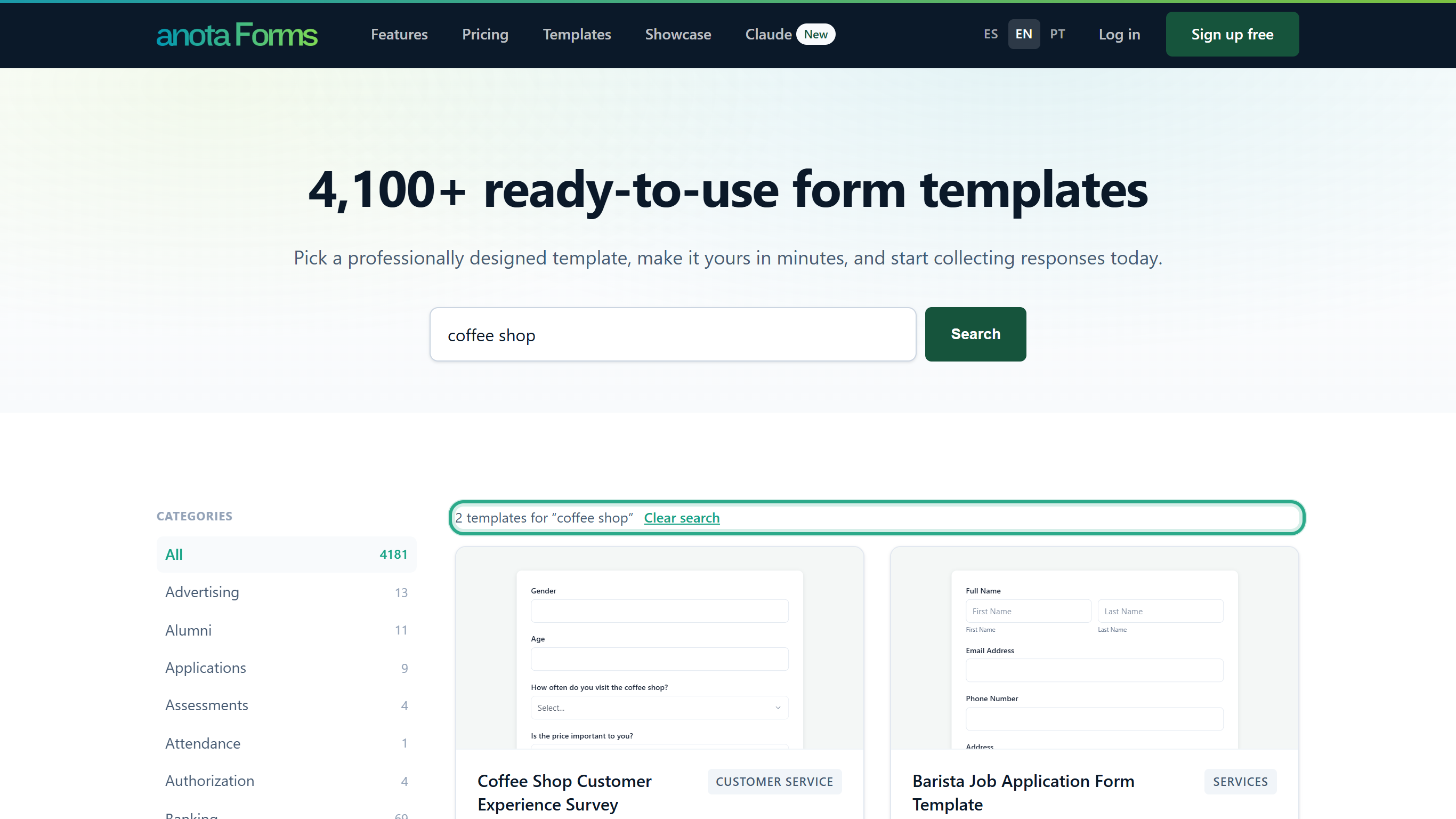 Search results are paged 60 templates at a time.
Click Preview on a card. The window shows the description, a What's included list of fields, and the number of pages and fields. Click View full template → to open the template's own page.
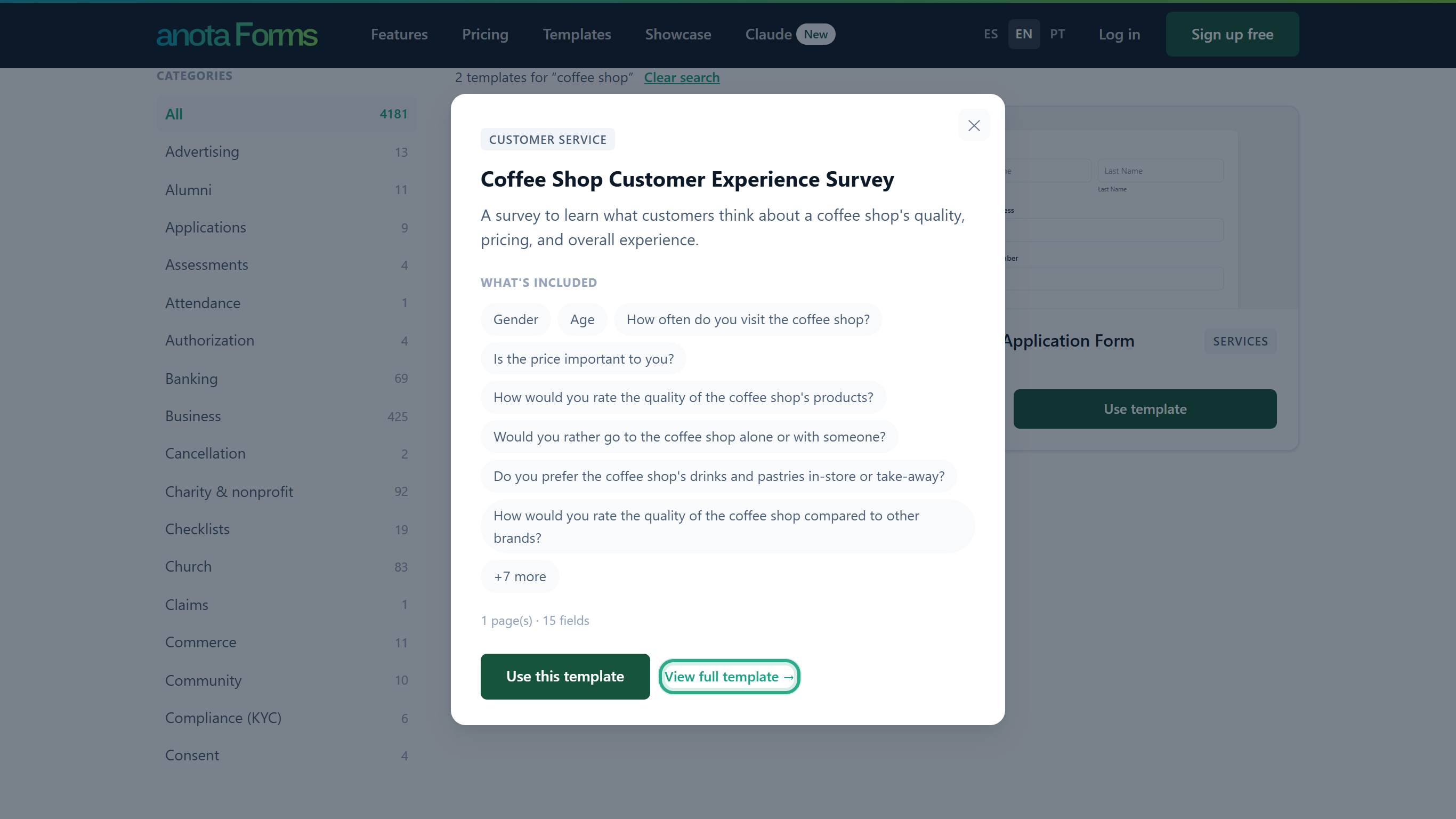 The Use this template button in the window works like the one in step 18.
The template's page (for example
anota.cloud/en/templates/coffee-shop-customer-experience-survey) shows the complete form, every page and field, and ends with Related templates. Click Use this template to sign up, or Log in under it if you already have an account.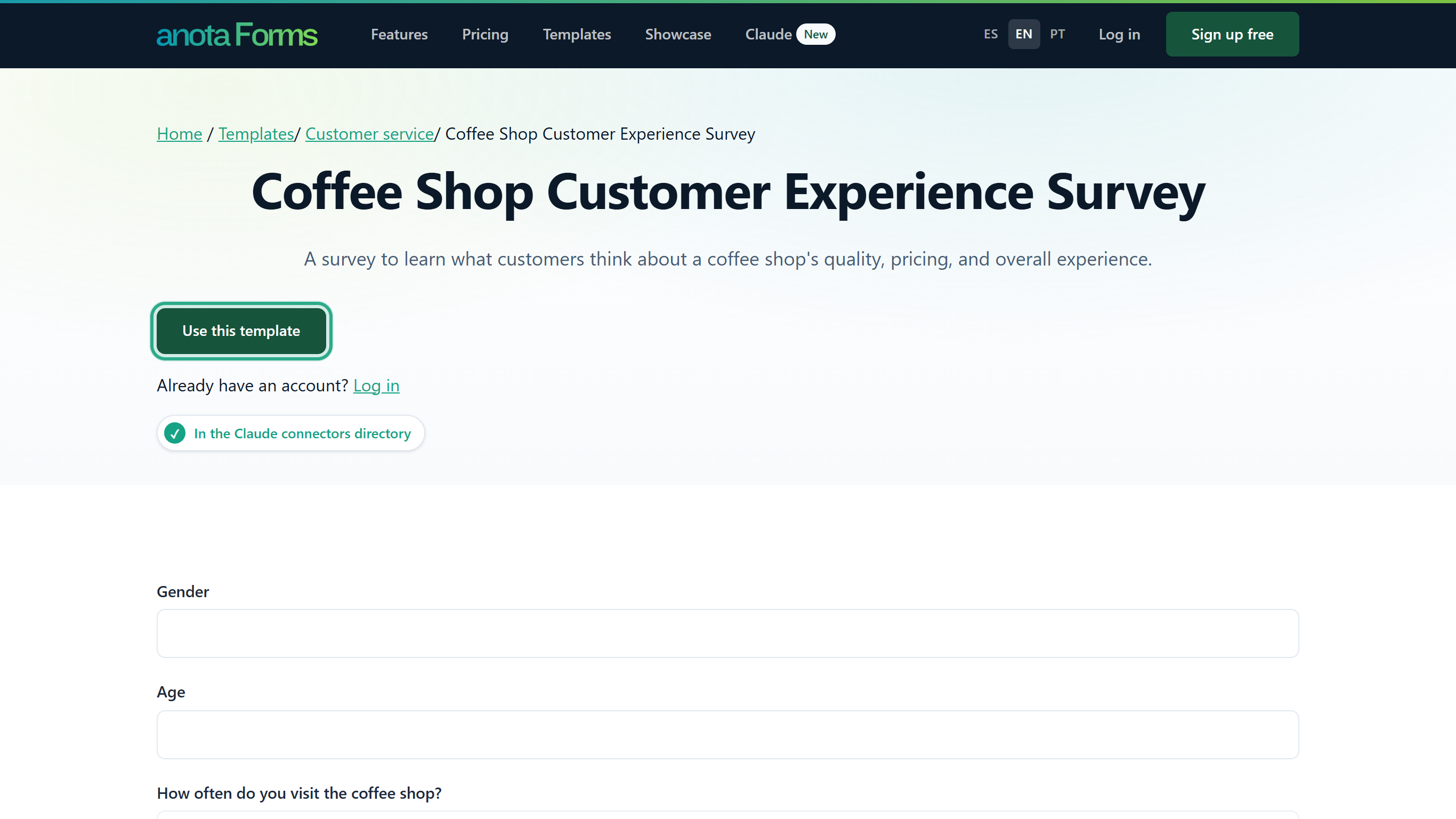 The breadcrumb at the top links back to the gallery and to the template's industry.
Result
After you sign up or log in from a template's page, anota creates the form from that exact template and opens it in the editor, as in step 10. This only happens if your role is Editor or above and your workspace is below its form limit; otherwise you land on the in-app Templates page (with the limit message, if that's the reason). Use template on a card in the public gallery takes you to sign-up and then to the in-app Templates page, where you pick the template again.
Templates with Claude
If your workspace is connected to Claude (see Connect Claude to anota), Claude can use the same catalog:
- list_templates lists the templates of one language. It uses Spanish unless you ask for English (
en) or Portuguese (pt). - create_form_from_template copies one template, by its id, into your workspace as a new draft and returns the link to the editor. It follows the same form limit; at the limit, Claude gets the message "Your plan allows up to N forms. Archive or delete a form to create another." (always in English).
Search and filter reference
| Element | Where | What it does |
|---|---|---|
| Search templates… | In-app gallery, top | Matches the text you type, as one phrase, in the title and description; ignores capitals and accents. |
| Types | In-app Filters sidebar | One value at a time: the form type (for example Surveys, Applications, Registration). |
| Industries | In-app Filters sidebar | One value at a time: the industry (for example Healthcare, Education). |
| Professions | In-app Filters sidebar | One value at a time: the profession. Not every template has one. |
| See all (N) / Show less | Under each filter group | Shows every value of the group, or only the top 8. |
| Clear | In-app Filters sidebar | Removes the search text and every filter. |
| Show more (N remaining) | Below the in-app grid | Loads the next 60 templates. |
| No templates found / Clear filters | In-app, when nothing matches | Resets the search and filters. |
| Search box + Search | Public gallery | Every word must appear in the title, description or category; the search has its own shareable address. |
| Categories, By industry, By type | Public gallery sidebar | Filter by category, or open a page for one industry or form type. |
Roles and permissions
| Role | Browse and preview templates | Use a template (create a form) |
|---|---|---|
| Viewer | Yes | No. Use template and Use this template are hidden. |
| Editor, Admin, Owner | Yes | Yes |
anota checks the role again when the form is created, so a Viewer can't create a form from a template even by forcing the action. See Roles and permissions.
Troubleshooting
| Symptom | Likely cause | Resolution |
|---|---|---|
| I don't see Use template on the cards | Your role is Viewer | Ask an Admin or the Owner to change your role, or ask an Editor to create the form. |
| "Your plan allows up to N forms. Archive or delete a form to create another." | The workspace reached its plan's form limit | Archive or move to trash a form you no longer use (Task 5), or click Upgrade my plan → in the message to open Billing (changing the plan needs an Admin or the Owner). |
| A search finds nothing, though the words are in a template | The in-app search looks for the exact phrase you typed | Type fewer words, or one word, and use the filters to narrow down. |
| The templates are in another language | The gallery follows your interface language | Switch ES / EN / PT in the top bar. The form you create keeps the template's language as its base language. |
| After signing up from a template page I landed on Templates instead of the editor | Your role is Viewer, or the workspace is at its form limit | See the two rows above. |
Related features
- Classic and Card layouts: the two ways to start a blank form.
- The form editor: where you land after using a template.
- Multilingual forms: the base language and translations.
- Conditional logic: rules that some templates already include.
- Publish and share: make the new draft public.
- Roles and permissions
- Plans and billing: form limits per plan.
Was this page helpful?