Profile and security
Profile and security
Applies to: anota, all plans Roles required: any signed-in user (personal settings) Regulatory references: none
Overview
This page covers the personal parts of your anota account: your profile, the email you log in with, your password, the external services you log in with (such as Google), the apps you connected to anota, and the tools to download or delete your personal data. Anyone with an anota account uses these sections of Account settings to keep their sign-in details current and stay in control of their own data.
Each task below shows the screen you should see at every step, with the button or field to use outlined in green. Mariana Ortega from Café Aurora adds her phone number, prepares an email and a password change, downloads her data and looks at the account-deletion screen. Two-factor authentication and passkeys have their own guide: Two-factor authentication and passkeys.
Key concepts
- Username: the name anota knows you by. It is your email address and can't be edited directly; it changes when you change your email.
- Verified email: a ✓ next to your current email means you have confirmed it.
- Confirmation link: a single-use link anota emails to confirm an email change. Nothing changes until you click it.
- Local password: a password created in anota. Accounts that only use Google have no local password, so some pages behave differently for them.
- External login: a service such as Google that you can use to log in. On the log-in and sign-up pages the button reads Continue with Google.
- Connected app: an app such as Claude or ChatGPT that you allowed to work in one of your workspaces.
Task 1 — Add or change your phone number
Step-by-step
Open Account settings (click your avatar in the top bar). The Profile section shows your Username, which is read-only, and your Phone number. Click Phone number.
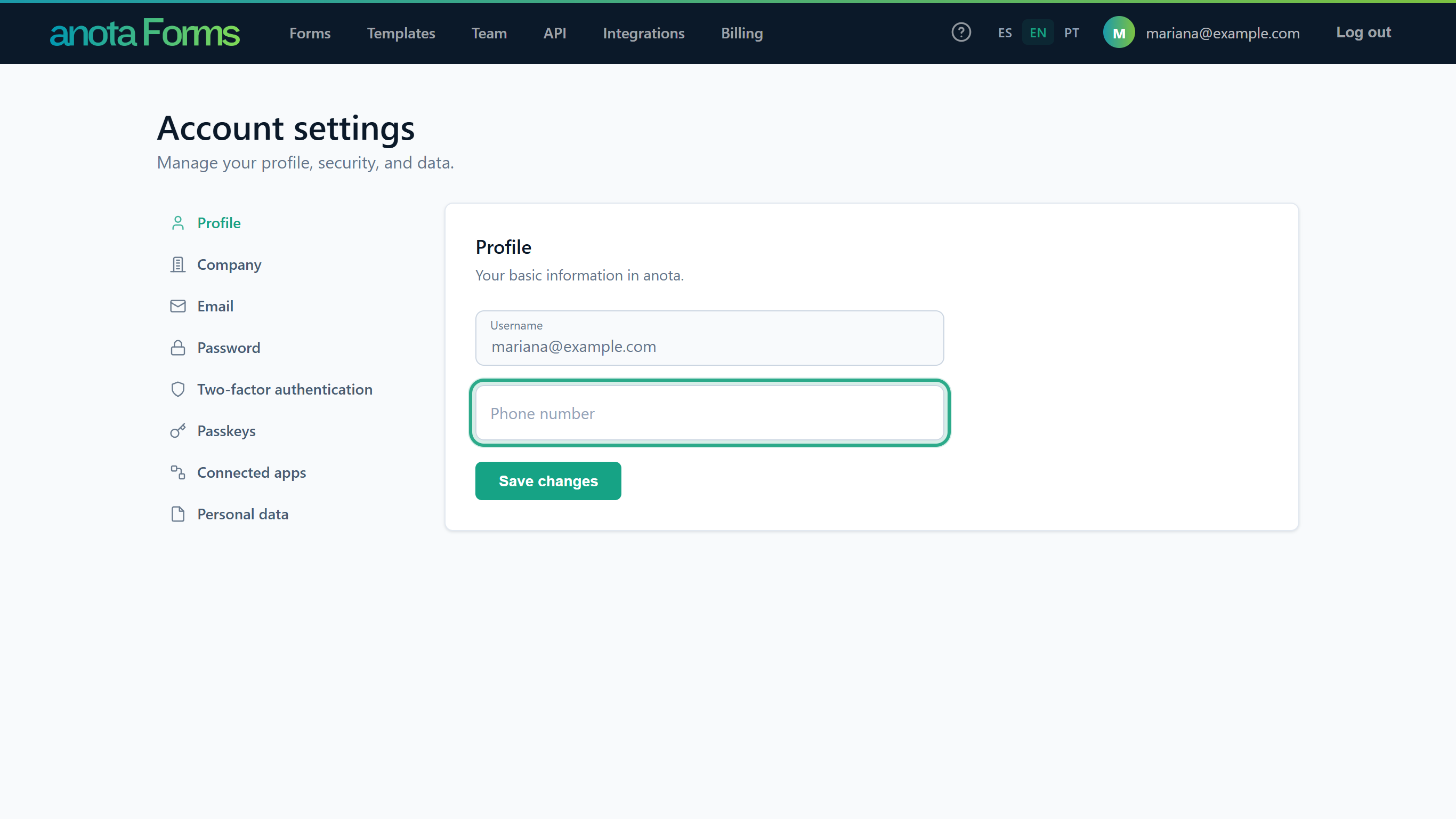 The phone number is optional.
Type your number and click Save changes. It must be a valid phone number.
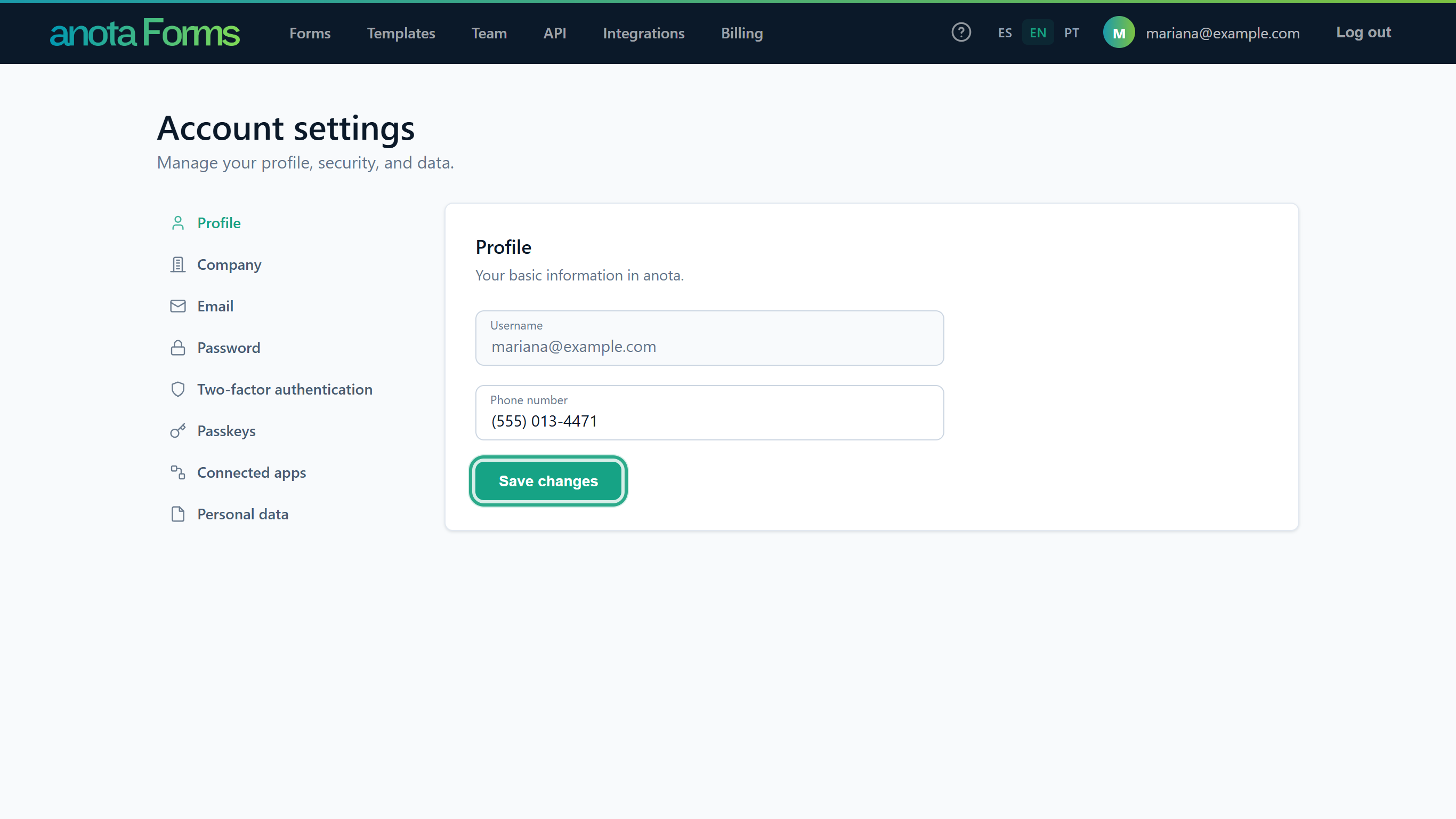 No password is needed to change the phone number.
anota shows Your profile has been updated. above the card.
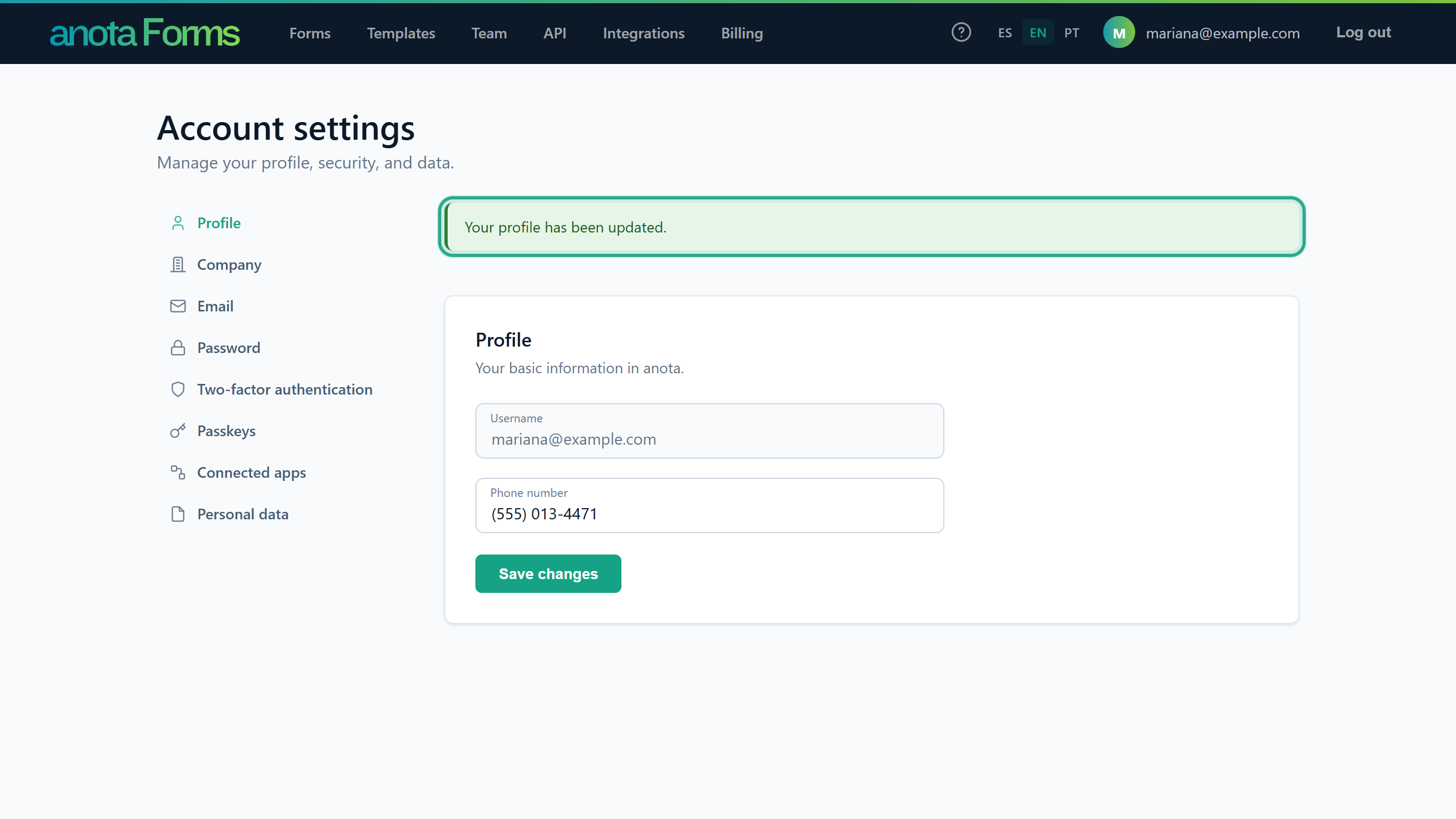 If the number can't be saved you see "Error: Failed to save the phone number." instead.
Result
Your phone number is saved on your account.
Task 2 — Change your email
Changing your email takes two steps: you request the change, then you confirm it from a link sent to the new address. Until you confirm, you keep logging in with the old email.
Step-by-step
Click Email in the account menu. Current email shows the address you log in with, with a ✓ (tooltip Email verified) once you have confirmed it. New email starts filled in with the same address. Click New email and clear it.
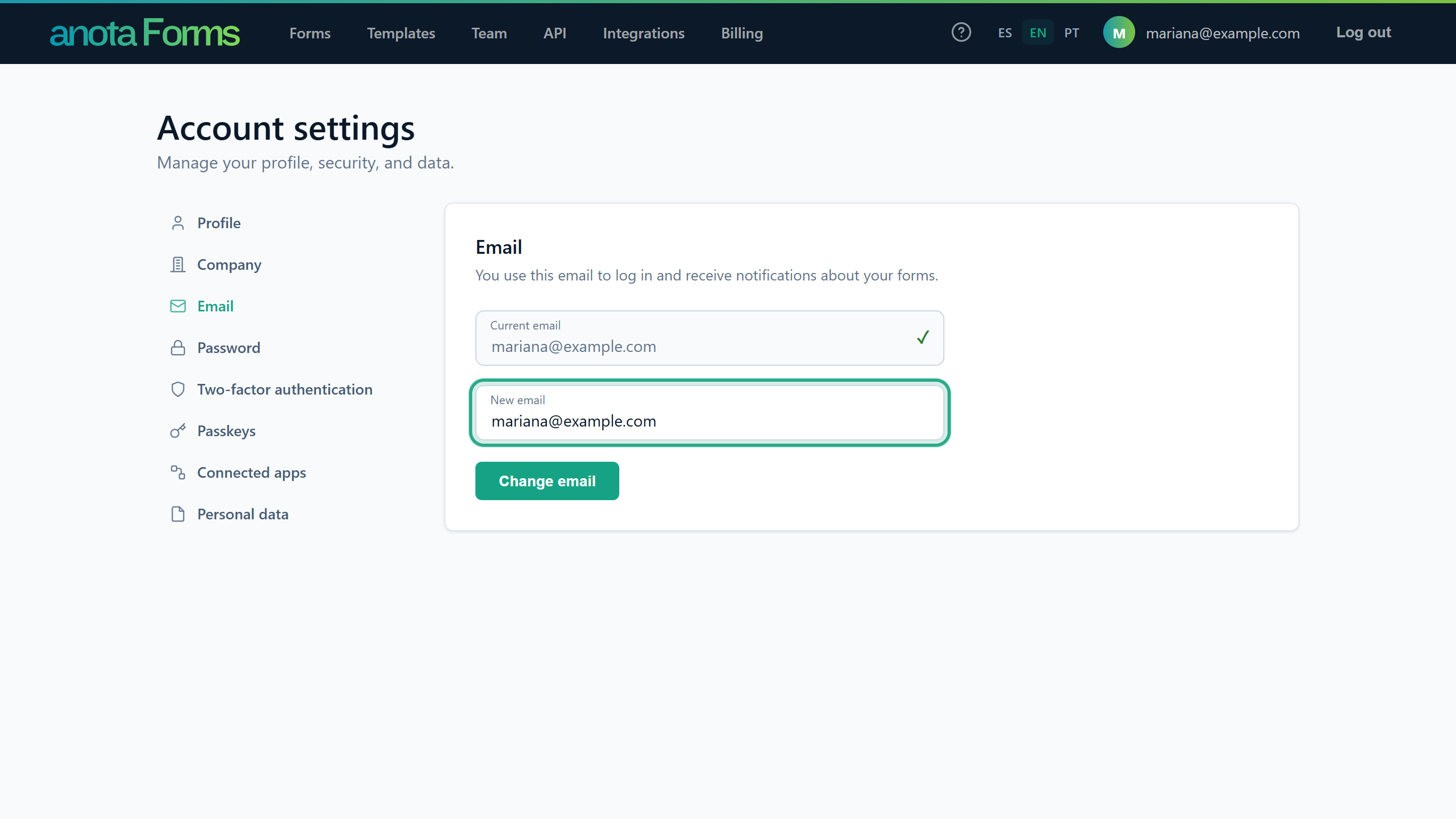 If your current email isn't confirmed yet, the card says "Your email isn't verified yet." with a Send verification email link.
Type the address you want to switch to (here
mariana.ortega@example.com) and click Change email. anota shows We sent you a link to confirm the change. Please check your email.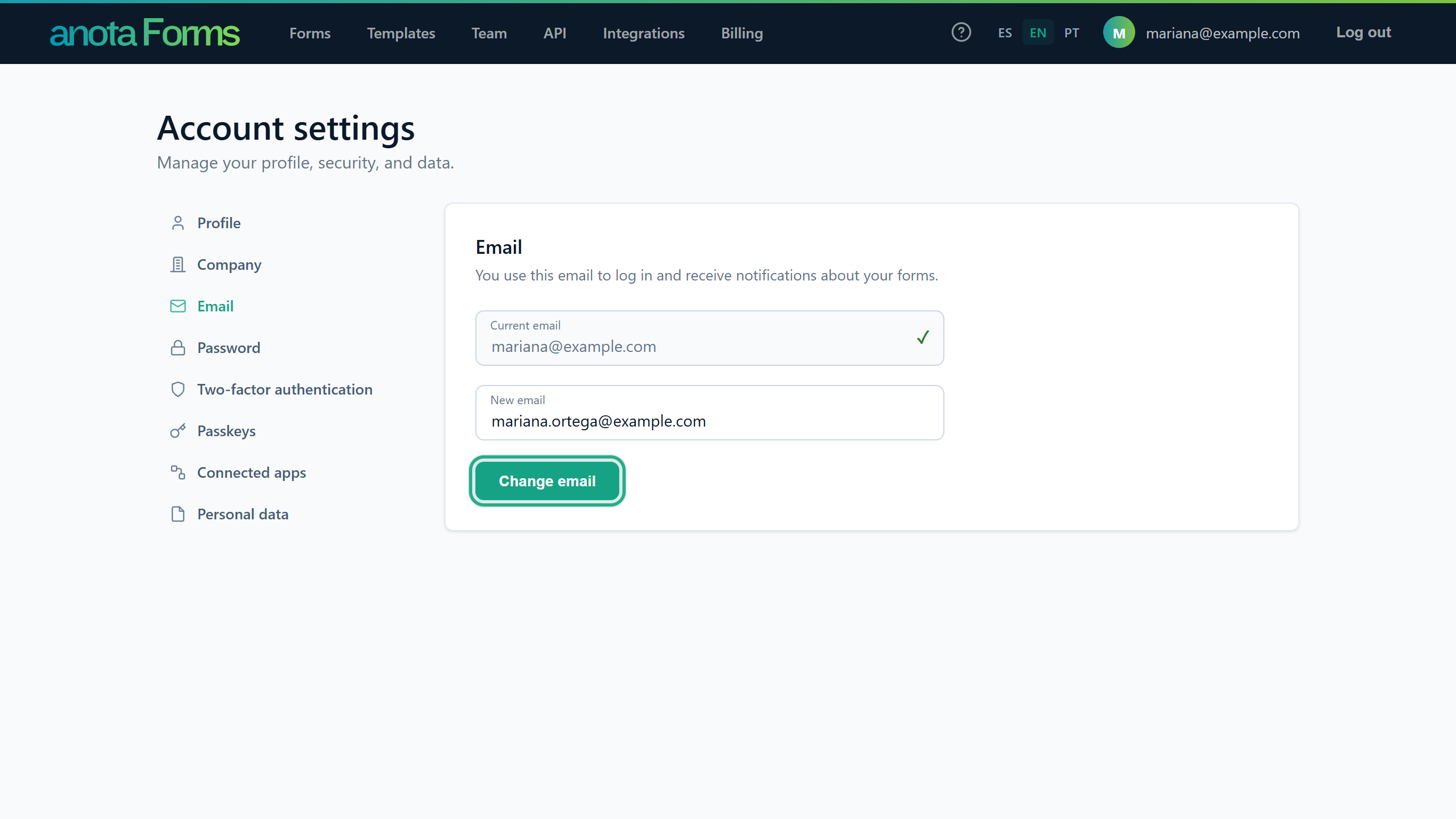 If you submit the address you already have, anota shows "Your email is unchanged." and sends nothing.
Open the email anota sent to the new address and click the confirmation link. It opens the Confirm email change page, which has a Go to my account button.
Result
The change applies when you open the confirmation link, not when you click Change email. From then on you log in with the new address, and your Username changes to match it.
Task 3 — Change your password
Prerequisites
- Your account has a local password. If it doesn't (for example, you signed up with Google), Password opens Set your password instead: enter New password and Confirm password and click Set password.
Step-by-step
Click Password in the account menu. The Change password card opens. Enter your Current password.
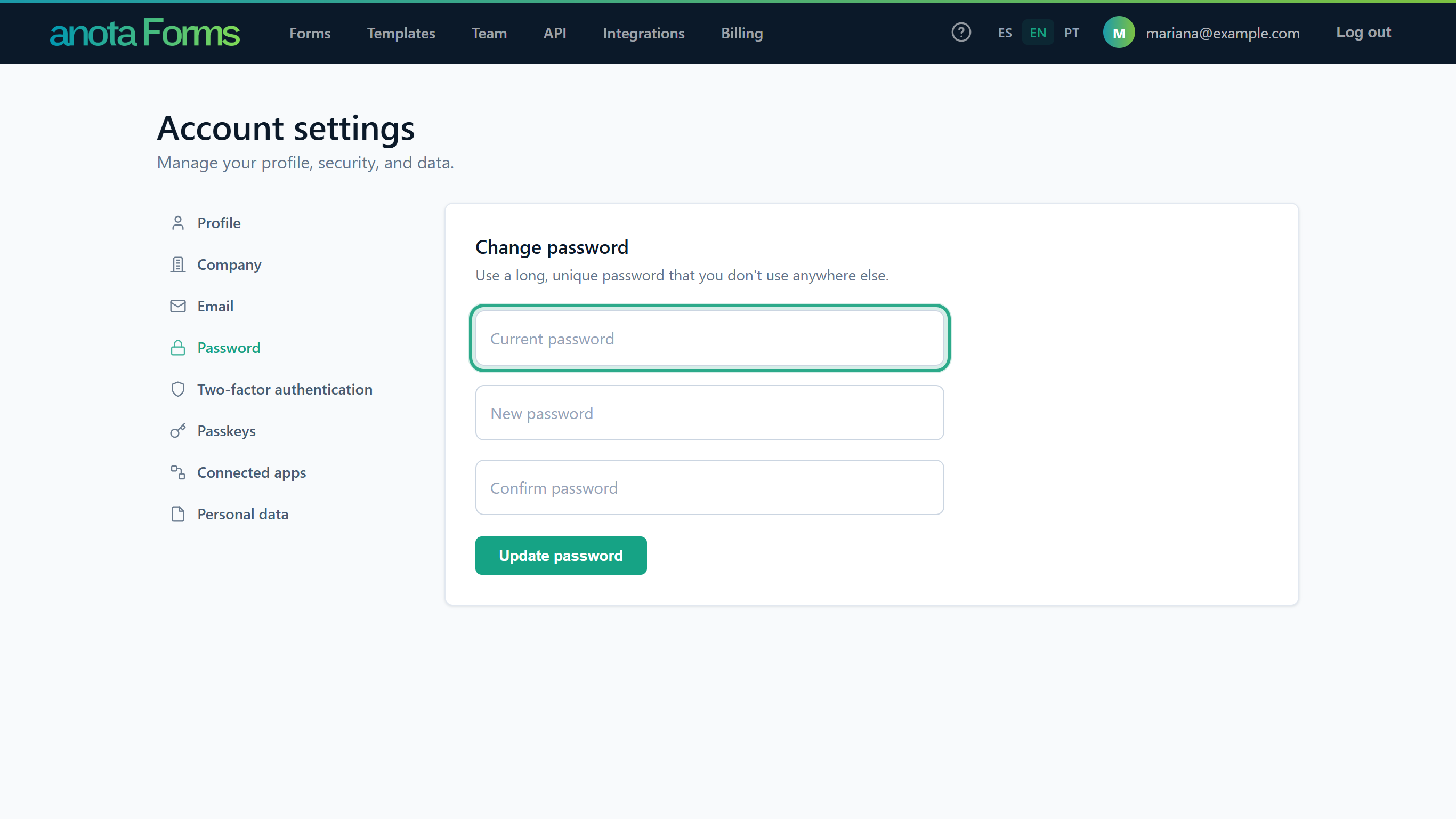 Use a long, unique password that you don't use anywhere else.
Enter the New password, type it again in Confirm password, and click Update password.
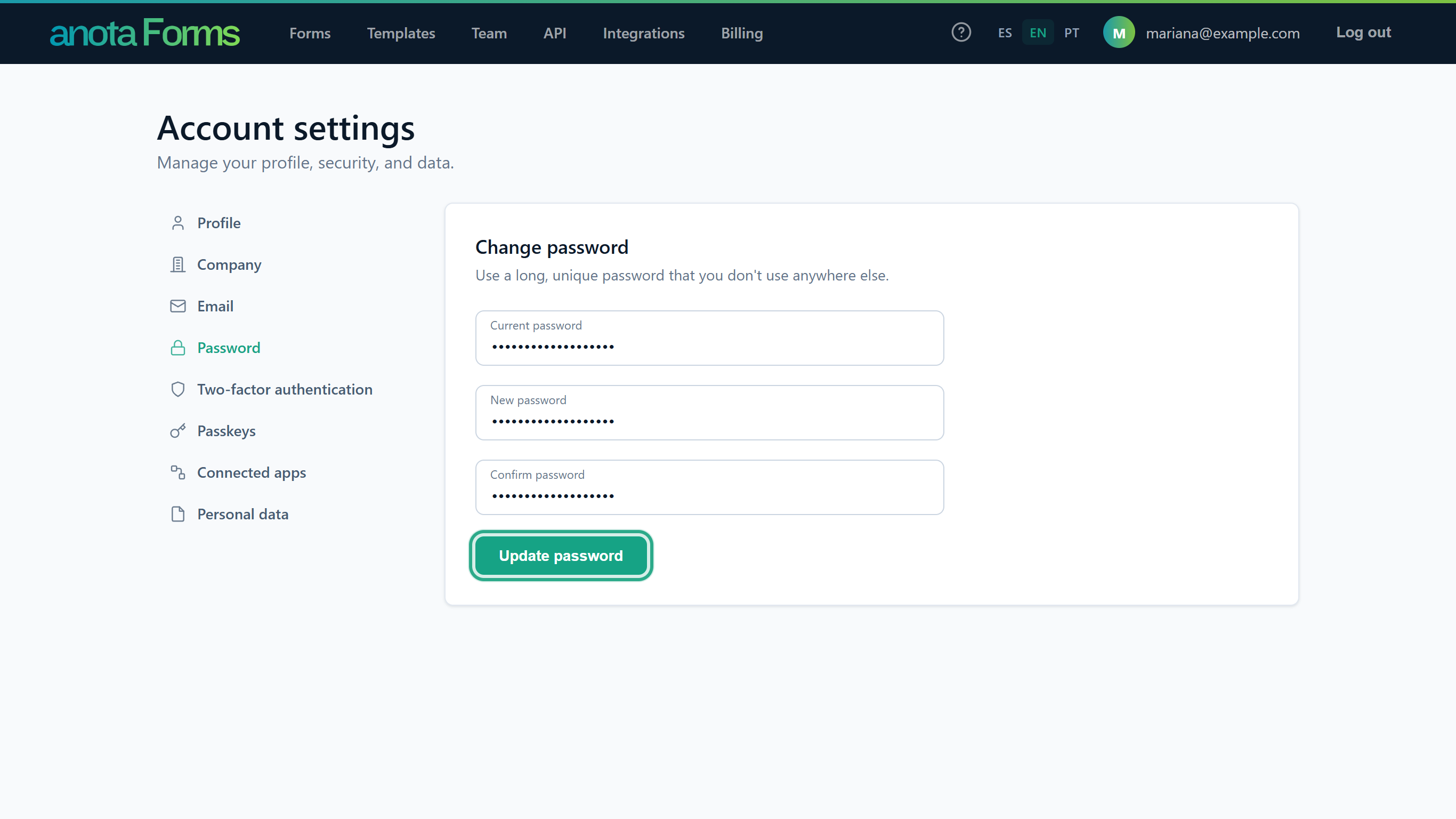 The new password must have 6 to 100 characters, with at least one uppercase letter, one lowercase letter, one digit and one symbol.
Result
anota shows Your password has been changed. and keeps you logged in. No confirmation email is sent. If the current password is wrong or the new one breaks a rule, the card shows an error that starts with Error: and nothing changes.
Task 4 — Download your personal data
Step-by-step
Click Personal data in the account menu. In the Download your data card, click Download my data.
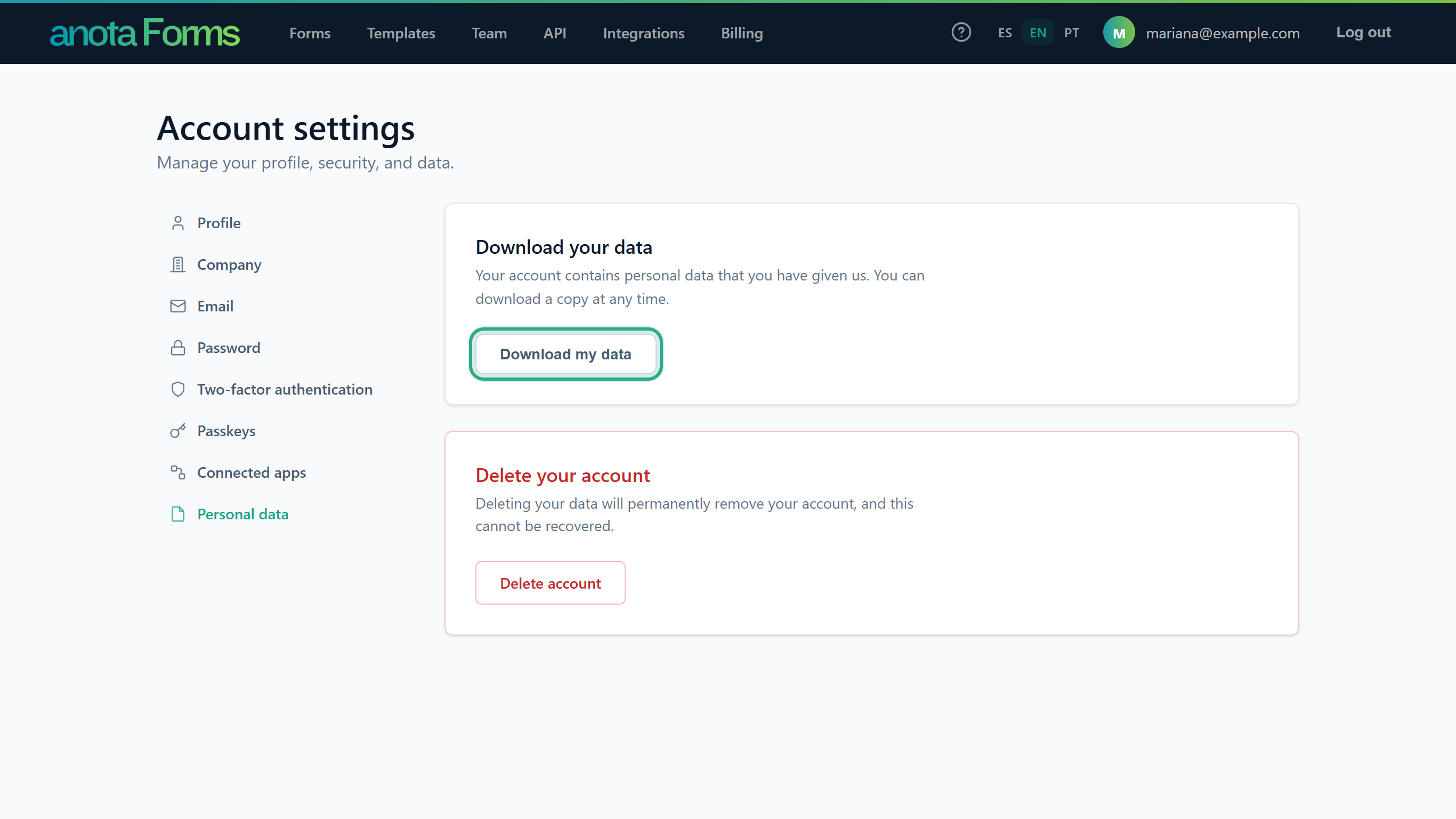 No password is needed.
Result
Your browser downloads PersonalData.json, with the personal data stored in your account, the keys of any linked external logins, and your authenticator key if you have set one up.
Task 5 — Delete your account
Warning: this is permanent and can't be undone. It deletes your account and signs you out.
Step-by-step
In Personal data, click Delete account in the Delete your account card. On Delete data and close account, enter your Password and click Delete data and close my account.
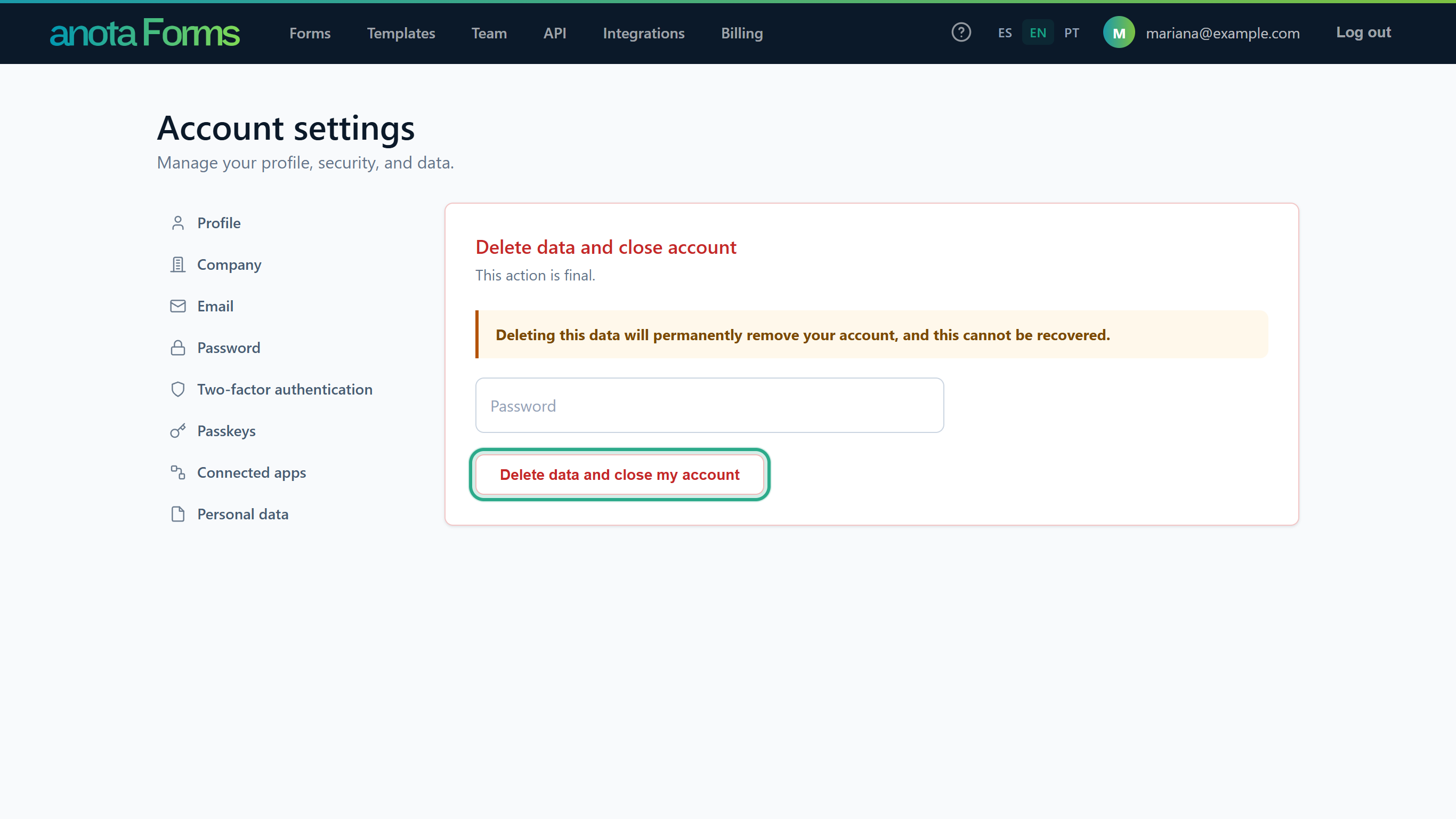 Accounts without a local password (Google only) don't see the Password box.
Result
Your account is deleted and you are signed out right away. If the password is wrong, anota shows Error: Incorrect password. and deletes nothing.
Task 6 — Review and disconnect connected apps
Step-by-step
Click Connected apps in the account menu. It lists the apps, such as Claude or ChatGPT, that you connected to an anota workspace. Each row shows the app, the workspace, the permissions you granted and the date ("Connected on …"), with a Disconnect button. With no connections, it says You have no connected apps.
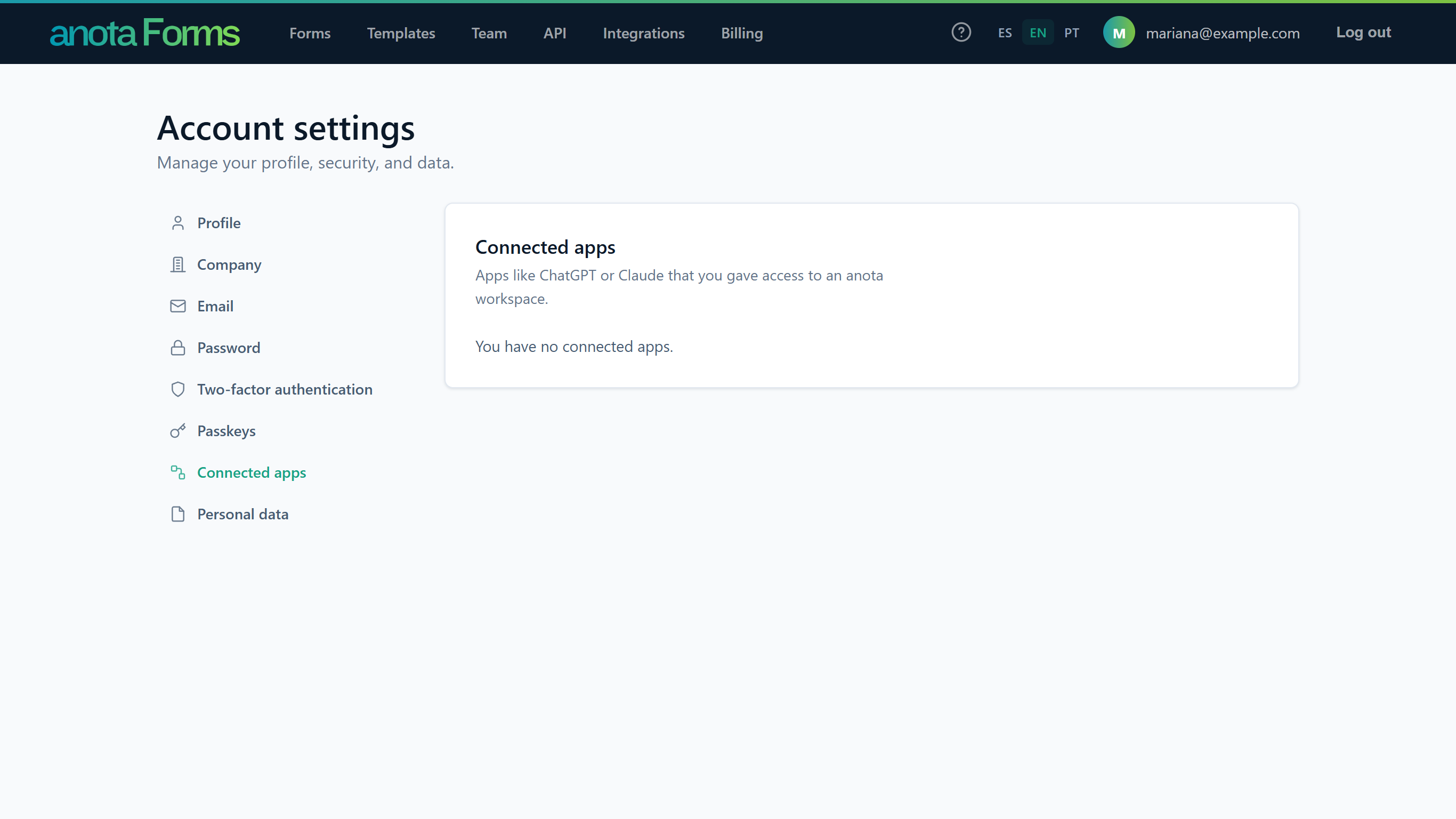 Mariana hasn't connected any app yet. How to connect one is explained in Connect Claude and ChatGPT (MCP).
Result
Clicking Disconnect removes the app's access right away and shows App disconnected. To use the app again, connect it again.
Log in with Google (external logins)
The External logins section, and the Continue with Google button on the log-in and sign-up pages, only appear when Google sign-in is available on anota.
- Sign up or log in with Google: click Continue with Google. If Google confirms your email and no anota account uses it yet, anota creates your account in one step, with the email already verified.
- An account with that email already exists: anota never links Google to an existing account automatically. You see "An account with this email already exists. Log in with your password and link Google from your profile." Log in with your password, then link Google as below.
- Link Google to your account: in External logins, under Add another service, click Google and complete the Google sign-in. anota shows "The external login was added." A Google account can be linked to only one anota account; otherwise you see "Error: The external login was not added. External logins can only be associated with one account."
- Remove an external login: under Registered logins, click Remove next to the service. anota shows "The external login was removed." The Remove button only appears if you would still have another way to log in (a local password or another linked service).
- Two-factor authentication: with 2FA on, anota asks for your authenticator code whether you log in with Google or with your email and password.
Field reference
| Field | Section | Required | Notes |
|---|---|---|---|
| Username | Profile | — | Read-only; your email. |
| Phone number | Profile | Optional | Must be a valid phone number. |
| Current email | — | Read-only; ✓ when verified. | |
| New email | Required | Must be a valid email address. Applies only after you confirm from the new address. | |
| Current password | Password | Required | |
| New password | Password / Set your password | Required | 6 to 100 characters; uppercase, lowercase, digit and symbol. |
| Confirm password | Password / Set your password | Required | Must match New password. |
| Password | Personal data > Delete account | Required if you have a local password |
Troubleshooting
| Symptom | Likely cause | Resolution |
|---|---|---|
| I changed my email but still log in with the old one. | You haven't clicked the link sent to the new address. | Check the new mailbox (including spam) and click the confirmation link. |
| I don't receive the verification or change email. | Email can take a few minutes or land in spam. | Wait and check spam. For your current address, click Send verification email again. |
| "The new password and confirmation password do not match." | The two new-password boxes differ. | Type the same password in both. |
| My new password is rejected. | It doesn't meet the password rules. | Use at least 6 characters with an uppercase letter, a lowercase letter, a digit and a symbol. |
| "Error: Incorrect password." when deleting my account. | The password was mistyped. | Try again, or reset it with Forgot your password? on the log-in page. |
| There's no Password box when deleting my account. | Your account only uses Google. | This is expected. Click Delete data and close my account. |
| "An account with this email already exists..." with Continue with Google. | You already have an anota account with that email. | Log in with your password, then link Google under External logins. |
| I don't see a Remove button for Google. | Google is your only way to log in. | Set a password under Password first, then remove Google. |
Related features
Was this page helpful?