Team and roles
Team and roles
Applies to: anota, all plans (inviting others needs a plan with more than one seat) Roles required: any member can view the team; Owner or Admin to invite, change roles or remove members Regulatory references: none
Overview
The Team page shows who has access to your workspace, what role each person has and how many of your plan's seats are in use. Owners and Admins also invite people and manage them there, so nobody has to share a password. Anyone who belongs to more than one workspace switches between them from the top bar.
This page follows Café Aurora: its owner, Mariana Ortega, opens the Team page and checks her seats. Then Diego Ramírez, an Editor who also has a workspace of his own, switches to Café Aurora and opens the Team page as an Editor sees it. How to invite people is in Invite members, and how to change a role or remove someone is in Roles and permissions.
Key concepts
- Workspace: the shared account where your forms, submissions and members live. Café Aurora is one workspace.
- Member: a person with their own anota account who has joined your workspace, with a role.
- Role: what a member can do across anota: Owner, Admin, Editor or Viewer. See Roles and permissions.
- Seat: every member and every pending invitation that hasn't expired takes one seat. Your plan sets how many seats you have: Starter, Bronze and Silver have 1, Gold has 5. See Plans and billing.
- Invitation: how someone joins your workspace. It's sent by email and expires after 7 days. See Invite members.
Task 1 — Open the Team page
Step-by-step
Click Team in the top bar. Every member sees this link, whatever their role.
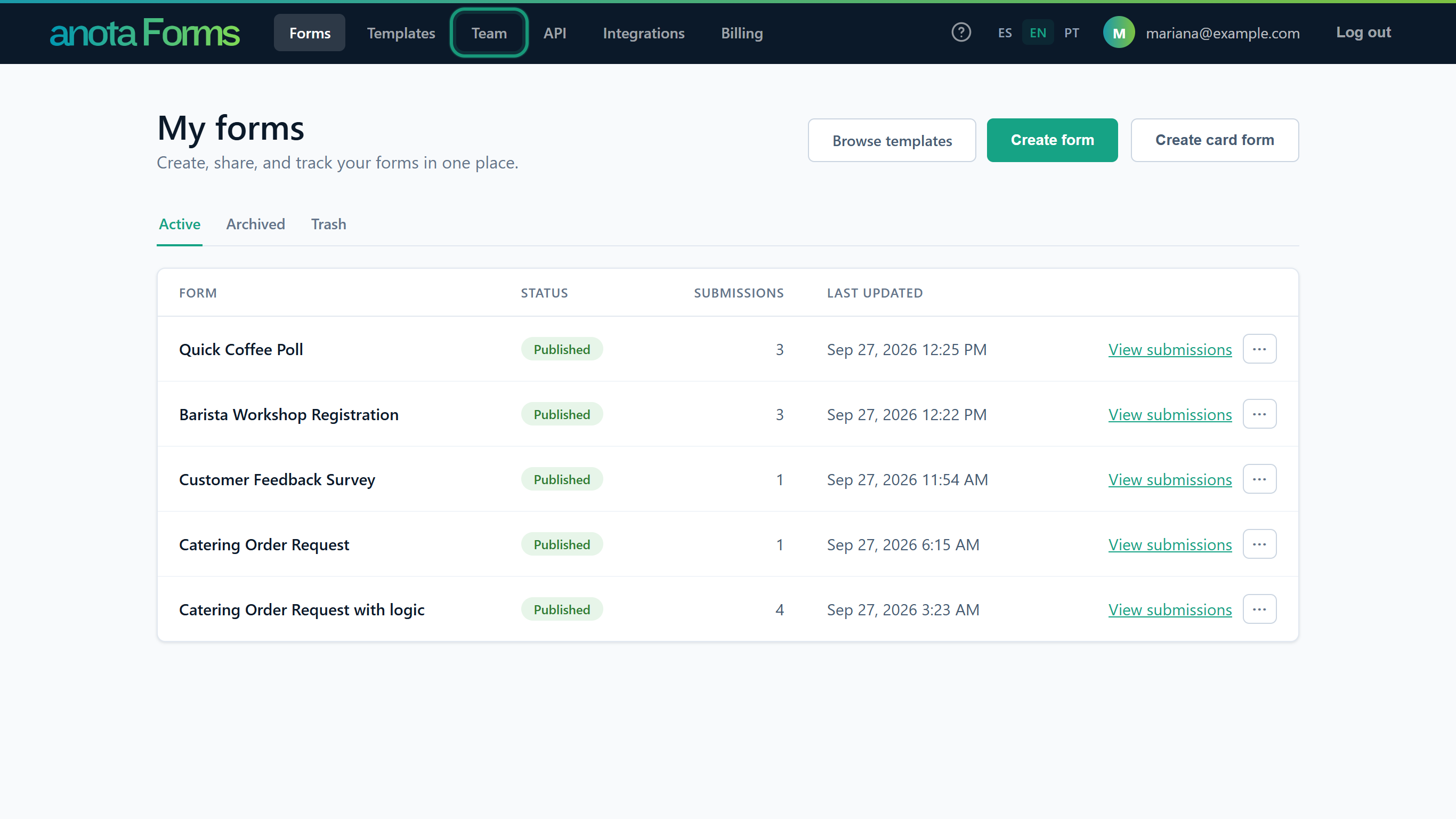 Team sits between Templates and API in the top bar.
The Team page opens. From top to bottom it shows the seat count, the Invite a member card (Owners and Admins only), the Members table with each person's name, email, role and the date they joined, and the Pending invitations table. Your own row is marked (you).
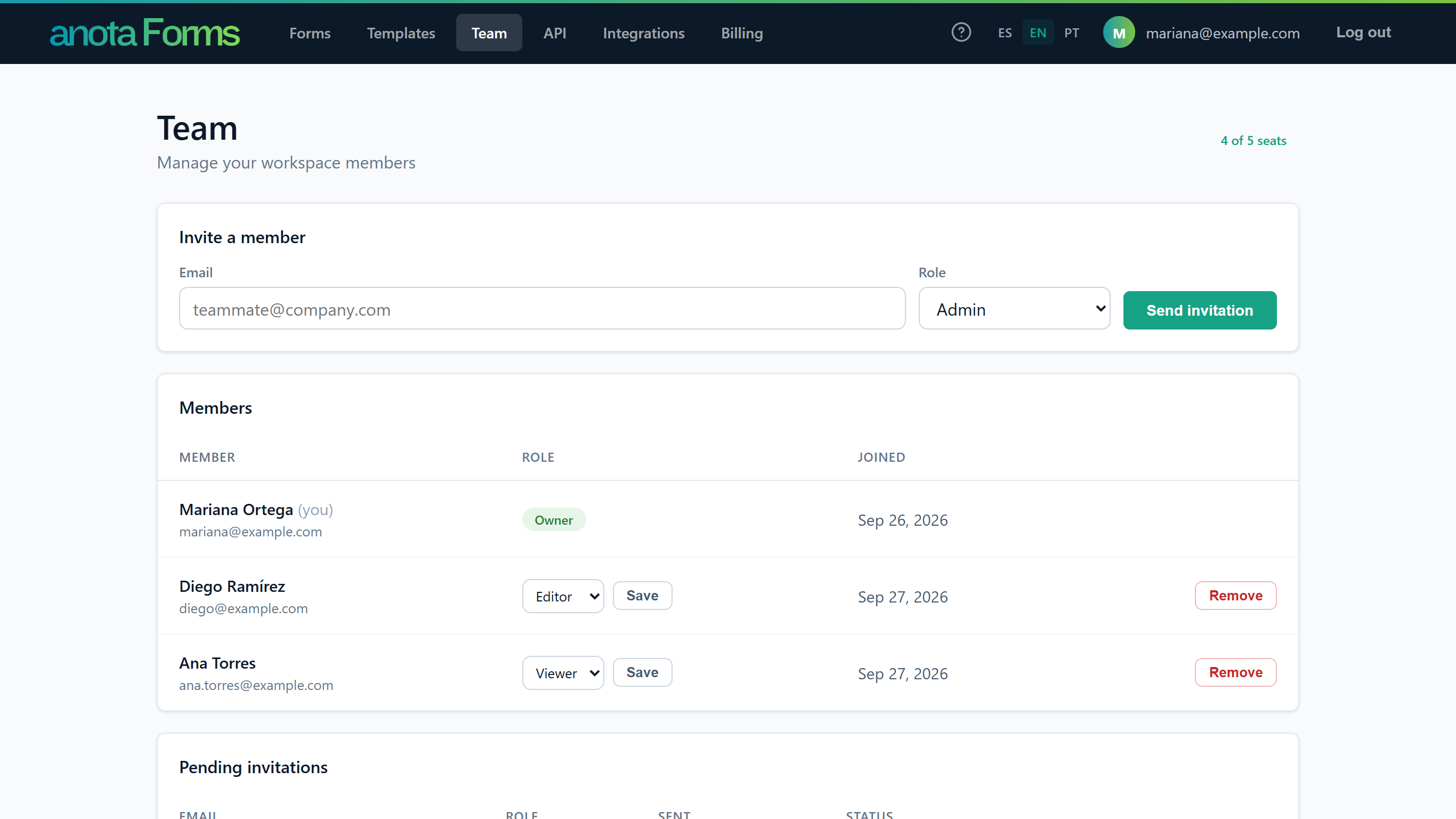 The Team page as the Owner sees it.
Result
You can see everyone who has access to the workspace, and everyone who has been invited but hasn't joined yet.
Task 2 — Check how many seats you have left
Step-by-step
Look at the pill at the top right of the page. It reads "[used] of [total] seats". Members and pending invitations both count; an expired invitation doesn't.
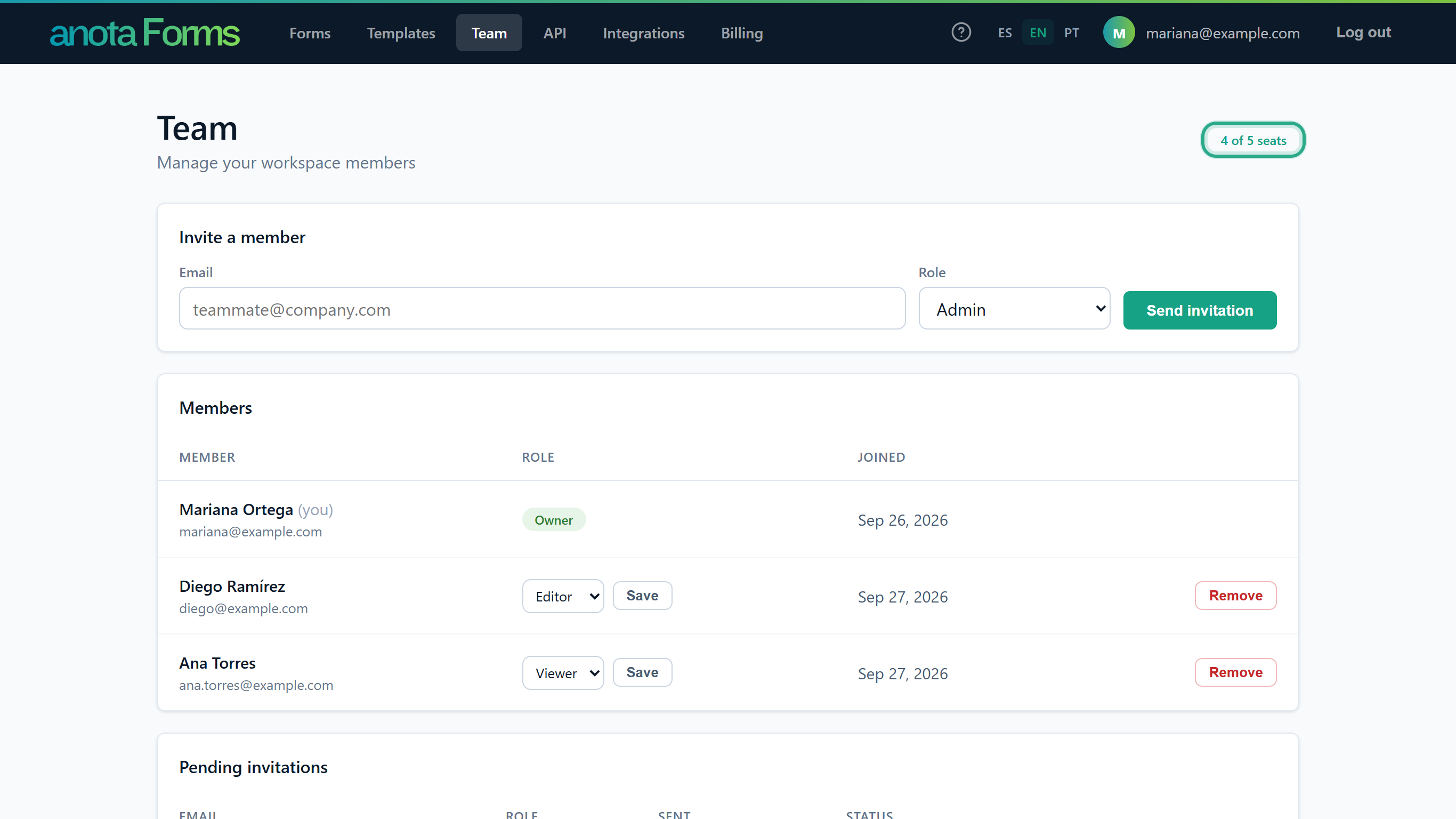 Here 3 members and 1 pending invitation take 4 of Gold's 5 seats.
When every seat is taken, the Invite a member card shows "You've reached your plan's seat limit. Upgrade your plan to invite more members." instead of the invite form. Click See plans to upgrade, or free a seat by removing a member or revoking a pending invitation. If you have more members than your plan allows (for example, after moving to a smaller plan), a warning at the top of the page also says you can't invite anyone until you upgrade or remove members.
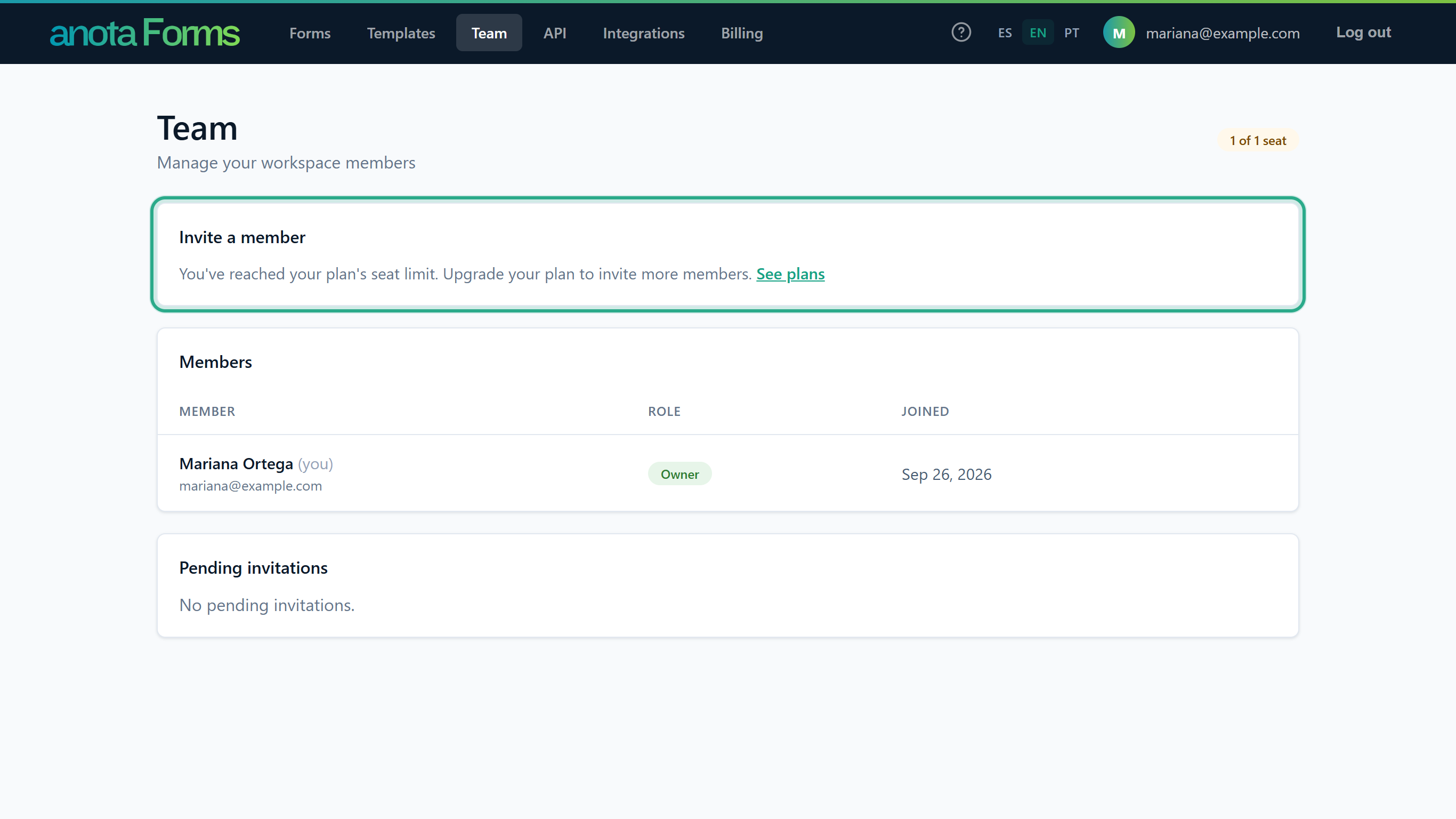 On Starter, Bronze and Silver, the Owner takes the only seat.
Result
You know whether you can invite someone now, or need to upgrade or free a seat first.
Task 3 — Switch to another workspace
Prerequisites
- You belong to more than one workspace. This happens when you already have an anota account and accept an invitation to another workspace. The switcher doesn't appear if you only belong to one.
Step-by-step
Find the workspace list in the top bar, to the left of the help icon. It shows the workspace you're working in now. Open it and choose the other workspace.
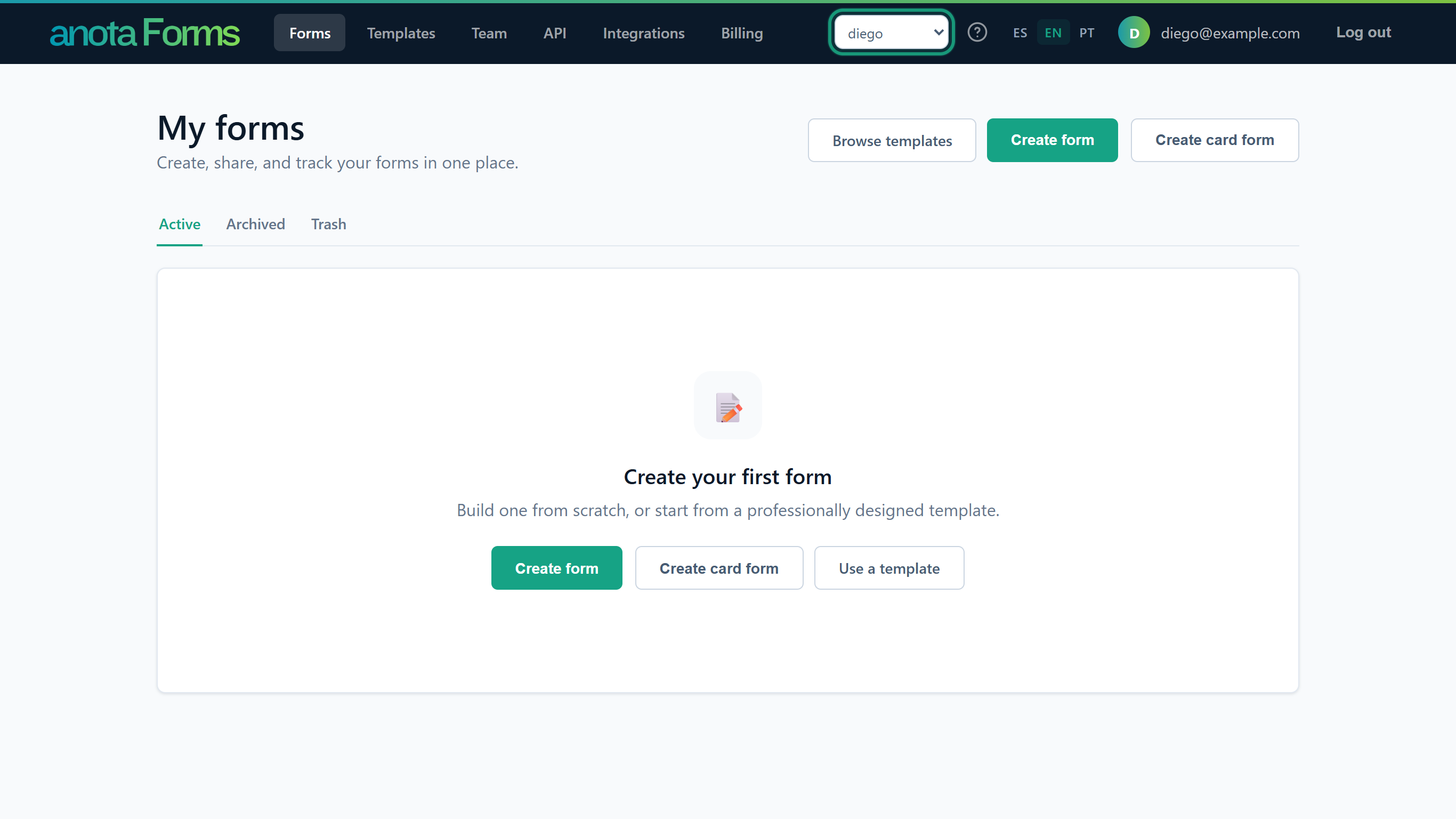 Each new session opens in the workspace you joined first, unless you picked one before on this browser.
The page reloads in the workspace you chose. Forms, submissions, the team and your role are now those of that workspace.
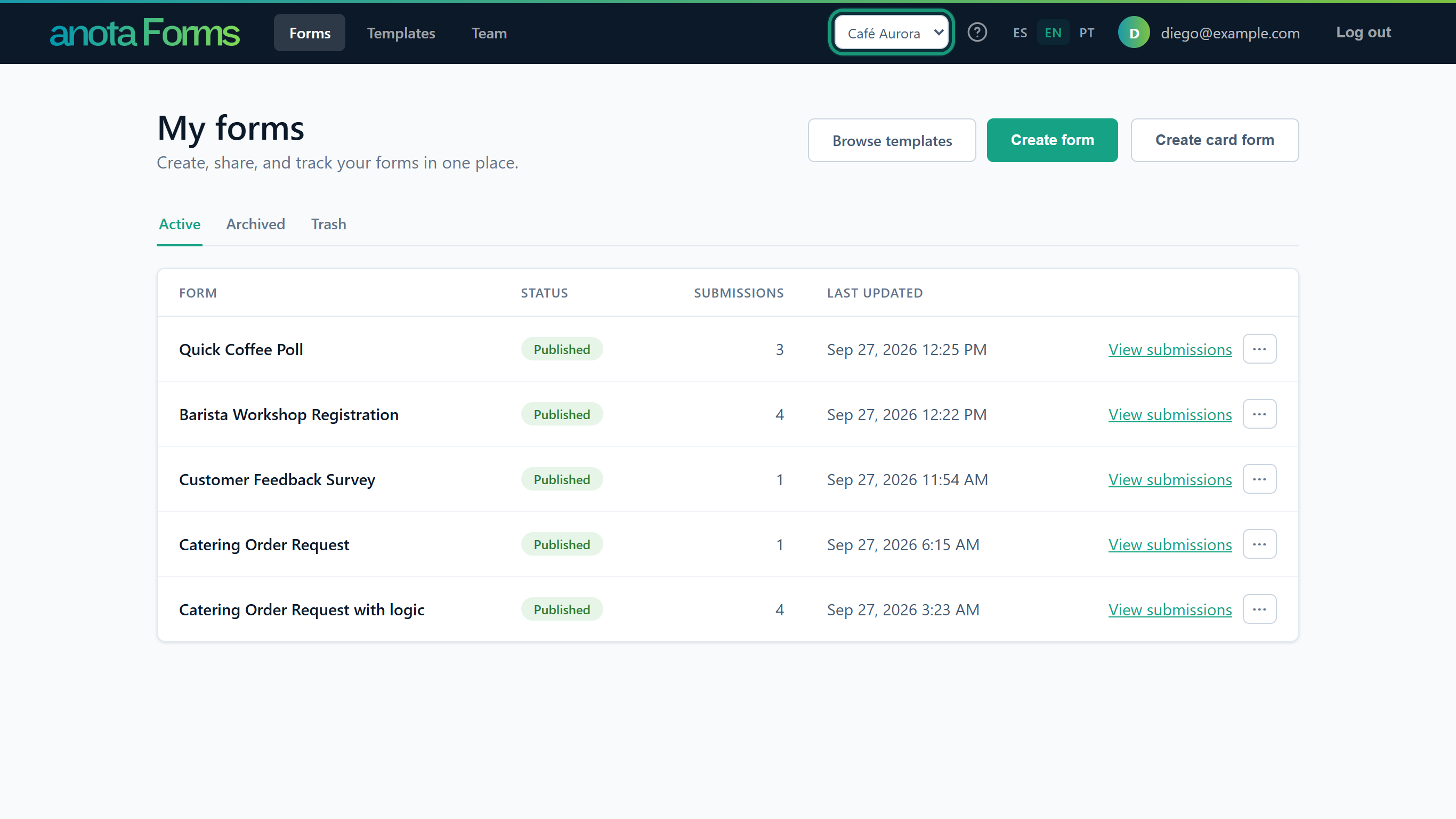 anota remembers your choice on this browser.
Result
You're working in the other workspace, with the role you have there.
Task 4 — See the team as an Editor or Viewer
Step-by-step
As an Editor or Viewer, open Team. You see the same seat count, Members and Pending invitations, but no Invite a member card, each role is a fixed label, and there are no Save, Remove, Resend or Revoke buttons.
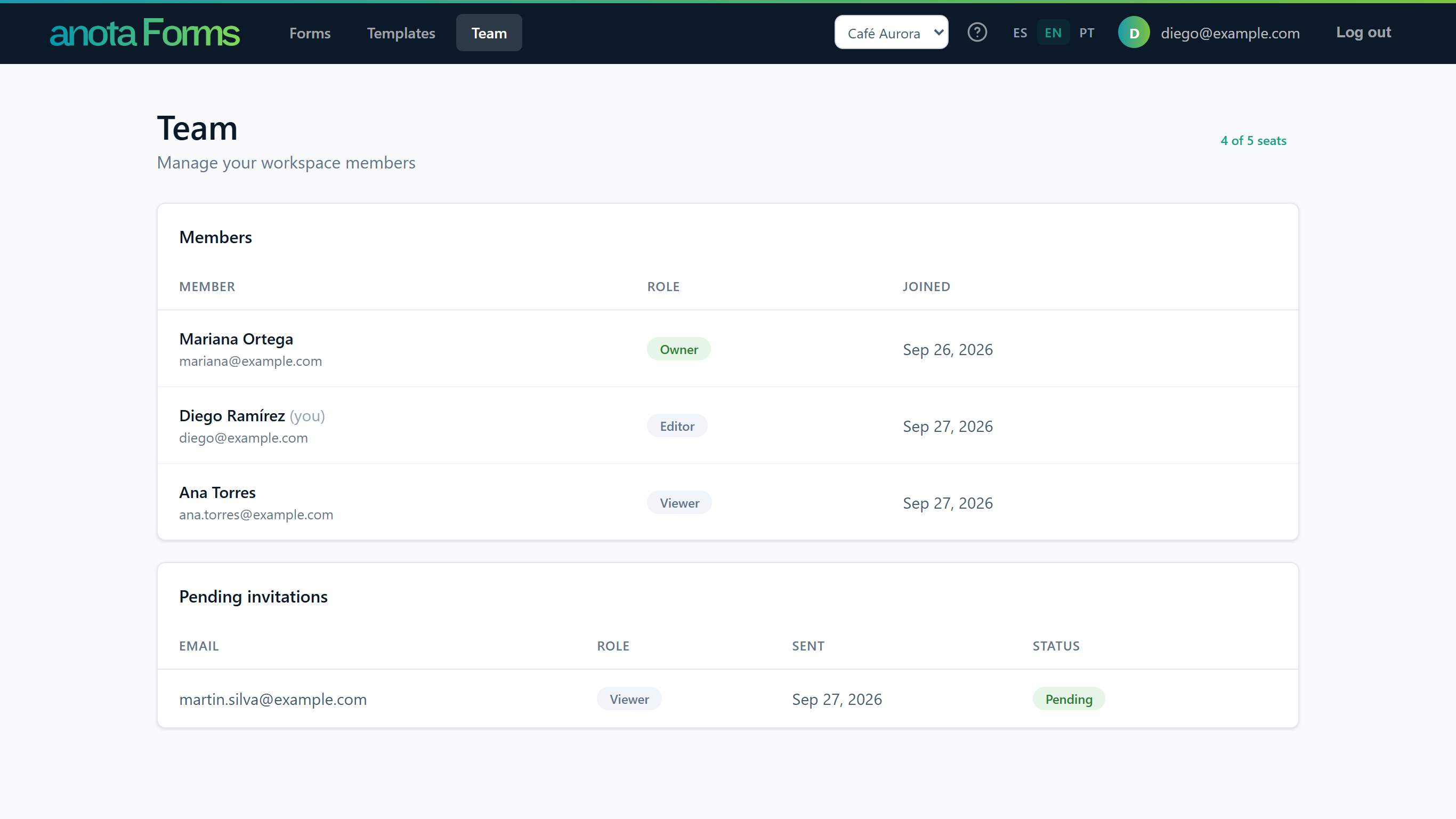 To change something on the team, ask the Owner or an Admin.
Result
Everyone in the workspace can see who is on the team. Only Owners and Admins can change it.
Roles and permissions on the Team page
This table covers the Team page only. What each role can do in the rest of anota is in Roles and permissions.
| Role | See the team | Invite | Change a member's role | Remove a member | Resend or revoke an invitation |
|---|---|---|---|---|---|
| Owner | Yes | Yes, as Admin, Editor or Viewer | Yes, anyone except the Owner | Yes, anyone except the Owner | Yes |
| Admin | Yes | Yes, as Editor or Viewer | Only Editors and Viewers, and only to Editor or Viewer | Only Editors and Viewers | Yes |
| Editor | Yes | No | No | No | No |
| Viewer | Yes | No | No | No | No |
The form builder also has an Invite button in its top bar ("Invite a teammate to your account"). It opens the Team page in a new tab.
Troubleshooting
| Symptom | Likely cause | Resolution |
|---|---|---|
| You don't see Invite a member, or the buttons to change roles or remove members | Your role is Editor or Viewer | Ask an Owner or Admin of the workspace to make the change. |
| "You've reached your plan's seat limit…" | Members plus pending invitations fill every seat on your plan | Click See plans to upgrade, or remove a member or revoke a pending invitation. See Invite members. |
| Someone you invited isn't in Members | They haven't accepted the invitation yet | Find them under Pending invitations, where you can Resend or Revoke. |
| You don't see the workspace list in the top bar | You belong to only one workspace | Nothing to do: the list appears once you belong to a second workspace. |
| You can't find your forms after accepting an invitation | You're in the other workspace | Choose your own workspace in the workspace list in the top bar. |
Related features
Was this page helpful?