 P4 Software
/
anota-EN
P4 Software
/
anota-EN
Applies to: anota, paid plans (Bronze and above) Roles required: Editor or above to set up approvals and to resend or withdraw a request; Viewer or above to see them in the inbox. Approvers need no anota account. Regulatory references: none
Some responses need a yes or no from a person before anyone acts on them: a time-off request, a purchase, an expense claim. With approvals, anota emails the people you name a link to review each response. The first of them to decide settles it, the person who sent the response is told the result, and you see the state in the Submissions inbox.
The examples use Café Aurora's Time Off Request: a barista asks for days off, and the shop's manager or its owner approves or rejects the request.
Open the form in the builder, click the Publish tab, then Approvals ("Who approves each response") on the left.
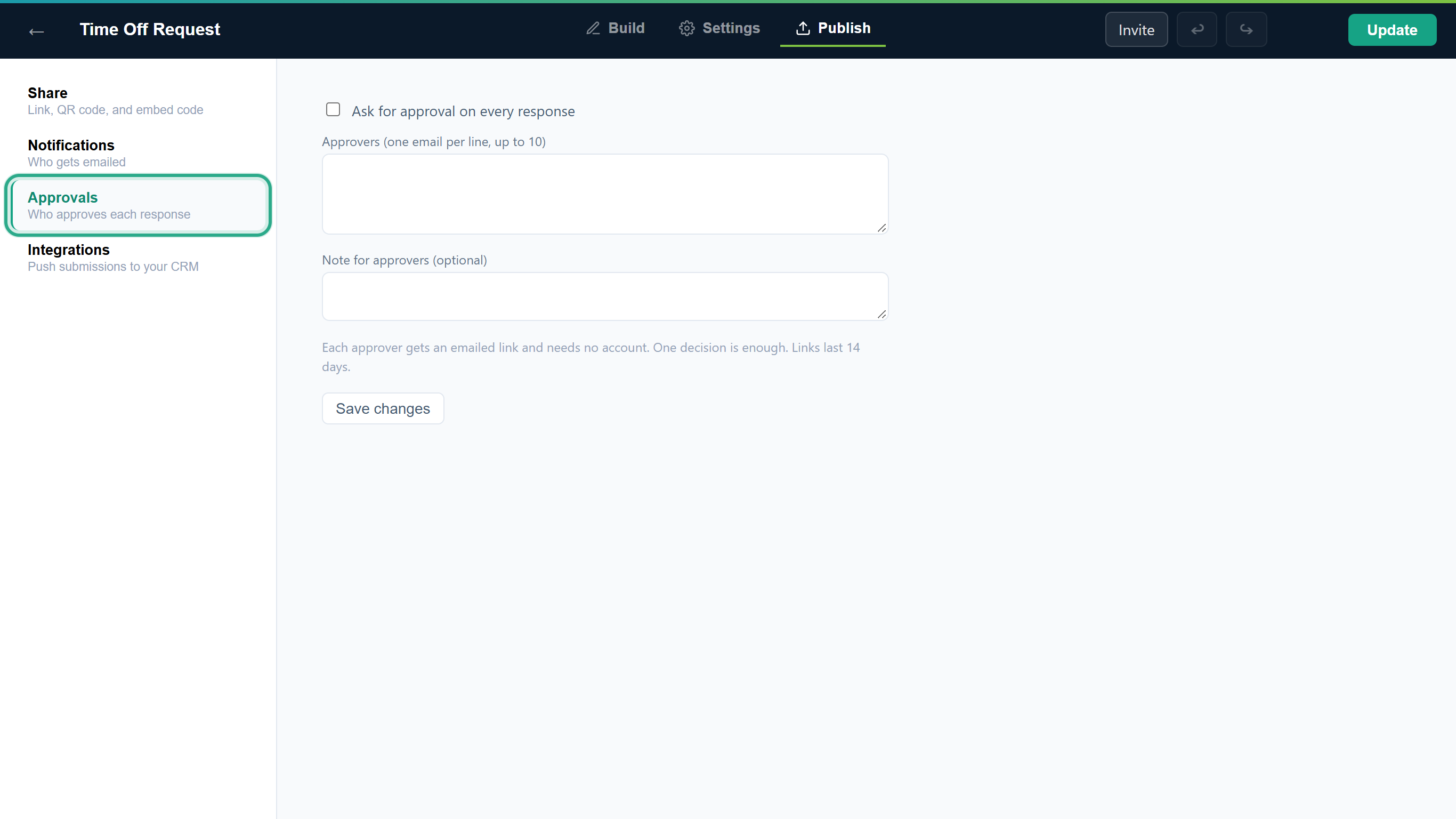 Approvals sit next to Notifications, because both are about who gets emailed.
Tick Ask for approval on every response.
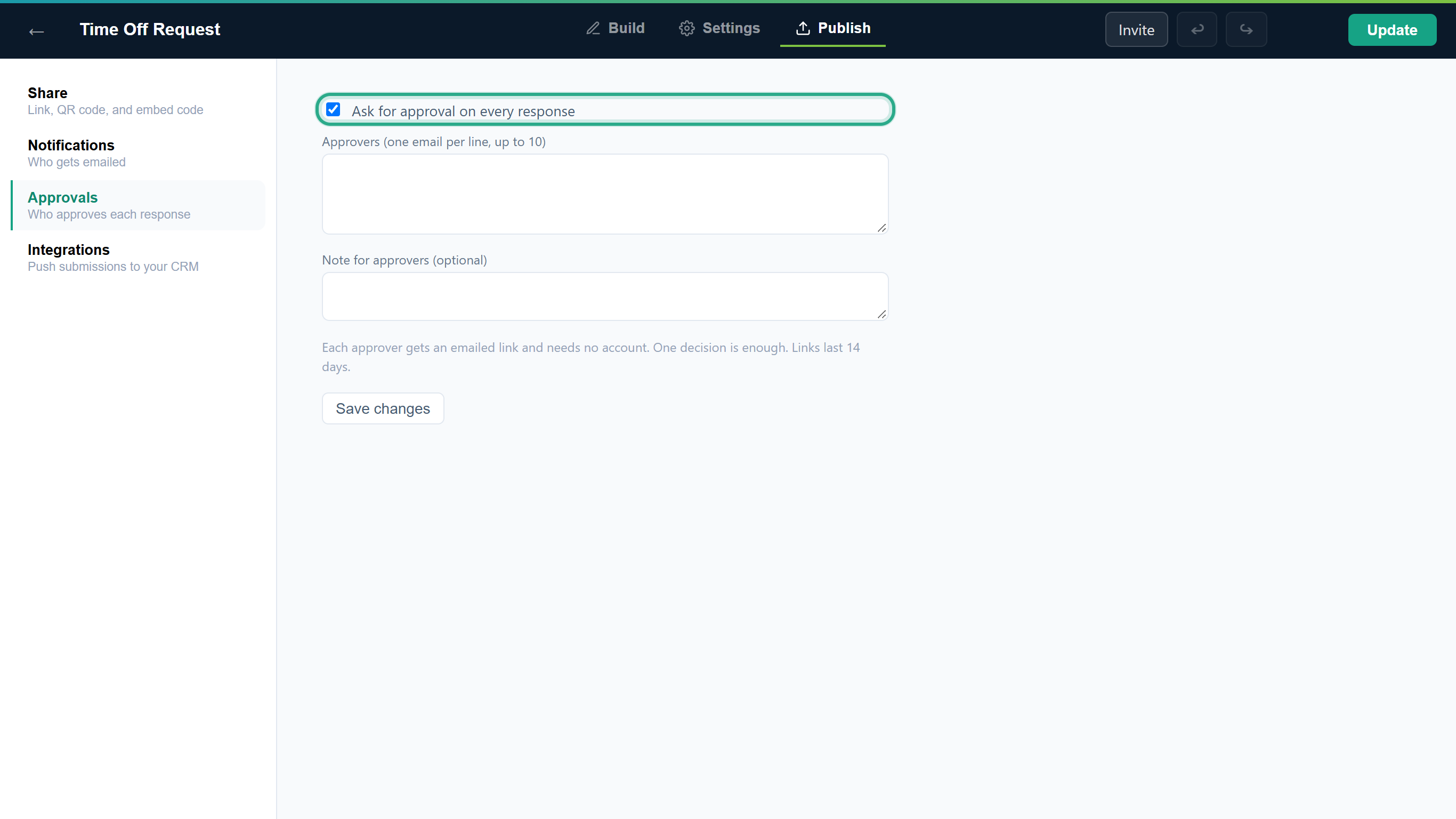 Until you tick it, responses arrive as they always did.
Under Approvers (one email per line, up to 10), type one address per line. In Note for approvers (optional) you can add a sentence they will see above the answers, up to 500 characters.
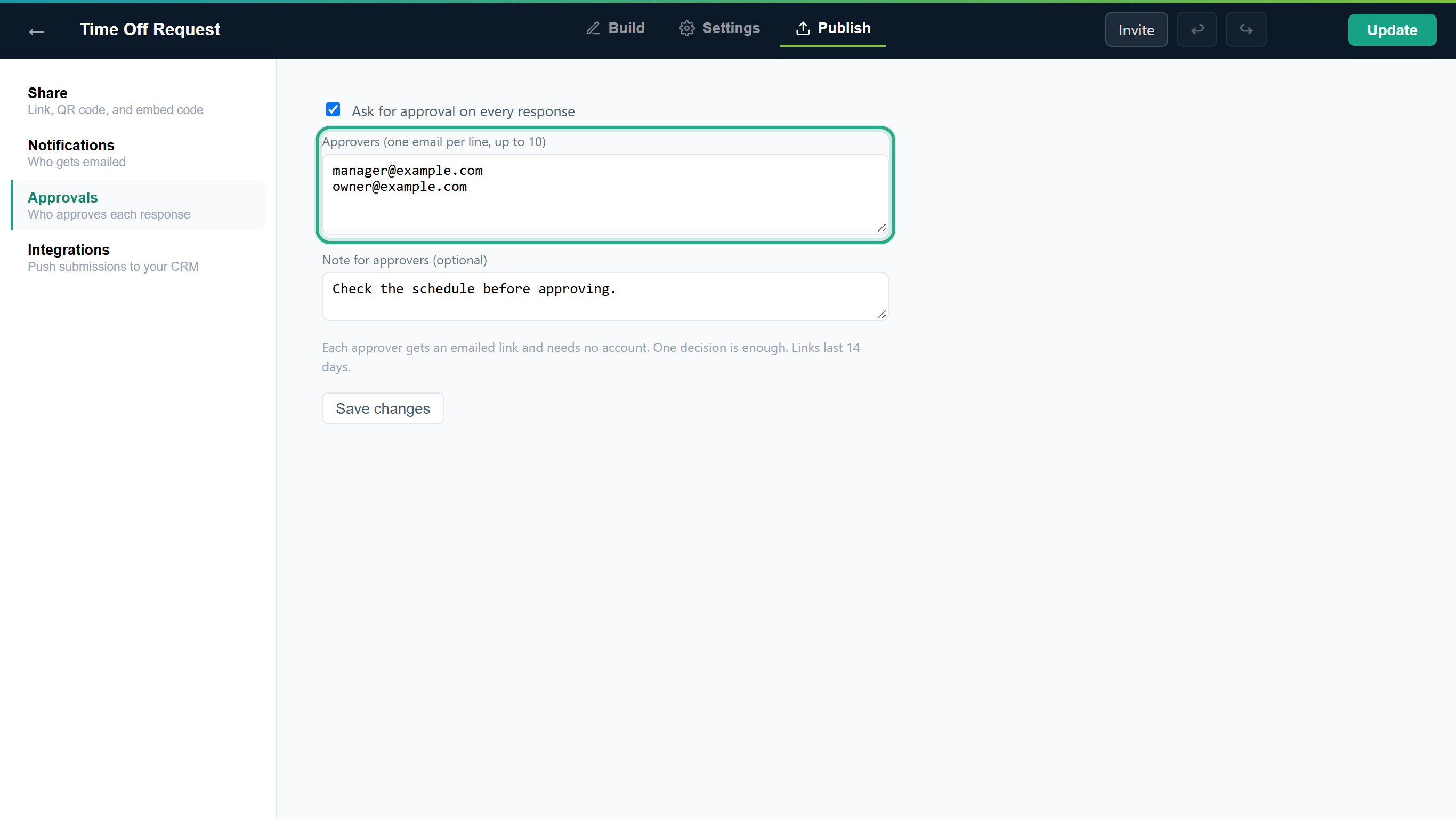 Every address you list receives a link. Duplicates and extra spaces are cleaned up for you.
Click Save changes. Saved appears next to the button.
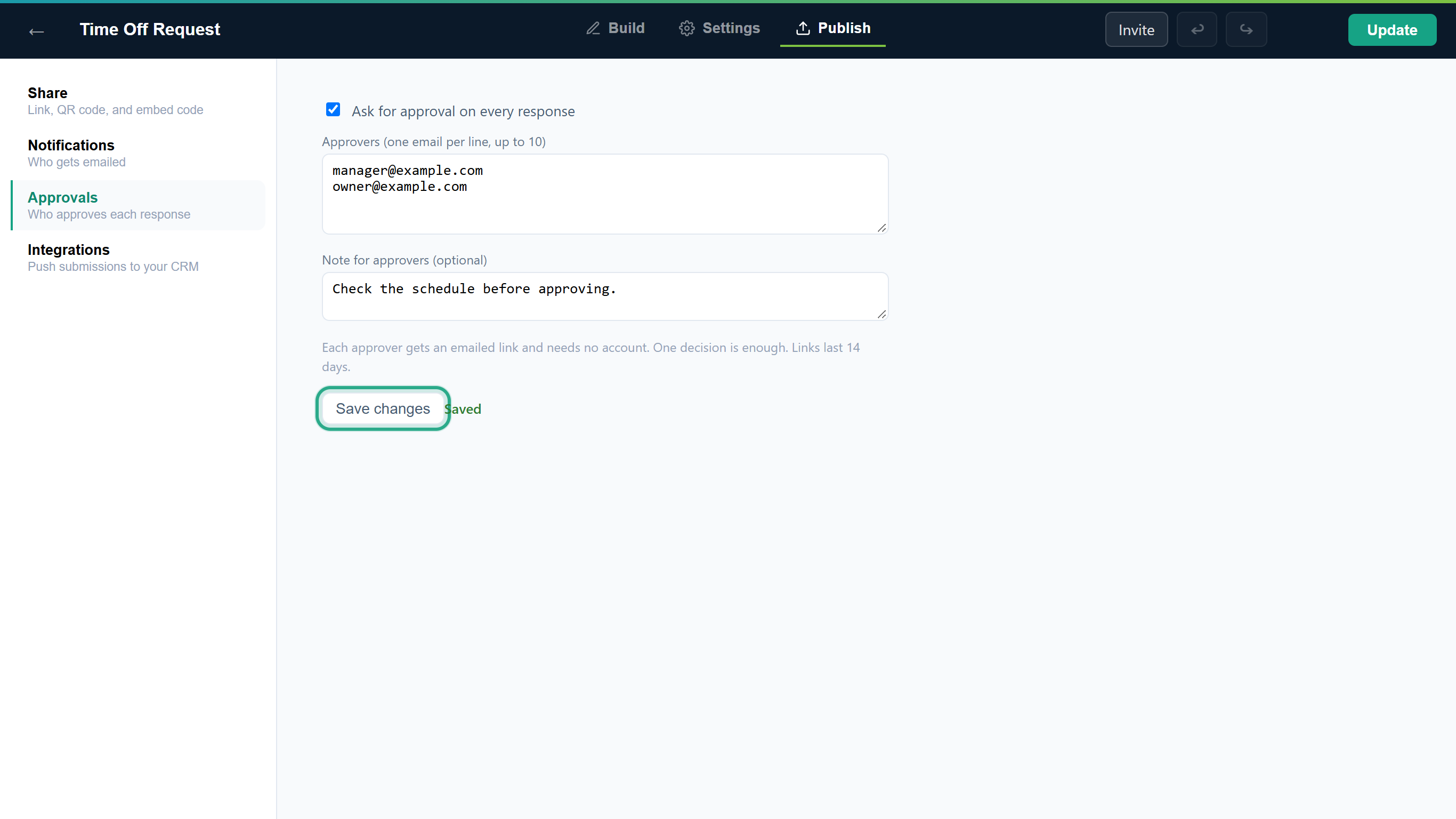 Approvals take effect for the next response; you don't need to click Update.
From now on each new response to this form starts an approval. The people you list get an email, and you still get the usual notification as before.
If a message appears instead, it says what to fix: Add at least one approver before turning approvals on, Check this email address: followed by the address that isn't valid, or Up to 10 approvers per form.
This task is what each approver does. They can be people outside your team: no account or sign-in is needed.
The approver receives an email titled A response is waiting for your decision. It names the form, says until when the link works, shows your note, and lists the answers. They click Review and decide.
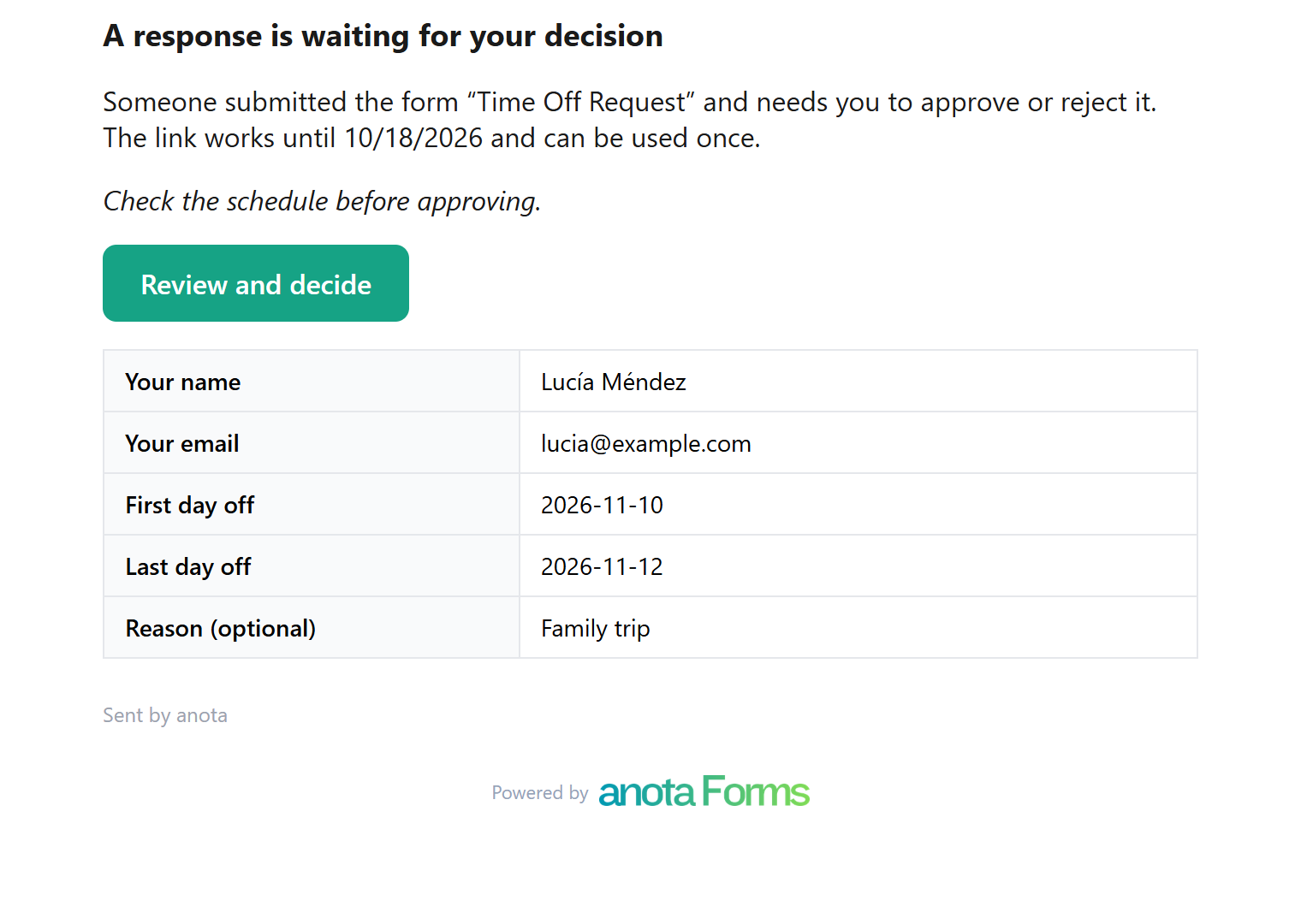 The email is written in the form's base language.
The link opens a page with the answers and a Comment box. The page follows the approver's browser language.
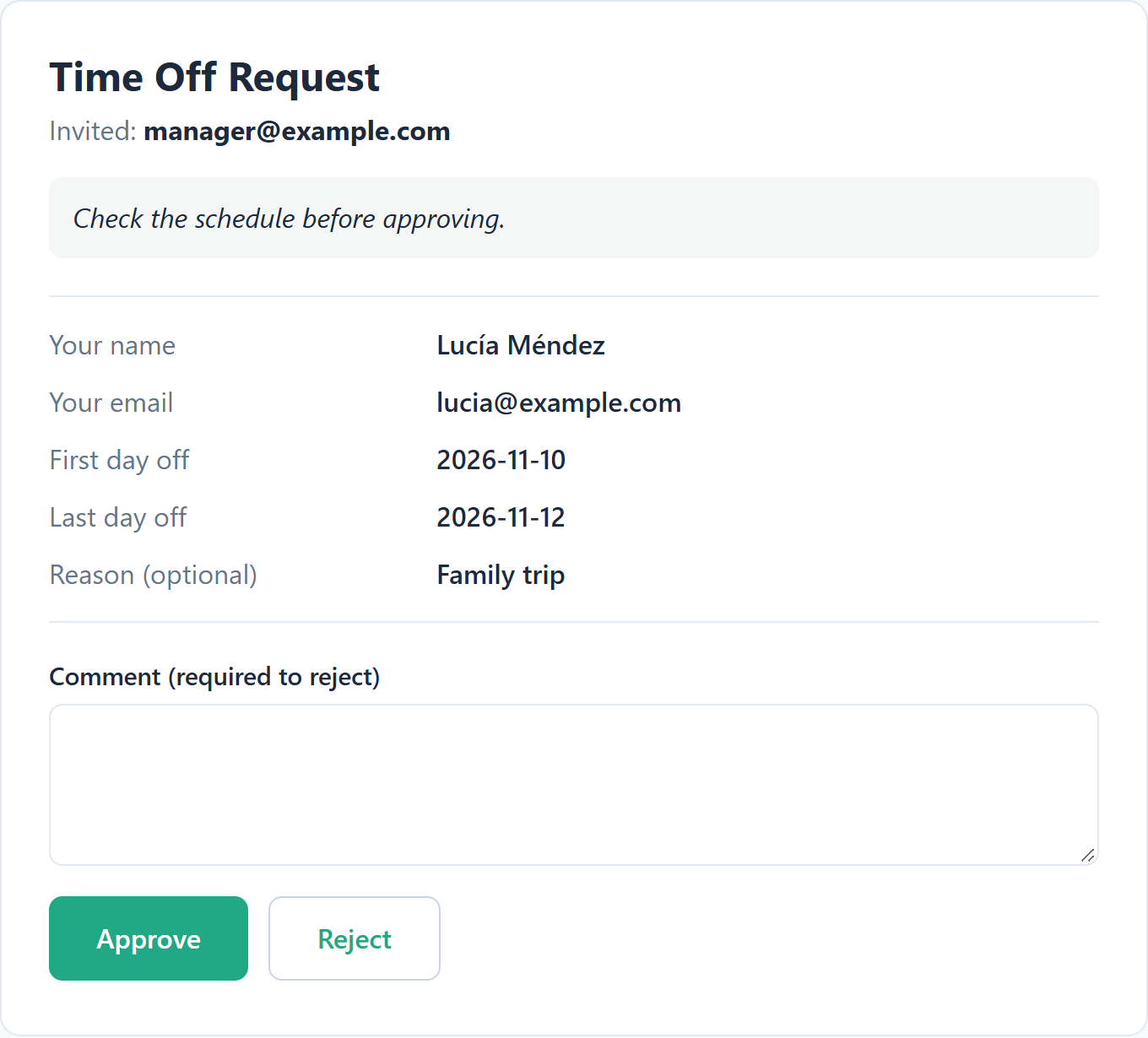 Opening the link doesn't decide anything. Only the buttons do.
The approver clicks Approve, or Reject. A comment is optional to approve and required to reject, up to 1,000 characters.
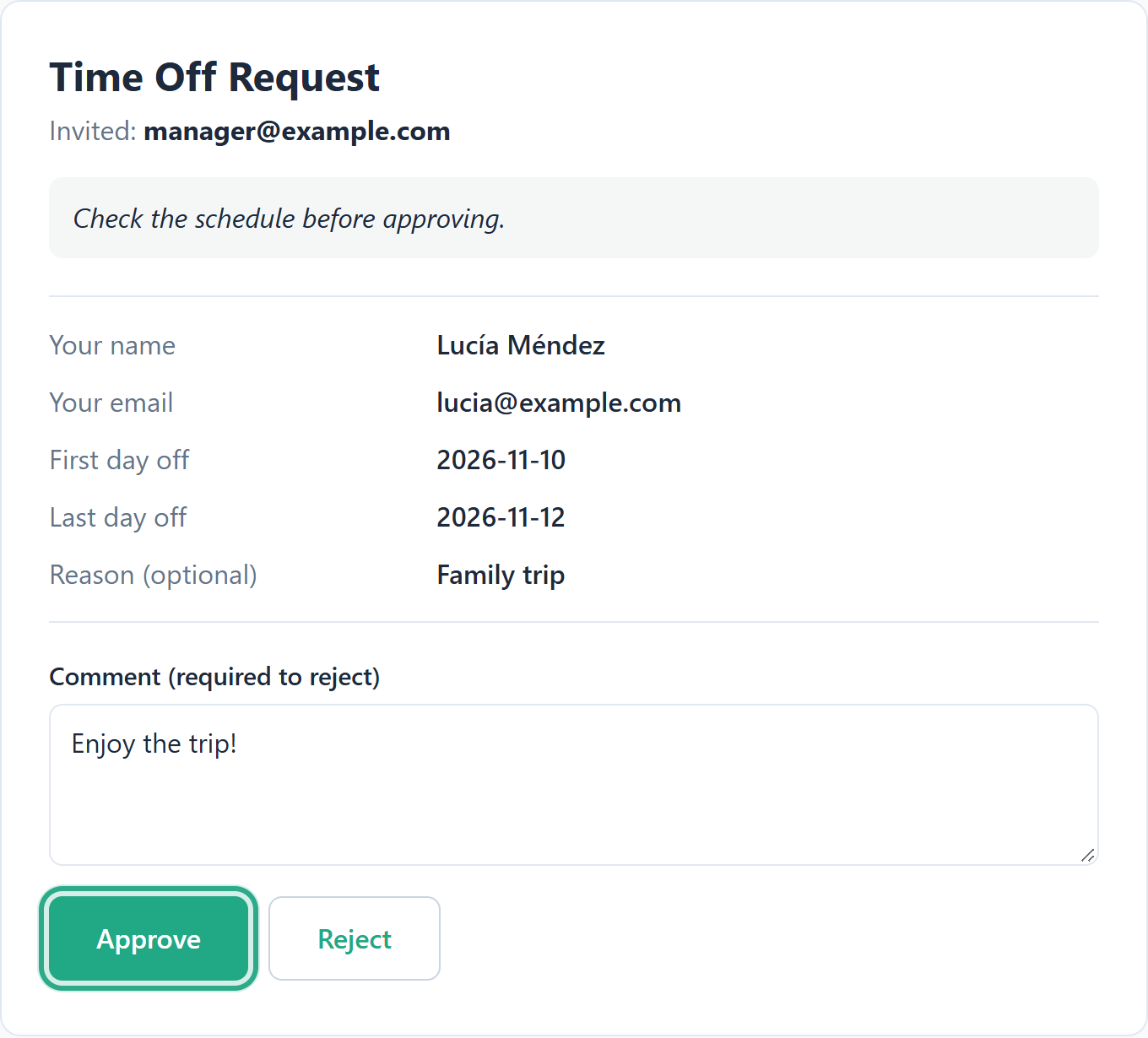 A rejection without a comment shows Write a comment to reject. and nothing is saved.
A confirmation appears: Approved, thank you or Rejected, thank you.
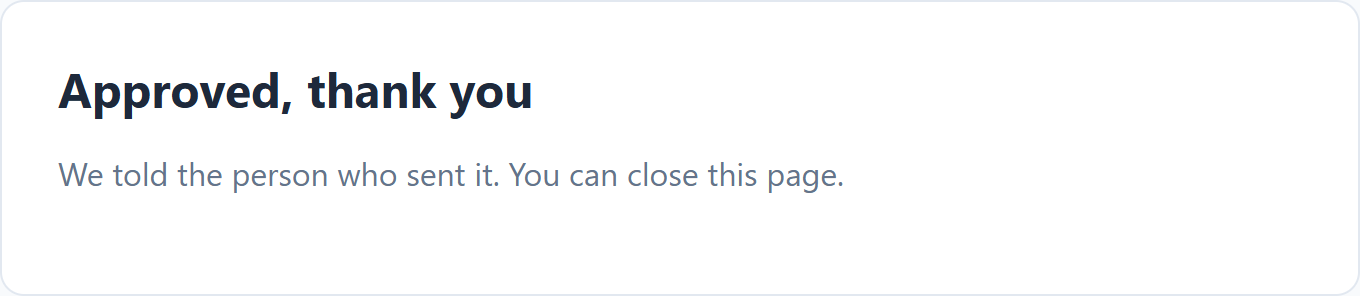 The decision is final: the link can't be used again.
The response is Approved or Rejected. Any other approver who opens their link sees This response was already decided, and nothing else changes.
Open the form's Submissions. The table has an Approval column with a Pending, Approved or Rejected badge. When at least one request is waiting, a Pending approval tab shows how many. Click it to see only those.
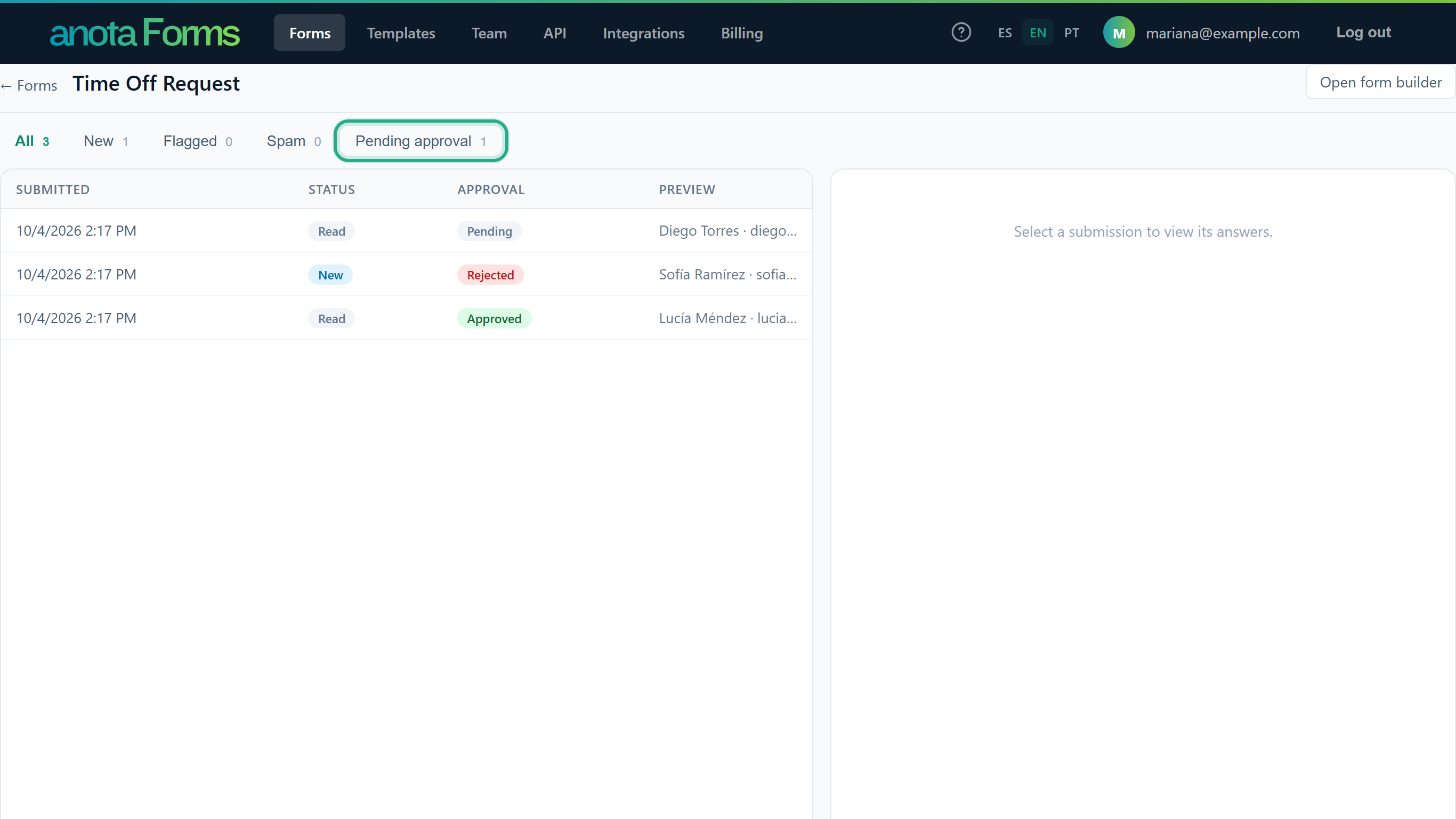 Responses that never asked for approval show nothing in that column.
Click a pending response to see who was asked. As an Editor or above you can Resend request, which emails a fresh link to every approver and cancels the earlier links, or Withdraw request, which cancels the request. Resend it when an email got lost or the links ran out: the detail then says The links expired. Resend the request.
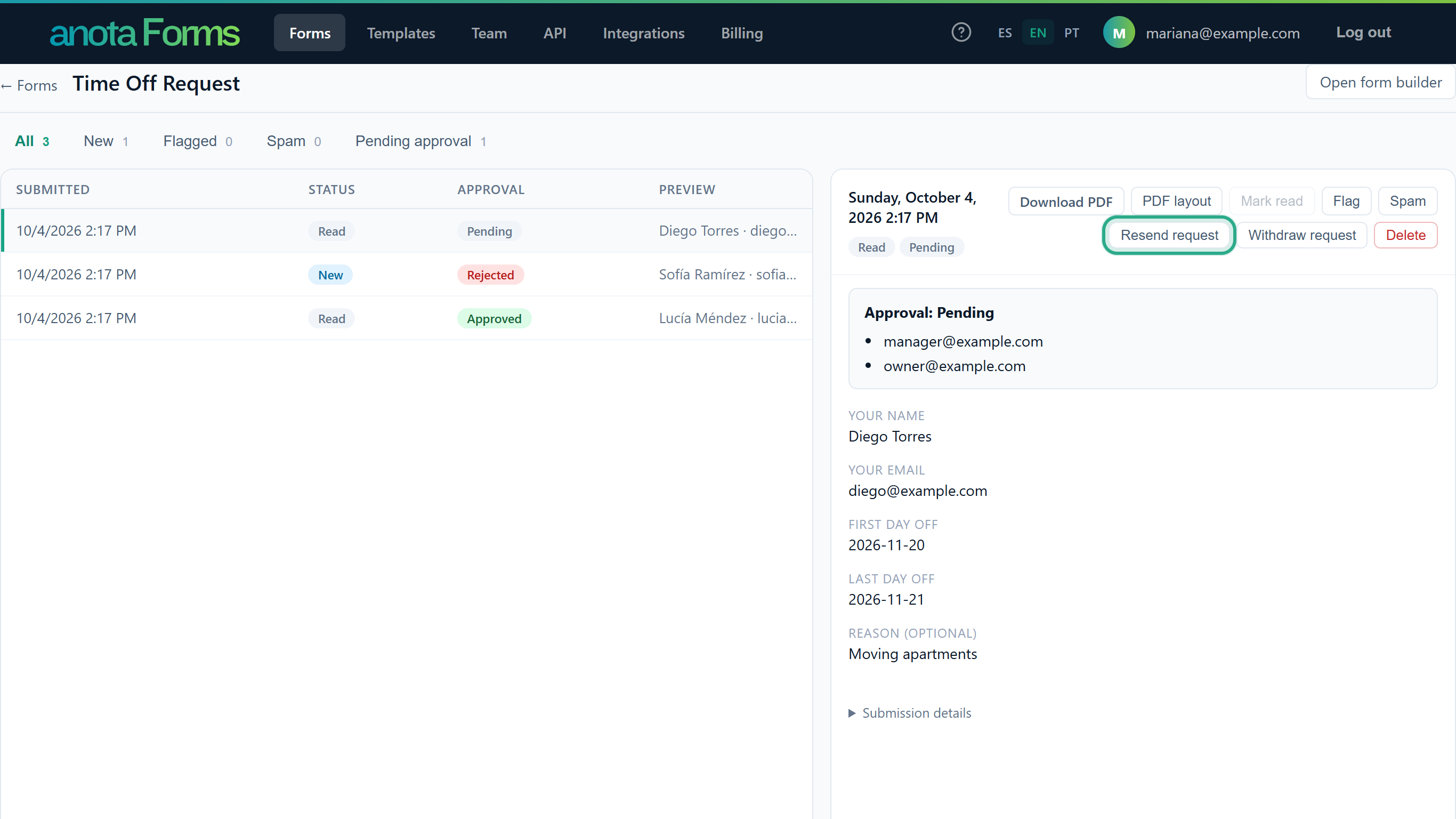 You can't decide for an approver here. A decision always comes from an approver's own link.
Click a decided response to see who decided, when, and their comment.
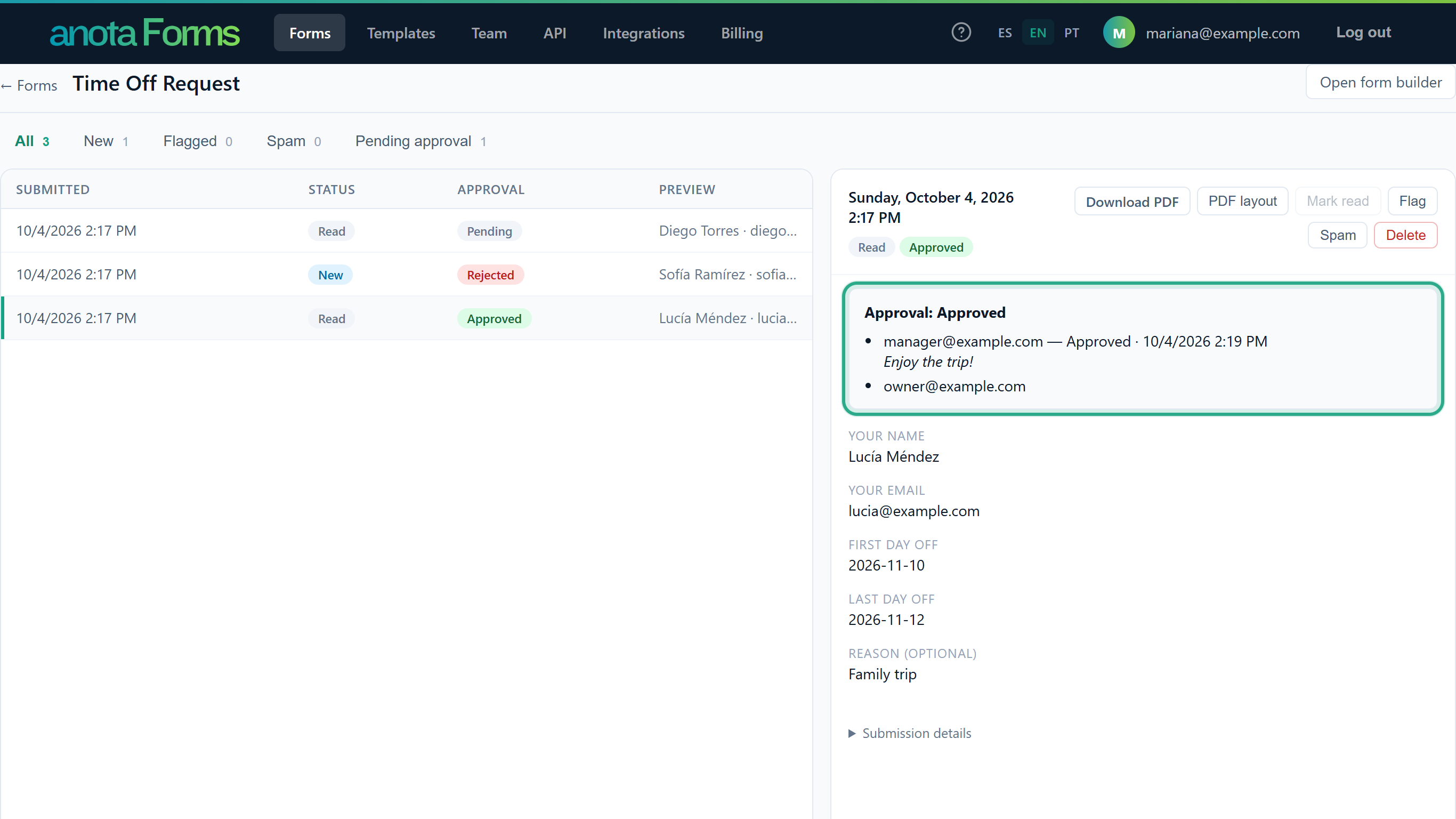 Only the approver who decided is shown with a decision; the others stay without one.
You can tell at a glance what is waiting, what was decided and by whom.
As soon as an approver decides, the person who submitted the response gets an email: Your request was approved or Your request was rejected, with the approver's comment if there is one. It goes to the address in the form's first Email question, in the language they filled the form in.
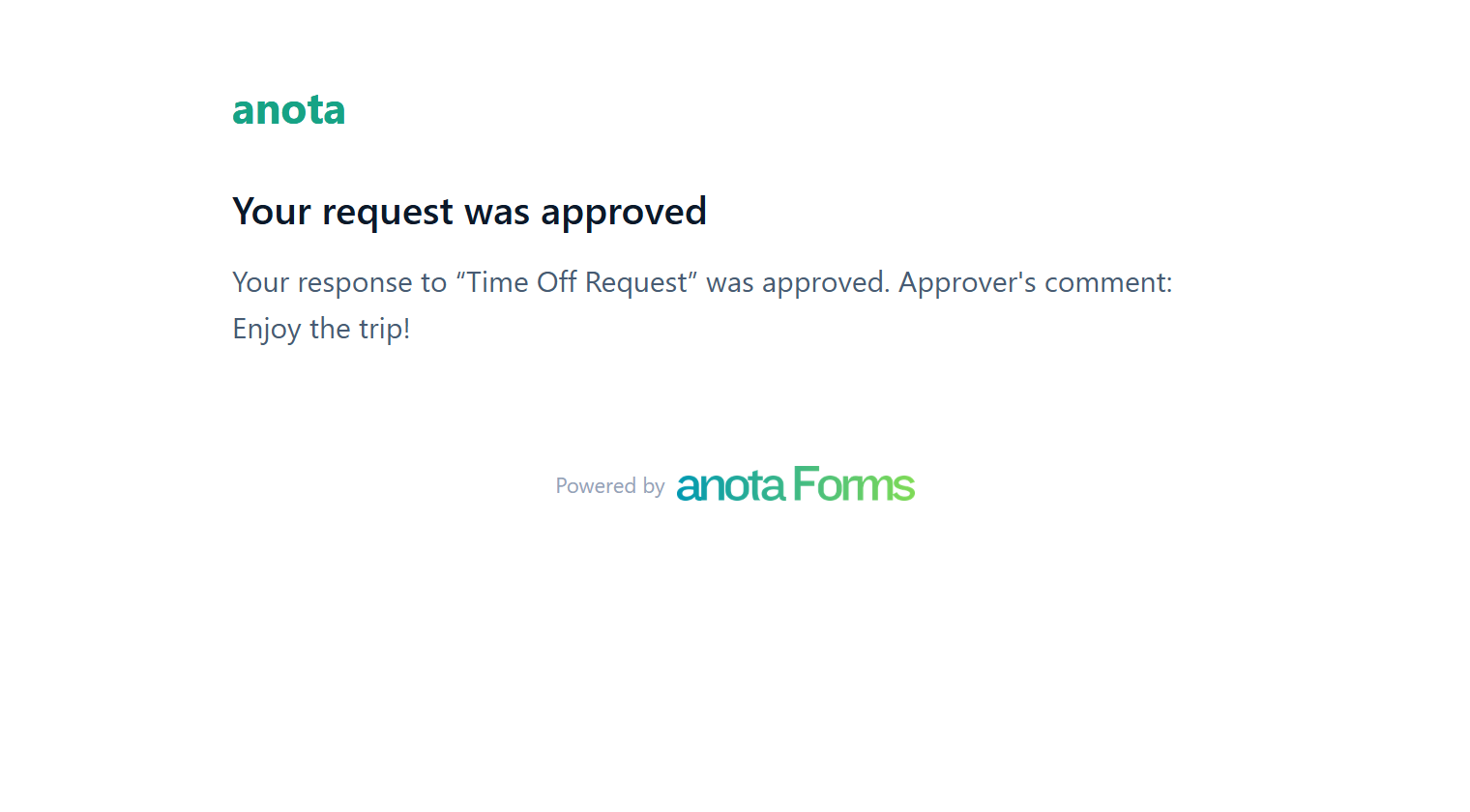 If the form has no Email question, nobody is emailed. The decision is still in the inbox.
The person knows the outcome without having to ask.
On a form that takes payments with Stripe, the approval request goes out only after the payment succeeds, so approvers never review an unpaid order.
If you move to the free Starter plan, requests already sent keep working and decided ones stay readable. New responses stop asking for approval, and the Approvals section shows an upgrade message. You can still switch approvals off.
list_submissions takes an approval filter (pending, approved or rejected) and shows each response's approval. get_submission shows the approvers, their decisions and comments. resend_approval_request resends a pending request. No tool can approve or reject: only an approver can decide, from their own link. See Connect Claude and ChatGPT (MCP).POST /api/v1/submissions/{submissionId}/approval/resend. See Developers and API.includeApprovalEvents also receive submission.approved and submission.rejected, with the approver's decision and comment. Existing webhooks keep receiving submission.created only.| Setting | What it does | Limits |
|---|---|---|
| Ask for approval on every response | Starts an approval for each new response | Paid plans only |
| Approvers | The people who get a review link | 1 to 10 addresses, plain addresses only |
| Note for approvers | A sentence shown above the answers | 500 characters |
| Comment (on the review page) | The approver's reason | Required to reject, 1,000 characters |
| Review link | Opens the review page | Valid for 14 days; decides once |
| Action | Viewer | Editor | Admin / Owner |
|---|---|---|---|
| See approval states and approvers in the inbox | Yes | Yes | Yes |
| Turn approvals on or off, and edit approvers | No | Yes | Yes |
| Resend or withdraw a request | No | Yes | Yes |
| Approve or reject | Only approvers, from their link | Only approvers, from their link | Only approvers, from their link |
| Symptom | Likely cause | Resolution |
|---|---|---|
| I can't find Approvals in the Publish tab | The form has never been published | Publish it first (Publish and share). |
| Approvals are available on paid plans. | The workspace is on the free Starter plan | Upgrade from Billing (Bronze or above). |
| An approver didn't get the email | It went to spam, or the address is wrong | Check the spam folder and the list of approvers, then click Resend request. |
| The link says This link is no longer valid | It expired after 14 days, or you resent the request and a newer link replaced it | Click Resend request and use the new email. |
| The link says This response was already decided | Another approver, or the same one, already decided | Nothing to do. The inbox shows the decision. |
| The page says Write a comment to reject. | A rejection needs a reason | Type a comment and click Reject again. |
| The detail says The links expired. Resend the request. | Nobody decided within 14 days | Click Resend request. |
| The person who asked got no decision email | The form has no Email question, or they left it empty | Add an Email question and make it required. |
| New responses no longer ask for approval | Approvals are switched off, or the plan changed to Starter | Check Publish > Approvals and your plan in Billing. |
Was this page helpful?