Export to PDF
Export to PDF
Applies to: anota, all plans Roles required: any workspace member can download a PDF; Editor or above to choose the form's PDF layout Regulatory references: none
Overview
You can download any submission as a PDF document with every answer filled in, and the signature as the signed image. Use it to keep a paper or digital file, print a registration, or send a response to someone who doesn't use anota. Each form has one PDF layout, chosen from nine Templates, that is used for all its PDFs, including the PDF attached to email notifications.
The examples use Valeria Castro's registration in Café Aurora's Barista Workshop Registration.
Key concepts
- PDF layout (template): the design of a form's PDFs. It's set per form, not per submission. A form that never had one chosen uses Classic.
- Accent colour: Templates draw their lines, headings and bands in the form's primary theme colour (see Theme and appearance). Café Aurora's forms use a coffee brown.
- Document language: the built-in texts of the PDF (such as "Submitted", "DATE" or "SUBMISSION SUMMARY") are in the form's base language, whatever language your anota interface is in. Your title, questions and the answers appear as written.
Task 1 — Download a submission as PDF
Prerequisites
- Open the form's inbox (Forms > the form's row > View submissions) and click the submission. See Submissions inbox.
Step-by-step
At the top of the submission's panel, click Download PDF.
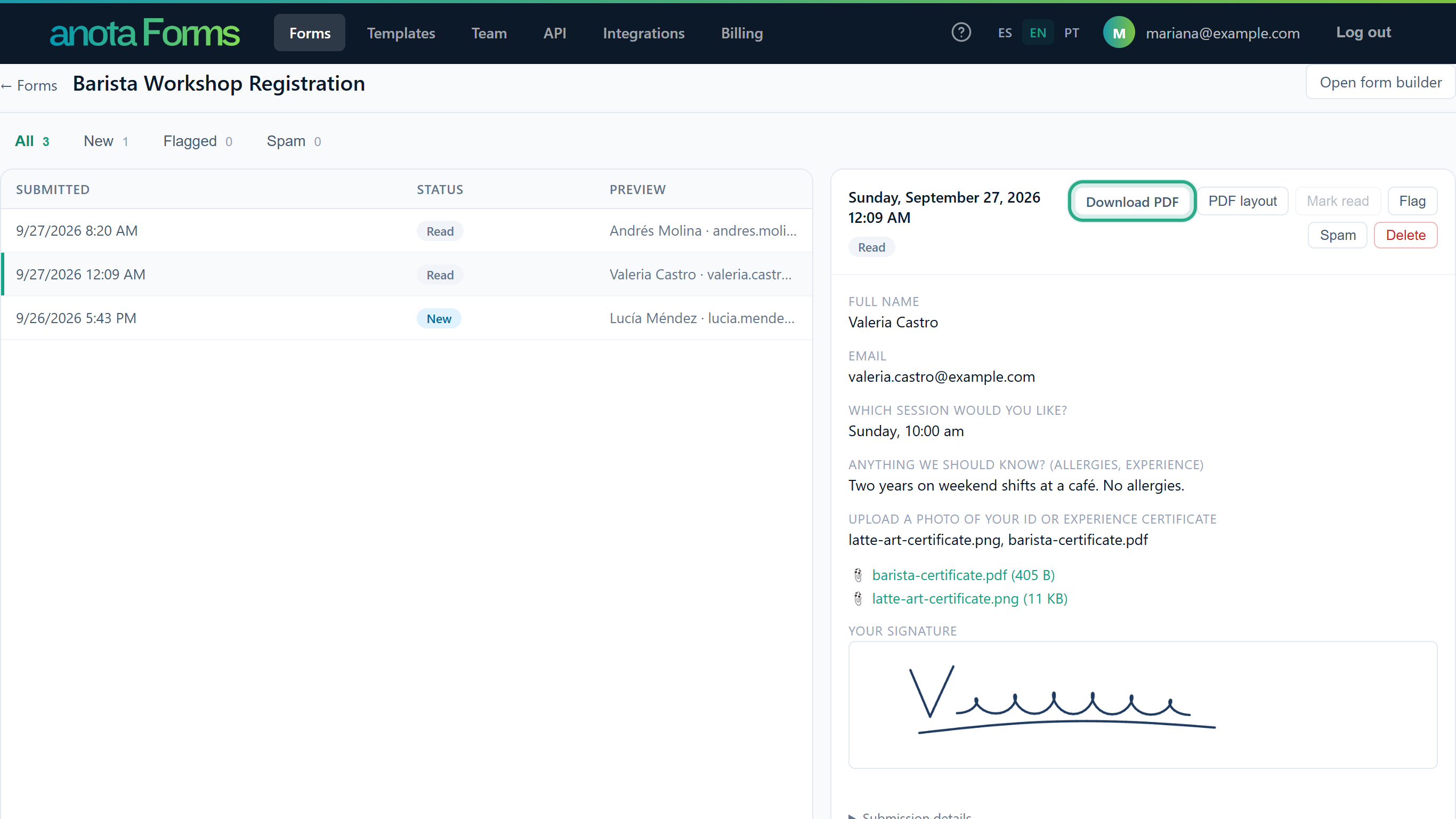 Download PDF is only in the panel of an open submission, not in the list.
Your browser saves the PDF. The file is named after the form's address and the submission ID, for example
barista-workshop-registration-01a0e144bdd2746fb7dd0b638ae5fe79.pdf. Open it to check it.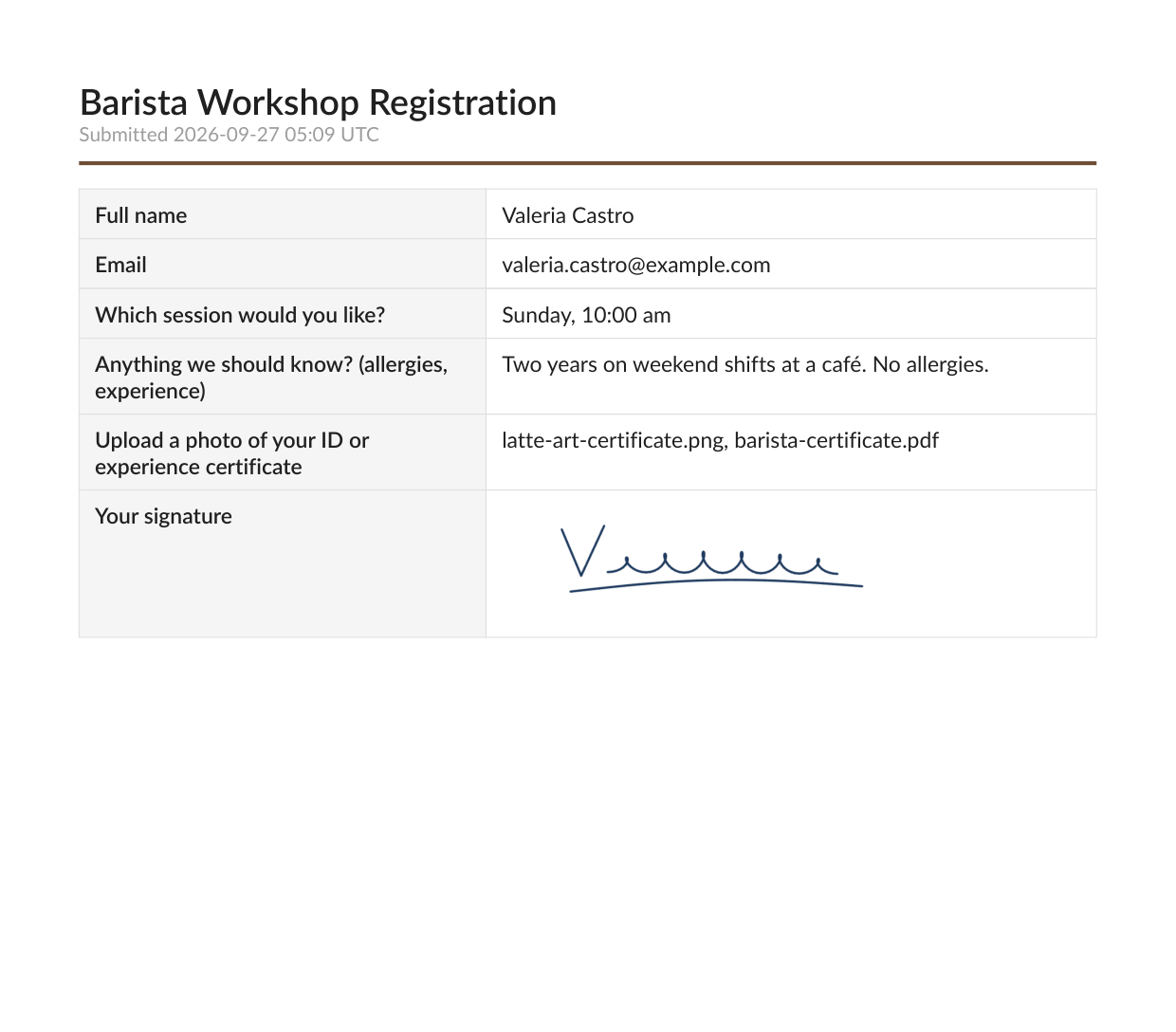 The Classic layout: the form title, the submission time and a question-and-answer table.
Result
You have a PDF with the form title, the date and time of the submission, and each question with its answer:
- The submission time is written in UTC, for example "Submitted 2026-09-27 05:09 UTC".
- Signatures appear as the signed image.
- Choice, matrix, name, address and product answers appear as readable text, as in the inbox.
- Uploaded files are not included: the PDF lists their names. Download the files from the submission's panel (see View and manage submissions).
- An empty answer shows a dash (—).
The questions and answers are the ones of the form version the person answered, so a PDF of an older response keeps its original questions.
Task 2 — Choose the form's PDF layout
Prerequisites
- A role of Editor or above.
Step-by-step
In any submission's panel, click PDF layout, next to Download PDF.
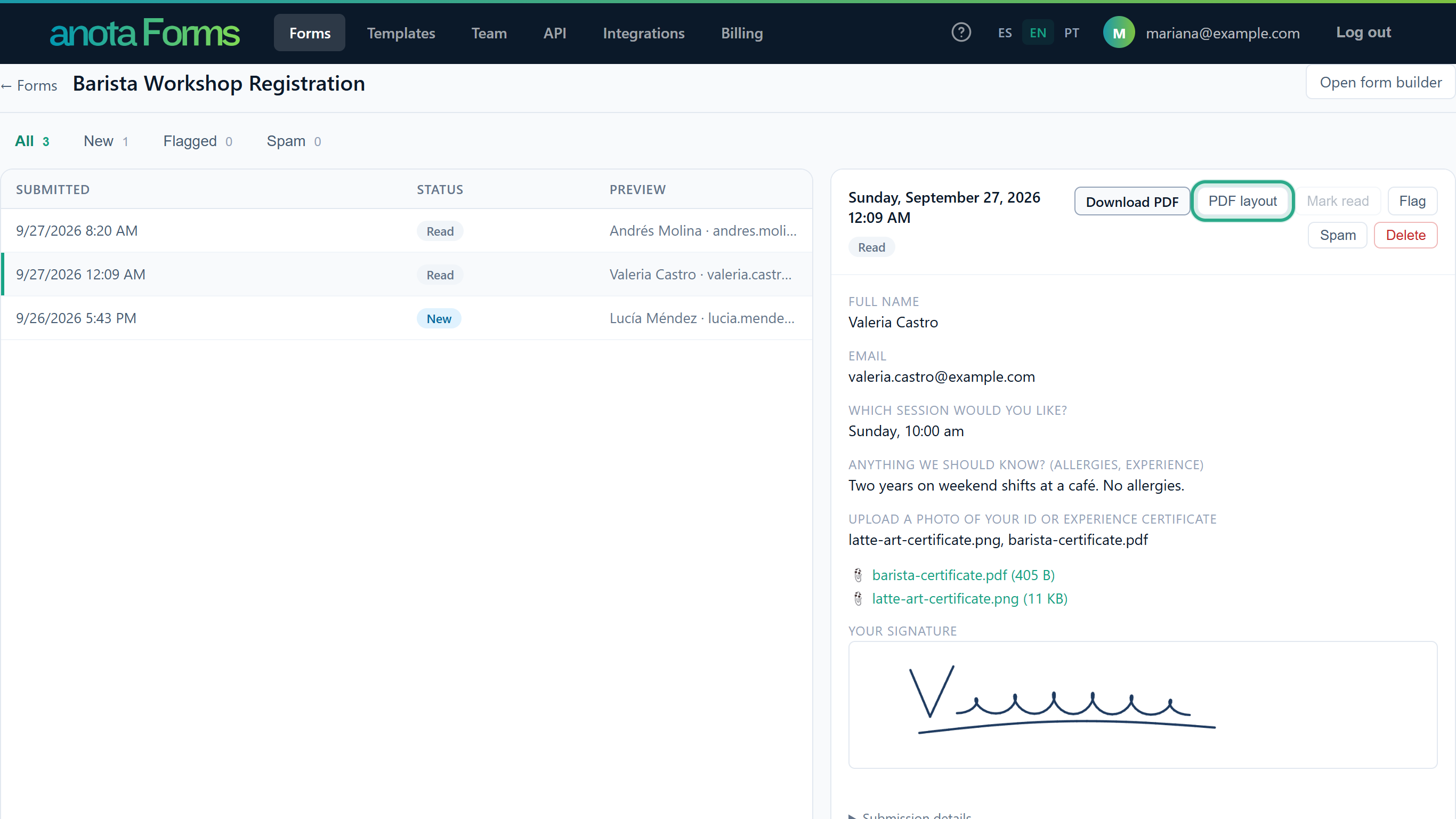 The choice applies to the whole form, whichever submission you open it from.
The PDF document window opens: "Choose the layout used to generate each submission's PDF." Each card shows a preview of the template with sample answers, in your form's accent colour. The current layout has a check mark.
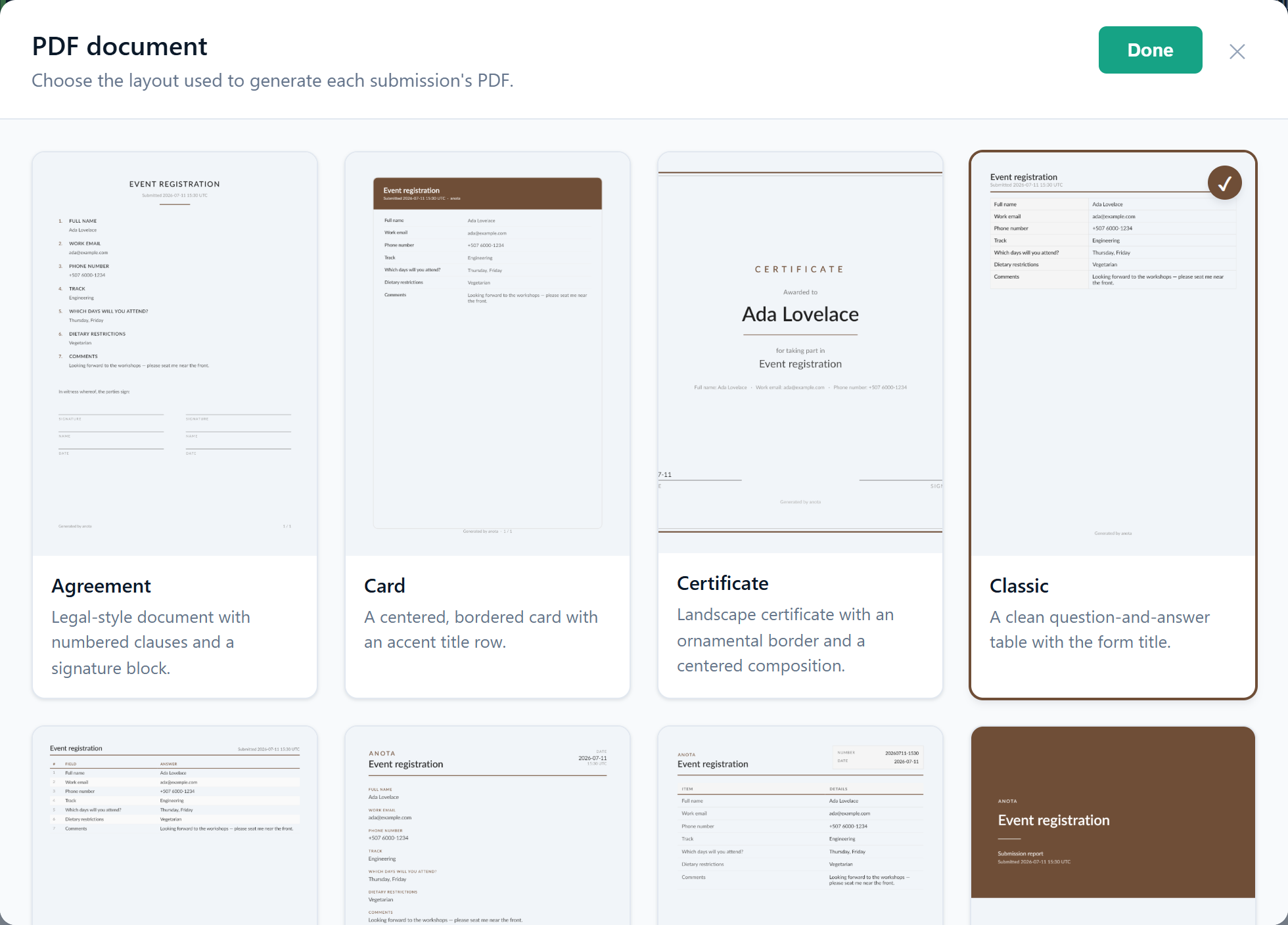 Scroll down to see all nine Templates.
Click the template you want, here Summary. It's saved at once: you see Saving… and then Saved next to Done.
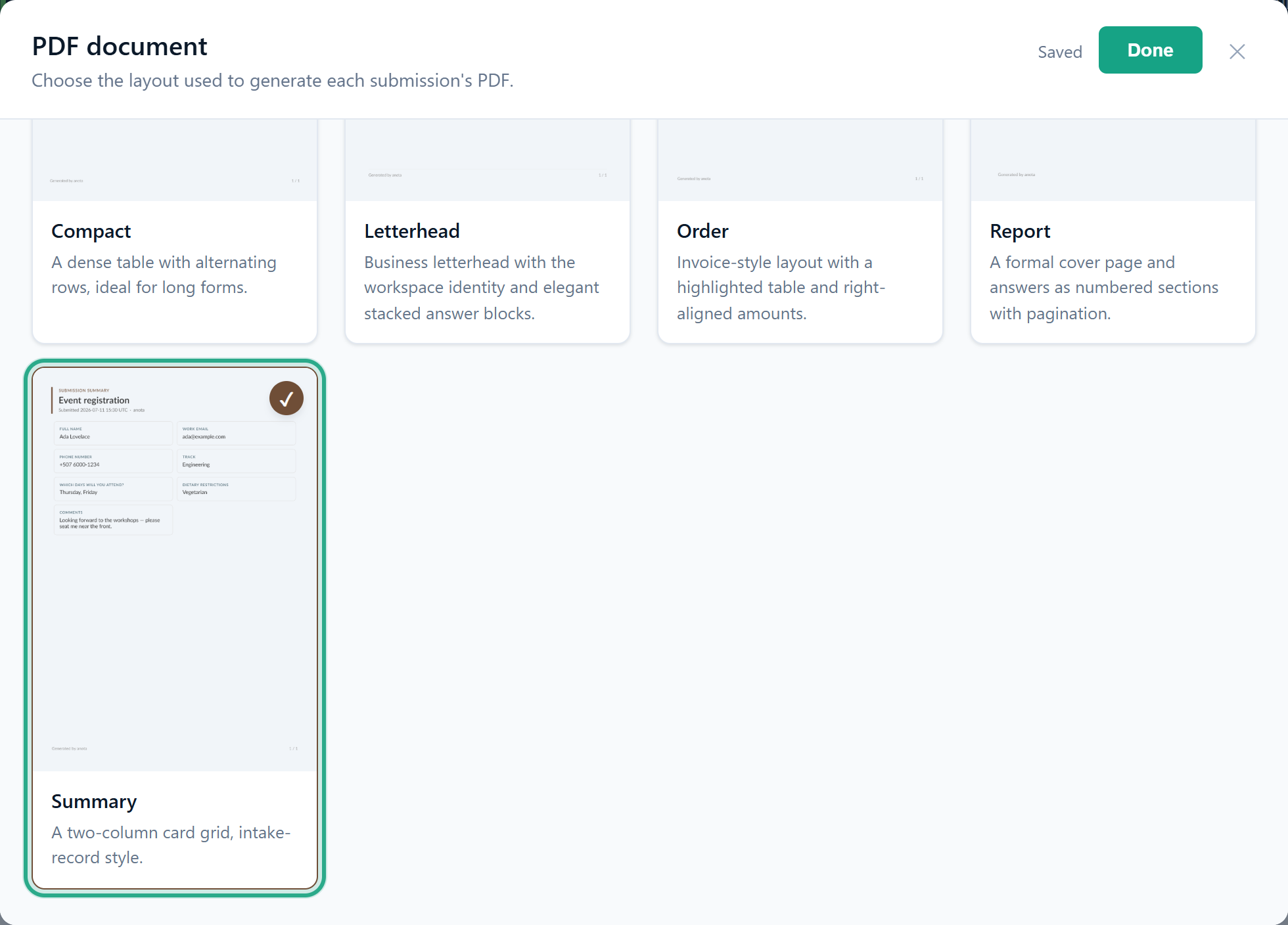 There's nothing else to save. "Save failed" means the choice wasn't stored; try again.
Click Done (or ✕, or outside the window) to close it.
 Closing the window keeps the layout you chose.
Click Download PDF again to get the submission in the new layout.
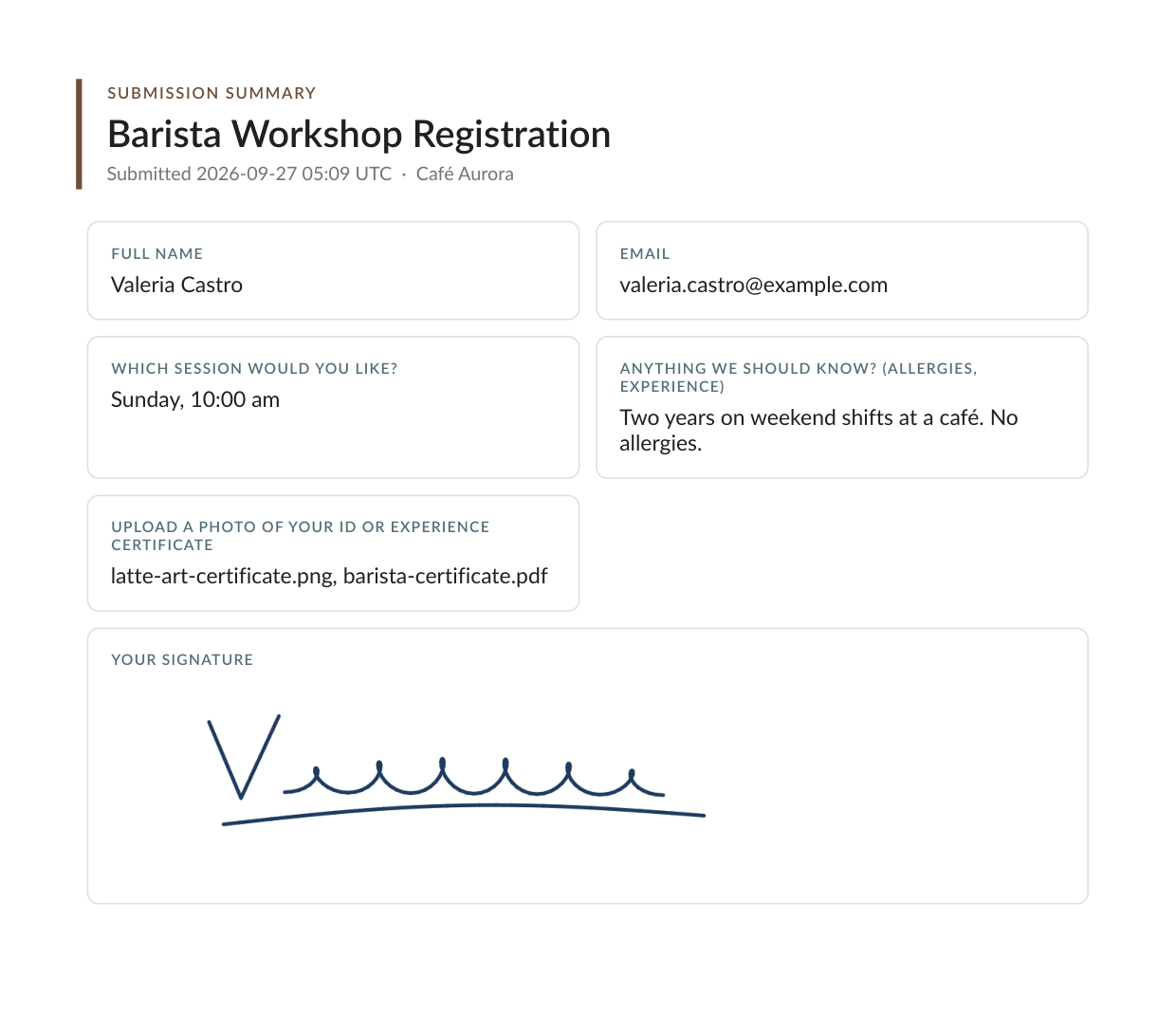 The same registration in the Summary layout, which adds the company name after the submission time.
Result
Every PDF of this form, downloaded or attached to an email, uses the new layout from now on. PDFs you downloaded before don't change. The form doesn't need to be published again: the layout isn't part of the form's published version.
Template reference
The names and descriptions are the ones in the PDF document window.
| Template | Description | Company name and logo |
|---|---|---|
| Agreement | Legal-style document with numbered clauses and a signature block. | Not shown. |
| Card | A centered, bordered card with an accent title row. | Name after the submission time, in the title row. |
| Certificate | Landscape certificate with an ornamental border and a centered composition. | Not shown. |
| Classic | A clean question-and-answer table with the form title. (Used when none is chosen.) | Not shown. |
| Compact | A dense table with alternating rows, ideal for long forms. | Not shown. |
| Letterhead | Business letterhead with the workspace identity and elegant stacked answer blocks. | Logo, then the name in capitals, above the form title. |
| Order | Invoice-style layout with a highlighted table and right-aligned amounts. | Logo, then the name in capitals, above the form title. |
| Report | A formal cover page and answers as numbered sections with pagination. | Name in capitals on the cover page, above the form title. |
| Summary | A two-column card grid, intake-record style. | Name after the submission time, under the form title. |
The name is your Company name (or the workspace name when none is set). The logo is the form's own theme logo, or else your company logo; see Company and branding. A theme logo that is only a link to another website is not drawn in the PDF. Every template prints "Generated by anota" in the footer.
Set the layout from Claude or ChatGPT
With the Claude and ChatGPT connector, you can ask the assistant to change a form's PDF layout, for example "Use the Certificate layout for the barista workshop PDFs." Its set_pdf_template tool sets the same layout as the PDF document window.
Roles and permissions
| Role | Download a PDF | Choose the PDF layout |
|---|---|---|
| Owner, Admin, Editor | Yes | Yes |
| Viewer | Yes | No (the PDF layout button isn't shown) |
Troubleshooting
| Symptom | Likely cause | Resolution |
|---|---|---|
| I can't find Download PDF | It's only in an open submission's panel | Click the submission in the list first. |
| I don't see PDF layout | Your role is Viewer | Ask an Editor or above to choose the layout. |
| The PDF has a different layout than I expected | The form uses another template | Click PDF layout and pick one. The choice is per form. |
| Uploaded files are missing from the PDF | Files are never embedded; the PDF lists their names | Download each file from its link in the submission's panel. |
| The time in the PDF differs from the inbox | The PDF writes the time in UTC, the inbox does not | Expected: compare with the "UTC" in the PDF. |
| The PDF's headings are in another language | They follow the form's base language, not your interface language | Expected; your own questions and answers are unaffected. |
Related features
Was this page helpful?