 P4 Software
/
logisticaHQ Client Portal
P4 Software
/
logisticaHQ Client Portal
P4 Software
/
logisticaHQ Client Portal
P4 Software
/
logisticaHQ Client Portal
This page shows you how to find your invoices from the warehouse, read them and download them as PDF or Excel. It is for client users who have the View invoices switch.
You need the View invoices switch, in the View only box of your Portal access. Without it the Invoices menu entry is hidden, and a page opened by address shows You don't have access to this section. Ask your warehouse to turn it on.
Invoices are read-only: you can look at them and download them, but not change them.
You see only published invoices. Your warehouse publishes an invoice when it is final; drafts are not shown. If you expect an invoice and it is not in the list, it has not been published yet. Ask your warehouse.
Click Invoices in the left menu. It is a single entry, not inside a group. On the Dashboard, the View invoices button goes to the same page.
The newest invoices are at the top: the list opens sorted by posting date, newest first. Click a column heading to sort another way.
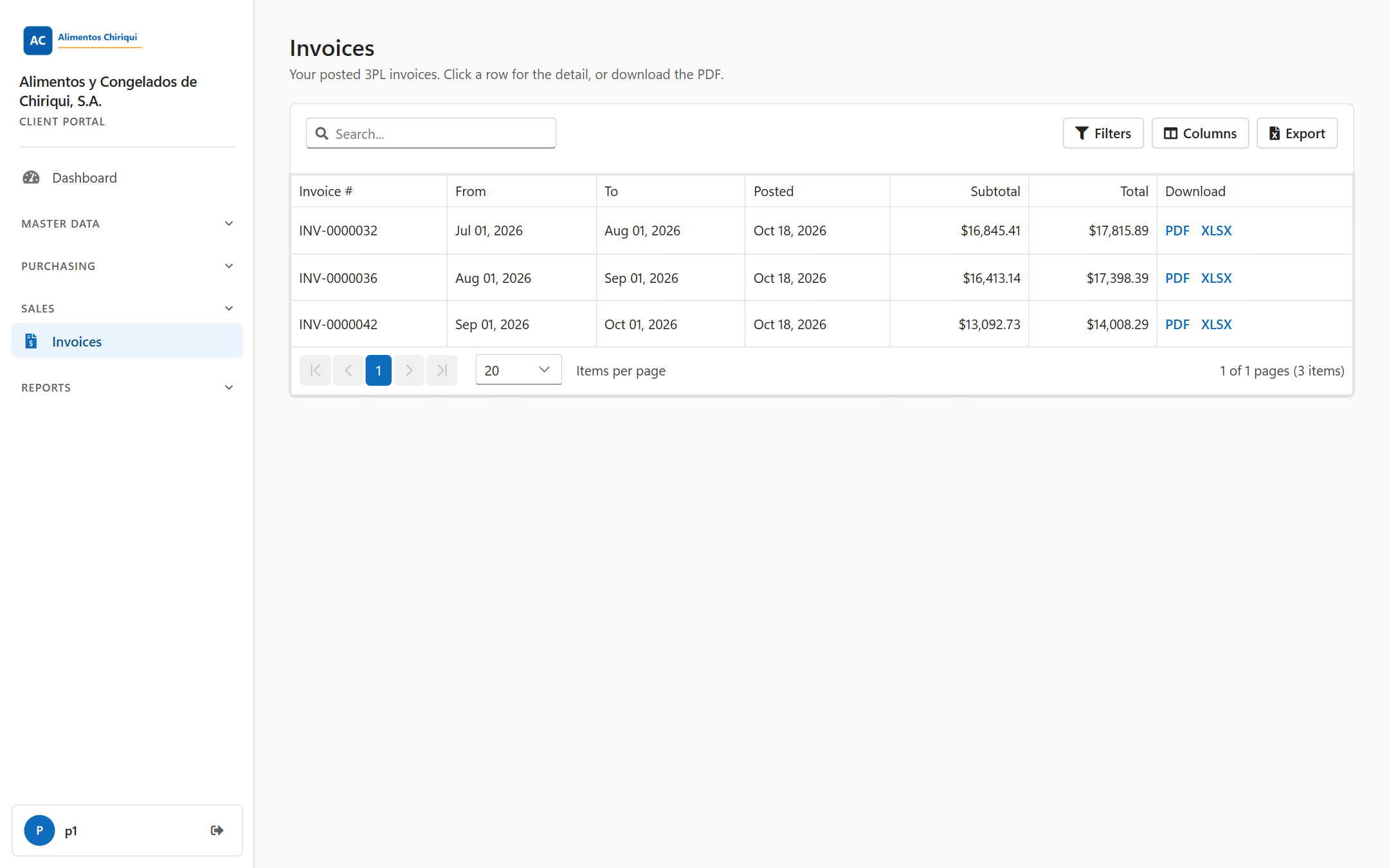
The Invoices list.
| Column | What it means |
| Invoice # | The invoice number. |
| From | The start of the period the invoice covers. |
| To date | The end of the period. |
| Posted | The date the warehouse published the invoice. |
| Subtotal | The subtotal of the invoice, in US dollars, for example $1,234.50. |
| Total | The total amount of the invoice. |
| Download | Two links, PDF and XLSX. Each downloads the file for that row in a new browser tab. Clicking them does not open the invoice. |
Above the list you have Search..., Filters, Columns and Export, and Clear filters appears while a search or filter is active. They work as on the other lists; see Searching, filtering and exporting lists. The list shows 20 invoices per page.
Click a row. A single click opens it, as the line under the page title says: "Your posted 3PL invoices. Click a row for the detail, or download the PDF." The page shows:
The invoice page does not show the billing period or the bill-to address. The period is in the list, in the From and To date columns.
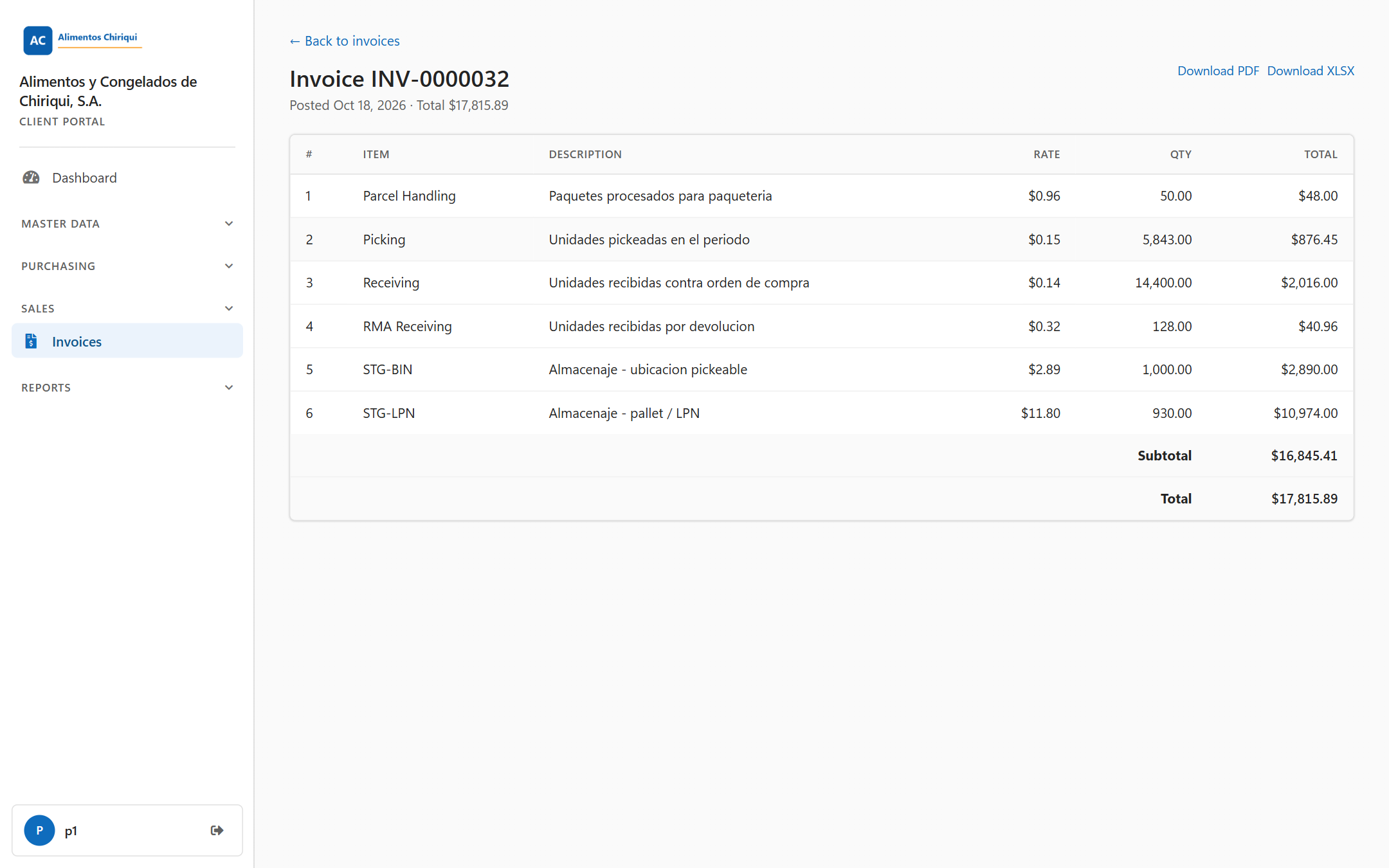
An invoice detail page.
If the invoice does not exist or is not yours, you see Invoice not found.
Click PDF in the list, or Download PDF on the invoice page. The file is named after the invoice number, for example 1234.pdf. It contains the invoice itself, followed by an annex with the details of each service and storage transaction that makes up the charges. If your warehouse uses its own invoice layout, the PDF follows it.
Click XLSX in the list, or Download XLSX on the invoice page. The file is named after the invoice number, for example 1234.xlsx. It does not repeat the invoice lines or totals. It holds the storage and service charges behind the invoice, one row per record, on two sheets:
| Sheet | What it holds |
| Storage | The storage records: date and time, type, product, where the stock moved from and to (warehouse, zone, bin, license plate), quantities, weights and cube. |
| Service | The service records: date and time, type, sub-type, reference, packs and quantity. |
Use it when you want to check how a storage or service amount was calculated.
Was this page helpful?