 P4 Software
/
logisticaHQ Client Portal
P4 Software
/
logisticaHQ Client Portal
P4 Software
/
logisticaHQ Client Portal
P4 Software
/
logisticaHQ Client Portal
You can put the panels of your Dashboard where you want them: move a panel, make it bigger or smaller, and go back to the original arrangement at any time. Your arrangement is remembered for you. This page is for every user who can see the Dashboard.
The dotted grip at the top right of a panel. You move the panel by dragging it.
You can drag a panel only by its dots. Dragging any other part of the panel does nothing. Screen readers announce the dots as Move.
The Dashboard is laid out on a grid ten columns wide. When you drag a panel away, the panels below it slide up to close the gap, so the page stays compact.
The hint line under the panels sums it up: "Drag a panel by its dots or resize it from a corner. Your arrangement is saved for you."
Click Reset layout at the top of the Dashboard. The panels go back to their original places and sizes, and your saved arrangement is forgotten. The numbers are not reloaded.
The Reset layout button is shown whenever the Dashboard has at least one tile. It needs no access switch of its own.
A panel that you never moved keeps its original place. If your warehouse later gives you more access, the new panels appear in their original places and the panels you already arranged stay where you put them. If your warehouse takes access away, the matching panels disappear and the other panels keep their places.
The panels are placed from left to right, in the order below, into rows ten columns wide. A small tile is two columns wide, so five tiles fit in one row. A chart or list that does not fit in the space left on a row starts a new row. Only the panels you are allowed to see are placed. A user with fewer access switches gets fewer panels, placed in the same way. The exact look on your screen can differ a little, because panels slide up to close gaps.
For a user who has every access switch, the order is:
| Row | Panels, from left to right |
| 1 | Units on hand, Active SKUs, Orders in progress, Units shipped this month, Expiring ≤ 30 days (five small tiles) |
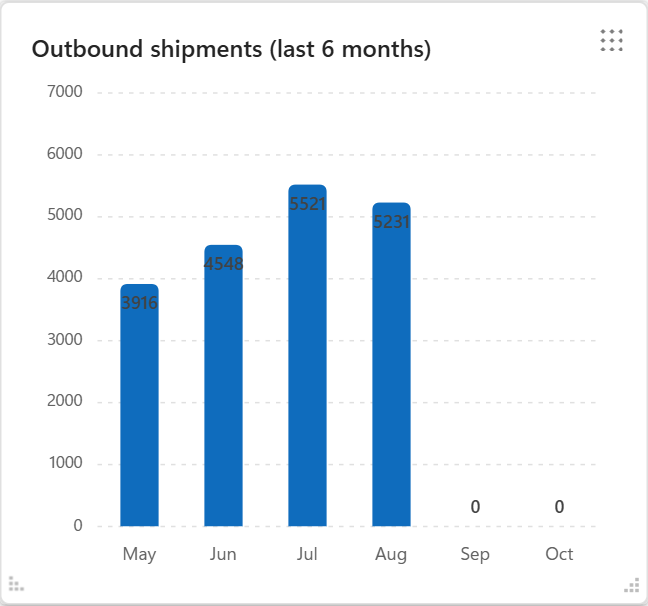
| 2 | Open Purchase orders (small tile), Outbound shipments (last 6 months) (large chart), Order status (medium chart) |
| 3 | Inventory by warehouse, On-time shipments (medium charts) |
| 4 | Recent activity (wide list), Units on order (small tile) |
| 5 | Units received this month, Open Purchase orders received (small tiles), Receipts (last 6 months) (chart) |
| 6 | Open Purchase orders: expected vs received (card), SKUs at or below min, Out-of-stock SKUs (small tiles) |
| 7 | Inventory turns (annualized), Storage locations in use (small tiles), Short stock (table) |
| 8 | On-hand by expiry window (chart) |
Small tiles are the same size, the medium charts and cards are about as tall as three small tiles, and the list and table are the widest panels. Each panel is explained on the Dashboard page.
The arranging feature is loaded when the Dashboard opens. If it cannot load, for example because your internet connection dropped, the Dashboard does not stay blank. All the panels are shown as an ordinary grid ten columns wide, and every panel stays readable. Moving and resizing do not work in this plain grid, even though the hint line and the Reset layout button are still shown.
To try again, click Reset layout, which tries to load the arranging feature once more, or reload the page.
Was this page helpful?