 P4 Software
/
logisticaHQ Client Portal
P4 Software
/
logisticaHQ Client Portal
P4 Software
/
logisticaHQ Client Portal
P4 Software
/
logisticaHQ Client Portal
This page explains the parts of the Client Portal screen: the menu, your user card, the page headers and what you see on a phone. It also explains what happens when you do not have access to a page. It is for everyone who uses the portal.
After you sign in, the screen has two parts. The menu is on the left. The page you are working on is on the right, and it scrolls on its own, so the menu stays in place.
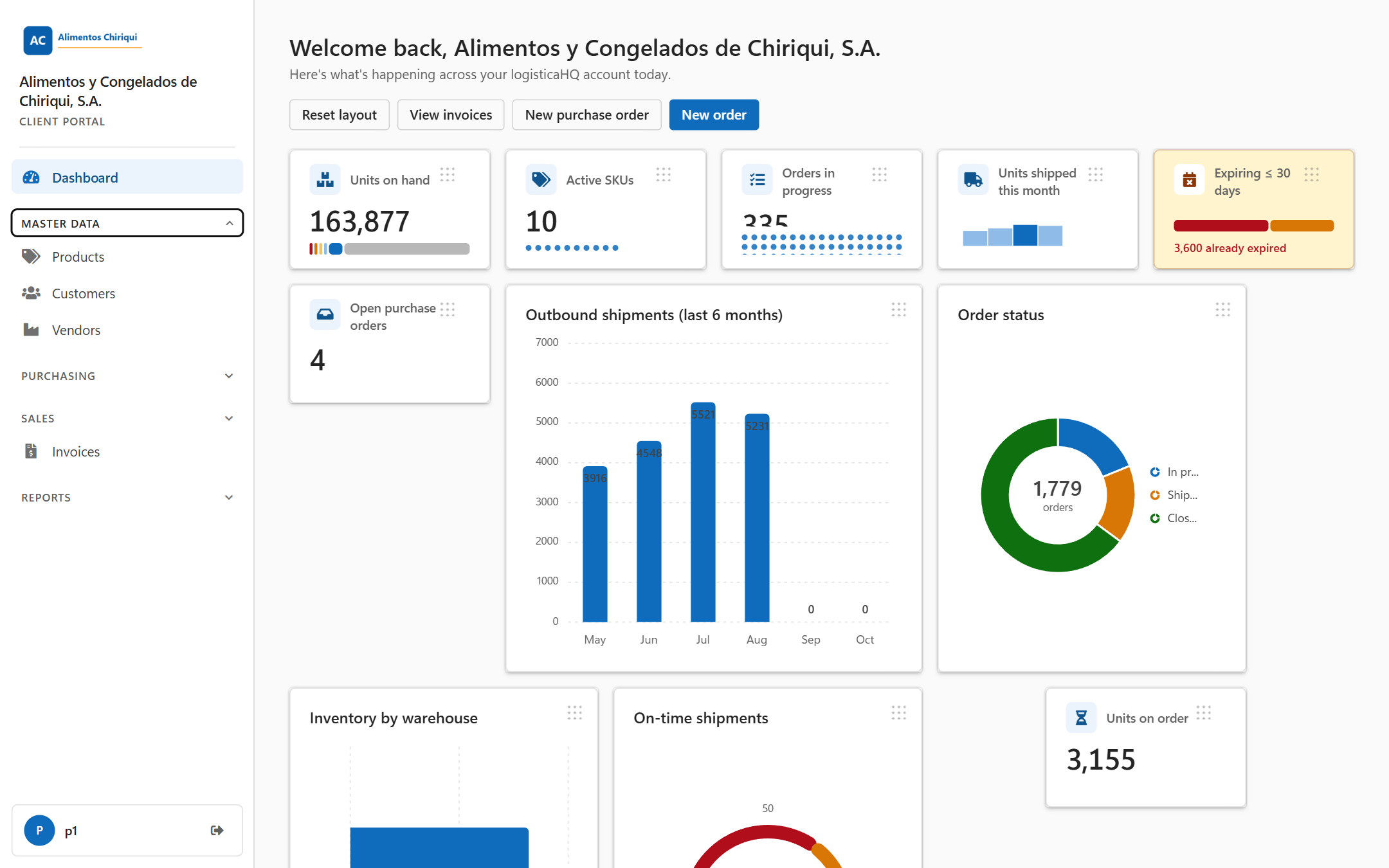
The menu on a computer, with one group open.
The menu shows only the items you have access to. Items appear in this order. See View only and Administer access for the access names in the last column.
| Menu item | What it opens | Access it needs |
| Dashboard | Your summary page. See Dashboard. | View Dashboard |
| Master data (group) | Opens a group with the items below. The group is shown when you have at least one of the three accesses. | Any of View Products, View Customers, View Vendors |
| Products (in Master data) | Your product list. See Products. | View Products or Manage Products |
| Customers (in Master data) | Your customer list. See Customers. | View Customers or Manage Customers |
| Vendors (in Master data) | Your vendor list. See Vendors. | View Vendors or Manage Vendors |
| Purchasing (group) | Opens a group with the two items below. | View Purchase orders or Create Purchase orders |
| Purchase orders (in Purchasing) | Open Purchase orders. See Purchase orders. | Same |
| Closed Purchase orders (in Purchasing) | Purchase orders that have been closed. | Same |
| Sales (group) | Opens a group with the two items below. | View orders & shipments or Place outbound orders |
| Sales orders (in Sales) | Open Sales orders. See Sales orders. | Same |
| Closed Sales orders (in Sales) | Sales orders that have been closed. | Same |
| Invoices | Your posted Invoices. See Invoices. | View Invoices |
| Reports (group) | Opens a group with the items below. The group is shown when you have View Inventory or View reports. | View Inventory or View reports |
| Inventory (in Reports) | Your stock on hand. See Inventory. | View Inventory |
| Inventory detail (in Reports) | See Inventory detail report. | View reports |
| Bulk Inventory (in Reports) | See Bulk inventory report. | View reports |
| Expiry (in Reports) | See Expiry report. | View reports |
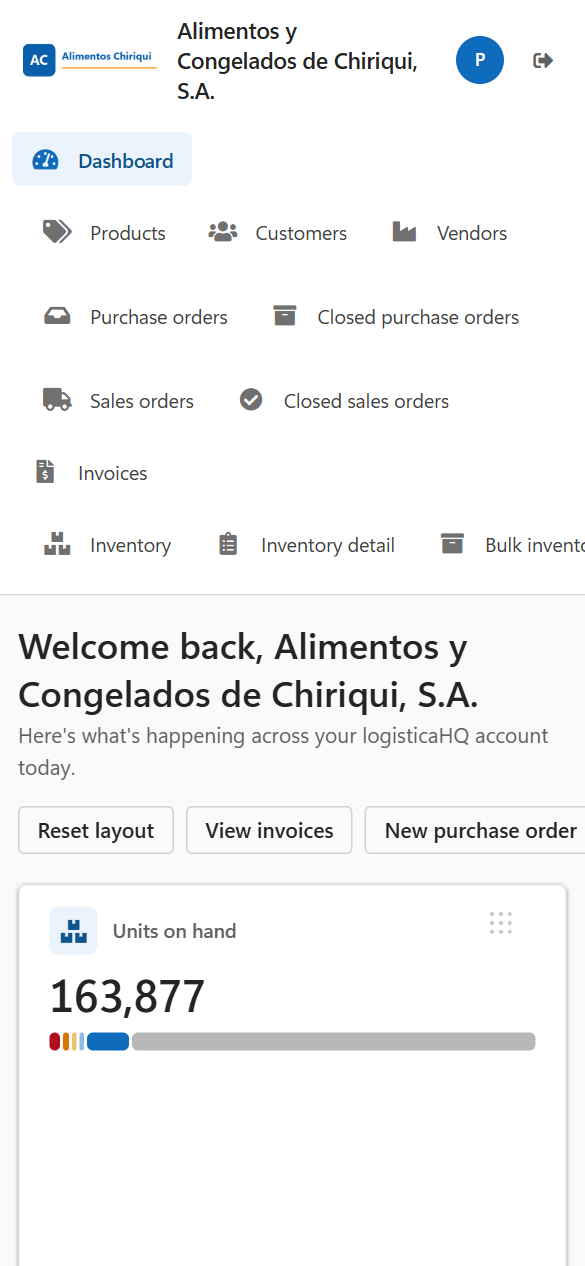
The portal on a phone.
Most pages start with a header: a title, a short line under it that says what the page is for, and buttons on the right such as Refresh, New order or New product. On a narrow screen the buttons wrap onto the next line. Pages that open one record, such as a product or an order, also have a back button, for example Back to Products, that returns you to the list.
| What you see | What it means | What to do |
| You don't have access to this section. | Your access does not include this page, for example because you typed or bookmarked an address you cannot open. You also see it on the first page after sign-in when your user has no access at all. | Use the menu to go to a page you can open. To get access, ask your warehouse. |
| This page could not be loaded with the text Something went wrong while loading this page. You can try again, or use the menu to go somewhere else. | A problem stopped the page from loading. The menu and Sign out still work. | Click Try again, or use the menu to go elsewhere. If it keeps happening, tell your warehouse. |
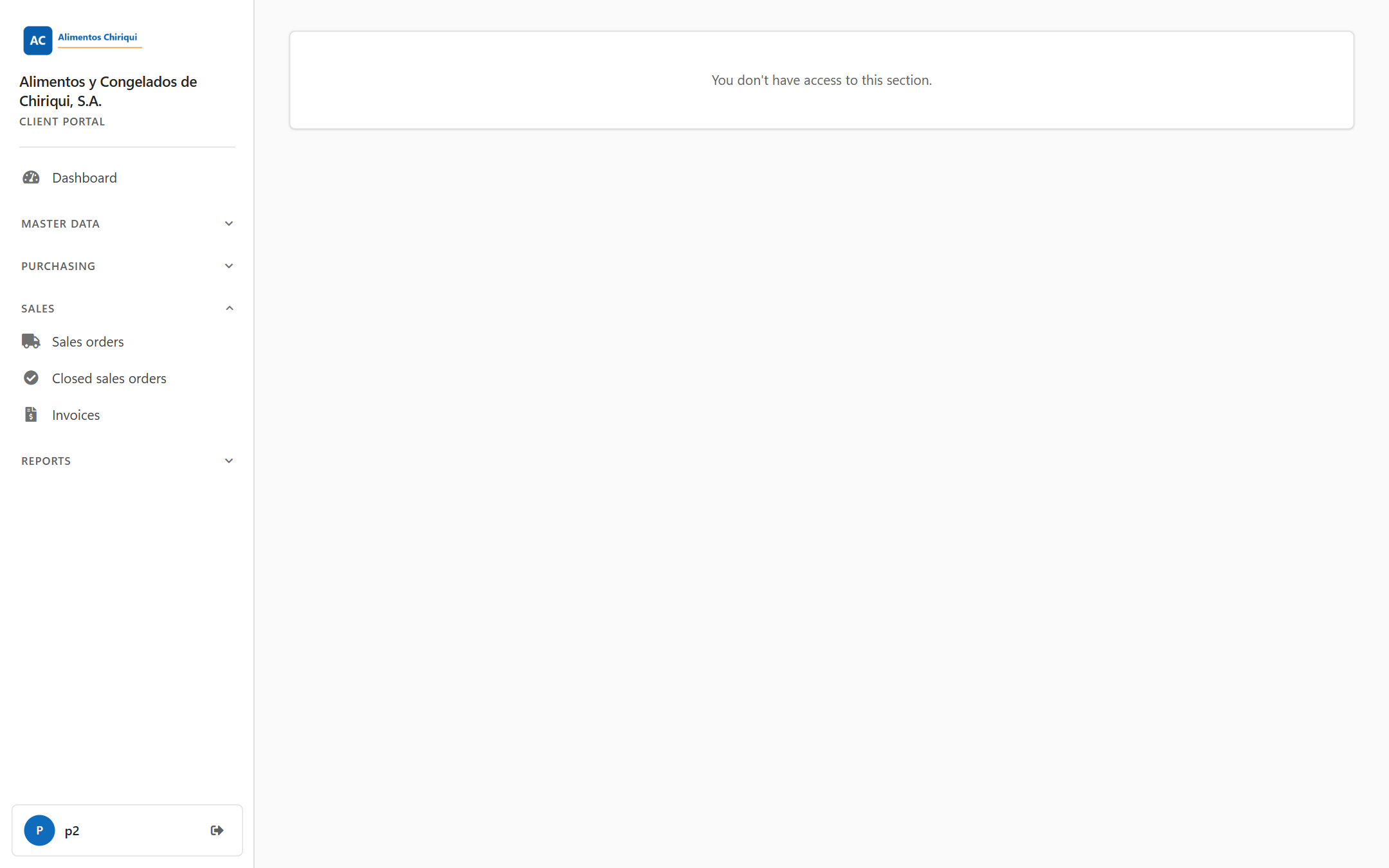
The message for a page you cannot open.
Was this page helpful?