 P4 Software
/
logisticaHQ Client Portal
P4 Software
/
logisticaHQ Client Portal
P4 Software
/
logisticaHQ Client Portal
P4 Software
/
logisticaHQ Client Portal
Your warehouse decides, person by person, what you can see in the Client Portal and whether you can change anything. This page explains the two kinds of access, lists every access switch and says what each one gives you. It is for everyone who uses the portal.
Your warehouse sets your access in two boxes on your user: View only and Administer.
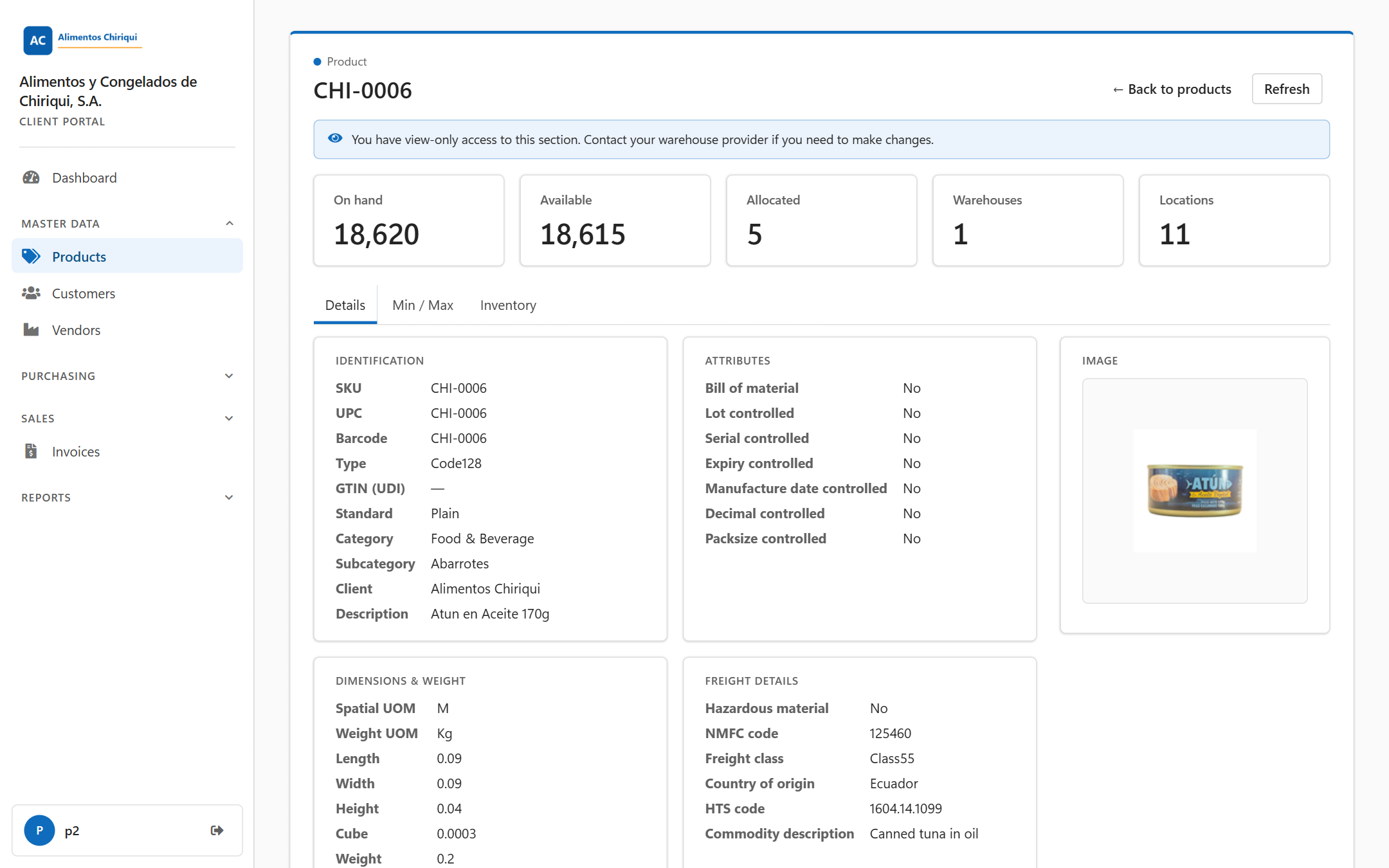
A product page for a user with View only access.
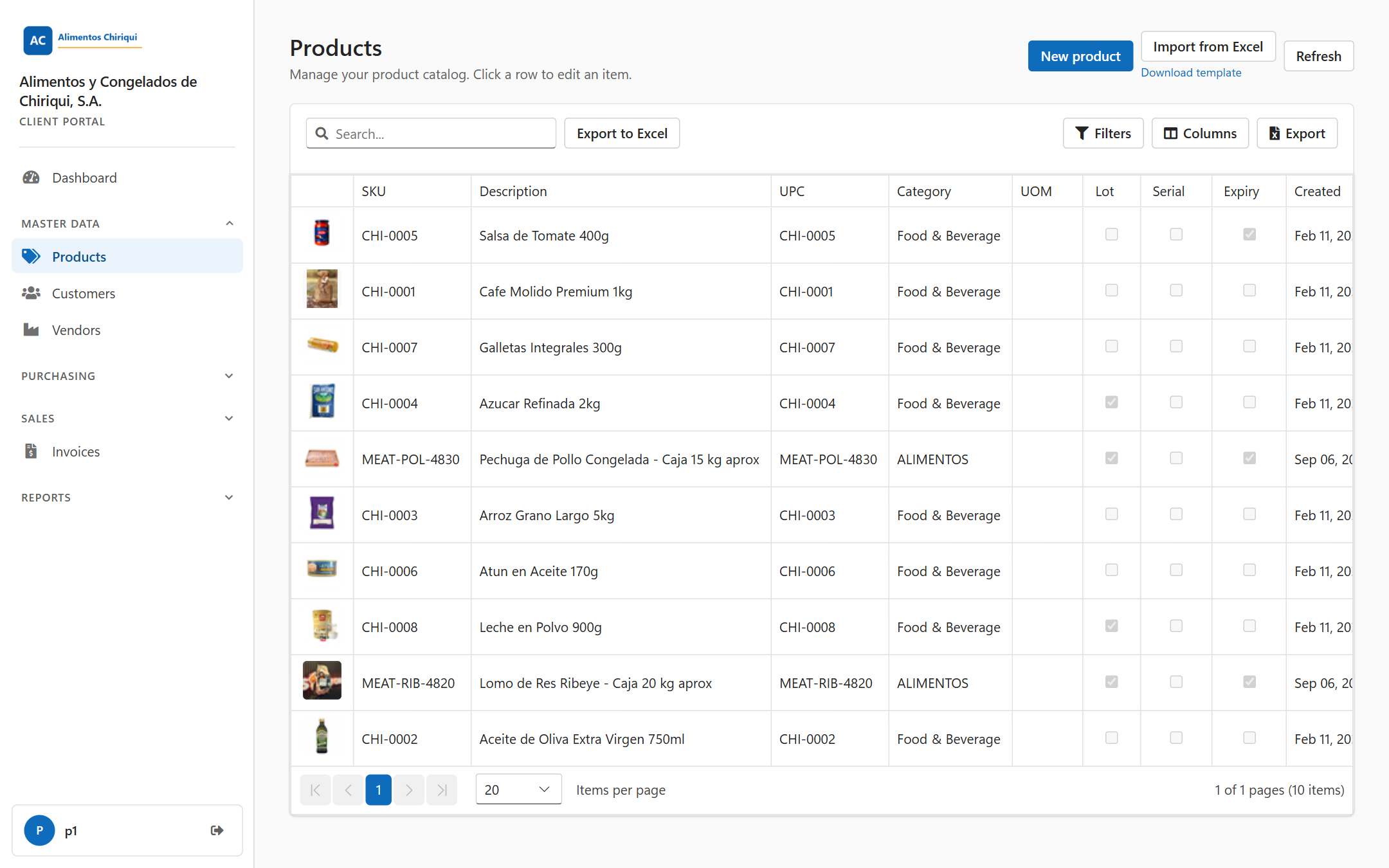
The Products list for a user with Administer access.
An Administer switch also allows you to look at the same area, so you never need both. For example, Manage Products lets you see the product list even if View Products is off. When your warehouse turns on an Administer switch, its matching View switch is shown as on and locked, with the note Included with and the name of the Administer switch beside it. Your warehouse cannot switch it off while the Administer switch is on.
These five Administer switches are the only cases where one switch includes another. Everything else is independent. View Dashboard, View Inventory, View Invoices and View reports do not include one another, and no View switch ever lets you create or change anything. For example, Place outbound orders does not give you View Inventory or View Products.
Your warehouse sees these switch names on your user, in the card Portal access. You do not see the switches yourself. Your menu shows the result.
| Switch | Box | What it lets you see or do |
| View Dashboard | View only | The Dashboard item and the page you land on after sign-in. Each panel on the Dashboard also needs its own switch below. With only this switch the Dashboard says Nothing to show yet. Ask us to enable more of your portal to see KPIs here. |
| View Inventory | View only | Reports > Inventory, and the product, bin and license plate pages you open from it. On the Dashboard: the panels for units on hand, active SKUs and Inventory by warehouse. |
| View orders & shipments | View only | Sales > Sales orders and Closed Sales orders, and each order's page. On the Dashboard: the shipment, order status, on-time shipments and recent activity panels. |
| View Purchase orders | View only | Purchasing > Purchase orders and Closed Purchase orders, and each purchase order's page, as read-only. The purchase order panels on the Dashboard need Create Purchase orders. |
| View Invoices | View only | Invoices and each invoice's page, with the PDF and Excel downloads. Only posted Invoices are shown. On the Dashboard: the View Invoices button and the last posted invoice in recent activity. |
| View reports | View only | Reports > Inventory detail, Bulk Inventory and Expiry. On the Dashboard: the expiring tile. |
| View Products | View only | Master data > Products, with each product's page as read-only. |
| View Customers | View only | Master data > Customers, with each customer's page as read-only. |
| View Vendors | View only | Master data > Vendors, with each vendor's page as read-only. |
| Place outbound orders | Administer | The New order button on the Sales orders list and the Dashboard, the order editor, and the Edit order button for orders that can still be changed. Includes View orders & shipments. |
| Create Purchase orders | Administer | The New purchase order button on the Purchase orders list and the Dashboard, and the purchase order editor. Includes View Purchase orders. Also shows the purchase order panels on the Dashboard. |
| Manage Products | Administer | Create, change and import Products, and upload product images. Includes View Products. |
| Manage Customers | Administer | Create, change and import Customers, and add or remove their addresses. Includes View Customers. |
| Manage Vendors | Administer | Create, change and import Vendors. Includes View Vendors. |
You cannot change your own access. If you need to see more, or to create or change something, ask your warehouse to change your access. The warehouse side of this is described in Portal access switches.
Was this page helpful?