 P4 Software
/
logisticaHQ Client Portal
P4 Software
/
logisticaHQ Client Portal
P4 Software
/
logisticaHQ Client Portal
P4 Software
/
logisticaHQ Client Portal
This page shows you how to create and update many Products, Customers or Vendors at once with an Excel spreadsheet, and how to download your lists as Excel files. It is for client users who manage Products, Customers or Vendors; anyone who can view them can use the exports.
Start on the list you want to work with: Master data > Products, Customers or Vendors. The import and export buttons are at the top of each list.
Every list has two different ways to export. Choose by what you need.
| Compare | Export (toolbar) | Export to Excel |
| What you get | A copy of the list as you see it: the rows that match your current search and filters, in your current order, with only the columns that are shown. All pages are included, not only the page on screen. | Your whole list as a workbook in exactly the columns of the import template, so you can edit it and import it again. |
| File name | PortalProducts.xlsx, PortalCustomers.xlsx or PortalVendors.xlsx | Products.xlsx, Customers.xlsx or Vendors.xlsx |
| Filters | Respected. | Ignored: you always get the whole list, sorted by SKU (Products) or by code (Customers and Vendors). |
| Dates | Written like Jan 05, 2026 - 03:30 PM. | The workbook has no date columns. |
| Best for | Sharing or printing what you are looking at. | Backups, bulk edits and moving data back into the portal. |
The product workbook from Export to Excel includes discontinued Products, although the product list does not show them. It does not contain data that the import cannot carry (see the list of covered columns below), such as stock quantities, packsizes or components. The customer workbook does not contain delivery addresses.
In the product workbook, the three columns IsLotControlled, IsSerialControlled and IsExpiryControlled are written as the words True and False.
The three imports follow the same steps and the same rules.
Products-template.xlsx, Customers-template.xlsx or Vendors-template.xlsx. It has one sheet with one bold heading row and no data.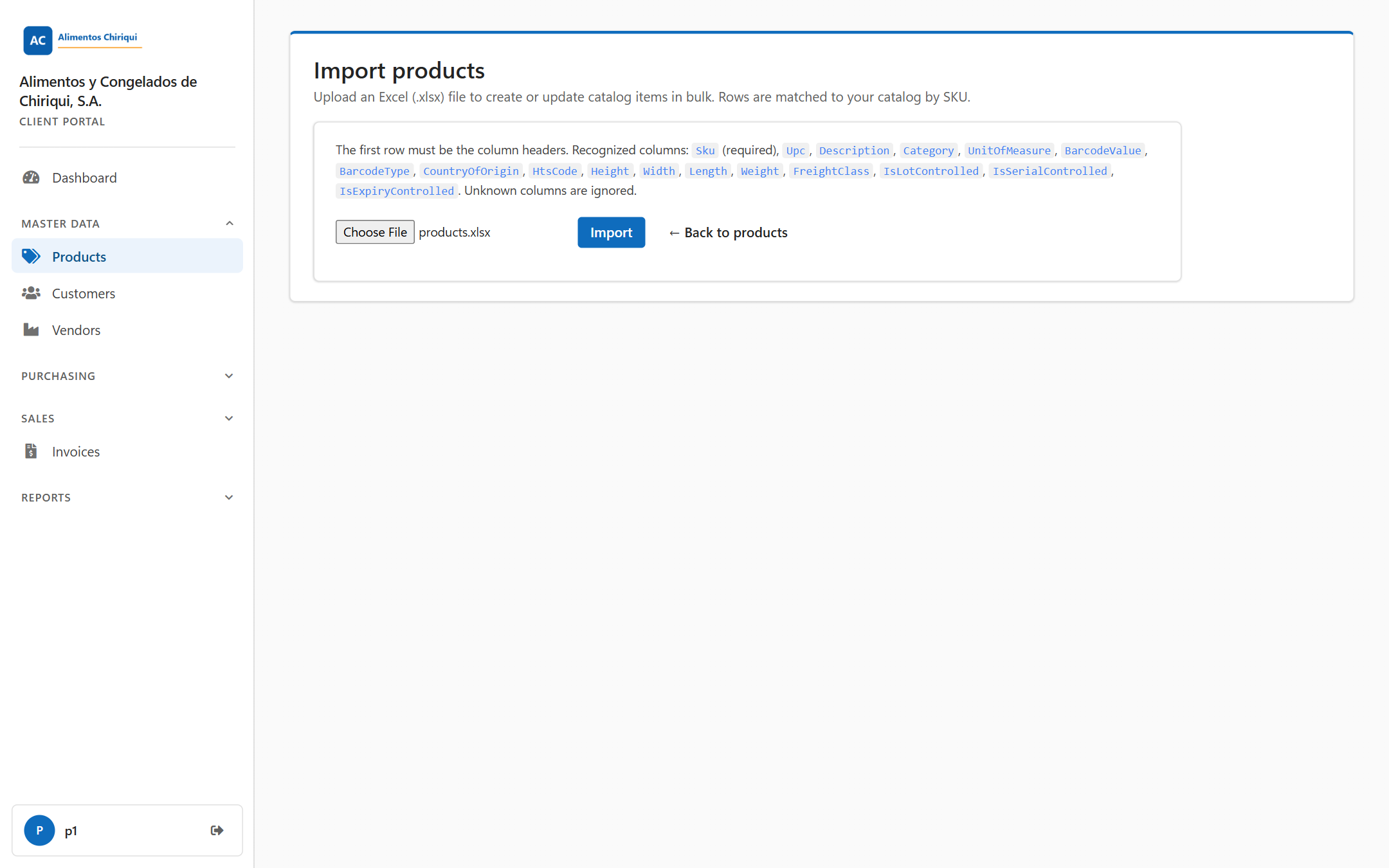
The Import Products page with a file chosen.
When the import finishes the page shows four counters (rows, created, updated and skipped), a green message and, when there is something to report, a list headed Warnings.
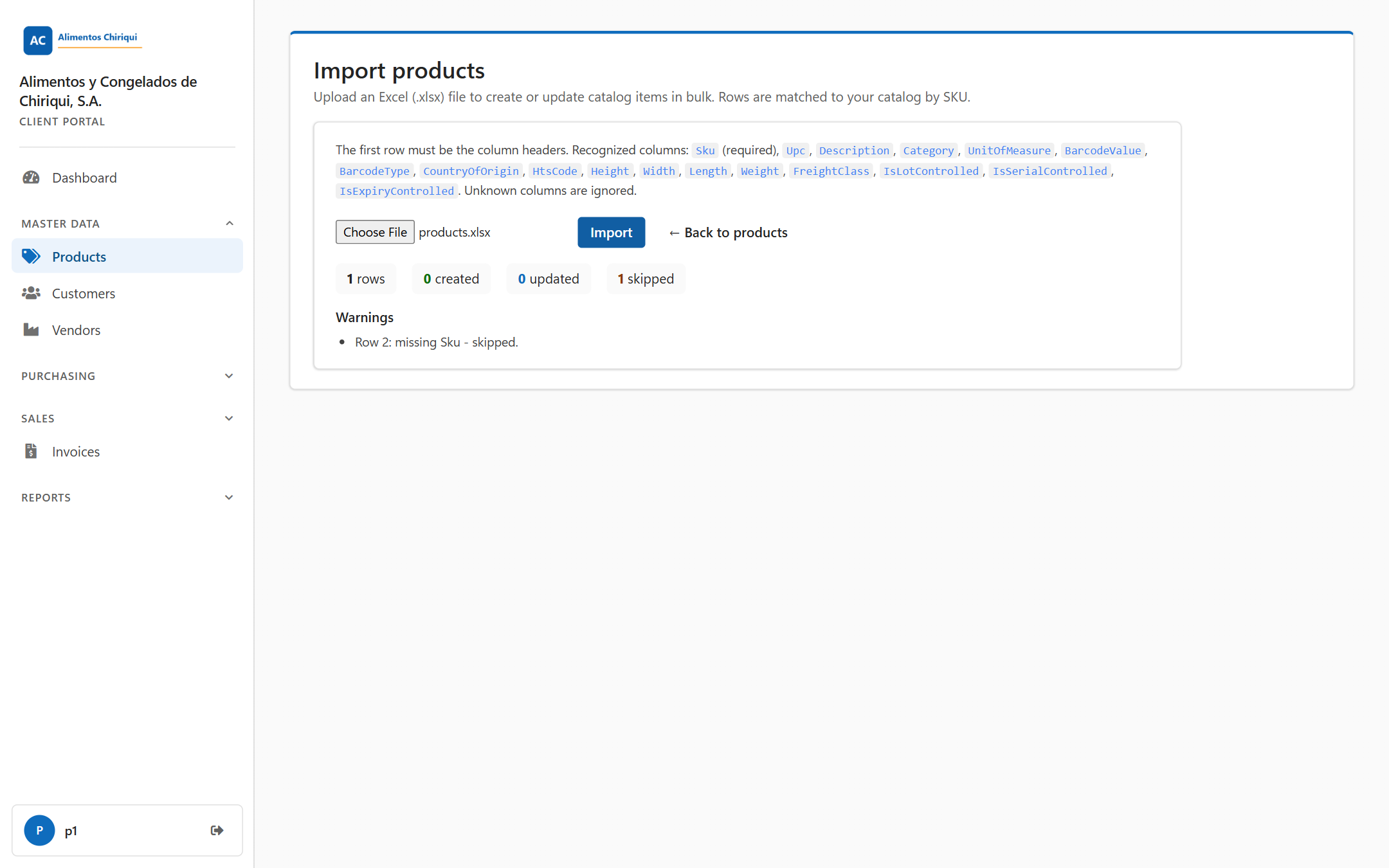
The result of an import: the four counters and, under Warnings, a row that was skipped.
Sku for Products, CustomerCode for Customers and VendorCode for Vendors. The key is compared ignoring capital letters and spaces at the ends. If your company already has a record with that key, the row updates it. If not, the row creates a new record. If the same key appears on several rows, the first row creates the record and the later rows update it.The page Import Products says: "Upload an Excel (.xlsx) file to create or update catalog items in bulk. Rows are matched to your catalog by SKU." The template has these columns, in this order. Only Sku is required.
| Column | Same as this field on the product page | What to enter |
Sku (required, the key) | SKU | Your unique product code. It decides whether the row creates or updates a product. |
Upc | UPC | The retail barcode number. |
Description | Description | The product name. |
Category | Category | Your own grouping, as free text. |
UnitOfMeasure | Units of measure (the UOM column of the list) | The unit the product is counted in, for example Kg. |
BarcodeValue | Barcode | The barcode the warehouse scanners should match. |
BarcodeType | Type | The barcode format, as in the Type list on the product page (Code128, EAN13, UPCA or ITF14). |
CountryOfOrigin | Country of origin | Where the product was made. |
HtsCode | HTS code | The customs tariff code. |
Height, Width, Length | Height, Width, Length | Numbers. Their unit is the one already set on the product (Spatial UOM); the import cannot change that unit. |
Weight | Weight | A number, in the unit already set on the product (Weight UOM). |
FreightClass | Freight class | The freight class your carrier uses. If unsure, export a product that has one and copy how it is written. |
IsLotControlled | Lot controlled | TRUE or FALSE. |
IsSerialControlled | Serial controlled | TRUE or FALSE. |
IsExpiryControlled | Expiry controlled | TRUE or FALSE. |
The product import covers only these columns. It cannot set anything else on the product: subcategory, GTIN (UDI) and standard, bill of material, manufacture date, decimal and packsize controls, lot and serial patterns, shelf-life allowances, spatial and weight units, cartonization, hazardous material and freight codes, packsizes, components, minimum / maximum levels or the image. Make those changes on the product page. The import cannot discontinue a product, but it does find a discontinued product by its SKU and updates it.
Two more points about Products:
IsSerialControlled to TRUE for such a product.Products that have stock
The lot, serial and expiry controls (and the unit of measure) cannot be changed on a product that has stock on hand or allocated, on screen or by import. The import can set the lot, serial and expiry controls and the unit of measure, so an import row that would change one of them for such a product is skipped. It is counted as skipped and listed under Warnings with the reason, in English, for example Row 3: Cannot change [Lot controlled] on [SKU-1] because it has stock: [10] on hand and [0] allocated. These settings describe how that stock was received. Move or consume the stock first, then change the setting. - skipped. The other rows still import, and a blank cell never counts as a change. Change a product's other columns freely; only these attributes are locked. See Products.
You want to add two new Products and correct the description of a third, FLOUR-25, which already exists. The sheet is wide, so it is shown here in two parts that belong to the same rows. In the file, all 17 columns sit side by side in the order of the template. An empty cell is shown as an empty box.
Part 1, columns Sku to HtsCode:
| Sku | Upc | Description | Category | UnitOfMeasure | BarcodeValue | BarcodeType | CountryOfOrigin | HtsCode |
| OIL-500 | 012345678905 | Olive oil 500 ml | Grocery | Spain | 1509.10 | |||
| TSHIRT-M-BLU | 036000291452 | Cotton T-shirt, blue, size M | Apparel | TSHIRT-M-BLU | Code128 | Panama | ||
| FLOUR-25 | Wheat flour, 25 kg bag |
Part 2, the same rows, columns Height to IsExpiryControlled (Sku is repeated so you can match the rows):
| Sku | Height | Width | Length | Weight | FreightClass | IsLotControlled | IsSerialControlled | IsExpiryControlled |
| OIL-500 | 20 | 7 | 7 | 0.9 | TRUE | FALSE | TRUE | |
| TSHIRT-M-BLU | 3 | 25 | 30 | 0.25 | FALSE | FALSE | FALSE | |
| FLOUR-25 |
What happens when you import this file:
Upc and BarcodeValue columns as Text before you type the numbers.The page Import Customers says: "Upload an Excel (.xlsx) file to create or update Customers in bulk. Rows are matched to your list by code." The template Customers-template.xlsx has one sheet, Customers, with these columns. Only CustomerCode is required.
| Column | Same as this field on the customer page | What to enter |
CustomerCode (required, the key) | Customer number | Your unique customer code. |
CompanyName | Company name | The legal or trading name. |
ContactPerson | Contact person | Who the warehouse should contact. |
Email | One or several addresses separated by commas. | |
Phone | Phone (section Details) | A contact number. |
Description | Description | Notes about the customer. |
TaxId | Tax ID | The tax registration number. |
BillToName | Bill to (section Bill to) | The name for Invoices when it differs from the company name. |
BillToPhone | Phone (section Bill to) | A phone number for the invoice recipient. |
BillToAddress1 | Address 1 | The invoice street address. |
BillToAddress2 | Address 2 | Suite, unit or floor. |
BillToCity | City | The city. |
BillToStateProvince | State/Province | The state or province. |
BillToZipPostal | Zip/Postal | The postal code. |
BillToCountry | Country | The country. |
The customer import never touches delivery (ship-to) addresses. It changes only the details and the Bill to fields. A customer created by import has no delivery addresses until you add them on the Addresses tab of its page, and existing addresses are never changed or removed by an import. The workbook from Export to Excel (Customers.xlsx, sheet Customers) has the same 15 columns.
The page Import Vendors says: "Upload an Excel (.xlsx) file to create or update Vendors in bulk. Rows are matched to your list by code." The template Vendors-template.xlsx has one sheet, Vendors, with these columns. Only VendorCode is required.
| Column | Same as this field on the vendor page | What to enter |
VendorCode (required, the key) | Vendor number | Your unique vendor code. |
CompanyName | Company name | The legal or trading name. |
Description | Description | Notes about the vendor. |
ContactPerson | Contact person | Who to contact about Purchase orders. |
Email | One or several addresses separated by commas. | |
Phone | Phone | A contact number. |
Address1 | Address 1 | The street address the goods ship from. |
Address2 | Unit | Suite, unit or floor. |
City | City | The city. |
StateProvince | State/Province | The state or province. |
ZipPostalCode | Zip/Postal code | The postal code. |
Country | Country | The country. |
The workbook from Export to Excel (Vendors.xlsx, sheet Vendors) has the same 12 columns.
| Message | What it means | What to do |
| Choose a file first. | You pressed Import with no file chosen. | Choose your .xlsx file and press Import again. |
| Import complete: {0} created, {1} updated. | The import worked. | Click Back to Products (or Customers, Vendors) and check the list. |
| Row {n}: missing Sku - skipped. | Row {n} of the sheet has no SKU (Customers: CustomerCode; Vendors: VendorCode), so it was skipped. | Fill in the key on that row and import again; rows that already worked are simply updated again. |
| Import failed: {0} | The whole file was refused. {0} gives the reason, such as a cell that is not a number or a file that is too large. | Correct the problem. Nothing was saved, so import the whole file again. |
| You don't have access to this section. | Your user cannot manage this list. | Ask your warehouse to turn on the Manage switch. |
Was this page helpful?