 P4 Software
/
logisticaHQ Client Portal
P4 Software
/
logisticaHQ Client Portal
P4 Software
/
logisticaHQ Client Portal
P4 Software
/
logisticaHQ Client Portal
Vendors are the companies that send you goods. This page shows you how to find a vendor, create one and keep its contact details and address up to date. It is for client users who can view vendors, and in particular for those who manage them.
Your warehouse sets these switches for each user. If you can only view, the vendor page opens as read-only text. See View only and Administer access.
Master data > Vendors
The list shows every vendor of your company. Under the page title Vendors the line of Help text reads "Manage your vendors. Click a row to edit a vendor."
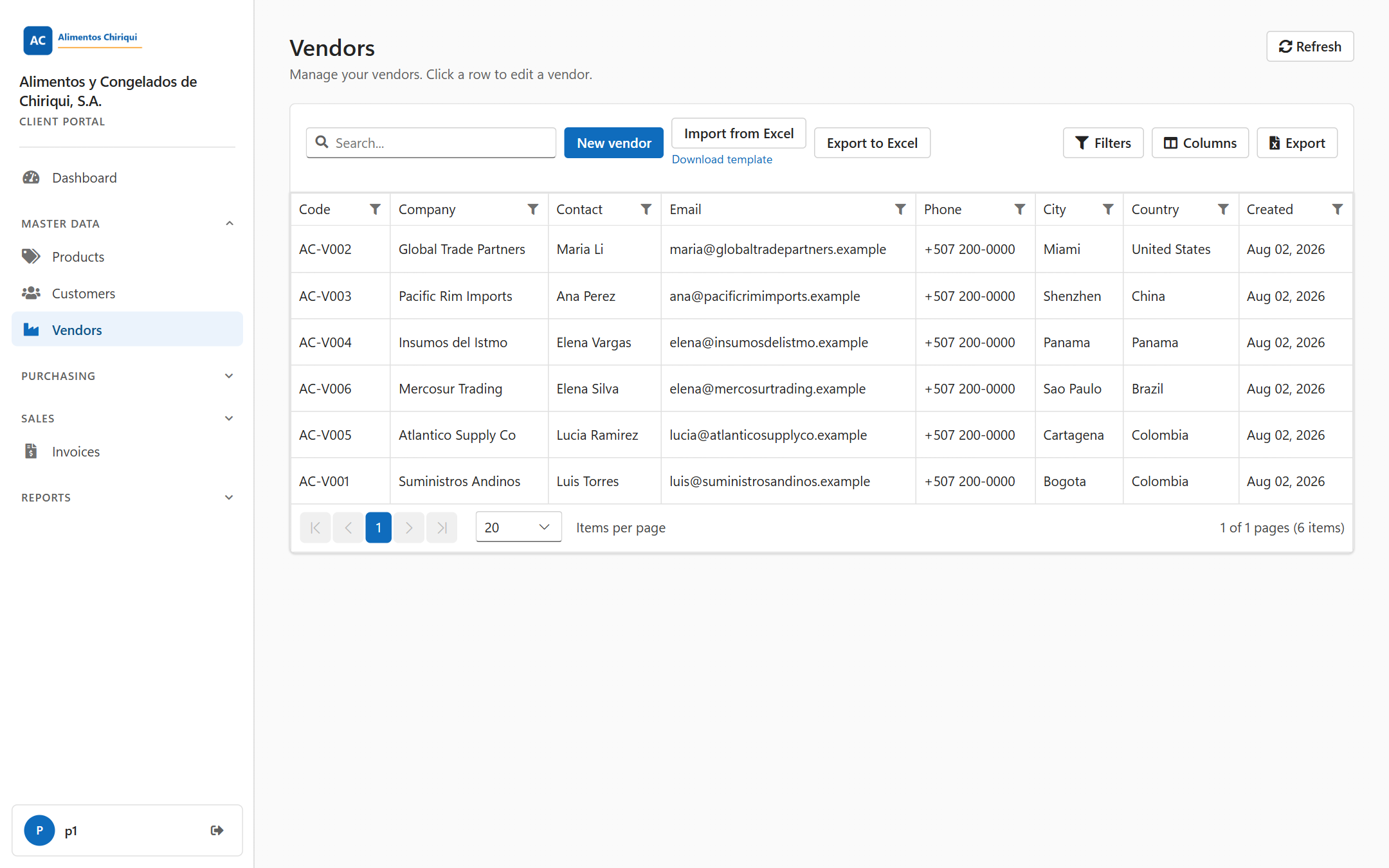
The vendor list for a user who can manage vendors.
| Button | What it does | Who sees it |
| Refresh | Reloads the list. | Everyone |
| New vendor | Opens an empty vendor page. | Manage vendors |
| Import from Excel | Opens the page where you upload a spreadsheet to create or update many vendors at once. See Importing and exporting with Excel. | Manage vendors |
| Download template (small link under Import from Excel) | Downloads an empty spreadsheet with the correct column headings. | Manage vendors |
| Export to Excel | Downloads your whole vendor list as a workbook you can edit and import again. | Everyone |
The grid also has a search box (Search...) and the buttons Filters, Columns and Export; a Clear filters button appears when a filter is on. Your column and filter choices are remembered. See Searching, filtering and exporting lists.
| Column | What it shows |
| Code | The vendor number. |
| Company | The company name. |
| Contact | The contact person. |
| The vendor's email address. | |
| Phone | The vendor's phone number. |
| City | The city the goods ship from. |
| Country | The country the goods ship from. |
| Created | The date the vendor was created. |
All columns can be sorted and filtered. Click a row once, or move to it and press Enter, to open the vendor. One click is enough.
In the purchase order list and form, vendors are shown and searched by their vendor number (code), so keep the vendor number short and easy to recognise.
You see the toast Vendor created. and the new vendor opens. Click Cancel if you do not want to create the vendor.
At the top you see the word Vendor and the vendor number as the page title (New vendor for a new vendor, Edit vendor if an existing vendor has no number). The buttons next to the title are:
The page has two tabs: Details and Address. If you can edit, there is a grey line of Help text under each field (a view-only user does not see it), and required fields are marked with a red asterisk. A message about a missing required field is shown above the tabs, so you see it from either tab.
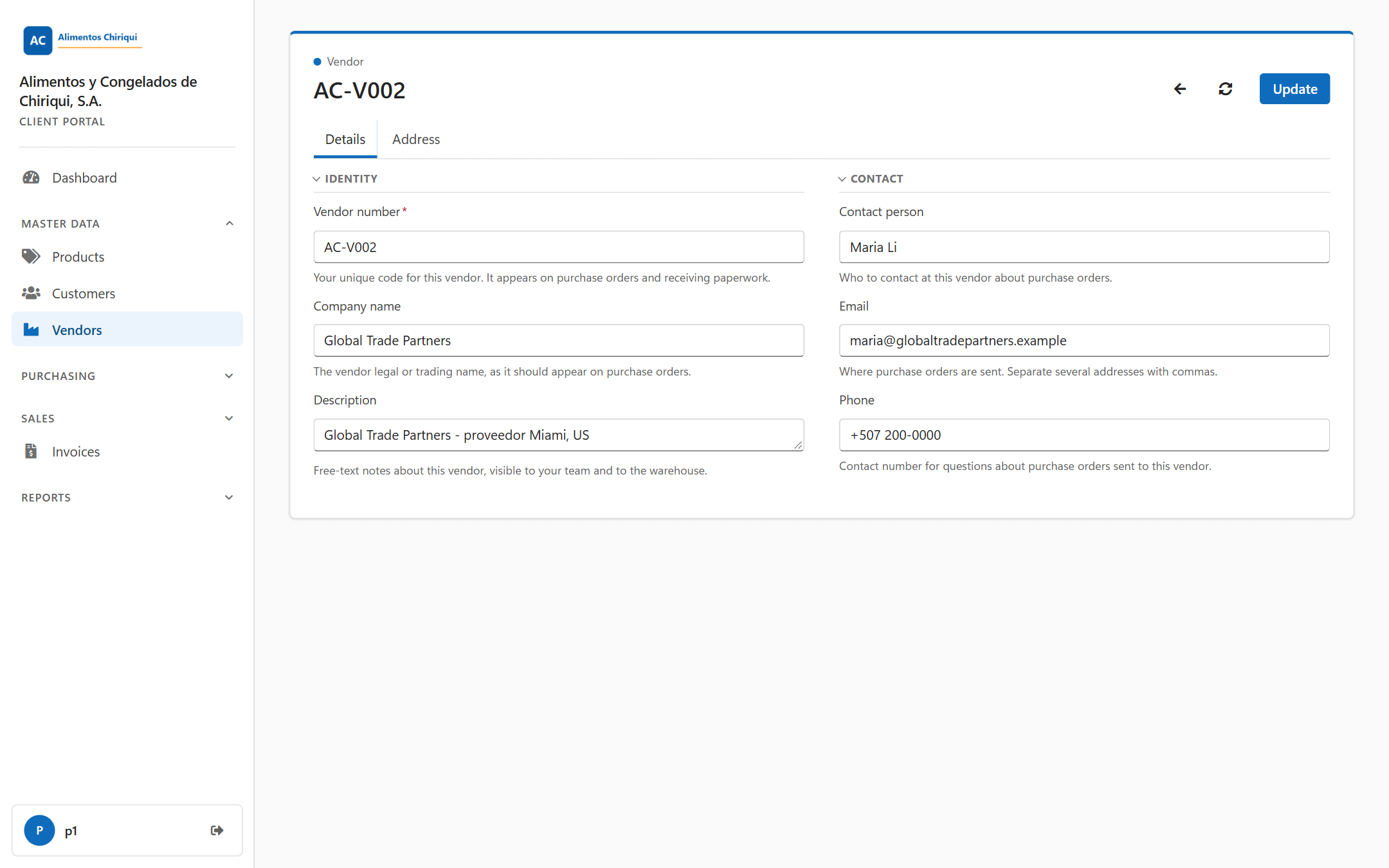
The Details tab of a vendor.
Section Identity
| Field | What to enter |
| Vendor number (required) | Your unique code for this vendor. It appears on Purchase orders and receiving paperwork. The box shows the example e.g. ACME-01. |
| Company name | The vendor's legal or trading name, as it should appear on Purchase orders. |
| Description | Free-text notes about the vendor. Your team and the warehouse can read them. |
Section Contact
| Field | What to enter |
| Contact person | Who to contact at the vendor about Purchase orders. |
| Where Purchase orders are sent. Separate several addresses with commas. | |
| Phone | A contact number for questions about Purchase orders sent to this vendor. |
A vendor has one address only: the place the goods ship from. It is in a single section called Address. All fields are optional.
| Field | What to enter |
| Address 1 | The street address the goods ship from. |
| Unit | Suite, unit or floor. Leave it empty if there is none. |
| City | The city the goods ship from. |
| Zip/Postal code | The postal code the goods ship from. |
| State/Province | The state or province the goods ship from. |
| Country | The country the goods ship from. It decides whether inbound customs paperwork is needed. |
Some vendor settings are not shown in the portal (for example the warehouse's own receiving preferences). Saving in the portal never changes them.
When you save, the vendor is stored exactly as the form shows it: a box you have cleared is cleared in the vendor record too.
Without Manage vendors the vendor page shows every value as plain text, with the blue note You have view-only access to this section. Contact your warehouse provider if you need to make changes. There is no input box or text area anywhere on the page, not even a greyed-out one. There are no Create vendor, Update or Cancel buttons.
| Message | What it means | What to do |
| Vendor number is required. | You pressed Create vendor or Update with an empty vendor number. | Type the vendor number and save again. |
| Could not save the vendor: {0} | The warehouse refused the save. {0} is its reason. | Read the reason, correct it and save again. |
| Vendor saved. / Vendor created. | The save worked. | Nothing. |
| That vendor could not be found. | The vendor does not exist or is not yours. | Go back to the list. |
| You don't have access to this section. | Your user has no access to vendors. | Ask your warehouse. |
Was this page helpful?