 P4 Software
/
logisticaHQ Client Portal
P4 Software
/
logisticaHQ Client Portal
P4 Software
/
logisticaHQ Client Portal
P4 Software
/
logisticaHQ Client Portal
A purchase order tells your warehouse what goods are coming in for you. This page shows you how to follow your Purchase orders: the stage cards, the columns, the preview panel, and the purchase order's own page with what has been received so far. It is for client users with the View Purchase orders switch, or with Create Purchase orders, which includes it.
Purchasing > Purchase orders or Purchasing > Closed Purchase orders.
| Page | What it shows |
| Purchase orders | Every purchase order that is not Closed: Draft, Not Received, Partially Received and Received. If you can create Purchase orders, it has the New purchase order button. |
| Closed Purchase orders | Only Purchase orders whose state is Closed, with one Closed card. There is no New purchase order button. |
Both lists show only your own company's Purchase orders.
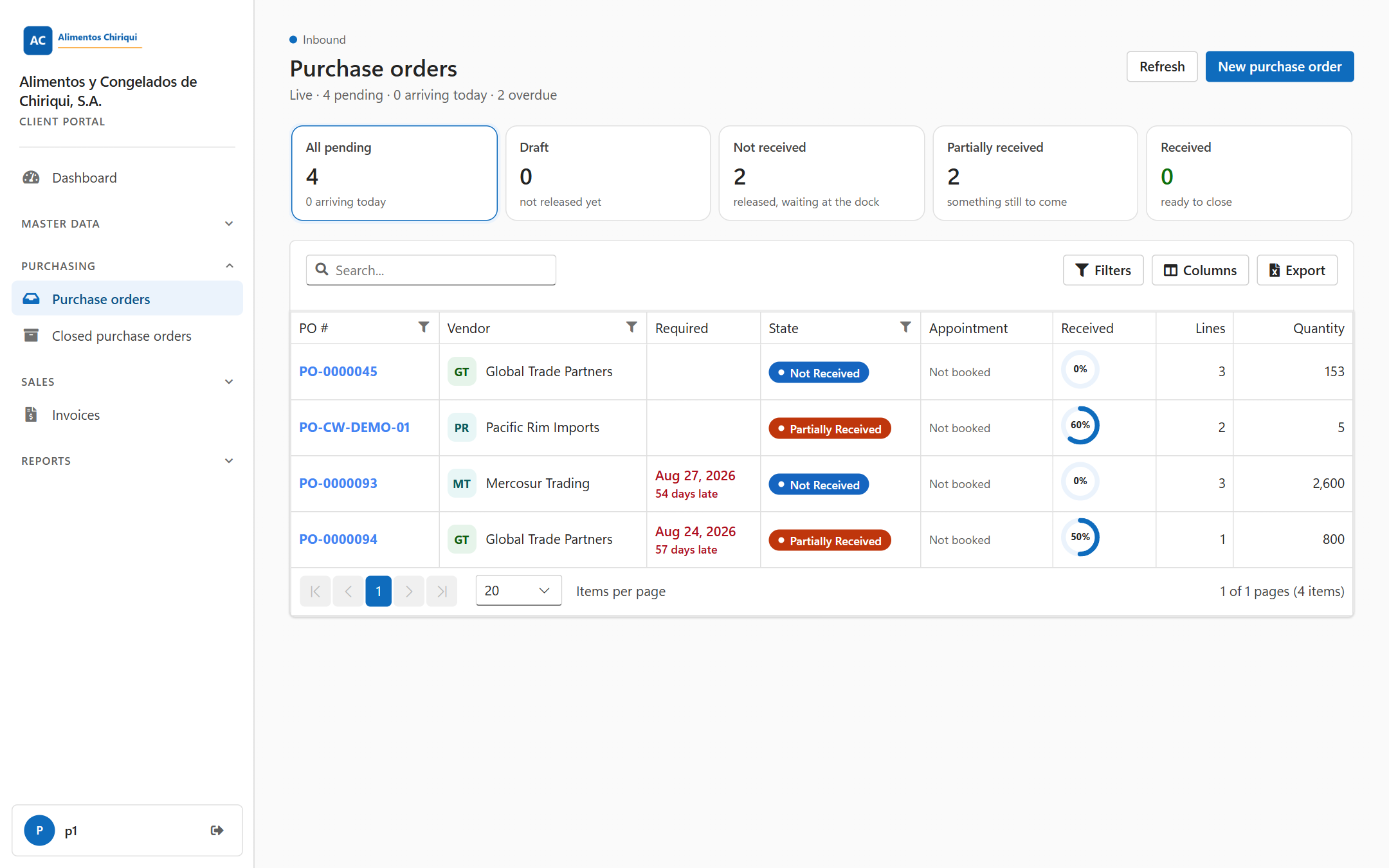
The Purchase orders list.
Click a card to show only the Purchase orders it counts. Click it again to show everything again. When the page opens, All pending is selected.
| Card | Caption | Which Purchase orders it counts |
| All pending | {0} arriving today | Every purchase order that is not closed. The caption says how many are due today. |
| Draft | not released yet | Purchase orders the warehouse has not released to receiving yet. |
| Not received | released, waiting at the dock | Released Purchase orders with nothing received yet. |
| Partially received | something still to come | Purchase orders with part of the goods received. |
| Received | ready to close | Purchase orders with everything received, waiting for the warehouse to close them. |
| Closed (closed list only) | all closed Purchase orders | Every closed purchase order. |
| Column | What it shows |
| PO # | The purchase order number, as a link that opens its page. Under it, the container as Container {0}, or else your reference as Ref {0}. |
| Vendor | The vendor's name, with a small badge of its initials. Point at it to see the vendor code. |
| Required | The date you expect the goods. Under it, today, tomorrow or in {0} days. When the date has passed and the purchase order is still Draft, Not Received or Partially Received, the date turns red with {0} days late. |
| State | How far receiving has got, as a coloured label. See Order statuses. |
| Appointment | When the delivery is booked at the warehouse, with the dock door under it, or Not booked. |
| Received | A ring with the percentage of the units received so far, for example "60%". |
| Lines | The number of lines. |
| Quantity | The total quantity expected. |
Columns also offers Destination (the receiving warehouse, as code and name) and Created. Each list opens with the newest Purchase orders at the top; click a column heading to sort another way. Search..., Filters, Clear filters, Columns, Export and the pager work as on every list: see Searching, filtering and exporting lists.
Click a row anywhere except the purchase order number. A preview panel opens on the right. Click the same row again, or the X (Close preview), to close it.
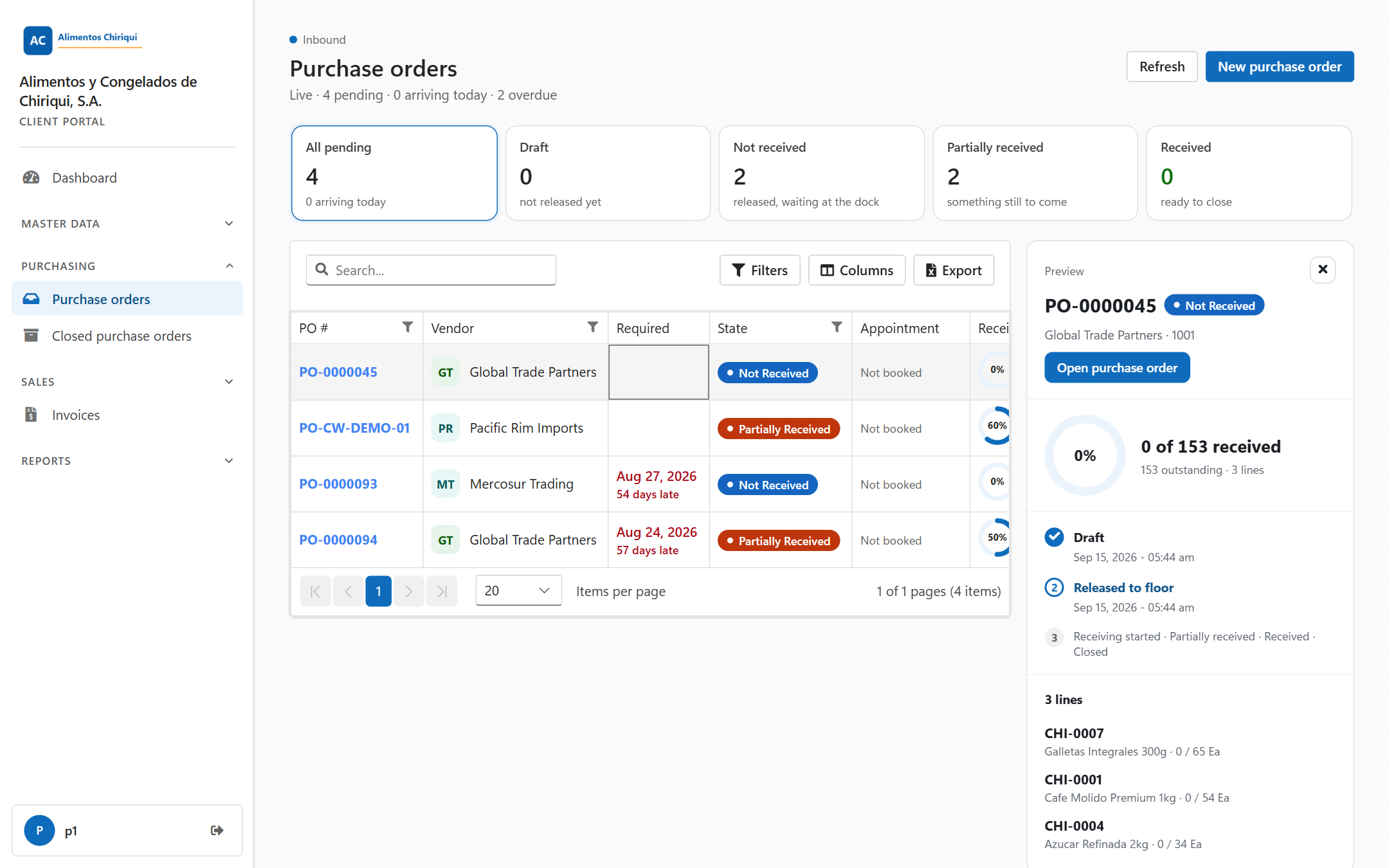
The preview panel.
A purchase order has no Next: line: the steps and the state show where it is.
To open a purchase order's page, click its number in the list, or click Open purchase order in the preview panel. The page shows everything as plain text.
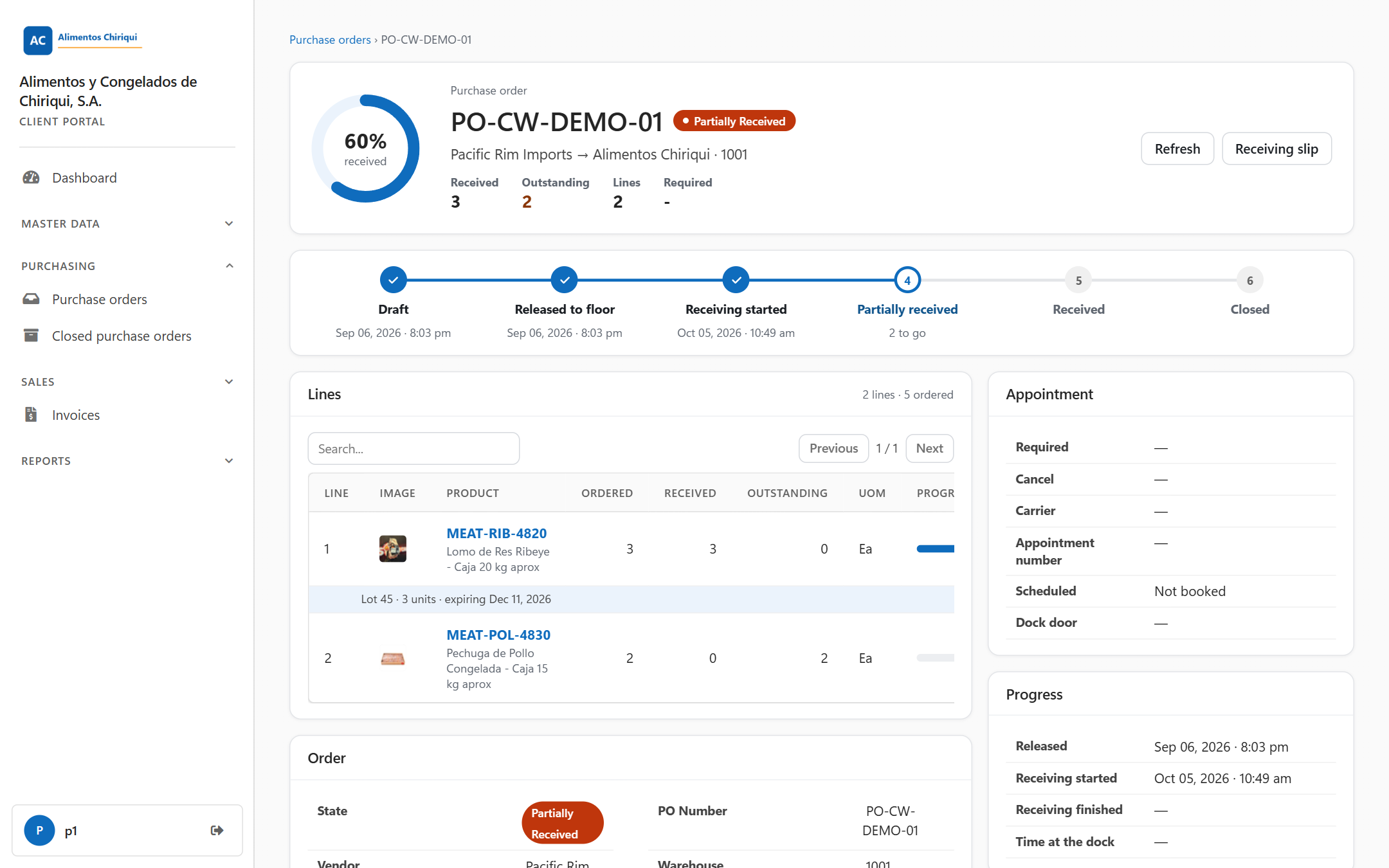
The page of a partly received purchase order.
If you can only view Purchase orders, a blue note says You have view-only access to this section. Contact your warehouse provider if you need to make changes.
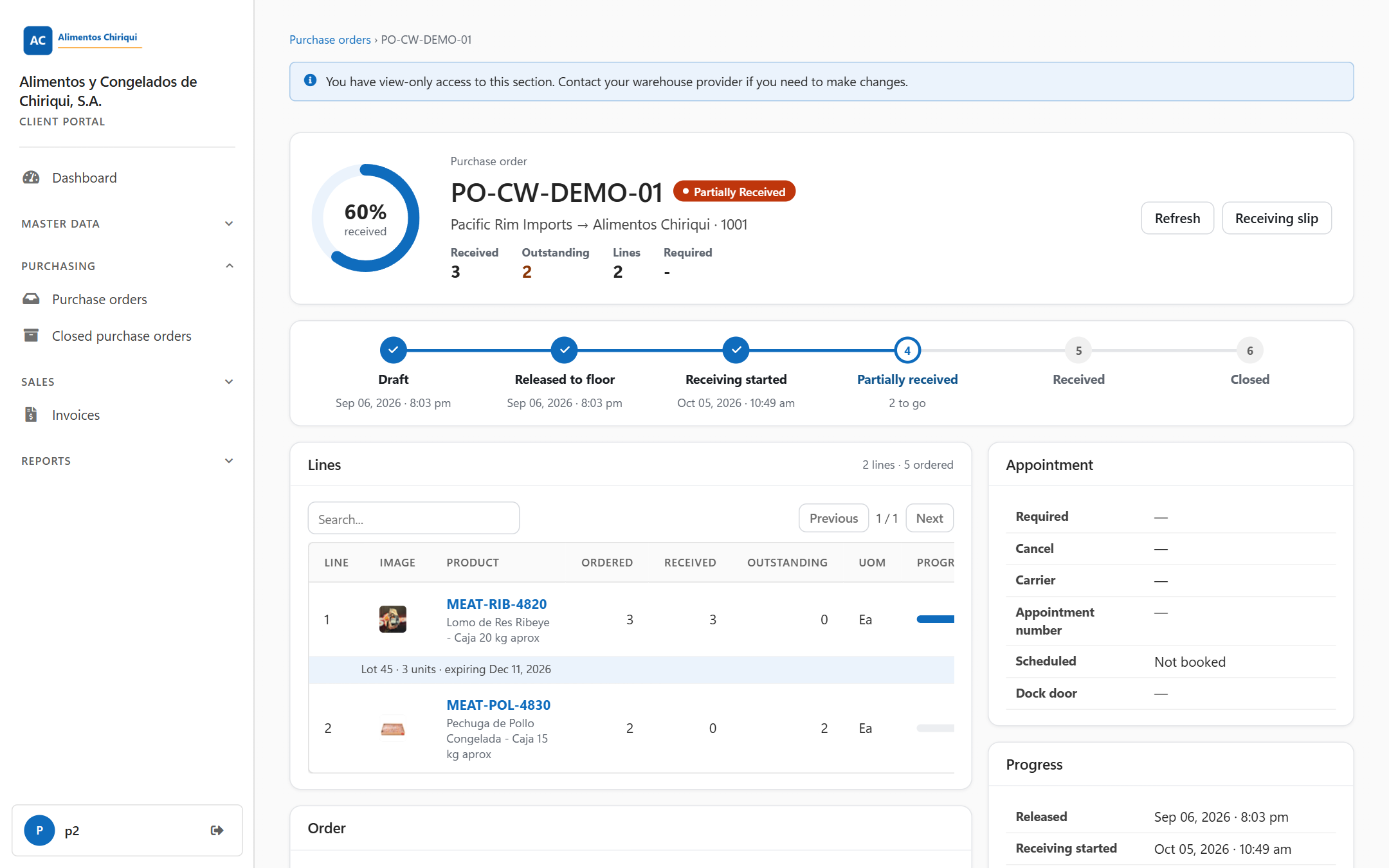
A purchase order page for a user who can only view Purchase orders.
Six steps show where the purchase order is: Draft, Released to floor, Receiving started, Partially received, Received and Closed. Each step that is done has a tick and its date and time. The current step is highlighted; on a partly received purchase order it says how many units are still to come, for example "2 to go". A purchase order that the warehouse closed before everything arrived shows closed short under Received.
The Lines card counts the lines and units ordered, for example "2 lines · 5 ordered". Type in Search... to find a line, and use Previous and Next when there are more than 25 lines.
| Column | What it shows |
| Line | The line number. |
| Image | A small picture of the product, when it has one. |
| Product | The SKU, as a link to the product's page, with the description under it. |
| Ordered | The quantity you expect. |
| Received | The quantity the warehouse has received so far. |
| Outstanding | The quantity still to come. |
| UoM | The unit of measure. |
| Progress | A bar with the percentage received for the line. |
Under every line that has received something, a shaded strip shows what arrived: the lot or serial number, the units and the expiry date, for example "Lot A-18 · 40 units · expiring Jan 05, 2027".
| Card | What it shows |
| Order | State, PO Number, Vendor, Warehouse, Container, Reference and Comments, plus Back order of when there is one, and the extra fields your warehouse uses under its own names. |
| Appointment | Required, Cancel (the cancel date), Carrier, Appointment number, Scheduled (when the delivery is booked, or Not booked) and Dock door. |
| Progress | Released, Receiving started and Receiving finished with their date and time, Closed once it is closed, and Time at the dock, for example "2 h 10 min". |
| Arrivals | Each delivery the warehouse recorded: Arrived with the date and time, Driver, Vehicle, Seal, the driver's Signature and the photos taken. No arrivals when there are none. |
| Photos | The photos the warehouse took of the purchase order. Click a photo to open it large in a new tab. No photos. when there are none. |
A field with no value shows a dash. The page never shows prices, costs, warehouse notes or who in the warehouse worked on the purchase order.
| Message | What it means |
| That purchase order could not be found. | The purchase order does not exist or is not your company's. Click Back to Purchase orders. |
| This purchase order is already being received and can no longer be edited. | You tried to edit a purchase order that the warehouse has started receiving, so its page opened instead. |
| You have view-only access to this section. Contact your warehouse provider if you need to make changes. | You can read Purchase orders but not create or change them. |
| You don't have access to this section. | Your user cannot view Purchase orders. Ask your warehouse. |
Was this page helpful?