 P4 Software
/
logisticaHQ Client Portal
P4 Software
/
logisticaHQ Client Portal
P4 Software
/
logisticaHQ Client Portal
P4 Software
/
logisticaHQ Client Portal
The Inventory page lists the stock your warehouse holds for you, one row for each product in each bin or on each LPN. Use it to answer "what do I have, and where?" It is for any user whose warehouse has turned on View inventory.
You need the View inventory switch. Without it the page shows "You don't have access to this section." and the Inventory entry does not appear in the menu. See Inventory and reports.
Reports > Inventory
The subtitle under the page title reads "Your on-hand stock across our warehouses. Click a SKU, LPN or bin to drill in."
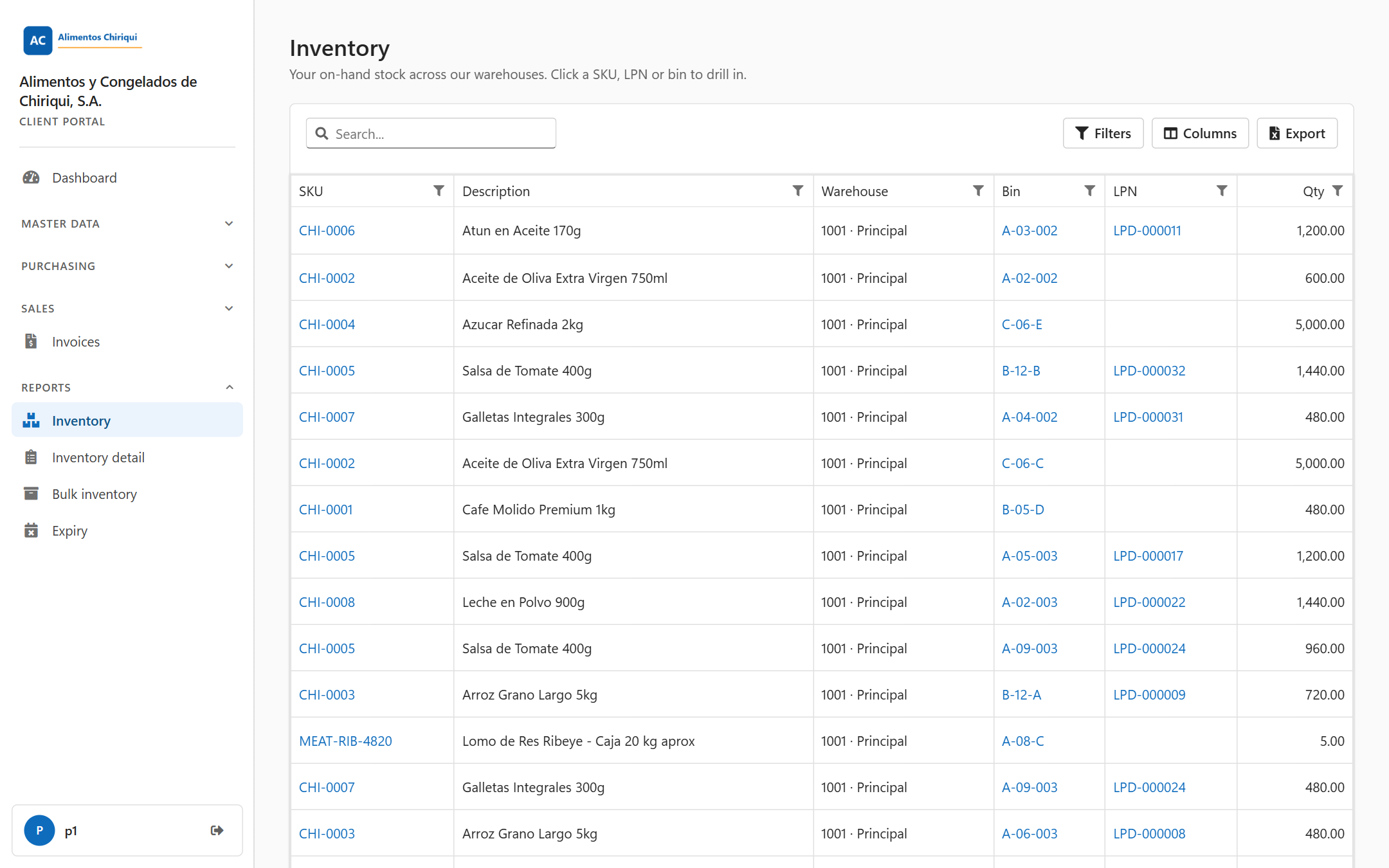
The Inventory list.
| Column | What it means |
| SKU | The product's SKU. Click it to open the product page. |
| Description | The product description. |
| Warehouse | The warehouse where the stock is, shown as the code, a dot and the name, for example 1001 · Main warehouse. For stock on an LPN it is the warehouse of the bin the LPN is in; if the LPN is not in a bin yet, it is the LPN's own warehouse. |
| Bin | The code of the bin where the stock is. Click it to open the bin page. For stock on an LPN it shows the bin the LPN is in. It is empty if the stock is in no bin. |
| LPN | The code of the LPN the stock is on. Click it to open the LPN page. It is empty when the stock sits loose in a bin. |
| Qty | The quantity on hand for that row, with two decimals and a comma for thousands (for example 1,234.50). Numbers are aligned to the right. |
All six columns can be sorted, and all of them can be filtered. None of them is hidden at first. You can hide, show, move and resize columns with Columns; the portal remembers your choice the next time you open the page.
The three detail pages are described in Product, LPN and bin details.
The toolbar above the list has the search box (Search...), Filters, Columns and Export. Once you filter or search, Clear filters also appears, with the number of active filters in brackets; one click clears every filter and the search. Each column header can also open a list of the values in that column (Filter values) so you can tick the ones you want; it includes (Blanks) for empty cells. Click a column header to sort; you can sort by more than one column. The full how-to is in Searching, filtering and exporting lists.
The Excel file is built from the values behind the columns, not from the clickable cells. For that reason the Warehouse column in the file may show only the warehouse code, and Warehouse and Bin may be empty for stock on an LPN. Check the file before you rely on it. For stock on LPNs with its bin, the Bulk inventory report is the better source.
| Message | What it means | What to do |
| "You don't have access to this section." | Your user does not have the View inventory switch. | Ask your warehouse to turn it on. |
| "No data available or server returned an invalid response" | The list could not be loaded. It appears as a short pop-up message. | Wait a moment and reload the page. If it keeps appearing, tell your warehouse. |
| (an empty list) | Nothing matches your search or filters, or you have no stock above 0. | Click Clear filters and check again. |
If your session ends while you work, the portal takes you back to the sign-in page. Sign in again and open Inventory.
Was this page helpful?