 P4 Software
/
logisticaHQ Client Portal
P4 Software
/
logisticaHQ Client Portal
P4 Software
/
logisticaHQ Client Portal
P4 Software
/
logisticaHQ Client Portal
The logisticaHQ Client Portal is a private website that your warehouse gives you. You use it to see, and in some areas to manage, the goods your company keeps at that warehouse. This page explains what the portal is, what you can do in it, what you need to use it and what your warehouse controls.
Your warehouse stores and ships goods for your company. The portal shows you that same information at any time, from any device, so you do not have to ask for it. You see your own stock, your own orders, your own Purchase orders and your own Invoices. You can also keep your own list of Products, Customers and Vendors up to date.
Every portal belongs to one company. Everything you see is limited to your company's data. The sign-in page says it plainly: Your connection is encrypted. Only your company sees its data.
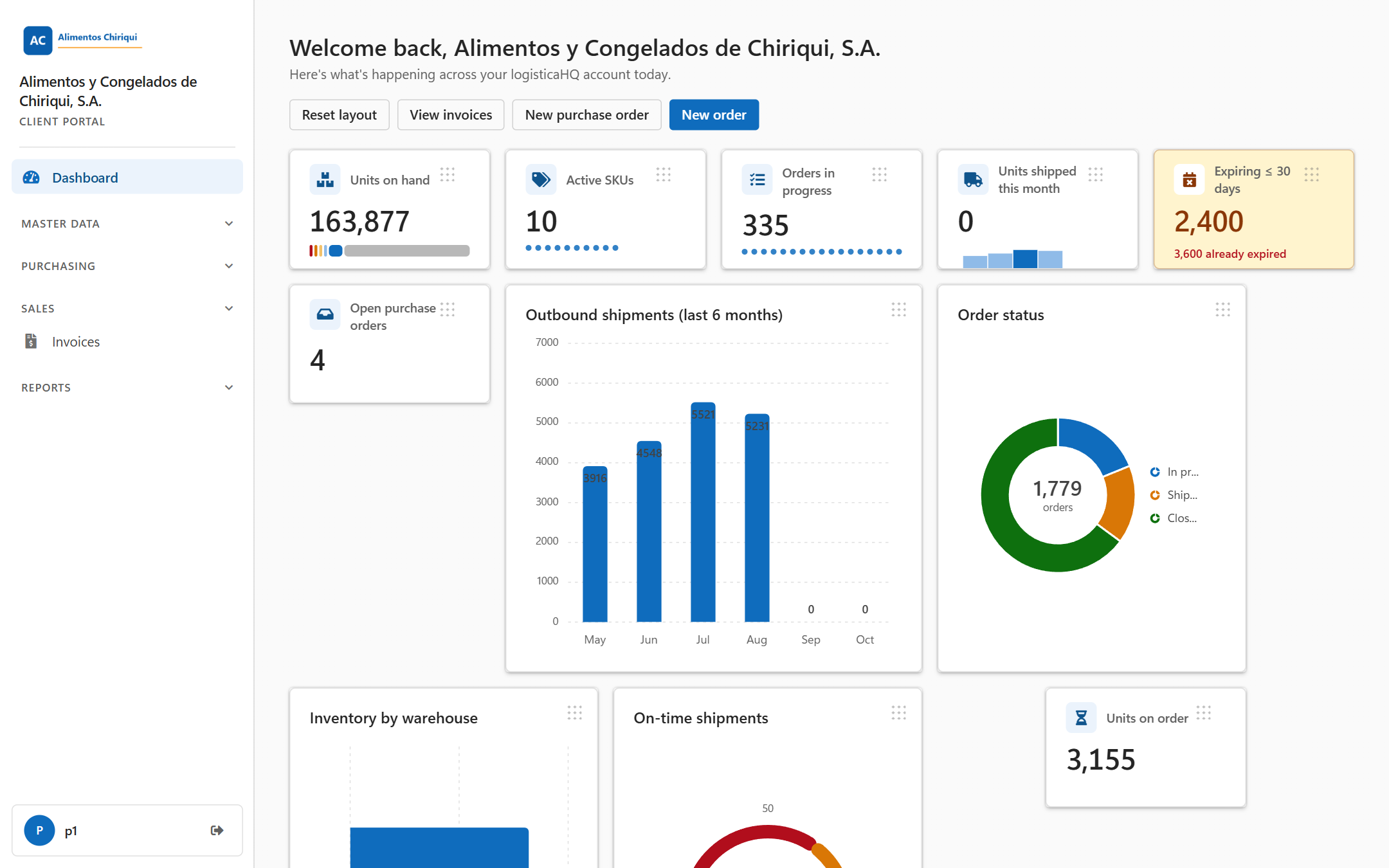
The portal after you sign in: the menu on the left and your first page on the right.
If you work at the warehouse and you set up portals for clients, start with For warehouse staff.
The menu on the left lists the areas. You only see the areas your warehouse has turned on for you. See View only and Administer access for how that works.
| Area | What you can do | Access it needs |
| Dashboard | See a summary of your shipments, orders, stock and expiry dates in tiles and charts. Move and resize the panels to suit you. Use the quick buttons at the top to start a new order or purchase order, or to open your Invoices. | View Dashboard. Each panel also needs its own access, for example View orders & shipments for the shipment panels. |
| Sales orders | Follow your outbound orders and their status, including closed orders. If you may place orders, create a new order and change an order that can still be changed (the Edit order button on the order page). | View orders & shipments to look; Place outbound orders to create and change. |
| Purchase orders | See the Purchase orders you have told the warehouse about, including closed ones. If you may create them, tell the warehouse what is arriving by creating a new purchase order. | View Purchase orders to look; Create Purchase orders to create. |
| Invoices | See the Invoices your warehouse has posted to you and download each one as a PDF or an Excel file. Draft Invoices are never shown. | View Invoices |
| Inventory and reports | See what you have on hand, by warehouse, bin and license plate, and open the details of a product, bin or license plate. Three reports show your stock by lot, serial and expiry date, your stock stored on license plates, and your expiry dates. | View Inventory for the Inventory list; View reports for the three reports. |
| Master data | Look at your Products, Customers and Vendors. If you may manage them, create and update them one by one or in bulk with an Excel file. | View Products, View Customers, View Vendors to look; Manage Products, Manage Customers, Manage Vendors to create and change. |
Every list in the portal works the same way. See Searching, filtering and exporting lists.
https://your-warehouse-address/portal/your-company-address. Save it as a bookmark.The portal is available in English and Spanish. You choose the language with the language button on the sign-in page. After you sign in, the portal uses the language set on your user account. See Signing in and out for how the language is chosen.
If something you expect is missing from the menu, ask your warehouse to change your access.
Was this page helpful?