 P4 Software
/
logisticaHQ Client Portal
P4 Software
/
logisticaHQ Client Portal
P4 Software
/
logisticaHQ Client Portal
P4 Software
/
logisticaHQ Client Portal
Master data is the set of records your orders are built from: your Products, the Customers you ship to and the Vendors that send you goods. This page explains what each area is, why it matters to the warehouse, and who can view or change it. It is for everyone who signs in to the Client Portal.
The Client Portal keeps three lists for your company. Each one has its own page, described in detail on its own Help page.
| Area | What it holds | Where you use it |
| Products | Your product catalogue: every item the warehouse stores for you, with its SKU, barcodes, tracking rules, size and weight, packsizes and, for assembled items, its components. | Sales orders, Purchase orders and every stock figure refer to your Products by SKU. |
| Customers | The companies you ship to: customer number, company details, the name and address used on Invoices (Bill to) and one or more delivery addresses. | The Customer field and the saved delivery addresses when you place a sales order. |
| Vendors | The companies that send you goods: vendor number, contact details and the address the goods ship from. | The Vendor field when you create a purchase order. |
You only ever see and change the records of your own company. Records of other companies that the same warehouse serves are never shown to you.
Open Master Data in the menu on the left. The group opens to Products, Customers and Vendors. You only see the entries you have access to, and the whole Master Data group is hidden if you have access to none of the three.
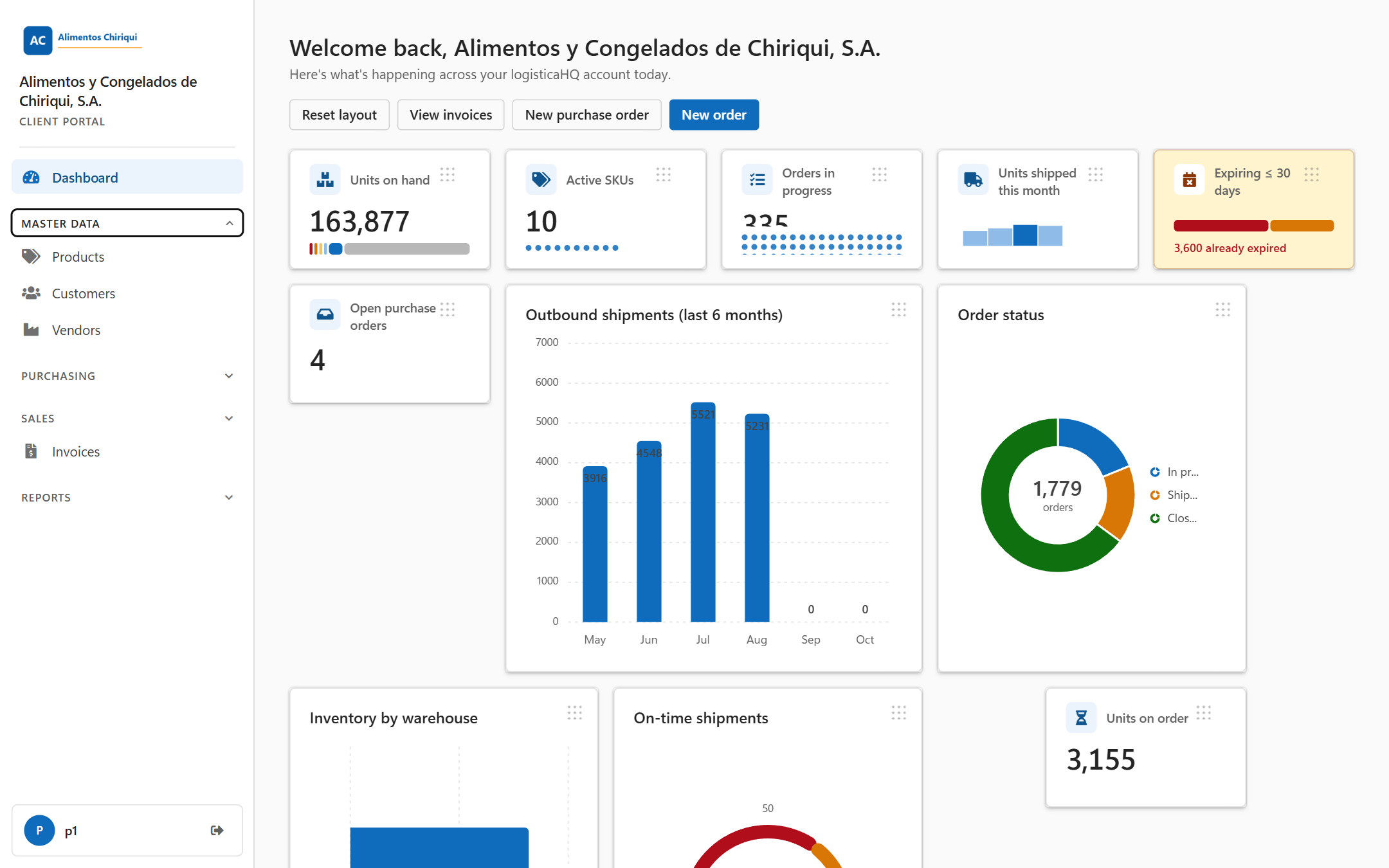
The Master Data group in the menu.
Your warehouse decides what each person can do, user by user. For each area there is a View switch and a Manage switch. Turning on a Manage switch also allows viewing, so a person with only the Manage switch still sees the list.
| Area | View access lets you | Manage access also lets you |
| Products (View Products / Manage Products) | Open the product list and every product page; use Refresh, Export and Export to Excel. | Create Products (New product), change and save them, upload the product image, and use Import from Excel and Download template. |
| Customers (View Customers / Manage Customers) | Open the customer list and every customer page, including its addresses; use the exports. | Create Customers (New customer), change and save them, add and remove addresses, and import from Excel. |
| Vendors (View Vendors / Manage Vendors) | Open the vendor list and every vendor page; use the exports. | Create Vendors (New vendor), change and save them, and import from Excel. |
If you can view but not manage, the page shows the values as plain text, with no input boxes at all (an empty value is a dash), and a blue note at the top: You have view-only access to this section. Contact your warehouse provider if you need to make changes. There are no New or Import from Excel buttons for you. If you try to open a section you have no access to, you see You don't have access to this section.
Was this page helpful?