logisticaHQ Client Portal
Inventory detail report
The Inventory detail report lists every stock line your warehouse holds for you, split by lot, serial number and expiry date. Use it to answer "which lots, serial numbers and expiry dates do I have, and where are they?" It is for any user whose warehouse has turned on View reports.
Who can use this
You need the View reports switch. This is a different switch from View Inventory, which opens the Inventory page. See Inventory and reports.
How to get there
Reports > Inventory detail
The subtitle reads "Every unit of your on-hand stock, one row per lot / serial / expiry detail."
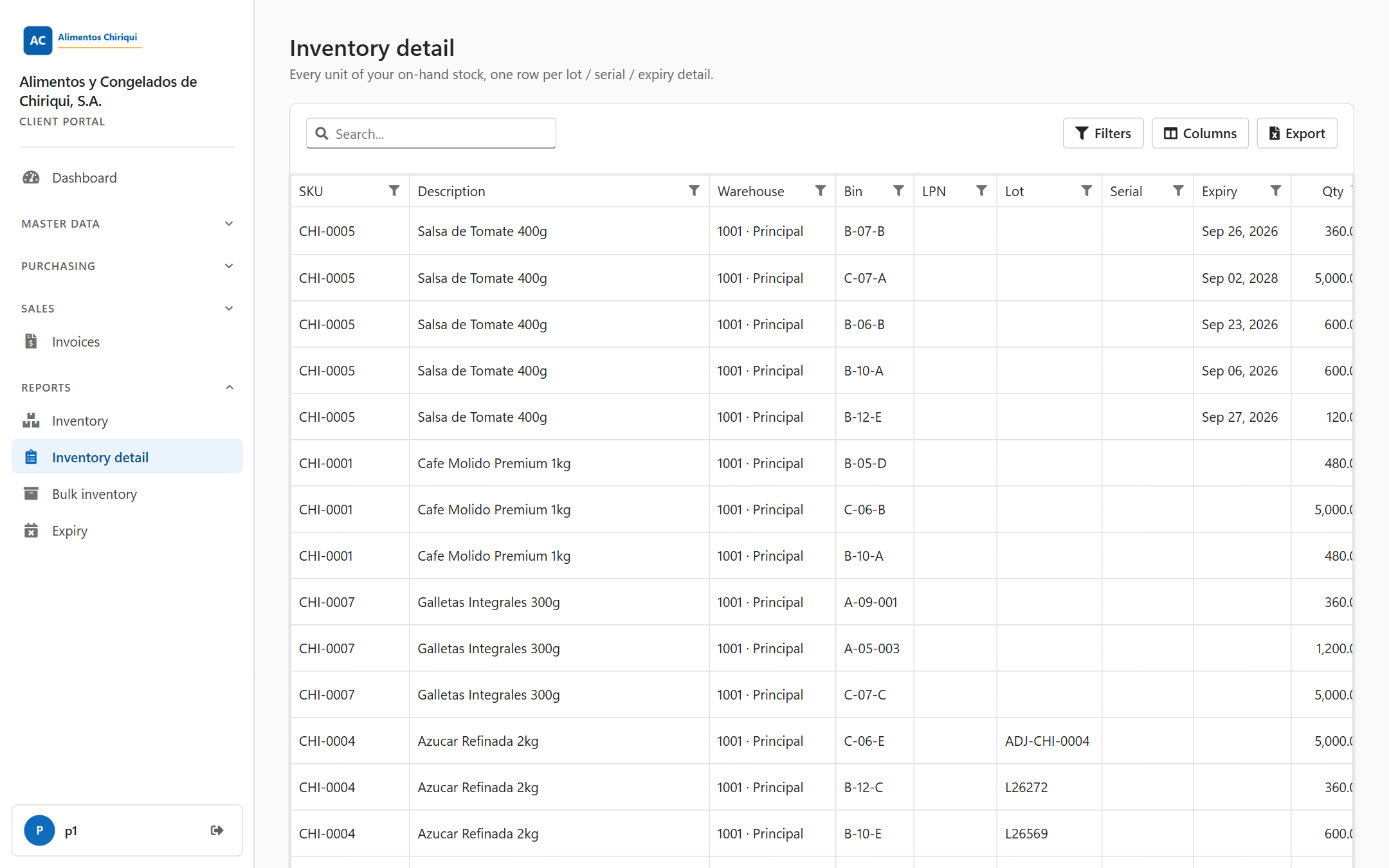
The Inventory detail report.
Columns
| Column | What it means |
| SKU | The product's SKU. |
| Description | The product description. |
| Warehouse | The warehouse, shown as code, a dot and name (for example 1001 · Main warehouse). |
| Bin | The bin code. For stock on an LPN it is the bin the LPN is in. |
| LPN | The LPN code. Empty when the stock sits loose in a bin. |
| Lot | The lot number. Empty when the line has no lot. |
| Serial | The serial number. Empty when the line has no serial number. |
| Expiry | The expiry date, for example Sep 24, 2026. Empty when the line has no expiry date. |
| Qty | The quantity of that line, with two decimals, aligned to the right. |
| UoM | The product's unit of measure. |
Empty cells are left blank in the reports (not shown as a dash). None of the ten columns is hidden at first. You can hide, show, move and resize them with Columns.
How the rows are split
- The report includes stock stored in bins and stock stored on LPNs.
- Where the stock has lot, serial number or expiry details, you get one row for each detail, and Qty is the quantity of that detail. For example, 100 units in two lots, 60 in lot A and 40 in lot B, appear as two rows: 60 and 40.
- Where the stock has no such details, you get one plain row with Lot, Serial and Expiry empty.
- For stock on an LPN, Bin is the bin the LPN is in. If the LPN is not in a bin yet, both Warehouse and Bin are empty on that row.
- The SKU, bin and LPN cells are plain text here. They are not links. To click through to a product, bin or LPN, use the Inventory page.
- The report shows quantities on hand only, not allocated or available ones.
Unlike the Inventory list, this report does not leave out lines with a quantity of 0, so a line with Qty 0 may appear.
Important: A report shows at most 10,000 lines. If your warehouse holds more lines for you than that, only the first 10,000 are shown, and the page does not warn you that some are left out. Your warehouse sets this limit. If you think lines are missing, use Filters to narrow the report (for example by SKU or warehouse code) and ask your warehouse to check the limit.
Search, filter, sort and export
- The toolbar has the search box (Search...), Filters, Columns and Export. After you filter or search, Clear filters appears with the number of active filters in brackets. The toolbar shows up once the rows have loaded; until then you see only a spinner.
- The whole report is loaded into your browser, so searching, filtering and sorting are quick and happen on your computer. Each column header can open a list of its values (Filter values), including (Blanks) for empty cells. Click a header to sort; you can sort by more than one column. The full how-to is in Searching, filtering and exporting lists.
- The Warehouse column shows the code and the name, but filtering, the list of values and search work with the warehouse code alone. To filter by warehouse, use the code (for example 1001), not the name.
- The report shows 20 rows per page. At the bottom you can choose 10, 20, 50 or 200.
- Export creates an Excel file named PortalReportInventoryDetail.xlsx. It holds every row that matches your current filter and sort, not only the page you see, and only the columns you are showing.
- The Excel file is built from the values behind the columns, so it may look different from the screen: for example, Warehouse may show only the code. Check the file before you rely on it.
- The portal remembers your columns, their order and width, and the sort. It does not remember filters or search text.
Messages you may see
| Message or situation | What it means | What to do |
| "You don't have access to this section." | Your user does not have the View reports switch. | Ask your warehouse to turn it on. |
| A spinner and no toolbar | The report is still loading. | Wait a moment. |
| An empty report | There are no lines for you, or your search or filters match nothing, or the report could not be loaded. The portal shows no error message in that case. | Click Clear filters. If you expect data, reload the page. If it stays empty, tell your warehouse. |
Good to know
- The Inventory list has one row for each product in each bin or on each LPN. This report has one row for each lot, serial number or expiry detail, so it usually has more rows. The totals for a product should usually agree between the two.
- This report shows both stock in bins and stock on LPNs. The Bulk inventory report shows only the stock on LPNs. The Expiry report shows only lines that have an expiry date.
- Quantities use a comma for thousands and a point for decimals, and dates use the English month abbreviation (Sep), whatever language you use.
Related pages
 P4 Software
/
logisticaHQ Client Portal
P4 Software
/
logisticaHQ Client Portal