logisticaHQ Client Portal
Making invoices visible to clients
Clients see only Invoices that you have posted. A draft invoice stays hidden from the portal until you post it. This page shows how to post Invoices, how to post them automatically and what else a client needs to see them.
What the client needs in order to see an invoice
A posted invoice appears in the client's Invoices list with its number, period, posting date, subtotal and total, and can be downloaded as a PDF or an Excel file.
- Open Setup > 3PL > Invoices. The list is titled 3PL Invoices.
- Check the State column. Draft means the client cannot see the invoice yet. Posted means the client can.
- Tick the draft Invoices you want to post.
- Click Post. A dialog asks Post invoice {0}?, or Post {0} Invoices? for several. Its text reads "A posted invoice can no longer be changed." Confirm.
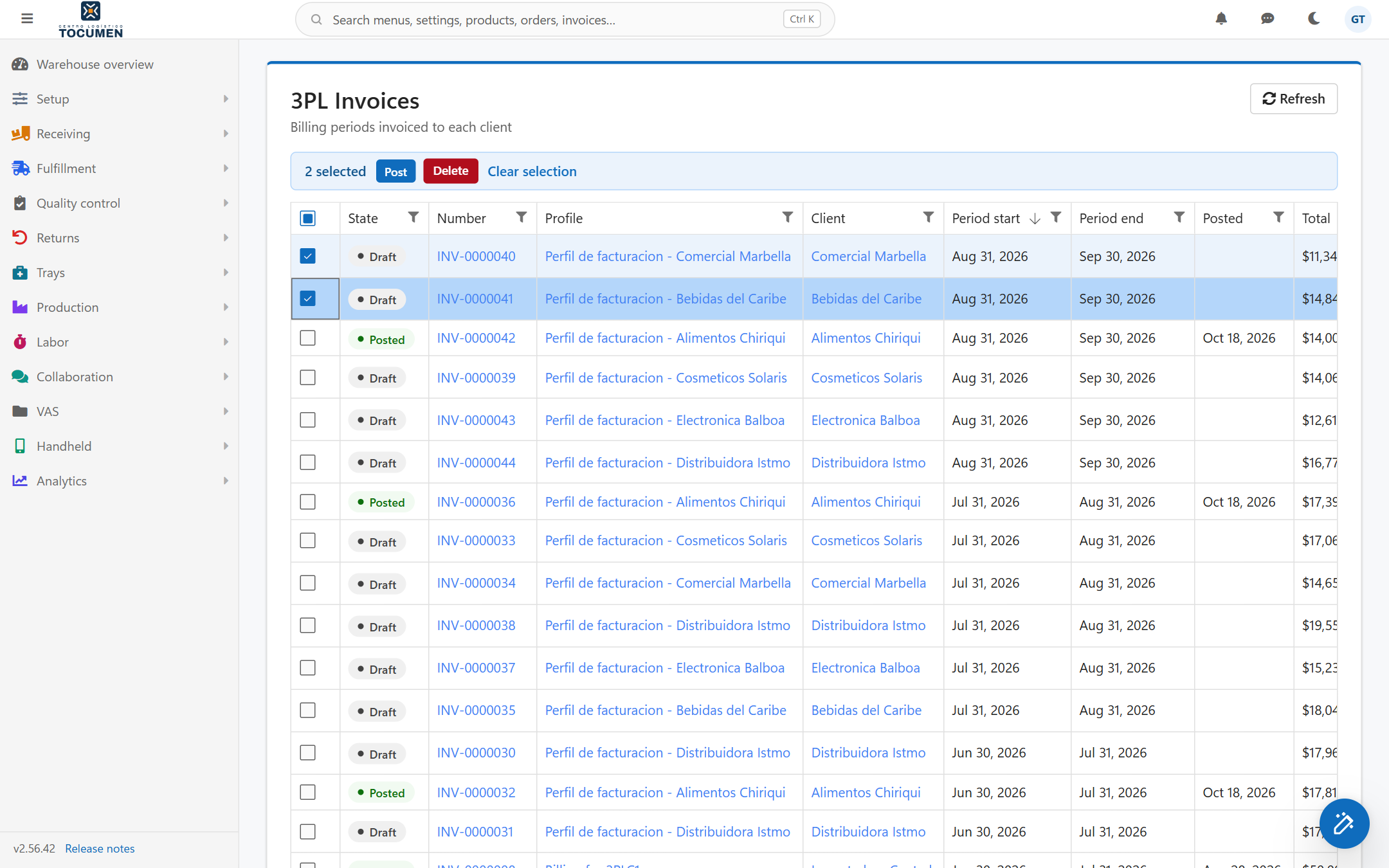
The 3PL Invoices list with two Draft Invoices ticked, ready to post.
You can also post one invoice from its own page. Open the invoice and click Post in the top buttons. The dialog is titled Post Invoice and reads "This operation is irrevocable". Click Confirm.
Important: Posting cannot be undone. Once an invoice is posted it is read-only: you can no longer change its lines or charges. Review a draft invoice completely before you post it. While an invoice is still a draft you can review and edit its lines and charges, and regenerate its lines.
Why there is no Post button
The Post button appears only for an invoice that has an End period and has not been posted yet. The invoice for the current, still open period has no end period, so it cannot be posted yet. Wait until the period closes.
Post Invoices automatically
Open Setup > 3PL > Billing profiles and open the client's billing profile.
- Turn on Recurring and Auto-post Invoices. Each invoice that the profile creates is posted at the moment it is created, so the client sees it at once.
- Turn on Auto email Invoices as well if you want the invoice to be e-mailed to the client's e-mail address when it is created.
- An invoice that you create by hand with Create invoice on the profile (the dialog is titled Generate invoice) is never posted automatically. It stays a draft until you post it.
E-mail a posted invoice
On the 3PL Invoices list you can send a posted invoice to the client with the action Email. The message "The invoice was emailed." confirms it.
If a client says an invoice is missing
- On Setup > 3PL > Invoices, check the State of the invoice. If it is Draft, post it.
- Open the client user and check that View Invoices is on.
- Check that the user belongs to the right client.
Clients who open an invoice that is not available see the message "Invoice not found." This is what a draft invoice, an invoice of another client or a user without access sees.
What the client can download
- Download PDF: the invoice document, with an annex of the service and storage details.
- Download XLSX: an Excel file with the billing records behind the invoice, on two sheets named Storage and Service. It is not a copy of the invoice lines and totals.
Related pages
 P4 Software
/
logisticaHQ Client Portal
P4 Software
/
logisticaHQ Client Portal