logisticaHQ Client Portal
Changing an order
This page explains how to change an order you already placed, until when you can do it, and what to do when the portal no longer lets you. It is for client users with the Place outbound orders switch.
When you can change an order
You can change an order in the portal only while all of these are true:
- You have the Place outbound orders switch.
- The order's state is Draft or Unallocated. These are the two states before the warehouse reserves stock for the order.
- The order is not on a truck load that the warehouse is planning.
- The order was not sent by your company's own system through an integration.
When all of these are true, the order's page has an Edit order button at the top right. For any other order there is no Edit order button. See Order statuses for every state and whether you can still change it.
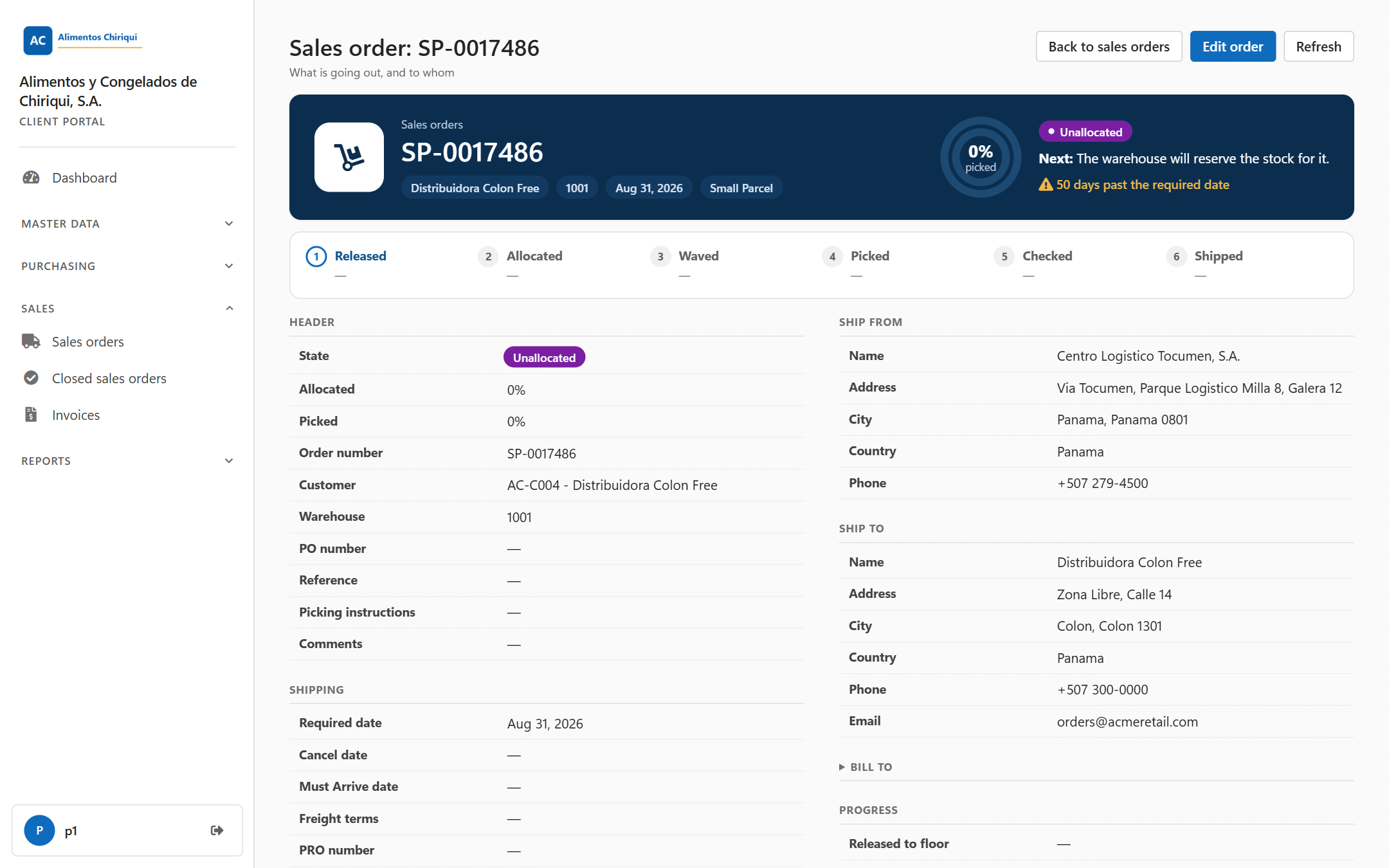
An order that can still be changed has the Edit order button.
Important: once the order has moved past Unallocated, you can no longer change it in the portal. Contact your warehouse. They can still adjust the order on their side.
Change an order
- Go to Sales > Sales orders.
- Open the order: click its number, or click its row and then Open sales order in the preview panel.
- Click Edit order.
- The order opens in the same form you use to place an order. The title is now the order number, under the small heading Sales Order. Change what you need on the Details, Addresses and Lines tabs. Every field is described in Placing a new order.
- Click Save changes at the top right.
When the changes are saved, the message Order saved. appears and the order's page opens with the new values.
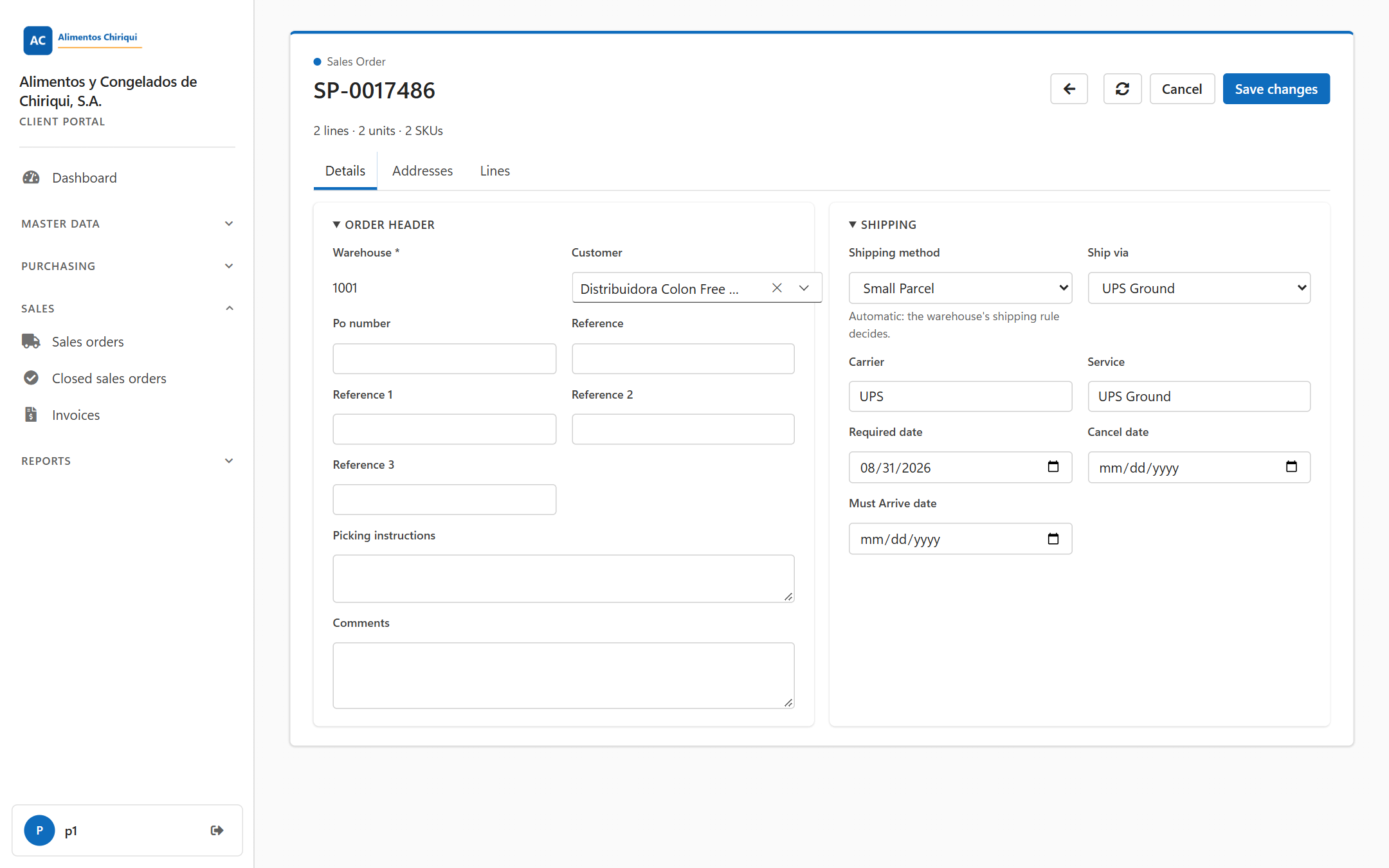
Changing an Unallocated order.
What you can change
- The Customer, Po number, the references, Picking instructions and Comments.
- The Shipping method, Ship via (when shown), Carrier, Service and the three dates. Setting Ship via back to Automatic clears it from the order. Changing the Ship via of an existing order does not apply a shipping rule again; ask your warehouse if the carrier or the delivery requirements should change too.
- The ship-to and bill-to addresses.
- The lines: change a quantity or the Instructions, choose a different product, choose other lots, add lines with Add line, or remove a line with the x button. The lines you see when you save are the lines the order has afterwards.
You cannot change the Warehouse (it is shown as plain text), the order number or the state. If the order is for the wrong warehouse, contact your warehouse.
Lots on an order you change
- Each lot you picked when you placed the order became its own line, so each line shows one lot, already ticked, with its quantity. Open the picker to change the quantity, tick another lot, or go back to Any lot. See "Choosing the lot" in Placing a new order.
- If the warehouse no longer holds a lot you picked earlier, the picker still shows it, ticked and marked No longer available, so it is never dropped without you seeing it. Untick it and choose another lot, or Any lot. If you keep it, the portal checks it when you save and tells you if it cannot be used.
Clearing a field
If you empty a box, a date or the Customer and save, that field is cleared on the order.
The buttons in the editor
| Button | What it does |
| Save changes | Saves your changes and opens the order's page. |
| Cancel | Leaves the form without saving, and without asking you to confirm. It does not cancel the order. |
| Refresh (the circular arrow) | Reads the order again and drops any changes you have not saved. |
| The back arrow (Back to orders) | Goes back to the orders list without saving. |
When the portal refuses a change
- If you open the editor of an order that can no longer be changed (for example from an old link or bookmark), the portal opens the order's page instead, with the blue note This order is already being processed and can no longer be edited.
- If the warehouse started working on the order while you had the editor open, saving is refused and nothing is saved. You see Could not save the order: followed by "Order [SP-0017486] is already being processed (status [...]) and can no longer be edited. Contact your warehouse provider if it has to change." Contact your warehouse.
- An order sent by your company's own system through an integration has no Edit order button. Its page says This order was sent automatically by an integration, so it can only be changed in the system that sent it. Change it in that system.
- If the portal cannot save for another reason, you see Could not save the order: {0} with the reason, and everything you typed stays on the screen.
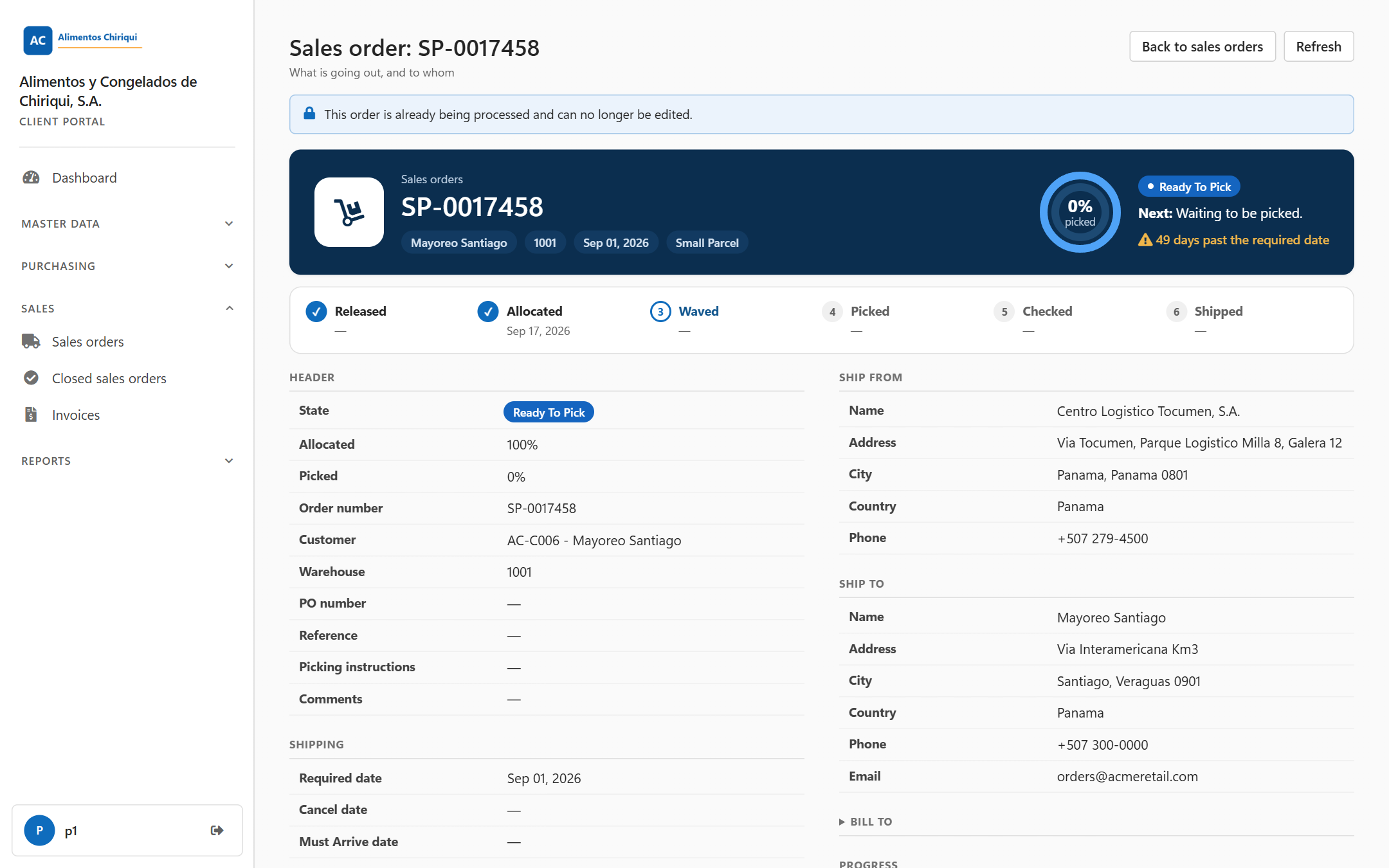
The page that opens instead of the editor for an order the warehouse is already working on.
Cancelling an order
The portal has no button to cancel, delete or suspend an order. To cancel an order, contact your warehouse.
Messages you may see
| Message | What it means |
| Order saved. | Your changes were saved. |
| This order is already being processed and can no longer be edited. | The order is past Unallocated, or it is on a truck load, so its page opened instead of the editor. |
| This order was sent automatically by an integration, so it can only be changed in the system that sent it. | The order came from your company's own system. Change it there. |
| That order could not be found. | The order does not exist or is not your company's. |
| Select a warehouse., Add at least one line with a product and quantity., the lot messages | See Placing a new order. |
Related pages
 P4 Software
/
logisticaHQ Client Portal
P4 Software
/
logisticaHQ Client Portal