 P4 Software
/
logisticaHQ Client Portal
P4 Software
/
logisticaHQ Client Portal
P4 Software
/
logisticaHQ Client Portal
P4 Software
/
logisticaHQ Client Portal
This page walks you through the order form, field by field, so you can ask the warehouse to ship your goods. It also explains how to choose the lot of a product. It is for client users whose warehouse has turned on the Place outbound orders switch.
You need the Place outbound orders switch, in the Administer box of your Portal access. Without it there is no New order button, and if you reach the form some other way you see You don't have access to this section. Ask your warehouse to turn it on.
The form opens with the small heading Sales Order and the title New order. Under the title, one line counts what you have entered so far, for example "3 lines · 25 units · 3 SKUs": the lines that have a product, their total quantity and the number of different Products. The form has three tabs: Details, Addresses and Lines.
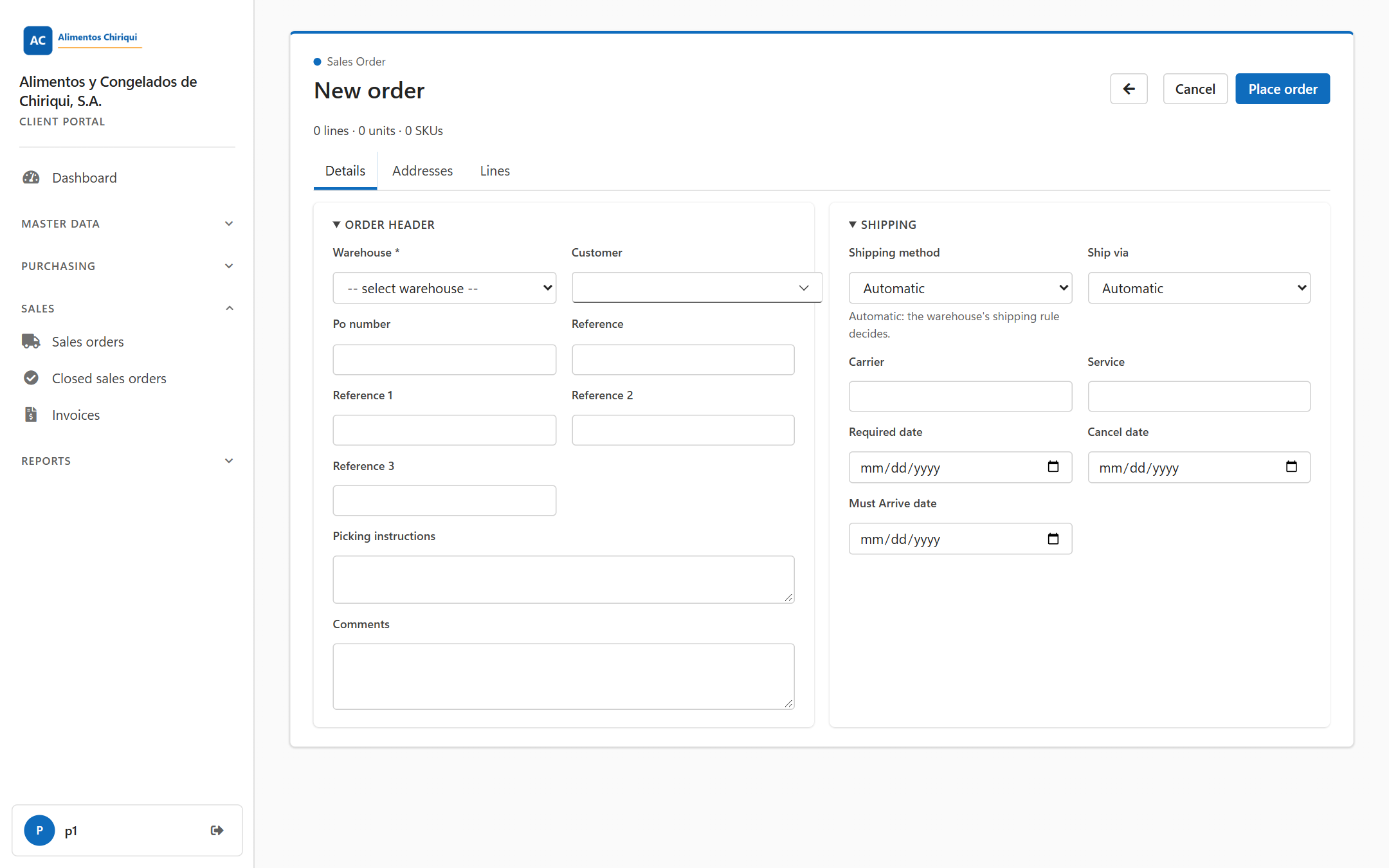
The New order form, Details tab.
| Field | Required? | What to enter |
| Warehouse | Yes (marked *) | The warehouse that ships the order. Choose it from the list, which shows the warehouse codes. It starts on -- select warehouse --. Choose it first: the lots you can pick on the Lines tab are the ones this warehouse holds. Once the order is saved, the warehouse is shown as plain text and can no longer be changed. If you are not sure which one to choose, ask your warehouse. |
| Customer | No | The customer the goods are for. See "Choosing the customer" below. |
| Po number | No | Your customer's purchase order number, if you have one. |
| Reference | No | Any reference of your own. |
| Reference 1, Reference 2, Reference 3 | No | Three more free-text references. |
| Picking instructions | No | Instructions for the person who picks the order. |
| Comments | No | Any other note for the warehouse. |
Click the Customer box. It lists your own Customers by name, with the customer code next to it. Type part of a name or a code to search: the search covers all your Customers, however many you have. Click a customer to choose it. The clear button in the box empties it. Leave it empty if the order has no customer; you can still place the order.
| Field | Required? | What to enter |
| Shipping method | No | It starts on Automatic, with the hint Automatic: the warehouse's shipping rule decides. Leave it there and your warehouse's shipping rule chooses the method. Choose Small Parcel, Truck Load, Private Fleet or External only when you want to set the method yourself: a method you choose always takes priority over the rule. |
| Ship via | No | Shown only when your warehouse's shipping rules use ship-via values for your company. Pick one from the list (it cannot be typed) and the order follows the rule for that value. It starts on Automatic, which leaves the choice to the warehouse. |
| Carrier | No | The carrier you want, typed as free text. |
| Service | No | The service level you want, typed as free text. |
| Required date | No | The date you need the order shipped by. Pick it from the calendar. The list counts an order as late after this date. |
| Cancel date | No | The date after which the order is no longer wanted. |
| Must Arrive date | No | The date the goods must reach your customer. |
Your warehouse's shipping rules work from your customer and the ship-to postal code (and the Ship via, when you pick one). When Shipping method is on Automatic and Carrier and Service are empty, the rule fills them in, and it also sets whether the delivery needs a signature or a count. Anything you choose or enter yourself takes priority.
There is no field for the ship date. The warehouse records it when the order ships, and you see it on the order's page.
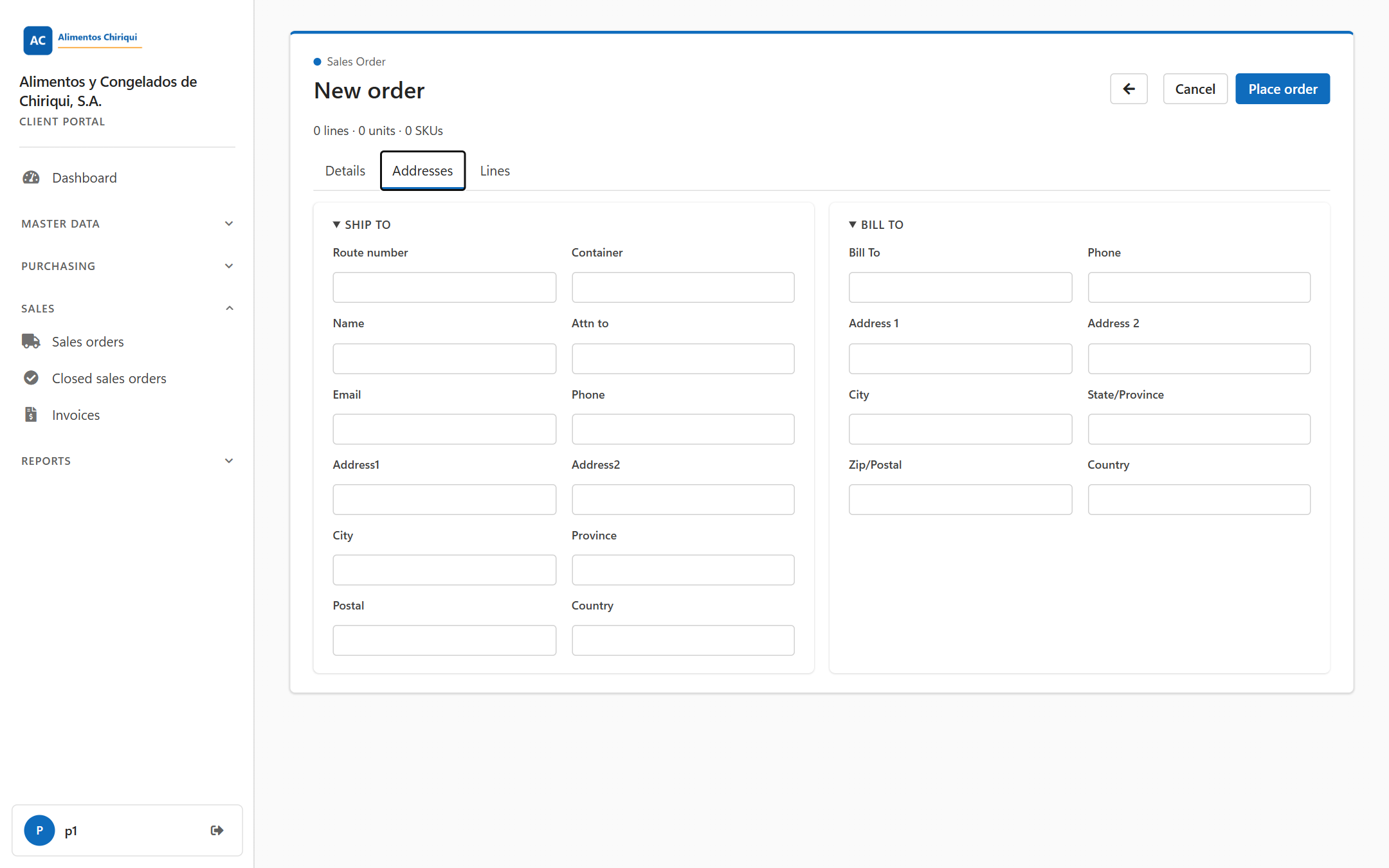
The Addresses tab.
This is where the goods go. All boxes are optional.
| Box | What to enter |
| Route number | A route number, if your delivery uses one. |
| Container | A container reference, if any. |
| Name | The name of the person or company receiving the goods. |
| Attn to | The person the delivery is for. |
| An email address for the delivery. | |
| Phone | A phone number for the delivery. |
| Address1, Address2 | Street address, first and second line. |
| City, Province, Postal, Country | The rest of the address. |
Optional. Use it only if the invoice for the goods goes to a different party. The portal does not fill it in for you.
| Box | What to enter |
| Bill To | The name of who pays. |
| Phone | Their phone number. |
| Address 1, Address 2 | Their street address. |
| City, State/Province, Zip/Postal, Country | The rest of their address. |
You can place an order without a customer and without an address, but the warehouse needs to know where to ship it, so fill in the ship-to address or tell the warehouse another way.
The lines are the Products and quantities you want. A new order starts with one empty line.
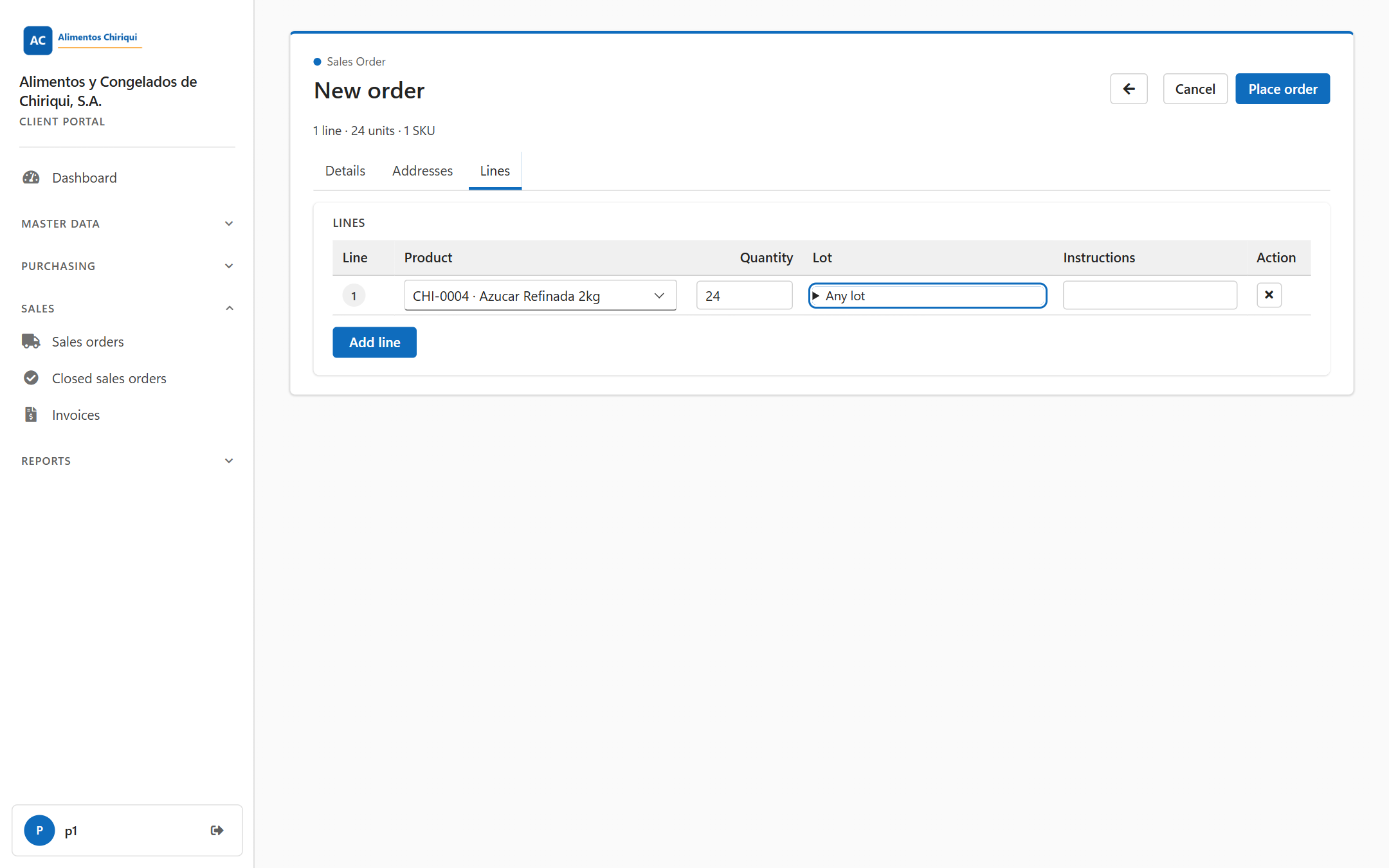
The Lines tab with one line filled in.
| Column | What to enter |
| Line | The line number. It is filled in for you. |
| Product | Click the box. A search panel opens with the box Search by SKU or description. Type part of the SKU or the description. The results show SKU, Description and UoM (unit of measure), with Showing {0} of {1} at the bottom; scroll for more. Click a product to choose it. It then reads "SKU · Description". You can only pick your own Products, and discontinued Products are not offered. |
| Quantity | How many units, always in the product's base unit; the portal has no pack-size choice. Once you pick lots for the line, the quantity is the total of those lots and you no longer type it here. |
| Lot | For a product the warehouse holds in lots: Any lot, or the lots you pick. See "Choosing the lot" below. For any other product it shows a dash. |
| Instructions | An optional note for this line. |
| Action | The x button (Remove) removes the line. |
Some Products are kept in lots, for example by production batch or expiry date. For these Products you never type a lot number: you choose from the lots the warehouse really holds for your company in the order's warehouse. You do not have to choose at all.
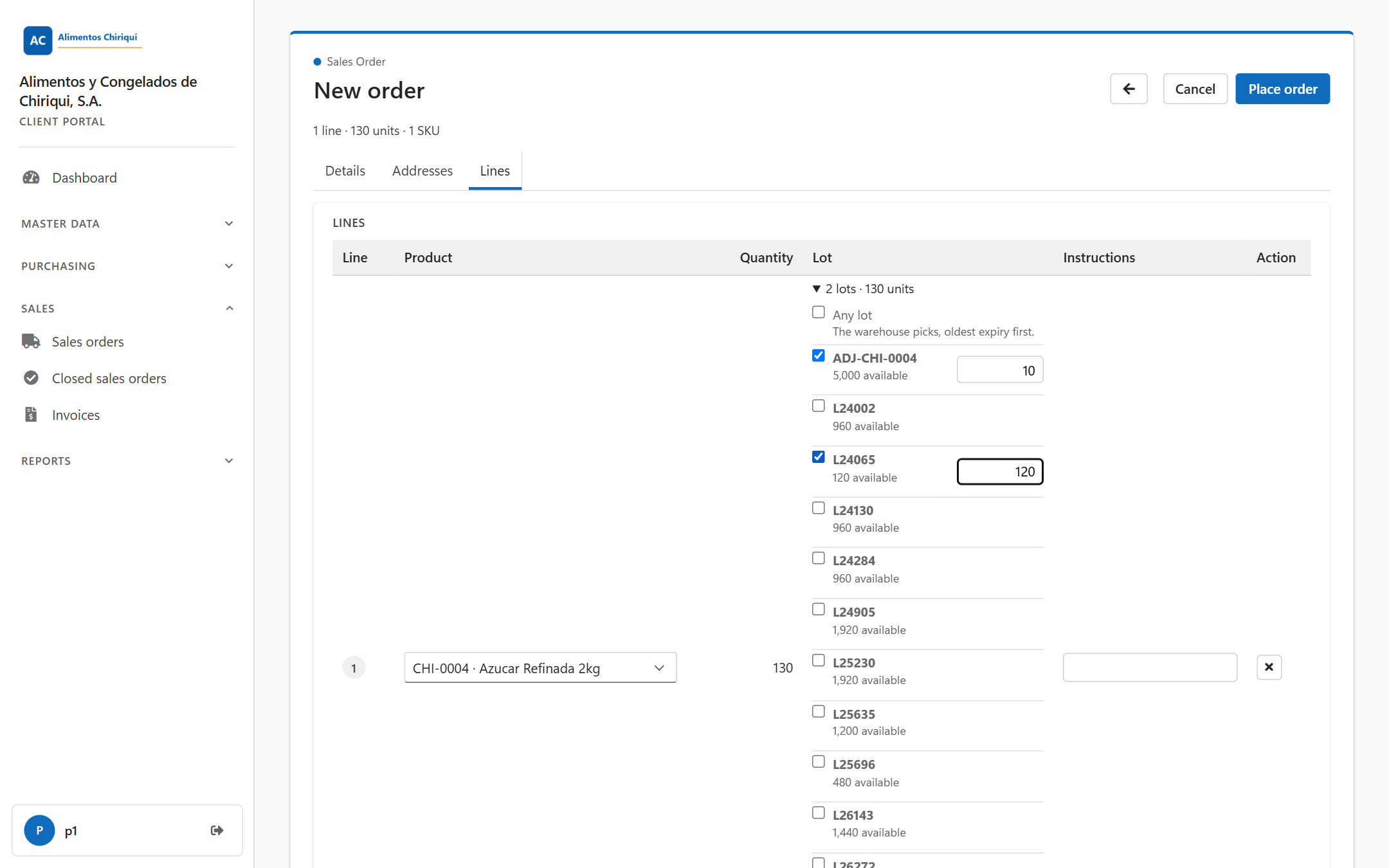
The lot picker with two lots chosen. The second lot was asked for more than it holds, so the box shows its 120 available units.
Good to know:
While the order is saving, the header shows that it is working. If everything is correct, the message Order placed. appears and the new order's page opens.
To leave without placing the order, click Cancel. It takes you back to the orders list without asking you to confirm, and nothing you typed is kept. The back arrow next to the title (Back to orders) does the same.
If an order is urgent, tell your warehouse so they can release it promptly.
| Message | What it means | What to do |
| Select a warehouse. | You did not choose a warehouse. | Choose one on the Details tab and place the order again. |
| Add at least one line with a product and quantity. | No line has both a product and a quantity above 0. | On the Lines tab, choose a product and type a quantity, or pick a lot. |
| Could not save the order: {0} | The portal could not save the order. After the colon you see the reason. Everything you typed stays on the screen. | Read the reason, correct it and place the order again. |
| Order placed. | The order was saved. | Nothing; the order's page opens. |
Reasons you may see after Could not save the order:
Was this page helpful?