 P4 Software
/
logisticaHQ Client Portal
P4 Software
/
logisticaHQ Client Portal
P4 Software
/
logisticaHQ Client Portal
P4 Software
/
logisticaHQ Client Portal
Each client reaches the portal at its own address. You switch the portal on for a client and set that address on the client's card. Only administrators can do this.
You need an administrator account. The Portal tab is visible to anyone who opens the client, but only an administrator can save it. If you are not an administrator, the save is refused with a message that you are not allowed.
The client card has three tabs: Setup, Notification and Portal. Open the Portal tab. Its section is titled Client self-service portal.
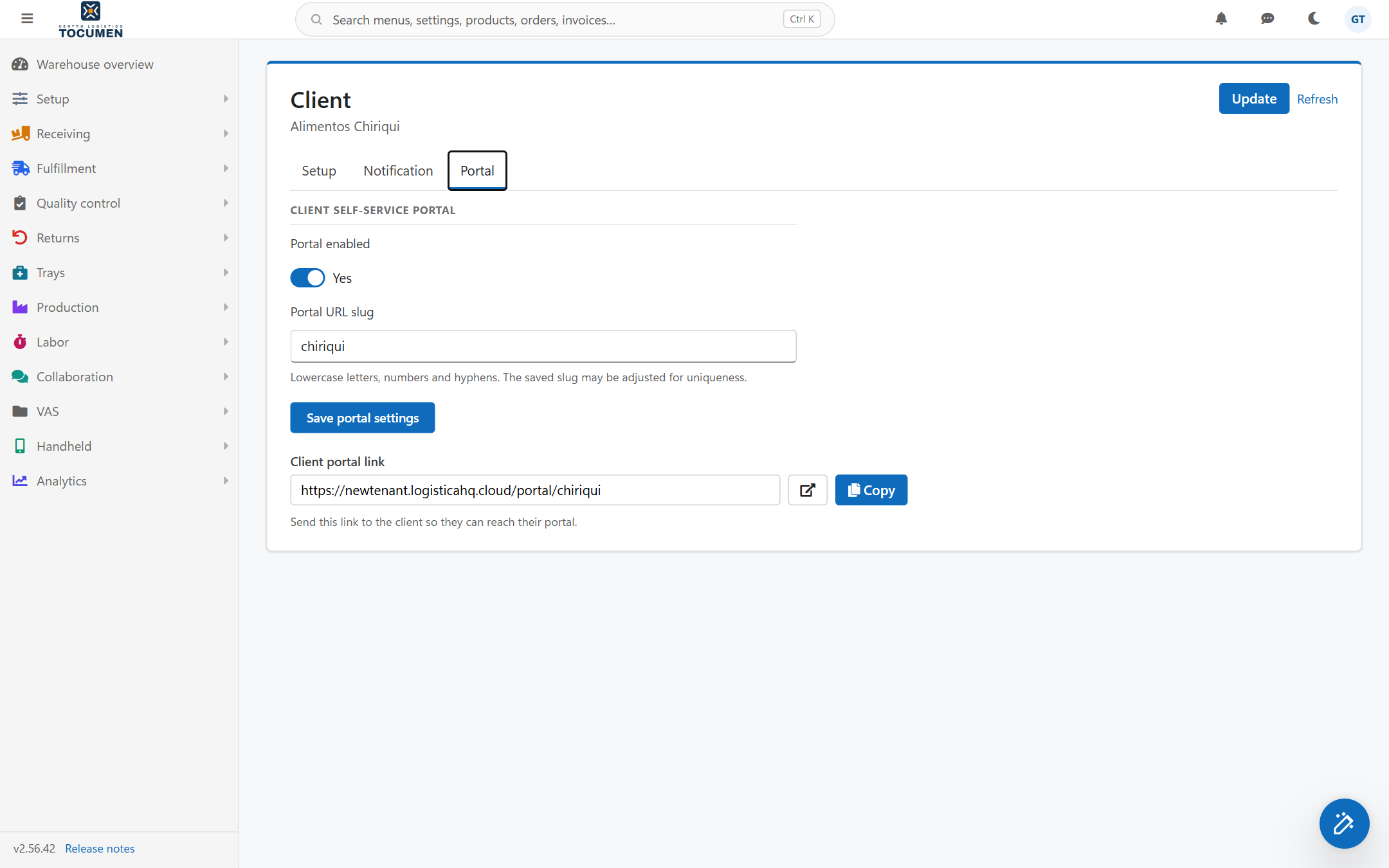
Client card, Portal tab, with Portal enabled switched on and an address saved, so the Client portal link is visible.
| Field or button | What it does |
| Portal enabled | A Yes/No switch. Set it to Yes to let this client's users sign in. While it is No, none of the client's users can sign in. |
| Portal URL slug | The last part of the client's portal address. If you leave it empty on a client that has no address yet, the client's Name is used; a client that already has an address keeps it. The hint under the box reads "Lowercase letters, numbers and hyphens. The saved slug may be adjusted for uniqueness." |
| Save portal settings | Saves the switch and the address together. One save covers both. The Update button at the top of the card saves them as well whenever you changed either one since the last save, so pressing Update does not lose them. |
| Client portal link | Appears only while the portal is switched on and saved and the client has a saved address. It shows the full address in a read-only box. While the portal is switched off, or switched on but not yet saved, the tab shows "The portal is switched off for this client, so there is no link to share yet. Switch on Portal enabled and save to get the link." instead. |
| Open portal | The icon button next to the link (this is its tooltip). Opens the client's portal in a new browser tab. |
| Copy | Copies the address (tooltip Copy link). A small message "Portal link copied to clipboard" confirms it. |
The portal address has this form:
https://<your logisticaHQ address>/portal/<slug>
The sign-in page is at the same address followed by /login. If a client opens the address without /login, the portal sends them to the sign-in page.
The Client portal link box shows the whole address, so you never have to build it by hand. The hint next to it reads "Send this link to the client so they can reach their portal."
Panamá becomes panama and Niño becomes nino. If the saved address differs from what you typed only because of this, a message says "The portal address was saved as panama: addresses use lowercase letters, numbers and hyphens only." (with your own address in it).client.-2 (or -3, and so on) and shows the message "The portal address acme is already used by another client, so it was saved as acme-2. Type another address to change it." (with your own addresses in it).Open Setup > 3PL > Clients, open the client, go to the Portal tab and use Copy under Client portal link. The link is shown only while the portal is switched on.
Was this page helpful?