logisticaHQ Client Portal
Creating portal users
A portal user is a person at your client's company who signs in to the Client Portal. This page shows how to create one, give them a password and switch them off when needed. Only administrators can do this.
Important: Always create client staff as the portal user type, never as a regular user tied to a client. A regular user would count against your licensed users and is not restricted to the portal's view of the data. It could also be shown draft
Invoices.
Before you start
- Turn on the portal for the client first. See Turning on the portal for a client.
- Collect each person's name and e-mail address. The e-mail address is needed if you later send a password reset e-mail.
Create the user
- Open Setup > System > Users. The list is titled Users.
- Click New at the top of the list. The New user dialog opens.
- Fill in Username (required), First name and Last name. The user name cannot be changed after the user is created.
- Open the Role list and choose Portal user. The list starts on User; the other choice is Administrator. Always choose Portal user for a person at your client's company.
- A Client box appears. It is required for this role and is not shown for the other two. Click it, type to search your clients and pick the client the user belongs to.
- Click Submit. The user is created in this one step: already a portal user, already tied to that client and already holding the starting portal access described below. The dialog does not offer the access switches; you change those later on the Access tab.
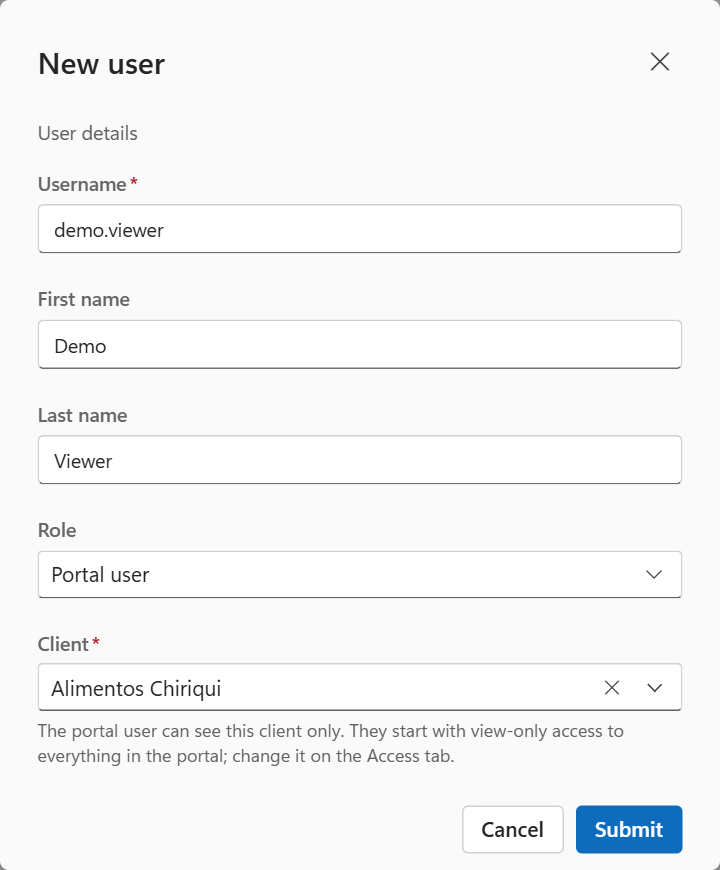
The New user dialog: choose Portal user as the role and pick the client.
If the user name is already taken you see a message that the user name already exists. Choose another one.
Check the result
Open the new user from the list. Then check:
- On the Account tab, in the Sign-in section, the Permissions picker shows PortalUser.
- On the Access tab, in the Client and shipping section, the Client picker shows the right client. The hint there reads "Tie the user to one client to give them client portal access." The choice None: sees every client is for office users. Never leave a portal user on it.
- The Portal access card appears on the Access tab as soon as the user has a client. See Portal access switches.
A new portal user starts with all nine View only switches on and all five Administer switches off. The user can sign in and look at everything those switches open, but cannot create or change anything. Open the Access tab to widen or narrow this.
Give the user a password
A new user gets a random password that nobody knows. You must give them a usable one. What you see on the Account tab, Sign-in section, depends on your account's password settings.
If you see a Password box
- Type a new password in Password.
- Click Apply. The message "Password changed" appears.
- Send the password to the user. The portal does not show it again.
If your account has a password policy, the password must meet it (for example a minimum length, or a mix of letters and numbers).
If you see a "Send password reset email" link instead
- Make sure the user has an e-mail address in the Email box on the same section. Without one, the reset is refused with the message that the user is not set up with an e-mail.
- Click Send password reset email.
- Confirm in the Reset password dialog, which reads "This will reset user's password. Are you sure?" The message "Password reset" appears.
The user receives a new random password by e-mail. For a portal user, the button in the e-mail reads Sign in to your client portal and opens that client's own portal sign-in page. Before anything is changed, the portal checks that the user has a client and that the client's portal is switched on and has an address. If not, you see a plain message that says what to fix, and the user's current password keeps working. Switch the portal on and save its address on the client's Portal tab, then send the reset again. Still send the portal address separately, so the user knows where to sign in.
Tip: Send the portal address and the password in two separate messages. The portal has no way for users to reset their own password, so keep a record of who you set one for.
Choose the user's language
On the Account tab, in the Where they start section, choose the Language. The first entry, <Inherit>, means the user gets your company's default language. The user's language is used inside the portal after sign-in. See Branding the portal.
Switch a user off and on
| Where | What to click | Result |
| The user's card, top buttons | Deactivate | A dialog titled Deactivate user asks "This user will no longer be able to sign in. Deactivate them?" Click Deactivate to confirm or Cancel. The user is then marked Inactive. |
| The user's card, top buttons | Activate | Switches the user back on at once, with no confirmation. The user is marked Active. |
| The Users list | Tick one or more rows, open the actions menu and choose Activate or Deactivate | Changes all ticked users. |
An inactive user cannot sign in. The client sees only the general message "Invalid username or password, or the portal isn't enabled for your account." Ten wrong passwords within 15 minutes also make the account inactive. Press Activate and set a new password.
Portal users and your licence
- Portal users do not use a licensed user. Only your office and handheld users count.
- There is no limit on how many portal users you can create.
- Your account can have a limit called Allowed portal users. P4 Software support sets it for your account, and it is not on your own screens. It limits how many different portal users can be signed in at the same time. The value 0 means no limit.
- When the limit is reached, one more portal user cannot sign in until someone signs out. A user who is already signed in can open another tab or sign in again. Nobody is signed out to make room. The client sees only the general sign-in message, so tell them to try again in a few minutes. Ask P4 Software support to raise the limit if it happens often.
- A portal user can be signed in on several devices at once.
Messages you may see
| Message | What it means | What to do |
| "Username [x] already exists" | Another user already has that user name. | Choose a different user name. |
| "User is not setup with an email" | You asked for a password reset e-mail, but the user has no e-mail address. | Enter an e-mail address, or set the password with the Password box instead. |
Next steps
 P4 Software
/
logisticaHQ Client Portal
P4 Software
/
logisticaHQ Client Portal