 P4 Software
/
logisticaHQ Client Portal
P4 Software
/
logisticaHQ Client Portal
P4 Software
/
logisticaHQ Client Portal
P4 Software
/
logisticaHQ Client Portal
Your logo appears on the portal sign-in page, so clients know they are in your portal. This page shows where to upload your logo, where the client's own logo goes and how the portal picks its language. Only administrators can change these settings.
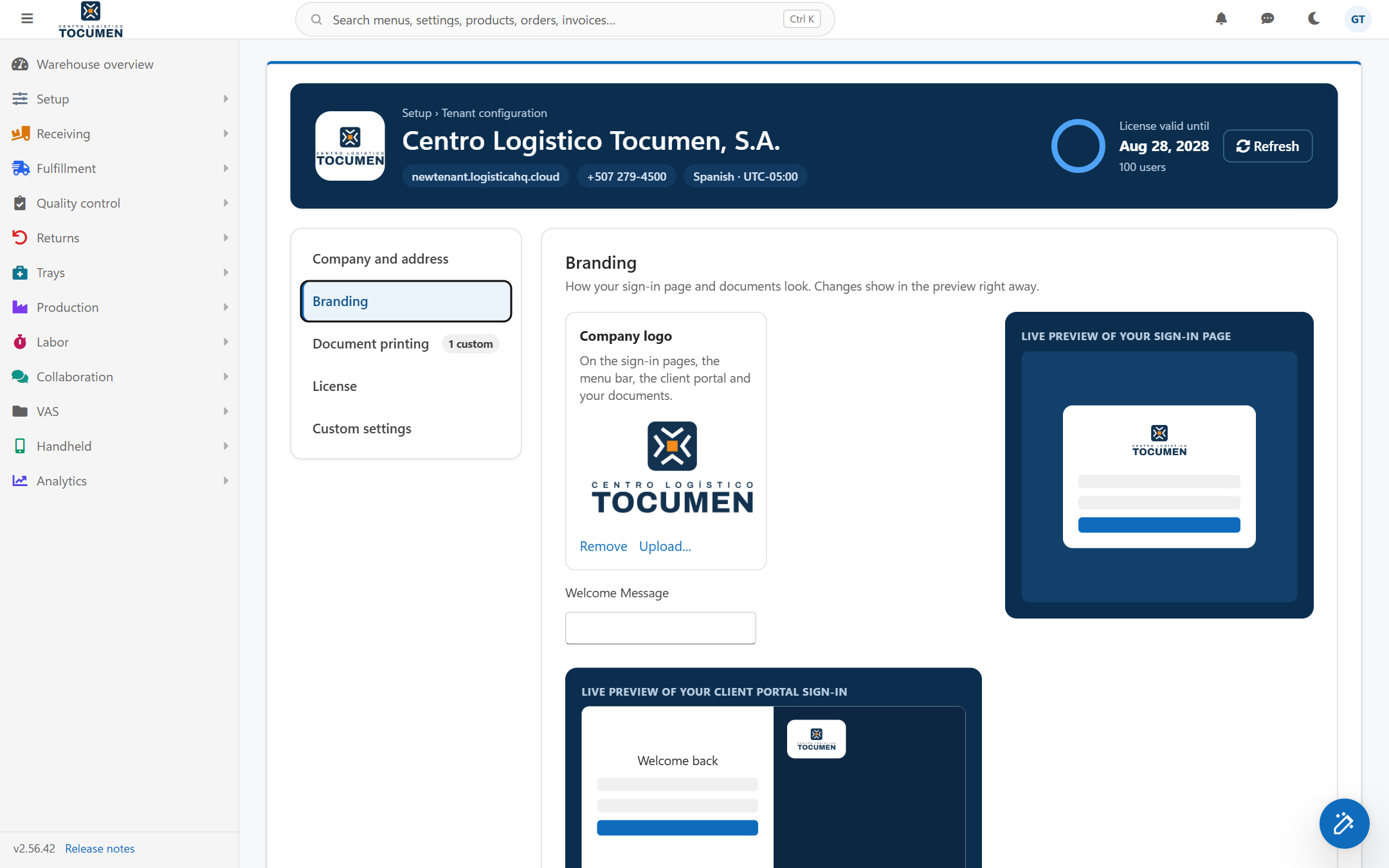
The Branding section of the company settings, with the company logo uploaded and both live previews showing it.
To remove the logo, click Remove on the same tile.
| Place | How it shows |
| The portal sign-in page | On the dark blue panel, once, on a light plate so that a dark logo stays readable. Without an uploaded logo, the page shows the logisticaHQ logo instead. |
| The office sign-in page | Above the sign-in box. |
| The menu bar of the office app | In the top bar. |
| Documents | Pack slips, Invoices, receiving slips and other documents print your logo, unless a client or a customer logo takes its place. |
The two live previews on the Branding card show your sign-in pages as they will look: Live preview of your sign-in page (the office sign-in) and Live preview of your client portal sign-in.
Below the logo is the row Welcome Message. It is the greeting on the office sign-in page only. It does not appear on the portal sign-in page. This row waits for the save bar: click Update to keep it or Discard to drop it.
Inside the portal, after sign-in, the top of the menu shows your client's logo and company name, not yours. If a client has no logo, a small warehouse icon appears instead.
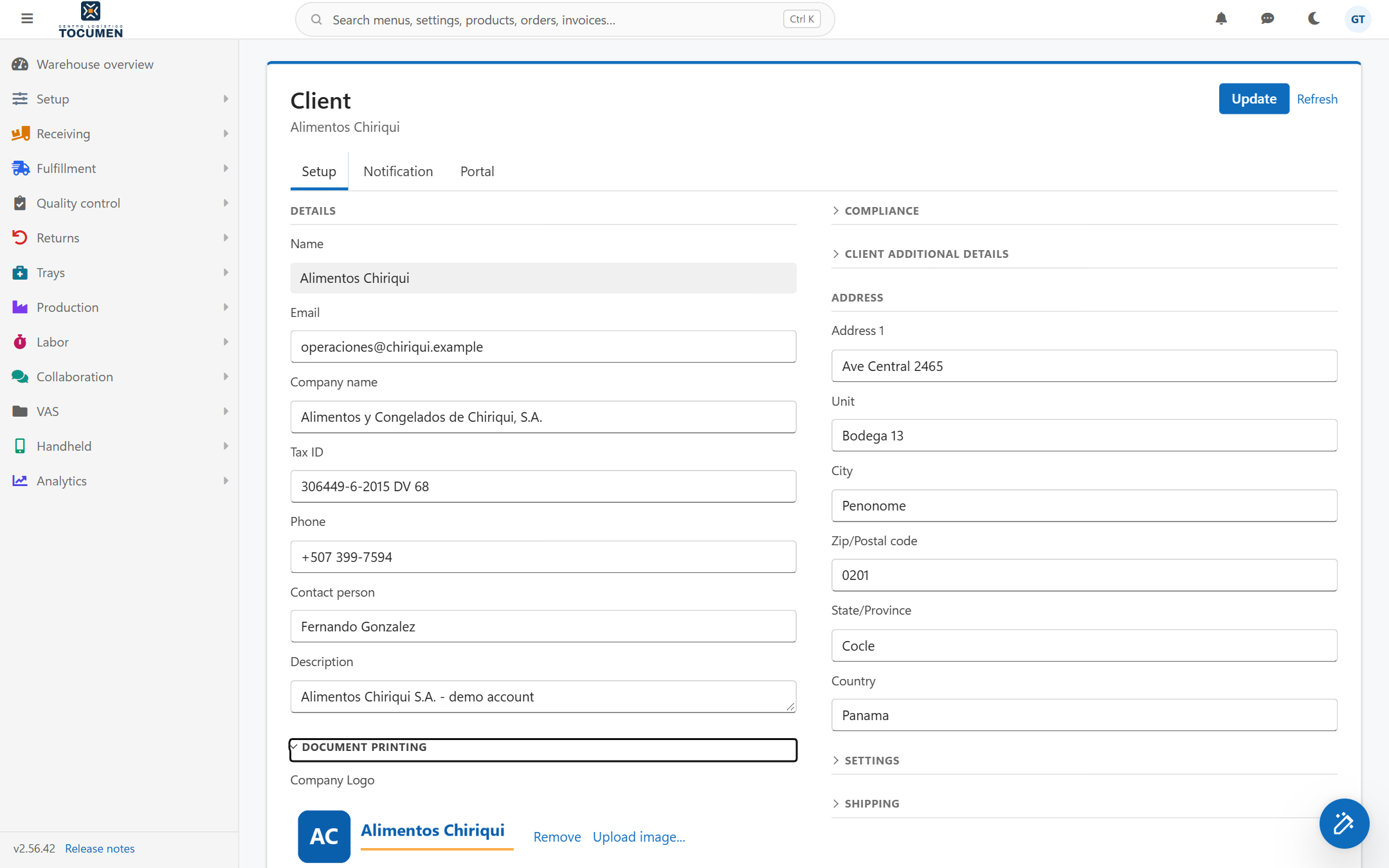
The Document printing block of a client card, with an image uploaded as the Company Logo.
This logo is also printed on that client's documents. The name shown beside it is the client's Company name (or its Name if the company name is empty).
The portal speaks English and Spanish. Which language people see depends on where they are.
| Where | Which language |
| The portal sign-in page | First the language the visitor picked with the language button on the page (the portal remembers it in that browser). If nobody has picked one, your company's default language. If your company has none set, English. The button always offers English and Español, and also your company's language when it is a third one. |
| Inside the portal, after sign-in | The language set on the user (Language in the Where they start section of the user's Account tab). If the user's language is <Inherit>, your company's default language. The portal has no language button after sign-in, so you change the language on the user. |
| The office sign-in page | Your company's default language. There is no language button. |
To set your company's default language, open Setup > System > Tenant, section Company and address, and choose the Language. The hint reads "The default for new users. Each user can choose their own." Click Update in the save bar to keep it. The default also applies to every user whose language is <Inherit>, and to the sign-in pages.
Was this page helpful?