 P4 Software
/
logisticaHQ Client Portal
P4 Software
/
logisticaHQ Client Portal
P4 Software
/
logisticaHQ Client Portal
P4 Software
/
logisticaHQ Client Portal
Almost every page in the Client Portal that shows rows of information is a list: orders, Purchase orders, Invoices, Inventory, the three reports, Products, Customers and Vendors. All of them have the same tools above the rows. This page explains each tool once. It is for everyone who uses the portal.
Above the rows you find a toolbar. From left to right it holds the search box and the buttons Filters, Columns and Export. A button Clear filters (n) appears only while a filter or a search is active. At the right end there may be AI Assist; it appears when your warehouse has it turned on.
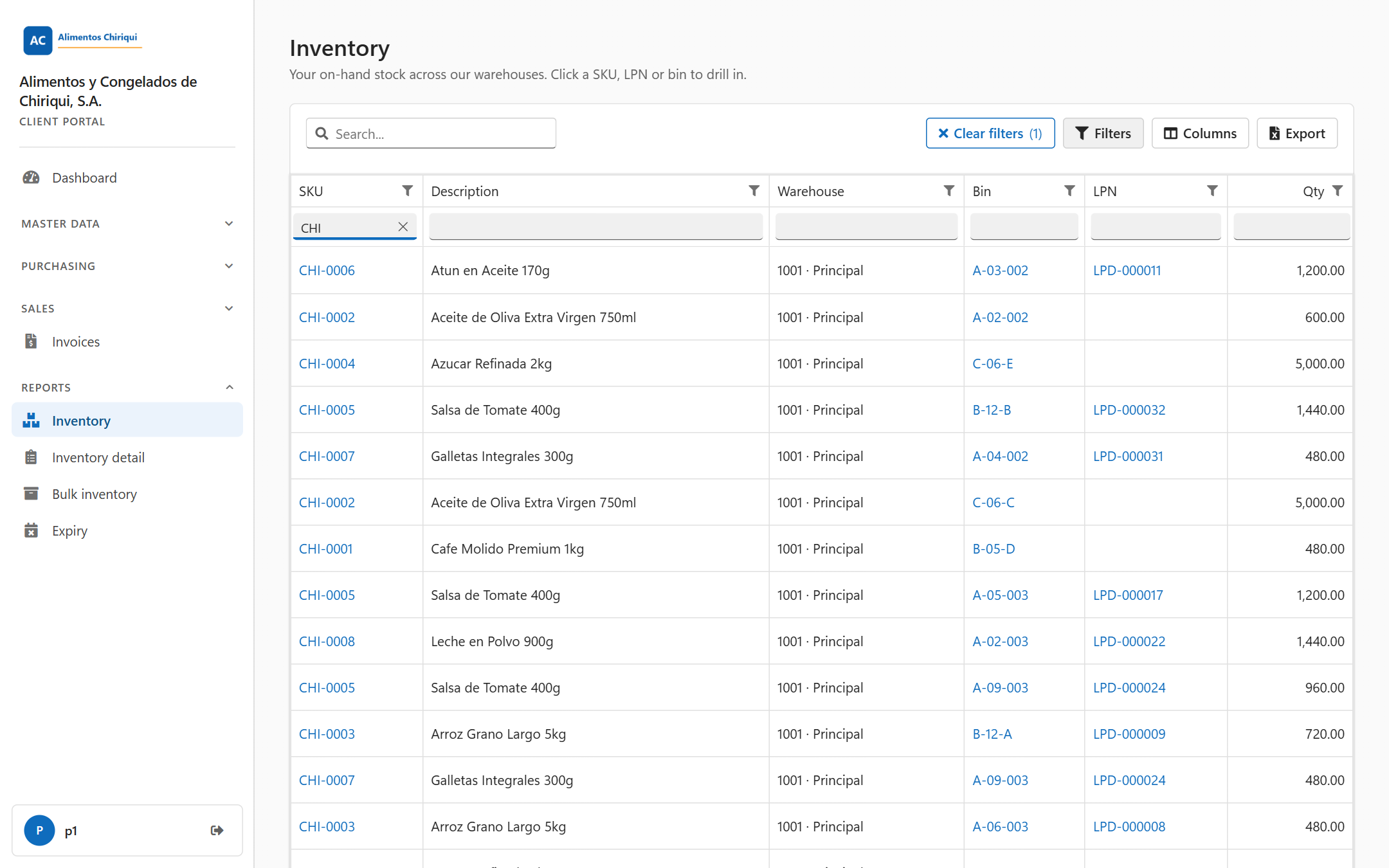
The toolbar with the filter row open and one filter in use.
| Tool | What it does |
| Search box, Search... | Finds rows that contain the text you type. It starts a moment after you stop typing. Capital and small letters do not matter, and spaces at the start and end are ignored. It looks in the columns of the list. |
| Clear filters (n) | Removes every column filter and the search text in one click. The number n counts the columns that are filtered, plus one if the search box has text. Your sort order and your columns stay as they are. The button is hidden when nothing is filtered. |
| Filters | Shows or hides a row of filter boxes under the column headers. It is hidden until you click this button. |
| Columns | Opens a window to show or hide columns. |
| Export | Downloads the list as an Excel file. |
| AI Assist | Appears at the right end of the toolbar only when your warehouse has it turned on. |
Filters narrow a list by column. You can use them together with the search box.
Most columns show a small funnel icon in the column header (its name is Filter values). Click it to see the values that column contains, each with a tick box. Tick the values you want to keep. The value (Blanks) stands for rows where the column is empty. The list loads 50 values at a time.
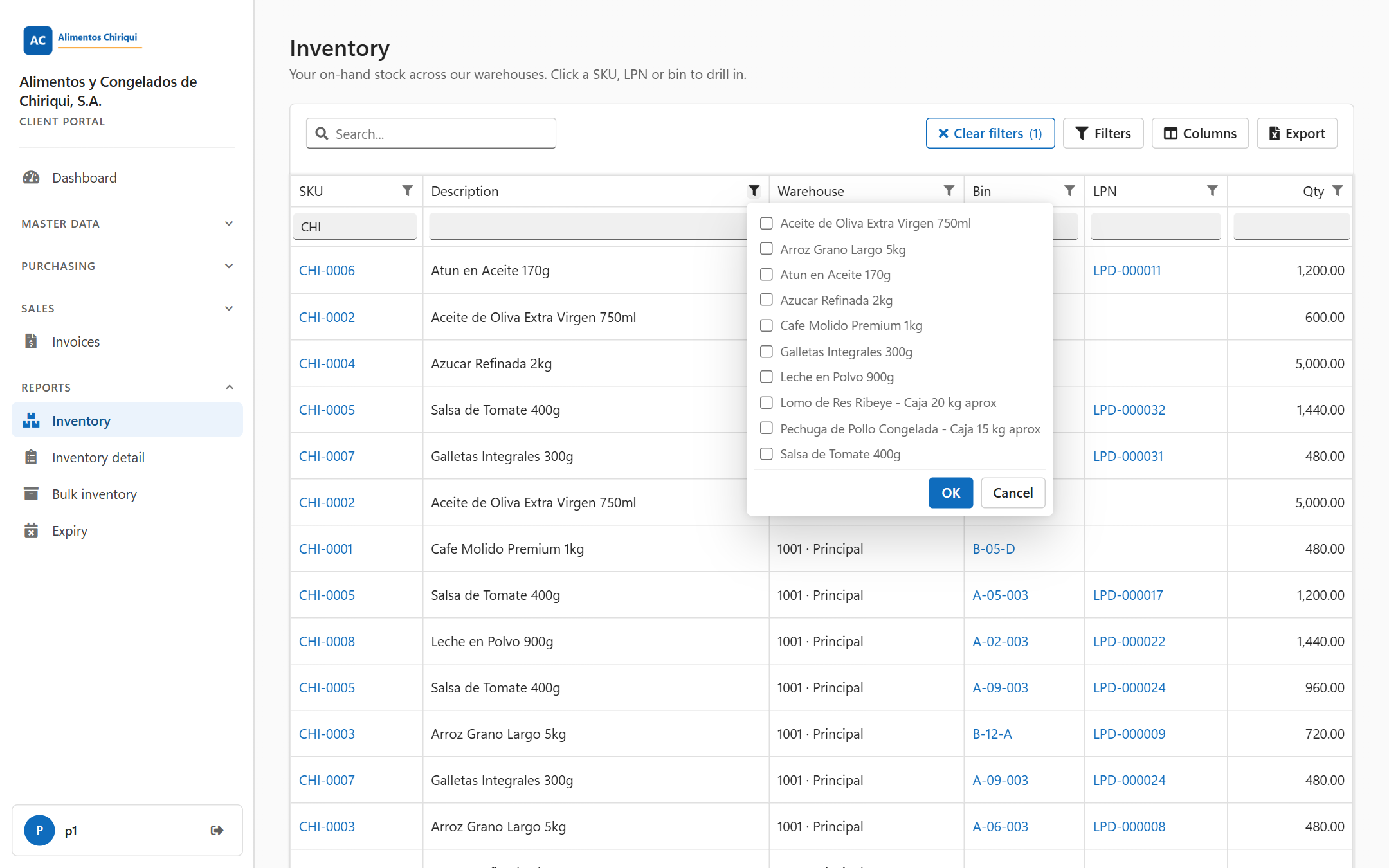
The value list from a column header.
Click Clear filters (n). It clears all filters and the search text together. You cannot clear them one by one with this button; to clear a single filter, empty its box or untick its values.
The five lists Sales orders, Closed Sales orders, Purchase orders, Closed Purchase orders and Invoices open with the newest rows first. A sort that you choose by clicking a column heading replaces this order.
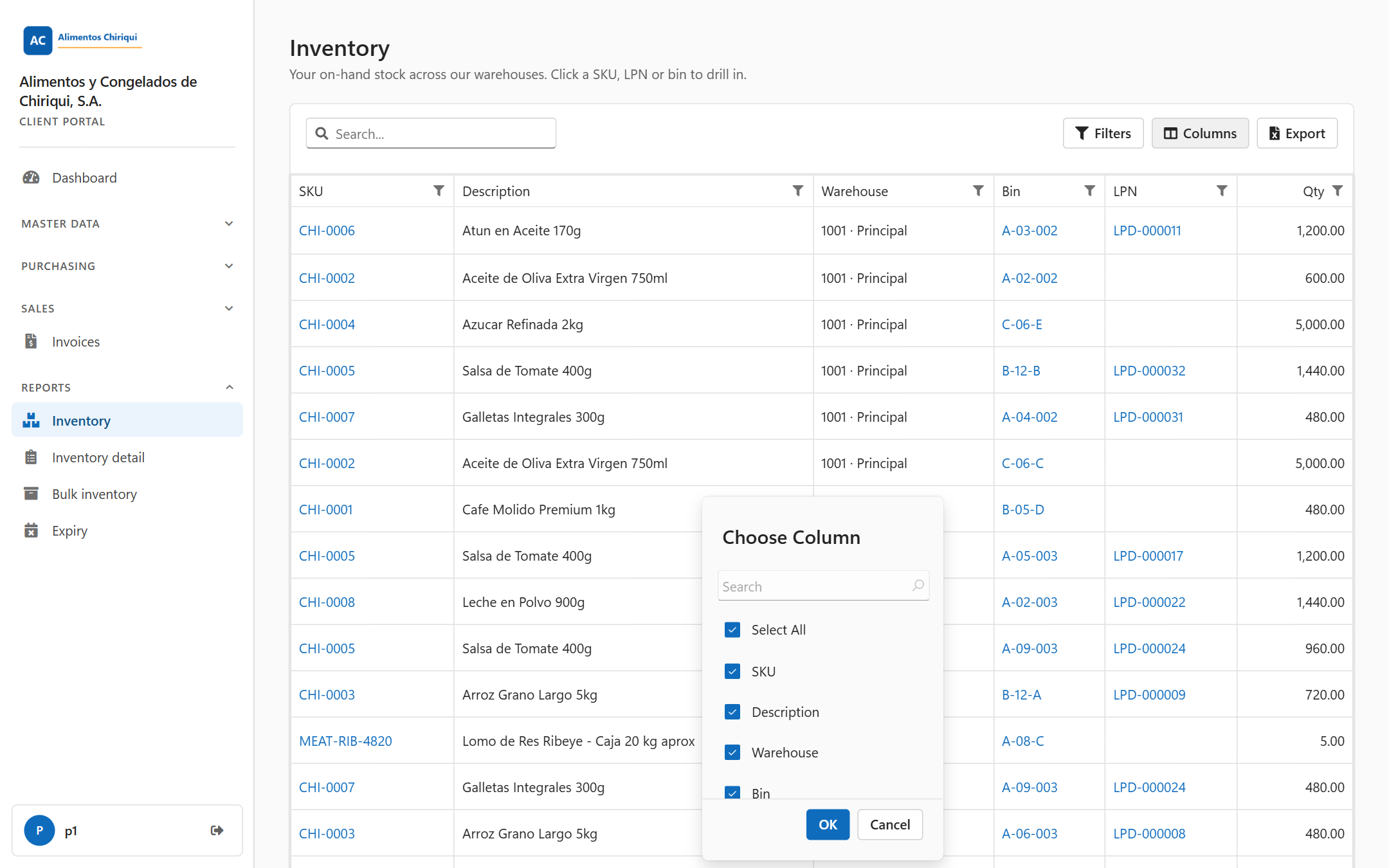
The window opened by Columns.
The portal remembers your column choices for each list and for each user: which columns are shown, their order and width, and your sort order. They are saved with your user, so they are there the next time you open the list, also on another computer or browser. Filters and search text are not saved.
There is no button that restores the original layout. To go back, tick the columns you hid, and drag the headers back into the order you want.
| List | File name |
| Sales orders | PortalOrders.xlsx |
| Closed Sales orders | PortalOrdersClosed.xlsx |
| Purchase orders | PortalInbound.xlsx |
| Closed Purchase orders | PortalInboundClosed.xlsx |
| Invoices | PortalInvoices.xlsx |
| Inventory | PortalInventory.xlsx |
| Inventory detail | PortalReportInventoryDetail.xlsx |
| Bulk Inventory | PortalReportInventoryBulk.xlsx |
| Expiry | PortalReportExpiry.xlsx |
| Products | PortalProducts.xlsx |
| Customers | PortalCustomers.xlsx |
| Vendors | PortalVendors.xlsx |
The Excel file contains the stored values of each column. Some columns that show a combined text on screen, such as a warehouse written as a code and a name, or a status, may show only the stored value in the file.
The Products, Customers and Vendors lists have a second button, Export to Excel. It downloads your whole list as a workbook that you can edit and import again. See Importing and exporting with Excel.
On the order, purchase order, invoice, product, customer and vendor lists, a single click on a row opens it. Pressing Enter on the highlighted row does the same. The line under each list title says so, for example "Track your outbound orders and their shipment status. Click a row for details." You do not need to double-click.
Many lists have a Refresh button in the page header. It reloads the list so you see the latest rows. If a list or a record seems wrong or empty when it should not be, click Refresh or reload the page in your browser.
Was this page helpful?