
P4 Software P4 Software / logisticaHQ Client Portal

Add these docs to Claude

Ask Claude questions about these docs. Claude reads the published pages and links you back to them. Copy this address:

https://docs.p4software.cloud/mcp

In claude.ai or Claude Desktop: open Settings, then Connectors, choose Add custom connector and paste the address.

In Claude Code, run:

claude mcp add --transport http docs https://docs.p4software.cloud/mcp

🏭 For warehouse staff

logisticaHQ Client Portal
For warehouse staff

The Client Portal is a private web page that you give to each of your clients. After they sign in, they see only their own stock, orders, Purchase orders, Invoices and reports. If you allow it, they can also place orders, send you Purchase orders and keep their own Products, Customers and Vendors up to date. This section is for the administrators of your logisticaHQ account who switch the portal on and support the people who use it.

What your clients get

Area in the portalWhat your client can do thereAccess switch it needs
DashboardSee key figures, charts and recent activity for their own company.View Dashboard (each panel also needs its own switch)
Sales orders and Closed Sales ordersFollow outbound orders and their status. Place or change orders if allowed.View orders & shipments, Place outbound orders
Purchase orders and Closed Purchase ordersFollow inbound Purchase orders. Create or change them if allowed.View Purchase orders, Create Purchase orders
InvoicesRead and download posted Invoices.View Invoices
ReportsSee stock, stock detail by lot, serial and expiry, stock on pallets and cartons, and expiry dates.View Inventory, View reports
Master dataSee, and if allowed edit or import, their Products, Customers and Vendors.View Products, View Customers, View Vendors and the three Manage switches

Every client user sees only the data of their own client. The access switches are set for each user, not for the whole client. See Portal access switches for what each switch opens.
Set up a client in this order

  1. Create the client if it does not exist yet: Setup > 3PL > Clients, then New. Choose the client name with care. You cannot change it afterwards, and the portal address is based on it.
  2. Turn on the portal for the client and check its address. See Turning on the portal for a client.
  3. Create the portal users for that client. See Creating portal users.
  4. Set each user's access switches. See Portal access switches.
  5. Upload your logo, and the client's own logo if you want one in the portal menu. See Branding the portal.
  6. Post the client's Invoices so that they can see them. See Making invoices visible to clients.
  7. Send the client the portal address, and send each user their user name and password. Send the address and the password in two separate messages.

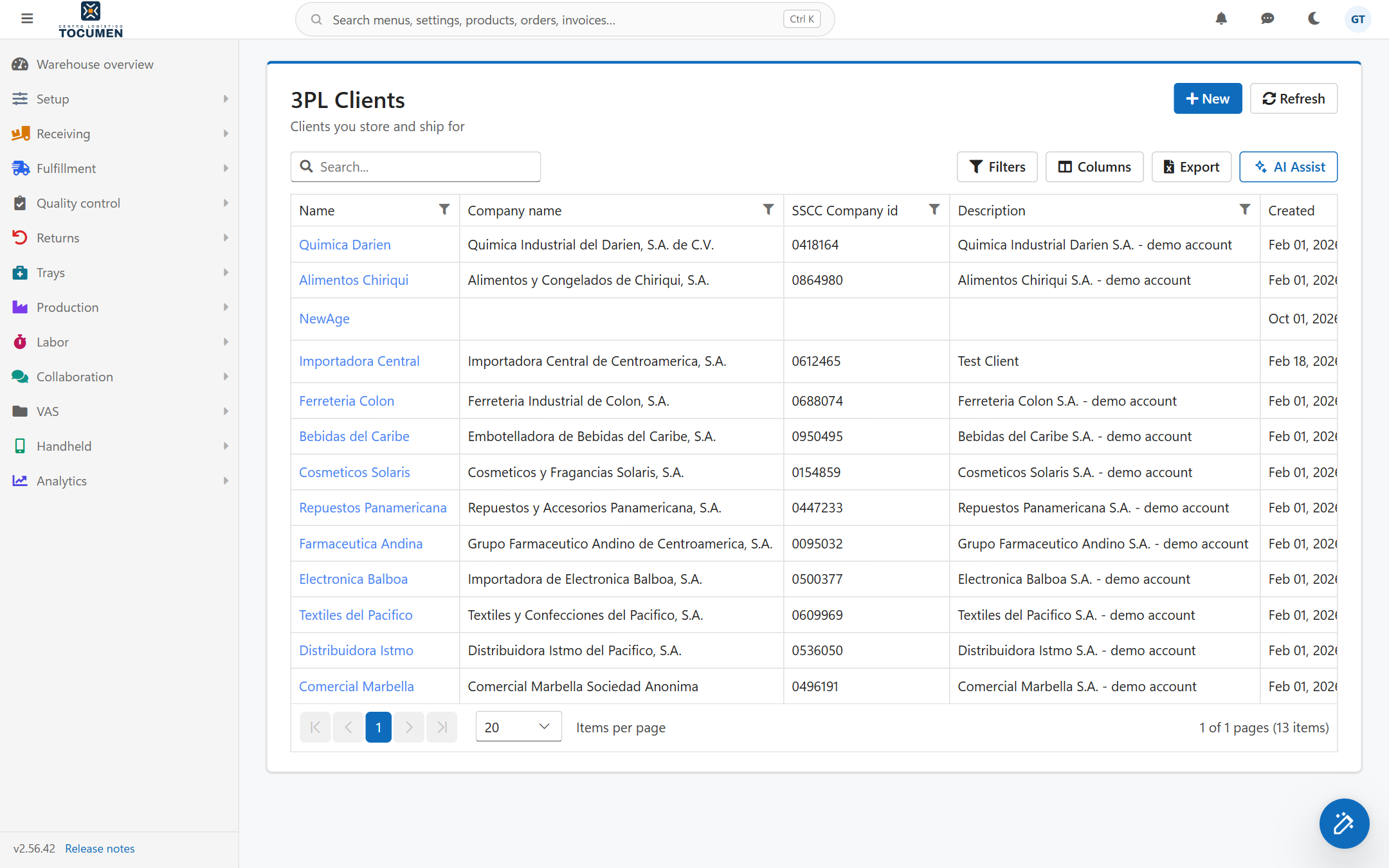
The 3PL Clients list in the office app

The list of clients under Setup, 3PL, Clients. Open a client to reach its Portal tab.

Before you start

  • You need an administrator account in your logisticaHQ office app. Setting up the portal, creating users and setting access switches are administrator tasks.
  • The 3PL menu appears only if your account's module includes it. If you cannot see Setup > 3PL > Clients, ask the person who manages your logisticaHQ account.
  • Have the client's contact names and e-mail addresses ready. Each person who will sign in needs their own user.

Good to know

  • Each client has its own portal address. A user can only sign in to the portal of the client they belong to.
  • Portal users do not use up one of your licensed users. Your own office users do.
  • There is no self-service password reset in the portal. When a client user forgets a password, you set a new one. See Supporting portal users.
  • Clients see the same screens in the language of their own user. You choose it for each user. See Branding the portal.

Related pages

Was this page helpful?