 P4 Software
/
logisticaHQ Client Portal
P4 Software
/
logisticaHQ Client Portal
P4 Software
/
logisticaHQ Client Portal
P4 Software
/
logisticaHQ Client Portal
The Dashboard is the first page you see after you sign in. It gives you a quick picture of your stock, your orders, your Purchase orders and your expiry dates, with buttons for the things you do most often. This page explains every button, tile, chart and list on it, and exactly how each number is worked out. To move or resize the panels, see Arranging the dashboard.
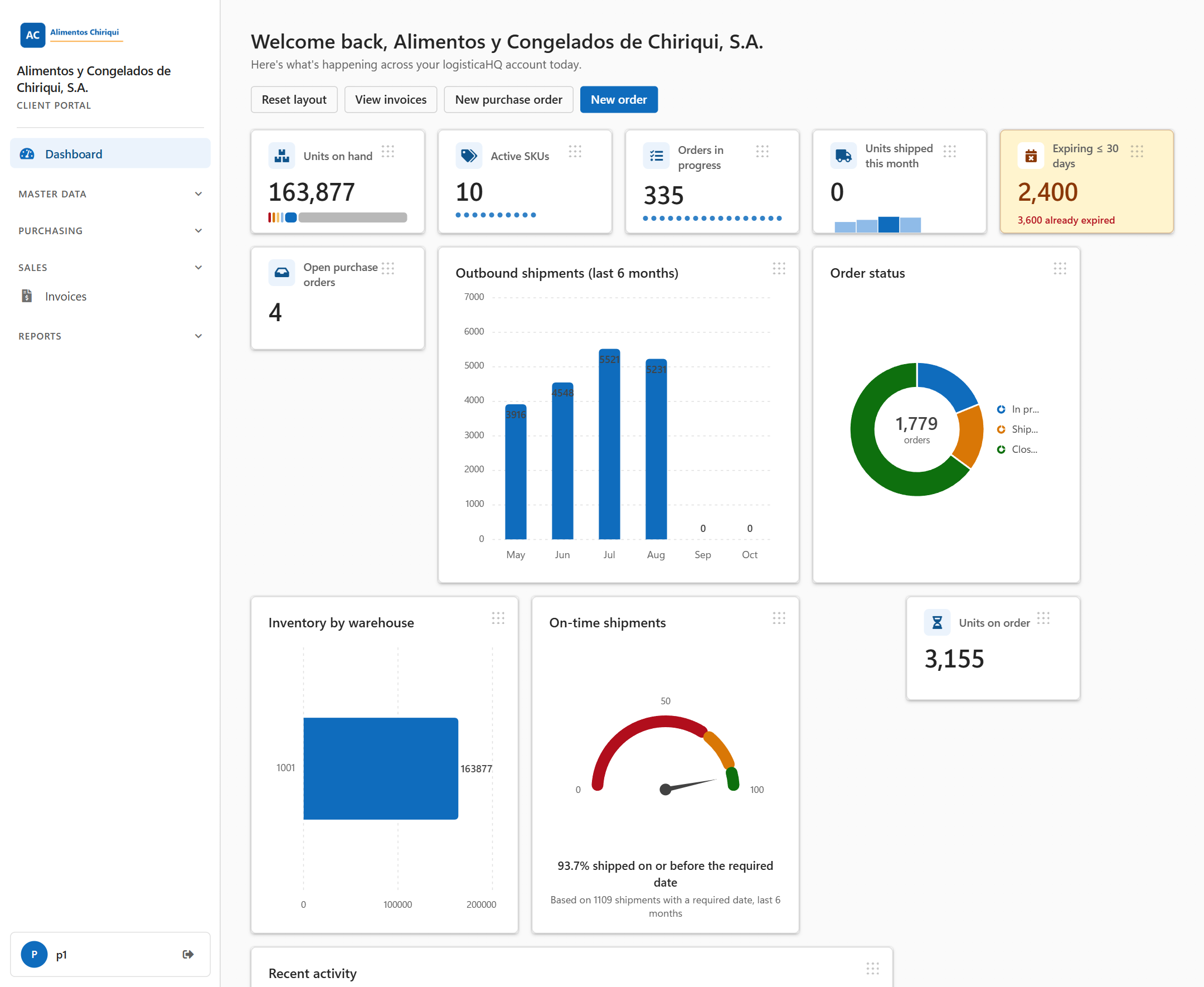
The Dashboard for a user who has every access switch turned on.
The dashboard is controlled by the View dashboard switch, which your warehouse turns on for your user. Each panel on the dashboard also needs its own access switch (see the table "What each access switch adds to your dashboard" further down this page).
A panel that you are not allowed to see is simply not drawn, and the other panels move up to fill the space, so you never see a gap or a locked panel. Your warehouse manages the switches: see View only and Administer access.
At the top you see a greeting, a short line under it, and the quick-action buttons.
| Item | What it shows or does |
| Welcome back, your company name | The greeting uses your company name. If no company name is stored for your account, it uses the account name instead. If neither is stored, only Welcome back is shown, with no comma. |
| The line under the greeting | A short sentence saying that this is what is happening across your account today. |
The buttons are lined up from left to right in the order below. The last one, New order, is the blue button. On a narrow window the buttons wrap onto a second line.
| Button | Who sees it | Where it goes |
| Reset layout | Everyone who sees at least one tile on the dashboard. It needs no access switch of its own. | It stays on the dashboard and puts the panels back in their original places. See Arranging the dashboard. |
| View Invoices | Users with View Invoices. | The Invoices list. |
| New purchase order | Users with Create Purchase orders. | The form for a new purchase order. See Creating a purchase order. |
| New order | Users with Place outbound orders. | The form for a new sales order. See Placing a new order. |
For example, a user who only has View dashboard and View orders & shipments sees just one button, Reset layout.
1,234, 12.5 and dollar amounts such as $1,234.50. Dates look like Sep 24, 2026. The month names under the charts are always the English three-letter names (Jan, Feb, Mar and so on).These panels need View Inventory. To show your real numbers they also need View reports.
| Panel | What it shows and how it is worked out | Needs |
| Units on hand | The total quantity of every stock line you have in the warehouse, shown as a large number such as 1,234. Under the number is a coloured bar split by expiry window (the same colours as the On-hand by expiry window chart below). The bar has no visible legend and is drawn only when you have View reports and there is at least one expiry-tracked stock line. | View Inventory and View reports |
| Active SKUs | The number of different Products that have at least one stock line. A product with a stock line at quantity 0 still counts. Under the number is one small dot per product, up to 120 dots. | View Inventory and View reports |
| Inventory by warehouse | A bar chart (blue bars lying sideways): the units on hand in each warehouse. The warehouse code is written beside each bar. A stock line with no warehouse is shown as Unassigned. The bars are sorted from largest to smallest and only the 12 largest warehouses are shown. The number of units is printed at the end of each bar. If you have no stock: "No Inventory on hand." | View Inventory and View reports |
These panels need View orders & shipments. Users who have Place outbound orders also see them, because that switch includes viewing orders.
| Panel | What it shows and how it is worked out |
| Orders in progress | The number of your orders that are not yet shipped. It counts every order whose status is not Draft, Shipped or Closed. Under the number is one small dot per order, up to 120 dots. |
| Units shipped this month | The units actually shipped on your shipped orders in the current calendar month: what really left the warehouse, not the quantity ordered, so an order of 100 units of which 60 shipped counts 60. Under the number is a small column chart, one column for each of the last 6 months, showing units shipped in that month. The month with the most units has the darkest blue column and the month with the fewest has the lightest. |
| Outbound shipments (last 6 months) | A blue column chart with one column per month for the last 6 months. The height of a column is the number of units shipped in that month, and the number is printed on top of the column. It counts units, not orders. |
| Order status | A doughnut (a ring-shaped pie chart) showing how many of your orders are in each state: In progress (blue), Draft (grey), Shipped (orange) and Closed (green). A state with no orders is left out. The legend on the right names the slices. In the middle you see the total number of orders with the word orders under it. The chart counts all your orders of any age, not only the last 6 months. In progress means every order that is not Draft, Shipped or Closed. If you have no orders at all in any of the four states: "No open orders right now." |
| On-time shipments | A half-circle gauge from 0 to 100 with a thin needle at your on-time percentage. The arc has three colour bands: red from 0 to 70, orange from 70 to 90 and green from 90 to 100. Under the gauge you see a bold line, "87.5% shipped on or before the required date" (the number is an example), and a small line, "Based on 40 shipments with a required date, last 6 months" (the number is an example; for exactly one shipment it reads "Based on 1 shipment with a required date, last 6 months"). See "How on time is worked out" below. If there is no shipped order with a required date: "Not enough shipment data yet." |
| Recent activity | A short list with at most one invoice line followed by up to five shipment lines. The invoice line reads Last posted invoice # followed by the invoice number, with the posting date below it and the invoice total in US dollars on the right. It shows only when you have View Invoices and at least one posted invoice exists. Each shipment line reads Order # followed by the order number and the word shipped, with the shipped date below it and the units on the right (for example 1,200 units). The five lines are your five most recently shipped orders. If there is nothing to show: "No recent activity to show." |
The Recent activity panel needs View orders & shipments or View Invoices, and it is drawn only when the dashboard also shows at least one tile. A user who has View dashboard and View Invoices but nothing else therefore sees only the View Invoices button and the "nothing to show" message, and does not see the last invoice. Open the Invoices list to see it.
These panels show a summary of your expiry dates. For the full list, lot by lot, see the Expiry report.
| Panel | What it shows and how it is worked out | Needs |
| Expiring ≤ 30 days | The number of units that expire from today up to and including 30 days from today. When some stock has already expired, a red line under the number reads "12 already expired" (the number is an example), counting the units whose expiry date is before today. The red line is not shown when nothing has expired. Under the number is a two-colour bar: red for Expired and amber for Expiring ≤ 30 days. A colour that has no units is left out. The tile is amber only when the number is above 0. At 0 it is shown in the normal colour. | View reports |
| On-hand by expiry window | A column chart of your units on hand grouped by how soon they expire, one column per group, with the number of units printed on top. The groups and their colours are: Expired (dark red), ≤ 30 days (amber), 31–60 days (light amber), 61–90 days (light blue), 90+ days (blue) and No expiry (grey). A group with no units is left out. No expiry is your total units on hand minus the units that have an expiry date, and it is shown only when it is above 0. If no stock has an expiry date: "No expiry-tracked stock on hand." | View reports and View Inventory |
Expiry windows are counted from today's date on your own calendar.
These panels need Create Purchase orders. The View Purchase orders switch alone does not add anything to the dashboard.
An open purchase order is one that has not been received yet or has been only partly received.
| Panel | What it shows and how it is worked out |
| Open Purchase orders | The number of your open Purchase orders. |
| Units on order | The units you ordered on your open Purchase orders minus the units already received on them. It never goes below 0. Because the totals are added up across all lines first, units received beyond the ordered amount on one line can hide a shortfall on another line. |
| Units received this month | The units actually received on Purchase orders that finished receiving in the current calendar month (a purchase order counts in the month its receiving was completed, or the month it was closed). An order of 80 units of which 70 arrived counts 70. |
| Open Purchase orders received | The share of the ordered units on your open Purchase orders that has already been received, as a percentage with one decimal (for example 62.5%). It appears only when your open Purchase orders have at least one ordered unit. |
| Receipts (last 6 months) | A green column chart with one column per month for the last 6 months. The height is the units received on Purchase orders that finished receiving in that month, and the number is printed on top. If there are none: "No receipts in the last 6 months." |
| Open Purchase orders: expected vs received | A progress card for your open Purchase orders. Ordered is the units ordered, then a progress bar shows the share received, then Received is the units received. At the bottom a large number shows the Units still to receive next to the percentage received. The bar is full at 100%, even if the percentage is higher. It appears only when your open Purchase orders have ordered units. Otherwise: "No open Purchase orders right now." |
These panels belong to the stock section, so they need both View Inventory and View reports. They compare your stock with the minimum levels (min/max levels) that are set up for your Products.
| Panel | What it shows and how it is worked out |
| SKUs at or below min | The number of min/max levels with a minimum above 0 where the stock on hand is at or below that minimum. The tile is amber only when the number is above 0. A level is counted for each product and warehouse together, so a product that is short in two warehouses counts twice. Levels that have only a maximum, or a minimum of 0, are ignored. |
| Out-of-stock SKUs | Of those levels, the number where the stock on hand is 0 or less. Amber only when the number is above 0. |
| Inventory turns (annualized) | A number such as 4.2×: the units shipped in the last 6 months, multiplied by 2, divided by your units on hand today, shown with one decimal. It is a rough guide. It appears only when you also have View orders & shipments, and only when both your units on hand and your units shipped are above 0. |
| Storage locations in use | The number of different storage locations (bins) that hold one of your stock lines. |
| Short stock | A table of the Products that are short. Its columns are SKU (with the product description in smaller type under it), Warehouse, On hand, Min and Short by. Out-of-stock rows show the On hand number in red, and Short by is shown in amber. Rows are sorted with out-of-stock Products first, then by the biggest shortfall, and only the first 8 rows are listed. The two tiles above count every short level, not only the 8 you see. A level where the stock equals the minimum is listed with Short by 0. When no levels are set up: "No min/max levels are set up for your Products yet." When levels exist but nothing is short: "Every SKU is above its minimum. Nothing short right now." |
| Colour | Where you see it and what it means |
| Blue | The normal colour of the columns and bars. In Order status it means In progress. |
| Green | Received units in Receipts (last 6 months); Closed orders in Order status; the 90 to 100 band of the On-time shipments gauge. |
| Orange or amber | Something to look at: Shipped in Order status; the 70 to 90 band of the gauge; stock that expires in 30 days or less; the Expiring ≤ 30 days and stock-health tiles when their number is above 0; the Short by number. |
| Red | A problem: the 0 to 70 band of the gauge; stock that has expired; an On hand number in Short stock for a product that is out of stock. |
| Grey | Draft orders in Order status; No expiry stock in the expiry chart. |
Your warehouse sets these switches for each user. The names are the ones your warehouse sees. See Portal access switches.
| Access switch | What it adds to your dashboard |
| View dashboard | The Dashboard menu item and the dashboard as your landing page. On its own it shows an empty page with the message "Nothing to show yet. Ask us to enable more of your portal to see KPIs here." and no buttons. |
| View Inventory | Units on hand, Active SKUs and Inventory by warehouse. These show real figures only together with View reports. |
| View orders & shipments | Orders in progress, Units shipped this month, Outbound shipments (last 6 months), Order status, On-time shipments and Recent activity. |
| Place outbound orders | The New order button. It also includes View orders & shipments, so all the order panels above appear too. |
| Create Purchase orders | The New purchase order button and the purchase order panels: Open Purchase orders, Units on order, Units received this month, Open Purchase orders received, Receipts (last 6 months) and Open Purchase orders: expected vs received. |
| View Purchase orders | Nothing on the dashboard. It only gives access to the purchase order lists. |
| View Invoices | The View Invoices button, and the last posted invoice line in Recent activity. |
| View reports | The Expiring ≤ 30 days tile. |
| View Inventory and View reports together | The whole stock section: real figures in Units on hand, Active SKUs and Inventory by warehouse, plus SKUs at or below min, Out-of-stock SKUs, Storage locations in use, Short stock and On-hand by expiry window. Inventory turns (annualized) also needs View orders & shipments. |
| The Manage switches for Products, Customers and Vendors, and the view switches for Products, Customers and Vendors | Nothing on the dashboard. |
| Message | What it means |
| "Nothing to show yet. Ask us to enable more of your portal to see KPIs here." | You can open the dashboard, but none of your access switches adds a tile to it. Ask your warehouse to turn on more access. |
| "You don't have access to this section." | You have no access switches turned on at all. |
| "This screen was updated while it was open. Reload to get the new version. Nothing you saved is lost." | A chart could not be drawn because the portal was updated while the page was open. Click Reload to load the new version. |
| Empty-panel messages | Each one is listed with its panel above (for example "No recent activity to show."). They mean there is nothing to show for that panel, or that its figures could not be loaded. |
Was this page helpful?