 P4 Software
/
logisticaHQ Client Portal
P4 Software
/
logisticaHQ Client Portal
P4 Software
/
logisticaHQ Client Portal
P4 Software
/
logisticaHQ Client Portal
This page explains how to tell your warehouse what goods are coming, field by field, and how to correct a purchase order before receiving starts. It is for client users whose warehouse has turned on the Create Purchase orders switch.
You need the Create Purchase orders switch, in the Administer box of your Portal access. It also lets you view Purchase orders. Without it there is no New purchase order button, and if you reach the form some other way you see You don't have access to this section. Ask your warehouse to turn it on.
The form opens with the small heading Purchase Order, the title New purchase order and the line Tell us what's arriving so our receiving team can expect it. One line counts what you have entered, for example "3 lines · 25 units". The form has two tabs: Details and Lines.
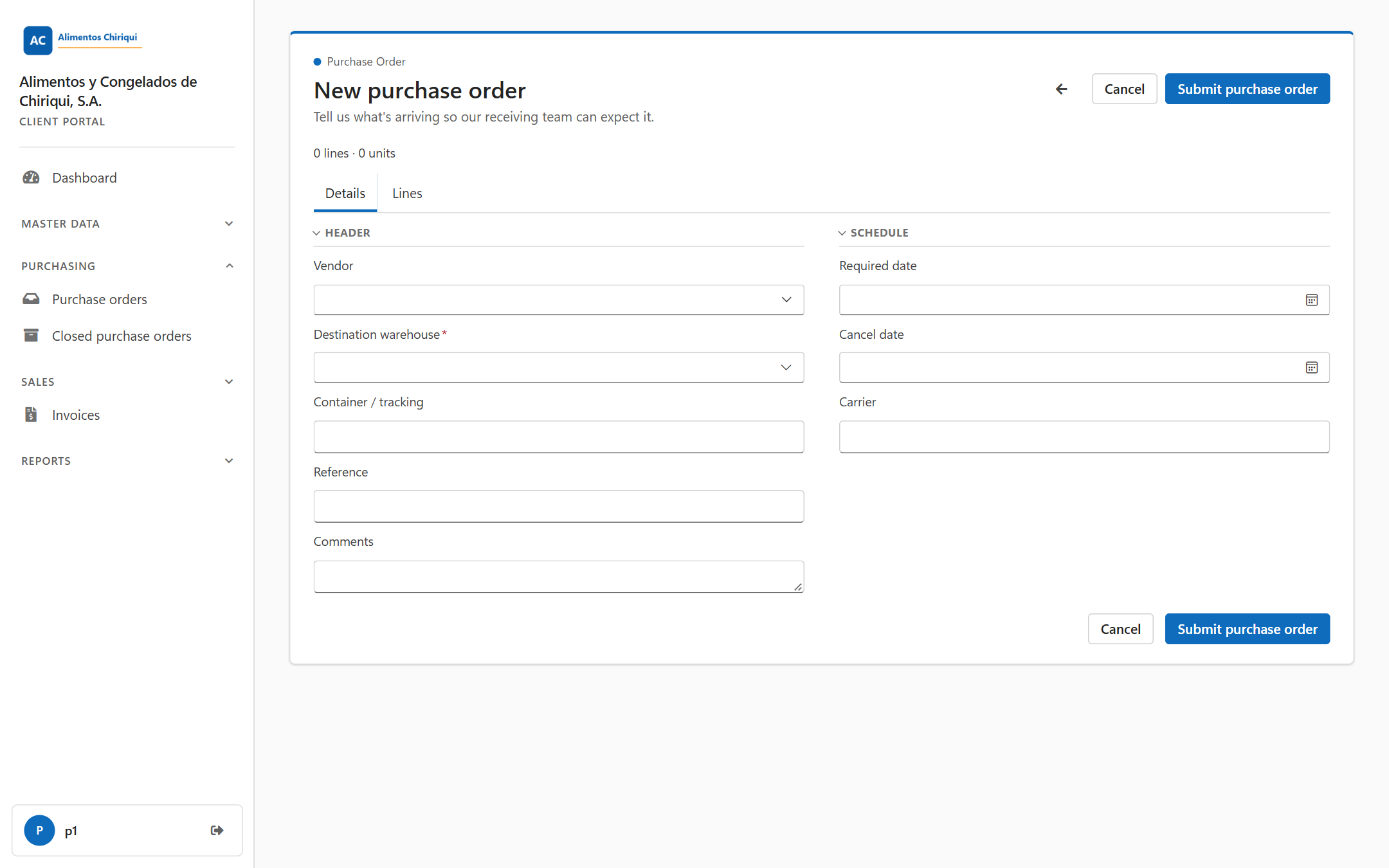
The New purchase order form, Details tab.
| Field | Required? | What to enter |
| Vendor | No | The vendor sending the goods. Click the box, type in the search box and choose the vendor from the results. The search matches the vendor code, so type the code, not the company name. Each result shows the code and the company name. A clear button empties the box. You can only choose your own Vendors. |
| Destination warehouse | Yes (marked *) | The warehouse that will receive the goods. Choose it from the list; it shows the warehouse codes. It cannot be changed after the purchase order is created. If you choose wrongly, contact your warehouse. |
| Container / tracking | No | A container number or tracking number for the shipment. |
| Reference | No | Any reference of your own, for example your vendor's order number. |
| Comments | No | Any note for the receiving team. |
On a purchase order that already exists, two more rows show at the top as plain text: State and PO Number. The number is given by the system when you save.
| Field | Required? | What to enter |
| Required date | No | The date you expect the goods to arrive. The lists show it in the Required column and count the purchase order as late after it. |
| Cancel date | No | The date after which the purchase order is no longer wanted. |
| Carrier | No | The carrier bringing the goods, typed as free text. |
The lines are the Products and quantities you expect. A new purchase order starts with one empty line.
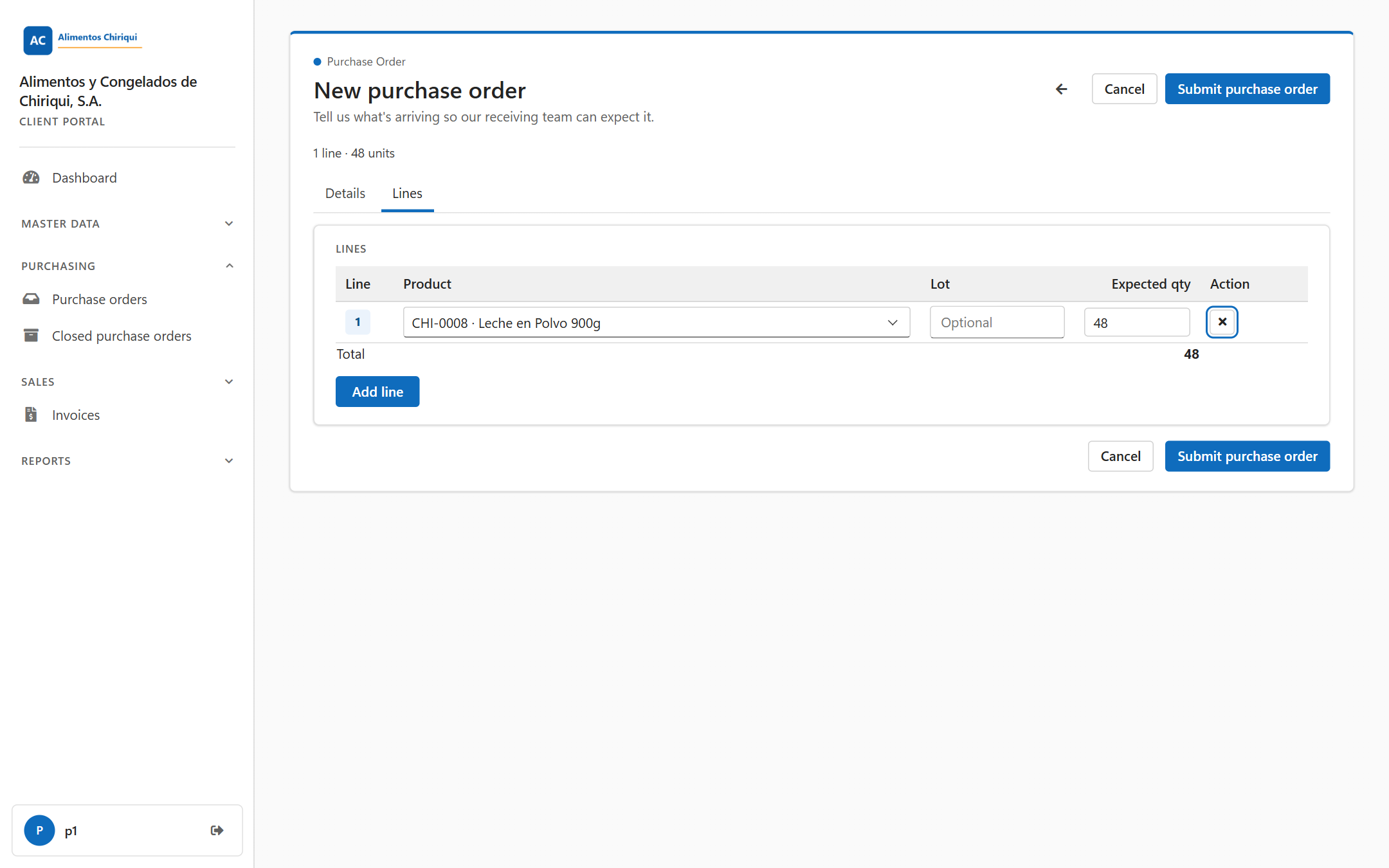
The Lines tab with one line filled in.
| Column | What to enter |
| Line | The line number. It is filled in for you. |
| Product | Click the box. A search panel opens with the box Search by SKU or description. Type part of the SKU or the description. The results show SKU, Description and UoM; scroll for more. Click a product to choose it. You can only pick your own Products. |
| Lot | Optional. The box shows Optional until you type. Fill it in only if you know the lot number of the goods that are coming. On a purchase order you type the lot, because the goods are not in the warehouse yet. |
| Expected qty | How many units you expect. At the bottom of the table, Total adds up the column as a whole number. |
When it is saved, the message Expected inbound submitted. appears and the new purchase order's page opens, in the state Draft.
To leave without saving, click Cancel, or the back arrow (Back to Purchase orders). Nothing you typed is kept.
While the state is Draft or Not Received, the purchase order's page has an Edit purchase order button.
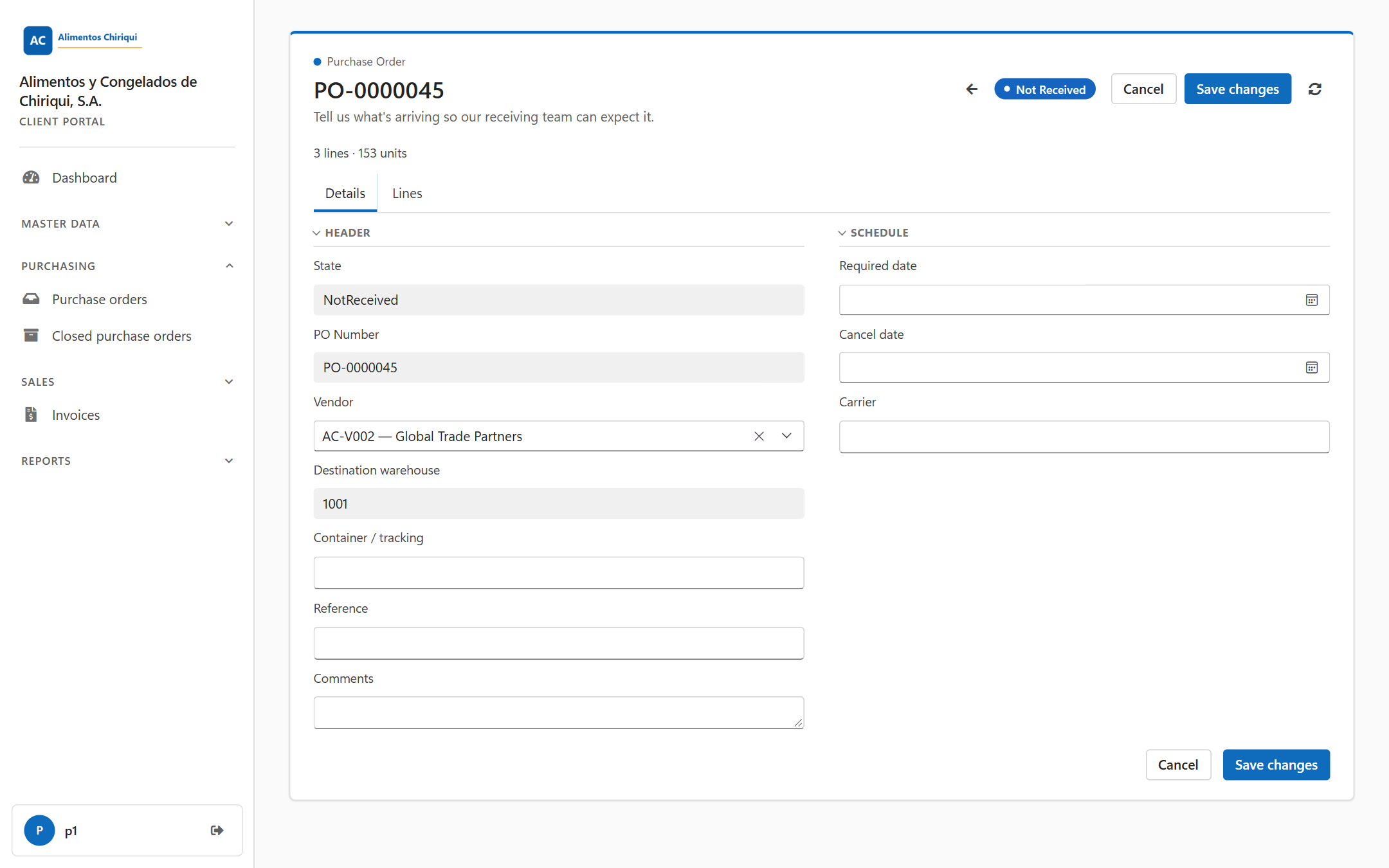
Changing a purchase order that has not started receiving.
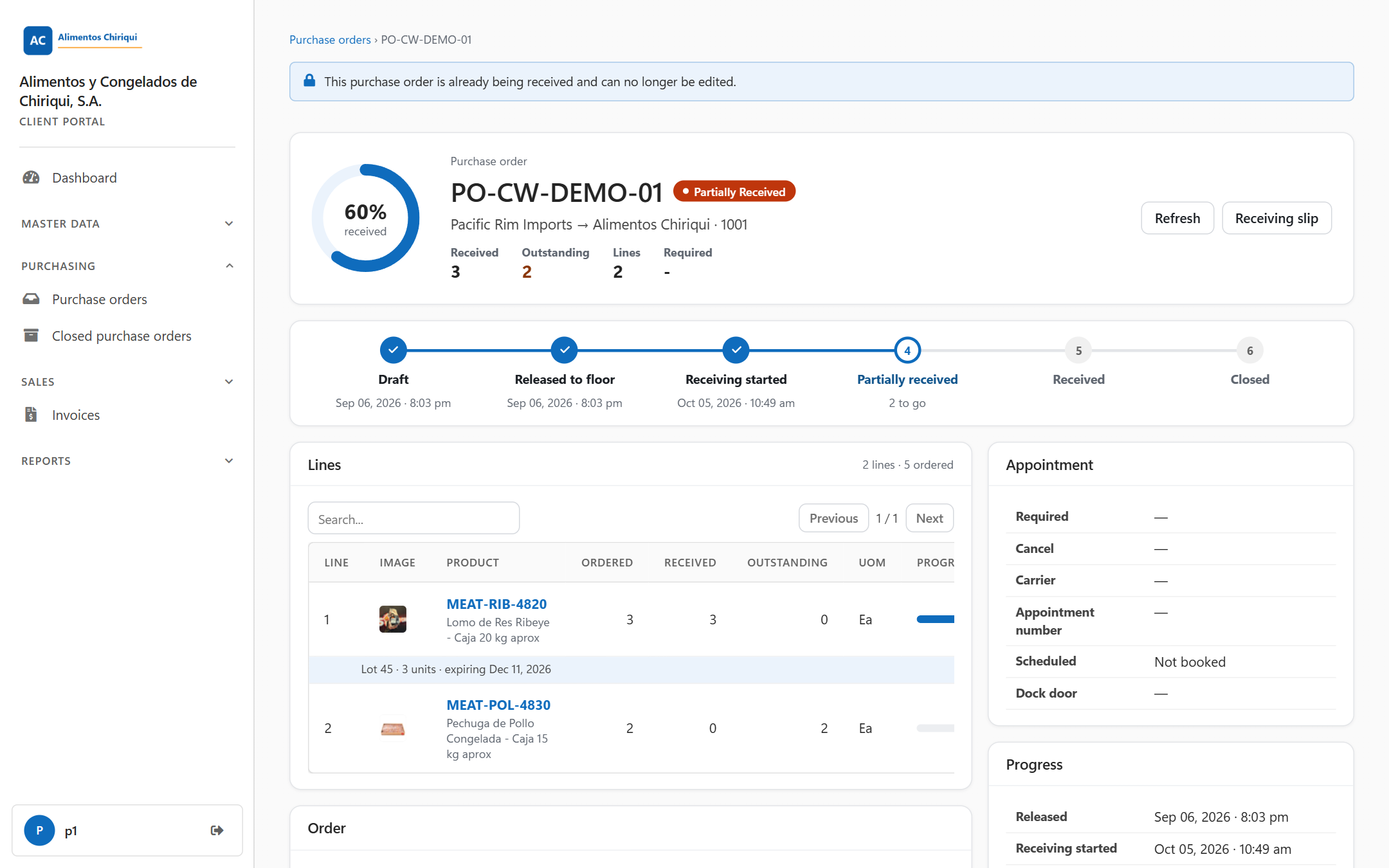
The page that opens instead of the editor once receiving has started.
The portal has no button to delete or cancel a purchase order. Ask your warehouse.
| Message | What it means | What to do |
| Select a destination warehouse. | You did not choose the destination warehouse. | Choose it on the Details tab and submit again. |
| Add at least one product with an expected quantity. | No line has both a product and a quantity above 0. | On the Lines tab, choose a product and type a quantity. |
| Could not save the inbound: {0} | The portal could not save the purchase order. After the colon you see the reason, for example a quantity that is not valid for the product, or a product or vendor that is not yours. Everything you typed stays on the screen. | Read the reason, correct it and save again. |
| "Purchase order [PO-0000045] can no longer be edited because it is [...]. Only a purchase order that has not started receiving can be edited. Contact your warehouse provider if it has to change." | Shown after Could not save the inbound: when the warehouse started receiving while you had the editor open. Nothing was saved. | Contact your warehouse. |
| Expected inbound submitted. | The new purchase order was saved. | Nothing; its page opens. |
| Inbound saved. | Your changes were saved. | Nothing; its page opens. |
| That purchase order could not be found. | The purchase order does not exist or is not your company's. | Go back to the list. |
| This purchase order is already being received and can no longer be edited. | Receiving has started, so the page opened instead of the editor. | Contact your warehouse. |
Was this page helpful?