 P4 Software
/
logisticaHQ Client Portal
P4 Software
/
logisticaHQ Client Portal
P4 Software
/
logisticaHQ Client Portal
P4 Software
/
logisticaHQ Client Portal
This page shows you how to follow your Sales orders: the stage cards at the top of the list, the columns, the preview panel, and every part of an order's own page. It is for any client user with the View orders & shipments switch, or with Place outbound orders, which includes it.
Sales > Sales orders or Sales > Closed Sales orders.
| Page | What it shows |
| Sales orders | Every order that is not Closed: drafts, orders the warehouse is working on, and orders already shipped but not yet closed. It has the stage cards. If you can place orders, it also has the New order button. |
| Closed Sales orders | Only orders whose state is Closed. The line under the heading reads Sales orders that have been closed. There are no stage cards and no New order button. The list has one more column, Closed, with the day the order was closed. |
An order stays on Sales orders after it ships. It moves to Closed Sales orders only when the warehouse closes it. Both lists show only your own company's orders.
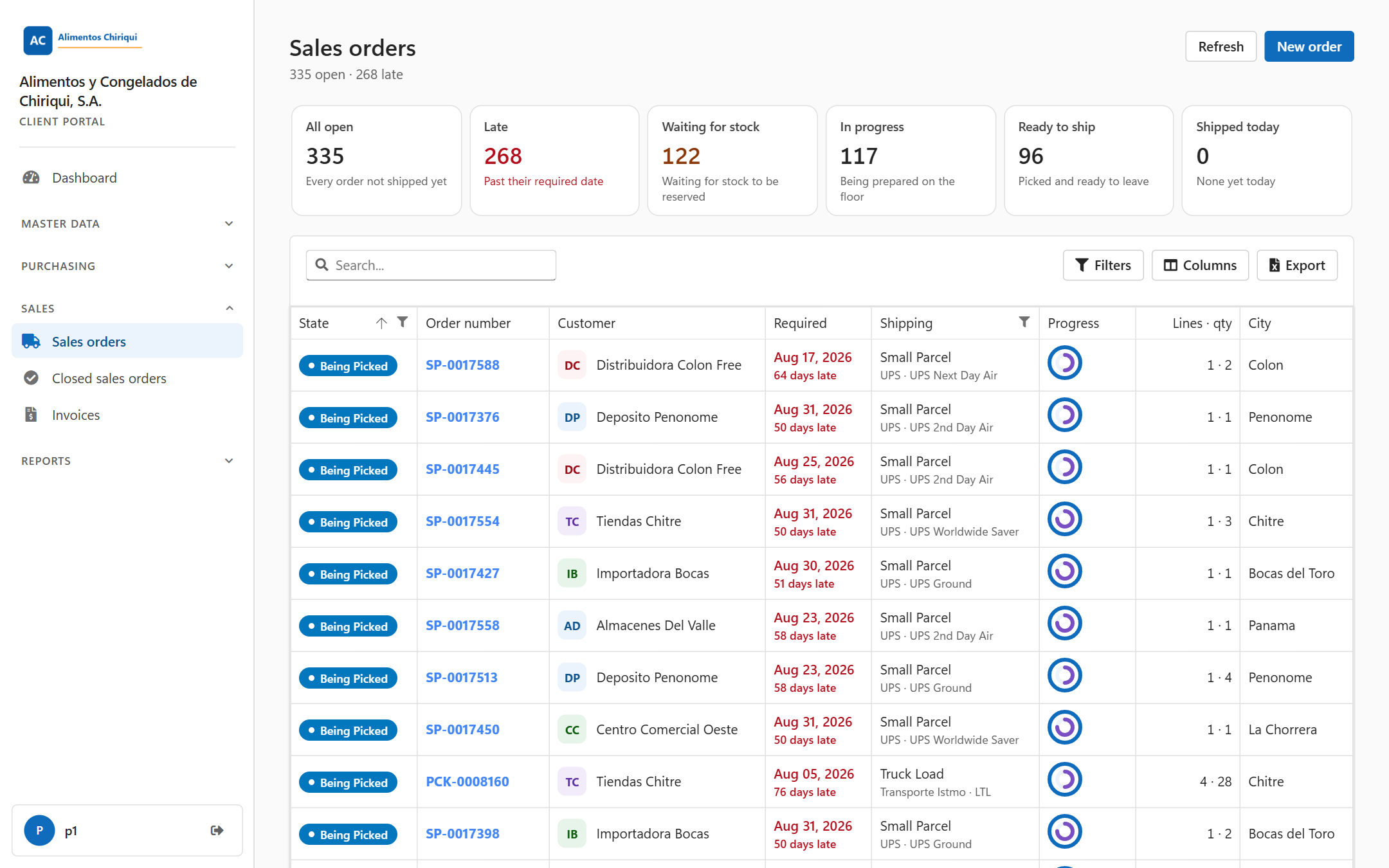
The Sales orders list.
Six cards sit above the list, in the order an order moves through them. Each card shows a count and a short caption. When the page opens, no card is selected and the list shows every order that is not closed, including orders that have shipped but are not closed yet. Click a card to show only the orders it counts; the card gets a blue border. Click the same card again to show every open order again.

The stage cards.
| Card | Caption | Which orders it counts |
| All open | Every order not shipped yet | Every order that has not shipped yet, whatever its state. |
| Late | Past their required date, or Nothing late when there are none | Orders that have not shipped and whose Required date is before today. The count turns red while it is above 0. |
| Waiting for stock | Waiting for stock to be reserved | Orders in the states Unallocated, Pending Production, Pending Packsize Breakdown and Held Short. The count turns amber while it is above 0. |
| In progress | Being prepared on the floor | Orders in the states Ready To Pick, Waved, Being Picked, Pending Letdown and Pending Qc. |
| Ready to ship | Picked and ready to leave | Orders in the states Rating, Pending Ship Count and Pending Driver Signature. |
| Shipped today | None yet today, or Usually {0} on this weekday once something has shipped | Orders whose shipped date is today. It can include an order that is already closed. The count turns green while it is above 0, and a small line shows the shipments of the last seven days. |
"Today" is your own calendar day, as your computer's clock sets it. An order in Draft, Suspended or Qc Hold is counted only in All open.
The list shows these eight columns, in this order.
| Column | What it shows |
| State | Where the order is now, as a coloured label. See Order statuses. |
| Order number | The order number, as a link that opens the order's page. Under it, your purchase order number as PO {0}, or else your reference as Ref {0}, when the order has one. |
| Customer | The customer's name, with a small badge of its initials. Point at it to see the customer code. |
| Required | The required date. Under it, how far away it is: today, tomorrow or in {0} days. When the date has passed and the order has not shipped, the date turns red with {0} days late (or 1 day late). |
| Shipping | The shipping method, for example Small Parcel or Truck Load. Under it, the carrier and the service, or else the route number. |
| Progress | Two rings. The outer ring is how much of the order the warehouse has reserved from stock (allocated). The inner ring is how much it has picked. The line under the list says so: Rings: outer = allocated, inner = picked. A full ring is 100%. |
| Lines · qty | The number of lines and the total quantity ordered, for example "4 · 1,250". |
| City | The city the order ships to. |
More columns are one click away in Columns: Warehouse (code and name, for example "1001 · Main warehouse"), Lines, Qty, Carrier, Service, Ship to, Shipped (the shipped date) and Created. Dates look like "Sep 24, 2026". The portal remembers your columns, their widths and your sort, separately for each list.
Each list opens with the newest orders at the top. To sort another way, click a column heading. Click it again to reverse the order.
See Searching, filtering and exporting lists for the pager and more.
Click a row anywhere except the order number. A preview panel opens on the right of the list, so you can check an order without leaving the list. Click the same row again, or the X at the top of the panel (Close the preview), to close it. Click another row to preview that one instead.
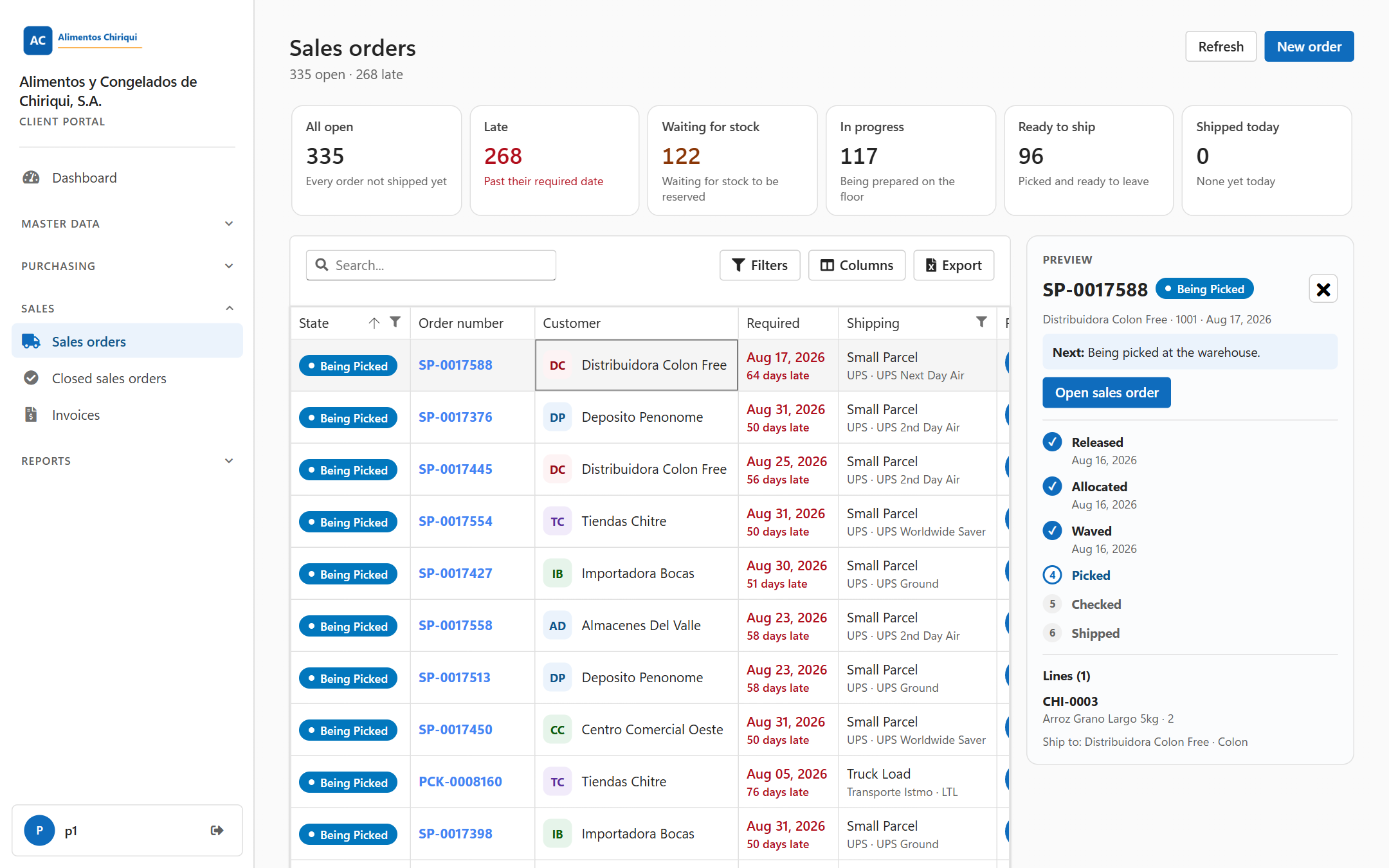
The preview panel.
The panel shows, from top to bottom:
| State | Next: |
| Draft | The warehouse will release it to the floor. |
| Unallocated | The warehouse will reserve the stock for it. |
| Held Short | Not enough stock for every line. Send more stock or change the order. |
| Pending Letdown, Pending Production, Pending Packsize Breakdown | The warehouse is preparing the stock. |
| Ready To Pick, Waved | Waiting to be picked. |
| Being Picked | Being picked at the warehouse. |
| Pending Qc | Being checked before it ships. |
| Qc Hold, Suspended | On hold at the warehouse. Contact your warehouse provider. |
| Rating, Pending Ship Count, Pending Driver Signature | Being loaded for shipment. |
| Shipped | On its way. |
| Pending Delivery Count, Pending Delivery Signature | Waiting for the delivery to be confirmed. |
| Closed | Nothing: it is finished. |
To open an order's page, click its number in the list, or click Open sales order in the preview panel. The page shows everything as plain text: nothing on it can be typed into.
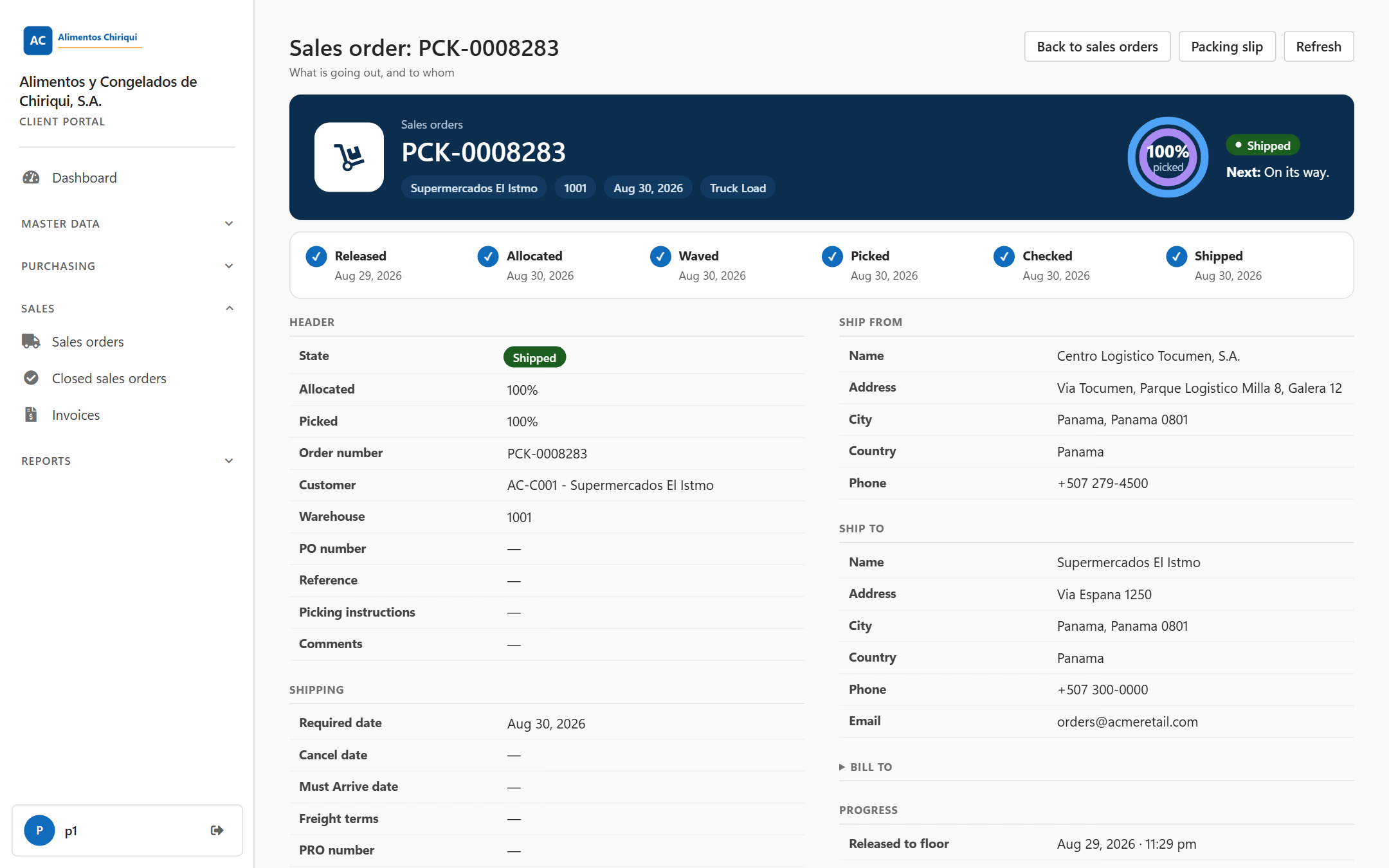
The page of a shipped order.
The heading reads Sales order: followed by the order number, with the line What is going out, and to whom under it. On the right:
| Button | What it does |
| Back to Sales orders | Goes back to Sales orders, or to Closed Sales orders when the order is closed. |
| Edit order | Opens the order in the editor. It is there only if you have Place outbound orders and the order can still be changed. See Changing an order. |
| Packing slip | Opens the order's packing slip as a PDF in a new browser tab. It is there once the order has been picked: in the states Rating, Pending Ship Count, Pending Driver Signature, Shipped, Pending Delivery Count, Pending Delivery Signature and Closed. |
| Refresh | Reads the order again. |
If you can only view orders, a blue note under the heading says You have view-only access to this section. Contact your warehouse provider if you need to make changes. and there is no Edit order button.
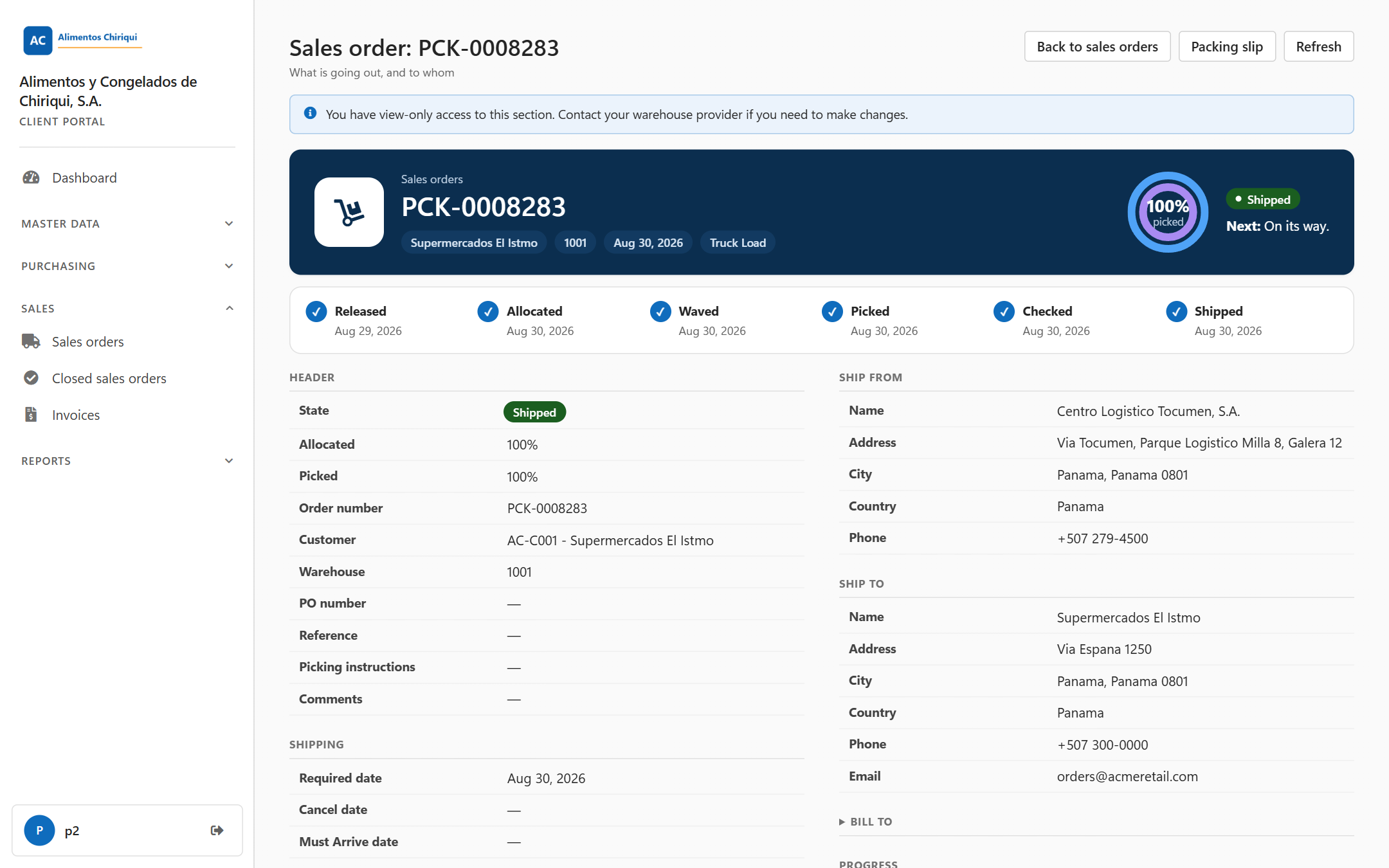
An order page for a user who can only view orders.
The dark band at the top shows the order number with small labels for the customer, the warehouse, the required date and the shipping method. On the right are the allocated and picked rings, the state and the Next: line, worded as in the table above. Some orders also show a warning in the band:
Under the band, the six steps (Released, Allocated, Waved, Picked, Checked, Shipped) are ticked as the order passes them, each with its date.
When an order ships, the stock reserved for it leaves the warehouse, so the allocated figure is shown as at least the picked figure: a shipped order reads 100% allocated and 100% picked.
| Card | What it shows |
| Header | State (the coloured label), Allocated and Picked (as percentages), Order number, Customer (code and name), Warehouse, PO number, Reference, Picking instructions and Comments. Back order of appears when the order is a back order of another one, and Reference 1 to Reference 3 appear when they have a value. |
| Shipping | Required date, Cancel date, Must Arrive date, Freight terms, PRO number, Shipping method, Ship via, Carrier, Service and Appointment. For a delivery in the warehouse's own trucks, Driver, Vehicle and Seal appear once the warehouse records them. |
| Ship from | Where the goods leave from: Name, Address, City, Country and, when there is one, Phone. |
| Ship to | Who receives the goods and where: Name, Address, City and Country, plus Attn to, Phone, Email, Route number and Container when the order has them. |
| Bill To | Folded. Click Bill To to see who is billed. It appears only when the order has a bill-to address. |
| Progress | The date and time of each step: Released to floor, Allocated, Waved, Picking started, Picking completed and Shipped, for example "Aug 29, 2026 · 4:54 pm", and Cartons, the number of cartons. |
| Documents | Once the order has been picked: Packing slip (PDF), the same PDF as the Packing slip button. |
A field with no value shows a dash.
Under Lines, a line such as "4 lines · 25 units" counts every line of the order. Type in Search... to find a line by SKU or description. The table shows 25 lines at a time; use Previous and Next to move between pages.
| Column | What it shows |
| Line | The line number. |
| Image | A small picture of the product, when it has one. |
| Product | The SKU, as a link to the product's page. |
| Description | The product description. |
| Ordered | The quantity you asked for. |
| Allocated | The quantity the warehouse has reserved from stock for this line. |
| Picked | The quantity picked from the shelves. |
| Shipped | The quantity that left in the cartons (see below). |
| UoM | The unit of measure. A product with no unit shows "Ea". |
| Lot | The lot the line asks for, or a dash when any lot will do. |
The Shipped figure is added up from the cartons the order left in. Under every line that shipped, a shaded strip shows each carton, for example Shipped 12 in carton 72240131003338032, followed by the lot, the serial number and the expiry date that carton carried, when there are any.
Each tab appears only when it has something to show.
The page never shows prices, costs, warehouse notes, bin locations or who in the warehouse worked on the order.
| Message | What it means |
| Order not found. | The order does not exist, or it is not one of your company's orders. Click Back to orders. |
| You have view-only access to this section. Contact your warehouse provider if you need to make changes. | You can read orders but not place or change them. |
| This order is already being processed and can no longer be edited. | You tried to edit an order that the warehouse is already working on, so its page opened instead. See Changing an order. |
| This order was sent automatically by an integration, so it can only be changed in the system that sent it. | The order came from your company's own system through an integration. Change it there. |
| You don't have access to this section. | Your user does not have the View orders & shipments switch. Ask your warehouse. |
Was this page helpful?