 P4 Software
/
logisticaHQ Client Portal
P4 Software
/
logisticaHQ Client Portal
P4 Software
/
logisticaHQ Client Portal
P4 Software
/
logisticaHQ Client Portal
This page is a playbook for the people on your team who answer questions from clients about the portal. It starts with the most common call, "I cannot sign in", and then covers the other problems you are likely to meet. Most fixes need an administrator account.
The portal shows the same general message for every sign-in refusal: "Invalid username or password, or the portal isn't enabled for your account." It deliberately hides the real reason, so you have to check the causes yourself. If the connection to the server fails, the client sees "Sign-in failed. Please try again." instead. That means a network problem, not an account problem.
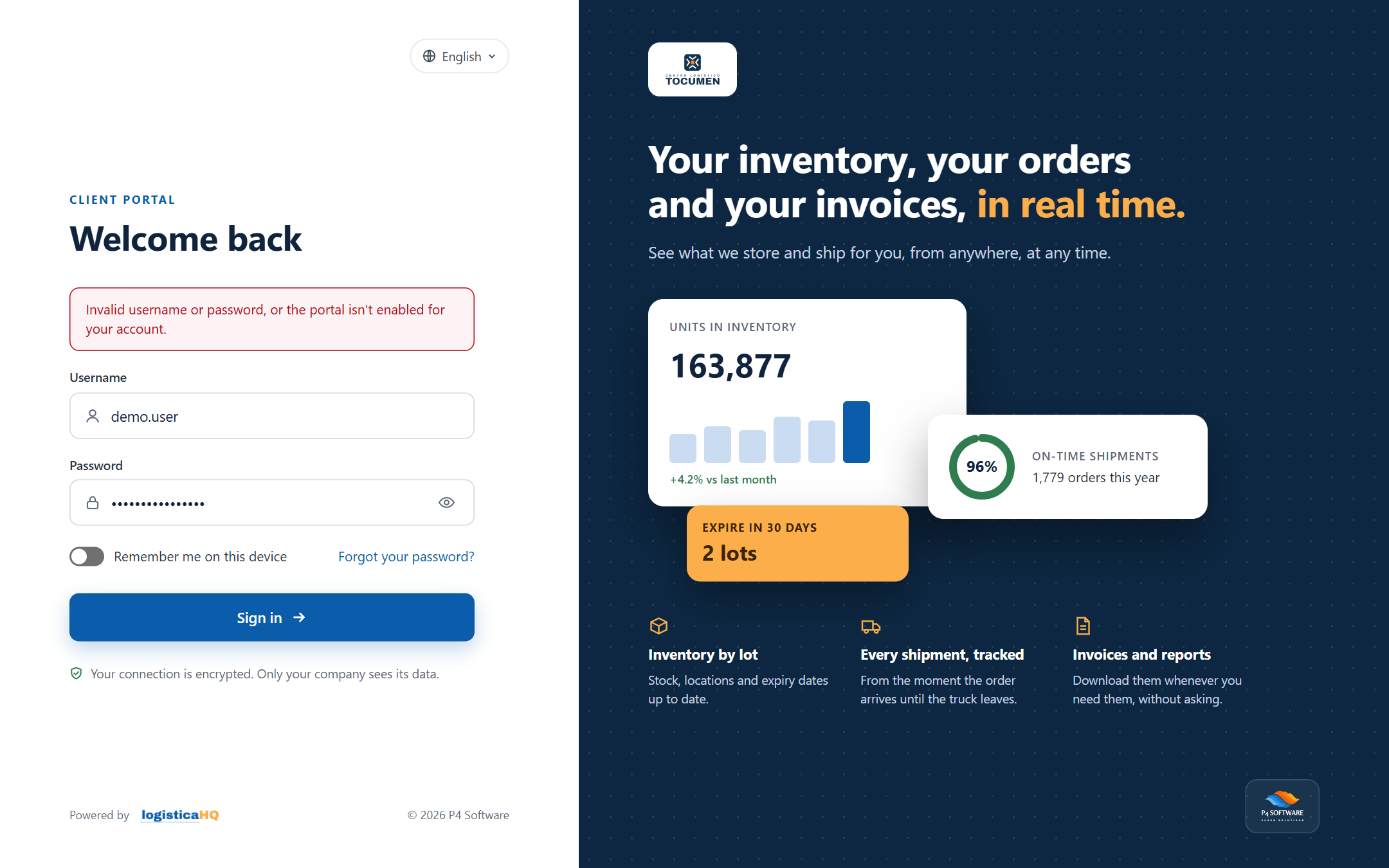
The client's portal sign-in page after a failed attempt.
Check these causes in this order:
The portal has no self-service reset. On the sign-in page, Forgot your password? only shows the note "Passwords can't be reset on this page. Please contact your warehouse and they will reset it for you." and there is no change-password page inside the portal. When a client asks, you set a new password:
See Creating portal users for the details of both methods.
The user opened something that their access switches do not allow. Open the user, go to the Access tab and check the Portal access card. A user with no switch at all can sign in but sees only this message. See Portal access switches for what each switch opens.
Each menu item shows only when the user has its switch. Use this table to find the switch to turn on:
| Menu item the client misses | Switch to turn on |
| Dashboard | View Dashboard |
| Products | View Products (or Manage Products) |
| Customers | View Customers (or Manage Customers) |
| Vendors | View Vendors (or Manage Vendors) |
| Purchase orders, Closed Purchase orders | View Purchase orders (or Create Purchase orders) |
| Sales orders, Closed Sales orders | View orders & shipments (or Place outbound orders) |
| Invoices | View Invoices |
| Inventory (inside the Reports group) | View Inventory |
| Inventory detail, Bulk Inventory, Expiry (inside the Reports group) | View reports |
See Making invoices visible to clients.
The stock section of the Dashboard needs both View Inventory and View reports. A user who has only one of them sees zeros or empty panels there. Turn on the missing switch.
The portal applies some rules to portal users only:
Every order or purchase order that a client creates in the portal starts as Draft. It stays Draft until your staff releases it in the office app. Nothing releases it automatically, and placing an order in the portal does not send your team an e-mail by itself. Check for new Draft orders regularly. See Order statuses.
Signing in to the portal and to the office app in the same browser, on the same address, signs the other one out. If you test a client's portal in the browser you use for the office app, your office session ends. Use a private window or another browser for the portal. Sign out of the portal before you go back to the office app.
In the Users list, administrators have an Impersonate link on each row. It opens a session as that user in a new tab, so you can see exactly what they see. It uses the same browser sign-in as your own office session, so it replaces your office session in that browser. Sign in to the office app again afterwards, or use a private window.
| What the client reports | What to check |
| English words on a Spanish screen | A label without a translation shows in English. Note the label and ask P4 Software support to add the translation. Dates and numbers always show in the English style. |
| The sign-in page is in the wrong language | The page uses the language the visitor picked with the language button, then your company's default language, then English. See Branding the portal. |
| The portal address does not work any more | Someone changed the Portal URL slug or switched the portal off. Check the Portal tab and send the current link. |
| A product is missing from the Products list | Discontinued Products are not listed. |
| A report is missing rows | Reports show at most the first 10,000 rows without a warning. Your account can have a different limit. The Inventory list is not cut this way. |
Was this page helpful?