 P4 Software
/
logisticaHQ Client Portal
P4 Software
/
logisticaHQ Client Portal
P4 Software
/
logisticaHQ Client Portal
P4 Software
/
logisticaHQ Client Portal
This page shows you how to sign in to the Client Portal, what every control on the sign-in page does, what the messages mean, how long you stay signed in and how to sign out. It is for everyone who uses the portal.
Your warehouse gives you a web address that is specific to your company. It has this form:
https://your-warehouse-address/portal/your-company-address/login
/login, the portal takes you to the sign-in page by itself./portal, the page shows only Client portal address is incomplete. Use the full address from your warehouse.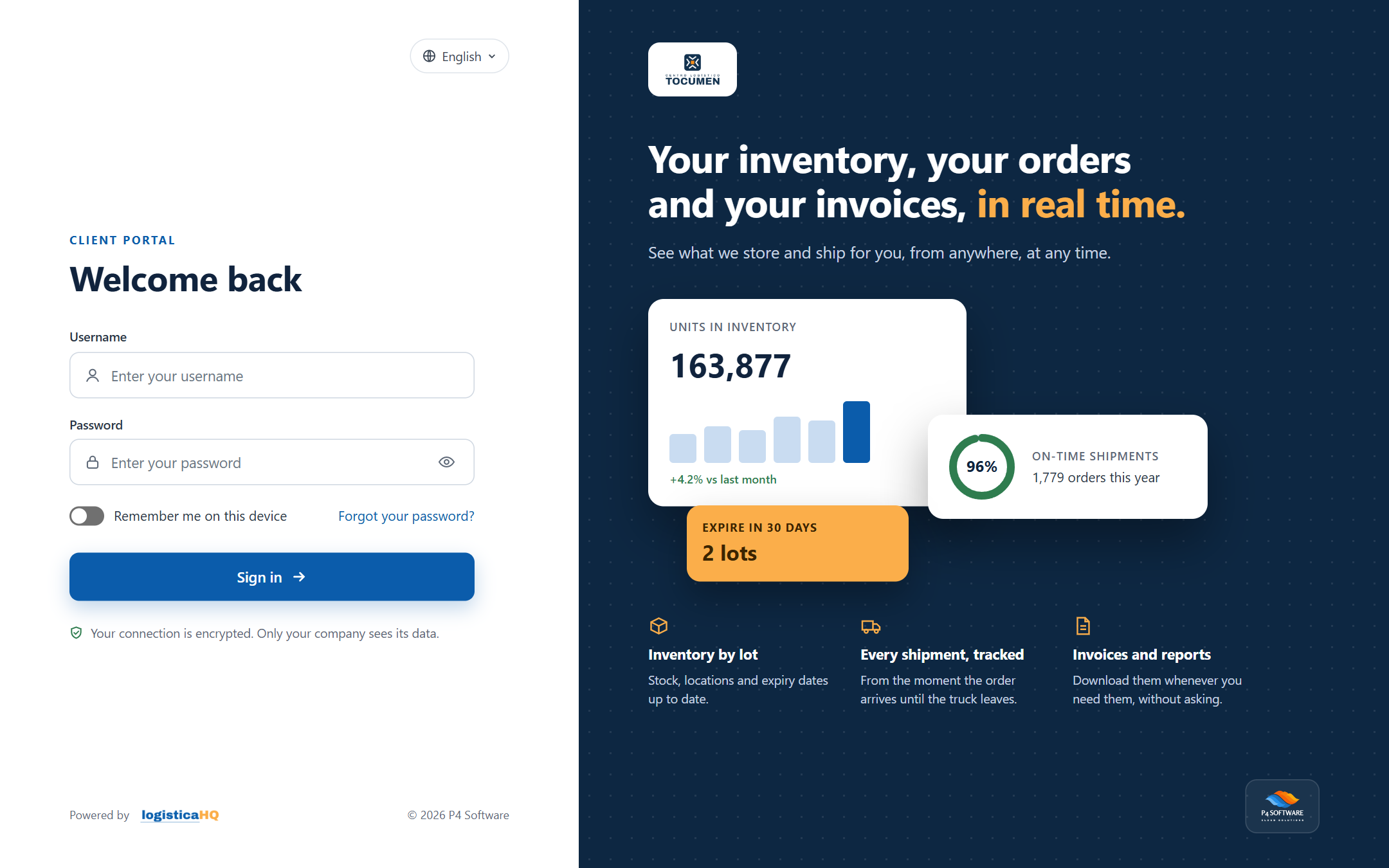
The sign-in page on a computer.
On a computer the page has two sides. The left side is white and holds the form. The right side is navy blue. It shows your warehouse's logo, or the logisticaHQ logo when your warehouse has not added one, and a short headline: Your Inventory, your orders and your Invoices, in real time. The three small cards on that side are examples only. The figures on them are not your data.
On a phone or a narrow window the blue side becomes a band above the form, with the logo, the language button and a shorter headline.
| Control | What it does |
| Language button | Shows the current language written in that language, for example English or Español. Click it to choose another language. See below. |
| Client Portal and Welcome back | The small title and the heading above the form. |
| Username | Type the username your warehouse gave you. The box shows Enter your username until you type. It is required. |
| Password | Type your password. The box shows Enter your password until you type. It is required. |
| Eye button in the password box | Shows the password as text so you can check it. Its label is Show password; once the password is visible it changes to Hide password. Click it again to hide the password. |
| Remember me on this device | A switch. On a phone or narrow window its label is shortened to Remember me. See below. |
| Forgot your password? | Shows a note about how to get a new password. See below. |
| Sign in | Signs you in. While it works, the button reads Signing in... and the boxes cannot be edited. Pressing Enter in either box does the same as clicking it. |
| Line under the button | Your connection is encrypted. Only your company sees its data. |
| Footer | Powered by with the logisticaHQ logo, and a copyright line for P4 Software. |
You arrive at the Dashboard. If your access does not include the Dashboard, you arrive at the first area you can open. See Finding your way around.
The language button offers English and Español. If your warehouse works in another language, that language is added as a third choice, written in itself.
The sign-in page picks its language in this order:
The language you choose is remembered on this device for the whole portal. After you sign in, the portal switches to the language set on your own user account, or your warehouse's language when your account has none. If the language changes at the moment you sign in, this is why. Ask your warehouse to change the language on your account if you want a different one.
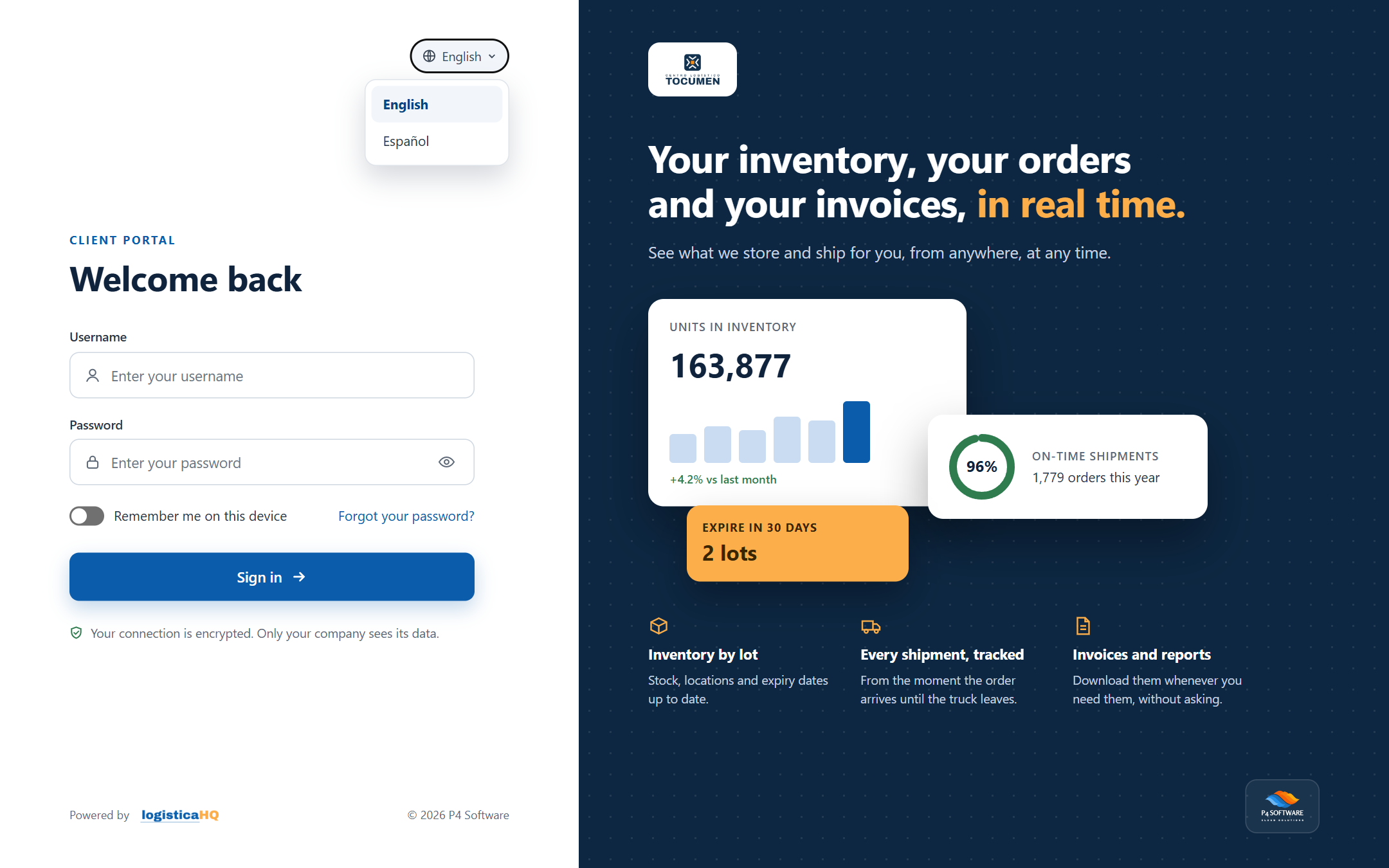
The language list.
Click Forgot your password?. The page shows this note: Passwords can't be reset on this page. Please contact your warehouse and they will reset it for you.
There is no self-service reset in the portal. Ask your warehouse to set a new password for you. Your warehouse may also send you a password email. Its subject is logisticaHQ password reset, and its button, Sign in to your client portal, opens this sign-in page.
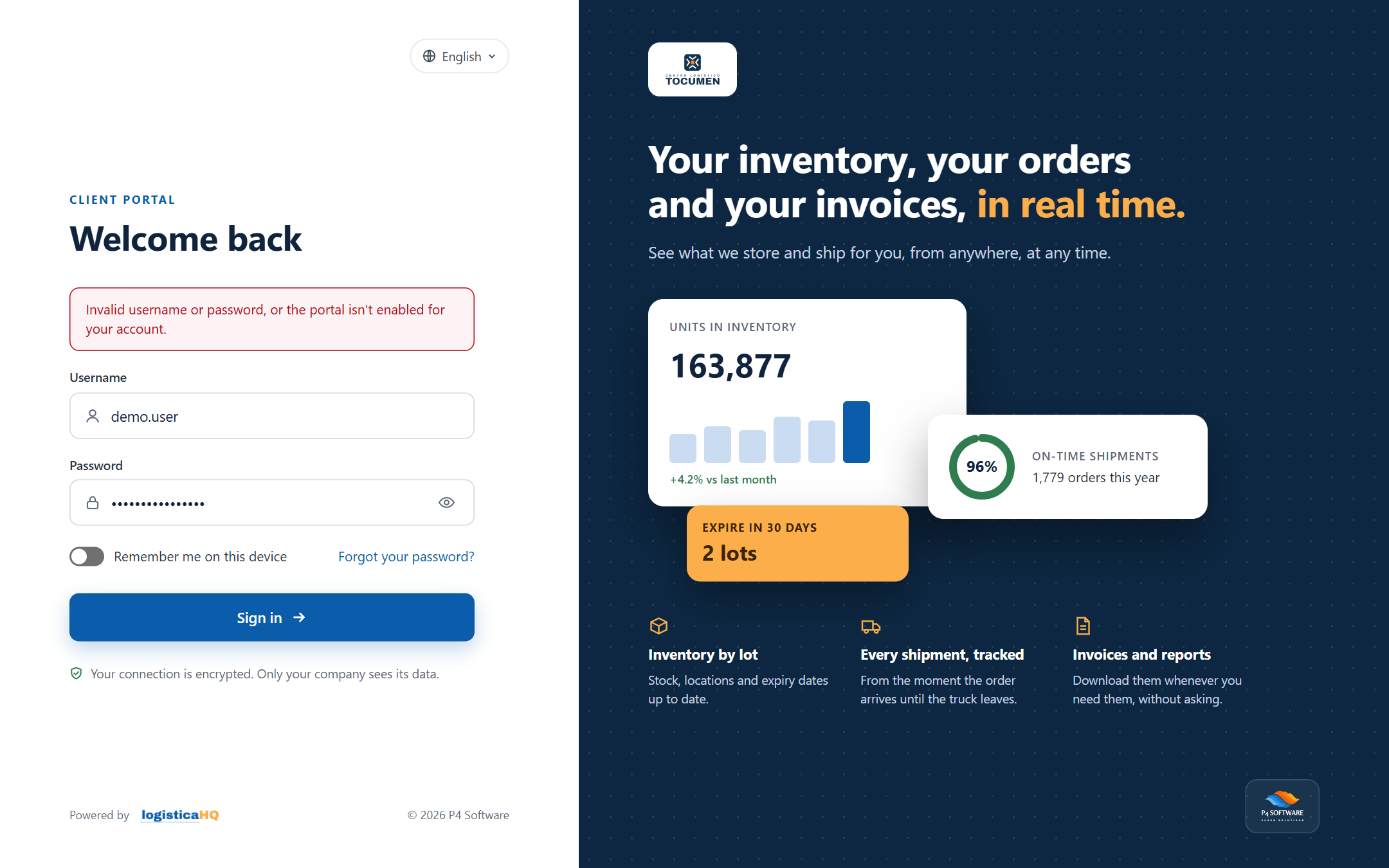
The general message after a failed sign-in.
| Message | What it means | What to do |
| Invalid username or password, or the portal isn't enabled for your account. | This one message appears for every refusal, so it does not say which one happened. It can mean: the username or password is wrong or empty; your user is switched off (including after too many wrong passwords, see below); your password has expired; your user is not set up for the portal; the portal is not switched on for your company; or the portal has reached the number of users your warehouse allows to be signed in at the same time. | Check your username and password. If they are right, contact your warehouse. |
| Sign-in failed. Please try again. | The portal did not get an answer, for example because your internet connection dropped. | Check your connection and try again. |
| Your session has expired. Please sign in again. | A blue bar above the form. Your session ended while you were using the portal. | Sign in again. See "How long you stay signed in" below. |
| Client portal address is incomplete. | You opened the portal without your company's address. | Use the full address from your warehouse. |
If you enter a wrong password 10 times within 15 minutes, your user is switched off. From then on you see the general message above, even with the correct password. Only your warehouse can switch your user back on, so contact them. The count starts again when 15 minutes pass after your last wrong password, and after a correct password.
If you are not sure of your password, stop after a few tries and ask your warehouse for a new one.
Click the Sign out icon on your user card. The card is at the bottom of the menu on a computer, and in the top bar on a phone. There is no confirmation question: you are signed out at once and the sign-in page opens with no message.
Signing out also ends your session on the portal's server, so the next person on a shared computer cannot press the browser's Back button to get into your portal. Always sign out on a shared computer.
If you also use the warehouse's office application, signing in to the portal and to the office application in the same browser, on the same web address, signs you out of the other one. Use a different browser, or a private window, for one of them.
Was this page helpful?