 P4 Software
/
logisticaHQ-en
P4 Software
/
logisticaHQ-en
P4 Software
/
logisticaHQ-en
P4 Software
/
logisticaHQ-en
A bin is one storage location: a shelf position, a rack slot, a floor spot, a dock lane. Every unit of stock in LogisticaHQ is in a bin (or on a pallet in a bin), so operators always know exactly where to go. Bins belong to a zone and follow its rules unless they have their own.
Bins are created from their zone: open Setup > Warehouse > Warehouses, the warehouse, then the zone, and use the buttons of the Bins section.
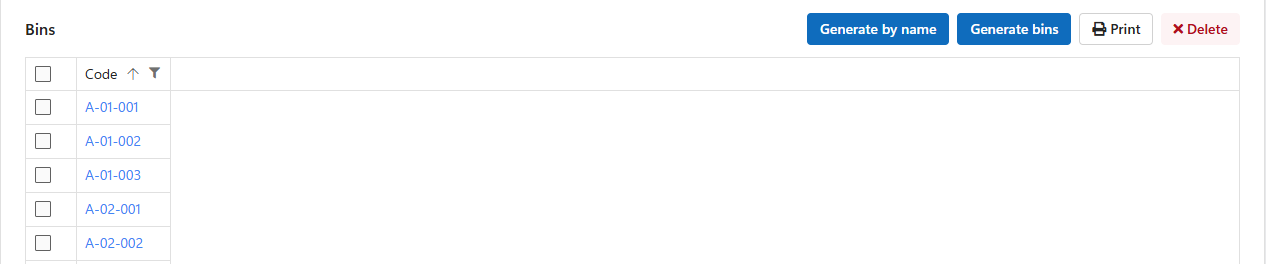
Generate bins creates a whole range of bins in one go from a mask: the bin code with a placeholder for each part that changes.
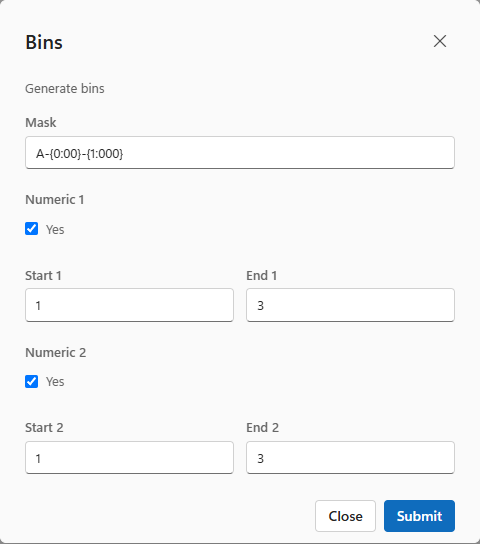
| Mask | Ranges | Bins created |
A-{0:00}-{1:000} | 1 to 3, 1 to 2 | A-01-001, A-01-002, A-02-001, A-02-002, A-03-001, A-03-002 |
R{0:00}-{1} | 1 to 2, A to B | R01-A, R01-B, R02-A, R02-B |
DOCK-{0} | 1 to 4 | DOCK-1, DOCK-2, DOCK-3, DOCK-4 |
{0}, {1}, {2}… are the parts that change, numbered in the order they appear.{0:00} gives 01, 02…; {1:000} gives 001, 002…. Use it so bins sort in order.Generate by name creates a bin with the exact code you type. Press Enter after each code to keep the window open and create the next, which is quick when scanning codes from existing labels.
Click a bin code (in its zone or in Setup > Warehouse > Bins) to open it.
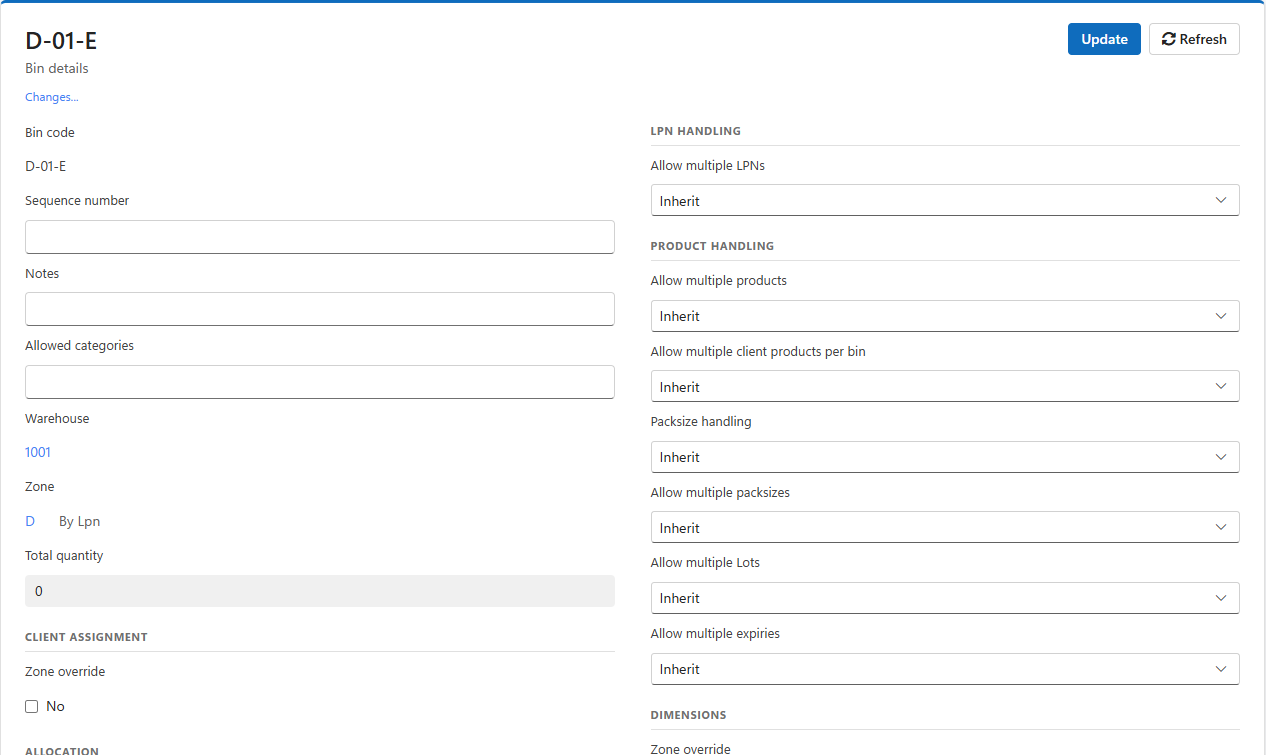
| Field | What it does |
| Sequence number | The bin's place in the picking walk. Picks are listed in sequence number order, then bin code. It does not change which bin stock is taken from, only the order of the walk. Numbers are compared as text, so pad them to the same length: 0010, 0020, not 10, 20, or 100 will come before 20. |
| Notes | A note for people. |
| Allowed categories | This bin's own list of allowed product categories. Empty means the zone's list applies. |
| Dedicated product | (Zones with dedicated product bins) The one product this bin holds. Set automatically by the first product put in it, or chosen here. |
| Min quantity, Max quantity | (With a dedicated product) The bin's replenishment levels. The Bin min/max report lists bins below their minimum or above their maximum, and replenishment tops a bin up to its maximum. Enter a minimum lower than the maximum. |
| Total quantity | The stock in the bin now. |
The Content, Details and Totes tabs show what the bin holds: by product, by lot, serial and expiry, and the totes staged there.
Administrators can give a bin its own rules. Each setting offers Yes, No or Inherit; Inherit follows the zone.
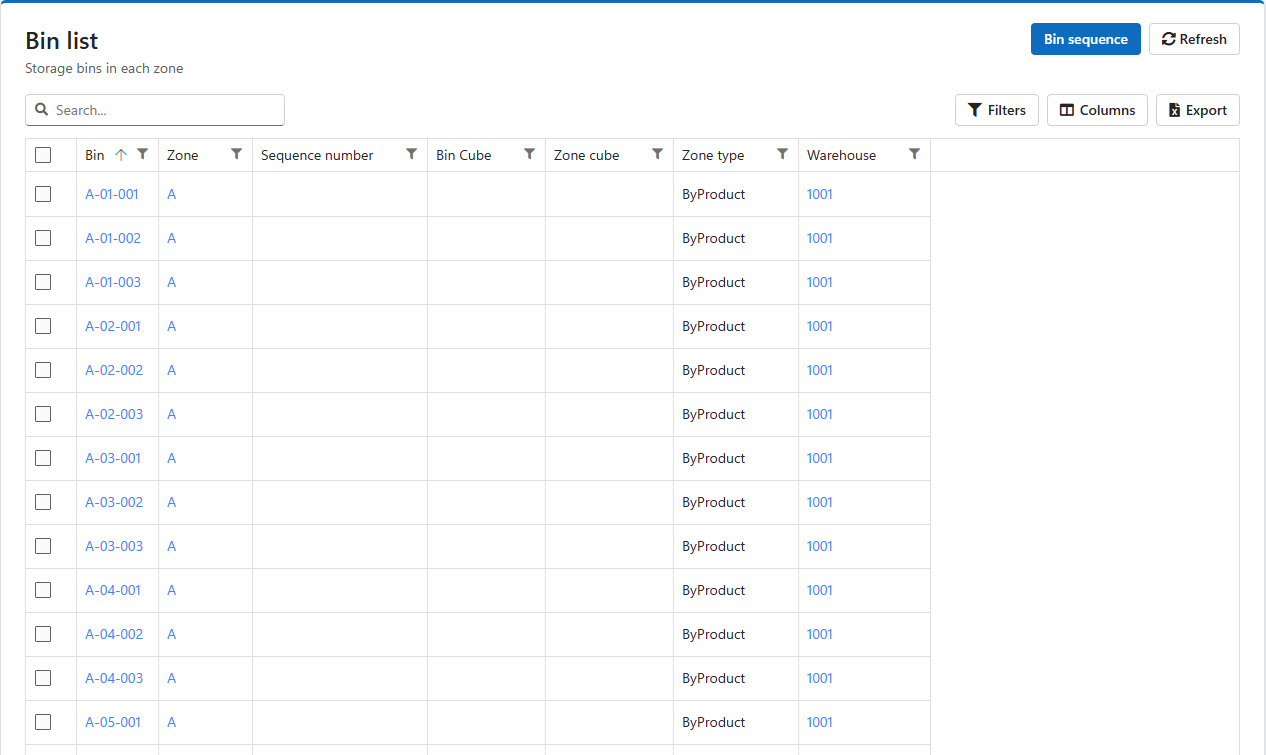
Setup > Warehouse > Bins lists every bin of every warehouse with its zone, sequence number and cube.
Bins are matched by code; codes that do not exist are skipped. An empty Sequence clears the bin's sequence number; an empty or zero dimension leaves it unchanged.
Tick the bins, in the bin list or in their zone, and click Print. Choose the printer and the number of copies. The label shows the bin code as a barcode, the zone and its handling type, in bin code order. The label design is the Bin template. See Templates and label design.
Administrators tick bins in their zone and click Delete. A bin that holds stock cannot be deleted: Cannot delete, contains inventory.
Was this page helpful?