The Configuration screen holds the settings that decide how your whole warehouse behaves: how orders are allocated and waved, what receivers must scan, what prints and when, which emails go out, how the handheld prompts, and hundreds more. Settings apply to the whole tenant, for every warehouse, user and client, unless a customer, client or product setting overrides them. Those overrides are noted in each setting's description.
This page explains how to find and change a setting, then lists every setting the screen shows, with its type, its default and what it does, in the same groups and order as the screen.
Change settings with care. A setting takes effect for everyone as soon as it is saved, including on handhelds in the middle of a task. Change one setting at a time, test it on a single order or receipt, and note what you changed. Only administrators can save settings: anyone else is refused when they click Save.
Find and change a setting
- Open Setup > System > Configuration.
- Settings are grouped in the Config names tree on the left, in three top groups: Setup (system and integration settings), Business (how the warehouse works: inventory, receiving, production, fulfillment, returns, handheld, products, 3PL and more) and Advanced (technical settings rarely changed). Click a folder to open it. A gear icon marks a group that holds settings.
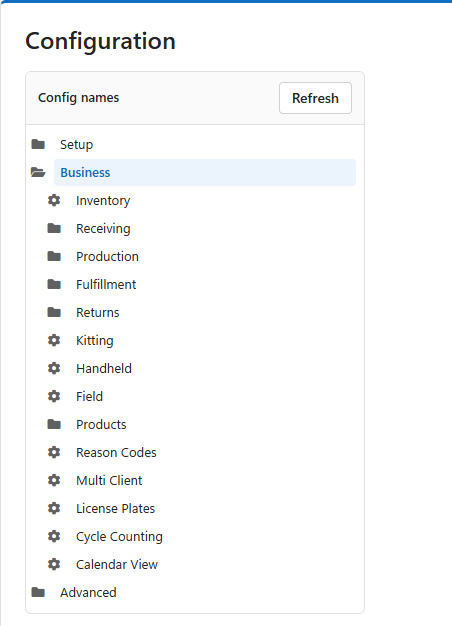
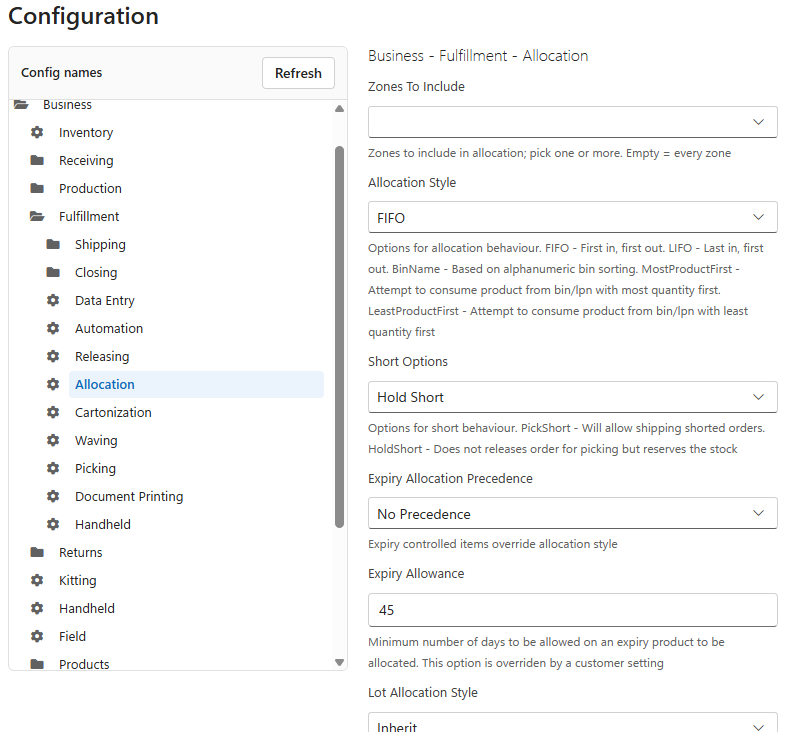
- Click a group with a gear icon. Its settings open on the right, under the group's full name, for example Business - Fulfillment - Allocation. Every setting shows its current value and, under it, an explanation of what it does.
- Change the values you need. Yes / No settings are tick boxes, choices are lists, zone settings let you pick one or more zones.
- Scroll to the bottom of the group and click Save. The whole group is saved at once. Saved confirms it.
Click Refresh above the tree to reload the values, for example after someone else changed a setting. The quickest way to reach a setting you know by name is the search bar: press Ctrl+K and type part of its name. See Searching with Ctrl+K.
How to read the reference
- Setting is the name exactly as the screen shows it.
- Type tells you what the setting takes: Yes / No, a whole number, a number that may have decimals, text, a choice from a list, or zones.
- Default is the value a new tenant starts with. Your tenant may have been set differently during implementation.
- Settings of the type Password never show their value.
Setup settings
Setup - System
| Setting | Type | Default | What it does |
| Session Expiry | Whole number | 120 | Number of minutes before session expires. |
| Audit Records Limit | Whole number | 1000 | Maximum number of records an audit report should return. |
| History Records Limit | Whole number | 100 | Maximum number of records in history report. |
| Query Records Limit | Whole number | 10000 | Maximum number of records a SQL query should return. |
| Grid Export Record Limit | Whole number | 10000 | Maximum number of records allowed in grid export. |
Setup - Password Policy
| Setting | Type | Default | What it does |
| Enforce Administrators | Yes / No | No | Whether password policy should be enforced for administrators. |
| Allow Admin Password Change | Yes / No | Yes | Whether direct passwords change by administrators. |
| Minimum Password Length | Whole number | 8 | Minimum password length. |
| Maximum Password Length | Whole number | 16 | Maximum password length. |
| Upper Case Required | Yes / No | Yes | Whether password must contain upper and lower case characters. |
| Numbers Required | Yes / No | Yes | Whether password must contain numbers. |
| Special Characters Required | Yes / No | Yes | Whether password must contain special characters. |
| Days Expiry | Whole number | 60 | If a user doesn't change it's password within that period an account will be deactivated. |
| Password Warning Threshold | Whole number | 14 | Number of days after which a warning should be displayed on password change. |
| Password Non Repeat Count | Whole number | 5 | Prevent allowing last N passwords to repeat. |
| Deactivate On Failed Login Attempts | Whole number | 5 | Number of failed login attempts before account deactivation. |
Setup - Integration
| Setting | Type | Default | What it does |
| Enable Data Entry | Yes / No | Yes | Controls whether Data Entry should be enabled or data is expected to be created/updated via Integration only. |
| Upload Controls | Yes / No | No | Controls whether Upload failure reprocessing should be enabled. |
| Integration Auto Upload | Yes / No | No | Enable automatic upload of integration data. |
| Pickticket Upload Count | Whole number | 100 | Number of pick tickets to upload per batch. |
| Production Order Upload Count | Whole number | 100 | Number of production orders to upload per batch. |
| Purchase Order Upload Count | Whole number | 100 | Number of purchase orders to upload per batch. |
| Returns Upload Count | Whole number | 100 | Number of returns to upload per batch. |
| Re Upload Grace Period | Whole number | 30 | Grace period in days before allowing re-upload of failed documents. |
| Re Upload Picktickets | Yes / No | No | Enable re-upload of failed pick tickets. |
| Re Upload Production Orders | Yes / No | No | Enable re-upload of failed production orders. |
| Re Upload Purchase Orders | Yes / No | No | Enable re-upload of failed purchase orders. |
| Re Upload Returns | Yes / No | No | Enable re-upload of failed returns. |
Setup - Communication - Email
| Setting | Type | Default | What it does |
| Smtp Host | Text | empty | Smtp server for email sending. |
| Smtp Port | Whole number | empty | Smtp server port for email sending. |
| Use SSL | Yes / No | No | Whether to use SSL channel. |
| Domain | Text | empty | Domain name for credential verification. |
| Username | Text | empty | Username associated with sending email. |
| Password | Password | | Password associated with credentials. |
| From Email | Text | empty | From address for automated emails. |
| To | Text | empty | Catch all recipients for automated emails. All emails sent via system will be included. Comma separated. |
| Cc | Text | empty | Catch all (CC) recipients for automated emails. All emails sent via system will be included. Comma separated. |
| Bcc | Text | empty | Catch all (BCC) recipients for automated emails. All emails sent via system will be included. Comma separated. |
| Use Azure Communication Services | Yes / No | No | Send automated emails through Azure Communication Services even though an SMTP server is configured. Tenants without an SMTP server use Azure Communication Services automatically; nothing needs to be entered. |
| Azure Communication Connection String | Password | | Connection string of your own Azure Communication Services resource. Leave empty to send through the LogisticaHQ mail service. |
Setup - User Interface
| Setting | Type | Default | What it does |
| Allow Web Handheld | Yes / No | No | Allow web-based handheld interface. |
| Display Product Images | Yes / No | Yes | Display product images in the user interface. |
| Document State Styles | Text | empty | CSS styles for document state indicators. |
| License Exceed Behaviour | Text | empty | Behavior when license user limit is exceeded. |
Business settings
Business - Inventory
| Setting | Type | Default | What it does |
| Enable Daily Snapshot | Yes / No | No | Capture a nightly inventory snapshot (90 day history). |
Business - Receiving - Data Entry
| Setting | Type | Default | What it does |
| Po Number Prefix | Text | PO- | PO number prefix. |
| Allow Custom Po Number | Yes / No | Yes | Whether a custom PO number could be entered during data entry. |
| Duplicate Sku Behaviour | Choice | Allow | Duplicate SKUs line behaviour. Allow - allows duplicates, Warning - Will present a prompt warning of a duplicate. Prevent - will error on attempt to create a duplicate. Choices: Allow, Prompt, Prevent. |
| Packsize Entry Type | Choice | Packs | Data entry unit of measure for packsize controlled items. Choices: Packs, Eaches. |
| Bulk Update Fields | Text | empty | Comma separated list of fields that are available for Apply Field(s) function in Purchase order list. |
Business - Receiving - Operations
| Setting | Type | Default | What it does |
| Allow Po Receiving Without Assignment | Yes / No | Yes | Whether a PO should be allowed to receive without assigned Operator. |
| Allow Po Receiving Without Dock Door | Yes / No | Yes | Whether a PO should be allowed to receive without Dock door assigned. |
| Expiry Allowance | Whole number | 0 | Whether to allow expired product and expiry allowance in days. Ex: 5 mean admitting product will expire in 5 days, any value less than that will be rejected. Ex: -5 admitting product has expired for 5 days, any value that has been expired for more than 5 days will be rejected. |
| Over Receive Threshold | Whole number | 50 | Over-Receive threshold. How much more of the product could be received (in %) compared to ordered quantity. Zero means - no over receiving will be accepted. |
| Include Photos On Recv Slip | Yes / No | No | Whether to include photos of order on receiving slip report. |
| Require Arrival Evidence | Yes / No | No | Default for new purchase orders: refuse to receive until the arrival is recorded - driver, vehicle, seal, signature and a photo. Each PO carries its own copy of this switch, so changing it here never alters a PO that already exists. |
Business - Receiving - Handheld
| Setting | Type | Default | What it does |
| Show Expected Quantity | Yes / No | Yes | Whether to show expected quantity during receiving. |
| Allow Handheld Close | Yes / No | Yes | Whether a Handheld operator should be allowed to close PO. |
| Collect Weight And Dimensions | Yes / No | No | Whether a Handheld operator should collect missing Weight and Dimensions of a product. |
| Collect Barcode | Yes / No | No | Whether a Handheld operator should collect missing Barcode for Product and/or Packsizes. |
| Print Labels | Yes / No | No | Print labels during receiving. |
| Suggest Putaway Bin | Yes / No | No | Whether the system should suggest a bin to receive to. |
Business - Receiving - Automation
| Setting | Type | Default | What it does |
| Auto Close Received Pos | Yes / No | Yes | Whether to close POs automatically upon receipt. |
| Generate Back Order On Close | Yes / No | No | Whether to create a backorder on closing with outstanding quantities. |
| Auto Release Back Order | Yes / No | No | Whether to auto release backorders. |
Business - Receiving - Document Printing
| Setting | Type | Default | What it does |
| Receiving Slip Disclaimer | Text (several lines) | empty | Default message that will be printed on Receiving Slip document (PDF) in the Footer section. Typically contains Disclaimer information. Could be overriden on Client or Partner level. |
Business - Receiving - Email Notification
| Setting | Type | Default | What it does |
| Send Email | Yes / No | No | Whether to send out emails on Closure of Purchase order. |
| To | Text | empty | Comma separated list of recipients. Available keywords: (@VendorEmail, @ClientEmail). |
| Cc | Text | empty | Comma separated list of CC (Carbon Copy). Available keywords: (@VendorEmail, @ClientEmail). |
| Bcc | Text | empty | Comma separated list of BCC (Blind Carbon Copy). Available keywords: (@VendorEmail, @ClientEmail). |
| Subject | Text | empty | Email Subject. Available keywords: (@PurchaseOrderNumber, @ReceiveDate, @VendorName, @ClientName). |
| Body | Email text | empty | Email Body. Available keywords: (@PurchaseOrderNumber, @ReceiveDate, @VendorName, @ClientName). |
Business - Production - Operations
| Setting | Type | Default | What it does |
| Number Prefix | Text | PRD- | Production order number prefix. |
| Allow Custom Prod Number | Yes / No | Yes | Whether a custom product order number could be entered during data entry. |
| Allow Over Production | Yes / No | No | Whether a production order should be allowed to building more than was Allocated. |
| Allow Completing With Missing Components | Yes / No | No | Whether a production order can be completed if it's missing components in production area. |
| Consumption Mode | Choice | Ordered Quantity | Production consumption mode. 'Ordered quantity' will consume according to ordered quantities regardless of quantities produced. 'Production Proportionate' will consume proportionally to produced quantity. Choices: Ordered Quantity, Production Proportionate. |
Business - Production - Picking
| Setting | Type | Default | What it does |
| Allow Shorting | Yes / No | Yes | If enabled, will allow non administrator users to short picks. |
| Allow Skipping | Yes / No | No | If enabled, will allow users to skip picks. |
| Mark For Cycle Count On Short | Yes / No | No | Mark for Cycle count on Shorting. |
Business - Production - Allocation
| Setting | Type | Default | What it does |
| Zones To Include | Zones | empty | Zones to include in allocation; pick one or more. Empty = every zone. |
| Work Area Zones | Zones | empty | Zones that make up the production work area; pick one or more. |
| Expiry Allowance | Whole number | 145 | Minimum number of days to be allowed on an expiry product to be allocated. |
| Auto Assign Work Area | Yes / No | No | Whether to automatically assign work area. First empty bin will be used in work area zones will be assigned. |
| Allocation Style | Choice | Bin Name | Options for allocation behaviour. FIFO - First in, first out. LIFO - Last in, first out. BinName - Based on alphanumeric bin sorting. MostProductFirst - Attempt to consume product from bin/lpn with most quantity first. LeastProductFirst - Attempt to consume product from bin/lpn with least quantity first. Choices: FIFO, LIFO, Bin Name, Most Product First, Least Product First. |
| Short Options | Choice | Pick Short | Options for short behaviour. PickShort - Pick and ship what is available. HoldShort - Reserve what's available and hold. Choices: Pick Short, Hold Short. |
| Expiry Allocation Precedence | Choice | Oldest First | Expiry controlled items override Allocation style. Choices: No Precedence, Oldest First, Newest First. |
| Lot Allocation Style | Choice | Inherit | Lot controlled items allocation style. Choices: Inherit, Alphabetical, Max Qty First, Min Qty First. |
| Allow Partial Lots | Yes / No | Yes | Allow partial lot allocation. If enabled, the system will allow multiple lots to be picked. |
| Obey Zone Sequence | Yes / No | No | Whether zone sequence setup on Allocation screen should be enforced during allocation (ex: Zones A, B, C will enforce stock to be first allocated from zone A then B then C). |
| Allocate Bulk | Yes / No | Yes | Include LPNs in Bulk Zones during allocation to pick/replenish from. |
| Hold Letdown | Yes / No | Yes | Whether to hold order for Letdown. |
| Packsize Breakdown | Yes / No | Yes | Whether to issue packsize breakdown requests and hold order. |
| Allocate Eaches | Yes / No | Yes | Whether to allow allocating eaches for packsize controlled items. |
Business - Production - Handheld
| Setting | Type | Default | What it does |
| Print Labels | Yes / No | No | Print labels during production. |
| Collect Weight And Dimensions | Yes / No | No | Whether a Handheld operator should collect missing Weight and Dimensions of a product. |
| Collect Barcode | Yes / No | No | Whether a Handheld operator should collect missing Barcode for Product and/or Packsizes. |
Business - Production - Automation
| Setting | Type | Default | What it does |
| Reset User On Change | Yes / No | No | Whether to reset user assignment throught the lifecycle of a sroduction order. |
| Auto Allocate On Release To Floor | Yes / No | No | Whether an order should auto allocate upon being released to floor. Default allocation settings will be used. |
| Auto Print On Allocation | Yes / No | No | Whether an order should auto print replenishment/picking ticket on allocation. Default waving settings will be used. |
| Auto Complete On Last Build | Yes / No | No | Whether an order should auto Complete and backflus work area inventory on last build. |
| Auto Close On Complete | Yes / No | No | Whether an order should auto Close on Completion. |
Business - Fulfillment - Shipping - Truck Load - Operations
| Setting | Type | Default | What it does |
| Truck Load Number Prefix | Text | LD- | Truck load number prefix. |
| Bol Prefix | Text | 11111111 | GS1 BOL Company Prefix [8 digits]. Used in Bill Of Lading number generation unless one setup on a 3PL client. |
| Charge Terms | Choice | Empty | Default value for 'Charge Terms' option. Choices: Empty, Collect, Prepaid, Third Party. |
| Freight Counted | Choice | Empty | Default value for 'Freight Counted' option. Choices: Empty, By Shipper, By Driver Pallets, By Driver Pieces. |
| Trailer Loaded | Choice | Empty | Default value for 'Trailer Loaded' option. Choices: Empty, By Shipper, By Driver. |
| Allow Printing Bol Without Signature | Yes / No | No | Whether a BOL document will be allowed to print without signatures. Applies only to regular users, administrators will be able to print regardless of this setting. |
| Auto Print On Ship | Yes / No | No | Whether a BOL document should be automatically printed upon shipping. |
| Shipper ESign | Yes / No | Yes | Default value for 'Shipper e-sign' option. |
| Carrier ESign | Yes / No | Yes | Default value for 'Carrier e-sign' option. |
| Consolidation Rules | Choice | Match Full Address | Truck load consolidation restrictions, less relaxed matching rules are used for loads bound for distribution centers. 'Match Full Address' - Totes full address must match with truckload. 'Match Route' - Totes route must match. 'Match Zip/Postal' - Zip/postal must match. 'Match City' - City must match. 'Match State/Province' - State/Province must match. 'Any' - all totes for this customer will be available for consolidation regardless of shipping information. Choices: Match Full Address, Match Route, Match Appt Number, Match Zip Postal, Match City, Match State Province, Any. |
| Loading Mode | Choice | Pallet | Truck load loading mode. Either pallet or totes. Choices: Carton, Pallet. |
| Require Dock Door | Yes / No | No | Whether to require Truck Loads to be assigned to dock doors for shipping. |
| Require Dock Door Matching | Yes / No | No | Whether to require Totes to be moved to Dock doors and require to match Dock door to Truck load dock door assignment. |
| Require Freight Charge Terms | Yes / No | No | Whether to require Truck Loads to have Freight Charge terms setup before Staging. |
| Pallet Weight | Number | 0.0 | Default pallet weight. If filled in, will automatically calculate total pallet weight on Staging. |
| Hazmat Message | Text (several lines) | empty | Message to be printed on BOL for Hazmat products. Should contain contact information of a Hazmat removal service. |
| Bol Order Detail Aggregator | Text | empty | Bill of lading order detail aggregation strategy. |
Business - Fulfillment - Shipping - Truck Load - Email Notification
| Setting | Type | Default | What it does |
| Send Email | Yes / No | No | Whether to send out emails on Closure of Truck loads. |
| To | Text | empty | Comma separated list of recipients. Available keywords: (@CustomerEmail, @ClientEmail). |
| Cc | Text | empty | Comma separated list of CC (Carbon Copy). Available keywords: (@CustomerEmail, @ClientEmail). |
| Bcc | Text | empty | Comma separated list of BCC (Blind Carbon Copy). Available keywords: (@CustomerEmail, @ClientEmail). |
| Subject | Text | empty | Email Subject. Available keywords: (@TruckLoadNumber, @BillOfLadingNumber, @ShipDate, @CustomerName, @ClientName). |
| Body | Email text | empty | Email Body. Available keywords: (@TruckLoadNumber, @BillOfLadingNumber, @ShipDate, @CustomerName, @ClientName). |
Business - Fulfillment - Shipping - Master Truck Load - Operations
| Setting | Type | Default | What it does |
| Truck Load Number Prefix | Text | MLD- | Master Truck load number prefix. |
| Charge Terms | Choice | Empty | Default value for 'Charge Terms' option. Choices: Empty, Collect, Prepaid, Third Party. |
| Freight Counted | Choice | Empty | Default value for 'Freight Counted' option. Choices: Empty, By Shipper, By Driver Pallets, By Driver Pieces. |
| Trailer Loaded | Choice | Empty | Default value for 'Trailer Loaded' option. Choices: Empty, By Shipper, By Driver. |
| Auto Print On Ship | Yes / No | No | Whether a Master BOL document should be automatically printed upon shipping. |
| Shipper ESign | Yes / No | Yes | Default value for 'Shipper e-sign' option. |
| Carrier ESign | Yes / No | Yes | Default value for 'Carrier e-sign' option. |
| Require Dock Door | Yes / No | No | Whether to require Truck Loads to be assigned to dock doors for shipping. |
| Require Freight Charge Terms | Yes / No | No | Whether to require Truck Loads to have Freight Charge terms setup before Staging. |
| Require Dock Door Matching | Yes / No | No | Whether to require Totes to be moved to Dock doors and require to match Dock door to Truck load dock door assignment. |
Business - Fulfillment - Shipping - Master Truck Load - Email Notification
| Setting | Type | Default | What it does |
| Send Email | Yes / No | No | Whether to send out emails on Closure of Truck loads. |
| To | Text | empty | Comma separated list of recipients. Available keywords: (@CustomerEmail, @ClientEmail). |
| Cc | Text | empty | Comma separated list of CC (Carbon Copy). Available keywords: (@CustomerEmail, @ClientEmail). |
| Bcc | Text | empty | Comma separated list of BCC (Blind Carbon Copy). Available keywords: (@CustomerEmail, @ClientEmail). |
| Subject | Text | empty | Email Subject. Available keywords: (@TruckLoadNumber, @BillOfLadingNumber, @ShipDate, @CustomerName, @ClientName). |
| Body | Email text | empty | Email Body. Available keywords: (@TruckLoadNumber, @BillOfLadingNumber, @ShipDate, @CustomerName, @ClientName). |
Business - Fulfillment - Shipping - General
| Setting | Type | Default | What it does |
| Tax Id | Text | empty | Tax ID for Commercial invoice generation purposes. |
| Contact Name | Text | empty | Contact name for Commercial invoice generation purposes. |
| Email | Text | empty | Email for Commercial invoice generation purposes. |
Business - Fulfillment - Shipping - Packslip
| Setting | Type | Default | What it does |
| Include Photos On Packslip | Yes / No | No | Whether to include photos of order on packslip report. |
| Auto Print On Shipping | Yes / No | No | Whether a Packslip document should be automatically printed upon Shipping. |
| Auto Print On Carrtier Label | Yes / No | No | Whether a Packslip document should be automatically printed upon generating carrier label. Note! if this and 'Auto Print On Shipping' are both enabled, this will result in duplicated packslips. |
| Require Pallet Printing | Yes / No | No | Whether Pallet labels are required to be printed for a Packslip that has LPNs. |
| Auto Print On Carrier Label | Yes / No | No | Automatically print packslip when carrier label is printed. |
Business - Fulfillment - Shipping - Small Parcel
| Setting | Type | Default | What it does |
| Shipping Broker | Choice | Easy Post | Shipping service broker. Choices: Easy Post. |
| Broker Url | Text | empty | Shipping broker Url. |
| Broker Api Key | Text | empty | Shipping broker API Key. |
| Carrier Service Map | Text (several lines) | empty | Carriers and services map [<carrier1>=<service1>,<service2>;<carrier2>=<service3,service4>;]. |
| Auto Ship On Carrier Label | Yes / No | Yes | Whether a Packslip should be automatically shipped upon generating a carrier label. |
| Carrier Manifest Prefix | Text | CM- | Carrier manifest prefix. Generate when totes get shipped picked up by a Small Parcel carrier. |
| Tote Weight Unit Of Measure | Choice | Kg | Tote weight units of measure. Choices: Kg, Gr, Lb, Oz. |
| Tote Length Unit Of Measure | Choice | Cm | Tote length, width and height units of measure. Choices: M, Cm, Mm, Ft, In. |
| Weight Dims Capture Url | Text | empty | Url to a instance of Tricolops for automated weight/dims capture. |
| Update To Validated Address | Yes / No | No | Should a pick ticket be automatically updated to validated address if address validated is enabled/available and address is changed. |
| Ecom Dashboard Print Tote Label | Yes / No | No | Whether a tote label should be printed with using E-com dashboard. |
| Allow Small Parcel Re Shipping | Yes / No | No | Allow re-shipping of small parcel shipments. |
| Auto Ship Order On Pallet To Dock Move | Yes / No | No | Automatically ship order when pallet is moved to dock. |
| Carrier List | Text | empty | Comma-separated list of carriers for small parcel shipping. |
| Require Carrier Pallet Assignment | Yes / No | No | Require carrier pallet assignment for small parcel. |
| Require Pallets At Dockdoors | Yes / No | No | Require pallets to be at dock doors for small parcel shipping. |
Business - Fulfillment - Shipping - Private Fleet
| Setting | Type | Default | What it does |
| Require Dock Door | Yes / No | No | Whether to require Pick Tickets to be assigned to dock doors for shipping. |
| Require Dock Door Matching | Yes / No | No | Whether to require Totes to be moved to Dock doors and require to match Dock door to Pick Ticket dock door assignment. |
| Default Driver Id | Text | empty | Default Driver Id to be used when Shipping. This value will be used during Auto Shipping. |
| Default Vehicle Id | Text | empty | Default Vehicle Id to be used when Shipping. This value will be used during Auto Shipping. |
| Default Seal Number | Text | empty | Default Seal number to be used when Shipping. This value will be used during Auto Shipping. |
| Track Pick Ticket Geo Location | Yes / No | Yes | Track Pick ticket Geo Location. |
Business - Fulfillment - Shipping - Email Notification
| Setting | Type | Default | What it does |
| Send Email | Yes / No | No | Whether to send out emails on Shipping of Pick tickets. |
| To | Text | empty | Comma separated list of recipients. Available keywords: (@CustomerEmail, @ShipToEmail, @ClientEmail). |
| Cc | Text | empty | Comma separated list of CC (Carbon Copy). Available keywords: (@CustomerEmail, @ShipToEmail, @ClientEmail). |
| Bcc | Text | empty | Comma separated list of BCC (Blind Carbon Copy). Available keywords: (@CustomerEmail, @ShipToEmail, @ClientEmail). |
| Subject | Text | empty | Email Subject. Available keywords: (@PickTicketNumber, @CloseDate, @CustomerName, @ClientName). |
| Body | Email text | empty | Email Body. Available keywords: (@PickTicketNumber, @CloseDate, @CustomerName, @ClientName, @TrackUrl). |
Business - Fulfillment - Shipping - One Scan Shipping
| Setting | Type | Default | What it does |
| Auto Purchase Carrier Label | Yes / No | Yes | Automatically purchase carrier label during one scan shipping. |
| Auto Rate Unrated Orders | Yes / No | Yes | Automatically rate unrated orders during one scan shipping. |
| Print Tote Label | Yes / No | No | Print tote label during one scan shipping. |
| Require Carton Selection | Yes / No | Yes | Require carton selection during one scan shipping. |
| Require Pre Rating | Yes / No | Yes | Require pre-rating during one scan shipping. |
| Require Weight | Yes / No | Yes | Require weight entry during one scan shipping. |
Business - Fulfillment - Closing - Back Orders
| Setting | Type | Default | What it does |
| Generate Back Order On Close | Yes / No | No | Whether to create a backorder on closing with outstanding quantities. |
| Auto Release Back Order | Yes / No | No | Whether to auto release backorders. |
Business - Fulfillment - Closing - Email Notification
| Setting | Type | Default | What it does |
| Send Email | Yes / No | No | Whether to send out emails on Closing of Pick tickets. |
| To | Text | empty | Comma separated list of recipients. Available keywords: (@CustomerEmail, @ShipToEmail, @ClientEmail). |
| Cc | Text | empty | Comma separated list of CC (Carbon Copy). Available keywords: (@CustomerEmail, @ShipToEmail, @ClientEmail). |
| Bcc | Text | empty | Comma separated list of BCC (Blind Carbon Copy). Available keywords: (@CustomerEmail, @ShipToEmail, @ClientEmail). |
| Subject | Text | empty | Email Subject. Available keywords: (@PickTicketNumber, @CloseDate, @CustomerName, @ClientName). |
| Body | Email text | empty | Email Body. Available keywords: (@PickTicketNumber, @CloseDate, @CustomerName, @ClientName, @TrackUrl). |
Business - Fulfillment - Data Entry
| Setting | Type | Default | What it does |
| Pick Ticket Number Prefix | Text | PCK- | Pick ticket number prefix. |
| Allow Custom Pick Ticket Number | Yes / No | Yes | Whether a custom WO number could be entered during data entry. |
| Warehouse Transfer Number Prefix | Text | TRNS- | Warehouse transfer number prefix. |
| Shipping Rule Prefix | Text | RL- | Shipping rule prefix. |
| Packsize Entry Type | Choice | Packs | Data entry unit of measure for packsize controlled items. Choices: Packs, Eaches. |
| Duplicate Sku Behaviour | Choice | Allow | Duplicate SKUs line behaviour. Allow - allows duplicates, Warning - Will present a prompt warning of a duplicate. Prevent - will error on attempt to create a duplicate. Choices: Allow, Prompt, Prevent. |
| Bulk Update Fields | Text | empty | Comma separated list of fields that are available for Apply Field(s) function in Pick ticket list. |
Business - Fulfillment - Automation
| Setting | Type | Default | What it does |
| Reset User On Change | Yes / No | No | Whether to reset user assignment throught the lifecycle of an order. |
| Auto Allocate On Release To Floor | Yes / No | No | Whether an order should auto allocate upon being released to floor. Default allocation settings will be used. |
| Auto Cartonize On Allocation | Yes / No | No | Whether an order should auto cartonize on allocation using customer profile and default settings. |
| Auto Wave On Allocation | Yes / No | No | Whether an order should auto wave on allocation. Default waving settings will be used. |
| Auto Wave On Production | Yes / No | No | Whether an order should auto wave on production. Default waving settings will be used. |
| Auto Ship On Last Pick | Yes / No | No | Whether an order should auto ship on last pick. If Proof of shipment is required, this option will execute when Shipped qty is equal to Picked quantity. |
| Suspend Shorted On Last Pick | Yes / No | No | Whether an order should auto suspended on last pick if order was Handheld shorted. |
| Auto Close On Ship | Yes / No | No | Whether an order should auto close upon shipping. If Proof of delivery is required, this option will execute when Delivered qty is equal to Shipped quantity. |
Business - Fulfillment - Releasing
| Setting | Type | Default | What it does |
| Enable Address Geo Coding | Yes / No | No | Whether an address should be validated and Geo Coded upon releasing to floor - Does not work with TruckLoad consolidation. Note, address may change after geo coding. Note, Additional costs may apply. |
| Preview Zoom | Whole number | 10 | Address preview zoom. |
| Pre Rate One Line Orders | Yes / No | No | Pre-rate one line orders during release. |
Business - Fulfillment - Allocation
| Setting | Type | Default | What it does |
| Zones To Include | Zones | empty | Zones to include in allocation; pick one or more. Empty = every zone. |
| Allocation Style | Choice | FIFO | Options for allocation behaviour. FIFO - First in, first out. LIFO - Last in, first out. BinName - Based on alphanumeric bin sorting. MostProductFirst - Attempt to consume product from bin/lpn with most quantity first. LeastProductFirst - Attempt to consume product from bin/lpn with least quantity first. Choices: FIFO, LIFO, Bin Name, Most Product First, Least Product First. |
| Short Options | Choice | Hold Short | Options for short behaviour. PickShort - Will allow shipping shorted orders. HoldShort - Does not releases order for picking but reserves the stock. Choices: Pick Short, Hold Short. |
| Expiry Allocation Precedence | Choice | No Precedence | Expiry controlled items override allocation style. Choices: No Precedence, Oldest First, Newest First. |
| Expiry Allowance | Whole number | 45 | Minimum number of days to be allowed on an expiry product to be allocated. This option is overriden by a customer setting. |
| Lot Allocation Style | Choice | Inherit | Lot controlled items allocation style. Choices: Inherit, Alphabetical, Max Qty First, Min Qty First. |
| Allow Partial Lots | Yes / No | Yes | Allow partial lot allocation. If enabled, the system will allow multiple lots to be picked. |
| Obey Zone Sequence | Yes / No | No | Whether zone sequence setup on Allocation screen should be enforced during allocation (ex: Zones A, B, C will enforce stock to be first allocated from zone A then B then C). |
| Allocate Bulk | Yes / No | Yes | Include LPNs in Bulk Zones during allocation to pick/replenish from. |
| Hold Letdown | Yes / No | Yes | Whether to hold order for Letdown. |
| Packsize Allocation Style | Choice | Inherit | Packsize allocation style. Choices: Inherit, Bigger Packsize First, Smaller Packsize First. |
| Packsize Breakdown | Yes / No | Yes | Whether to issue packsize breakdown requests and hold order. |
| Allocate Eaches | Yes / No | Yes | Whether to allow allocating eaches for packsize controlled items. |
| Break To Inner Packs | Yes / No | No | Whether to break packsizes to inner packs. |
| Allocate Cancelled Overdue | Yes / No | No | Allow allocating orders with overdue Cancel date. |
| Generate Production | Yes / No | No | Generate production for missing BOM products. |
| Auto Release Production | Yes / No | No | Auto release generated production. |
| Production On Unallocate | Choice | Delete | What to do with Production bound to this PickTicket on Unallocation. [PreventUnallocation] - Prevents UnAllocation, production needs to be cleared manually. [Delete] - Production will be attempted to delete, Note: Production must be in Draft or Unallocated to be deleted. [Detach] - Production will be detached from this Pick ticket. Choices: Detach, Delete. |
Business - Fulfillment - Cartonization
| Setting | Type | Default | What it does |
| Enable | Yes / No | No | Enable cartonizartion. |
| Default Profile | Text | empty | Default cartonization profile name. Will be used for warehouse transfers and if customer does not have one setup explicitly. |
Business - Fulfillment - Waving
| Setting | Type | Default | What it does |
| Print Labels | Yes / No | Yes | Whether labels should be printed during waving. Alternatively, labels could be reprinted from other screens (ex: Tote list). |
| Carton Content Required | Yes / No | No | Whether a carton content label required on all totes. Note! this will require all pick tickets to be cartonized prior to Waving. |
| Sscc Packaging Type | Choice | Case Or Carton | Default Packaging type for SSCC-18 generation. Choices: Case Or Carton, Pallet, Intra Company Use, Undefined. |
| Sscc Global Company Id | Text | 0000000 | GS1 Company Prefix [7 digits]. Used in SSCC-18 generation unless one setup on a 3PL client. |
| Wave Number Prefix | Text | WV | Wave number prefix. |
| Multi Zone Waving | Yes / No | No | Whether multi zone waving is enabled. If selected, a tote label will be printed for each zone to a zone defined printer. |
| Default Carton Size Name | Text | empty | Name of the Carton size to be used during manual waving without cartonization. Also this carton will be used when printing from the handheld. |
| Default Tote Type | Choice | Carton | Type of picking tote. Carton - Can be staged into a Pickable bin. Pallet can be staged into a Bulk bin. Other cannot be staged at all. Choices: Carton, Pallet, Other. |
| Number Of Cartons | Whole number | 1 | Number of cartons to generate per Pick ticket. |
| Number Of Pallets | Whole number | 0 | Number of pallets for wave batching. |
| Orders Per Wave Batch | Whole number | 0 | Number of orders per wave batch. |
| Pick To Stage Enabled | Yes / No | No | Enable pick to stage for waving. |
| Wave Batch Enabled | Yes / No | No | Enable wave batch processing. |
Business - Fulfillment - Picking
| Setting | Type | Default | What it does |
| Allow Full Pallet Picking | Yes / No | No | Whether to allow scanning Full Pallet/LPN instead of scanning contents of an LPN when that LPN is fully allocated to an order. |
| Allow Auto Picking | Yes / No | No | Allow Auto picking. WARNING!!! This will automatically reduce inventory without physical scans. This operation should only be used during training or by trained personnel in special circumstances! |
| Full Pack Picking Quantity Limit | Whole number | 200 | Maximum quantity for a single pick when doing Pack picking. WARNING!!! - Making this value too large may cause severe performance degradation. |
| Full Pack Picking Order Quantity Limit | Whole number | 5000 | Maximum order quantity on an order to allow full pack picking. WARNING!!! - Making this value too large may cause severe performance degradation. |
| Allow Shorting | Yes / No | Yes | If enabled, will allow non administrator users to short picks. |
| Allow Skipping | Yes / No | No | If enabled, will allow users to skip picks. |
| Mark For Cycle Count On Short | Yes / No | Yes | Mark for Cycle count on Shorting. |
| Empty Bin Prompt | Yes / No | No | Ask if bin is empty on picking last product from the bin. |
| Enforce Cartonization | Yes / No | No | Whether to enforce picking to follow cartonization results. If set to false, picker may be able to override cartonization results during picking by picking to alternate totes. |
| Enforce Customer Profile | Yes / No | Yes | Whether to enforce customer cartonization profile rules. Ex: if cartonization dictates no more than 5 units per box, picking more than 5 units will not be allowed. |
| Enforce Carton Cube Weight | Yes / No | No | Whether to enforce carton size limitation. If set, pickers will not be allowed to pack more product than carton dimensions/weight allows. |
| Allow Pick And Pack Pallet Picking | Yes / No | Yes | Allow pick and pack pallet picking. |
| Default Staging For Auto Pick | Yes / No | No | Default staging location for auto pick. |
| Pick To Stage Auto Pick | Yes / No | No | Enable pick to stage for auto pick. |
Business - Fulfillment - Document Printing
| Setting | Type | Default | What it does |
| Packslip Disclaimer | Text (several lines) | empty | Default message that will be printed on Packslip document (PDF) in the Footer section. Typically contains either Disclaimer information or Returns instructions. Could be overriden on Client or Partner level. |
| Proforma Invoice Disclaimer | Text (several lines) | empty | Default message that will be printed on Proforma Invoice document (PDF) in the Footer section. Typically contains Disclaimer information. Could be overriden on Client or Partner level. |
Business - Fulfillment - Handheld
| Setting | Type | Default | What it does |
| Auto Wave Pick Ticket On Scan | Yes / No | Yes | Whether to automatically Wave pick ticket when PickTicket number is either scanned or selected from the list. |
| Tag List | Choice | Tag1 | Which tag to use in Tag List selection handheld screen. Choices: Tag1, Tag2, Tag3, Tag4, Tag5. |
Business - Returns - Data Entry
| Setting | Type | Default | What it does |
| Customer Return Number Prefix | Text | RMA- | Customer return number prefix. |
| Allow Custom Rma Number | Yes / No | Yes | Whether a custom RMA number could be entered during data entry. |
| Duplicate Sku Behaviour | Choice | Allow | Duplicate SKUs line behaviour. Allow - allows duplicates, Warning - Will present a prompt warning of a duplicate. Prevent - will error on attempt to create a duplicate. Choices: Allow, Prompt, Prevent. |
Business - Returns - Operations
| Setting | Type | Default | What it does |
| Allow Receiving Without Assignment | Yes / No | Yes | Whether a Customer return should be allowed to receive without assigned Operator. |
| Allow Receiving Without Dock Door | Yes / No | Yes | Whether a Customer return should be allowed to receive without Dock door assigned. |
| Expiry Allowance | Whole number | 0 | Whether to allow expired product and expiry allowance in days. Ex: 5 mean admitting product will expire in 5 days, any value less than that will be rejected. Ex: -5 admitting product has expired for 5 days, any value that has been expired for more than 5 days will be rejected. |
| Over Receive Threshold | Whole number | 0 | Over-Receive threshold. How much more of the product could be received (in %) compared to ordered quantity. Zero means - no over receiving will be accepted. |
| Include Photos On Recv Slip | Yes / No | No | Whether to include photos on receiving slip report. |
| Allow Discarding Damaged Product | Yes / No | No | Whether it is allowed to discard damaged products during receiving. |
Business - Returns - Handheld
| Setting | Type | Default | What it does |
| Show Expected Quantity | Yes / No | Yes | Whether to show expected quantity during receiving. |
| Allow Handheld Close | Yes / No | Yes | Whether a Handheld operator should be allowed to close Return document. |
| Print Labels | Yes / No | No | Print labels during receiving. |
| Suggest Putaway Bin | Yes / No | No | Whether the system should suggest a bin to receive to. |
Business - Returns - Automation
| Setting | Type | Default | What it does |
| Auto Close Received Returns | Yes / No | Yes | Whether to close Returns automatically upon receipt. |
| Auto Release Back Order | Yes / No | No | Whether to auto release backorders. |
Business - Returns - Document Printing
| Setting | Type | Default | What it does |
| Returns Disclaimer | Text (several lines) | empty | Default message that will be printed on Returns document (PDF) in the Footer section. Typically contains Disclaimer. Could be overriden on Client or Partner level. |
Business - Returns - Email Notification
| Setting | Type | Default | What it does |
| Send Email | Yes / No | No | Whether to send out emails on Closure of Customer return. |
| To | Text | empty | Comma separated list of recipients. Available keywords: (@CustomerEmail, @ShipToEmail, @ClientEmail). |
| Cc | Text | empty | Comma separated list of CC (Carbon Copy). Available keywords: (@CustomerEmail, @ShipToEmail, @ClientEmail). |
| Bcc | Text | empty | Comma separated list of BCC (Blind Carbon Copy). Available keywords: (@CustomerEmail, @ShipToEmail, @ClientEmail). |
| Subject | Text (several lines) | empty | Email Subject. Available keywords: (@CustomerReturnNumber, @ReceiveDate, @CustomerName, @ClientName). |
| Body | Email text | empty | Email Body. Available keywords: (@CustomerReturnNumber, @ReceiveDate, @CustomerName, @ClientName). |
Business - Kitting
| Setting | Type | Default | What it does |
| Enabled | Yes / No | No | Enable surgical/loaner kit management (kit dispatch, return count, consumption reconciliation, refill). |
| Kit Number Prefix | Text | KIT- | Kit number prefix. |
| Consumption Number Prefix | Text | CONS- | Kit consumption document number prefix. |
| Consumption Document | Choice | Sales Order | Document CifraHQ creates for a tray consumption. SalesOrder (default): CifraHQ creates a draft sales order that is never sent to the warehouse; stock and cost of goods leave when the office invoices it. Invoice: CifraHQ delivers and invoices straight away. Fixed on each consumption when it is created, so changing this never re-bills a surgery already settled. Choices: Sales Order, Invoice. |
| Kit Lpn Prefix | Text | KB- | Kit box LPN prefix - keeps kit boxes visually distinct from day-to-day LPNs and on their own number sequence. |
| Instrument Category | Text | INSTRUMENT | Product category that marks kit lines as instruments (presence-check only, never invoiced as consumed). |
| Auto Create Return On Ship | Yes / No | Yes | Automatically create the customer return (RMA) when a kit pick ticket ships. |
| Receive Into Kit Lpn | Yes / No | Yes | Receive kit return counts directly back into the kit LPN. |
| Allow Short Refill Complete | Yes / No | No | Allow completing a kit refill while contents are still short of the kit BOM targets. |
| Allow Short Dispatch | Yes / No | No | Dispatch trays that were deliberately closed short (Ready short) without asking the person dispatching to confirm the missing lines. What ships is always the box's actual contents and the return is counted against that baseline, so a short dispatch never inflates consumption. Off by default: every short dispatch is confirmed by the person dispatching. A short tray nobody closed (Draft) never dispatches, whatever this says. |
| Ship On Dispatch Scan | Yes / No | Yes | Ship the kit's pick ticket the moment the tray is scanned out on the handheld. The tray physically leaves at that scan, so the shipment - and the return that has to be counted when it comes back - is recorded then. The driver's pickup signature is still collected, on the gun or afterwards from the packslip sign link, and no longer holds up the shipment. |
| Label Use Zpl | Yes / No | No | Draw the tray dispatch label as printer commands (ZPL) instead of rendering it through the label SDK. The printer draws the barcode itself, so the label can carry a QR without a Professional SDK licence and without the TRIAL watermark a Standard licence produces. Requires a ZPL-capable printer - off by default. |
| Receiving Photo Required | Yes / No | No | Require a photo before a returning tray's count can be completed. The tray is the evidence - once it is counted and put away, what came back is no longer observable. |
| Expiry Warning Days | Whole number | 30 | Days ahead to warn about expiring stock sitting inside trays. A tray parked Ready with an implant that expires inside this window shows on the Tray expiry screen and in the seeded expiry report. Zero disables the warning. |
| Expiry Alert Emails | Text | empty | Comma separated recipients for the seeded 'Tray expiring contents' scheduled report. Used only when that report is created via Seed tray reports. |
| Notify Hospital On Dispatch | Yes / No | No | Email the hospital (Customer email) when a tray is dispatched to them: tray number, contents summary and the pick ticket reference. Off by default. |
| Notify Hospital On Consumption | Yes / No | No | Email the hospital when a tray return is reconciled and a consumption document is produced: what the surgery consumed. A tray returned whole sends nothing. Off by default. |
| Notification Cc Emails | Text | empty | Comma separated CC recipients added to every hospital tray notification (typically the office). Blank sends to the hospital only. |
| Case Number Prefix | Text | CASE- | Surgery case number prefix. |
| Case Lead Days | Whole number | 2 | Days before the surgery date a tray is committed to a case (pull, check, stage). Used for double-booking detection and the free-trays lookup. |
| Case Return Days | Whole number | 2 | Days after the surgery date a tray stays committed to a case (return, count, refill). Used for double-booking detection and the free-trays lookup. |
| Require Case On Dispatch | Yes / No | No | Require an open surgery case before a tray can be dispatched. Off by default - dispatch keeps working without bookings. |
| Field Traveling Tray Drafts | Yes / No | No | Let LogisticaHQ Field users record consumption drafts against traveling trays while they are out at a hospital. Keep this off on a live tenant until every handheld runs a build that shows 'waiting for office review' after a count. |
| Field Photo Required | Yes / No | Yes | Require a photo of the hospital's consumption sheet before a LogisticaHQ Field draft can be submitted. |
| Field Max Photos | Whole number | 5 | Most consumption-sheet photos one LogisticaHQ Field draft may carry (1 to 10). |
| Draft Number Prefix | Text | CDR- | LogisticaHQ Field consumption draft number prefix. |
Business - Handheld
| Setting | Type | Default | What it does |
| Allow Quantity Scan | Yes / No | No | Whether scanning quantity is allowed. Alternatively an operator needs to enter value manually. |
| Allow Date Scan | Yes / No | Yes | Whether scanning dates is allowed. Alternatively an operator needs to enter value manually. |
| Scan Type | Choice | Zebra Data Wedge | If enabled, will force barcode product scan, otherwise SKU could be entered manually. Choices: Zebra Data Wedge, Camera, Line Feed, User Specific. |
| Force Product Scan | Yes / No | Yes | If enabled, will force barcode product scan, otherwise SKU could be entered manually. |
| Force Bin Lpn Scan | Yes / No | Yes | If enabled, will force operator to scan Bin/LPN, otherwise could be entered manually. |
| Force Dock Door Scan | Yes / No | Yes | If enabled, will force operator to scan DockDoor, otherwise could be entered manually. |
| Session Replay | Yes / No | Yes | If enabled, handheld screens and answers are logged for session replay (60 day retention). |
| Minimum App Version | Text | empty | Minimum handheld app version allowed to log in, e.g. 2.15.32. Leave blank to allow any version. |
| Force Po Scan | Yes / No | Yes | If enabled, will force operator to scan a PO, otherwise PO could be entered manually. |
| Force Customer Return Scan | Yes / No | Yes | If enabled, will force operator to scan Return number, otherwise return number could be entered manually. |
| Force Pick Ticket Scan | Yes / No | Yes | If enabled, will force operator to scan a Pick ticket, otherwise Pick ticket could be entered manually. |
| Force Truck Load Bol Scan | Yes / No | Yes | If enabled, will force operator to scan a Truck Load or BOL number, otherwise it could be entered manually. |
| Force Wo Scan | Yes / No | Yes | If enabled, will force operator to scan a Work order, otherwise Work order could be entered manually. |
| Force Production Order Scan | Yes / No | Yes | If enabled, will force operator to scan a sroduction order, otherwise Production order could be entered manually. |
| Product Location On Move | Yes / No | No | Display product locations on Scan during product moves and letdowns. Only Pickable (no Overstock or Quarantine or Production) locations will be shown. This option will supercede [Suggest Product Move Bin] setting. |
| Suggest Product Move Bin | Yes / No | No | Whether the system should suggest a bin during directed move. This option should not be used together with [Product Location On Move] setting and if used together, will be ignored. |
| Bin Contents Record Count | Whole number | 100 | Maximum number of records to display in bin contents. |
| Show Send Button | Yes / No | No | Show send button on handheld device. |
Business - Field
| Setting | Type | Default | What it does |
| Minimum App Version | Text | empty | Minimum LogisticaHQ Field app version allowed to log in, e.g. 1.0.3. Leave blank to allow any version. |
Business - Products
| Setting | Type | Default | What it does |
| Content Label Page Size | Whole number | 15 | Maximum number of lines to be printed per content label page. Max 30. |
| Expiry Format | Text | yyyyMMdd | Expiry date format. |
| Allow Expired Product | Yes / No | No | Allow receiving and adjusting expired product. |
| Print Packsize Labels On Consolidate | Yes / No | Yes | Print Packsize labels when consolidating Packsizes. |
| Decimal Error Margin | Number | 1.5 | Acceptable error margin (in UoM) when handling Decimal controlled product. |
| Report Weight Unit Of Measure | Choice | Kg | Default weight unit of measure. Used in Reports and weight capture HH screens. Choices: Kg, Gr, Lb, Oz. |
| Report Length Unit Of Measure | Choice | M | Default length/width/height unit of measure. Used in Reports and weight capture HH screens. Choices: M, Cm, Mm, Ft, In. |
| Capture Weight Unit Of Measure | Choice | Kg | Default weight unit of measure. Used in weight capture HH screens. Choices: Kg, Gr, Lb, Oz. |
| Capture Length Unit Of Measure | Choice | M | Default length/width/height unit of measure. Used in Dims capture HH screens. Choices: M, Cm, Mm, Ft, In. |
| Allow Attribute Change | Yes / No | No | Whether attribute control can be changed for products that have transactions. |
| Default Barcode Standard | Choice | Gs1 | Default barcode standard for products that do not specify one. GS1 enables UDI/medical barcode parsing (GTIN + lot + expiry + serial in one scan). Choices: Plain, Gs1, Hibc. |
| Trim White Spaces From Lots | Yes / No | Yes | Automatically trim whitespace from lot numbers. |
| Trim White Spaces From Serials | Yes / No | Yes | Automatically trim whitespace from serial numbers. |
Business - Products - Handheld
| Setting | Type | Default | What it does |
| Udi Autofill | Yes / No | Yes | Automatically fill lot/expiry/serial prompts on the handheld from a parsed GS1/UDI barcode scan. |
| Udi Confirm | Yes / No | No | Ask the operator to confirm auto-filled lot/expiry/serial values from a GS1/UDI barcode scan. |
Business - Reason Codes
| Setting | Type | Default | What it does |
| Adjust In Manual Reason | Yes / No | No | Whether adjustment in reason should be entered manually or selected from list. |
| Adjust In | Text (several lines) | Misc | Comma separated list of Reason codes for 'Adjust In' operation. Ex: 'Misc,Reason1,Reason2'. |
| Adjust Out Manual Reason | Yes / No | No | Whether adjustment out reason should be entered manually or selected from list. |
| Adjust Out | Text (several lines) | Misc | Comma separated list of Reason codes for 'Adjust Out' operation. Ex: 'Misc,Reason1,Reason2'. |
| Un Receive Po Manual Reason | Yes / No | No | Whether Un-receive PO reason should be entered manually or selected from list. |
| Un Receive Po | Text (several lines) | Misc | Comma separated list of Reason codes for 'Po unreceive' operation. Ex: 'Mistake, Damaged,'. |
| Non Po Receive Manual Reason | Yes / No | No | Whether Non-PO receiving reason should be entered manually or selected from list. |
| Non Po Receive | Text (several lines) | Misc | Comma separated list of Reason codes for 'Non-PO receiving' operation. Ex: 'NotOnPo, Extras'. |
| Non Rma Receive Manual Reason | Yes / No | No | Whether Non-RMA reason should be entered manually or selected from list. |
| Non Rma Receive | Text (several lines) | Misc | Comma separated list of Reason codes for 'Non-RMA receiving' operation. Ex: 'NotOnRma, Extras'. |
| Un Receive Rma Manual Reason | Yes / No | No | Whether Un-receive RMA reason should be entered manually or selected from list. |
| Un Receive Rma | Text (several lines) | Misc | Comma separated list of Reason codes for 'RMA unreceive' operation. Ex: 'Mistake, Damaged,'. |
| Unpick Manual Reason | Yes / No | No | Whether Unpick reason should be entered manually or selected from list. |
| Unpick | Text (several lines) | Misc | Comma separated list of Reason codes for 'Unpick' operation. Ex: 'Misc,Reason1,Reason2'. |
| Customer Return Manual Reason | Yes / No | No | Whether customer return reason should be entered manually or selected from list. |
| Customer Return | Text (several lines) | Misc | Comma separated list of Reason codes for 'Customer Return Adjustment' operation. Ex: 'Misc,Reason1,Reason2'. |
| Vendor Return Manual Reason | Yes / No | No | Whether vendor return reason should be entered manually or selected from list. |
| Vendor Return | Text (several lines) | Misc | Comma separated list of Reason codes for 'Vendor Return Adjustment' operation. Ex: 'Misc,Reason1,Reason2'. |
| Repackage Manual Reason | Yes / No | No | Whether Repackage reason should be entered manually or selected from list. |
| Repackage | Text (several lines) | Misc | Comma separated list of Reason codes for 'Repackage and Tote Merge' operations. Ex: 'Misc,Reason1,Reason2'. |
| Block Inventory Manual Reason | Yes / No | No | Whether Block inventory reason should be entered manually or selected from list. |
| Block Inventory | Text (several lines) | Misc | Comma separated list of Reason codes for 'Block inventory' operation. Ex: 'Quarantine,Damaged,Recall,Inspection'. |
Business - Multi Client
| Setting | Type | Default | What it does |
| Invoice Number Prefix | Text | INV- | 3PL Client Invoice number prefix. |
| Invoice Email Subject | Text | Invoice @InvoiceNumber has been generated for Billing cycle @Start to @End | Email invoice subject. |
| Invoice Email Body | Email text | Invoice has been generated for Billing cycle @Start to @End @InvoiceNumber Thank you! | Email invoice body. |
| Generate Storage Records | Yes / No | No | Whether 3PL Client Invoices storage records should be generated. |
| Generate Service Records | Yes / No | No | Whether 3PL Client Invoices service records should be generated. |
| Allow Empty Client Products | Yes / No | No | Allow client products with empty client assignment. |
Business - License Plates
| Setting | Type | Default | What it does |
| Prefix | Text | LPN | License plate prefix. |
| Allow Multiple Product | Yes / No | No | Whether License Plates allow multiple products. |
| Allow Multiple Packsizes | Yes / No | No | Whether License Plates allow multiple packsizes. |
| Allow Multiple Lots | Yes / No | No | Whether License Plates allow multiple Lots. |
| Allow Multiple Expiries | Yes / No | No | Whether License Plates allow multiple Expiries. |
| Pallet Count Type | Choice | By Pick Ticket | When Pallet label is generated, what aggregator type to be used to calculate total number of pallets. Choices: By Pick Ticket, By Truck Load, By Po Number. |
| Require Pro Number On Pallet Labels | Yes / No | No | Require PRO number on pallet labels. |
Business - Cycle Counting
| Setting | Type | Default | What it does |
| Require Approval | Yes / No | No | Whether Cycle count changes require approval. |
Business - Calendar View
| Setting | Type | Default | What it does |
| Start Of Day | Whole number | 8 | Start of working day in hours. |
| End Of Day | Whole number | 18 | End of working day in hours. |
| Start Of Calendar Day | Whole number | 4 | Upper calendar view cut off. |
| End Of Calendar Day | Whole number | 22 | Lower calendar view cut off. |
| Days Of Week | Text | [1,2,3,4,5] | Working days of week (0-Sunday, 1-Monday, 2-Tuesday, ...). |
| Hidden Days | Text | [0] | Hidden days of week (0-Sunday, 1-Monday, 2-Tuesday, ...). |
| Views | Text | listWeek, agendaWeek, month | View option [month agendaWeek basicWeek listWeek agendaDay basicDay listDay]. |
| Default View | Text | agendaWeek | View that will be loaded at start. |
| Po Receiving Minutes | Whole number | 30 | Approximate number of minutes it takes to receive a PO. |
Advanced settings
Advanced - Receiving - Handheld
| Setting | Type | Default | What it does |
| Putaway Query | Text (several lines) | a built-in SQL query | Query that return a list of putaway bins during PO receiving. |
Advanced - Returns - Handheld
| Setting | Type | Default | What it does |
| Putaway Query | Text (several lines) | a built-in SQL query | Query that return a list of putaway bins during RMA receiving. |
Advanced - Direct Move - Handheld
| Setting | Type | Default | What it does |
| Recommended Bins | Text (several lines) | a built-in SQL query | Query that return a list of bins during Direct move. |
Advanced - Synchronization
| Setting | Type | Default | What it does |
| Account For Pick Tickets | Yes / No | Yes | Whether uploaded Pick tickets should be accounted for inventory synchronization. |
| Account For Purchase Orders | Yes / No | Yes | Whether uploaded POs should be accounted for inventory synchronization. |
| Production Orders | Yes / No | Yes | Whether uploaded Production orders should be accounted for inventory synchronization. |
| Returns | Yes / No | Yes | Whether uploaded RMAs orders should be accounted for inventory synchronization. |
| Generate Daily Inventory Snapshots | Yes / No | No | Generate daily inventory snapshots for synchronization. |
| Pick Tickets | Yes / No | Yes | Whether uploaded Pick Tickets should be accounted for inventory synchronization. |
| Purchase Orders | Yes / No | Yes | Whether uploaded Purchase Orders should be accounted for inventory synchronization. |
Advanced - Packing Station
| Setting | Type | Default | What it does |
| Order Allocation Precedence | Text | empty | Order allocation precedence for packing station. |
 P4 Software
/
logisticaHQ-en
P4 Software
/
logisticaHQ-en