 P4 Software
/
logisticaHQ-en
P4 Software
/
logisticaHQ-en
P4 Software
/
logisticaHQ-en
P4 Software
/
logisticaHQ-en
Every time stock is added, moved or removed, every time a pallet, tote or order changes hands, and every time someone signs in or out, LogisticaHQ writes an audit record: who did it, when, on which device, with which product, lot, serial and quantity, from where to where, against which document, and for what reason. The records are never edited and never purged. The Audit screen is where you question them.
Audit answers the questions a warehouse is asked every day:
Open Setup > System > Audit.
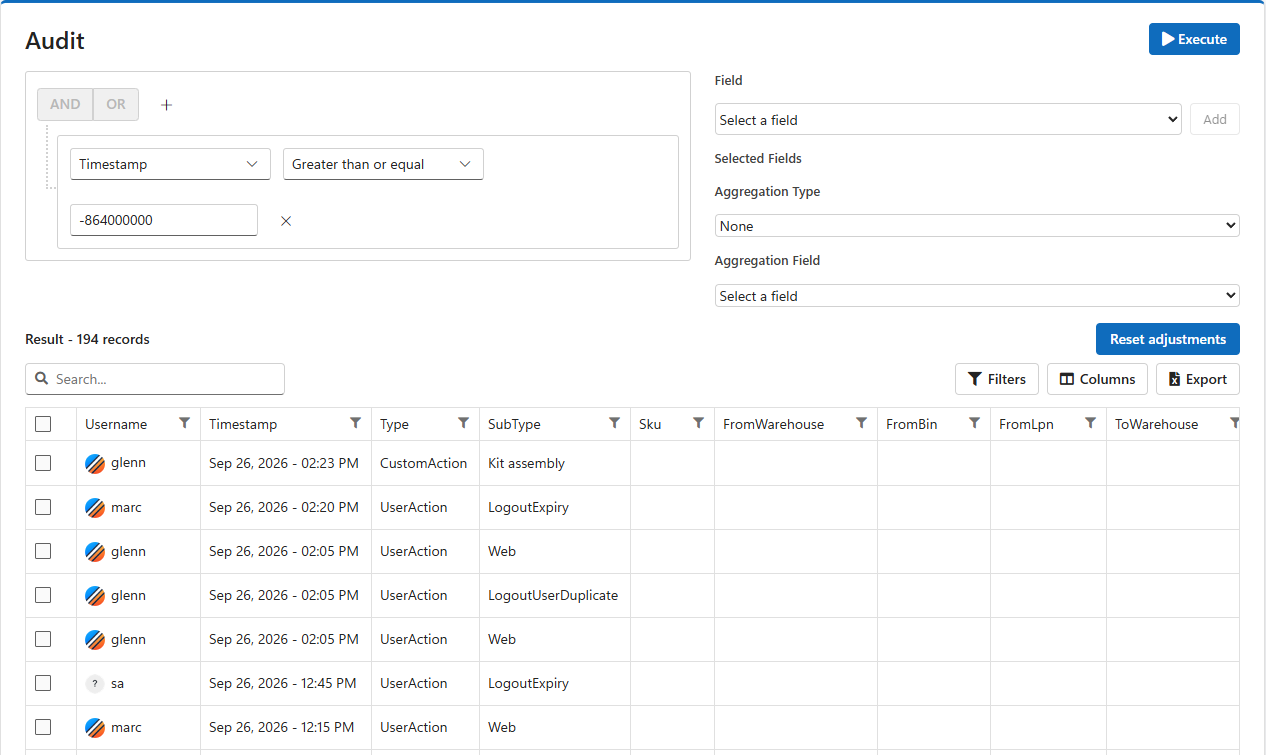
When the screen opens it already holds one condition, Timestamp greater than or equal -864000000, which means the last 10 days (see Dates below). Click Execute to see everything recorded in the last 10 days.
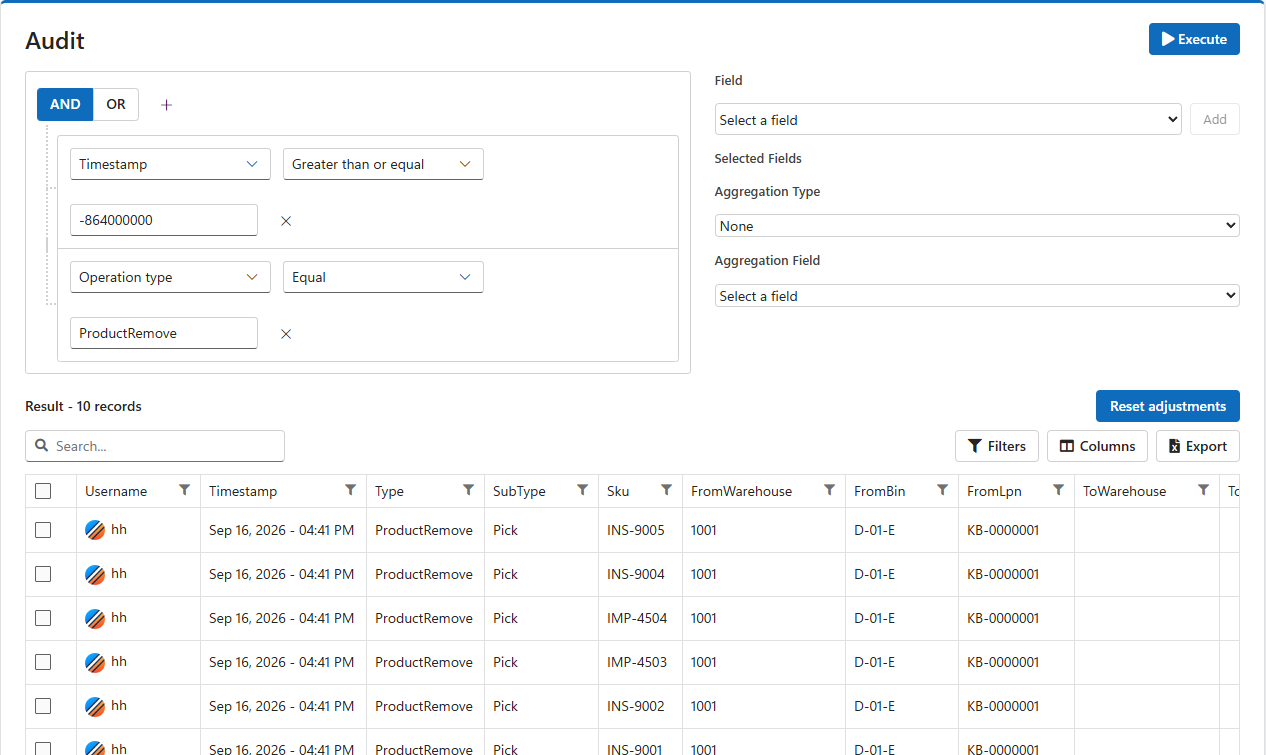
To mix AND and OR, choose Add Group: a group is a set of conditions with its own AND / OR, nested inside the outer one. For example, last 30 days AND (SubType = AdjustIn OR SubType = AdjustOut) finds every manual adjustment of the last month. Click × beside a condition to remove it. A condition with an empty value stops the query from running until it is filled in or removed.
| Kind of field | Operators |
| Text (Sku, bins, lot, reason...) | Equal, Not equal, Is null (empty), Is not null. The value must match exactly: INS-9005, not INS-90. |
| Numbers (Quantity, EachCount...) | Equal, Not equal, Greater than or equal, Less than or equal. |
| Dates (Timestamp, ExpiryDate...) | Greater than or equal, Less than or equal, Is null, Is not null. |
| Ids (ProductId, UserId...) | Equal, Not equal, Is null, Is not null, with the full id. |
| Operation type | Equal, Not equal, with one of the seven types below, typed exactly as written. |
A date value can be written two ways:
2026-09-01 or 2026-09-01 14:30. Use two conditions, Greater than or equal and Less than or equal, for a period.| Period | Value |
| Last hour | -3600000 |
| Last 24 hours | -86400000 |
| Last 7 days | -604800000 |
| Last 10 days (the default) | -864000000 |
| Last 30 days | -2592000000 |
| Last 90 days | -7776000000 |
A query returns at most the 1,000 newest matching records. When the count above the results shows exactly 1,000, there are probably more: narrow the period or add conditions. An administrator can change the limit with Maximum number of records an audit report should return in Configuration. A higher limit makes large queries slower. Grouping and totals are calculated on the records returned, so they too cover at most that many records.
Each record has an Operation type (the Type column), which says what kind of event it was, and a SubType, which says exactly which operation produced it. Query on Operation type for a broad question and on SubType for a precise one.
| Operation type | Meaning |
| ProductAdd | Stock came into a location from nowhere: a receipt, an adjust-in, a production build, a count that found more. |
| ProductRemove | Stock left a location for nowhere: a pick, an adjust-out, production consumption, a count that found less. |
| ProductMove | Stock went from one location to another: a move, a letdown, a pick to a production work area, a tray refill. |
| LicensePlateMove | A whole pallet (LPN) moved, with one record for each product on it. |
| Handling | Something happened without stock changing: a tote moved, an order shipped, a count confirmed, stock blocked. |
| CustomAction | A value-added service was performed. See VAS. |
| UserAction | A person signed in or out, approved a count, or took a quality-control step. |
| SubType | Type | Produced by |
| ReceivePo, NonPoReceive | ProductAdd | Receiving against a purchase order, or without one. The reference is the PO and line. |
| UnreceivePo | ProductRemove | Reversing a receipt. |
| ReceiveRma, NonRmaReceive | ProductAdd (Handling when received as damaged) | Receiving a customer return. The reference is the RMA and line. |
| Pick | ProductRemove | Picking into a tote or carton. The reference is the tote's SSCC. |
| UnpickPickTicket, UnpickTote | ProductAdd | Putting picked stock back. |
| AdjustIn, AdjustOut | ProductAdd, ProductRemove | Manual adjustments on the handheld, with the reason code chosen. See Reason codes. |
| CustomerReturn, VendorReturn | ProductAdd, ProductRemove | Adjusting in from a customer or out to a vendor. |
| ProductMove, BinMove, WarehouseMove | ProductMove | Moving a product, a whole bin, or stock to another warehouse. |
| Letdown | ProductMove | Replenishing a pick location from reserve. |
| PacksizeConvert, PacksizeBreakdown | Any | Consolidating or breaking pack sizes. |
| SubstituteConvert | ProductRemove + ProductAdd | Converting one product into its substitute. |
| CycleCount | ProductAdd / ProductRemove, plus Handling | A cycle count. The Handling record holds the quantity counted; an Add or Remove record is written only where the count differed. |
| ProdOrderPick, ProdOrderBuild, ProdOrderConsume | ProductMove, ProductAdd, ProductRemove | Production: components to the work area, finished goods built, components consumed. |
| KitRefill, KitPull | ProductMove | Surgical trays: items picked into or pulled out of a tray. |
| LicensePlateMove | LicensePlateMove | Moving a pallet, including to a dock door. |
| Init | ProductAdd / ProductRemove | Initial stock loaded when the company was set up. |
| SubType | Produced by |
| ToteBinMove, ToteDockDoorMove, ToteLpnMove, ToteFloorMove | Moving a tote to a bin, a dock door, a pallet or the floor. |
| ShipToteCount, DeliveryToteCount | Confirming a tote's contents at shipping or at delivery. |
| Repackage | Repackaging or merging totes. |
| SmallParcelShip, TruckLoadShip, PrivateFleetShip, ExternalShip, MasterTruckLoadShip | Shipping an order or a truck load, one record per tote. |
| PalletPrinting | Giving a pallet its SSCC label. |
| BlockInventory, UnblockInventory | Blocking or releasing stock, with the reason. |
| ProdOrderProdStep | A production order moving to its next step. |
| KitDispatch, KitDispatchCancel, KitReconcile, KitRefillComplete, KitHomeCustomerSet | Surgical tray office actions. |
| FieldDraftApprove, FieldDraftReject | Reviewing a consumption report sent from the Field app. |
| SubType | Meaning |
| Web, Handheld, Other | Signed in on the web, on a handheld, or through another channel such as the client portal or the Field app. |
| LoginImpersonate | An administrator opened a session as this user. |
| LogoutRegular, LogoutByAdmin, LogoutExpiry | Signed out, signed out by an administrator, or signed out after inactivity. |
| LogoutUserDuplicate | Signed out because the same user signed in on another device. |
| LogoutNoLicense | Signed out to free a license seat for someone else. |
| LogoutUserDeactivated | Signed out because the user was deactivated. |
| CycleCountApproval | A supervisor approved a count adjustment. The user is the approver. |
| QcInspectionStart, QcHold, QcRelease, QcComplete and the other Qc... SubTypes | Each step of an outbound quality-control inspection and its corrective actions. |
| FieldPhotoUpload, FieldDraftSubmit | Photos and consumption reports sent from the Field app. |
A CustomAction record's SubType is the name of the value-added service, as configured on the VAS screen.
| Field | Meaning |
| Username, UserId | Who did it. |
| Timestamp | When, shown in your time zone. |
| Type (Operation type), SubType | What it was, see above. |
| Client, ClientId | The client the product belongs to. |
| Sku, ProductId | The product. |
| FromWarehouse, FromBin, FromLpn | Where the stock came from. Empty for an add. |
| ToWarehouse, ToBin, ToLpn | Where it went. Empty for a remove. |
| IsFromBinEmpty, IsFromLpnEmpty | Whether the source bin or pallet was left empty. |
| Quantity | How much, always positive and always in single units (eaches): 2 cases of 12 are recorded as 24. Whether it went in or out is told by the Type. |
| PacksizeName, PacksizeBarcode, EachCount, NumberOfPacks | The pack size handled and how many packs. |
| AbsoluteFromQuantity | What was left of the product at the source after the operation. What was there before is this plus Quantity. |
| AbsoluteToQuantity | What there was of the product at the destination after the operation. What was there before is this minus Quantity. |
| LotNumber, SerialNumber, ExpiryDate, ManufactureDate | The lot, serial and dates of the stock handled. |
| ReferenceType, ReferenceCode, ReferenceId | The document behind it: a purchase order line, a tote, a production order, a tray, a truck load. |
| Reason | The reason code or note given. |
| ReceivingArrivalId | For a receipt, the arrival it belongs to. |
| IntegrationReference, IntegrationMessage, IntegrationTimestamp | Set when another system, such as your ERP, has taken the record. See Audit and your ERP. |
AbsoluteFromQuantity and AbsoluteToQuantity make Audit a running stock card. Query one SKU in one bin and read the records from the oldest up: each line shows what moved and what was left.
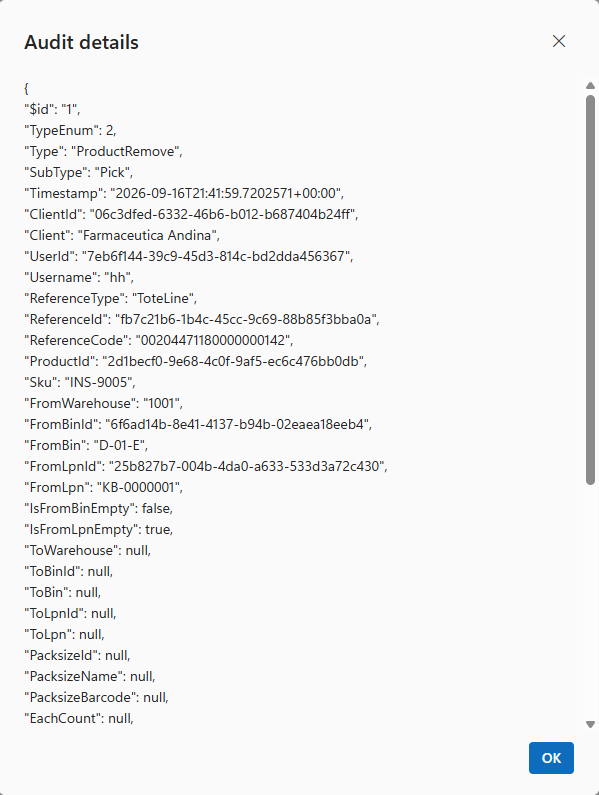
Click Review... at the end of a row to see the whole record exactly as it is stored: every field, including the ids and those not shown as columns. Empty fields show null.
The panel on the right turns a list of records into a summary.
The result is a summary table: one column for each field you grouped by, outermost first, then the total. When you group without choosing an aggregation, the total is the number of records in each group.
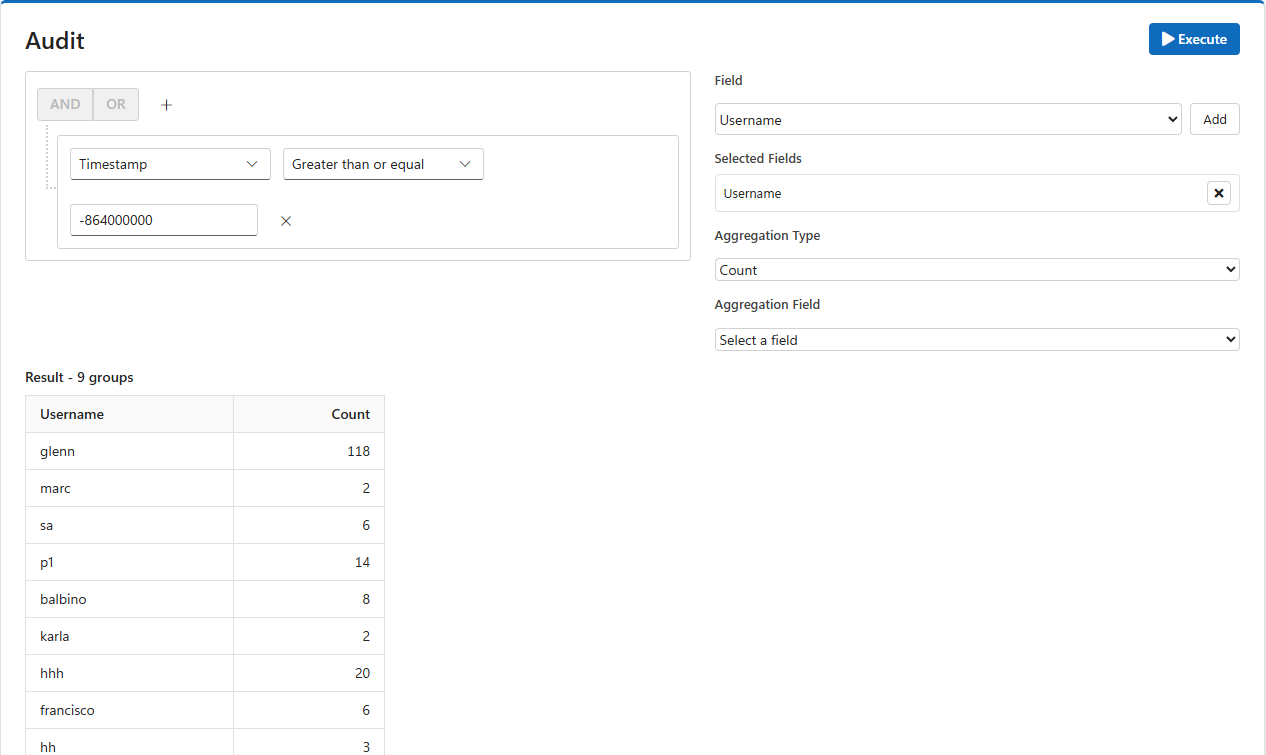
Examples:
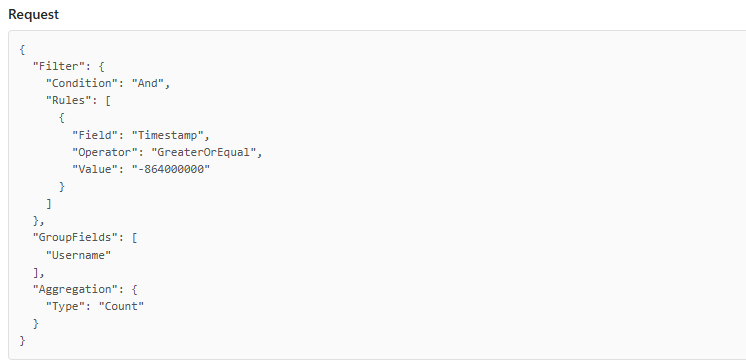
Below the results, Request shows the query you ran as JSON: the conditions, the grouping and the totals. Copy it when you ask your LogisticaHQ partner for help with a query, so they can run exactly the same one.
Stock adjustments usually need to reach your accounting or ERP system. The REST API offers them through POST /adjustments, which reads these same audit records. It can return only the records not yet uploaded, and POST /adjustments/upload marks records as uploaded by setting their IntegrationTimestamp. To see which adjustments your ERP has not yet taken, query IntegrationTimestamp is null.
Reset adjustments, above the results, acts on the ticked records. It clears their IntegrationReference and IntegrationMessage and sets their IntegrationTimestamp to now. It asks for no confirmation, so tick only the records you mean.
Was this page helpful?