 P4 Software
/
logisticaHQ-en
P4 Software
/
logisticaHQ-en
P4 Software
/
logisticaHQ-en
P4 Software
/
logisticaHQ-en
Every time stock is added, removed, returned, unpicked, un-received, repackaged or blocked outside the normal flow, LogisticaHQ asks why. The answer, the reason code, is saved on the audit record with the user, the time, the product and the quantity. Well-chosen reason codes turn adjustments from unexplained losses into numbers you can act on: how much was damaged, how much was found, how much was written off for expiry, and by whom.
You set the reason codes offered for each kind of operation in Setup > System > Configuration, section Business > Reason codes.
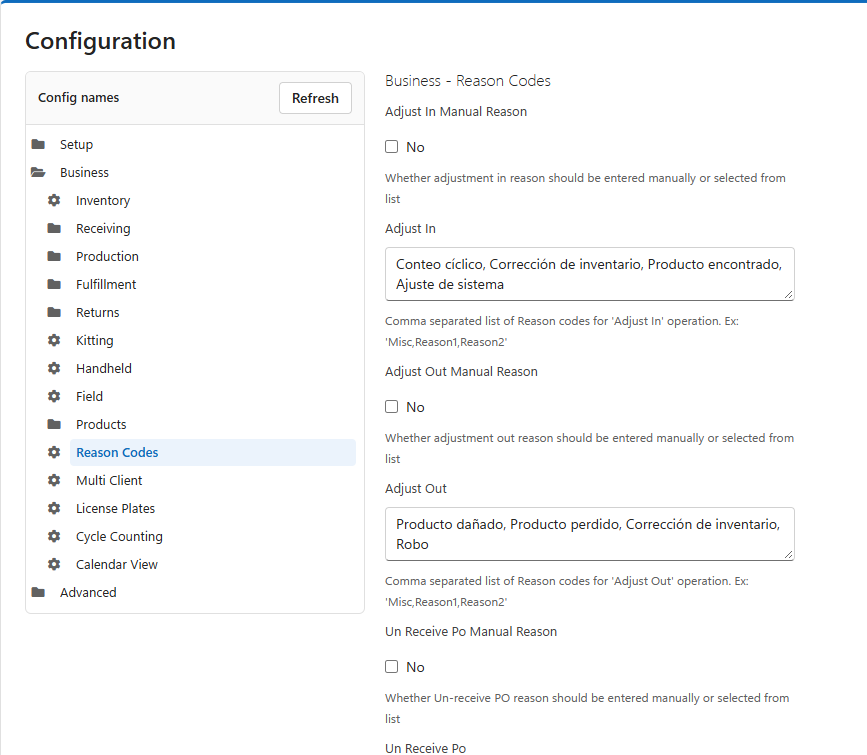
Each operation has two settings: the list of codes (for example Adjust Out), and a Manual Reason checkbox (for example Adjust Out Manual Reason).
| Setting | Asked when | Example codes |
| Adjust In | Adjusting stock in on the handheld | Found,CountCorrection,ReturnedToStock |
| Adjust Out | Adjusting stock out, including clearing a whole bin | Damaged,Expired,Lost,Sample,CountCorrection |
| Un Receive Po | Reversing a purchase order receipt | WrongProduct,WrongQuantity,Mistake |
| Non Po Receive | Receiving stock without a purchase order | NotOnPo,Extras,Replacement |
| Non Rma Receive | Receiving a return without an RMA | NotOnRma,Extras |
| Un Receive Rma | Reversing a return receipt | Mistake,Damaged |
| Unpick | Putting picked stock back | OrderCancelled,WrongItem,Short |
| Customer Return | Adjusting stock in from a customer | Defective,NotNeeded,WrongItemSent |
| Vendor Return | Adjusting stock out to a vendor | Defective,Recall,Overstock |
| Repackage | Repackaging or merging totes | DamagedCarton,Consolidation |
| Block Inventory | Blocking stock on the Bin locations or LPN locations screen | Quarantine,Damaged,Recall,Inspection |
Damaged, Expired, Lost, Sample. Spaces around the commas are ignored, and so are empty entries, so a trailing comma does no harm. You can also put each code on its own line.A code can be written in any language and with accents, as the example above shows. The operator sees it exactly as you type it, and it is saved on the audit record the same way.
| How the setting is filled in | What the handheld does |
| Several codes | Shows the list; the operator picks one. |
| Exactly one code | Uses it without asking, and shows it on screen. Use this when an operation always has the same reason. |
| Manual Reason ticked | Asks the operator to type the reason. The list is ignored. |
| Empty, with Manual Reason unticked | Refuses the operation with No reason codes setup for [AdjustOut]. Fill in the list or tick Manual Reason. |
Every new company starts with one code, Misc, for each operation, so operators are never asked until you set your own codes.
Prefer a list over manual reasons. A picked code is always spelled the same way, so reports can add up by reason. Typed reasons ("damaged", "Damage", "dmg") cannot be.
The code chosen is saved in the Reason field of the audit record. To see what each reason costs you:
Was this page helpful?