 P4 Software
/
logisticaHQ-en
P4 Software
/
logisticaHQ-en
P4 Software
/
logisticaHQ-en
P4 Software
/
logisticaHQ-en
The Query builder lets you ask your LogisticaHQ database any question in SQL and see the answer at once: stock by bin, orders late by customer, adjustments by reason, picks per person, anything the data holds. It is built for people who know a little SQL. Everyone else can start from the ready-made examples and change a date or a code.
Open Setup > System > Query builder. The Query builder is for administrators only: it does not appear in anyone else's menu, and anyone else who opens its address sees Only administrators can use the Query builder.
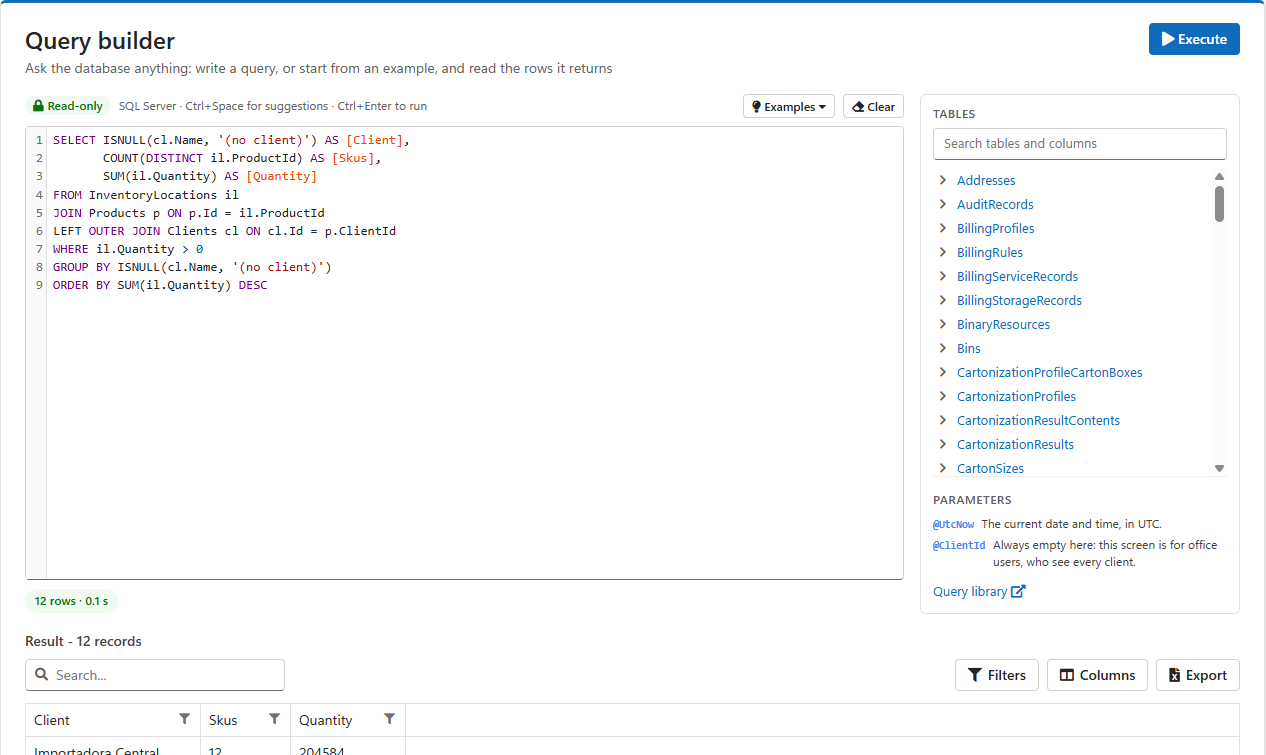
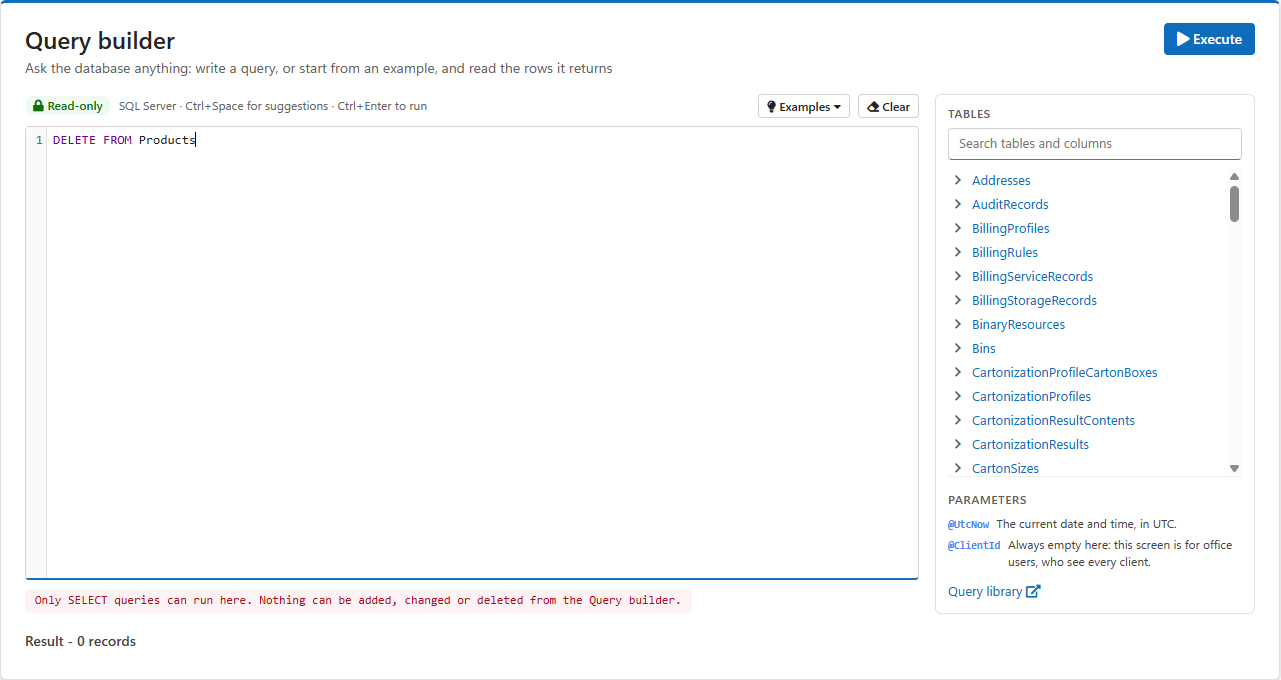
The Query builder runs one SELECT query at a time, and nothing else. Three separate safeguards make sure of it:
ConfigEntries (settings) and Webhooks tables are refused, as are the ApiKey, PasswordHash, LastPasswordHashes and SmallParcelBrokerApiKey columns. On Users and Clients, list the columns you need instead of using SELECT *. None of these appear in the Tables list or the suggestions.The Read-only badge above the editor is a reminder. A refused query shows why below the editor:
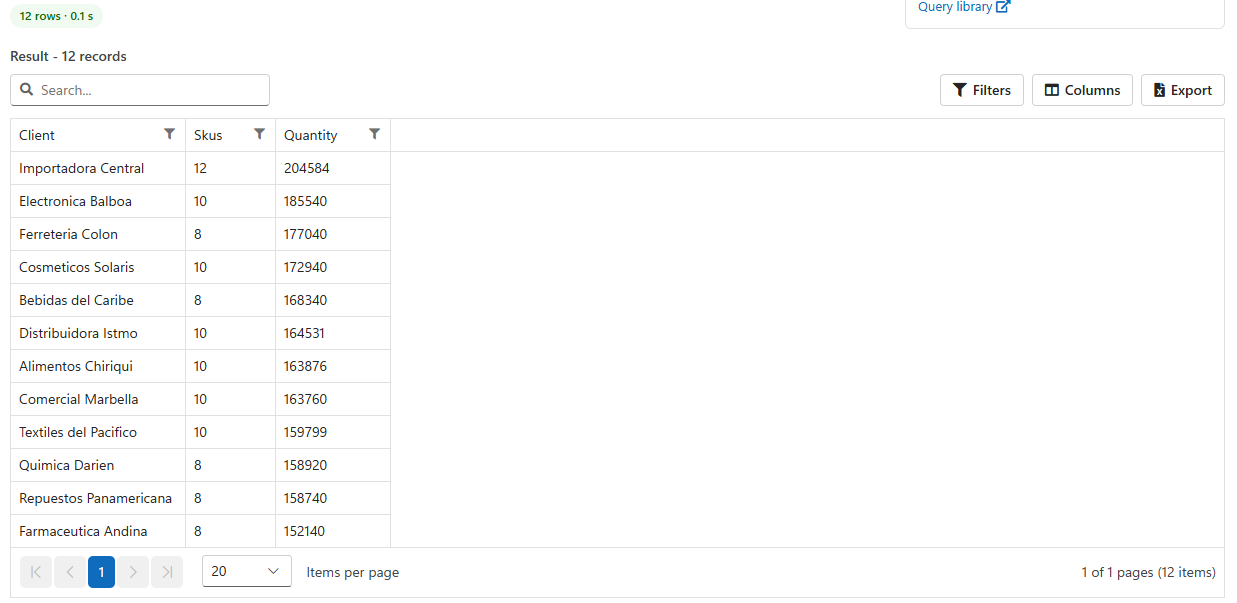
The results work like every other list: search, filter per column, choose columns, and Export to Excel. The column headings are the names your query gives the columns, so use AS to name them the way you want them in the spreadsheet: SUM(il.Quantity) AS [On hand].
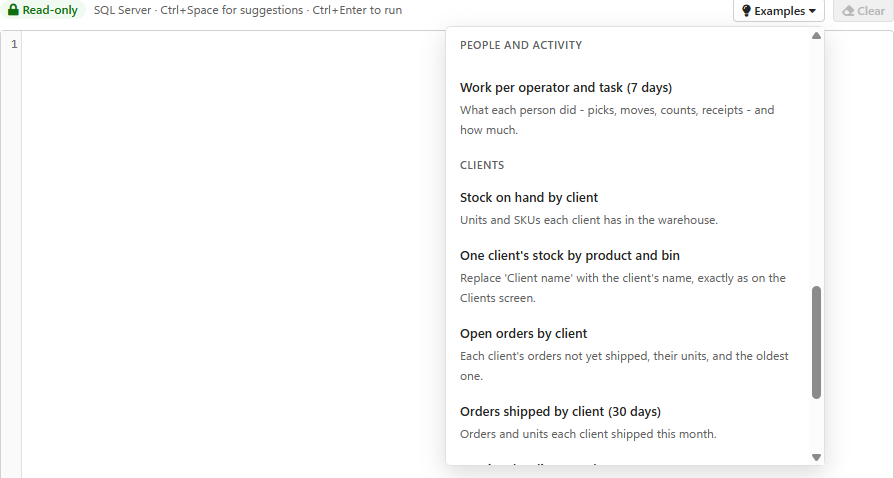
Click Examples for 22 ready-made queries. Choosing one replaces what is in the editor. Run it as it is, or change it first: the period, a warehouse, a SKU.
| Group | Examples |
| Inventory | Stock on hand by warehouse · Stock by product and bin · Expiry exposure · Blocked stock · Dead stock (no movement 90 days) · Empty bins by zone |
| Receiving | Open purchase orders by age · Receipts by vendor (30 days) |
| Orders and shipping | Open orders by age · Orders held short · Shipments by customer (30 days) · Shipping by day (30 days) |
| People and activity | Adjustments by reason (30 days) · Picks per operator (7 days) · Work per operator and task (7 days) |
| Clients | Stock on hand by client · One client's stock by product and bin · Open orders by client · Orders shipped by client (30 days) · Receipts by client (30 days) · Warehouse activity by client (30 days) · Invoices by client |
Many more are in the Database query library, also linked at the bottom of the side panel.
In a 3PL warehouse, each client's products, orders, purchase orders, returns and pallets carry the client they belong to, in a ClientId column. The client's name is in the Clients table. Every audit record also carries it, in the Client column. To split any figure by client, join the Clients table and group by its name:
SELECT ISNULL(cl.Name, '(no client)') AS [Client],
       SUM(il.Quantity) AS [Quantity]
FROM InventoryLocations il
JOIN Products p ON p.Id = il.ProductId
LEFT OUTER JOIN Clients cl ON cl.Id = p.ClientId
WHERE il.Quantity > 0
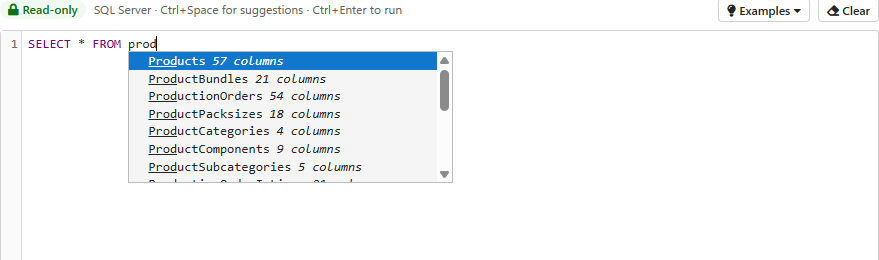
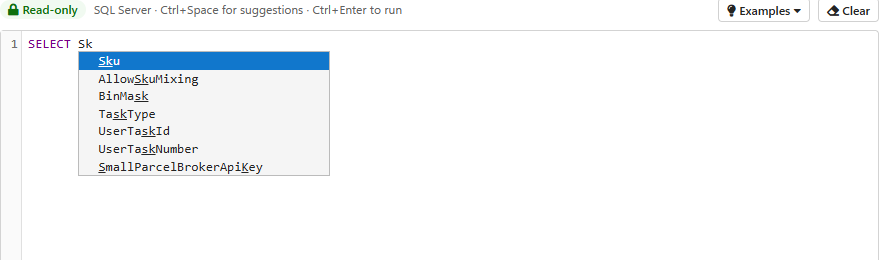
GROUP BY ISNULL(cl.Name, '(no client)')LEFT OUTER JOIN, so the warehouse's own stock, which belongs to no client, is kept and shows as (no client).WHERE cl.Name = 'Client name', typed exactly as on the Clients screen. The example One client's stock by product and bin does this.Products.ClientId). Orders, purchase orders and returns carry their own ClientId.FROM or JOIN: table names only;p. in FROM Products p): that table's columns;SUM and DATEADD, and the keywords a SELECT uses.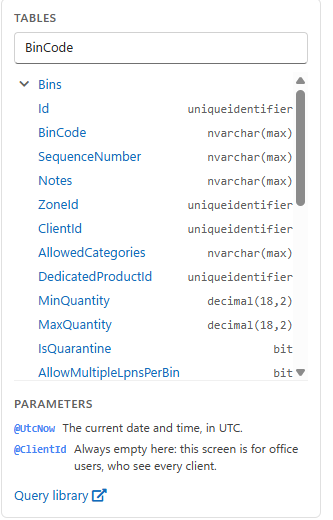
Two values are always available to a query:
| Parameter | Value |
@UtcNow | The current date and time, in UTC. For example WHERE Timestamp >= DATEADD(day, -7, @UtcNow) for the last seven days. |
@ClientId | The client of the person running the query. It is always empty here, because only administrators, who see every client, can use the Query builder. Reports use it to show client users only their own data. |
The reason appears in red below the editor: SQL Server's own message for a mistake, for example Invalid column name 'Qty', or the reason a query was refused. Correct the query and run it again. The Tables panel is the quickest way to check a name.
WHERE or use TOP to narrow it. An administrator can change the limit with Maximum number of records a SQL query should return in Configuration.| Table | Holds |
| Products | Products: Sku, Description, dimensions, weight, cost. |
| InventoryLocations | Stock: one row per product and location (BinId or LicensePlateId) with Quantity, lot, serial and expiry. |
| Bins, Zones, Warehouses, LicensePlates | Where stock is kept: bins (BinCode) sit in zones (ZoneCode) in warehouses (WarehouseCode); pallets (Sscc) sit in bins. |
| PurchaseOrders, PurchaseOrderLines | Purchase orders and their lines. |
| PickTickets, PickTicketLines | Orders and their lines. |
| Customers, Vendors, Clients | Who you ship to, buy from, and store for. |
| AuditRecords | Every stock movement and user event. See Audit for its fields. |
Was this page helpful?