 P4 Software
/
logisticaHQ-en
P4 Software
/
logisticaHQ-en
P4 Software
/
logisticaHQ-en
P4 Software
/
logisticaHQ-en
In this process you can create a return to vendor adjustment, when entering the Vendor Adjustment screen you will be presented with a list of reasons for the return.
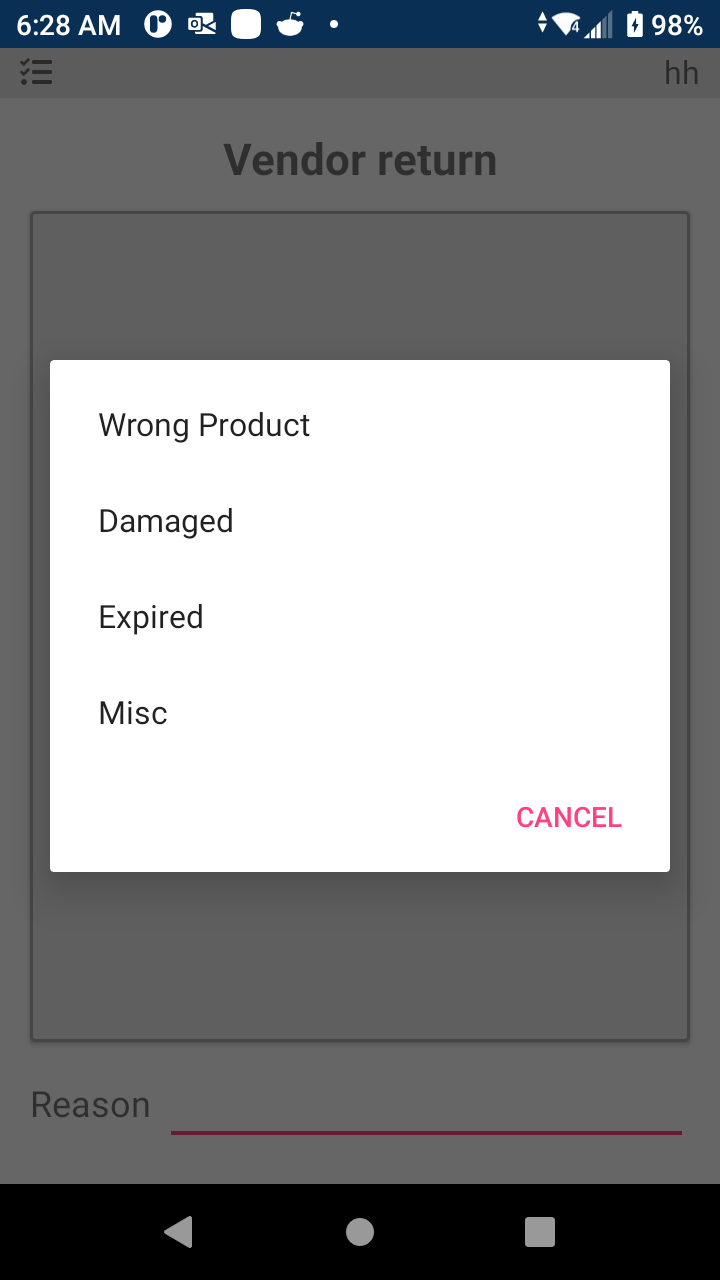
Select the correct reason code, these are configurable in the Reason Code Setup screen.
After selecting the correct reason code enter the Vendor ID number provided to you for the return.
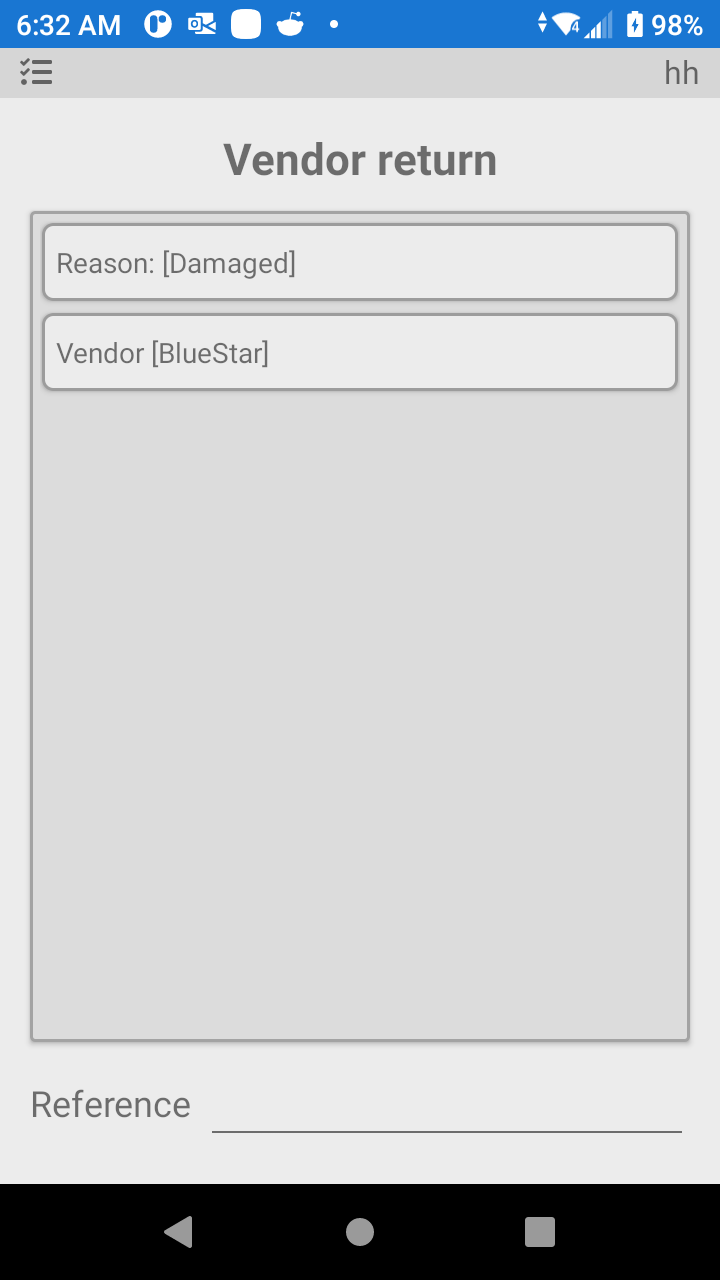
Now you are presented a Reference field, this is normally the RMA number from the Vendor.
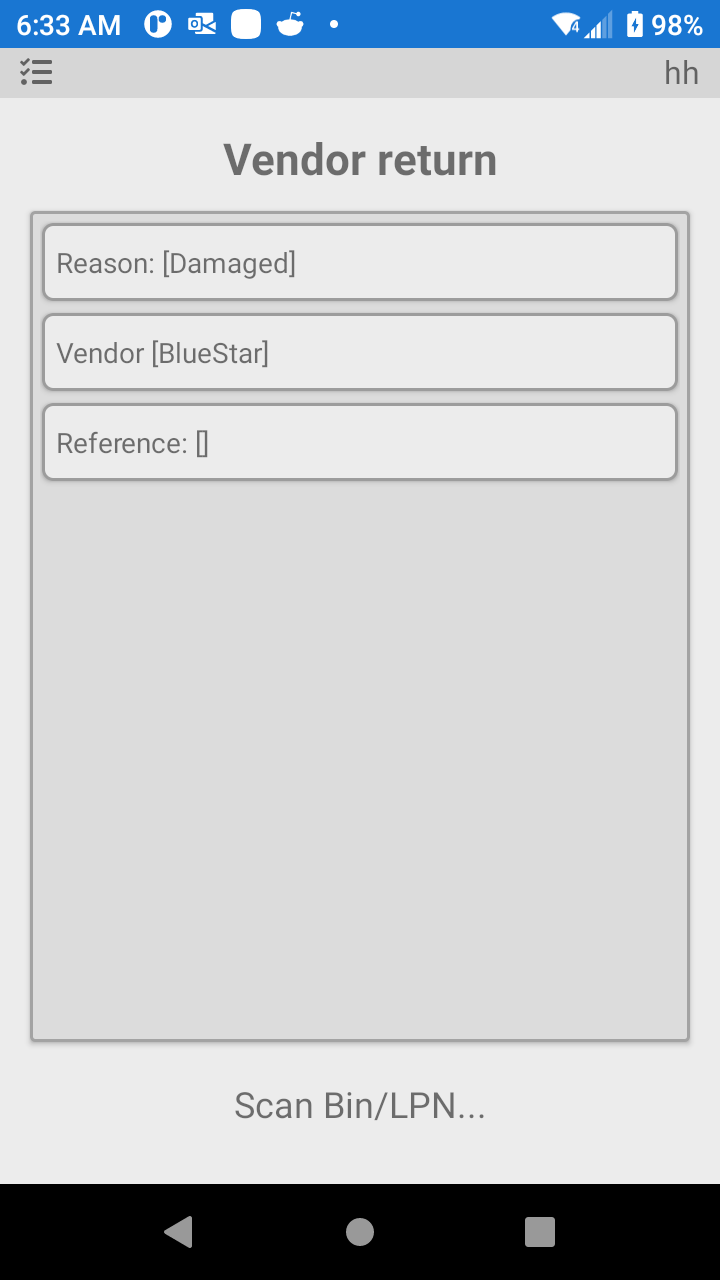
Once you are on the screen above you will scan the bin location where you plan to remove the product.
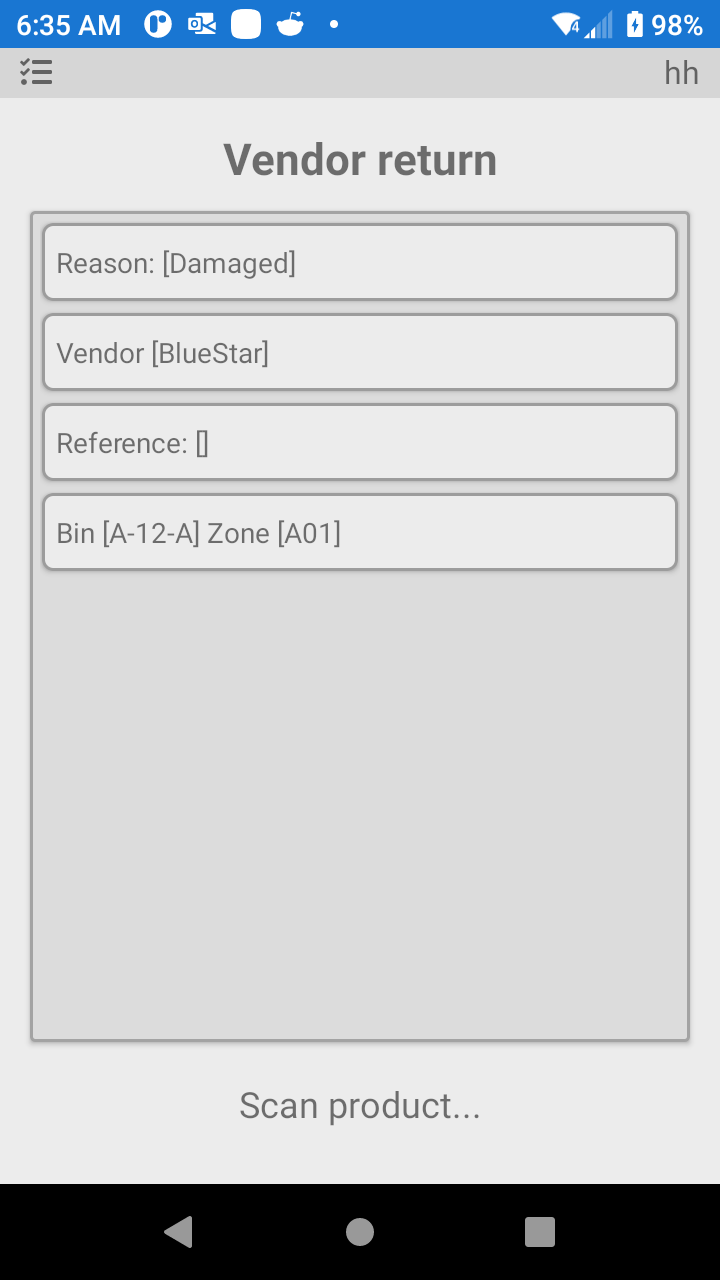
The next step is to scan the correct product.
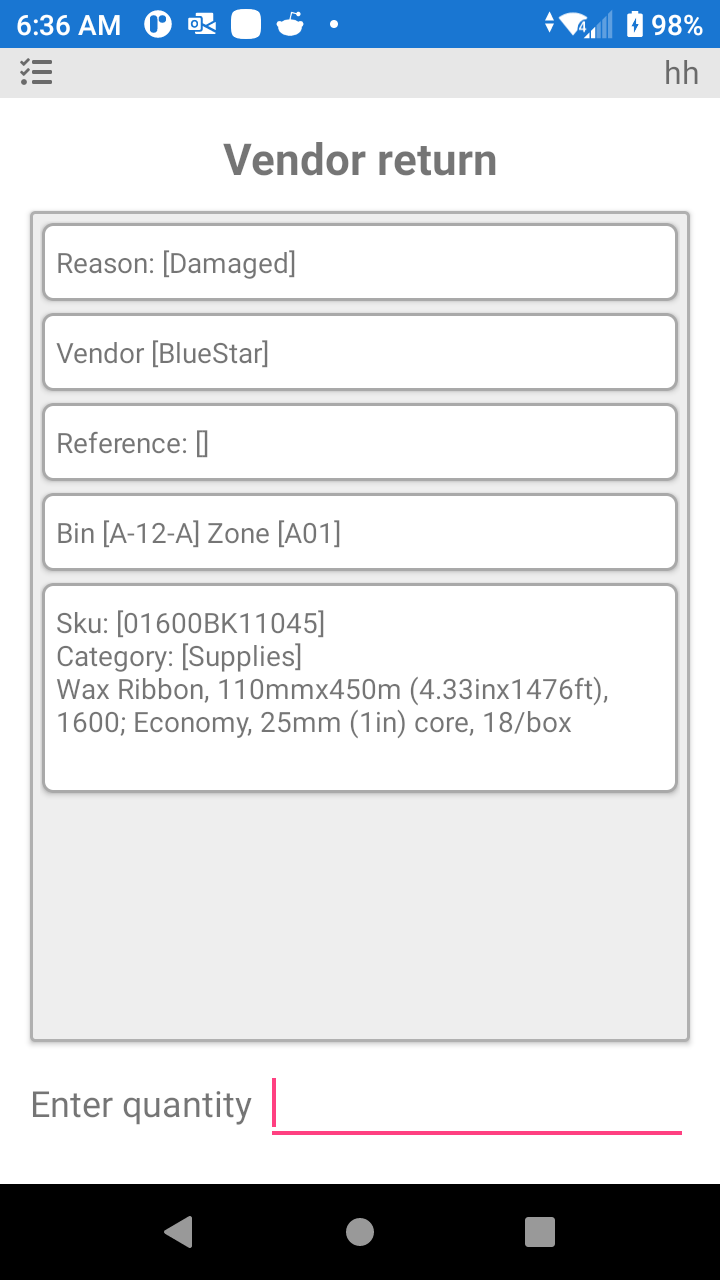
After scanning the product, you will be asked for the quantity you want to return to the vendor.
Was this page helpful?