 P4 Software
/
logisticaHQ-en
P4 Software
/
logisticaHQ-en
P4 Software
/
logisticaHQ-en
P4 Software
/
logisticaHQ-en
The Tenant screen holds your company's own details: its name, address, language, time zone and license, the documents LogisticaHQ prints for you, and the branding of your sign-in page. These details appear on packing slips, invoices, labels and emails, so complete every field before you go live.
Open Setup > System > Tenant. The screen has two tabs, General and Branding. Change what you need and click Update to save. Refresh reloads the saved values.
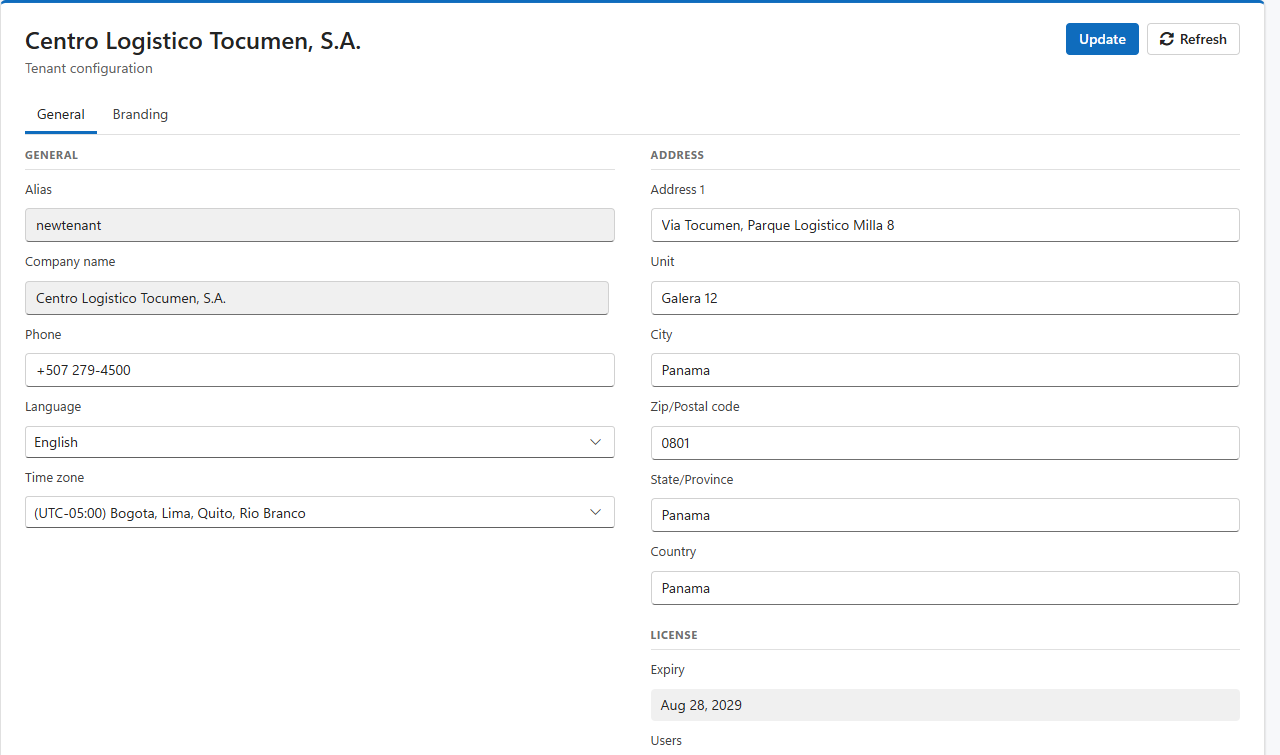
| Field | What it is |
| Alias | Your tenant's short name, which is also the first part of your web address, for example newtenant in newtenant.logisticahq.cloud. Set when your tenant is created. It cannot be changed here. |
| Company name | Your legal company name, printed on documents. Set by the implementation team. It cannot be changed here. |
| Phone | Your company's main phone number, printed on documents. |
| Language | The default language of the system. Each user can choose their own language on their profile. Users who leave it at Inherit use this one. |
| Time zone | Your warehouse's time zone. Dates and times on screens, documents and reports are shown in it. |
Enter your company address: Address 1, Unit, City, Zip/Postal code, State/Province and Country. It is the "ship from" and "bill from" address on your documents. Fill in every field, or packing slips and shipping labels will print with gaps.
The license shows how long your subscription runs and how many people can use LogisticaHQ at once:
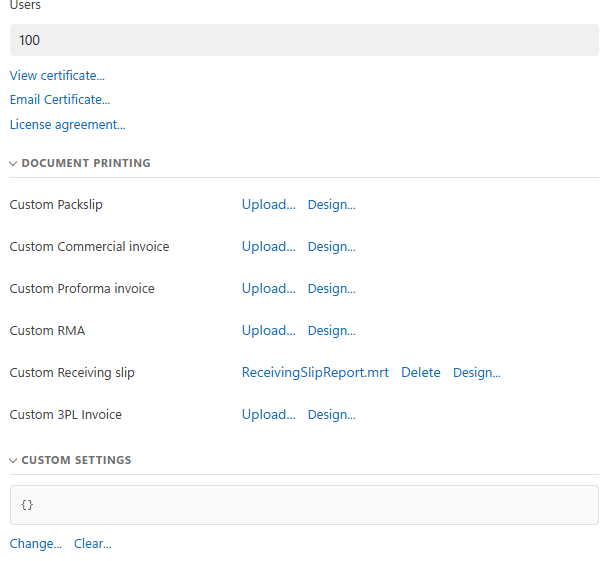
LogisticaHQ prints six business documents from built-in designs: the Packslip, Commercial invoice, Proforma invoice, RMA, Receiving slip and 3PL Invoice. You can replace any of them with your own design:
.mrt) you or your partner prepared.In the example above, the Receiving slip uses a custom design, ReceivingSlipReport.mrt, and the other five use the built-in designs.
Custom settings is a technical store of named values used by integrations and by features your LogisticaHQ partner sets up for you. It is shown as text between braces, {} when empty. Change it only when your partner asks you to: click Change to edit the values, or Clear to empty them.
The Branding tab personalises the sign-in page and the application with your company's identity:
| Field | What it does |
| Welcome Message | A short message shown on the sign-in page, for example a greeting or a notice to your staff. |
| Login splash icon | The logo shown on the sign-in page. |
| Company logo | Your company logo, used in the application and on documents. |
| Login background | The picture behind the sign-in form. |
For each picture, click Upload to choose an image from your computer, or Remove to go back to the LogisticaHQ default. Pictures are saved as soon as you upload or remove them.
Was this page helpful?