 P4 Software
/
logisticaHQ-en
P4 Software
/
logisticaHQ-en
P4 Software
/
logisticaHQ-en
P4 Software
/
logisticaHQ-en
A scheduled report runs a query on a schedule you set and emails the rows it returns as an Excel file. Use it for the reports people read every day, week or month without logging in: orders shipped yesterday, lots about to expire, stock on hand at month end. For a 3PL operation, one scheduled report can go to each of your clients separately, with every client receiving only its own rows.
Open Setup > Reporting > Scheduled reports. Only office users can open it; client portal users never see scheduled reports.
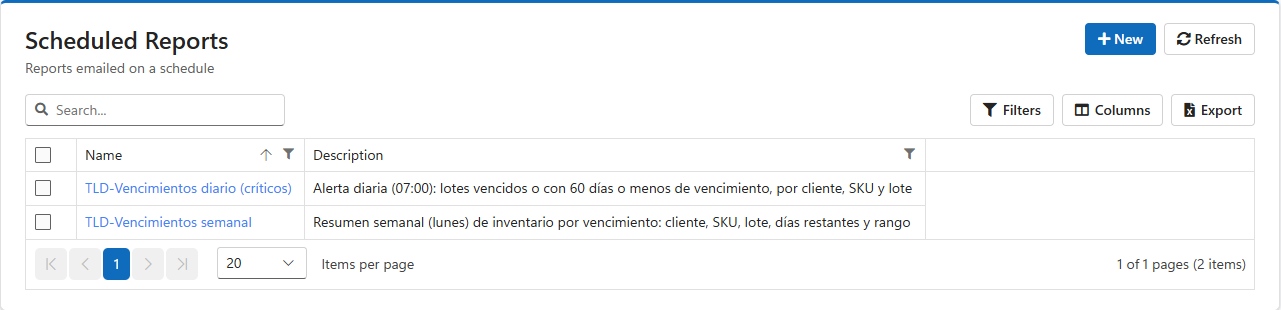
Each row is one report, with its Name and Description. Double-click a row, or its name, to open it.
The report screen has two tabs, Query and Recipient, and four buttons at the top right:
| Button | What it does |
|---|---|
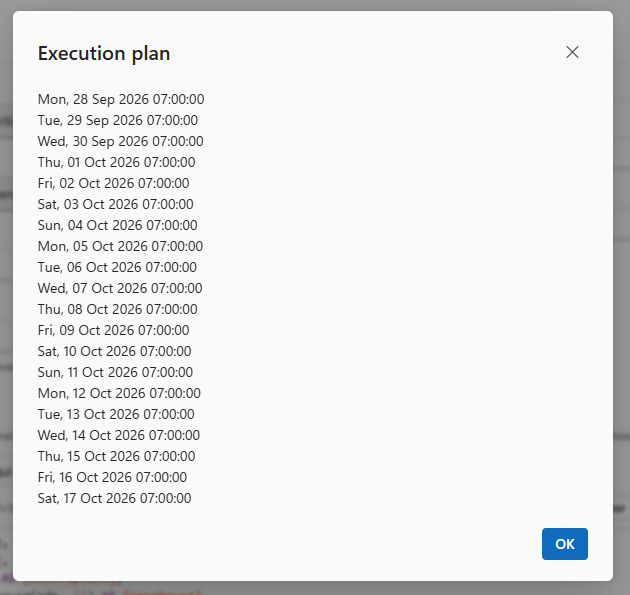
| Execution plan | Lists the next 20 times the report will run, one per line, counted from now. Use it to check a schedule before you rely on it. |
| Update | Saves the report. Nothing you change on either tab is saved until you press Update. |
| Run | Runs the report now and sends the email for real, to the real recipients, exactly as the schedule would. Use Execute on the Query tab to look at the rows without sending anything. |
| Refresh | Reads the report again, discarding anything you changed and did not save. |
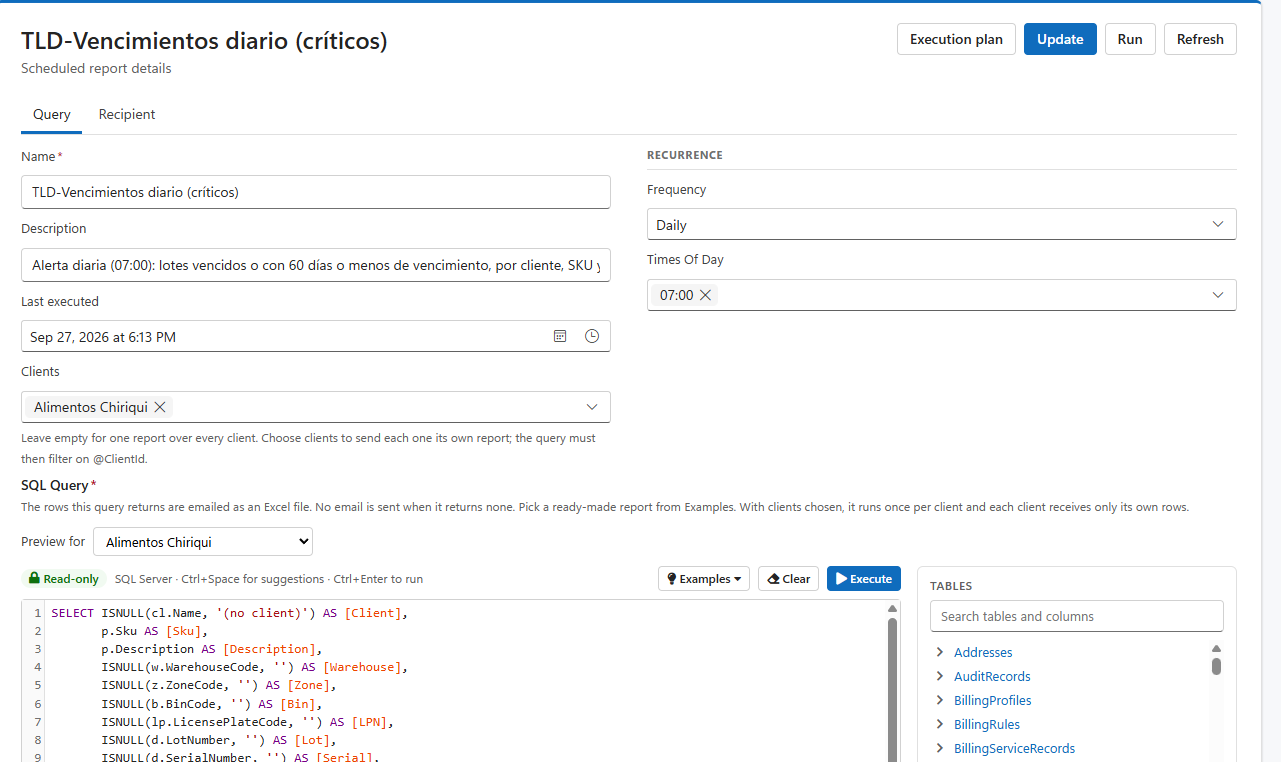
| Field | What it is |
|---|---|
| Name (required) | The report's name. It is also the name of the Excel file attached to the email. |
| Description | What the report is for, for the people who maintain it. It is not sent. |
| Last executed | When the report last ran. The schedule counts its next run from here, so a report that has never run gets its first run at the next time its schedule allows. |
| Clients | Leave it empty for one report over every client. Choose one or more clients to send each of them its own report (see Sending each client its own report). |
| Frequency | Hourly, Daily, Weekly or Monthly. What you choose decides what appears under it. |
| Times Of Day (Daily) | The hours of the day the report runs, one or several. |
| Days (Weekly and Monthly) | One row per day: the day of the week (Weekly) or of the month (Monthly), and the hours on that day. Add Day adds a row; the × at the end of a row removes it. |
| SQL Query (required) | The query whose rows are emailed. It is written in the same editor as the Query builder and widgets (see below). |
Hourly reports run every hour and have no days or hours to set. Times are the warehouse's Eastern time.
When the query returns no rows, no email is sent. That makes alert-style reports possible: "late orders", "lots expiring in 30 days" and "blocked stock" arrive only on the days there is something to act on.
The query is written in LogisticaHQ's SQL editor, the same one the Query builder and Widgets use:
@ClientId is the client the report is running for, or empty when no clients are chosen. @UtcNow is the current date and time in UTC.You rarely need to write the SQL yourself. Click Examples and pick a report; it replaces the query in the editor. Every example is written for the schedule its group names, reads well as a spreadsheet, and works for one client or for all of them.
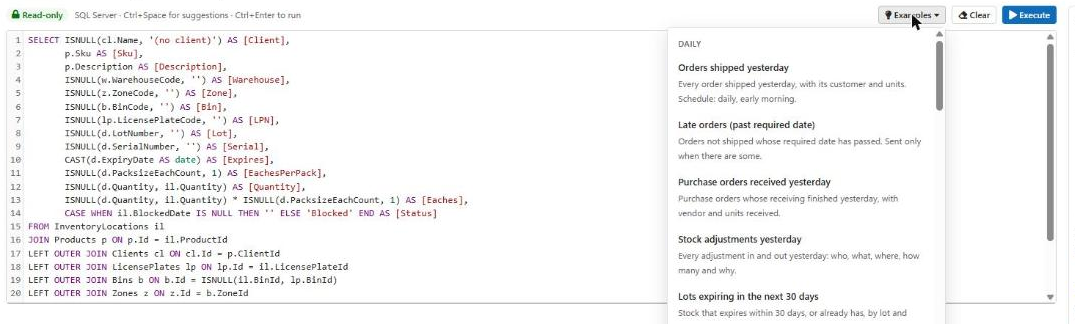
| Group | Report | What it sends |
|---|---|---|
| Daily | Orders shipped yesterday | Every order shipped yesterday, with its customer and units. |
| Late orders (past required date) | Orders not shipped whose required date has passed, most overdue first. | |
| Purchase orders received yesterday | Purchase orders whose receiving finished yesterday, with vendor and units. | |
| Stock adjustments yesterday | Every adjustment in and out yesterday: who, what, where, how many and why. | |
| Lots expiring in the next 30 days | Stock that expires within 30 days or already has, by lot and location. | |
| Blocked stock | Every blocked location: why, by whom, and for how many days. | |
| Weekly | Shipments by customer (last 7 days) | Orders and units shipped per customer. |
| Receipts by vendor (last 7 days) | Orders and units received per vendor. | |
| Productivity per operator (last 7 days) | Picks, receipts, moves, counts and units per person. | |
| Overdue purchase orders | Purchase orders not fully received whose required date has passed. | |
| Dead stock (no movement in 90 days) | SKUs on hand that have not moved in 90 days. | |
| Monthly | Stock on hand by client (month end) | SKUs and units on hand per client. |
| Orders shipped by client (last month) | Orders and units shipped per client in the previous calendar month. | |
| Receipts by client (last month) | Orders and units received per client in the previous calendar month. | |
| Adjustments by reason (last month) | Adjustments in and out per reason code. | |
| Inventory | Inventory detail (right now) | Every unit in the building when the report runs: client, SKU, warehouse, zone, bin, LPN, lot, serial, expiry, quantity in packs and eaches, blocked stock marked. |
| Inventory snapshot - last night (detailed) | The stock as captured at midnight, line by line, with what was allocated. | |
| Stock by SKU - last night | One line per SKU: eaches, allocated, how many locations hold it, earliest expiry. | |
| Stock changes since the night before | Every SKU whose stock changed between the last two nightly snapshots, biggest change first. | |
| Stock by warehouse and zone - last night | Bins in use, SKUs, eaches and allocated per warehouse and zone. | |
| Month-end closing stock (last month) | Last month's closing stock per client, SKU and warehouse. Run it on or after the 1st. |
The periods: yesterday is midnight to midnight; last 7 days ends at midnight this morning; last month is the whole previous calendar month, so a monthly report set for the 1st reads the complete month.
The reports marked last night and month end read the nightly inventory snapshot: LogisticaHQ records the stock of every bin, lot and LPN just after midnight and keeps 90 nights. The snapshot is taken only when the setting Capture a nightly inventory snapshot (90 day history), under Business > Inventory in Setup > Configuration, is switched on; without it these reports return no rows, and no email is sent.
Choose clients in the Clients box and the report changes how it runs: at each scheduled time it runs once per chosen client, and each client's email carries only that client's rows. With no clients chosen it runs once, over every client, and one email goes out.
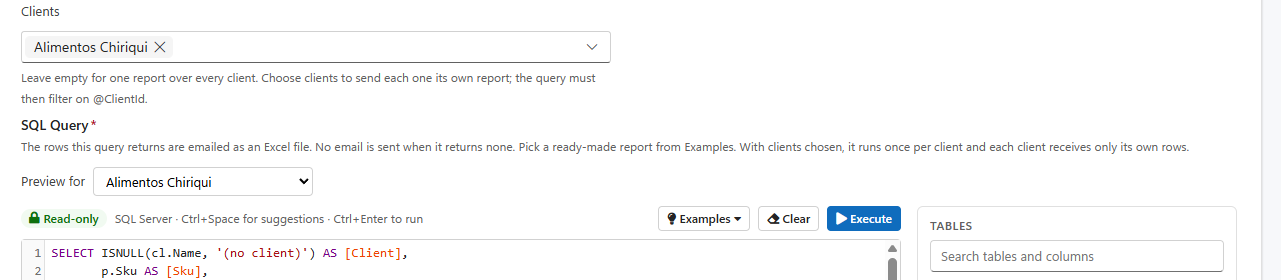
For this to work, the query must filter on the client with @ClientId. Every example already does, with a line like this:
AND (@ClientId IS NULL OR p.ClientId = @ClientId)When the report runs for a client, @ClientId is that client and only its rows come back; when no clients are chosen, @ClientId is empty and the same line lets every row through.
LogisticaHQ will not let one client receive another client's data. A report with clients chosen whose query does not use @ClientId cannot be saved: Update answers This report is sent for chosen clients, so its query must filter on @ClientId. A @ClientId that only appears inside a comment does not count.
When clients are chosen, a Preview for list appears above the editor. Pick a client and press Execute to see exactly the rows that client will receive. Nothing is sent.
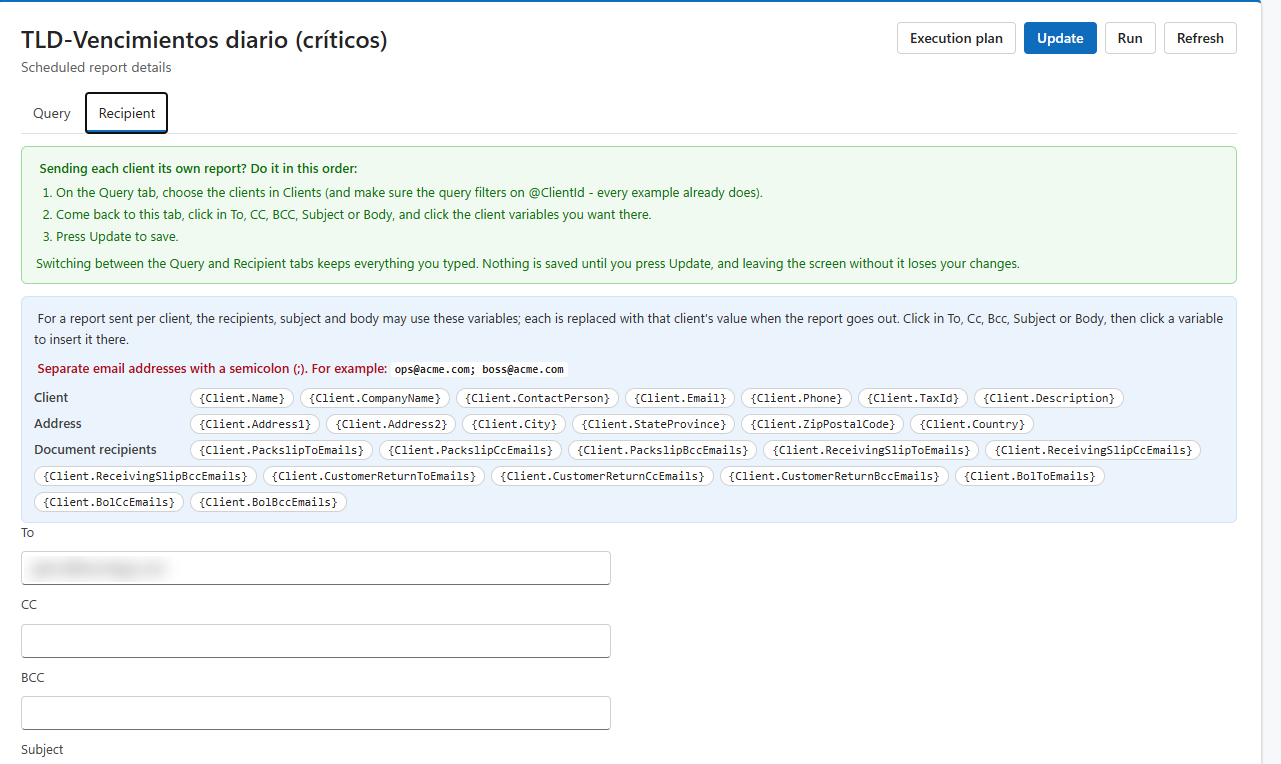
| Field | What it is |
|---|---|
| To (required) | Who receives the email. |
| CC | Who receives a copy. |
| BCC | Who receives a copy the others do not see. |
| Subject (required) | The email's subject. |
| Body | The email's text. HTML is kept as written. |
Separate email addresses with a semicolon (;), for example ops@acme.com; boss@acme.com. The screen says so in red above the boxes.
Do it in this order, as the green box at the top of the Recipient tab says: first choose the clients on the Query tab, then come to the Recipient tab and click the variables in, then press Update. Until clients are chosen, the variables are greyed out and a red line explains why, with a Choose clients button that takes you to the Query tab. Switching between the two tabs keeps everything you typed; nothing is saved until you press Update.
In a report sent per client, the To, CC, BCC, Subject and Body may use client variables. When the report goes out for a client, each variable is replaced with that client's value. With {Client.Email} in To and Weekly stock - {Client.Name} in Subject, Acme receives its report at Acme's address, titled Weekly stock - Acme.
To use one: click in the box it should go into (To, CC, BCC, Subject or Body), then click the variable. It is inserted where your cursor was. In an address box the semicolon is added for you, so clicking two variables gives {Client.Email}; {Client.PackslipToEmails}. With no box clicked, variables go into To.
| Group | Variable | Replaced with, from the client's record |
|---|---|---|
| Client (Clients > Setup tab) | {Client.Name} | The client's name |
{Client.CompanyName} | The company name | |
{Client.ContactPerson} | The contact person | |
{Client.Email} | The client's email address | |
{Client.Phone} | The phone number | |
{Client.TaxId} | The tax ID | |
{Client.Description} | The description | |
| Address (Clients > Setup tab) | {Client.Address1} | Address line 1 |
{Client.Address2} | Address line 2 | |
{Client.City} | City | |
{Client.StateProvince} | State or province | |
{Client.ZipPostalCode} | ZIP or postal code | |
{Client.Country} | Country | |
| Document recipients (Clients > Notification tab) | {Client.ReceivingSlipToEmails}, …CcEmails, …BccEmails | The To, Cc and Bcc of the client's Receiving section |
{Client.CustomerReturnToEmails}, …CcEmails, …BccEmails | The To, Cc and Bcc of its Customer Returns section | |
{Client.PackslipToEmails}, …CcEmails, …BccEmails | The To, Cc and Bcc of its Fulfillment (packslip) section | |
{Client.BolToEmails}, …CcEmails, …BccEmails | The To, Cc and Bcc of its Truck loads (BOLs) section |
Things to know:
{Client.Emial}, cannot be saved: Update names it and lists the correct ones. Only the variables above exist; a client's carrier and parcel-broker keys can never be put in an email.Email goes out through the tenant's email settings (Setup > Configuration, under Setup > Communication > Email), or through LogisticaHQ's own email service when no mail server is set there. A report that was not able to run for a while, for example after a long outage, runs once when it can and then keeps its schedule; it does not send one email for every run it missed.
{Client.Email}. In Subject, type Weekly stock - and click {Client.Name}.| What you see | Why, and what to do |
|---|---|
| No email arrived | The query returned no rows for that run, which sends nothing by design. Press Execute to see what it returns now. If it should have rows, check the report's period (yesterday, last month) against the date. |
| Update says the query must filter on @ClientId | Clients are chosen and the query has no client filter. Add AND (@ClientId IS NULL OR x.ClientId = @ClientId) to its WHERE, with the right table alias, or start from an example. |
| Update says a variable is not a client variable | It is misspelt or does not exist. Click the variable on the Recipient tab instead of typing it. |
| One client did not receive its report | That client's variable resolved to nothing, for example its Email is empty. Fill in the field on the client, or add a fixed address to To. |
| A last-night report sends nothing | The nightly inventory snapshot is off. Switch on Capture a nightly inventory snapshot (90 day history) (Setup > Configuration, Business > Inventory); the first snapshot is taken the following midnight. |
| Execute says the query was refused | It is not a single read-only SELECT, or it reads protected data. The message says which. |
Was this page helpful?