 P4 Software
/
logisticaHQ-en
P4 Software
/
logisticaHQ-en
P4 Software
/
logisticaHQ-en
P4 Software
/
logisticaHQ-en
Every label and document LogisticaHQ prints goes through the print queue: the request waits there until the print agent for that printer picks it up, prints it and reports back. The Print queue screen shows those requests, whether each one printed, and lets you print one again. It is the first place to look when someone says "my label didn't print".
Open Setup > Printing > Print queue. The newest requests are at the top.
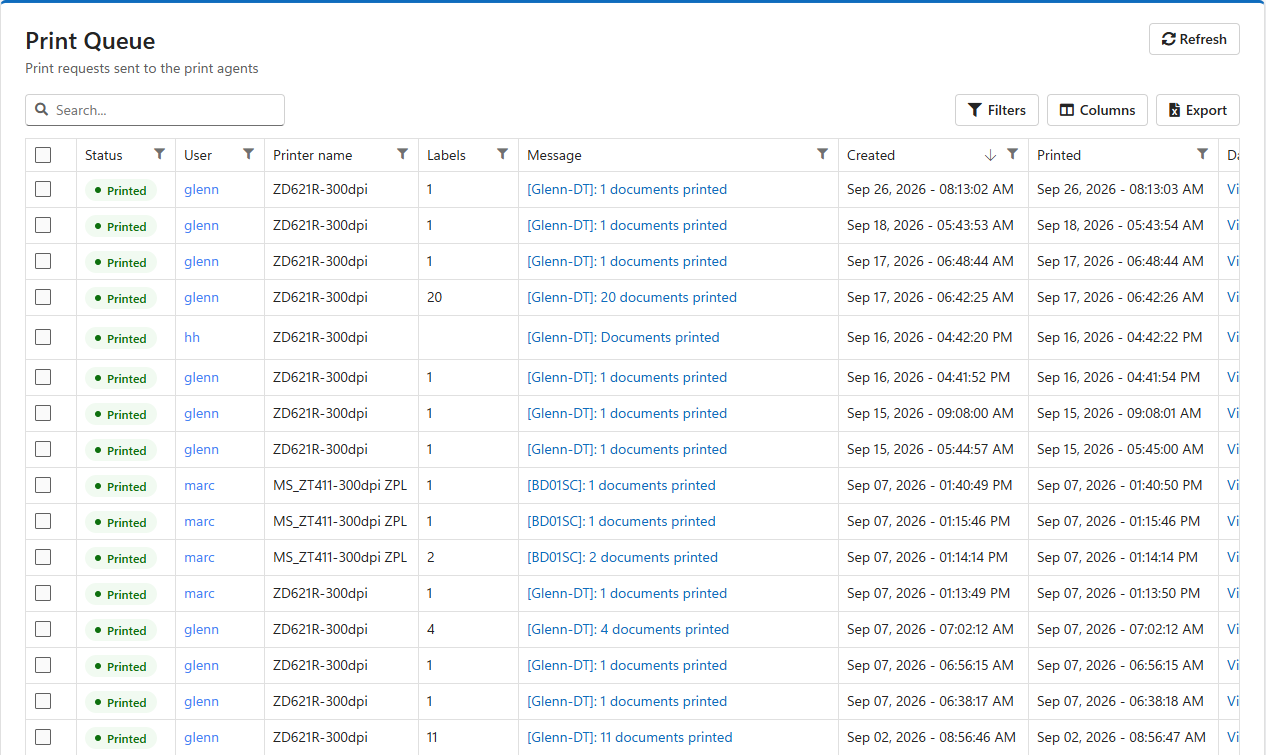
| Column | Meaning |
| Status | Printed (green): the agent printed it. Failed (red): the agent tried and could not; the Message says why. Pending (amber): no agent has picked it up yet. |
| User | Who printed it. |
| Printer name | The printer it was sent to. See Printers for how LogisticaHQ chooses it. |
| Labels | How many labels or pages were printed. |
| Message | What the agent reported, starting with the computer it runs on, for example [Glenn-DT]: 1 documents printed. Click it to read the whole message. |
| Created | When the request was made, to the second. |
| Printed | When the agent confirmed it. The gap between Created and Printed is how long the label took. |
| Data | View... shows exactly what was sent to the printer (see below). |
The list shows the newest 1,000 requests. Requests older than 10 days are removed automatically.
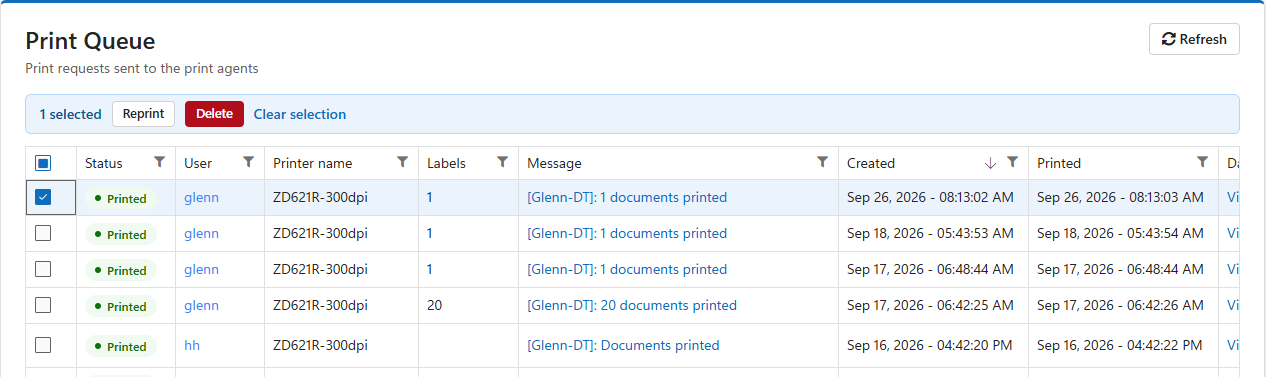
The request goes back into the queue exactly as it was, to the same printer, and its status returns to pending until the agent prints it. Delete removes the ticked requests from the queue; a request that has not printed yet will then never print.
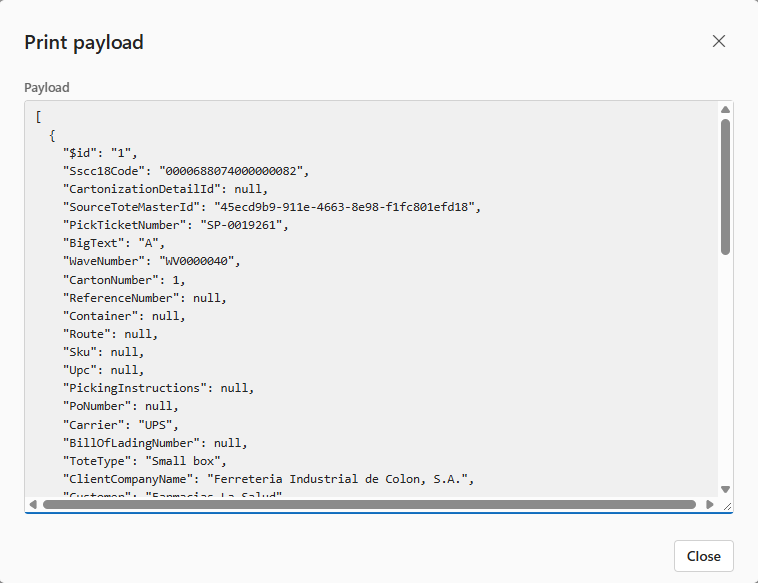
Click View... in the Data column to see the data the label was printed with: for a carton label, for example, the SSCC, the order and wave numbers, the carrier, the client and the customer. Use it to check a label's content without reprinting it.
| What you see | What to check |
| No request in the list | The print never left LogisticaHQ: the person or the screen has no printer. Check the user's printers and the printers' roles. See Printers. |
| The request stays pending | No print agent picked it up. Check that the agent's computer is on, connected to the internet, and that the print agent is running on it. |
| Failed | Read the Message: the agent says what went wrong, for example that the printer does not exist on its computer or is offline. |
| Printed, but nothing came out | The agent handed the job to Windows successfully. Check the printer itself: power, labels, ribbon, and its queue in Windows on the agent's computer. |
| Printed, but the label looks wrong | Check the printer's DPI on the Printers screen, and the label's design. See Templates and label design. |
Was this page helpful?