 P4 Software
/
logisticaHQ-en
P4 Software
/
logisticaHQ-en
P4 Software
/
logisticaHQ-en
P4 Software
/
logisticaHQ-en
The print agent is a small Windows program that connects your site's printers to LogisticaHQ. LogisticaHQ runs in the cloud and cannot reach a printer on your network by itself, so every label and document it prints goes through a print agent running on a computer at your site.
Install the print agent with your LogisticaHQ Partner. The partner links the agent to your company's LogisticaHQ account during installation.
Each job and its result appears on the Print Queue screen.
Open Setup > Printing > Printers. Every printer an agent has reported appears here, with the computer it is attached to. A printer installed in Windows after the agent started appears on its own within a few seconds; you do not need to restart the agent.
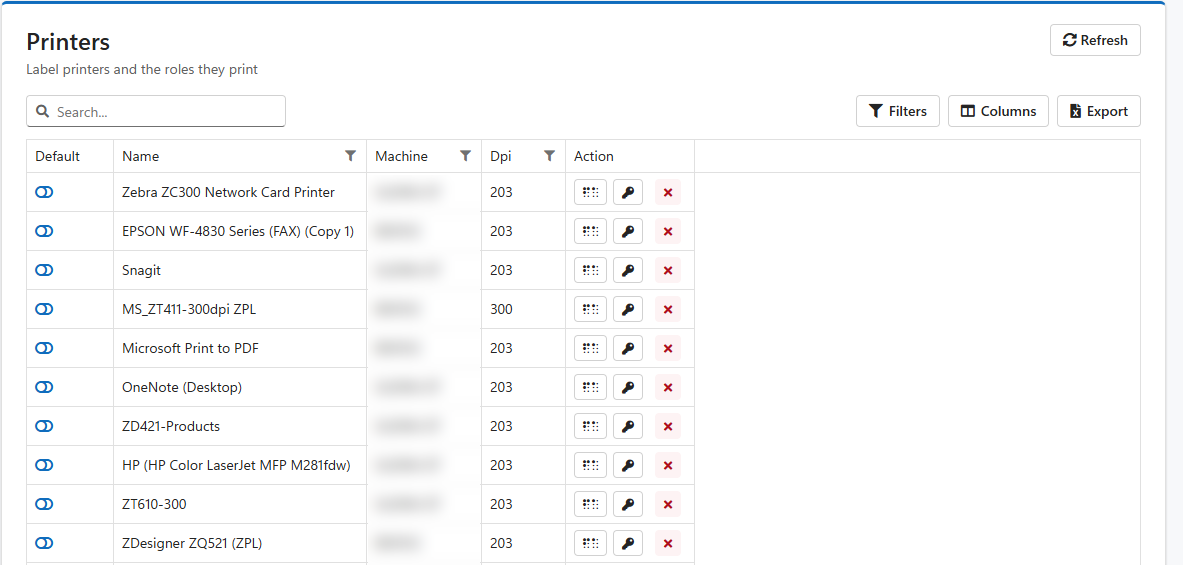
On each printer you can:
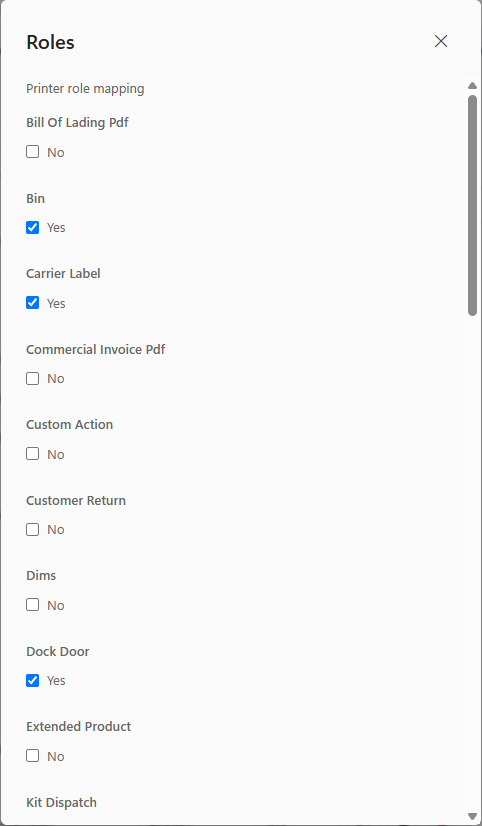
When a user prints a document, LogisticaHQ looks for a printer in this order and uses the first match:
If several printers match at the same step, the one marked Default is used. If none of them is marked Default, LogisticaHQ uses the first one in alphabetical order.
Pick labels printed when orders are waved go to the printer of the zone being picked from. If the zone has no printer, they go to the default printer.
Important: give every document you print a role on a real printer. If no printer has the role, the alphabetical rule can choose a virtual printer such as "Microsoft Print to PDF" or a remote-desktop printer. The label then prints without any error, but nothing comes out of a label printer.
Printers are assigned to a user, with roles for that user, on the user's profile: open Setup > System > Users, open the user, and use the Printers section and its Advanced... link.
Open Setup > Printing > Print Queue to see every print job, newest first. Each job shows who printed it, the printer, the number of labels, the agent's message and when it was created and printed.
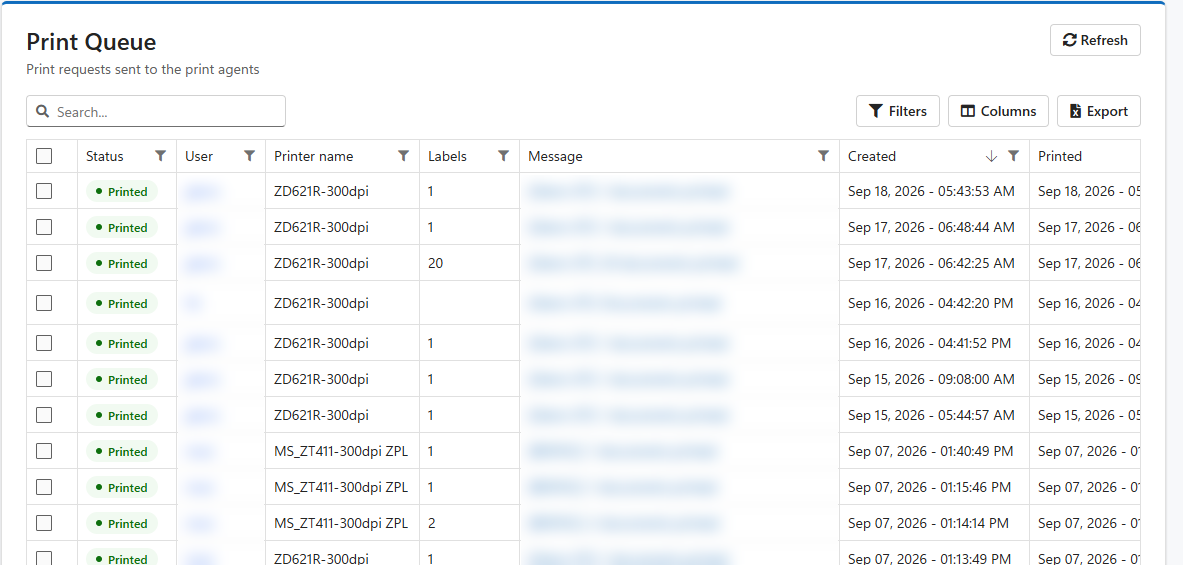
| Status | Meaning |
| Pending | The job is waiting for the print agent. If a job stays Pending, the agent for that printer is not running or cannot reach the internet. |
| Printed | The agent printed the job. |
| Failed | The agent could not print the job. Click the message to read the reason. |
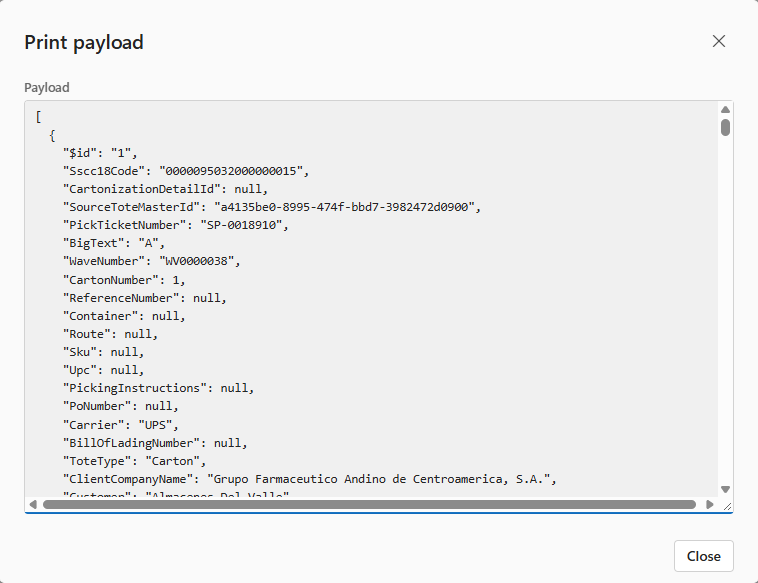
Click View.. in the Data column to see exactly what was sent to the printer. Select jobs and use Reprint to send them again.
| What you see | What to do |
| The job is not on the Print Queue at all. | The print never reached LogisticaHQ. Check the message shown when you printed; the user may not have a printer for that document. |
| The job stays Pending. | Check that the computer with the printer is on and online, and that the print agent is running on it. |
| The job is Failed. | Read the message. A printer that is off, out of labels or removed from Windows is the usual cause. Fix it, then Reprint. |
| The job is Printed but nothing came out. | The job went to another printer, often a virtual one. Check the printer name on the job, then set the document's role on the right printer. |
| A printer is missing from the Printers screen. | Check that it is installed in Windows on the agent's computer and that the agent is running. If it still does not appear, contact your LogisticaHQ Partner. |
| Labels are cut off or too small. | Check the printer's Dpi on the Printers screen. |
Installing, updating or moving a print agent to another computer is done with your LogisticaHQ Partner.
Was this page helpful?