 P4 Software
/
logisticaHQ-en
P4 Software
/
logisticaHQ-en
P4 Software
/
logisticaHQ-en
P4 Software
/
logisticaHQ-en
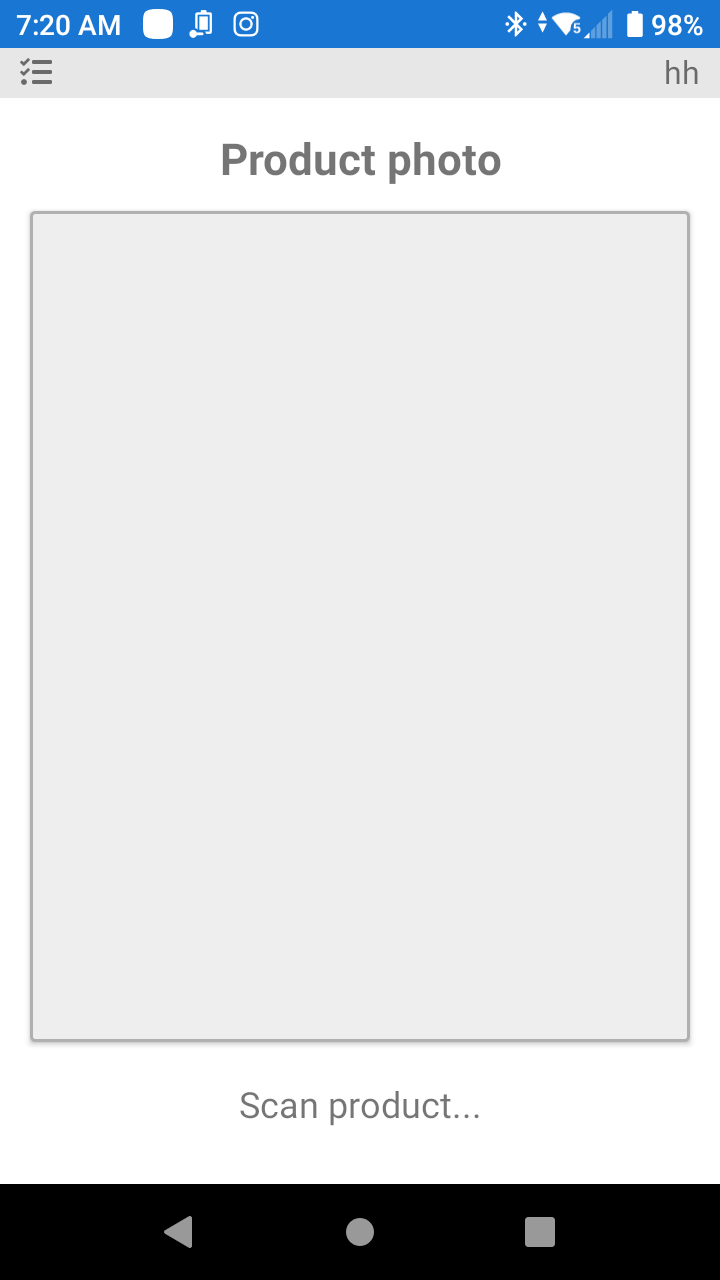
With the PDT, the user can upload photos of the Products to LogisticaHQ by using the camera on the PDT. the first step is to scan the Product Barcode then the camera app will open to allow you to capture the Photo and upload to the server.
Set the camera to medium quality or in the 5mp range. There is a 5mb limit per Photo.
Step 2 is to take the Photo of the product.
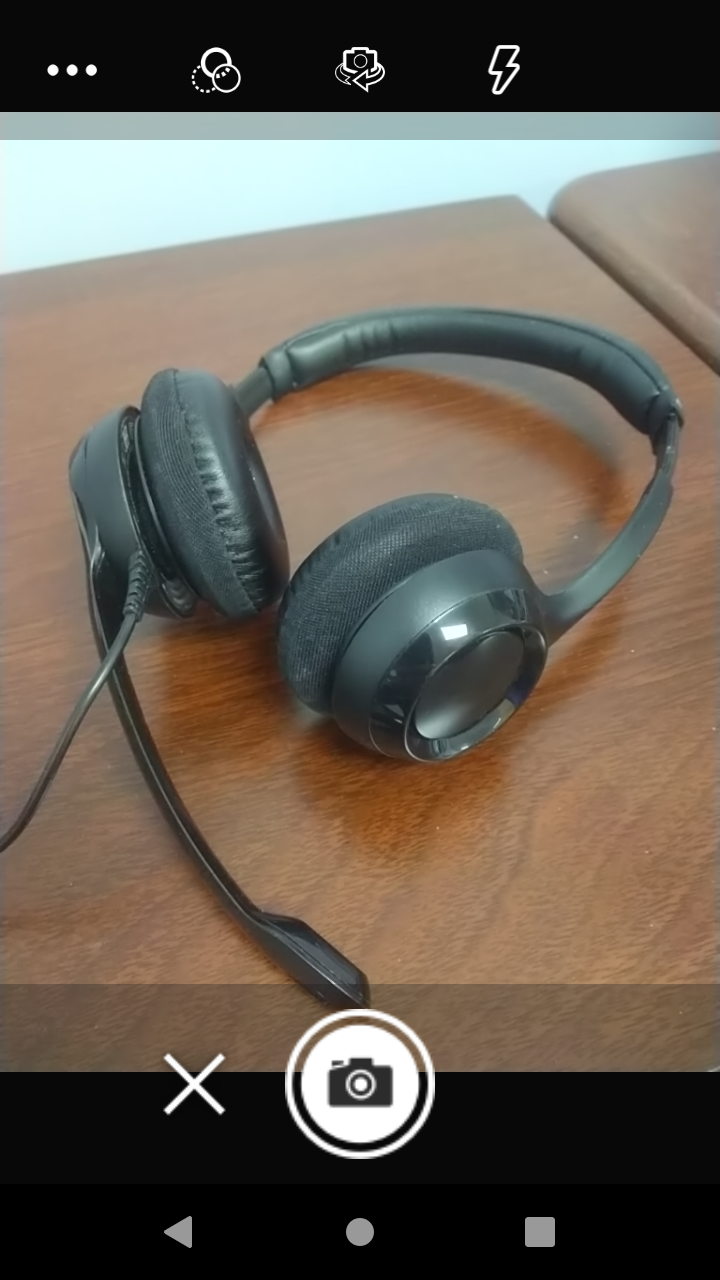
Step three is to click the "check" in the bottom right of the screen to upload the Photo.
Camera must be preset to medium quality as the is a 5mb per Photo upload limit.
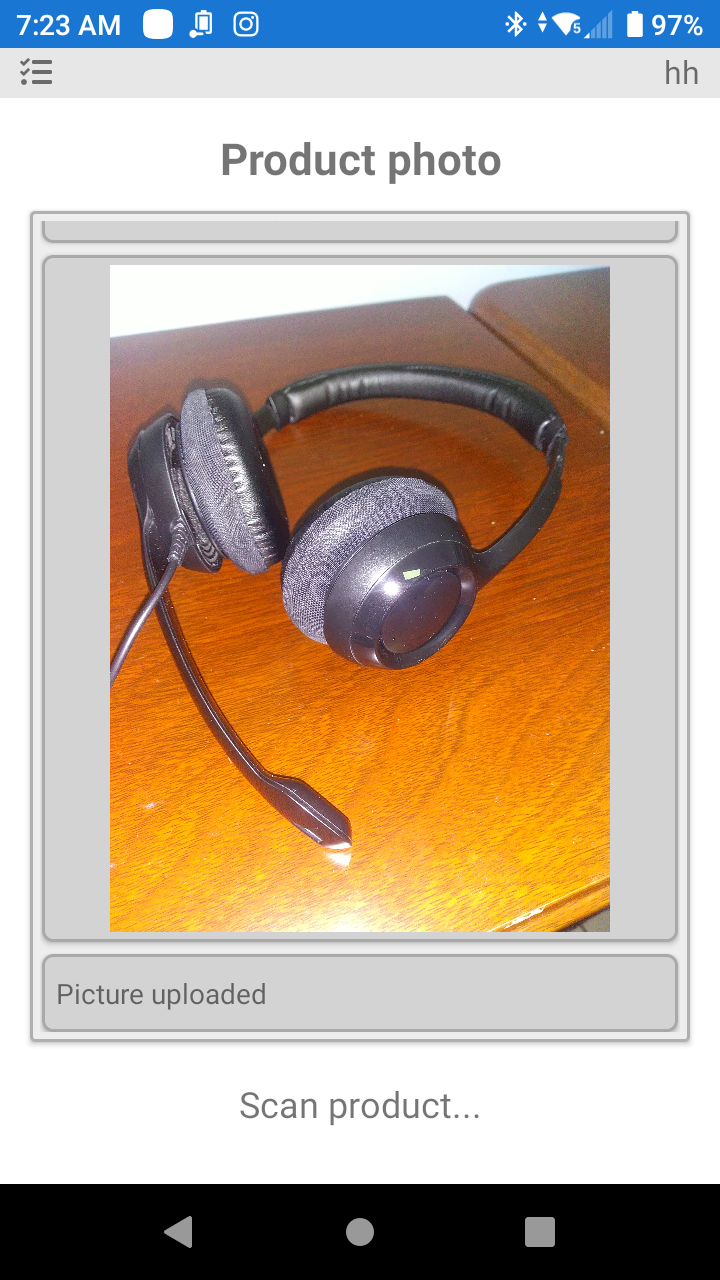
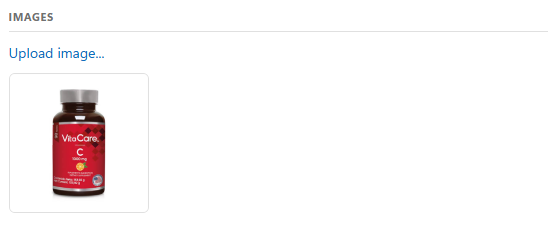
After the Photo is uploaded it will reflect on the web screens of LogisticaHQ.
Was this page helpful?