
P4 Software P4 Software / logisticaHQ-en

Add these docs to Claude

Ask Claude questions about these docs. Claude reads the published pages and links you back to them. Copy this address:

https://docs.p4software.cloud/mcp

In claude.ai or Claude Desktop: open Settings, then Connectors, choose Add custom connector and paste the address.

In Claude Code, run:

claude mcp add --transport http docs https://docs.p4software.cloud/mcp

Translations

LogisticaHQ speaks English, Spanish, French and Hungarian. Every word on every screen, button, message and handheld prompt is looked up in a dictionary: English is the key, and the dictionary holds what each other language shows for it. The Translations screen is that dictionary. Use it to correct a translation, fill one that is missing, or use your own company's terms, for example to call a tote a caja de picking.

Only administrators can open this screen.
How the dictionary works

  • A shared dictionary with your own overrides. LogisticaHQ ships one dictionary shared by every customer. What you change on this screen is saved for your company only, as an override: it replaces the shared translation for your users and leaves everyone else's unchanged.
  • A missing translation shows the English. When a word has no translation, users working in that language see the English word. That is how you spot gaps: switch your own language, walk through the screens, and note any English you find.
  • Changes take up to five minutes to appear. Screens read the dictionary through a cache that refreshes every five minutes. After a change, wait a few minutes and reload the page.
  • Each user chooses their language on their own profile. Users who leave it at Inherit use the company language set on the Tenant screen.

Find and change a translation

  1. Open Setup > System > Translations.
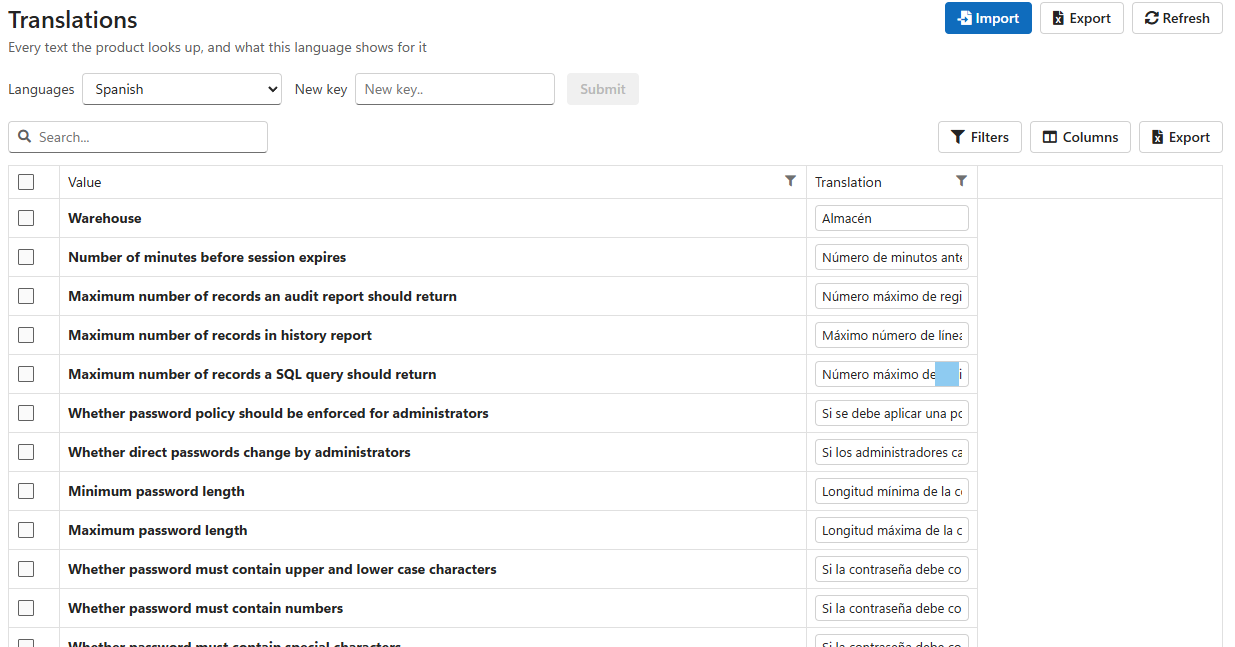
  2. In Languages, choose the language to edit, for example Spanish. The list shows every text the product looks up (Value, in English) with what that language shows for it (Translation).
  3. Type part of the English text in Search to find it.
  4. Click in the Translation box and type the new text. It is saved automatically a second after you stop typing. There is no Save button.

The Translations screen set to Spanish, listing English values such as Warehouse and Minimum password length with their Spanish translations

Click an English value to copy it to your clipboard, useful when you report a missing word to your partner.

Keep the placeholders. Some texts contain placeholders in braces, for example Pick ticket [{0}] shipped. LogisticaHQ replaces {0}, {1} and so on with a number or a name when it shows the message. Keep every placeholder, unchanged, in your translation: Orden [{0}] despachada.

Add a text that is not in the list

If a screen shows English that is not in the list, type the exact English text in New key, click Submit, then fill in its translation.

Translate many texts at once

  1. Click Export in the header to download the dictionary for the selected language as a spreadsheet.
  2. Fill in or correct the translations in the spreadsheet. Keep one text per row, with the English in the first column and the translation in the second.
  3. Click Import and choose the file. LogisticaHQ updates every row it contains.

Never leave a translation cell empty in an import. An empty cell deletes that text's translation, and users go back to seeing the English. Import only rows you have filled in.

Remove your own translations

Tick the texts and click Delete on the selection bar. LogisticaHQ asks you to confirm. Deleting your override brings back the shared translation. Click Refresh to reload the list.

Was this page helpful?